
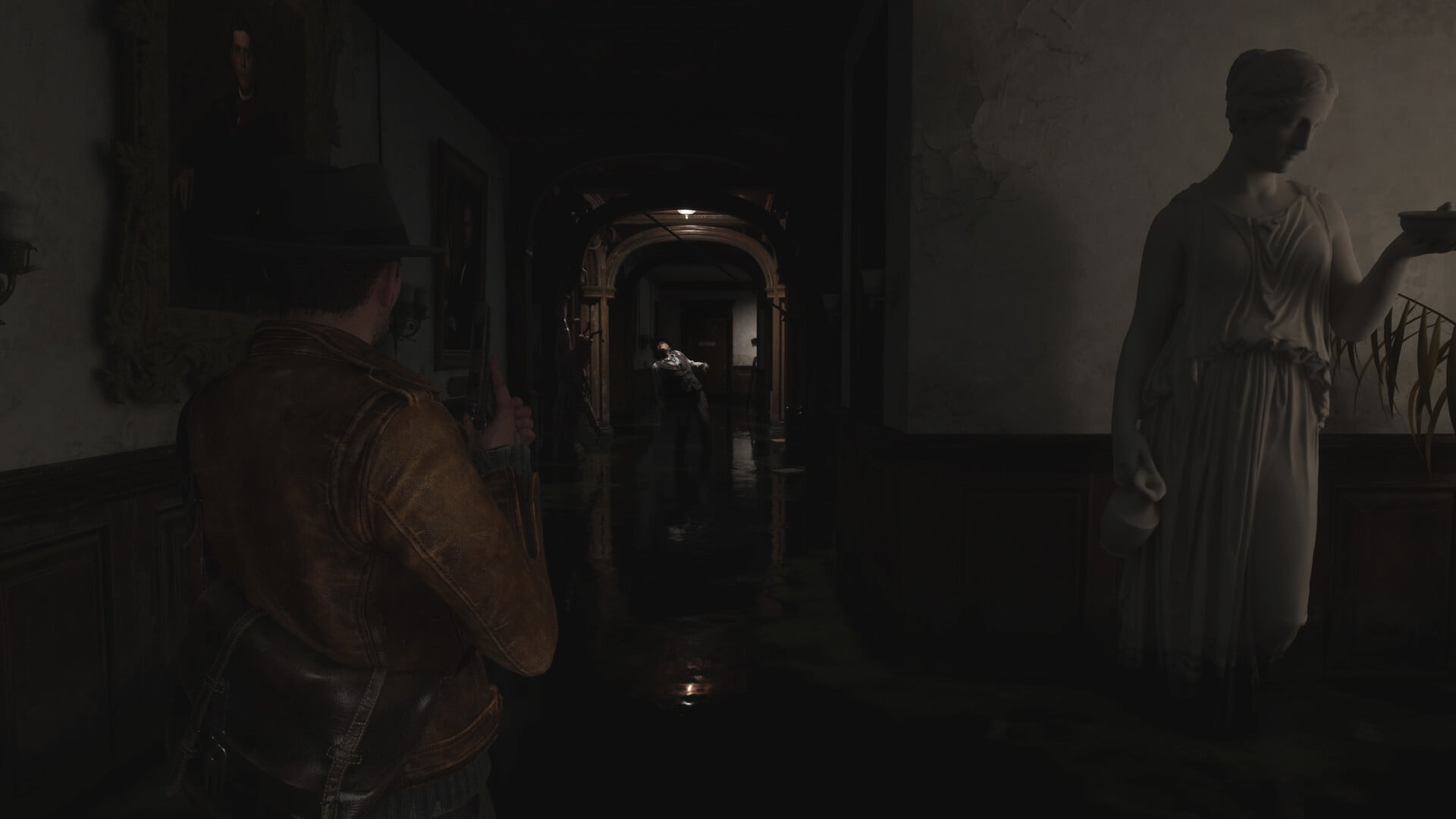
For the best balance in The Sinking City 2, use a Custom preset, target a stable 60 FPS where possible, keep Resolution Quality at 100%, turn off Motion Blur and Chromatic Aberration, lower Reflections, Global Illumination, and View Distance first, and enable Quality upscaling only if native performance is unstable.
The drowned city puts simultaneous pressure on lighting, reflections, distant detail, and texture streaming. Separating those costs with a tuned Custom preset preserves character detail and dark atmospheric scenes without accepting avoidable frame drops.
- Quick answer: Balanced PC settings for The Sinking City 2
- At-a-glance PC tuning routes
- How to use this graphics settings list
- Recommended settings by PC hardware class
- Complete graphics and display settings reference
- Common performance mistakes and quick fixes
- Frequently Asked Questions
- More The Sinking City 2 guides
Quick answer: Balanced PC settings for The Sinking City 2
Start with this setup at 1080p or 1440p, then test it during demanding exploration and combat. Prioritize consistent frame delivery before raising individual options.
| Setting | Use |
|---|---|
| Graphics Preset | Custom |
| FPS Limit | 60 FPS |
| Resolution Quality | 100% |
| Upscaling | Off initially; Quality if native performance is unstable |
| Motion Blur | Off |
| Chromatic Aberration | Off |
| View Distance | Medium |
| Reflections | Low |
| Global Illumination | Low |
| Effects | Medium |
| Foliage | Low |
| Textures | Low on an 8 GB card; Medium or High with VRAM headroom |
| Hair | High |
Treat these as starting values rather than a preset that suits every PC. Raise settings individually when you have headroom, or trim expensive scene options before sacrificing image clarity.
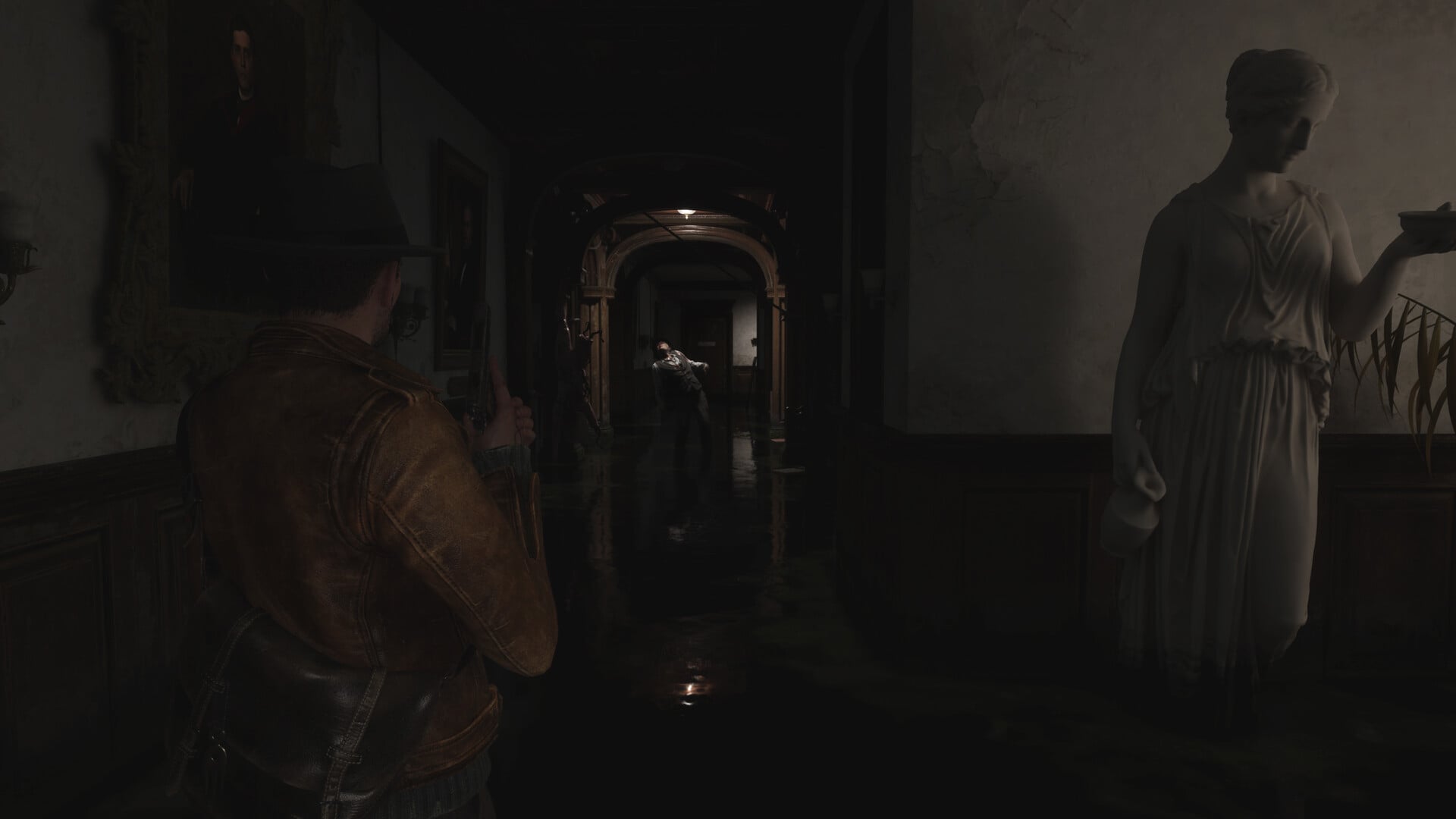
At-a-glance PC tuning routes
| Goal | Starting route |
|---|---|
| Smoother FPS | Performance or Custom, reduced lighting and scene detail, sustainable FPS cap |
| Balanced visuals | Custom, native rendering first, moderate detail, reduced reflections and illumination |
| High-end image quality | Quality-focused Custom setup, High textures and shadows, selective ray tracing |
| Stutter troubleshooting | Custom, controlled FPS limit, lower texture load, then reduced effects and shadows |
The official minimum-class target places Low around 1080p at 30 FPS, while recommended hardware targets 1440p at 60 FPS using a Medium or Balanced-class setup. Custom tuning bridges those brackets more effectively than blindly selecting Ultra because lighting, reflections, distance, and textures create different kinds of load.
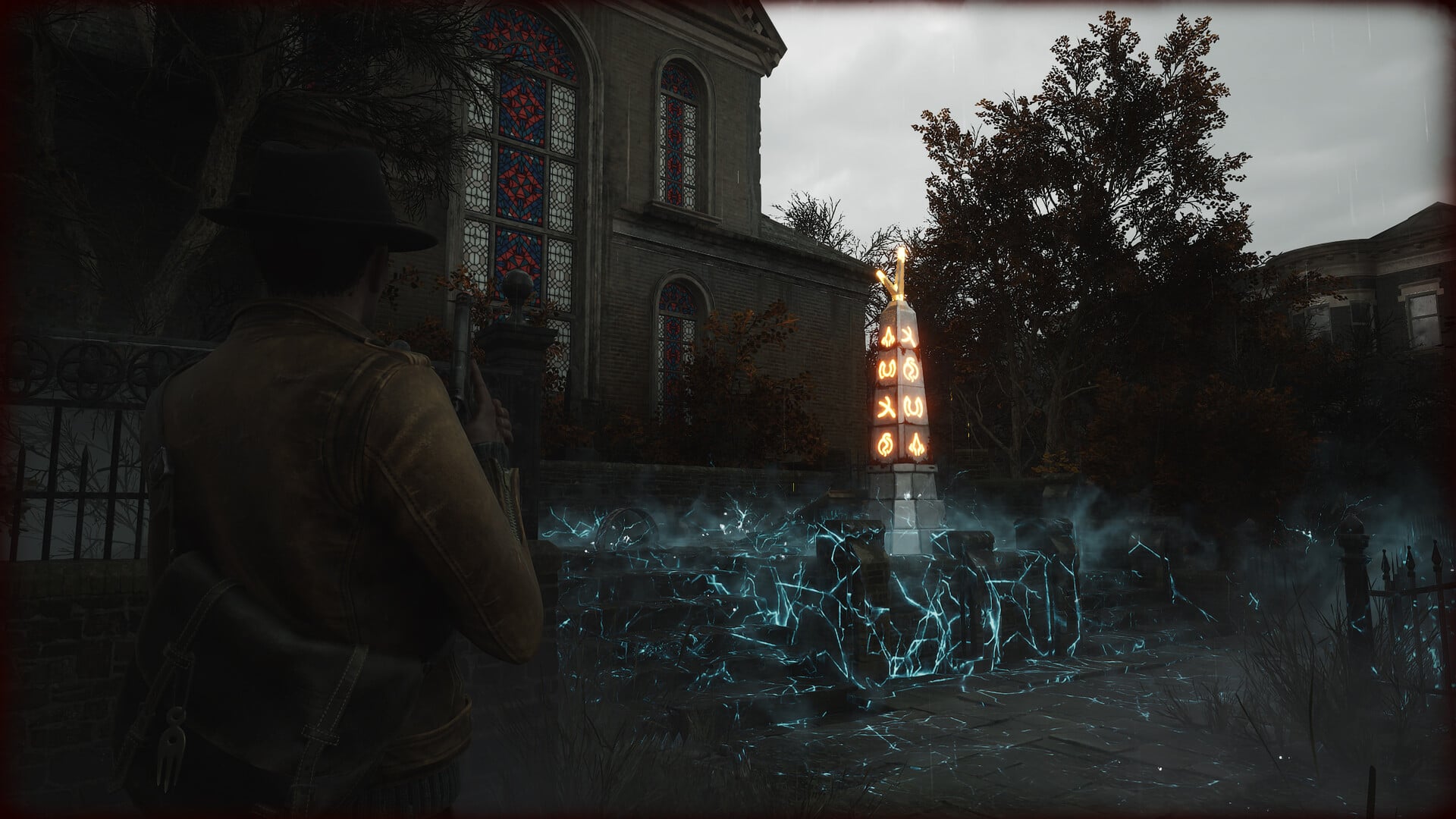
How to use this graphics settings list
Open Settings, enter the available Graphics or Video menu, and select Custom. Choose the intended display mode and an FPS limit your PC can sustain, then test the native screen resolution with Resolution Quality at 100%.
If native rendering cannot hold the target, enable one available upscaler in Quality mode. Reduce Global Illumination, Reflections, and View Distance before lowering clarity-related controls, then match Textures to the GPU’s VRAM capacity.
| Problem | Change first |
|---|---|
| Low average FPS | Lower Reflections, Global Illumination, and View Distance |
| Blurry image | Return to native rendering or select a higher-quality upscaling mode |
| Screen tearing | Use one V-Sync or variable-refresh solution without stacked caps |
| Stutter despite high average FPS | Reduce texture pressure, then Effects and Shadows |
| VRAM pressure | Lower Textures before reducing Resolution Quality |
Change one related setting group at a time and retest the same demanding area. This makes the effect on FPS, stutter, and image quality immediately visible.
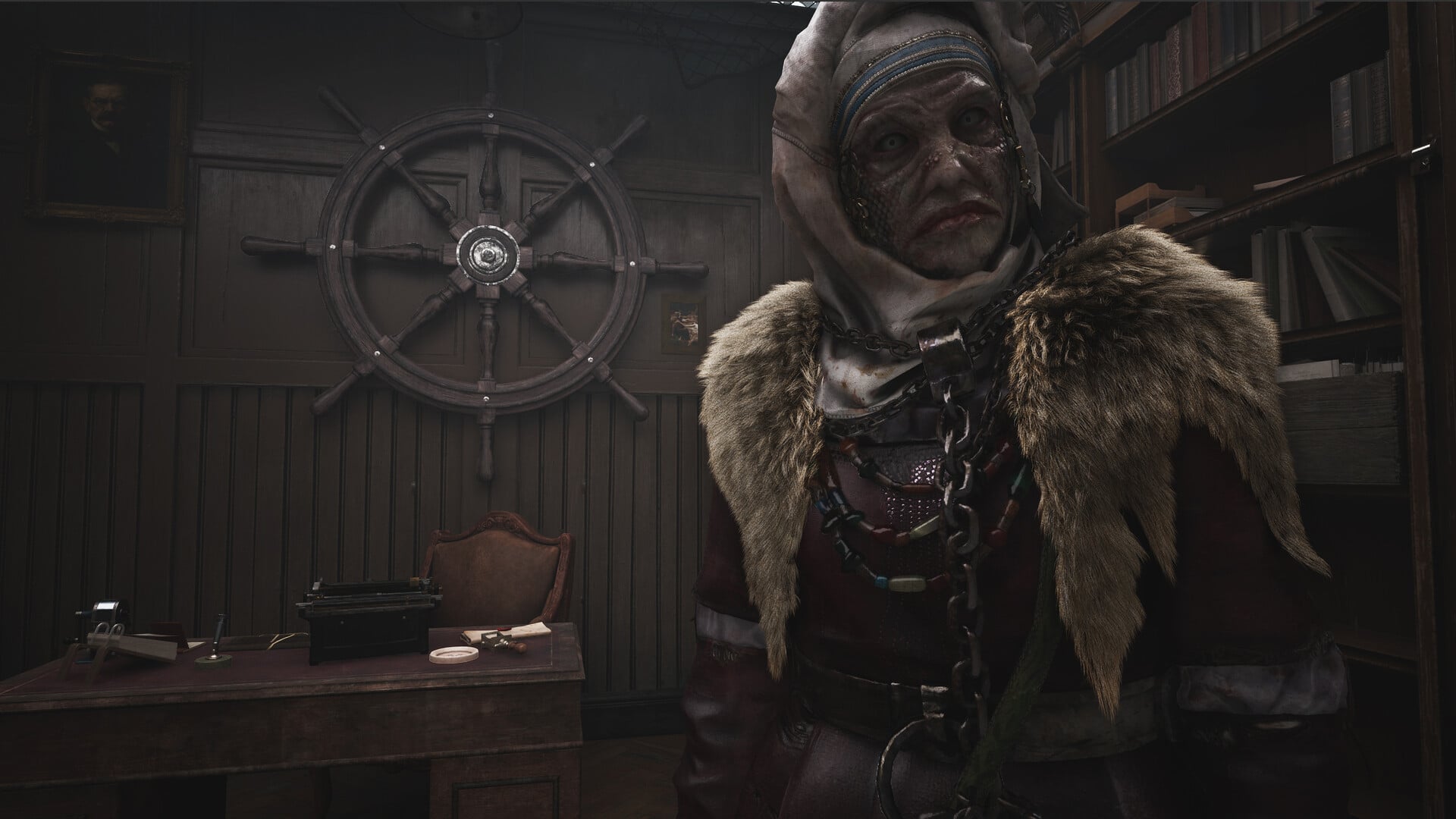
Recommended settings by PC hardware class
The Sinking City 2 requires Windows 11 x64, DirectX 12, and 70 GB of storage. The minimum specification calls for 16 GB RAM, while the recommended class requires 32 GB RAM and an SSD.
| PC type | Target setup |
|---|---|
| Minimum-class PC | GTX 1070 or RX 5700 with 8 GB VRAM; Low base and conservative textures |
| Mid-range PC | Custom preset, Medium scene detail, stable FPS cap, Quality upscaling when needed |
| Recommended-class PC | RTX 4070 Ti or RX 7900 XT with 12 GB VRAM; Medium or Balanced base |
| Flagship 4K PC | Quality-focused Custom setup with upscaling and selective lighting or ray tracing |
The listed minimum processors are the Intel Core i7-8700K and AMD Ryzen 5 3600X. Recommended processors rise to the Intel Core i5-14600K and AMD Ryzen 5 7600X. At either end, traversal hitches are a better warning of excessive texture pressure than average FPS alone.
Complete graphics and display settings reference
These values favor a sharp image, responsive controls, and stable performance. Display calibration and hardware-specific features still depend on the monitor and GPU being used.
| Setting | Best value |
|---|---|
| AMD FSR Frame Generation | Off initially |
| AMD FSR Upscaler | Off initially; Quality when needed |
| Anti-Aliasing | Low at native; handled by the active upscaler otherwise |
| Balanced | Use when Quality cannot maintain the target |
| Brightness | Calibrate for the display and room |
| Chromatic Aberration | Off |
| Display Selection | Primary gaming monitor |
| Display | Match the intended output setup |
| DLSS | Quality first; Balanced when necessary |
| Effects | Medium |
| Foliage | Low or Medium |
| FPS Limit | 60 FPS or a lower sustainable target |
| Fullscreen | Use for a dedicated game session |
| Global Illumination | Low or Medium |
| Graphics Presets | Custom |
| Hair | High |
| HDR Mode | On only with a calibrated HDR display |
| Motion Blur | Off |
| NVIDIA DLSS Frame Generation | Off initially; optional for smoother output |
| NVIDIA DLSS | Off when native is smooth; Quality otherwise |
| Performance | Use after Quality and Balanced miss the target |
| Post-Processing | Medium |
| Ray Tracing Preset | Off for better performance |
| Reflections | Low |
| Resolution Quality | 100% |
| Screen | Native resolution on the intended monitor |
| Shading | Low or Medium |
| Shadows | Medium |
| Textures | Low on 8 GB VRAM; raise with available headroom |
| Ultra Performance | Avoid except at very high output resolutions |
| Upscaling | Off first; Quality when required |
| V-Sync | Off initially; On for tearing without VRR |
| View Distance | Medium |
| Windowed Fullscreen | Best general-purpose display mode |
| Windowed | Use for multitasking or troubleshooting |
Upscaling, anti-aliasing, and frame generation
AMD FSR Frame Generation uses machine-learning algorithms to create intermediate frames from two consecutive images, interpolating pixel motion between the starting and ending frames. AMD FSR Upscaler uses neural networks to reconstruct visuals from lower-resolution frames, improving performance while matching or exceeding native rendering quality.
Upscaling determines whether the game renders below the output resolution and reconstructs the final image. NVIDIA DLSS selects NVIDIA’s reconstruction technology, while DLSS controls its quality mode. Balanced, Performance, and Ultra Performance progressively reduce the internal rendering load, with increasingly visible losses to fine detail.
NVIDIA DLSS Frame Generation inserts generated frames between traditionally rendered frames. Resolution Quality controls the native rendering percentage, while Anti-Aliasing smooths jagged edges when reconstruction is not handling that task.
Display modes, frame pacing, HDR, and brightness
Display Selection chooses which connected display shows the game. Display groups the output behavior, while Screen determines the screen configuration used for resolution and presentation.
Fullscreen dedicates the selected display to the game. Windowed Fullscreen fills the desktop and makes switching applications easier, while Windowed runs the game inside a movable desktop window.
FPS Limit caps the number of frames produced each second, helping control heat and stabilize frame delivery. V-Sync synchronizes output with the display refresh cycle to prevent tearing, though it can add latency when combined with another limiting method. With G-Sync or FreeSync, keep the frame rate inside the variable-refresh range.
HDR Mode expands brightness and color output on supported displays. Brightness controls the visible black and highlight balance; adjust it until dark areas retain detail without making horror scenes look washed out.
Presets, lighting, scene detail, and effects
Graphics Presets change several quality controls together. The built-in Quality route targets 30 FPS, while Performance targets 60 FPS; Custom is preferable when individual settings need different levels.
Global Illumination governs indirect lighting across the environment. Ray Tracing Preset adjusts Lumen settings for better visual quality and should be turned off for better performance. Reflections controls reflected surface detail, while Shading changes the complexity of surface lighting.
View Distance controls how far detailed objects remain visible. Shadows changes shadow resolution and complexity, Foliage adjusts foliage quality, and Effects controls the quality of environmental and combat effects. Textures changes surface detail and increases VRAM use as its quality rises.
Post-Processing changes the finishing effects applied after the scene is rendered. Motion Blur softens movement between frames, while Chromatic Aberration adds color separation near image edges. Hair changes character-hair quality and can remain High because other options deliver larger performance savings.
Common performance mistakes and quick fixes
| Mistake | Fix |
|---|---|
| Using Ultra textures on an 8 GB card | Drop Textures to Low and raise them only with clear VRAM headroom |
| Choosing aggressive upscaling immediately | Return to Quality or Balanced before accepting a blurry image |
| Stacking V-Sync with an external frame cap | Remove the duplicate limiter and use one frame-pacing method |
| Maxing lighting, reflections, and view distance | Lower Global Illumination, Reflections, and View Distance first |
| Skipping GPU driver updates | Install the latest stable NVIDIA or AMD driver and restart the PC |
Apply the smallest change that addresses the symptom. Lowering every option simultaneously can hide the actual bottleneck and leave the game looking worse than necessary.
Frequently Asked Questions
What should I do if AMD FSR appears but does not work?
Leave AMD FSR Upscaler and AMD FSR Frame Generation disabled. The controls can appear even though AMD FSR is unavailable in the current PC release, so use native rendering, an available TSR-style option, or NVIDIA DLSS on compatible hardware.
Is native 4K Ultra realistic without upscaling?
It is a flagship-class workload. In one launch-period benchmark scene, the GeForce RTX 5090 was the only tested GPU to exceed 60 FPS at native 4K Ultra. Most 4K systems will get a steadier result from Quality upscaling.
When is frame generation worth enabling?
Enable it when the traditionally rendered frame rate already feels responsive and you want smoother displayed motion without reducing scene quality. Frame generation cannot repair a low underlying frame rate or remove its control latency.
Should I retune these settings after patches or GPU driver updates?
Yes. Save your baseline and rerun the same demanding area after a game patch or driver change, comparing frame pacing as well as average FPS. Keep the existing setup if performance is unchanged; otherwise, retune only the affected setting group.

Leave a Reply