

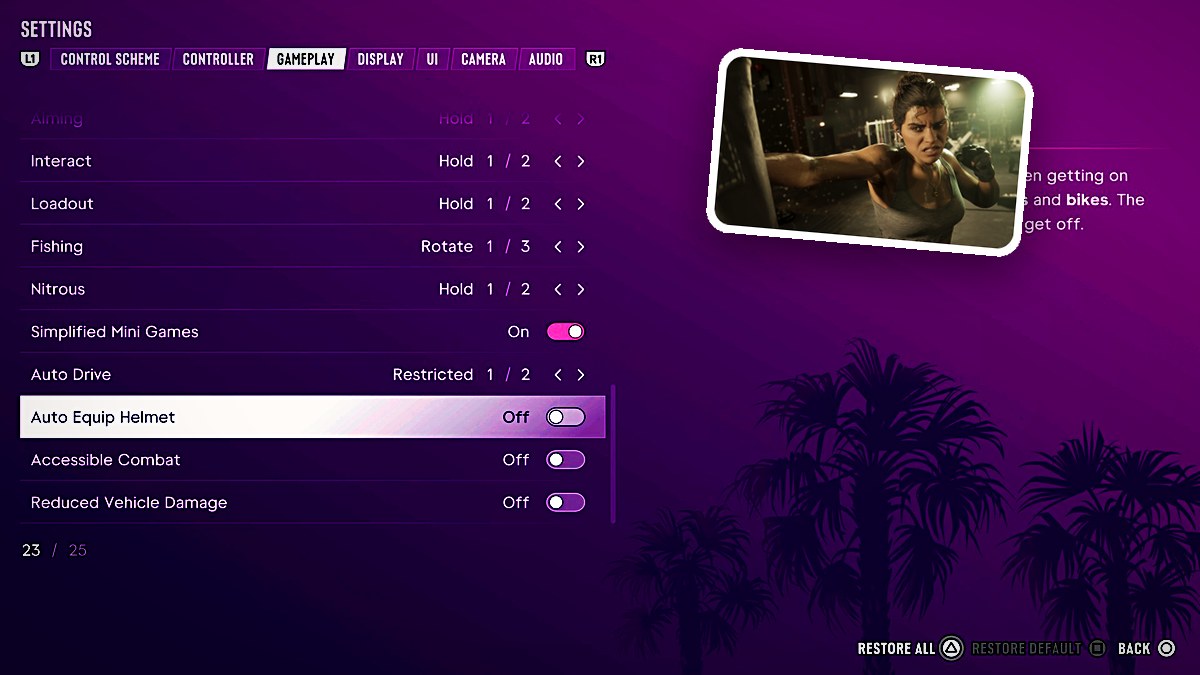
Press R3 to activate Cinematic Camera, use L1 or R1 to cycle markers, and tap the Touchpad to change camera angles.
Cinematic Camera in Grand Theft Auto VI can be activated while you’re moving across a yacht deck. R3 means clicking the right analog stick. The game’s platforms are PlayStation 5 and Xbox Series X|S. This guide covers the camera controls, underwater views, and Auto Drive settings.
How to use the Cinematic Camera in Grand Theft Auto VI
Activate Cinematic Camera
Press R3 to enter Cinematic Camera. Look for the CINEMATIC R3 prompt in the lower-right corner.
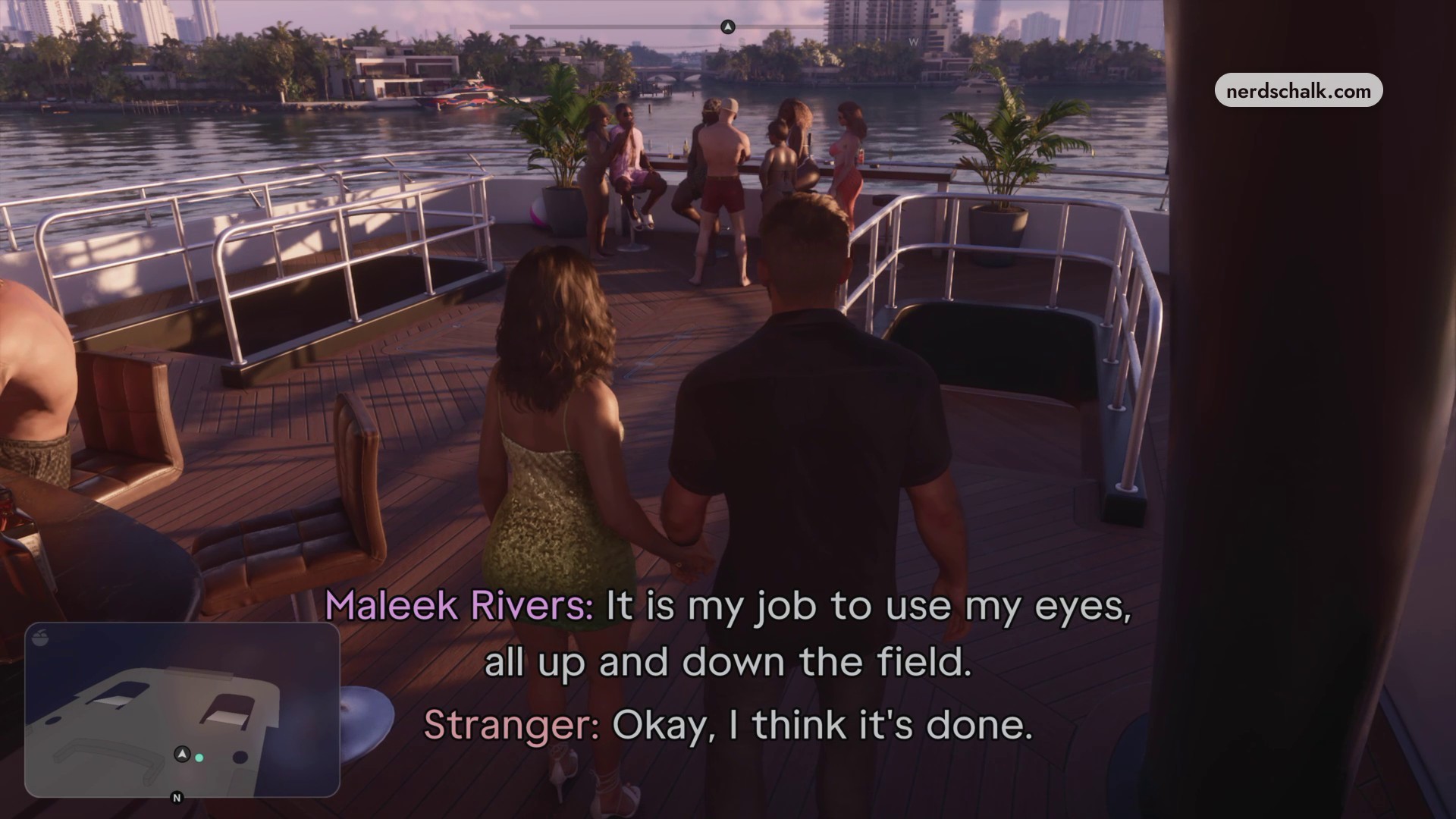
Cycle focus markers
With cinematic mode active, press L1 or R1 to move between points of interest or focus markers. The underwater cinematic interface identifies these controls as MARKERS L1 R1.
Change camera angles
Tap the Touchpad to switch cinematic perspectives. The underwater cinematic interface labels its available camera choices CAMERA 1 / 2 / 3.
Configure Auto Drive
Open Settings > Gameplay and find Auto Drive, which handles travel to your set destination. Switch its setting between Restricted and Unrestricted.
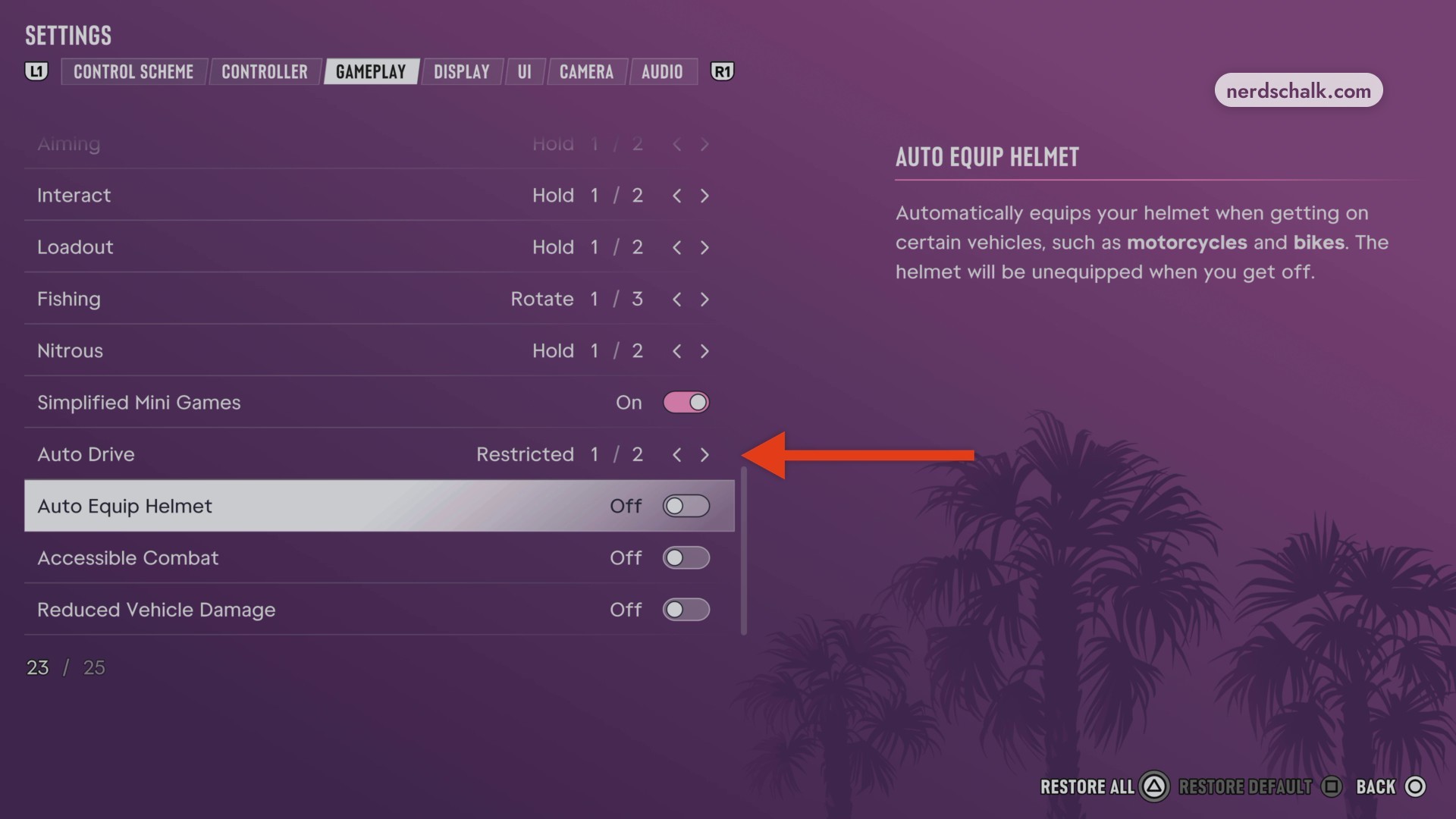
The next screen shows Auto Drive set to Unrestricted, the other available setting.
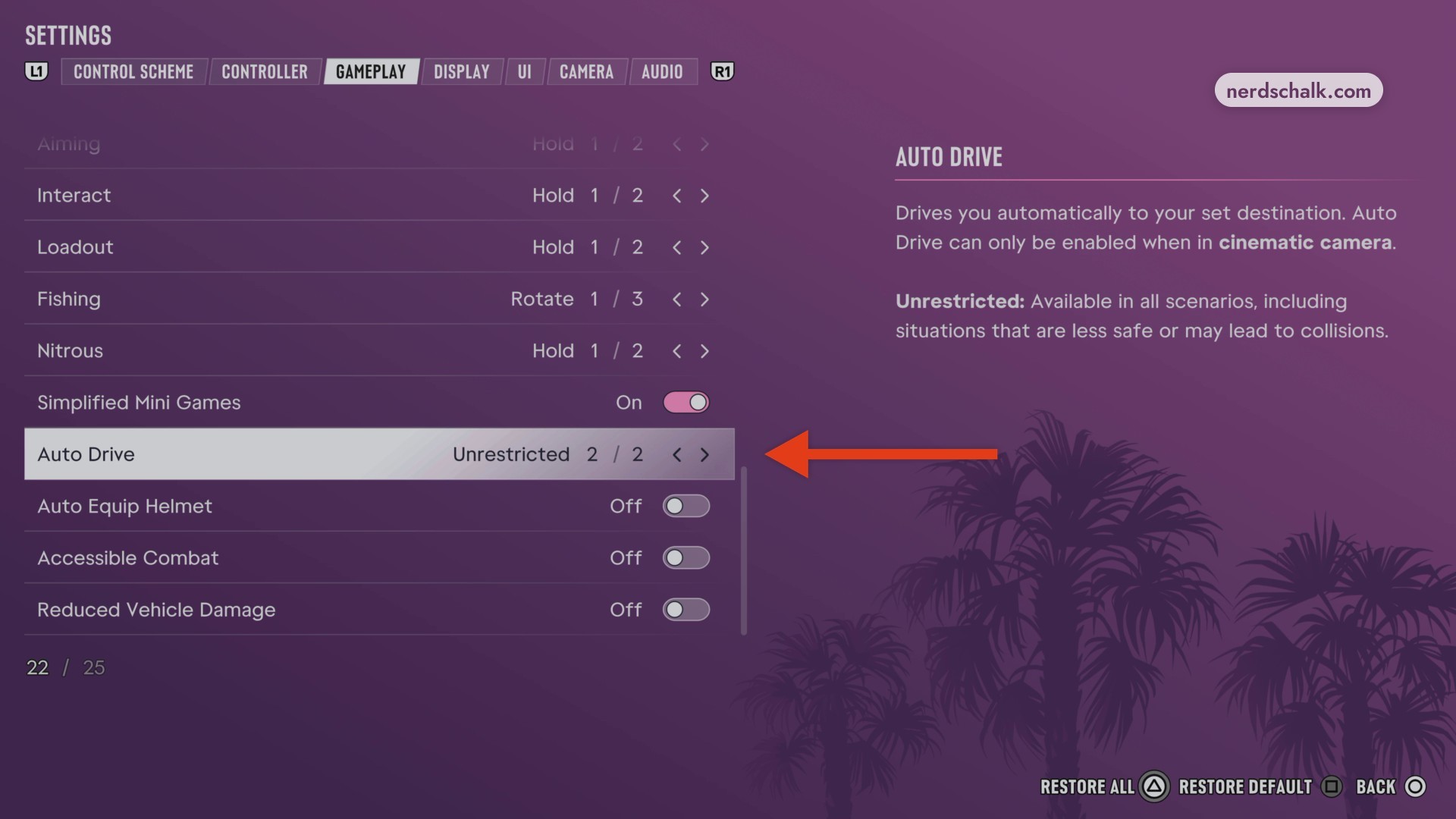
Auto Drive availability
| Auto Drive setting | Availability |
|---|---|
| Restricted 1 / 2 | Available only in safe scenarios. |
| Unrestricted 2 / 2 | Available in all scenarios, including less-safe situations or those that may lead to collisions. |
You can also toggle Cinematic Camera while swimming underwater. Its controls sit in the lower-right corner. An underwater prompt tells you to display the HUD to see your current objective.
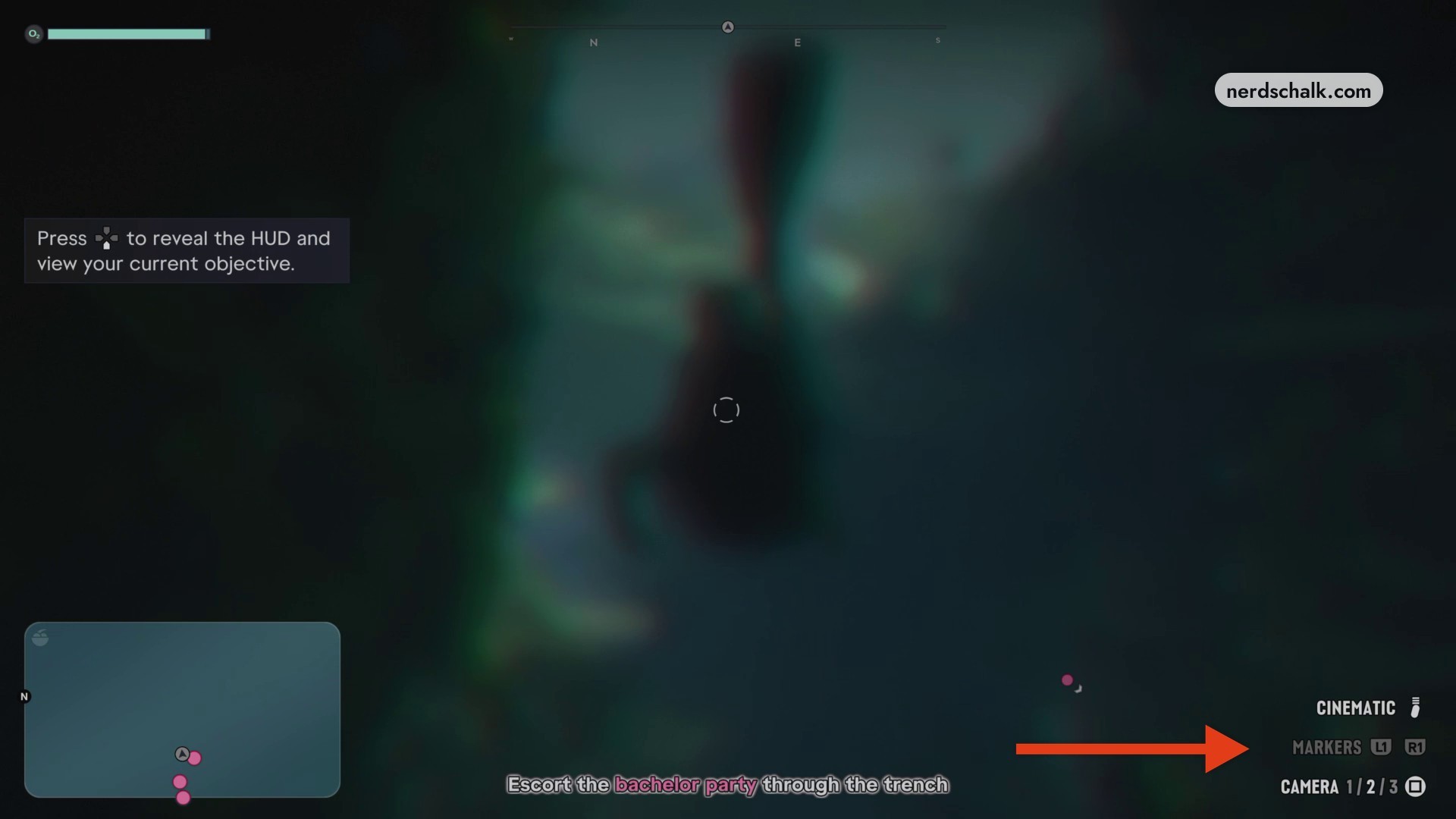
Leave Cinematic Camera underwater to return to the standard underwater perspective.
The camera controls let you switch cinematic views as you move through the game, while the Auto Drive setting configures automatic travel to your destination.
Related Grand Theft Auto VI guides
Leave a Reply