

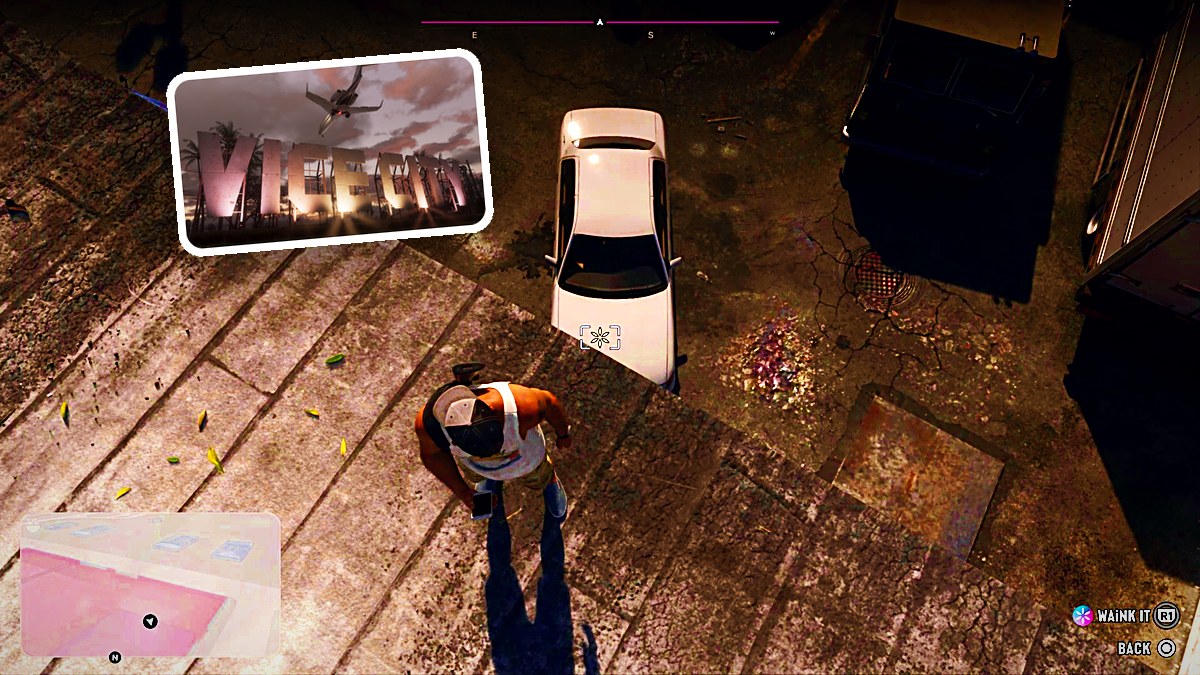
Hold D-pad Up to open WAiNK, aim at a vehicle, press R1 to scan it, then read its specifications.
WAiNK is a vehicle-scanning app in Grand Theft Auto VI, with its own icon among your phone’s available apps. The game is listed for Xbox Series X|S and PlayStation 5. This guide covers the scanner controls and how to read the vehicle details it returns.
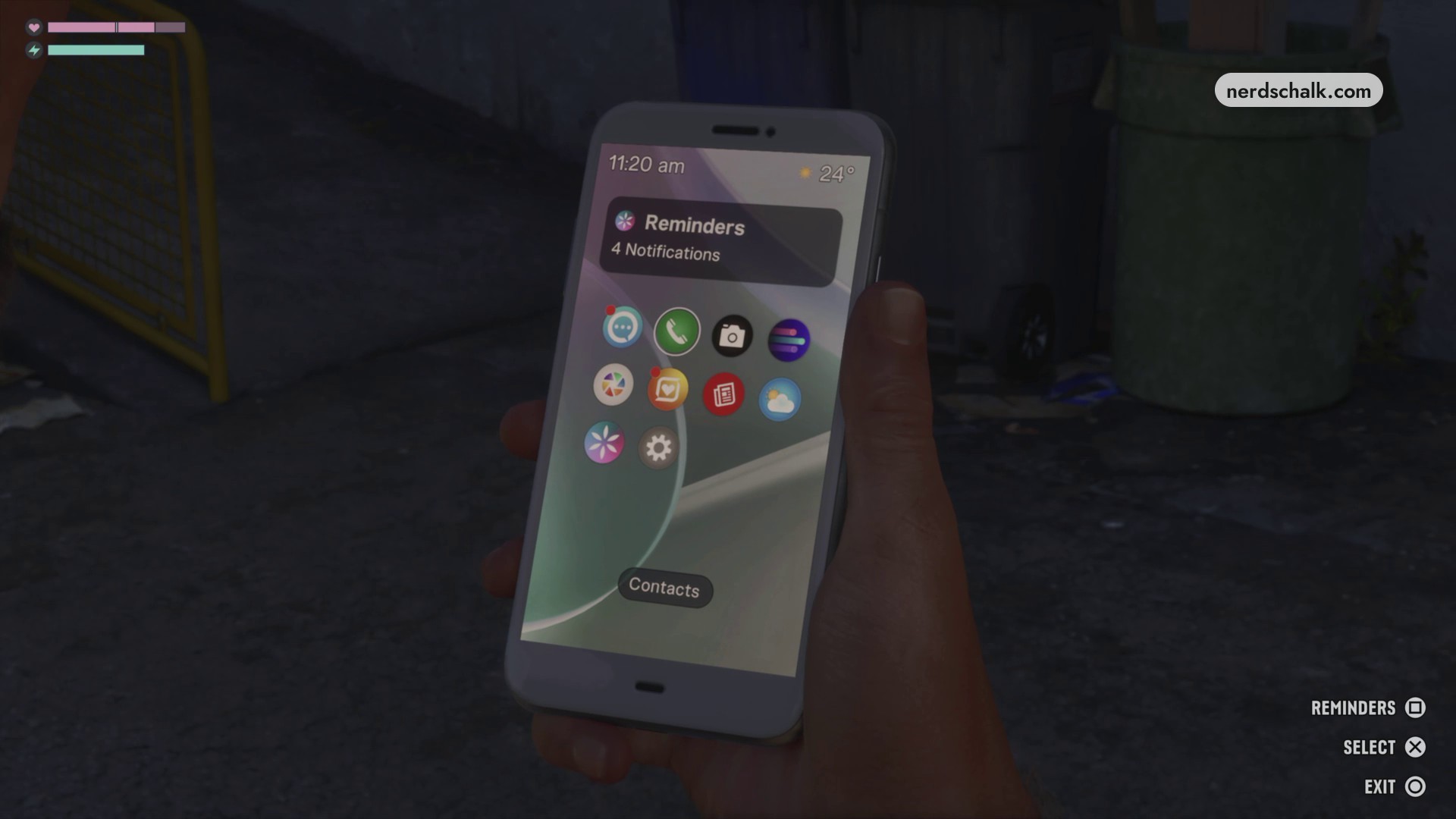
How to scan a vehicle with WAiNK in Grand Theft Auto VI
Open WAiNK
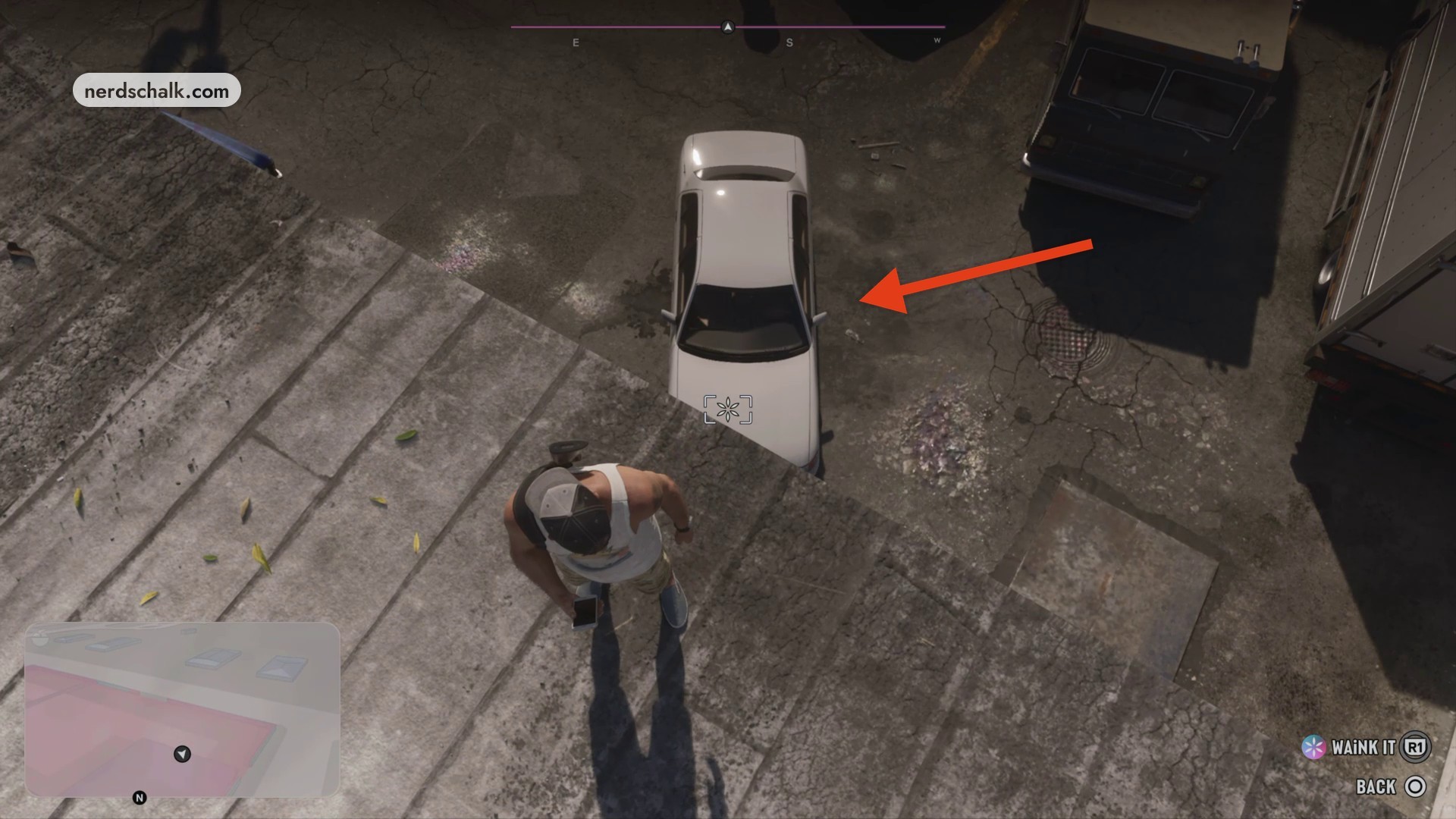
Hold D-pad Up to bring out your phone and launch WAiNK directly. The rooftop tutorial view shows the WAiNK IT label next to an R1 prompt. If you’re in the phone menu, CROSS selects an option and CIRCLE exits that menu.
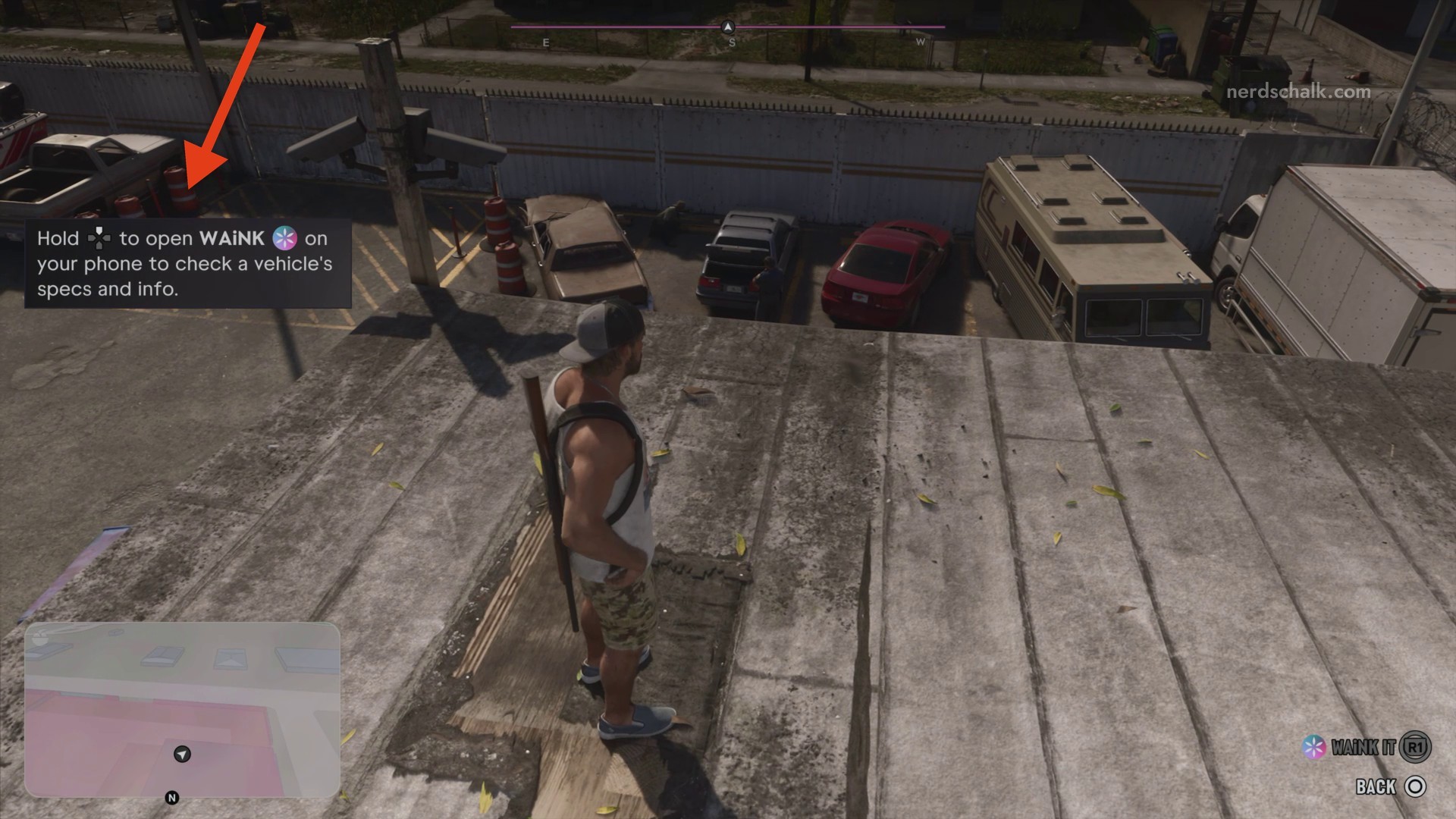
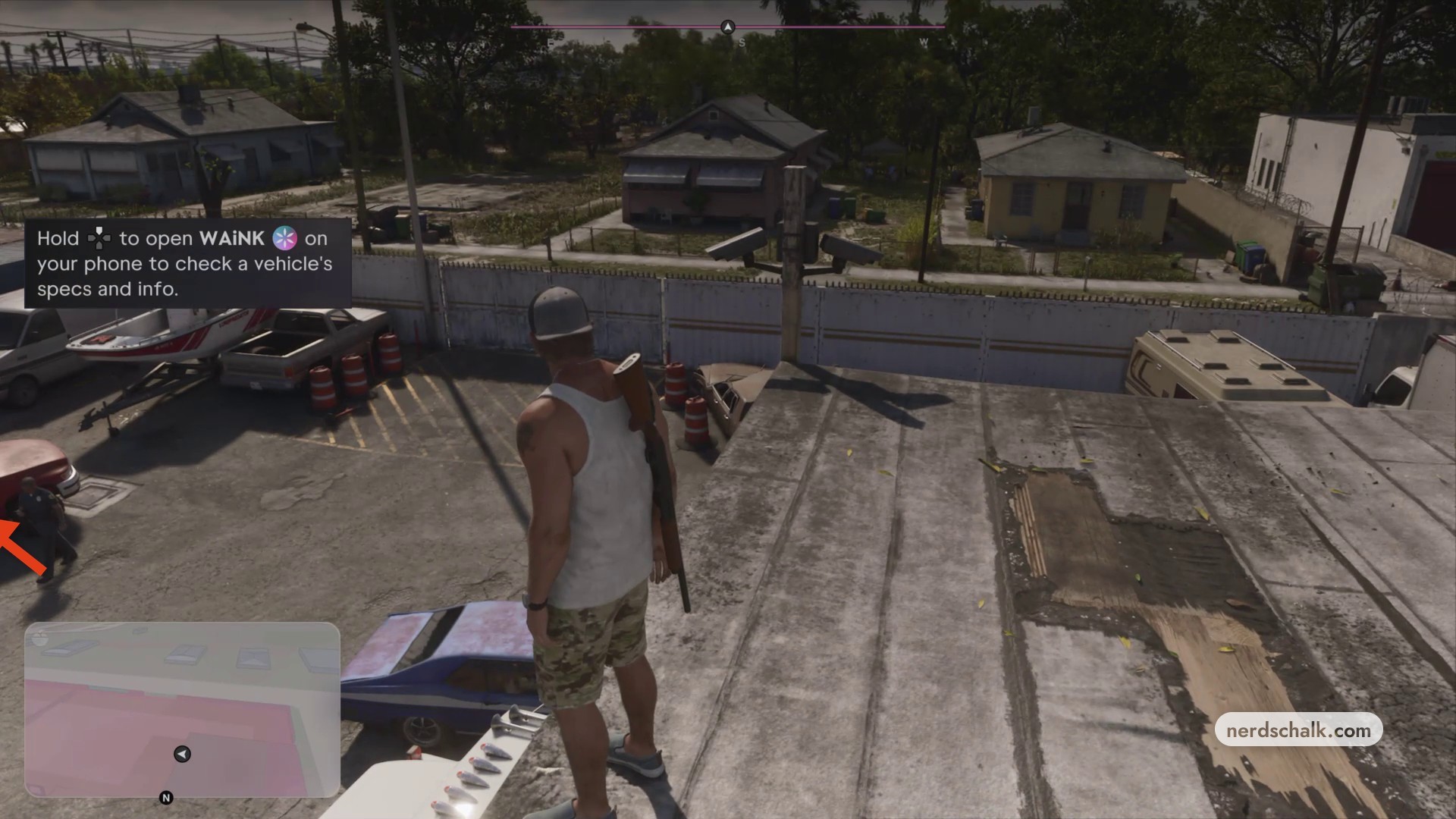
The rooftop overlooks a fenced yard, where you can look toward the parked vehicles below.
Read the vehicle details
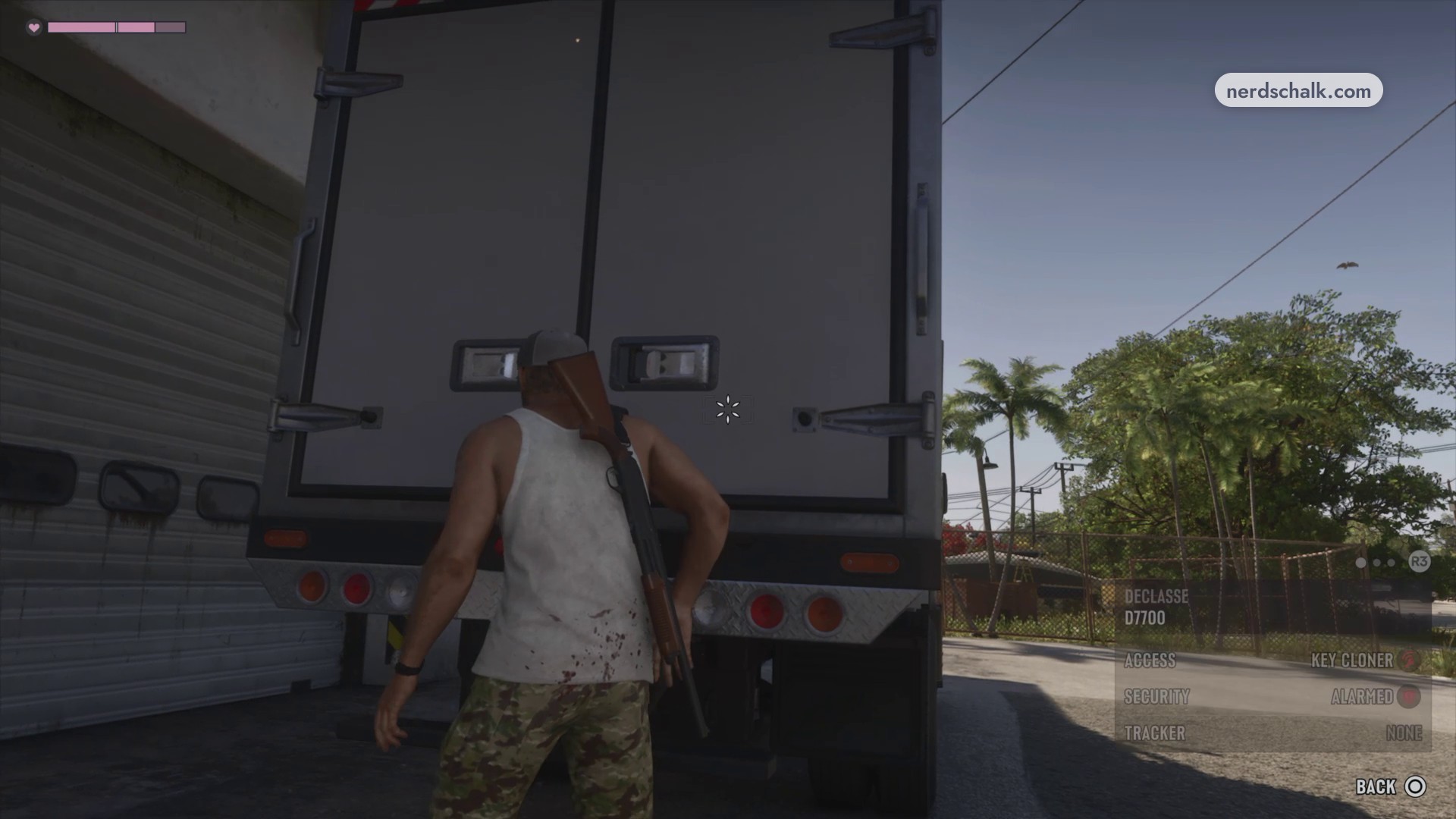
Review the specifications returned by the scan. In the separate truck example, the information overlay appears at the bottom right of the screen. Press CIRCLE to leave the scanner view when you’re done.
Aim at your chosen vehicle and scan
Position the reticle over the vehicle and press R1 to scan. The targeted-car view shows a white car below the rooftop edge and the label MARK IT.
What information does a WAiNK vehicle scan show?
| Scan field | Meaning | Declasse D7700 example |
|---|---|---|
| Model | Identifies the vehicle. | DECLASSE D7700 |
| Access requirement | Shows what vehicle entry requires. | KEY CLONER |
| Security status | Shows the vehicle’s security status. | ALARMED |
| Tracker status | Shows whether the vehicle has a tracker. | NONE |
A prompt warns that keyless vehicles cannot be started.
WAiNK gives you the vehicle’s identity alongside its access and security information.
Related Grand Theft Auto VI guides




Leave a Reply