
For Mortal Shell 2 on PS5 and Xbox Series X|S, start with Performance mode, turn on combat clarity helpers like auto lock-on and offscreen indicators, set dodge to Turbo, use Hold for aiming and blocking, switch to Action camera, and disable visual clutter such as motion blur, film grain, and vignette.
Fast, unforgiving fights put extra pressure on target tracking, camera control, and clean animation reads. The available options can make combat easier to follow without changing the underlying difficulty.
- Best Mortal Shell 2 console settings at a glance
- How to change console settings in Mortal Shell 2
- Game and camera options that improve combat readability
- Controller setup for faster combat response
- Display settings for clearer combat
- Audio tweaks for headphones and speakers
- PS5 and Xbox Series X|S launch notes
- Frequently Asked Questions
Best Mortal Shell 2 console settings at a glance
| Setting | Use |
|---|---|
| Game | |
| Auto lock-on | On |
| Offscreen enemy indicator | On |
| Damage numbers | Classic |
| Target steering | Default |
| Free aim | Off |
| Aiming input style | Hold |
| Block | Hold |
| Auto-pickup gold | On |
| Camera style | Action |
| Auto-align camera | On |
| Camera shake | Off |
| Sprint camera shake | Minimum |
| UI scale | Small |
| HUD scale | Small |
| Controller | |
| Dodge | Turbo |
| Force feedback | Off, or personal preference |
| Controller and aiming sensitivity | Slightly lower if the camera feels fast |
| Button layout | Default, unless you prefer another Soulslike layout |
| Display | |
| Quality preference | Performance |
| Brightness | Adjust for your display |
| Bloom | On if you like the effect |
| Film grain | Off |
| Motion blur | Off |
| Vignette | Off |
| Audio | |
| Speaker configuration | Match your headphones or speakers |
| Audio mix | Tune levels for your listening setup |
Key This setup prioritizes immediate inputs and an unobstructed view. Settings tied to your hardware or comfort remain flexible, so treat the table as a strong starting point rather than forcing unsuitable brightness, volume, or sensitivity levels.
Change sensitivity, brightness, and audio one at a time so you can immediately judge each adjustment with your own controller, display, and sound setup.
How to change console settings in Mortal Shell 2
Open each settings tab from the in-game pause menu and apply the corresponding values from the table.
STEP 1/5
Open the Game menu
Press Start in-game, move across to Game, and apply the gameplay and camera settings.
STEP 2/5
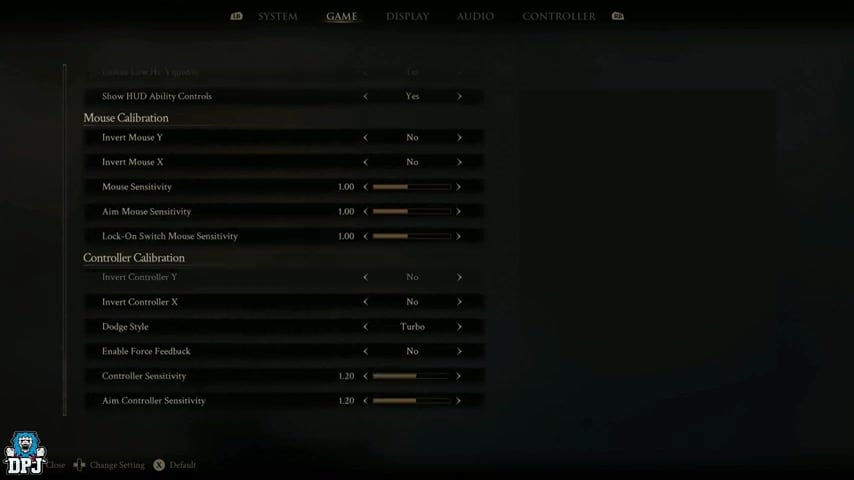
Switch to Controller
Open Controller and adjust dodge behavior, force feedback, and sensitivity.
STEP 3/5
Open Display
Move to Display and set the graphics mode, brightness, and visual effects.
STEP 4/5
Configure Audio
Open Audio, select the appropriate speaker configuration, and tune the mix.
STEP 5/5
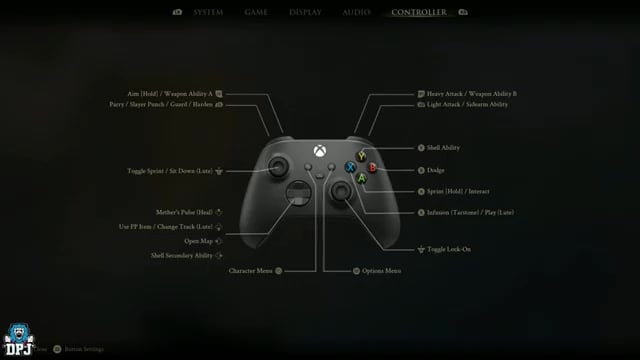
Review the button layout
From the controller layout screen, press Start to remap controls if the default arrangement does not suit you.
Video help
Game and camera options that improve combat readability
Auto lock-on reduces the manual work of tracking targets when several enemies attack together. The offscreen enemy indicator adds a red directional warning for incoming attacks outside the current view, which is particularly helpful during early multi-enemy encounters.
Classic damage numbers keep damage information beside the enemy health bar instead of floating through the scene. Meanwhile, target steering directs melee attacks toward nearby enemies in the aiming direction, and disabling free aim lets aiming engage a target without demanding precise manual positioning.
Auto-pickup gold removes the need to run around collecting every drop after combat. The Action camera also shows more of the surrounding area than the closer Immersive view, while auto-alignment maintains orientation and reduced camera movement keeps the picture steadier. Smaller interface and HUD elements finish the cleanup by leaving more of the battlefield visible.
Controller setup for faster combat response
Turbo dodge triggers the dodge as soon as the button is pressed, which matters when an enemy attack leaves little reaction time. Using Hold for aiming and blocking also makes both actions easier to control than a persistent toggle, particularly because blocking shares its input with the power system.
Force feedback can become loud and distracting, especially through an Xbox Series Series 2 controller. Turning it off keeps the controller quiet, though players who rely on vibration cues can leave it enabled.
Only reduce controller and aiming sensitivity when the default camera causes excessively fast spins or discomfort; a slight decrease should be enough. The standard layout already places parry and dodge comfortably, but remapping remains available for players with an established Soulslike layout. It is also worth checking the hold and toggle behavior for running and sprinting if those inputs initially feel confusing.
Display settings for clearer combat
Performance favors the smoother presentation needed to read attacks and time dodges or parries. Quality trades that responsiveness for stronger visuals at a lower frame rate, which can make movement feel sluggish during combat. Quality-mode VRR behavior remains unclear, so judge that option by how it feels on your display rather than expecting VRR to resolve every dip.
Brightness has no universal ideal value because the correct level depends on the television or monitor. Bloom can remain if you enjoy its lighting effect, but removing film grain, motion blur, and vignette produces a cleaner image with fewer effects obscuring movement near the center and edges of the screen.
Audio tweaks for headphones and speakers
Select the configuration that matches your actual headphones or speaker arrangement. Voices from NPCs in the main hub can become unexpectedly loud, so lower dialogue or effects levels if sudden shouts overpower the rest of the mix on your equipment.
PS5 and Xbox Series X|S launch notes
These recommendations are intended for both PS5 and Xbox Series X|S, although the menu walkthrough was captured on Xbox. The exact wording of some PS5 options may differ slightly.
Mortal Shell 2 launches worldwide on August 20, 2026. After installing the launch patch, revisit the Game, Controller, Display, and Audio tabs because updates may adjust camera motion, lighting, sound behavior, accessibility options, or individual menu names.
Related Mortal Shell 2 guides
Frequently Asked Questions
Does Mortal Shell 2 have a normal difficulty slider?
No. Mortal Shell 2 uses in-game items instead of a conventional difficulty slider. The Slayer Seal enables special riposte executions that restore health and stamina but disables rewards, while the Gloombound Flame strengthens enemies by blacking out the sun and creating permanent night in exchange for additional rewards, events, treasures, NPCs, and dungeons.
Can you use PC trainers or console commands on PS5 or Xbox?
No. Trainers and console-command-style tools target the PC version and are not normal settings on retail PS5 or Xbox consoles. Memory editing and developer consoles are unavailable through the standard console menus, while hardware modification falls outside normal play and is strongly discouraged.




Leave a Reply