
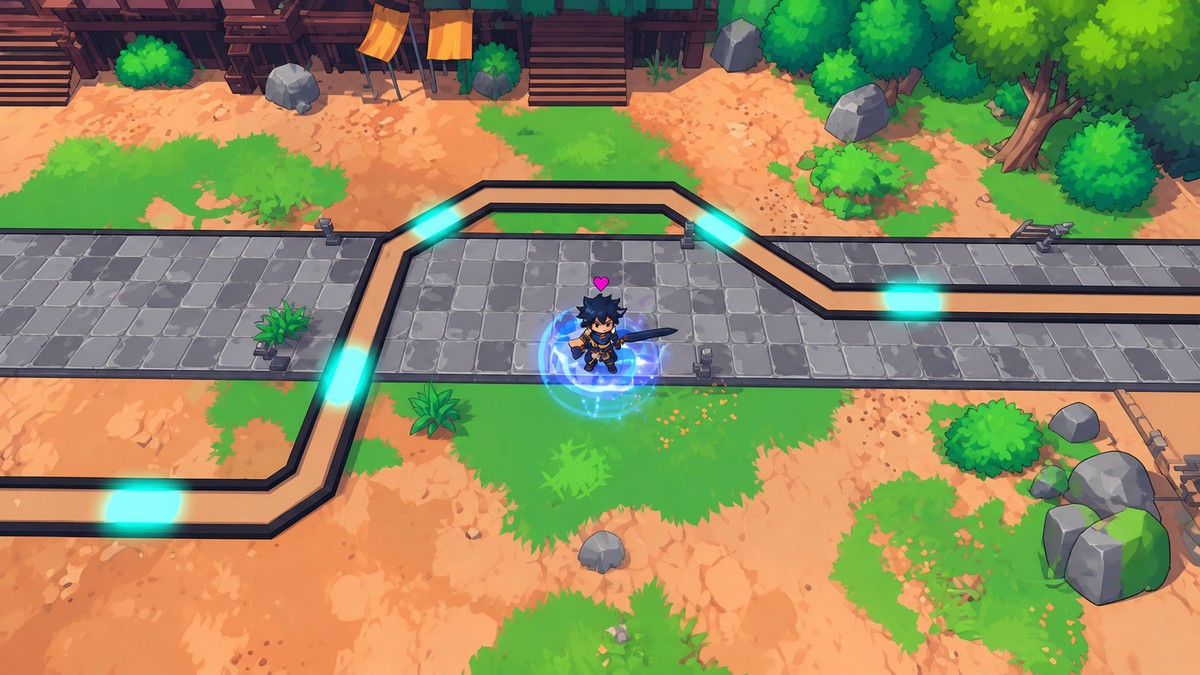
Turn on Autoplay in a match, choose the placement area, set your normal and farm unit ranges, configure each unit slot, then start the run with auto retry and auto vote start enabled if you want repeat farming.
Autoplay in Anime Expeditions handles the run for you through the in-game match UI: it auto-places units, auto-upgrades them, can use auto abilities, and lets you tune each team slot separately. It also supports preset names, saving, and loading, so you can keep a farming setup ready instead of rebuilding the same layout every run.
What Autoplay does in Anime Expeditions
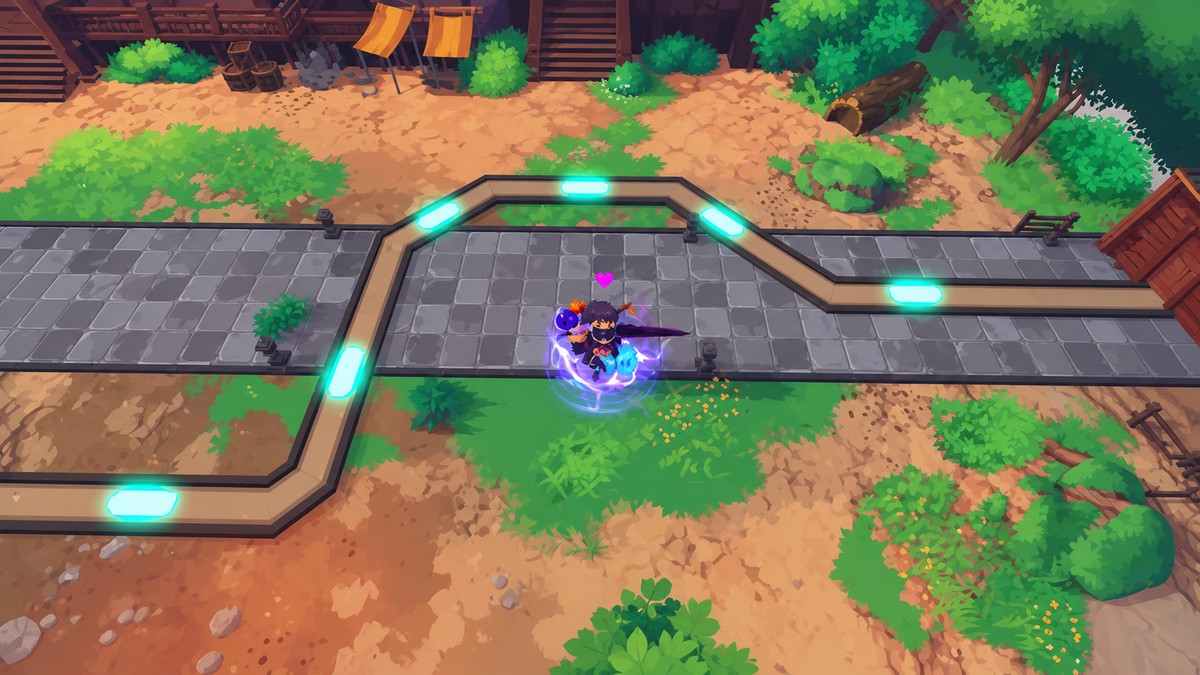
Autoplay uses your team from left to right, places units inside the ranges you set, and keeps upgrading them based on the slot settings you choose. The feature separates normal units from farm units, so your damage units and money units can be assigned to different placement areas.
KEY!
The important part is that this is not a one-button mystery system. You control which slots are enabled, whether each unit upgrades, whether abilities are used, how many placements are allowed, and how far each unit upgrades before Autoplay moves on.
How to set up Autoplay in Anime Expeditions
Use this setup inside a match to define where Autoplay places your units and how it handles each slot before the run starts.
STEP 1/11
Turn on Autoplay
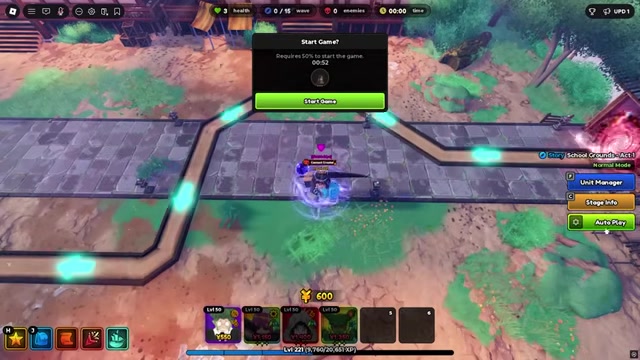
Open the in-match Autoplay UI and enable it before choosing placement settings.
STEP 2/11
Select the starting position
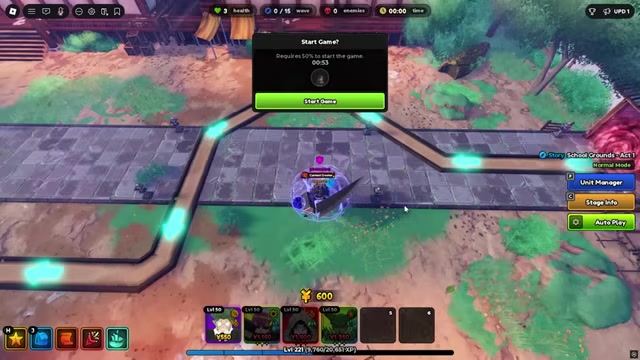
Choose the start position for Autoplay, then place it slightly back so the system has room to begin with available units.
STEP 3/11
Set the normal unit range
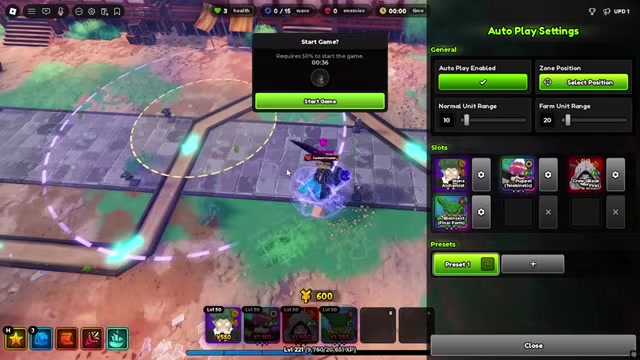
Use the yellow circle for your normal or DPS units, adjusting the value until it covers the area where you want them placed.
STEP 4/11
Set the farm unit range
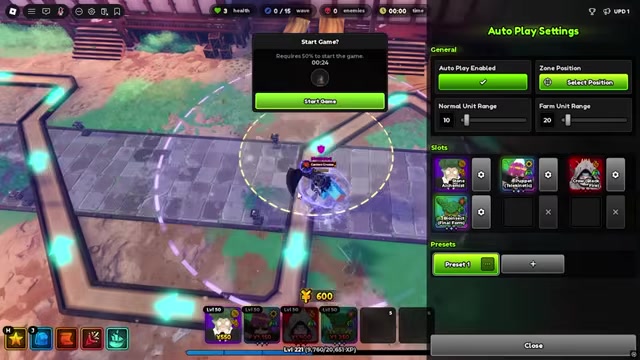
Use the purple outline for farm units such as your money unit, then adjust the range separately from your DPS area.
STEP 5/11
Open the unit slot settings
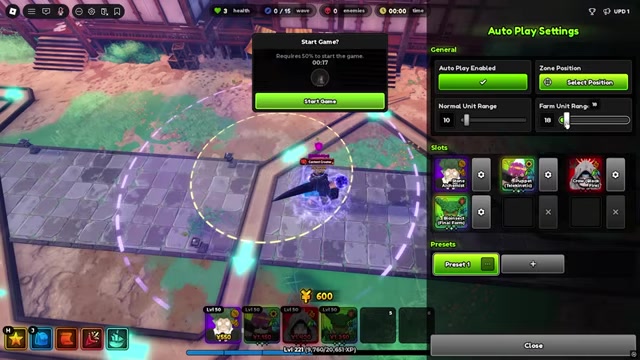
Go through your team slots from left to right, because Autoplay follows that order when using your units.
STEP 6/11
Enable the slot options you want
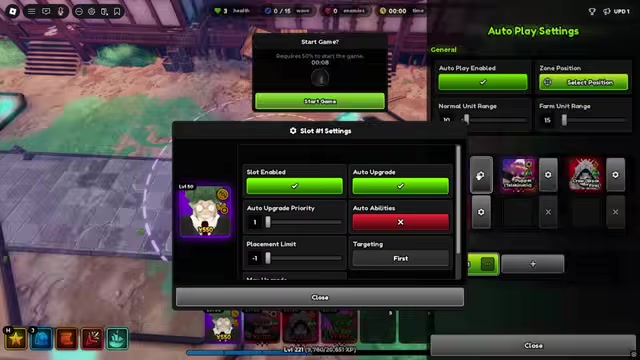
Keep slot enabled on for units you want used, then choose whether that slot should auto-upgrade and use auto abilities.
STEP 7/11
Set upgrade priority
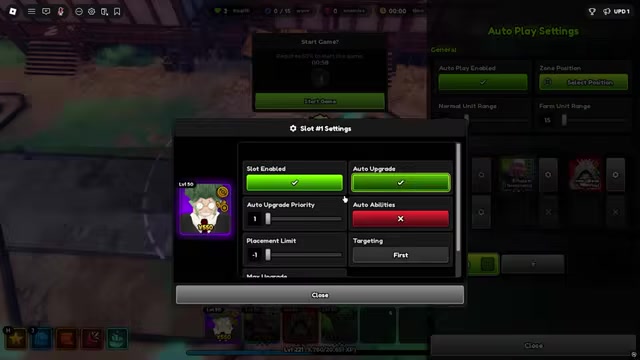
Give lower priority numbers to units you want upgraded earlier, then raise the number on units that should wait.
STEP 8/11
Set placement and upgrade caps
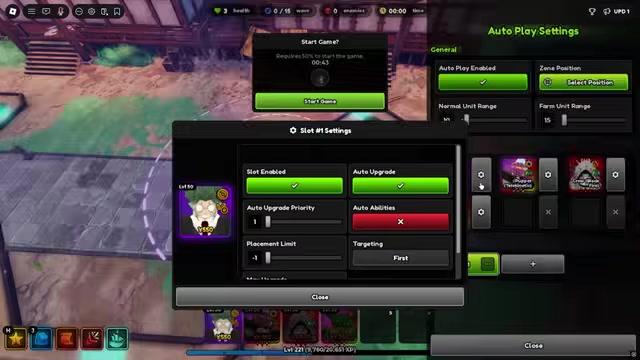
Leave -1 when you want Autoplay to use the unit’s natural placement limit or max upgrade limit.
STEP 9/11
Save the preset
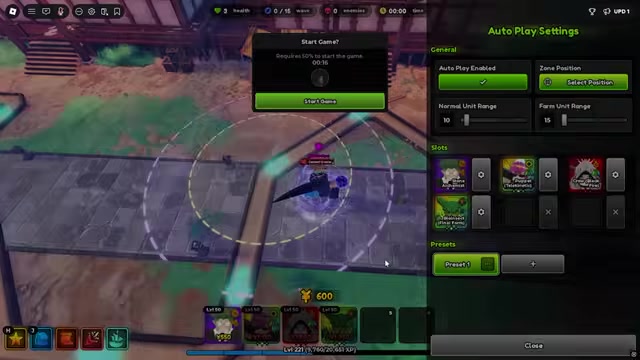
Save the preset when you want to reuse this Autoplay layout on future runs.
STEP 10/11
Press start
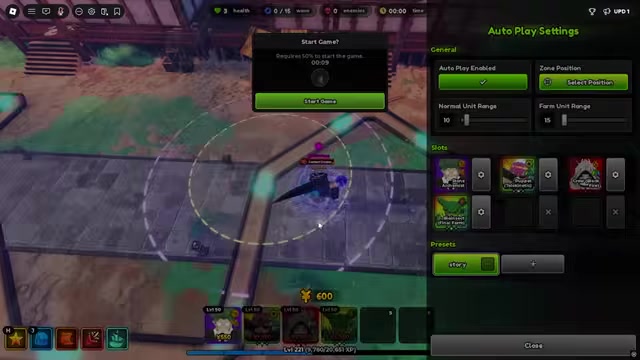
Start the run and let Autoplay place the farm unit in the purple area and normal units in the yellow area.
STEP 11/11
Enable repeat-run settings
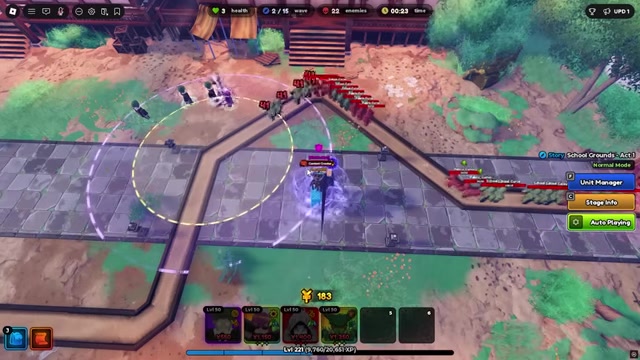
Turn on auto retry and auto vote start if you want the restart menu to keep the farming loop moving.
Video help
Autoplay settings and what they change
| Setting | Use |
|---|---|
| Slot enabled | Turns that unit slot on or off for Autoplay. |
| Auto upgrade | Lets Autoplay spend resources upgrading that unit. |
| Auto abilities | Lets Autoplay use that unit’s abilities when available. |
| Auto upgrade priority | Controls which units get upgraded first; lower numbers go earlier. |
| Placement limit | Caps how many copies Autoplay places; -1 uses the unit’s normal placement limit. |
| Max upgrade | Caps how far Autoplay upgrades the unit; -1 upgrades until the unit’s normal max. |
| Preset rename/save/load | Stores a named Autoplay setup so you can reuse the same ranges and slot rules. |
Each slot has its own controls, so treat the Autoplay menu as a per-unit farming profile rather than one global switch. The priority field matters most when resources are tight: a unit with priority 1 is handled before a unit with priority 2, so set your carry or early DPS units ahead of anything that can wait.
Use caps when you only want a unit to reach a certain job, such as stopping after early utility or limiting a farm unit’s investment. Leave -1 when you want the system to keep going until the unit naturally runs out of placements or upgrades.
Put your team in the exact left-to-right order you want Autoplay to use them, then match each slot’s priority to that same plan so early resources go where they matter first.
Recommended farming setup
For smooth farming, arrange your team from left to right in the order you want Autoplay to use units. Put the unit you want placed or upgraded early before slower setup pieces, then use upgrade priority to reinforce that order.
Keep auto upgrade on for your main damage units and any farm unit that needs upgrades to do its job. Assign farm units to the farm range and your DPS units to the normal unit range so the board does not mix money units into your damage area.
For repeat runs, turn on auto retry and auto vote start. Without those, the run can stop at the restart menu instead of immediately beginning the next attempt.
Use the in-game Autoplay OP only
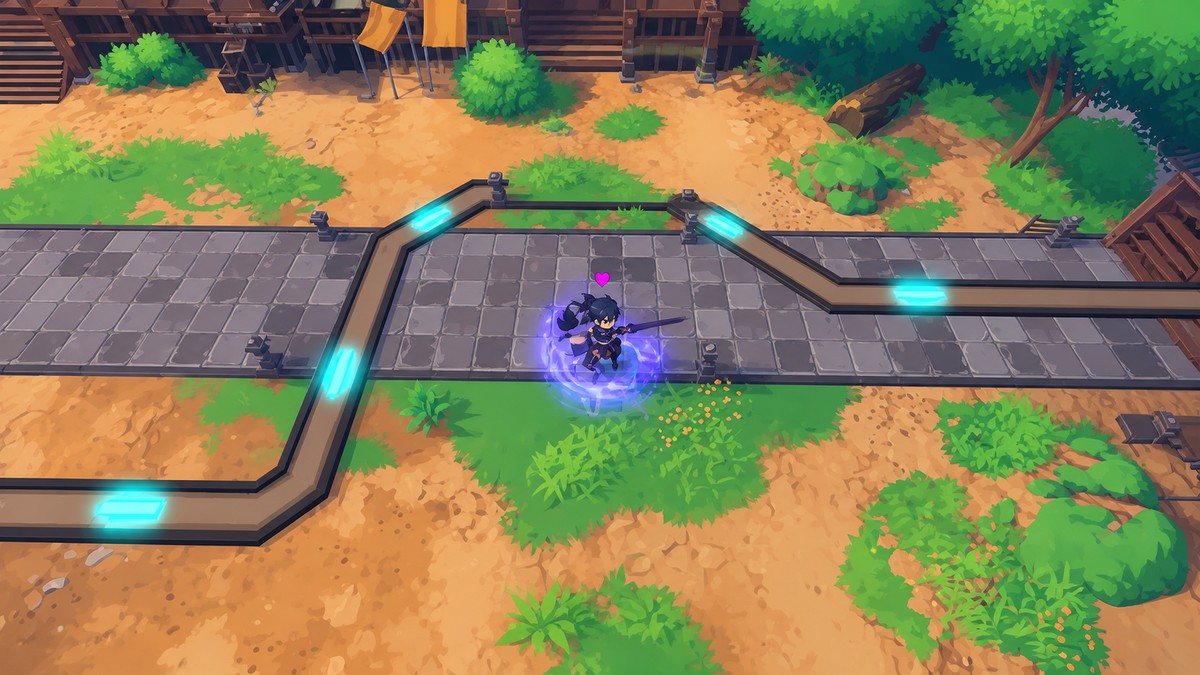
This guide is about the in-game Autoplay menu in Anime Expeditions. It is not about external script hubs, macros, or third-party automation tools using similar words such as auto-farm or autoplay.
If you are setting up the feature legitimately, look for the Autoplay controls inside the match UI and use the settings described above. Anything outside the game client is a separate tool and should not be treated as the same feature.
Related Anime Expeditions guides
Frequently Asked Questions
Can you leave Autoplay running by itself?
You can let it handle placements and upgrades during the run, but repeat farming needs auto retry and auto vote start enabled so the restart prompt does not interrupt the next run.
What does negative one mean in placement limit or max upgrade?
-1 means Autoplay does not apply a custom cap. For placement limit, it places up to the unit’s normal limit; for max upgrade, it upgrades until the unit reaches its normal maximum.
Does Autoplay work the same as UTDX Autoplay?
No. In Anime Expeditions, Autoplay is simpler: you do not need to record a run, and the preset-style setup can be used across maps through the Autoplay menu.

Leave a Reply