
Press Left Alt to pull out the phone in Gakuran, use the phone menu to open apps like contacts, games, posts, music, camera, yen, and weather, then press Left Alt again to put it away.
The phone in Gakuran is a real in-game tool, not just a visual prop. Once it is open, you can add contacts, send private messages, play mini-games, post publicly, use music and camera features, check money, and see the weather.
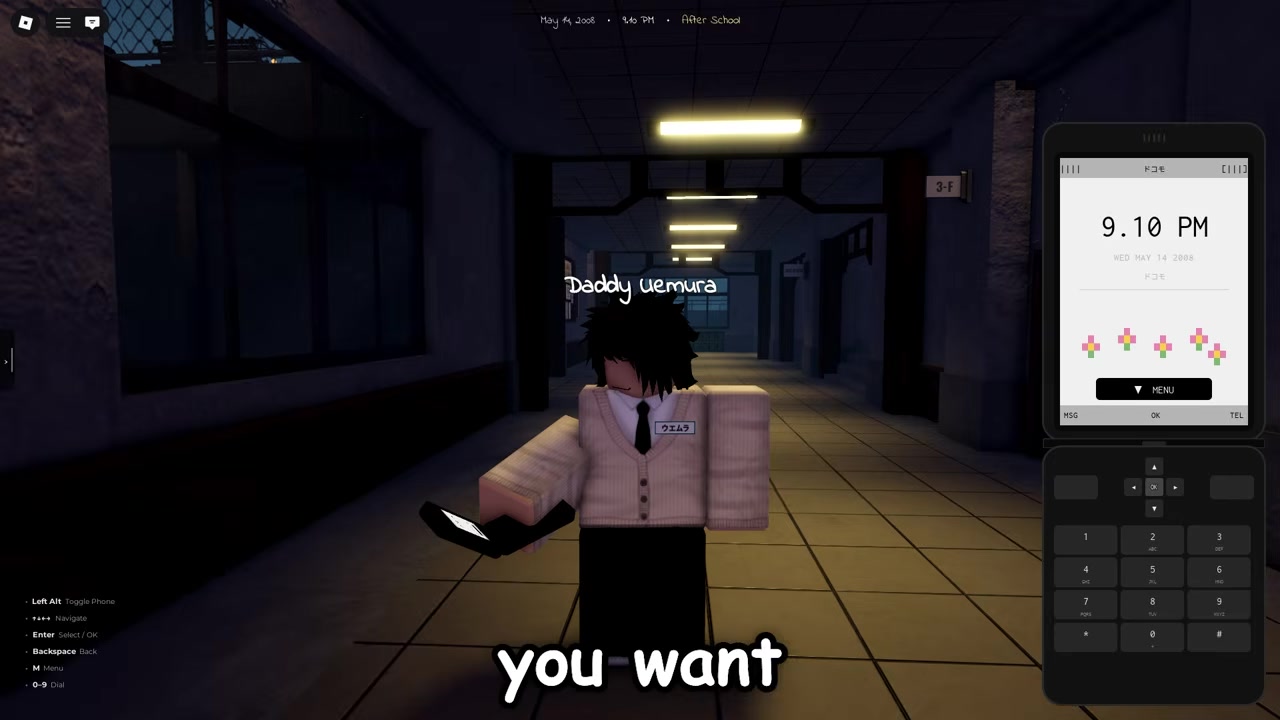
KEY!The main thing to remember is that the phone is controlled mostly through keyboard inputs. Learn Left Alt first, then use the menu controls below so you are not stuck clicking around while your character is exposed.
Gakuran phone controls
| Control | Action |
|---|---|
| Left Alt | Open or close the phone |
| Arrow keys | Move through phone menus |
| Enter | Select or confirm |
| Backspace | Go back |
| M | Open the main menu |
| 1–9 | Choose numbered phone options |
Press Left Alt to bring out the phone. Press Left Alt again when you want to put it away.
If you are trying to open the phone with the combat controls, you are using the wrong key. T is for Fighting Stance, while Left Alt is the phone toggle.
Add a contact and send a private message
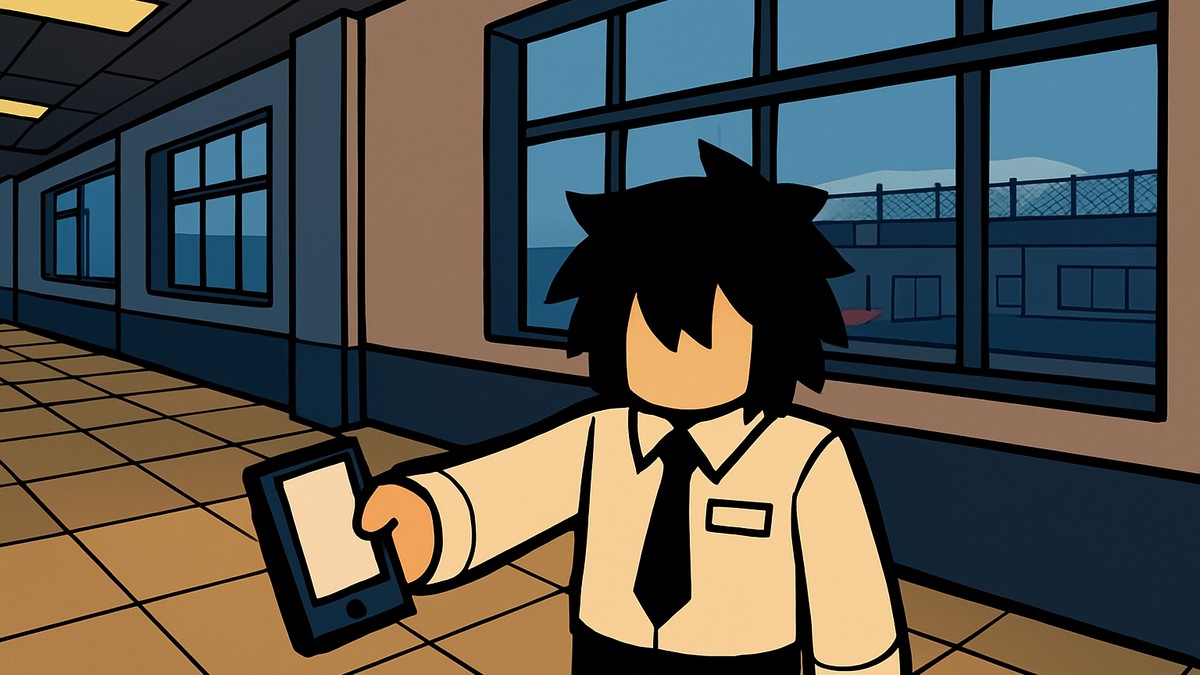
How to use the phone and its apps in Gakuran
Use this flow to open the phone, add a friend by number, message them, and test the main apps from the same menu.
STEP 1/15
Open the phone
Press Left Alt to pull out the phone on the right side of your screen.

STEP 2/15
Select the menu button on the phone to bring up the app list.
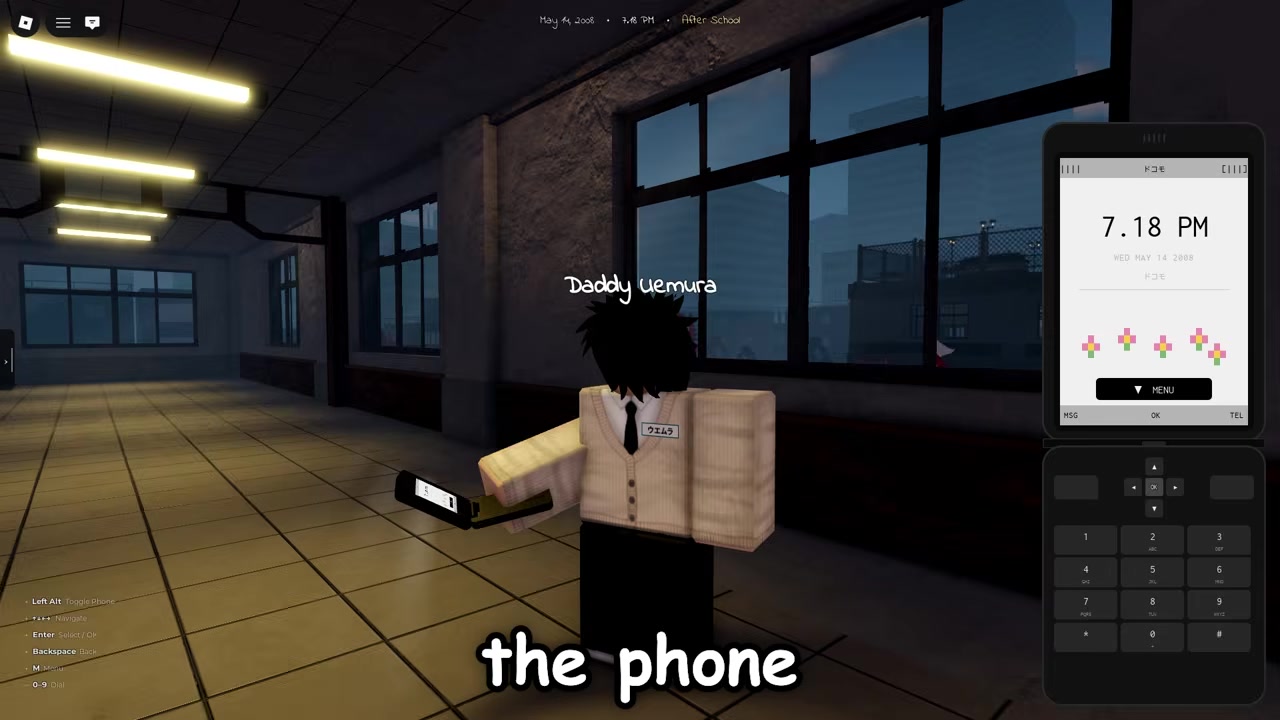
STEP 3/15
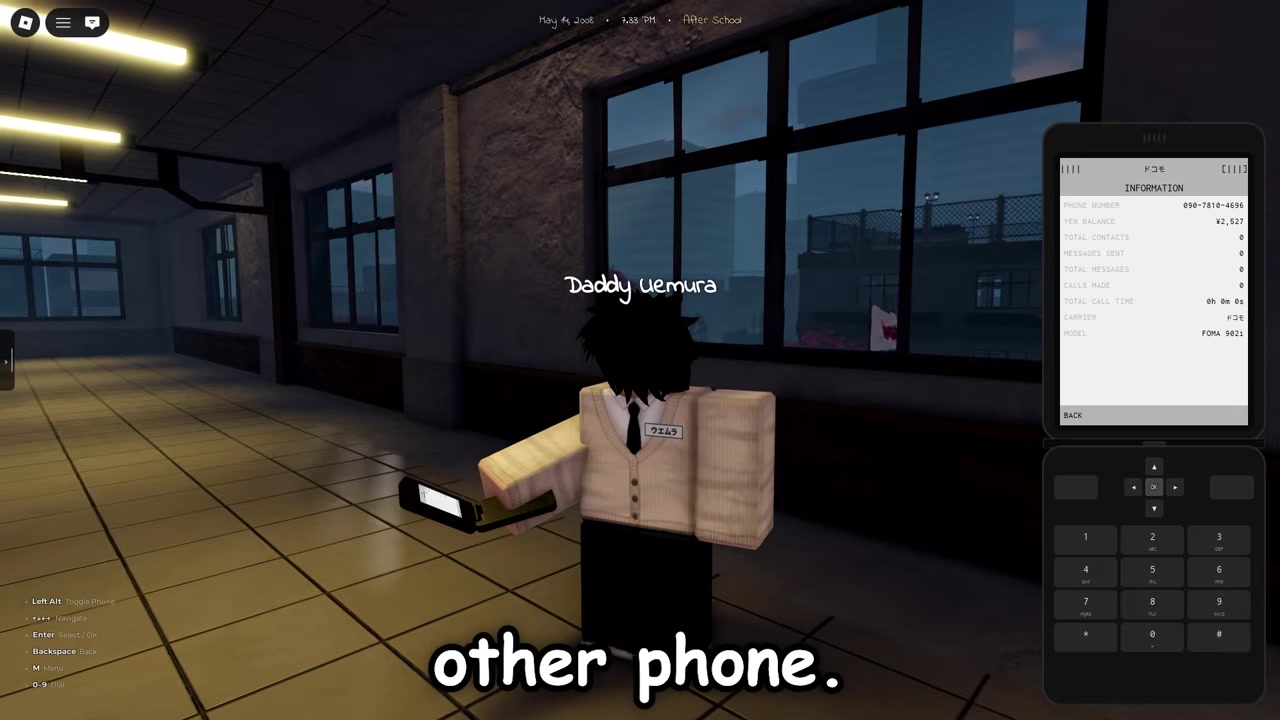
Open Information
Choose Information to see your own phone number at the top.
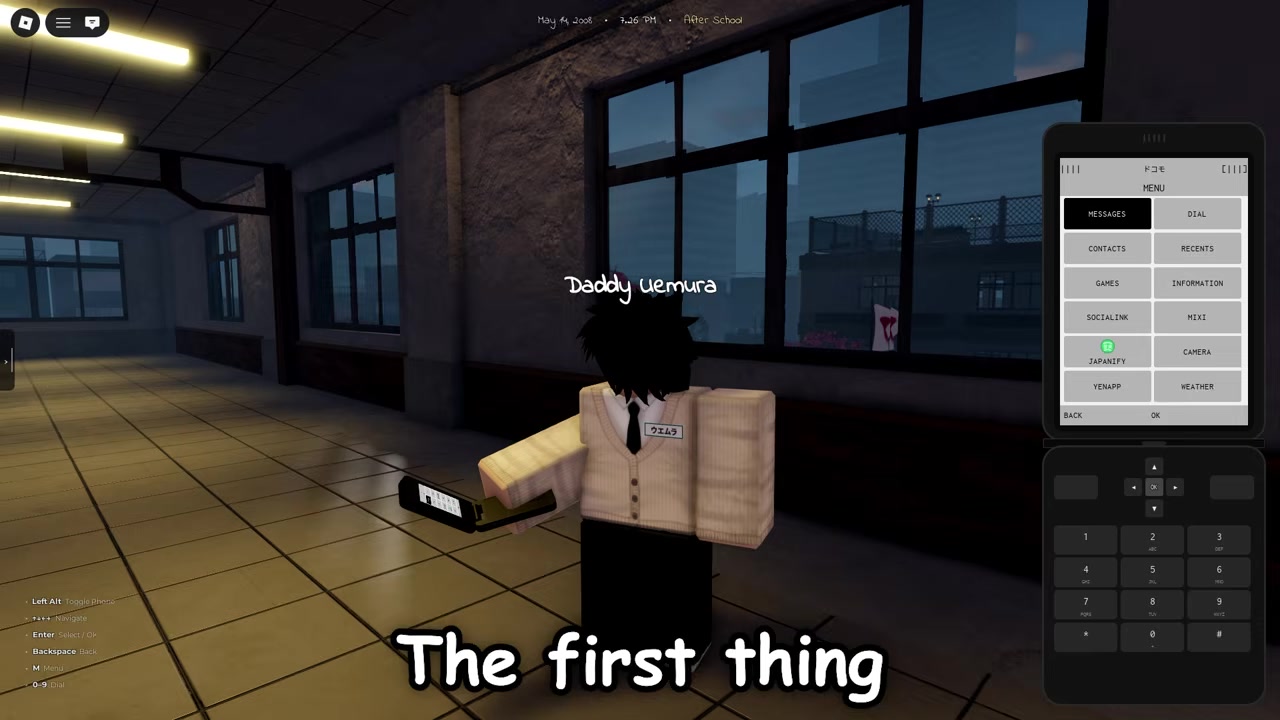
STEP 4/15
Give your phone number to the friend you want to add.
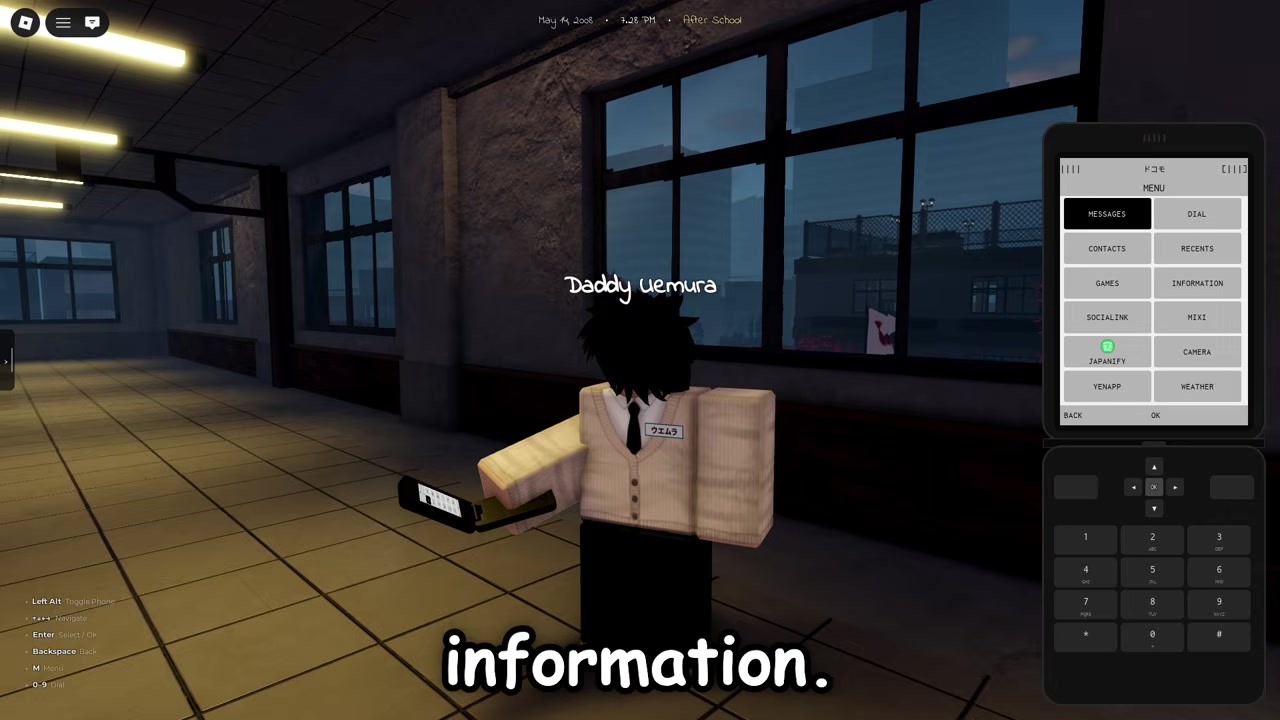
STEP 5/15
Get your friend’s number
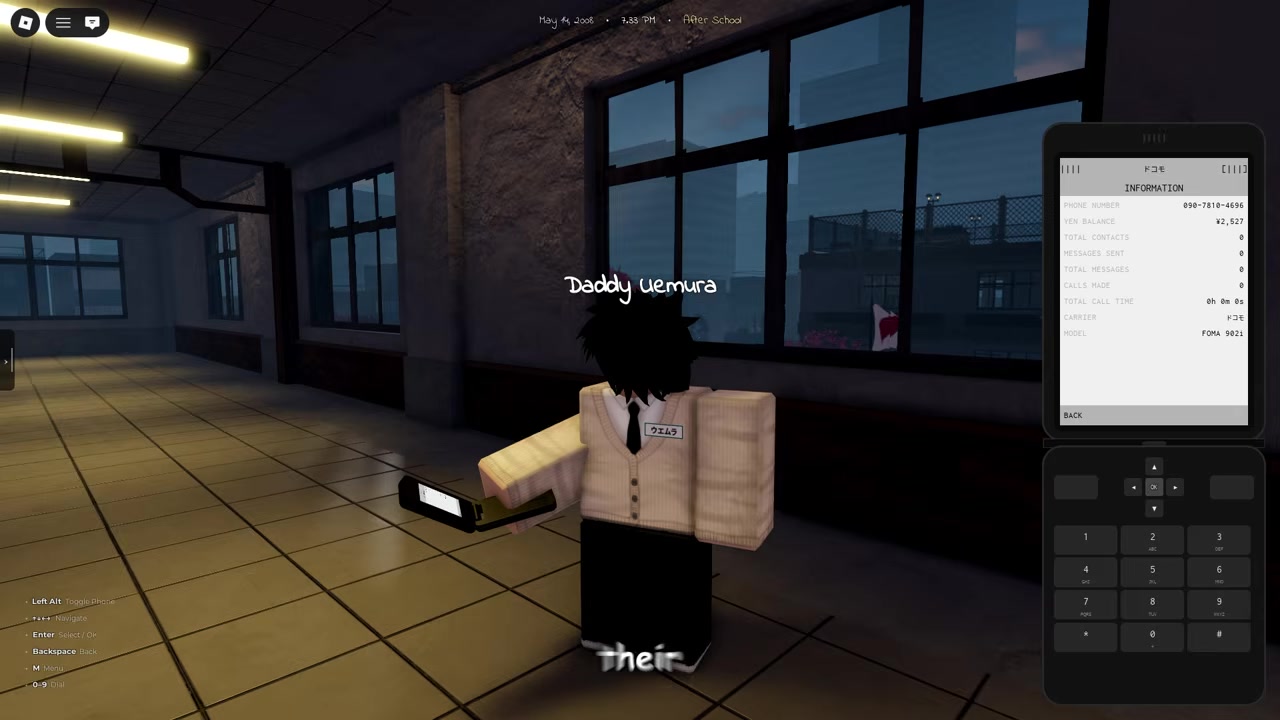
Ask your friend for their number before opening the dial screen.
STEP 6/15
Enter the number in Dial
Open Dial, type your friend’s number, and insert it to add the contact.
STEP 7/15
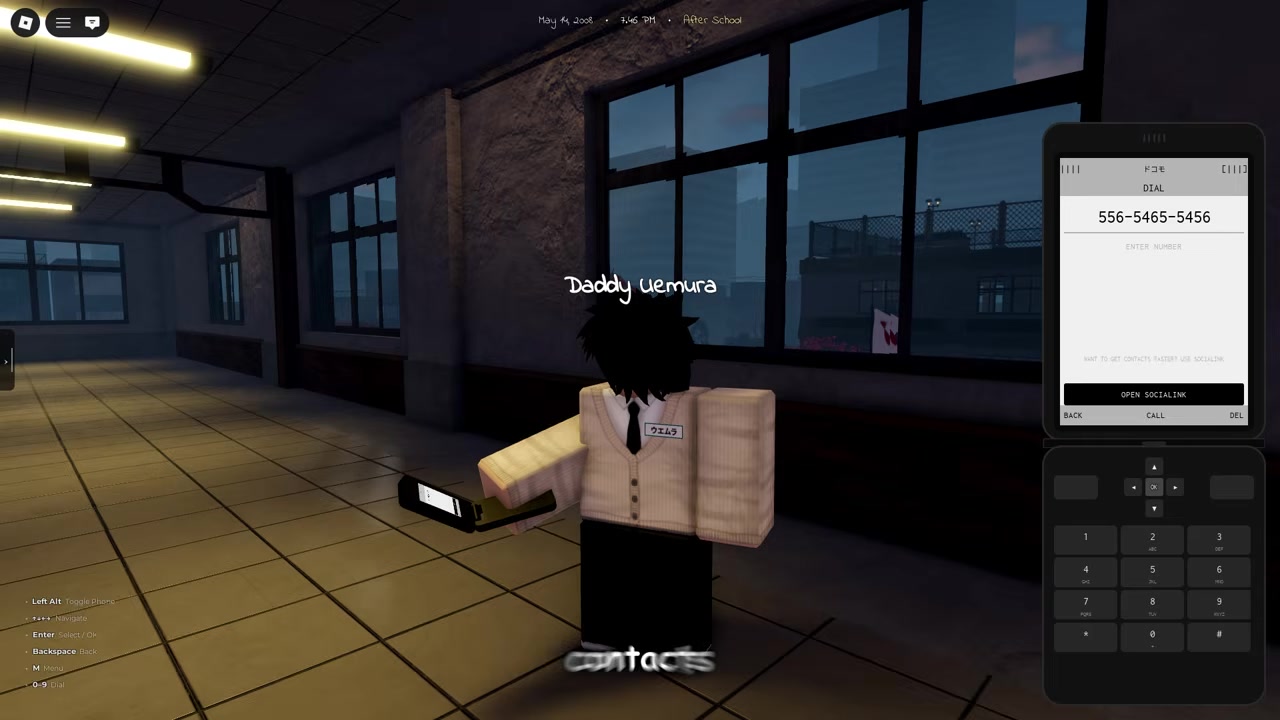
Message from Contacts
Open the saved contact and send a private phone message that only you two can see.
STEP 8/15
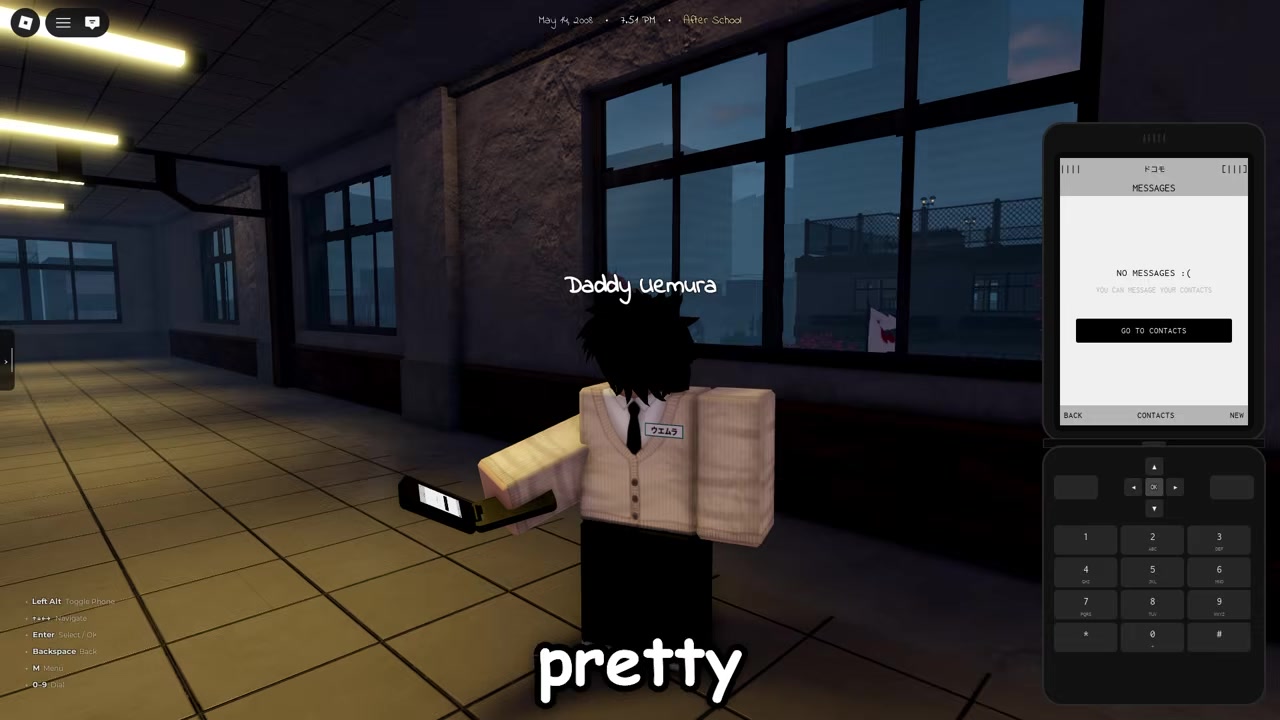
Try the Games section
Open Games to play mini-games such as Ponk.
STEP 9/15
Open Mixi
Use Mixi as the public in-game community posting app.
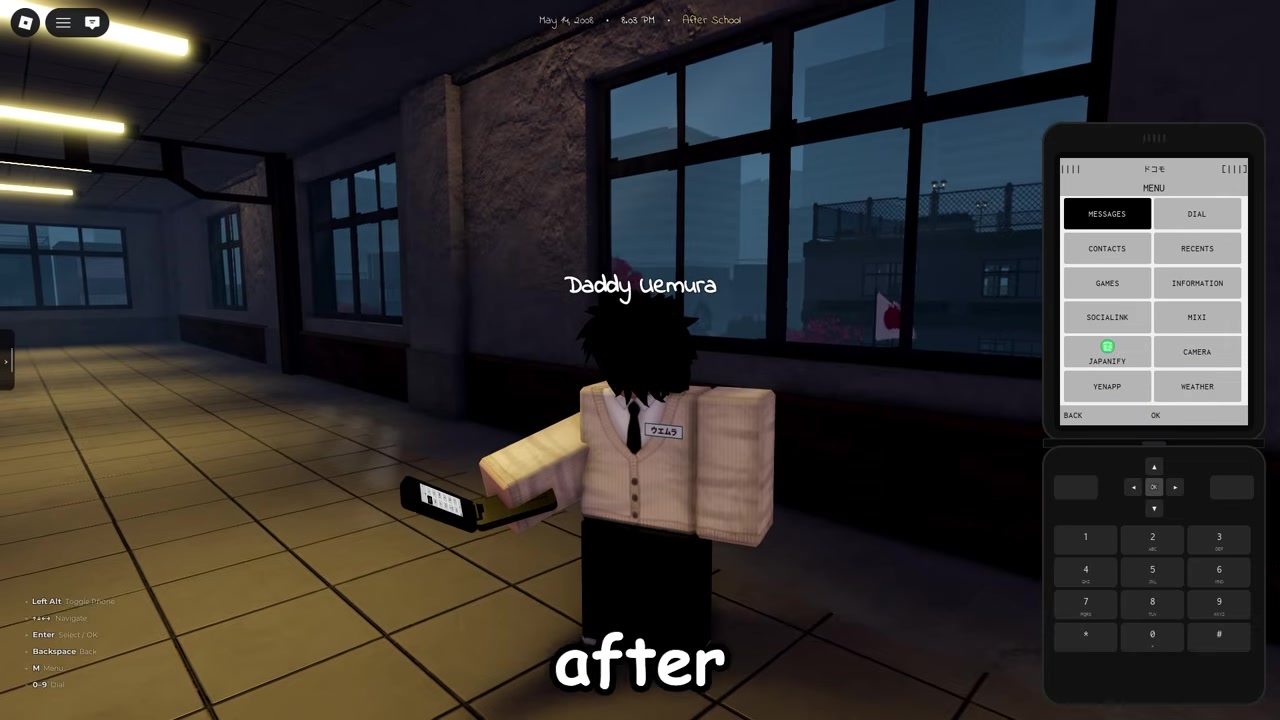
STEP 10/15
Create a Mixi post
Press New, type your post, then press Post.
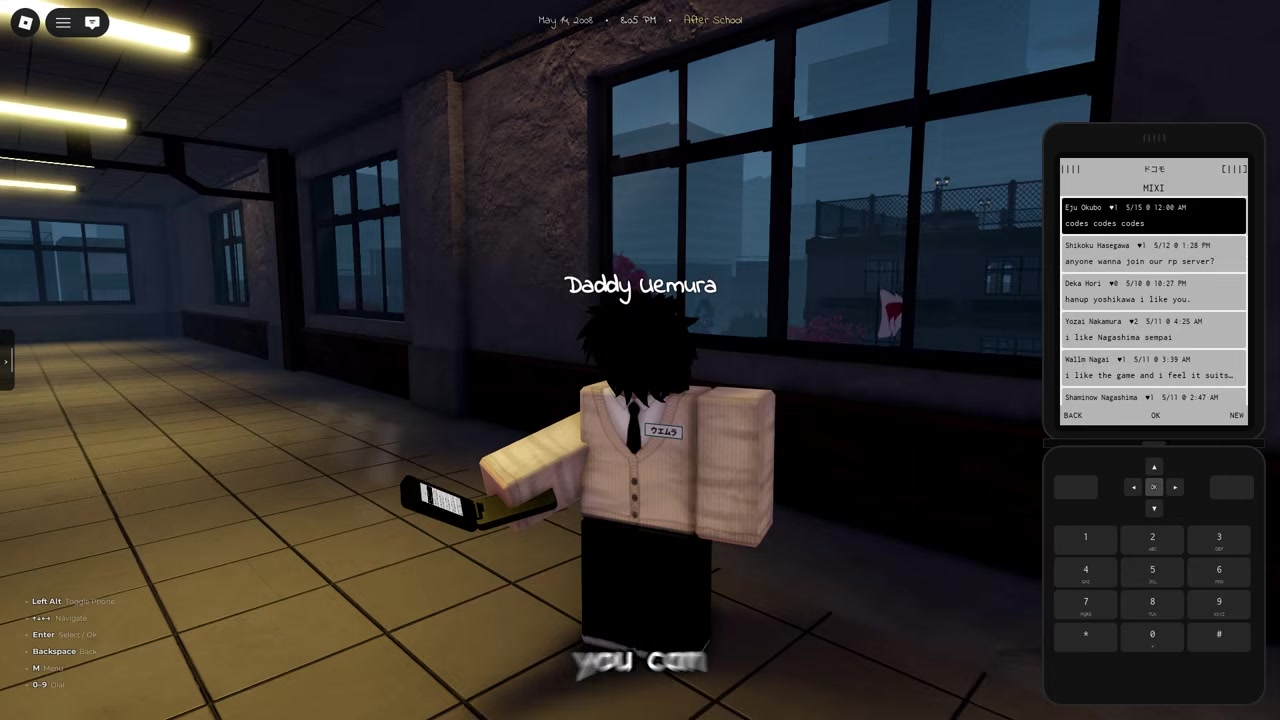
STEP 11/15
Play music in Japanify
Open Japanify to play songs and playlists from the phone.
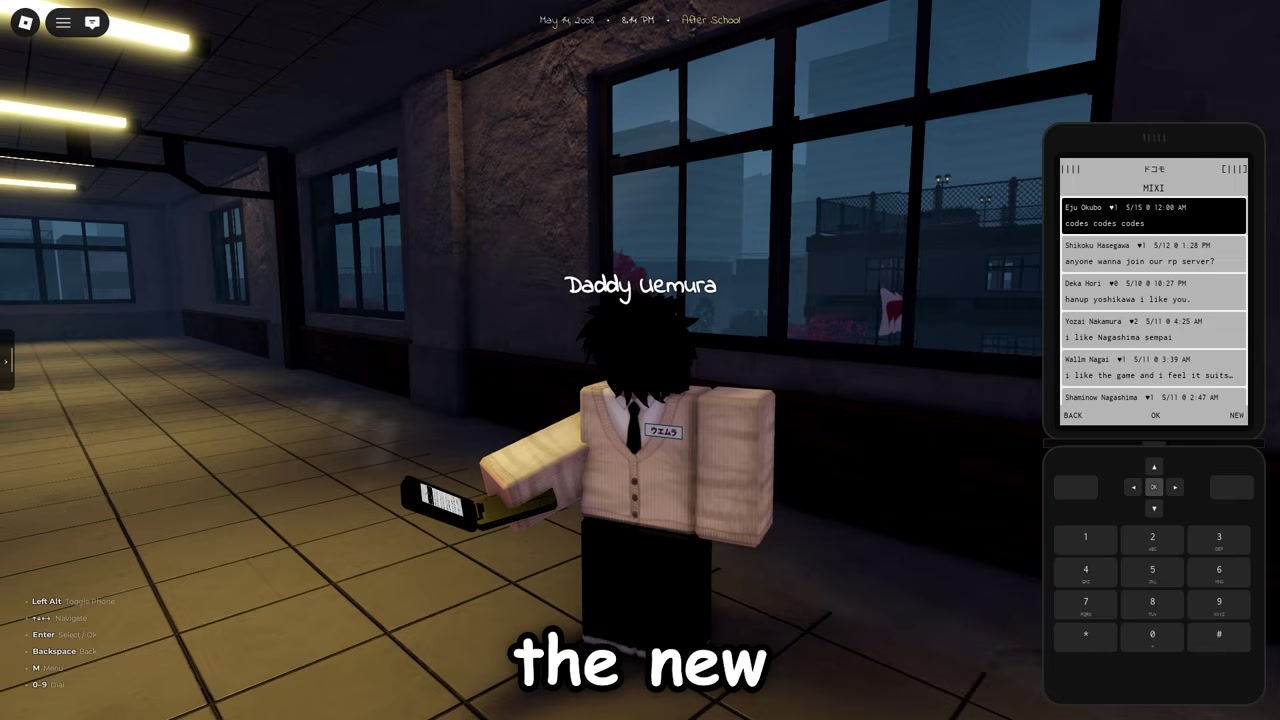
STEP 12/15
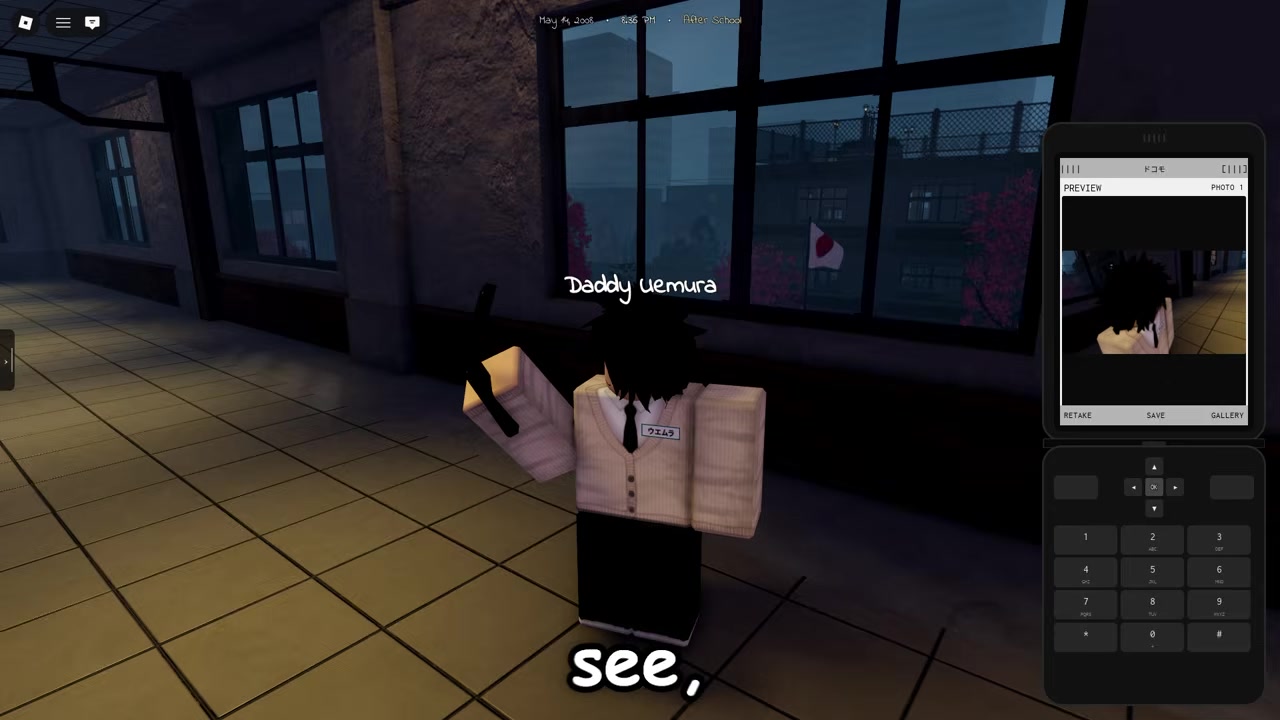
Use the Camera app
Open Camera and press the image button to take a photo of your character.
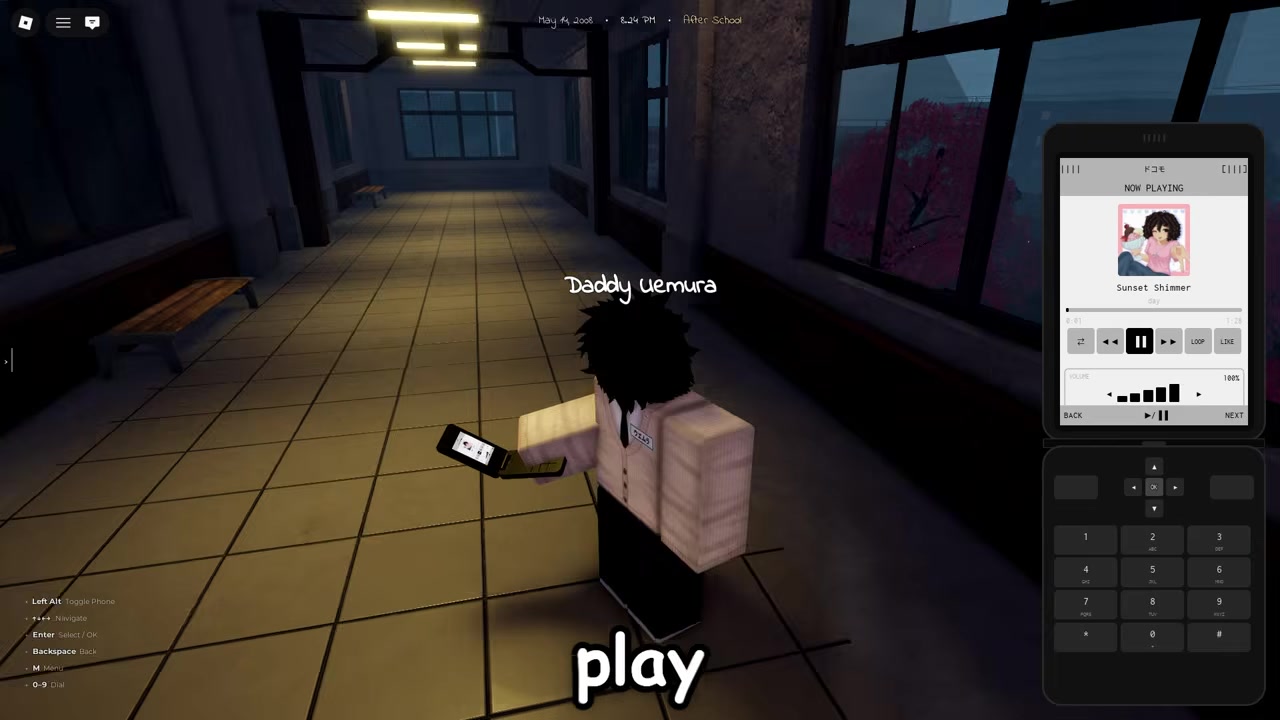
STEP 13/15
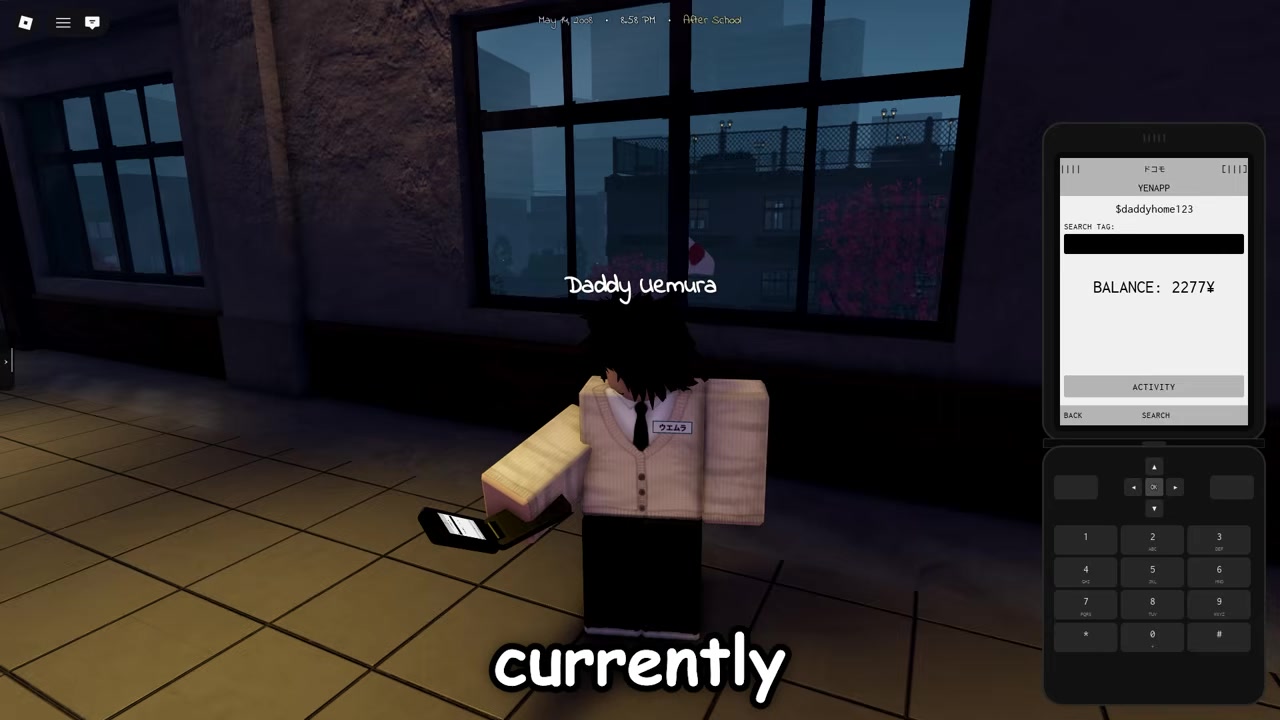
Check the Yen app
Open Yen and enter a name to set up the money display for your username.
STEP 14/15
Check Weather
Open Weather to see the current in-game weather and temperature.
STEP 15/15
Put the phone away
Press Left Alt again to close the phone before you move or fight.
Find your own number in Information first, then trade numbers with your friend and enter their number through Dial to make messaging work.
Video help
Phone apps and what they do
| App | Use |
|---|---|
| Information | Shows your own phone number |
| Dial | Enter another player’s number to add them |
| Contacts | Message saved players privately |
| Games | Play arcade mini-games such as Ponk |
| Mixi | Make public in-game posts |
| Japanify | Play songs and playlists |
| Camera | Take an in-game photo of your character |
| Yen | Set up and view your money display |
| Weather | Check the current weather and temperature |
| Socialink | View added players and message them |
| Map | Use a mini-map with player pings |
| Music | Play tracks and connect with Headphones while walking |
| Gang Call | Send a distress call to gang members |
The phone is built around quick social tools and small utility apps. The most useful feature is Contacts, because it lets you message another player privately after you add their number.
Some phone features are for roleplay and social play, like Mixi, Camera, and Japanify. Others help with coordination, such as Socialink, Map, and Gang Call; for Gang Call timing and ally counts, treat those as update-sensitive and check them in-game before relying on them during a fight.
The Games section is mainly for fun and social downtime. Phone mini-games include names such as Snake, Flappybird, 2048, Ponk, Spaceshooter, and Breakout.
Close the phone before fights
Do not leave the phone open while you are about to move, block, or attack. The phone UI can lock you into the interface long enough that you cannot react properly during combat.
Close it with Left Alt before you start running around or fighting. If you meant to enter combat stance, press T; that key is for Fighting Stance, not the phone.
Fix common phone mistakes
If the phone is not opening, press Left Alt instead of T or another combat key. Gakuran uses T for fighting stance, so it will not pull out the smartphone.
If you are looking for a clickable phone icon before opening it, use the keybind first. The phone appears after Left Alt, and then you can work through its menu.
If the menu feels unresponsive, switch to keyboard controls: use the Arrow keys to move, Enter to select, Backspace to return, and number keys for numbered options. For contacts, remember that your own number is inside Information, and your friend’s number goes into Dial.
If you keep getting hit while using the phone, close it sooner. The phone is useful between actions, but it is a bad habit to open it in the middle of a fight.
Frequently Asked Questions
What key opens the phone in Gakuran?
Press Left Alt to open the phone in Gakuran.
How do you close the phone?
Press Left Alt again to put the phone away.
How do you add someone as a contact?
Open Information to find your own phone number, share it with your friend, get their number, then enter their number in Dial. After that, they appear as a contact you can message.
Can other players see phone messages?
Messages sent through a saved contact are private between you and that player. Public posts are different: anything you post through Mixi is visible publicly in-game.
Why should you avoid opening the phone during fights?
The phone UI can leave your character unable to react quickly. Close the phone with Left Alt before moving into combat, blocking, or attacking.




Leave a Reply