
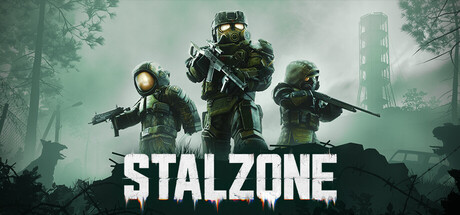
After the July 15, 2026 update, press F4 by default in STALZONE to open Photo Mode, then adjust zoom, roll, movement speed, grid, and visual presets before taking a clean HUD-free screenshot.
STALZONE finally has a proper way to line up screenshots, and it landed in the July 15, 2026 patch. The mode is simple to reach and simple to use, but a few things changed at the same time — including an old hand-hiding shortcut that no longer works. Here’s how the new camera works and where players are most likely to trip up.
What STALZONE’s new Photo Mode adds
Photo Mode is a dedicated in-game camera for taking screenshots, and the July 15, 2026 update marks its first appearance in a game that has been around in one form or another since 2014, back when it was known as STALCRAFT and later STALCRAFT X. The whole point is a cleaner shot: the moment you switch it on, the interface clears out so you get an undisturbed window on the Zone.
KEY!This is explicitly a first iteration. The plan is to expand the settings and presets over time based on what players ask for, so treat the current option list as a starting point rather than the finished feature.
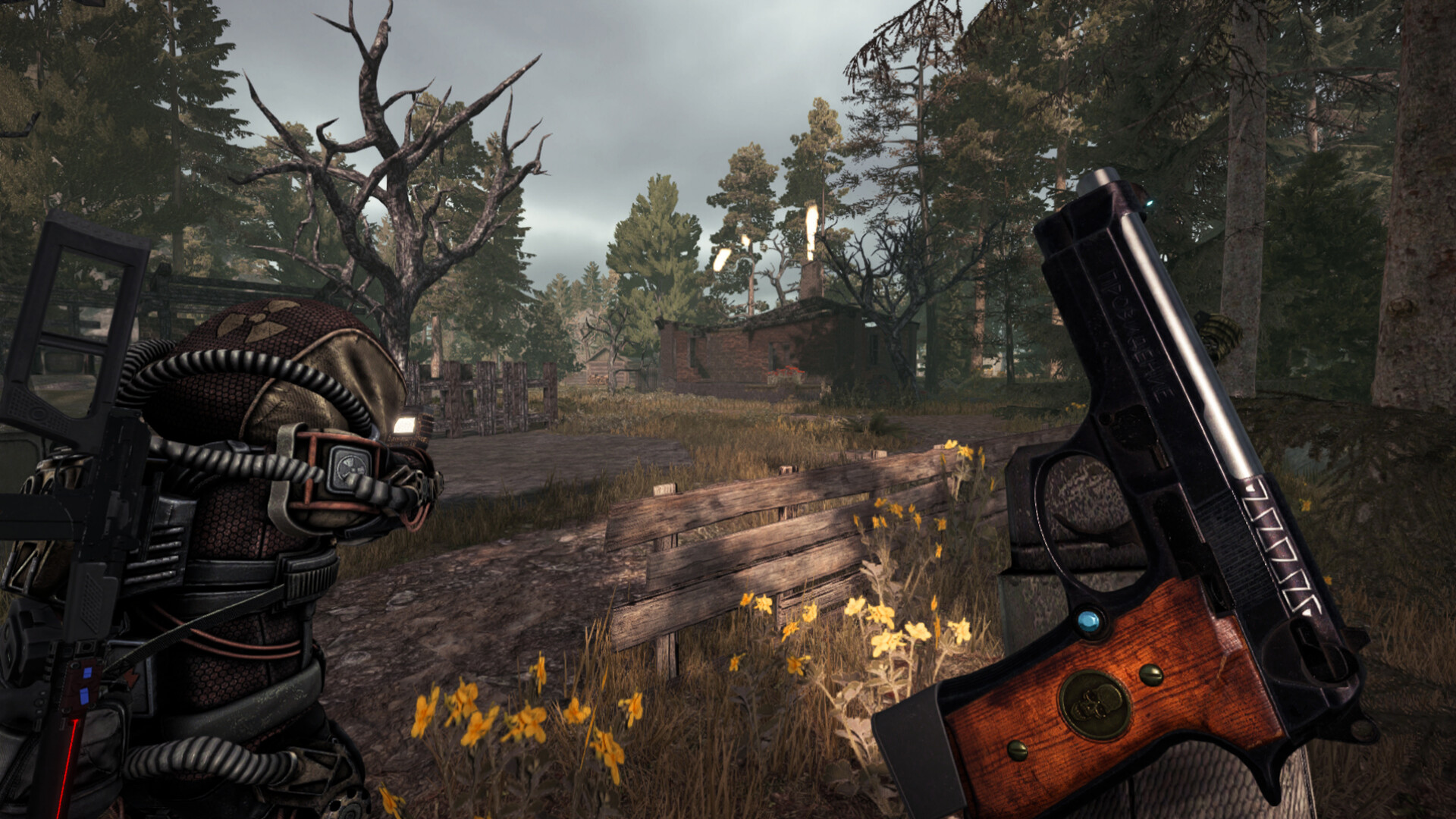
Opening Photo Mode and taking a screenshot
The basic loop is quick once you know the keys, and it works from any active session.
STEP 1/6
Load into gameplay
Launch STALZONE and drop into the moment you want to capture.
STEP 2/6
Press F4 to open Photo Mode
The default keybind pulls up the camera and clears your HUD right away.
STEP 3/6
Frame the shot
Set your zoom, roll, and movement speed, and toggle the grid to line up the composition.
STEP 4/6
Draw your weapon if you want it visible
Optional — press the Draw weapon key to bring your first-person character back into the frame.
STEP 5/6
Hide the interface
Press F1 to tuck away the Photo Mode UI, or switch it off in the general HUD display settings.
STEP 6/6
Capture it
Use your platform’s screenshot function to save the image.
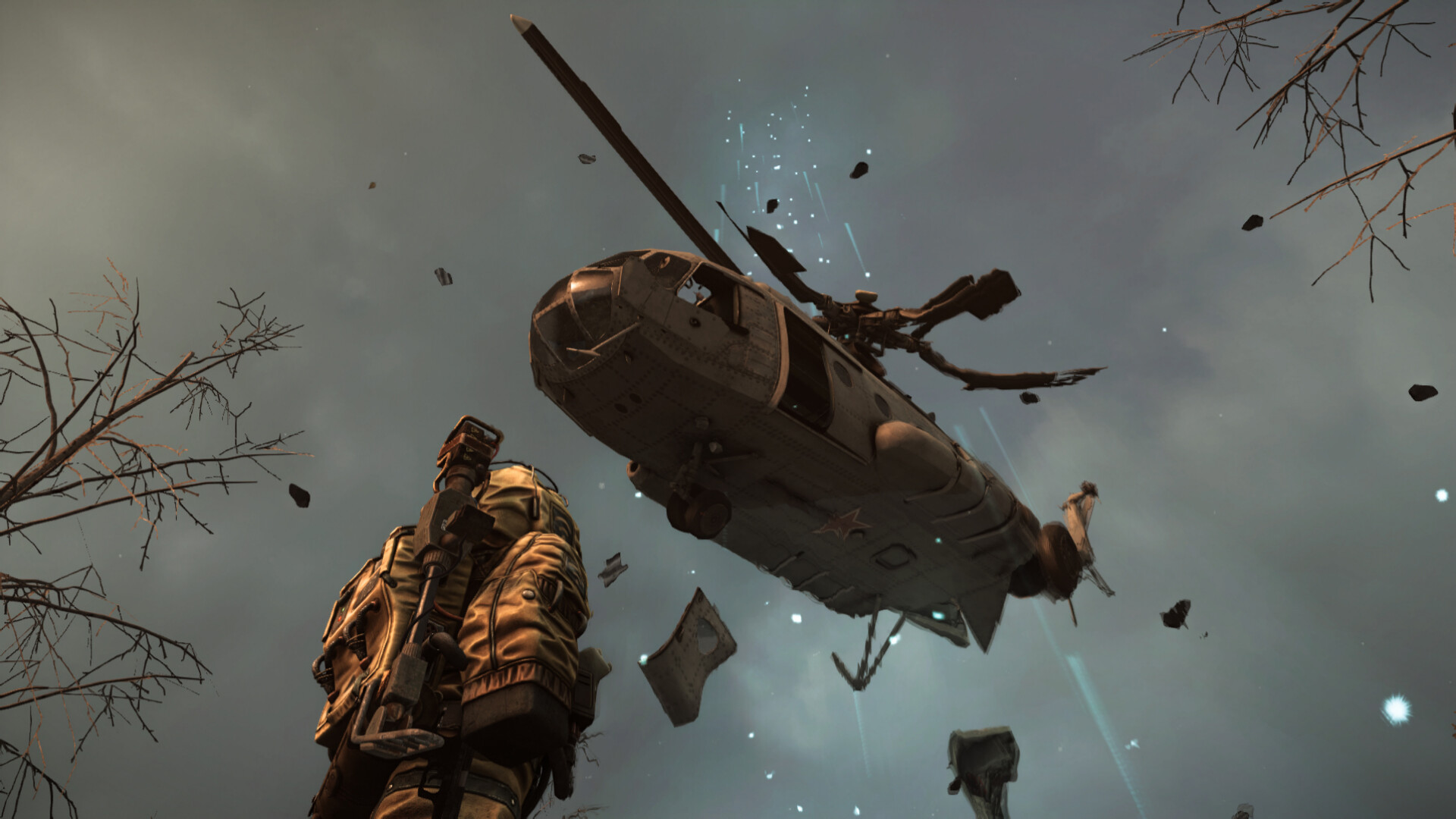
Photo Mode camera controls and visual presets
| Option | What it does |
|---|---|
| Zoom | Magnifies the view from 1.00x to 8.00x |
| Roll | Rotates the camera a full 360° |
| Movement speed | Adjusts camera pan speed from 1.00x down to 0.00x for precise framing |
| Grid | Optional rule-of-thirds overlay for composition |
| Visual presets | Standard plus 12 styled looks: VHS, Lo-Fi, Bodycam, Damaged Bodycam, Found Footage, Cheap Digital Camera, Disposable Film, STALRUNNER 2049, vaporwave, Noir, Sepia, CCTV |
The controls are built for framing rather than heavy editing. Zoom pushes in for tight crops, Roll lets you tilt the horizon for dutch angles, and dropping movement speed toward zero lets you inch the camera into place instead of overshooting. The grid is a rule-of-thirds overlay for composition. On top of that sit the visual presets — a standard look plus twelve styled filters that re-tint the whole frame, from grainy analog looks to a clean surveillance feed.
Drop movement speed to 0.00x to freeze the camera in place, which makes lining up a steady, precise frame far easier.
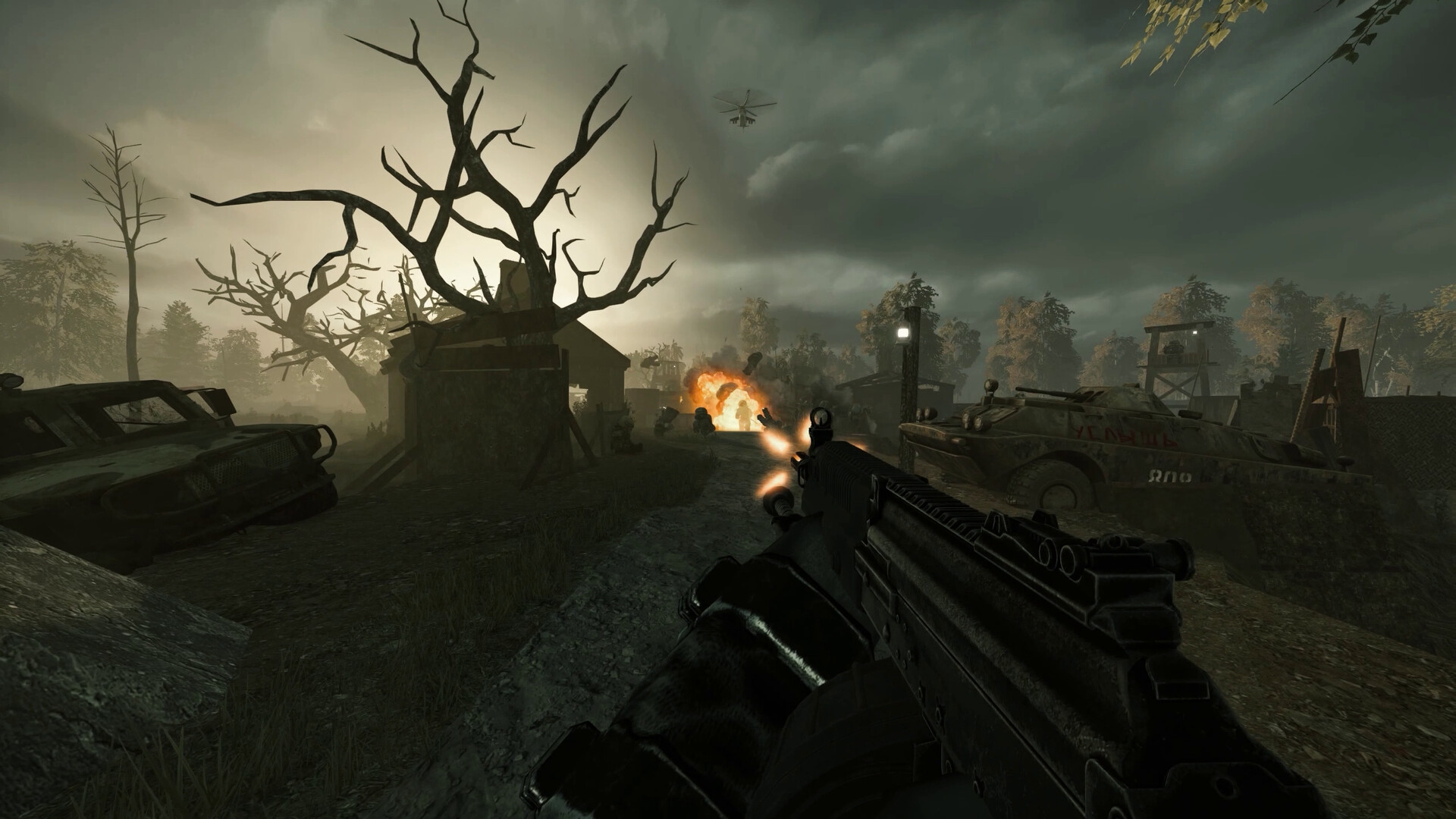
How the HUD, weapon, and grid behave
Switching on Photo Mode does a lot of cleanup automatically. Your weapon is holstered, and every HUD element disappears — that includes the status indicators for infection, suppression, critical injury, and cold, along with the first-person view of your character’s hands and body. The result is an unobstructed look at the world.
If you actually want your character in the shot, press the Draw weapon key while Photo Mode is active. That brings the first-person view back — but it also switches off Zoom automatically, so you trade the magnified free camera for a weapon-in-hand pose.
Rebinding Photo Mode keys without conflicts
There’s a dedicated Photo mode section in the control settings where every Photo Mode key can be reassigned, F4 and F1 included. The important detail is priority: while Photo Mode is active, its keybinds temporarily override anything else bound to the same keys. That’s worth knowing if you remap F4, F1, or actions that overlap with them, since the Photo Mode binding wins for as long as the mode is open.
Ctrl+F1 is gone: mistakes to avoid
| Mistake | Fix |
|---|---|
| Using Ctrl+F1 to hide hands | It was removed this update — open Photo Mode with F4 instead |
| Expecting zoom to work with the weapon drawn | Drawing the weapon disables zoom; holster it to zoom again |
| Rebinding Photo Mode keys elsewhere | Remap them in the dedicated Photo mode control section to avoid conflicts |
The July 15 update also retired an old habit. The Ctrl+F1 shortcut that used to hide your character’s hands has been removed now that a full Photo Mode exists — the mode is meant to replace it for clean, HUD-less views. A couple of other snags catch players out too, so here’s the short fix list.
Frequently Asked Questions
What is the default key for Photo Mode in STALZONE?
It’s F4. Press it during gameplay and Photo Mode opens immediately, clearing the HUD as it does.
Can you rebind Photo Mode controls?
Yes. A dedicated Photo mode section in the control settings lets you reassign every Photo Mode key, including the F4 open key and the F1 interface toggle.
Does the Photo Mode grid show up in screenshots?
No. Neither the grid nor the Photo Mode interface appears in a captured image, even if both are on screen when you take the shot.
Why does zoom stop working when I draw my weapon?
Drawing your weapon switches back to the standard first-person character view, and zoom only functions in the free Photo Mode camera. Holster the weapon to get zoom back.
Does Ctrl+F1 still hide hands after the July 15 update?
No. That shortcut was removed in this patch. Use Photo Mode via F4 for a hands-free, HUD-less view instead.

Leave a Reply