
- The short version
- Which GTA 6 settings make aiming easier, and where are they?
- Targeting: How the GTA 6 targeting choices differ
- Aim Assist Strength
- Shooting Assist
- How I recommend adjusting the GTA 6 aim settings
- Which GTA 6 accessibility settings reduce damage, and what is the warning?
- What helps with spotting enemies and surviving early fights in GTA 6?
- FAQs
The short version
- Yes. Set Targeting to Lock-On so aiming always attempts to lock on to the nearest target. Find it under SETTINGS > GAMEPLAY > COMBAT.
- Raise Aim Assist Strength for more help slowing your reticle while aiming at a target. Leave Shooting Assist On for help tracking nearby targets.
- Increase Lock-On Time for help tracking moving targets before your aim returns to free aim.
- If enemies are hard to see, try Focus with L3 + R3. One player says it highlights enemies.
- If fights remain difficult, Accessible Combat reduces enemy health and damage taken by your character. It carries a warning that it significantly changes gameplay balance and the experience.
Which GTA 6 settings make aiming easier, and where are they?
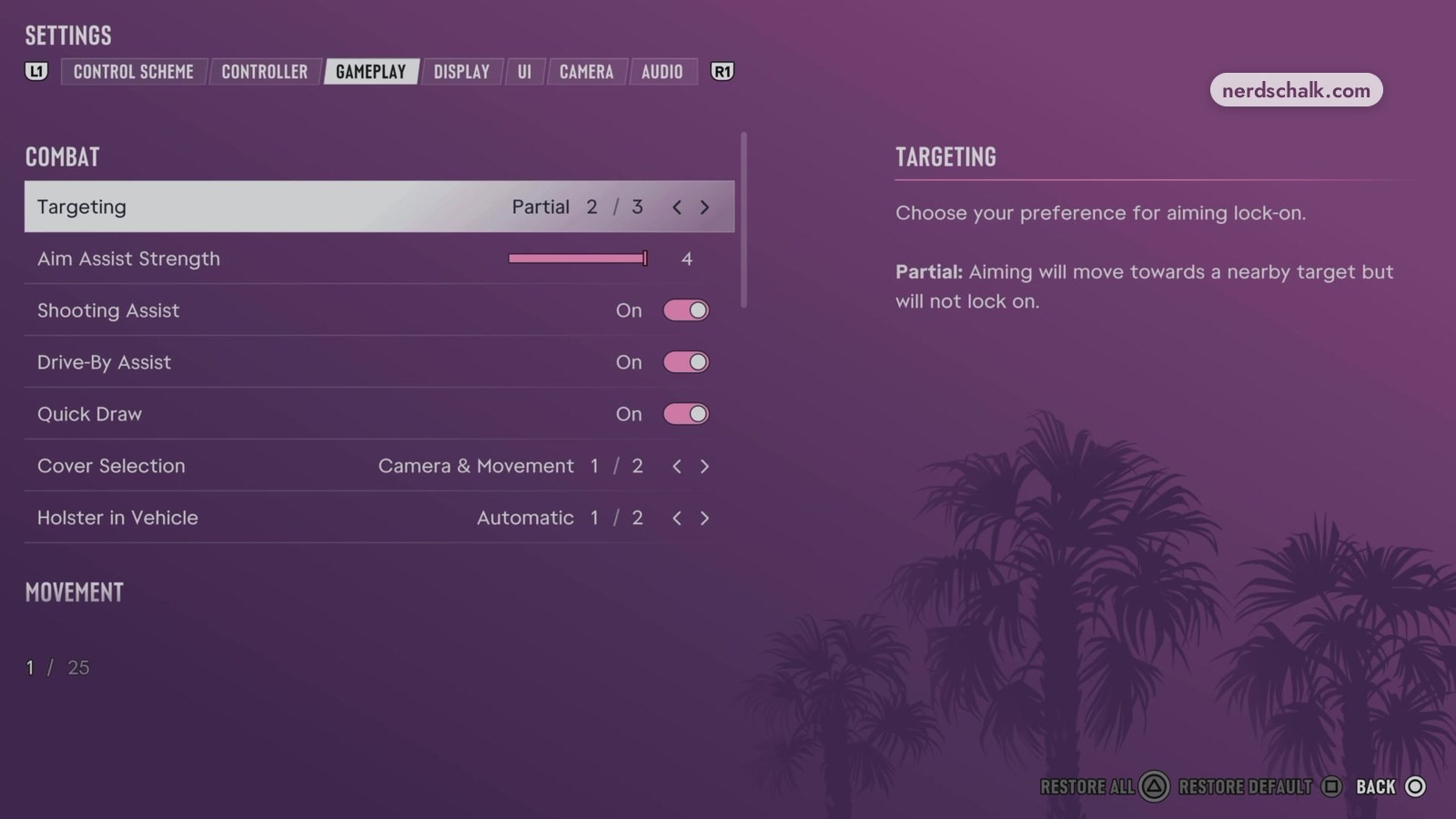
The game’s COMBAT screen puts aiming assistance under Targeting and Aim Assist Strength, with nearby-target tracking available through Shooting Assist.
- Open SETTINGS.
- Select GAMEPLAY.
- Enter COMBAT.
For setup beyond aiming, see the GTA 6 beginner settings guide.
Targeting: How the GTA 6 targeting choices differ
The game’s Targeting screen distinguishes automatic target locking from assistance that nudges your aim toward an enemy. Its description reads: “Choose your preference for aiming lock-on.”
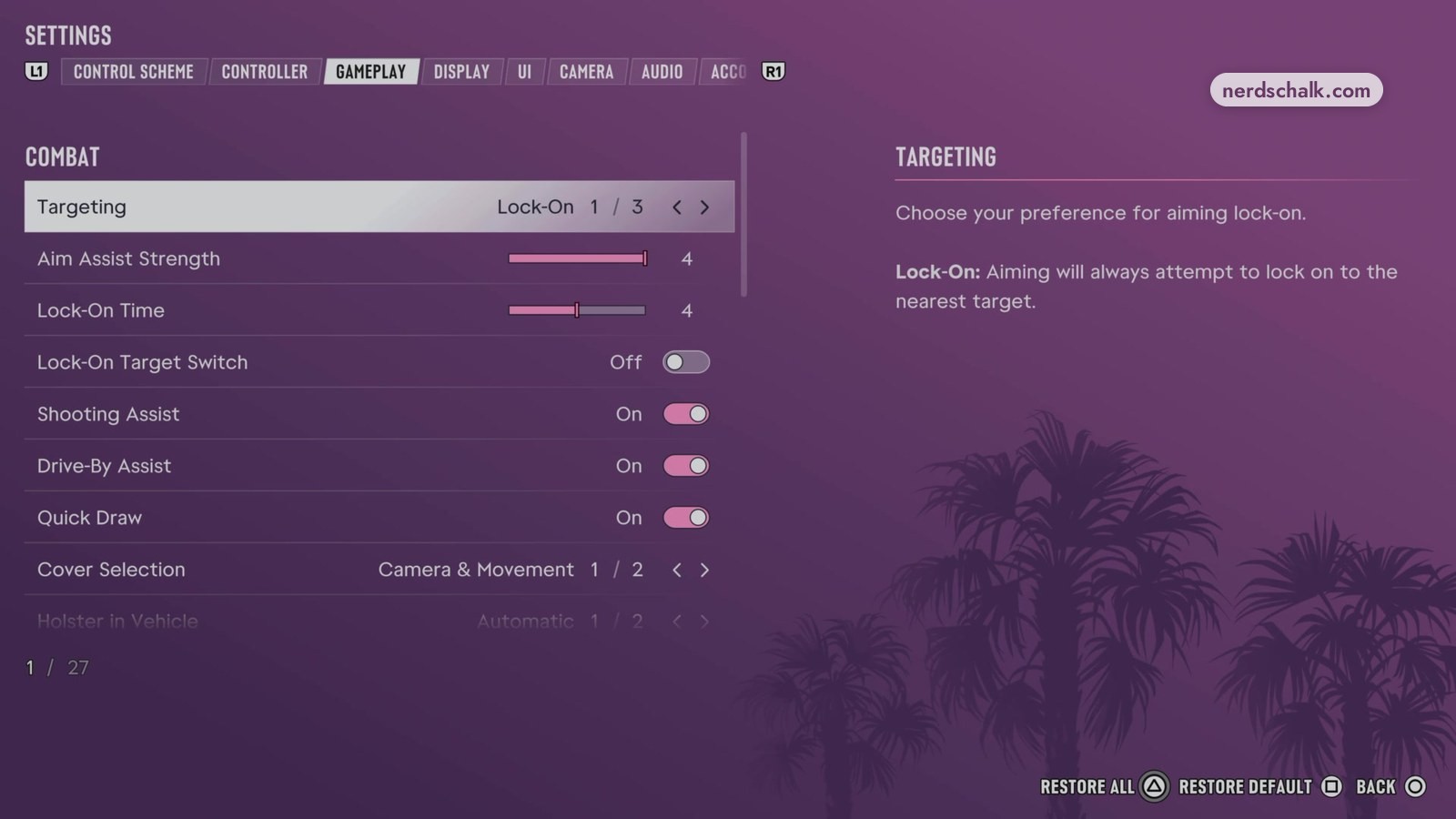
- Lock-On: “Aiming will always attempt to lock on to the nearest target.”
- Partial: “Aiming will move towards a nearby target but will not lock on.”
- Free Aim: “Aiming will never lock on to a target.”
For automatic targeting, choose Lock-On: the game’s description says it always attempts to acquire the nearest target. One player in the r/GTA6 Mission Help Thread says they switched from Free Aim to Lock-On.
With Lock-On selected, the game’s COMBAT screen reveals Lock-On Target Switch and Lock-On Time. The latter’s description reads: “Keeps your aim locked on to a target before reverting to free aim.”
For moving targets, the game’s Lock-On Time text says: “A longer lock-on time makes it easier to track moving targets.” Raise Lock-On Time if moving targets keep getting away.
Aim Assist Strength
Aim Assist Strength: “Slows down the movement of the reticle while aiming at a target.”
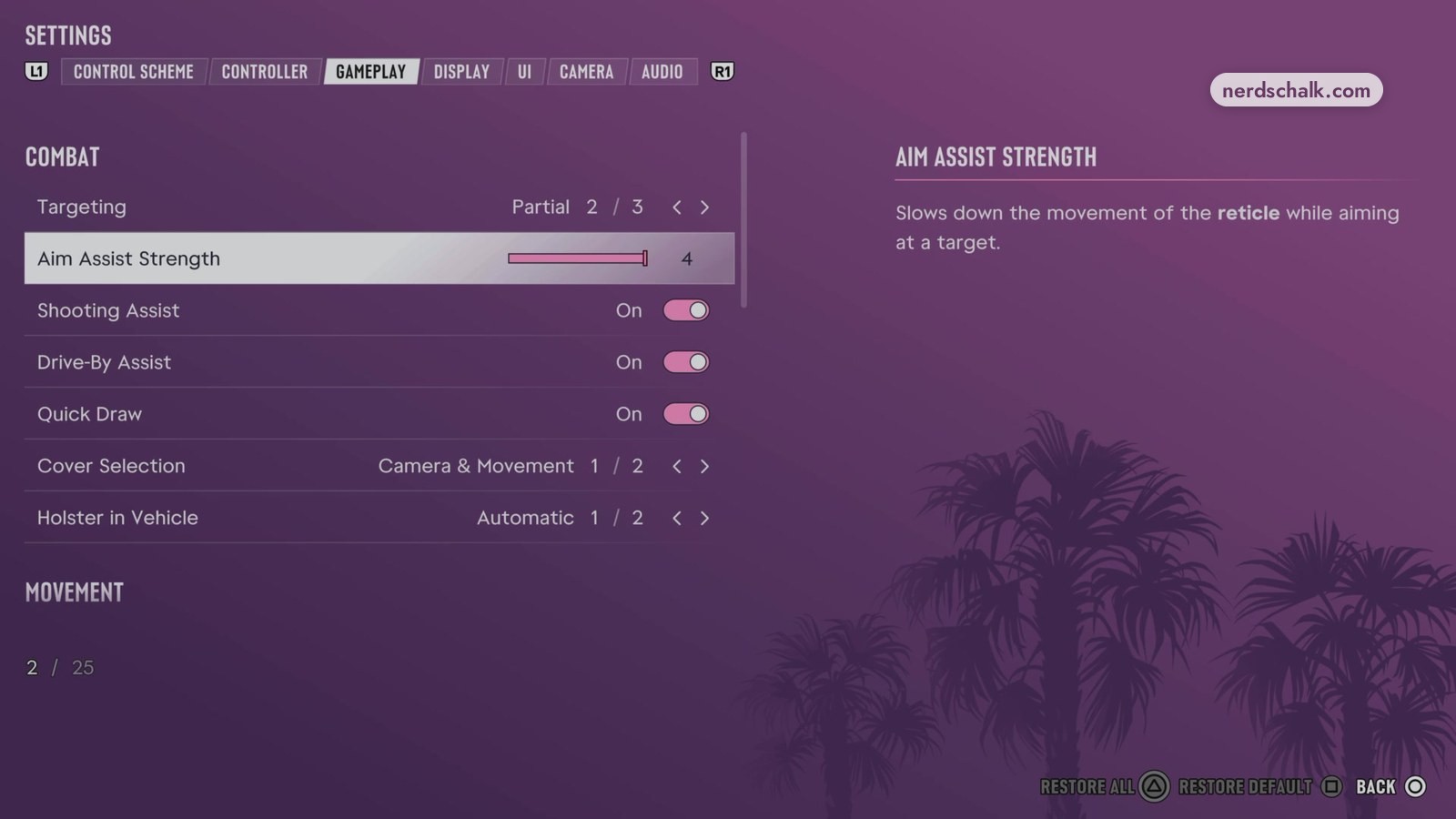
Raise Aim Assist Strength if your aim keeps sliding off targets.
Shooting Assist
Shooting Assist: “Assists with tracking targets that are within close proximity.”
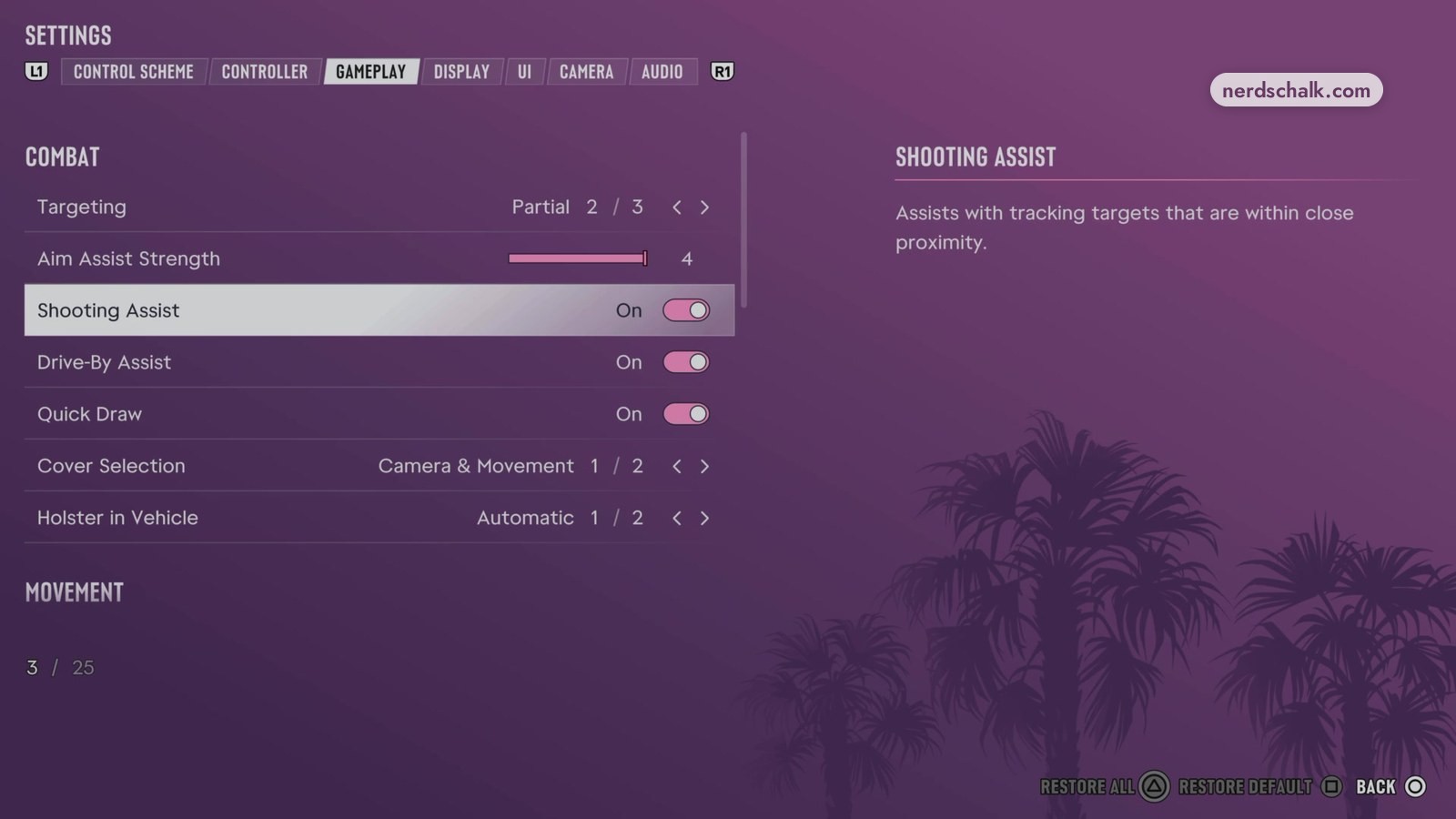
Leave Shooting Assist On to retain the nearby-target tracking help described by the game.
How I recommend adjusting the GTA 6 aim settings
I recommend exploring the aiming options and selecting their most automatic choices for the easiest experience. In my game, I switched Targeting from Partial to Lock-On.
If the game remains difficult, I recommend changing Accessible Combat and Reduced Vehicle Damage, the two options carrying the game’s warning about changing the overall experience.
Which GTA 6 accessibility settings reduce damage, and what is the warning?
The game’s ACCESSIBILITY screen offers Accessible Combat for reducing character damage and enemy health. Reduced Vehicle Damage lowers damage to your vehicle, according to its description on that screen. In my game, both settings were Off by default.
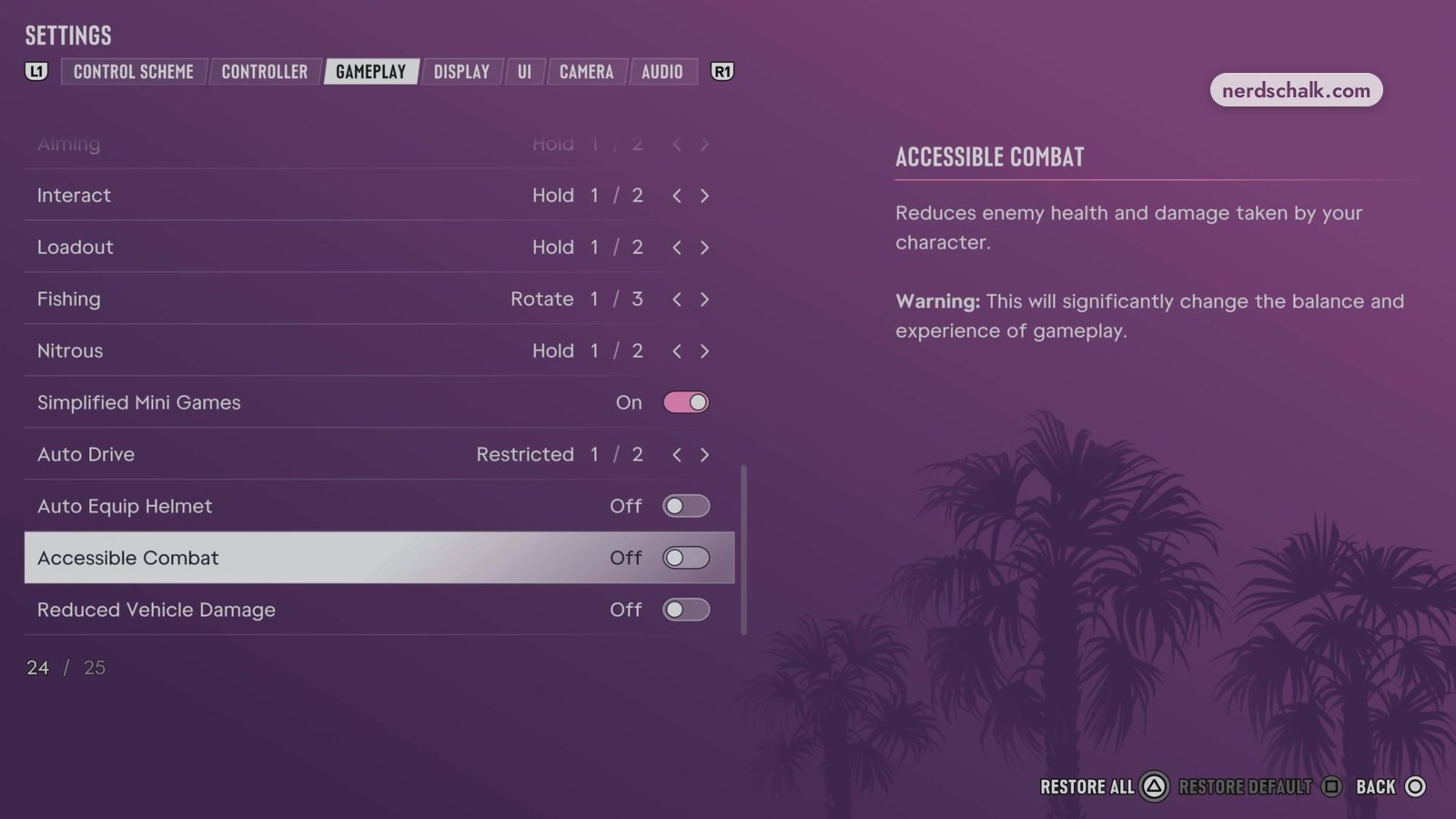
Damage reduction settings
| Setting | Game description |
|---|---|
| Accessible Combat | The game’s ACCESSIBILITY screen says: “Reduces enemy health and damage taken by your character.” |
| Reduced Vehicle Damage | The game’s ACCESSIBILITY screen says: “Reduces damage taken by your vehicle.” |
Under each setting, the game’s ACCESSIBILITY screen warns: “Warning: This will significantly change the balance and experience of gameplay.” Read more about these GTA 6 easier gameplay settings.
What helps with spotting enemies and surviving early fights in GTA 6?
Focus highlights enemies. The game’s controls screen shows Focus assigned to L3 + R3, with this description: “Assign the input for using focus and combat focus.”
For stealth, the game’s hint says: “Crouch and move quietly to stay hidden.” Read how to grab guards quietly in GTA 6.
One player says the first mission can be finished entirely through stealth without firing a shot. One player says moving slowly and hiding behind objects helped them get through it.
FAQs
Are Accessible Combat and Reduced Vehicle Damage on by default in GTA 6?
No. In my game, both settings were Off by default. Each carries a warning on the game’s ACCESSIBILITY screen that enabling it substantially changes gameplay balance and the experience.
Related on NerdsChalk