

The short version
- The game’s own menu offers Minimap (Dynamic) alongside Minimap & Compass (Dynamic) and Minimap Always On, with descriptions of when these navigation displays appear.
- Follow the game’s own menu prompt to explore settings before continuing; in GTA 6, further navigation controls are under SETTINGS, reached through UI using R1 on PS5 or RB on Xbox before scrolling to NAVIGATION.
The in-game NAVIGATION EXPERIENCE screen is where you choose when the minimap or compass appears. The game’s own menu describes choices that display navigation dynamically or on demand, plus a choice that keeps the minimap visible during gameplay.
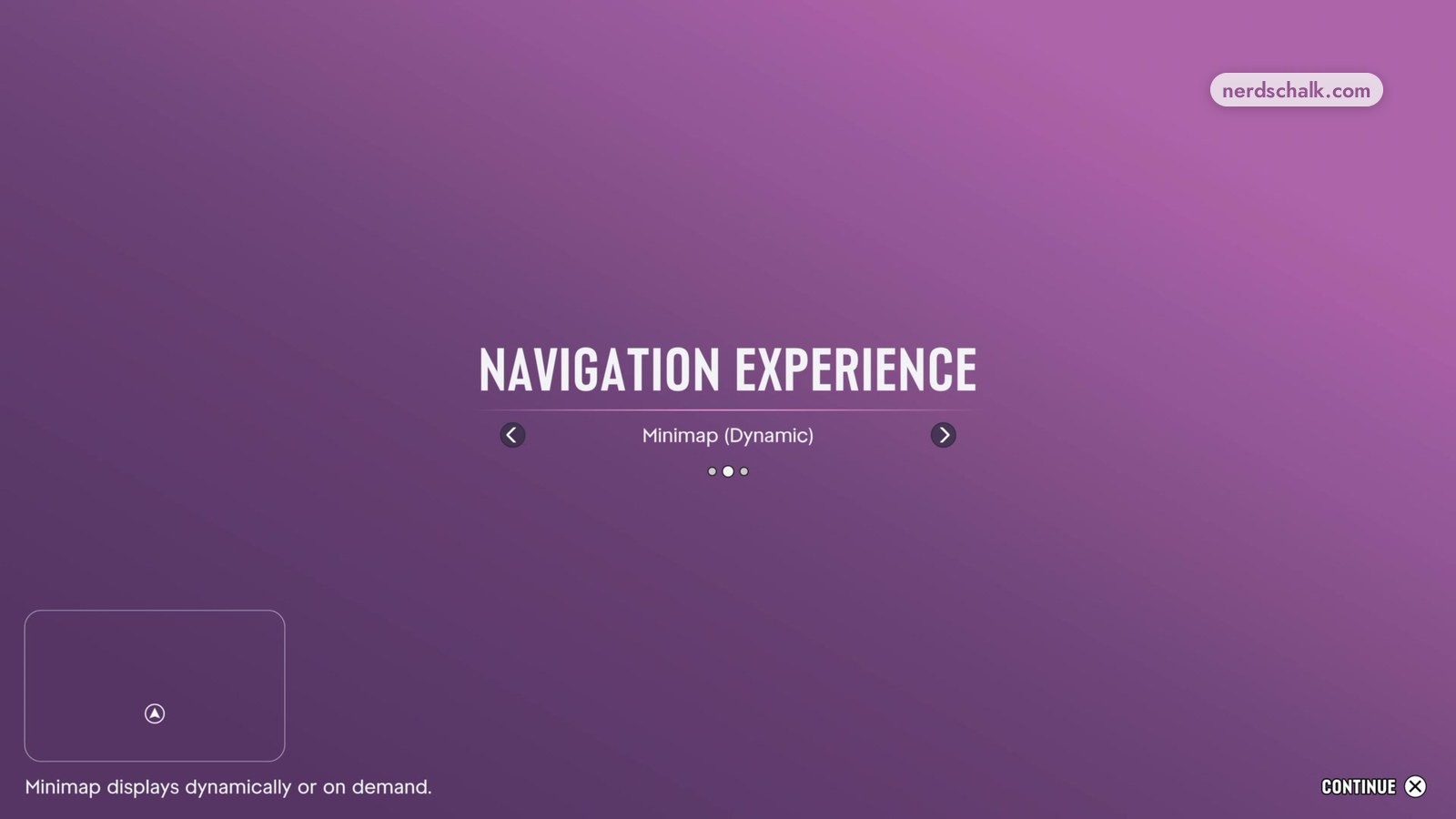
The in-game NAVIGATION EXPERIENCE screen offers the following choices.
Choices and display descriptions
| Choice in the game’s own menu | On-screen description |
|---|---|
| Minimap (Dynamic) | Minimap displays dynamically or on demand. |
| Minimap & Compass (Dynamic) | “Compass and minimap display dynamically or on demand.” |
| Minimap Always On | Minimap always displays during gameplay. |
The game’s own menu distinguishes the dynamic choices by whether they include the compass; Minimap Always On specifies continuous minimap visibility during gameplay.
Choose by matching your preferred display behavior to the descriptions on the in-game NAVIGATION EXPERIENCE screen.
- Review the choices and their display descriptions on the in-game NAVIGATION EXPERIENCE screen.
- When you are ready to proceed, select CONTINUE on the in-game NAVIGATION EXPERIENCE screen.
The game’s own menu also prompts: “Explore settings before you begin, or press X to continue.”
For the compass, the game’s own menu describes two roles: supplementing the minimap or providing another way to find your way.
In GTA 6, the NAVIGATION section is under UI within SETTINGS.
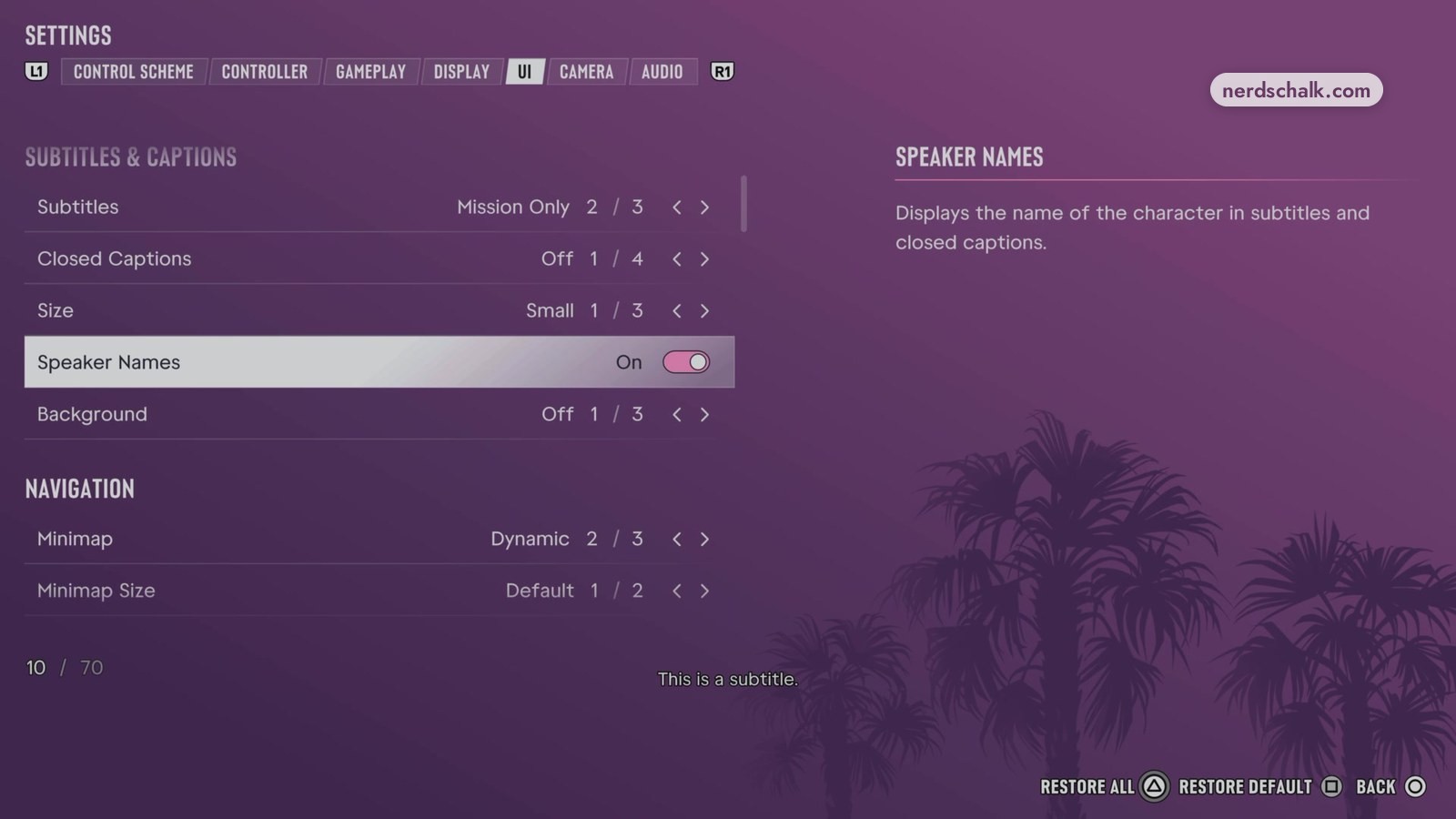
- Open SETTINGS from the game’s own menu.
- Switch to UI with R1 on PS5 or RB on Xbox.
- Scroll down to NAVIGATION.
GTA 6 minimap, compass and GPS settings
The in-game SETTINGS screen shows minimap and compass controls alongside GPS and marker controls under NAVIGATION.
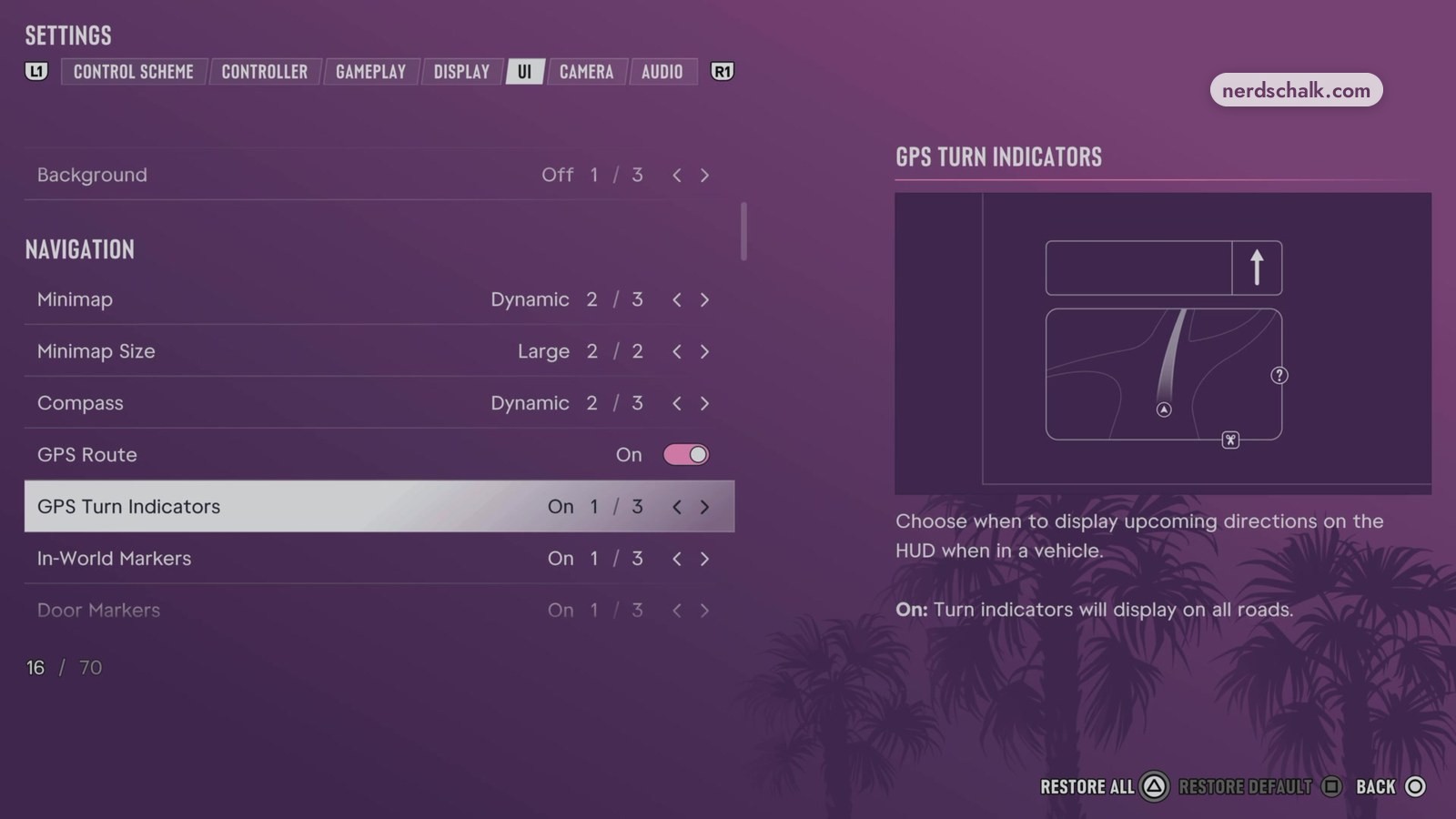
Navigation controls and recorded selections
| Control in the game’s own menu | Recorded selection |
|---|---|
| Minimap | Dynamic |
| Minimap Size | Default in one view; Large in another |
| Compass | Dynamic |
| GPS Route | On |
| GPS Turn Indicators | On |
| In-World Markers | On |
| Door Markers | On |
The game’s own menu describes GPS Turn Indicators as controlling upcoming directions displayed on the HUD while you are in a vehicle. For the On selection, the in-game SETTINGS screen specifies that turn indicators appear on every road.
FAQs
What is the difference between Minimap (Dynamic) and Minimap Always On in GTA 6?
The in-game NAVIGATION EXPERIENCE screen describes Minimap (Dynamic) as displaying dynamically or when requested. For Minimap Always On, the game’s own menu specifies that the minimap remains visible throughout gameplay.
Can the compass replace the minimap in GTA 6?
Yes, the game’s own menu describes the compass as an alternative way to find your way or as support for the minimap.
What does GPS Turn Indicators do in GTA 6?
The game’s own menu describes GPS Turn Indicators as controlling when upcoming directions appear on the HUD while you are in a vehicle. With On selected, the in-game SETTINGS screen specifies that indicators display on every road.
Related on NerdsChalk