
The short version
- The game’s own menu guides Grand Theft Auto VI HDR calibration with prompts for a barely visible logo and pattern, plus a comfortable brightness level.
- On PS5, PlayStation’s HDR page places HDR controls under Settings > Screen and Video > Video Output > HDR, with console calibration under Video Output > Adjust HDR.
Where are the GTA 6 HDR settings on PS5?
The game’s own menu includes HDR and HDR Calibration; PlayStation places the console’s HDR controls under Video Output.
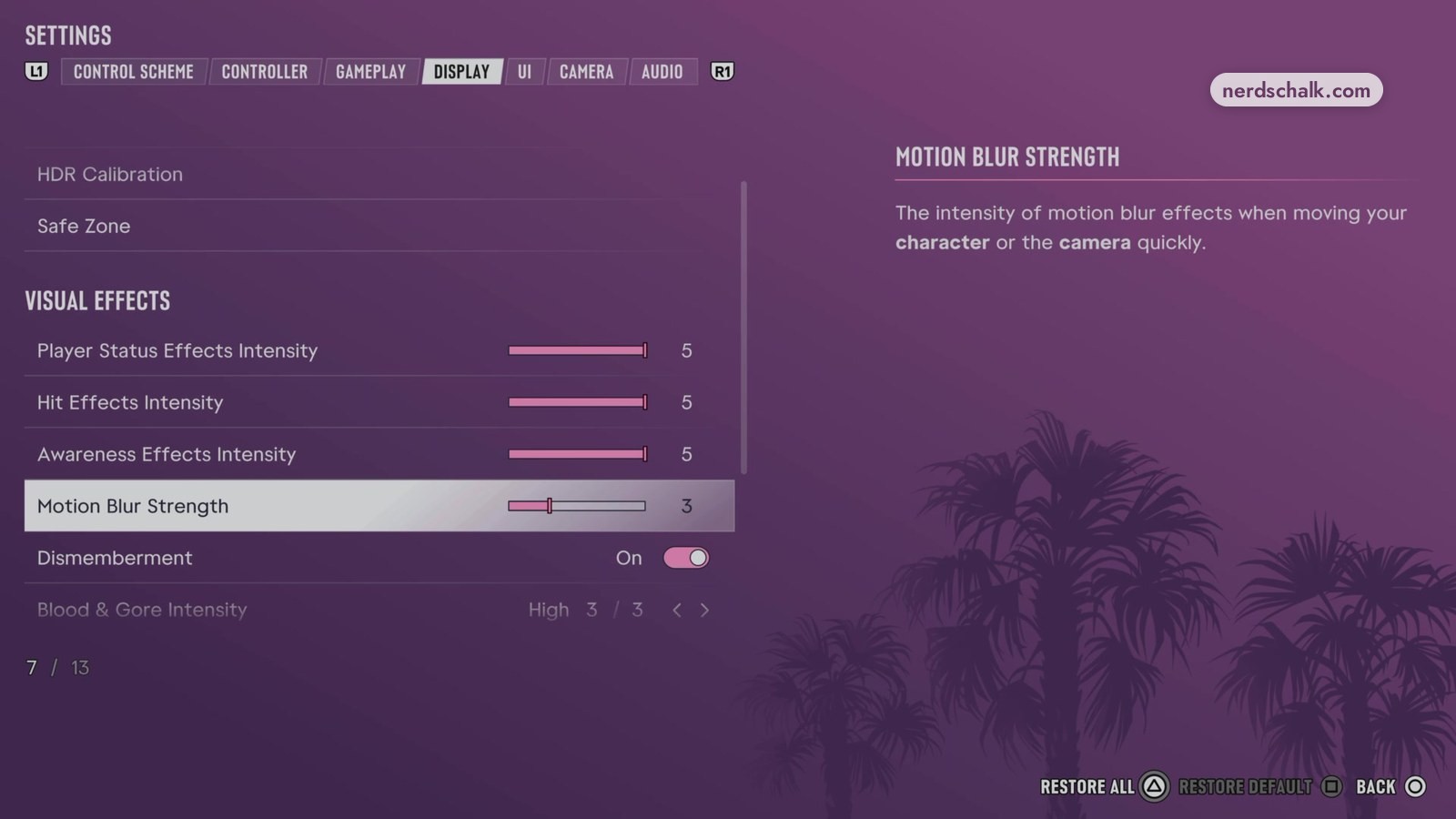
For PS5 HDR settings, follow PlayStation’s menu paths:
- Open Settings, then Screen and Video.
- Select Video Output, then HDR.
- For console calibration, select Video Output, then Adjust HDR.
In the game’s own menu, the HDR option carries the description “Choose whether HDR is on or off.”
How do I calibrate GTA 6 HDR?
Follow the visibility and brightness prompts shown on the in-game HDR CALIBRATION screen.
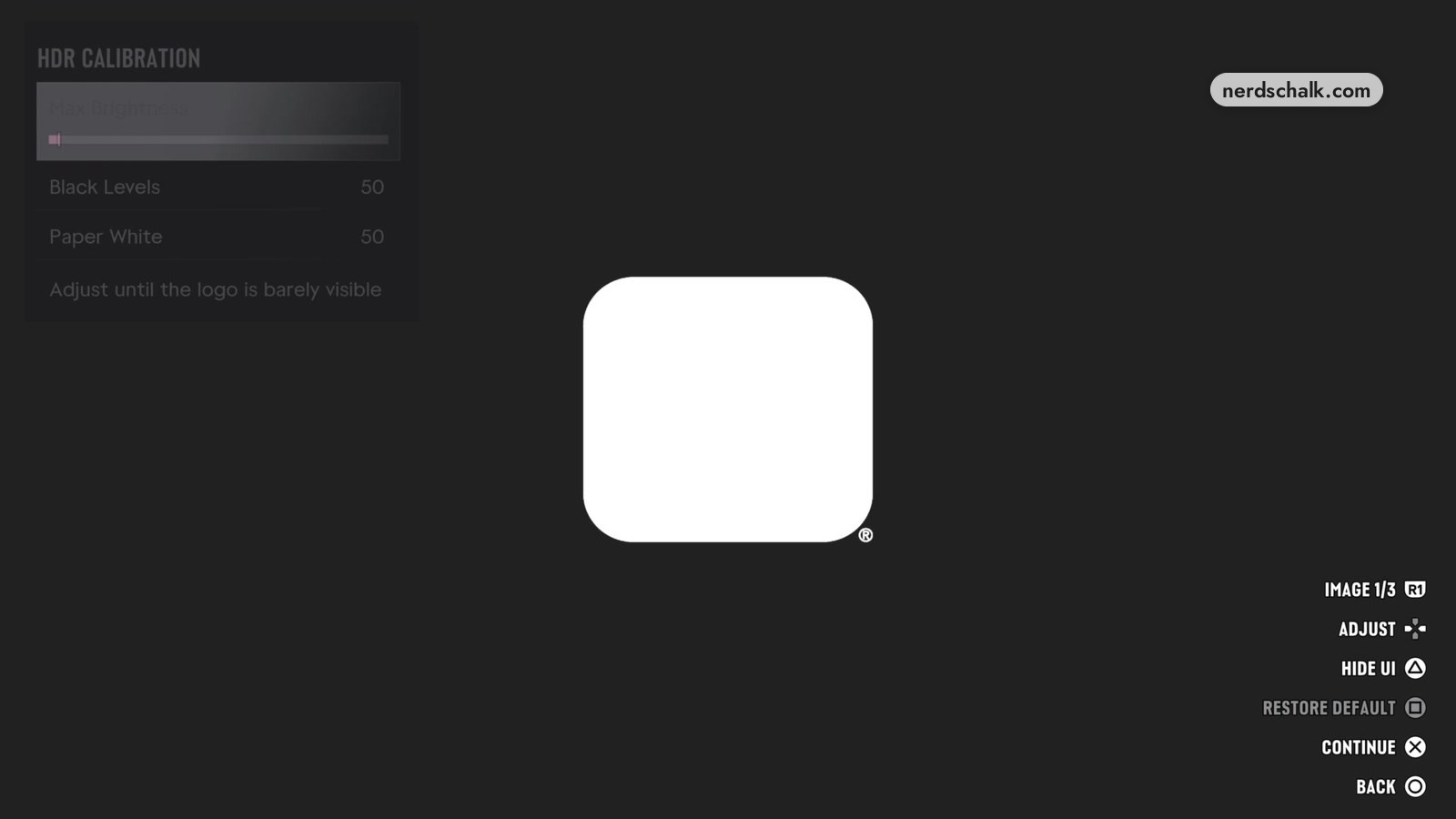
The game’s own menu includes these adjustments:
- Max Brightness
- Black Levels
- Paper White
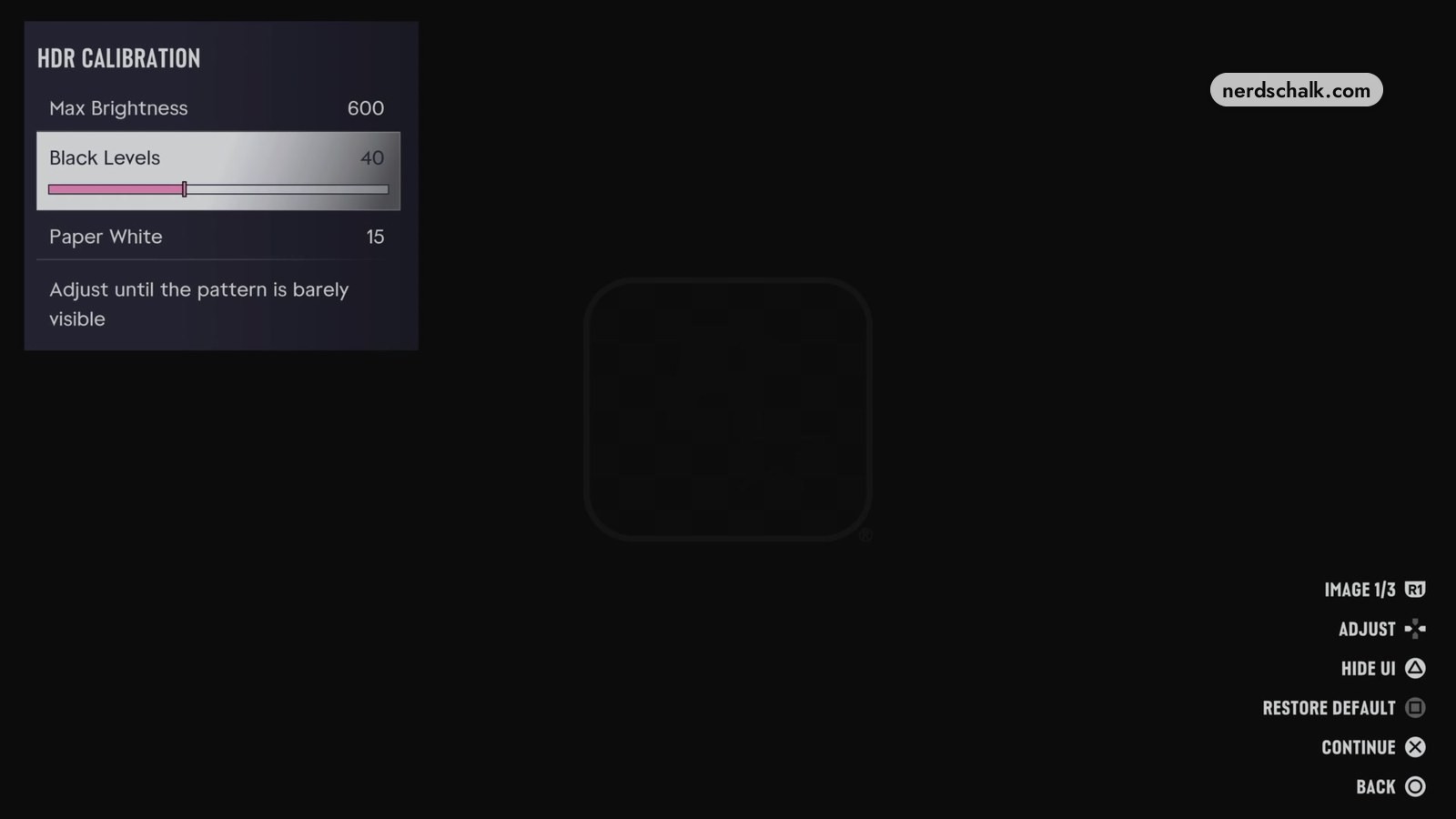
The in-game HDR CALIBRATION screen displays these prompts:
- Adjust until the logo is barely visible.
- Adjust until the pattern is barely visible.
- “Adjust the brightness to a comfortable, natural level”
PlayStation notes that the image quality available on PS5 depends on your home entertainment setup.
Which controls are available during GTA 6 HDR calibration?
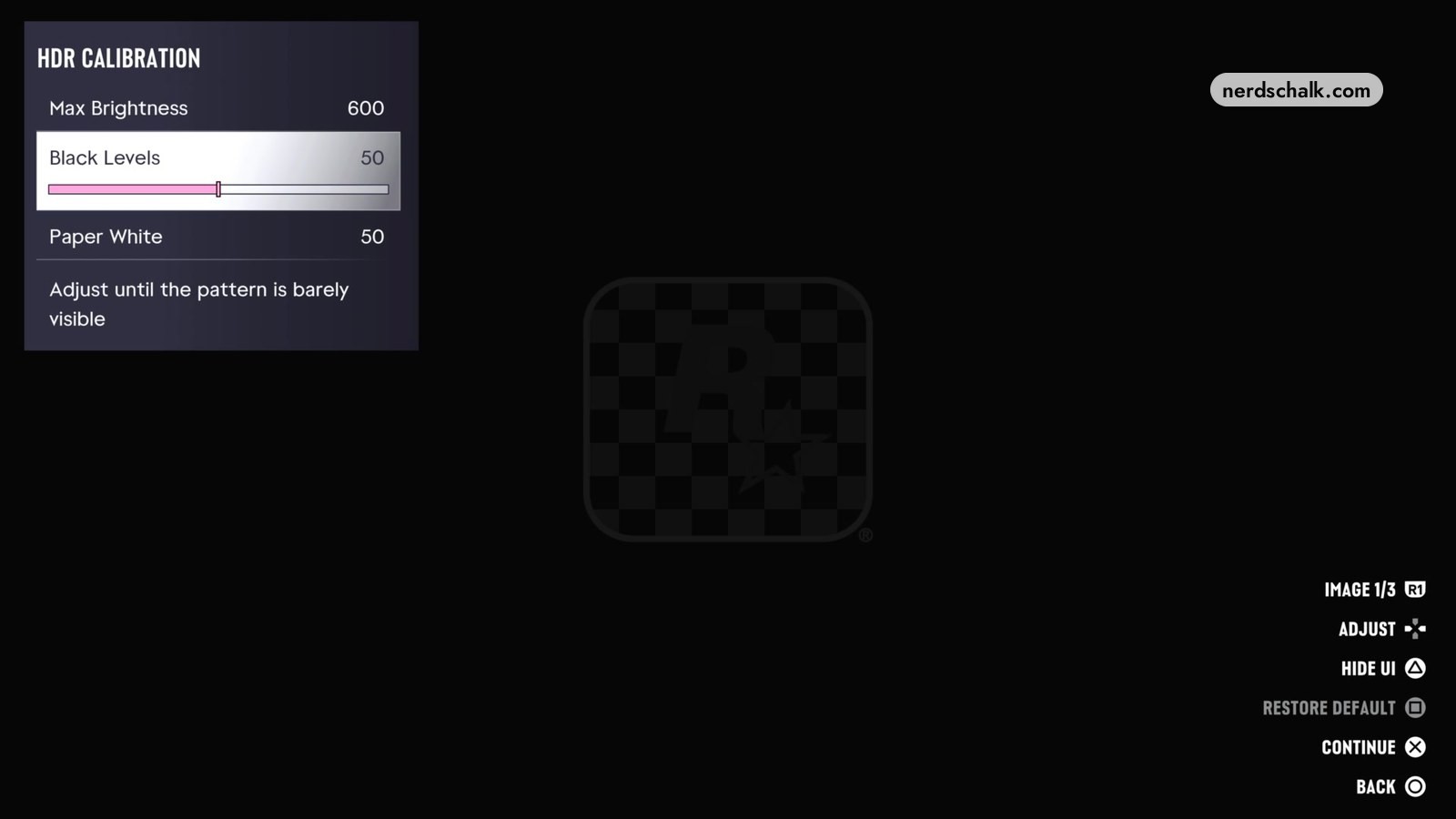
The in-game HDR CALIBRATION screen shows these controls:
- ADJUST
- HIDE UI
- RESTORE DEFAULT
- CONTINUE
- BACK
FAQs
Which HDR settings can I adjust in GTA 6?
The in-game HDR CALIBRATION screen includes these settings:
- Max Brightness
- Black Levels
- Paper White
Can I turn HDR off in GTA 6?
Yes, the game’s own menu includes an HDR option for switching HDR on or off.
How do I open HDR calibration on PS5?
PlayStation gives this path to the console’s HDR calibration:
- Open Settings, then Screen and Video.
- Select Video Output, then Adjust HDR.
Related on NerdsChalk