

Enable Accessible Combat and Reduced Vehicle Damage under Settings > GAMEPLAY to lower enemy health and reduce damage to your character and vehicle.
Grand Theft Auto VI has separate accessibility switches for combat and vehicle damage. Its listed platforms are PlayStation 5 and Xbox Series X|S. This guide covers finding both options, enabling them, and saving your changes.
How to enable Accessible Combat and Reduced Vehicle Damage in Grand Theft Auto VI
Open the Gameplay settings
Open Settings and use the shoulder buttons, labeled L1 and R1, to select the GAMEPLAY tab.
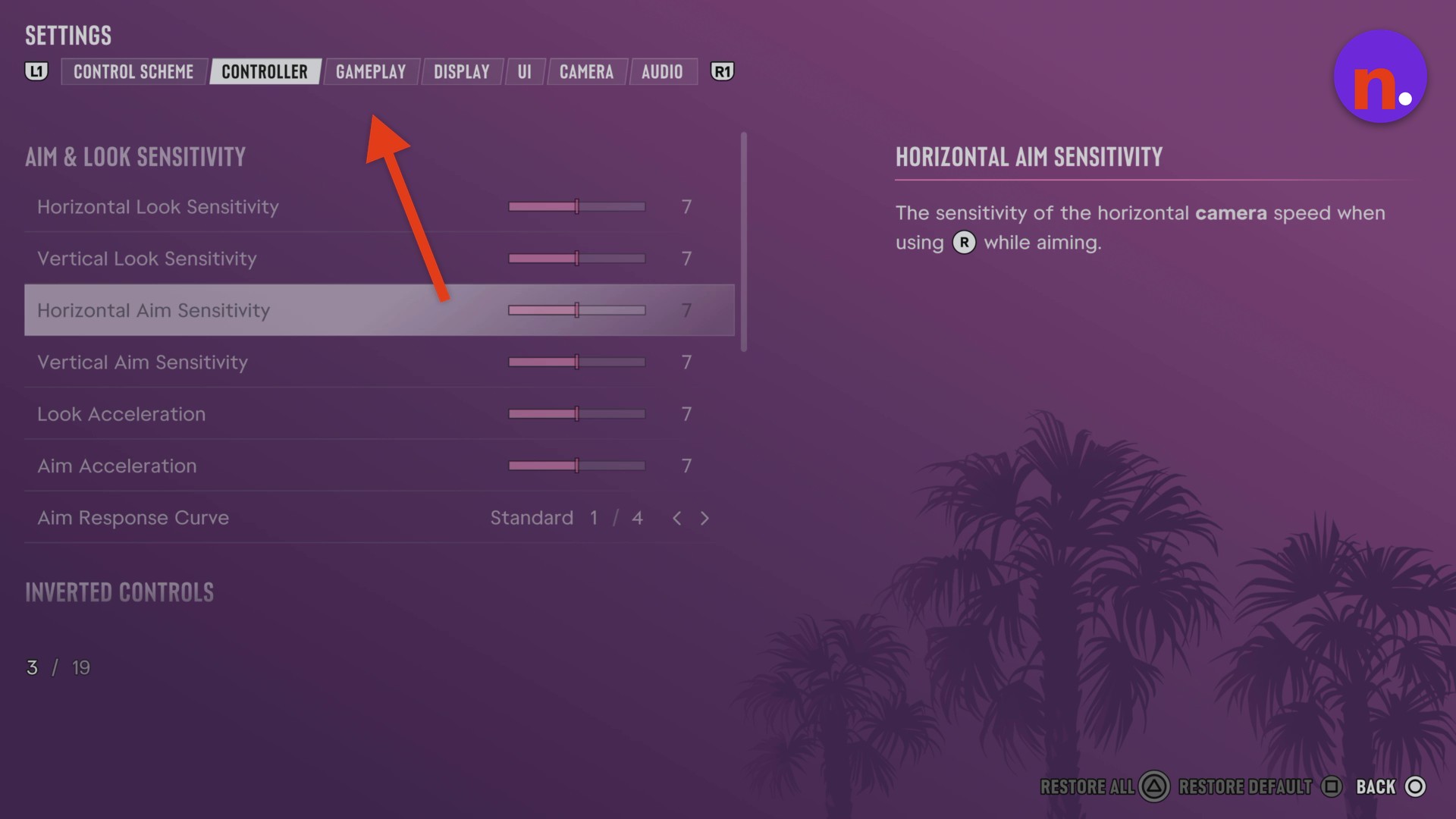
Find the final two accessibility options
Scroll down past Combat and Movement to the bottom of Accessibility. The final two entries are Accessible Combat at 24 / 25 and Reduced Vehicle Damage at 25 / 25.
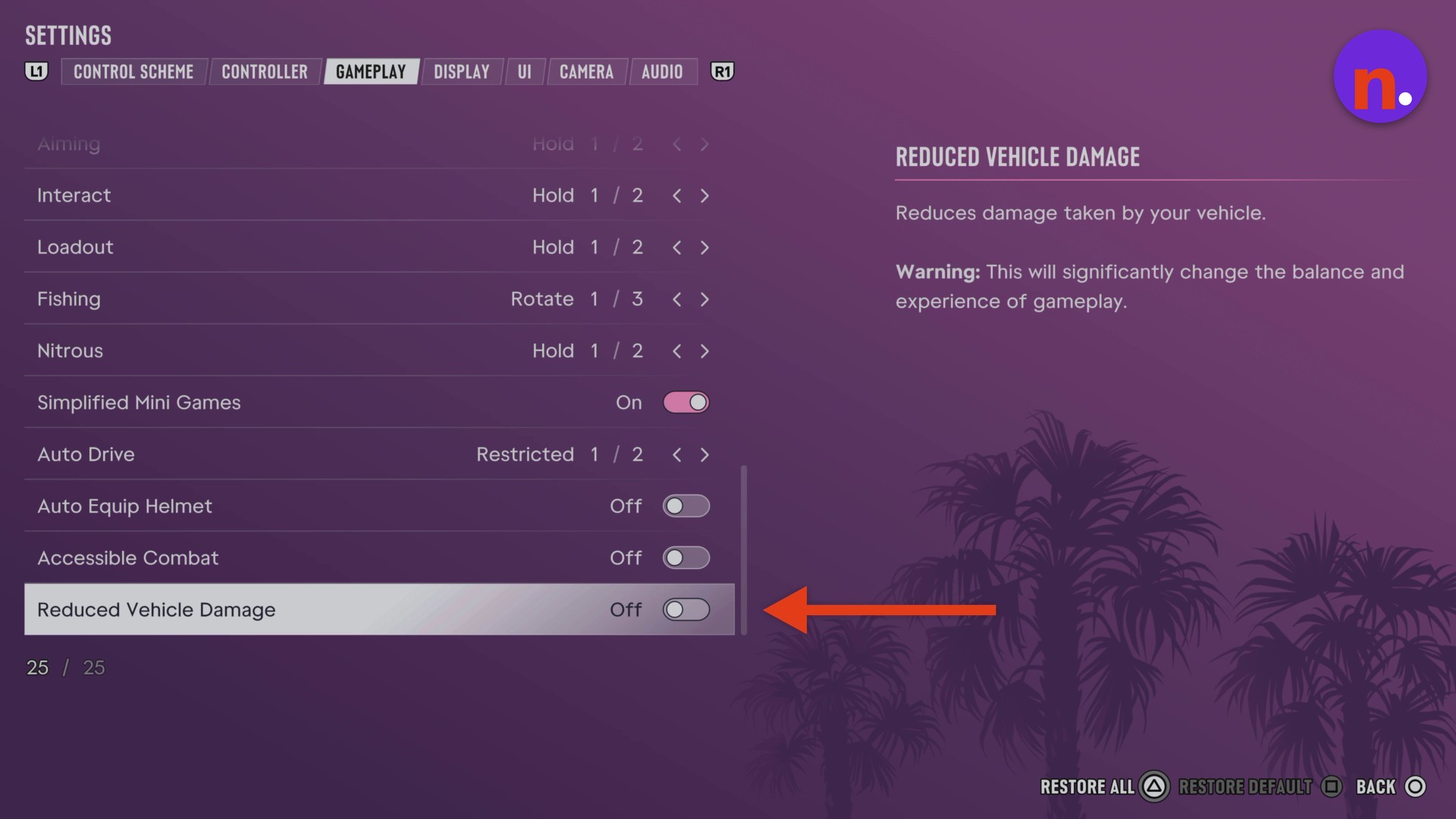
Turn on Accessible Combat
Both options warn that enabling them will significantly change gameplay balance and experience. Highlight Accessible Combat and set its switch to On.
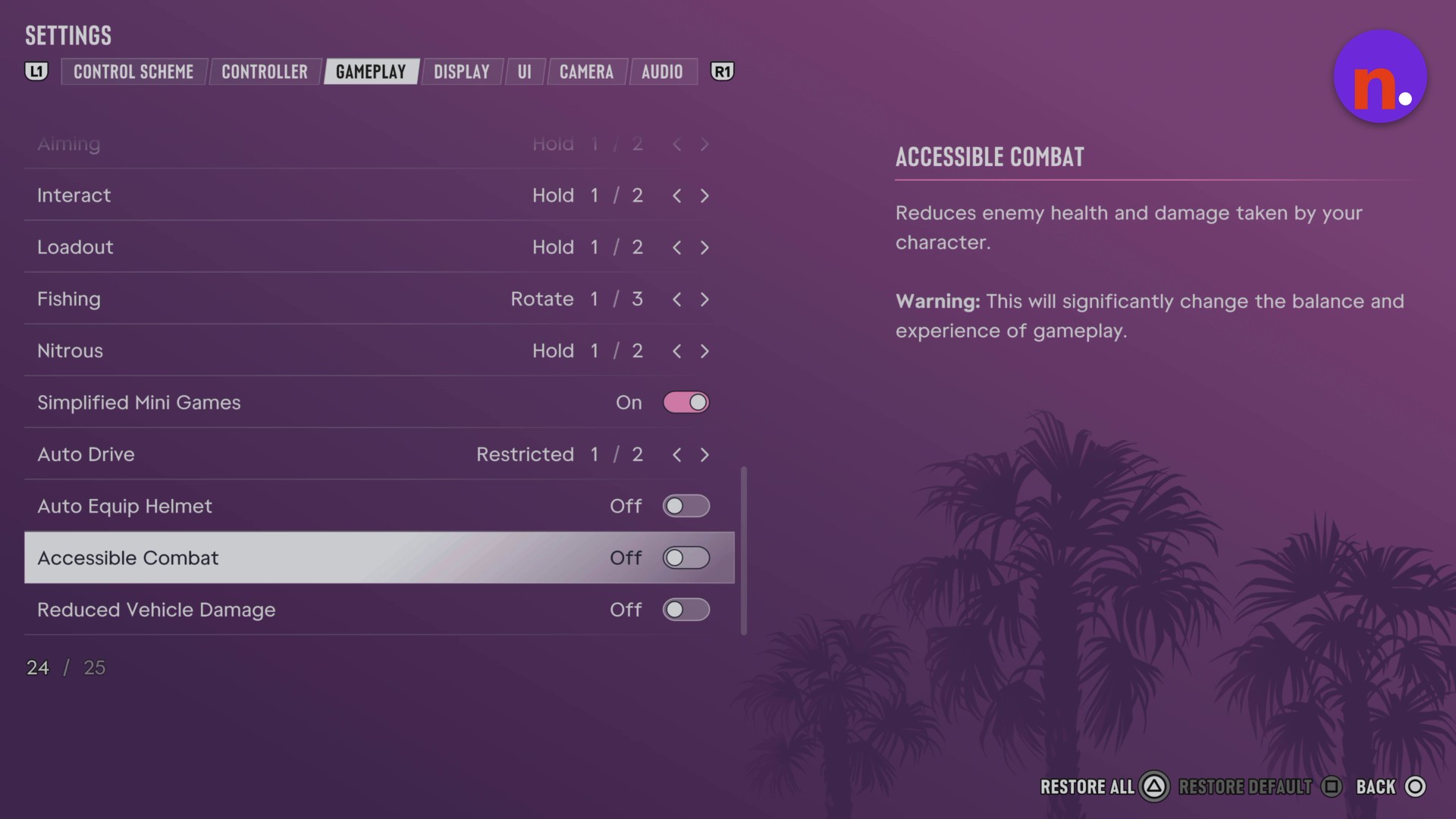
Turn on Reduced Vehicle Damage
Highlight Reduced Vehicle Damage, directly beneath Accessible Combat, and set its switch to On.
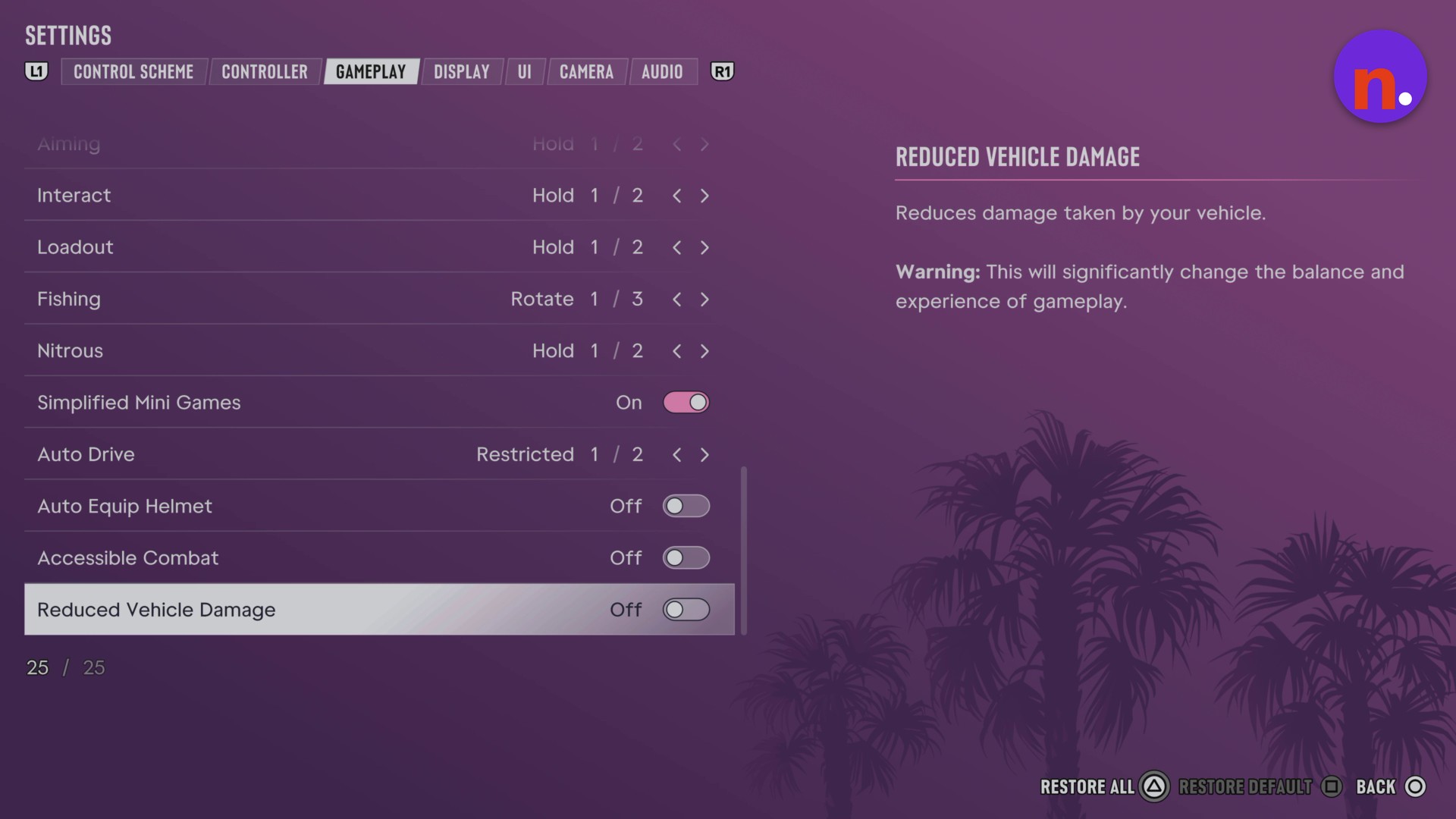
Confirm and save your changes
Whenever SAVE SETTINGS? appears, select YES to apply your changes. The prompt warns that changing these settings may have a significant impact on your experience.
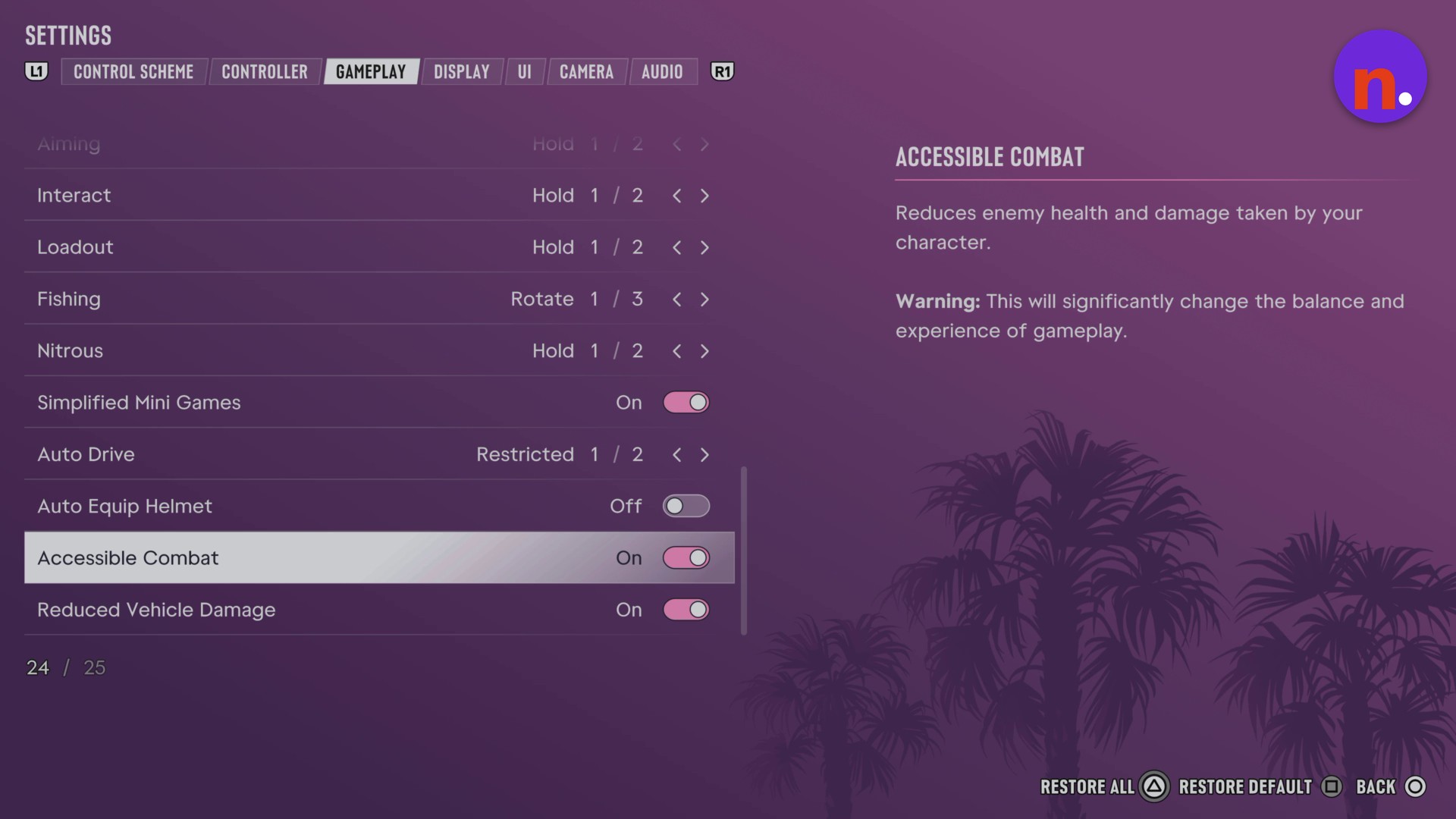
You’re finished when Accessible Combat and Reduced Vehicle Damage both show On.
Related Grand Theft Auto VI guides




Leave a Reply