
- The short version
- Time Allowances for app categories
- Schedules for app access throughout the week
- Immediate access controls and usage information
- Child accounts and initial app choices
- Approval for apps, purchases, and websites
- Contact approval and Communication Safety
- iOS 27 release date and supported iPhones
- FAQs
The short version
- Time Allowances manage time across app categories, with guidance tailored to your child’s age.
- Schedules control which apps are available at different times and on different days.
- Parents can pause device use or allow unlimited use through the redesigned controls.
The Screen Time changes arrive alongside updates to child account setup and communication protections.
Time Allowances for app categories
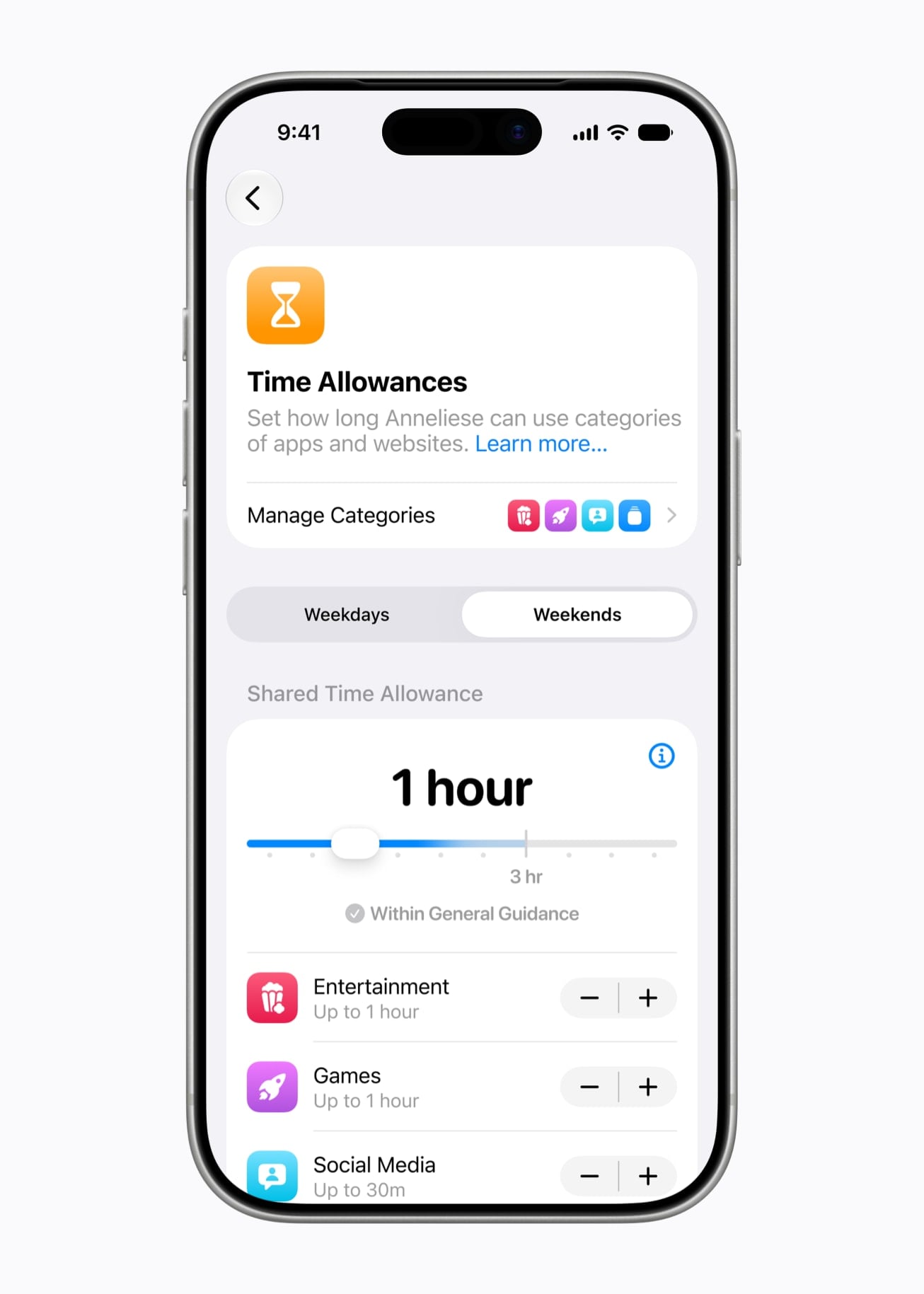
Time Allowances let you manage how much time your child spends across app categories, including Entertainment, Games, and Social Media. When you choose allowances, Screen Time provides guidance tailored to your child’s age.
Apple developed that guidance with clinical and child development experts. It gives you a starting point, and you can adjust the allowances to suit your child’s needs.
Apple is also working with the American Academy of Pediatrics (AAP) to adapt its Family Media Plan into a guide for parents using Apple products.
Schedules for app access throughout the week
Schedules let you choose which apps your child can access at different times of day and on different days of the week.
Apple’s screens show two settings for it, Screen Time Schedule and Time Window, and give school as the example of a time to keep a child focused.
Schedule planner: pick a weekday or weekend and a time of day to see which Screen Time control Apple offers for that moment, what it does, and where Apple shows it in Settings.
Immediate access controls and usage information
The redesigned Screen Time view in Settings shows your child’s average device usage and most used apps at a glance. It also provides controls for changing access in the moment.
From that view a parent can choose Pause Device Use, Allow Unlimited Use, or Change Schedule.
You can limit app and web access during meals or outdoor play. You can also extend access when your child needs extra time to finish something in an app.
Screen Time Passcode Notifications alert you when your Screen Time passcode has been entered on your child’s device.
Child accounts and initial app choices
When you set up a new device for your child, you’re guided through creating a child account. An account is required for children under 13 and available for children up to 18. The minimum age for account creation varies by country and region.
Safeguards included with child accounts
| Area | Child account safeguard |
|---|---|
| Websites | Adult websites are limited. |
| Media | Only age-appropriate media is allowed. |
| App Store | Restrictions are based on the child’s age. |
Setup Assistant lets you choose the system apps your child can use from the start. You can begin with a few essential apps, use a recommended set, or select specific apps yourself. You can add access to more apps over time.
Approval for apps, purchases, and websites
Two controls handle these approvals: Ask to Buy for App Store downloads and purchases, and Ask to Browse for new websites.
What each approval control covers
| Control | What requires parental approval |
|---|---|
| Ask to Buy | Free and paid App Store downloads, plus in-app purchases, when you require approval. |
| Ask to Browse | Access to new websites in Safari and other WebKit browsers when enabled. |
Website requests arrive in Messages, where you can review the requested website before choosing Approve or Decline. The website approval experience works across iPhone, iPad, and Mac.
Contact approval and Communication Safety
You can manage who your child connects with through Messages, FaceTime, and Phone. You can also require approval before they connect with someone new. Approval of new contacts through Messages is supported on iPhone, iPad, and Mac.
Communication Safety is turned on by default for users under 18. It already blurs detected nudity in Messages and FaceTime calls.
The update extends that protection to gore or violent content detected in shared images and videos, intervening before children view it.
iOS 27 release date and supported iPhones
iOS 27 will be available starting September 14. The new parental controls require installing the Screen Time update in iOS 27, iPadOS 27, and macOS 27.
Features are subject to change, and some features, applications, and services may not be available in every region or language.
Compatible iPhone models and release
| iPhone | Compatible iOS release |
|---|---|
| iPhone Duo | iOS 27 |
| iPhone 18 Pro Max | iOS 27 |
| iPhone 18 Pro | iOS 27 |
| iPhone 17 Pro Max | iOS 27 |
| iPhone 17 Pro | iOS 27 |
| iPhone Air | iOS 27 |
| iPhone 17 | iOS 27 |
| iPhone 17e | iOS 27 |
| iPhone 16 Pro Max | iOS 27 |
| iPhone 16 Pro | iOS 27 |
| iPhone 16 Plus | iOS 27 |
| iPhone 16 | iOS 27 |
| iPhone 16e | iOS 27 |
| iPhone 15 Pro Max | iOS 27 |
| iPhone 15 Pro | iOS 27 |
| iPhone 15 Plus | iOS 27 |
| iPhone 15 | iOS 27 |
| iPhone 14 Pro Max | iOS 27 |
| iPhone 14 Pro | iOS 27 |
| iPhone 14 Plus | iOS 27 |
| iPhone 14 | iOS 27 |
| iPhone 13 Pro Max | iOS 27 |
| iPhone 13 Pro | iOS 27 |
| iPhone 13 | iOS 27 |
| iPhone 13 mini | iOS 27 |
| iPhone 12 Pro Max | iOS 27 |
| iPhone 12 Pro | iOS 27 |
| iPhone 12 | iOS 27 |
| iPhone 12 mini | iOS 27 |
| iPhone 11 Pro Max | iOS 27 |
| iPhone 11 Pro | iOS 27 |
| iPhone 11 | iOS 27 |
| iPhone SE (2nd generation and later) | iOS 27 |
FAQs
Does Ask to Browse work outside Safari?
Yes. Ask to Browse also supports other WebKit browsers on iOS 27, iPadOS 27, and macOS 27 after upgrading Screen Time. When Ask to Browse is enabled, watchOS and visionOS display approved websites only.
Which devices can parents use to approve Ask to Buy requests?
Parents can approve Ask to Buy requests from a Mac, iPhone, or iPad.
Can a child use Apple Watch without their own iPhone?
Yes. Apple Watch For Your Kids lets children use Apple Watch without having their own iPhone. Children can make calls and send messages to family and friends, while parents can locate them through Find My. Schooltime mode blocks notifications and disables apps to help children stay focused.
Related guides






Leave a Reply