
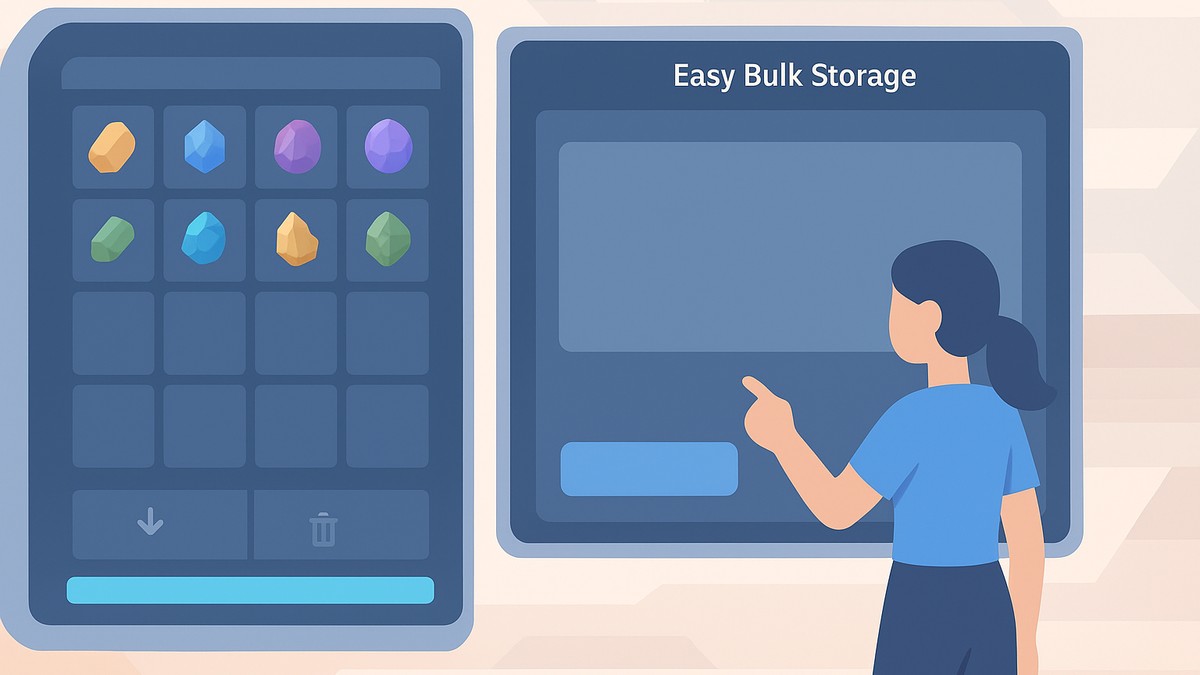
Palworld 1.0 adds an inventory exclusion list that lets you mark specific items so Quick Deposit or bulk storage will leave them in your inventory instead of sending them to nearby storage.
The new exclusion list is a simple keep-in-inventory filter for Quick Deposit and bulk storage. Instead of manually separating the things you want to carry from the resources you want to dump, you can mark selected items once and let the storage command skip them.
That makes the feature especially useful after mining, gathering, dungeon runs, or base chores, where your bag is full but you still need your regular carry kit. Pal Spheres, food, ammo, rare materials, weapons, and other must-keep stacks are the obvious candidates.
What the Exclusive List does

The exclusion list tells Palworld which inventory items should stay with you when you use Quick Deposit. If an item is on that list, the deposit command leaves it in your inventory even when matching storage exists nearby.
KEY!Think of it as a lock for specific item stacks, not as a separate storage box. You are not moving the item into a new container; you are marking it so the automatic storage pass skips it.
This is most useful for items you carry every time you leave base. Put Pal Spheres, travel food, ammo, rare upgrade materials, and personal gear on the list before clearing out ore, wood, crafting parts, and other base resources.
How to use the Exclusive List in Palworld
Use the exclusion list from your inventory before running Quick Deposit, and the marked item will stay in your bag.
STEP 1/6
Open your inventory
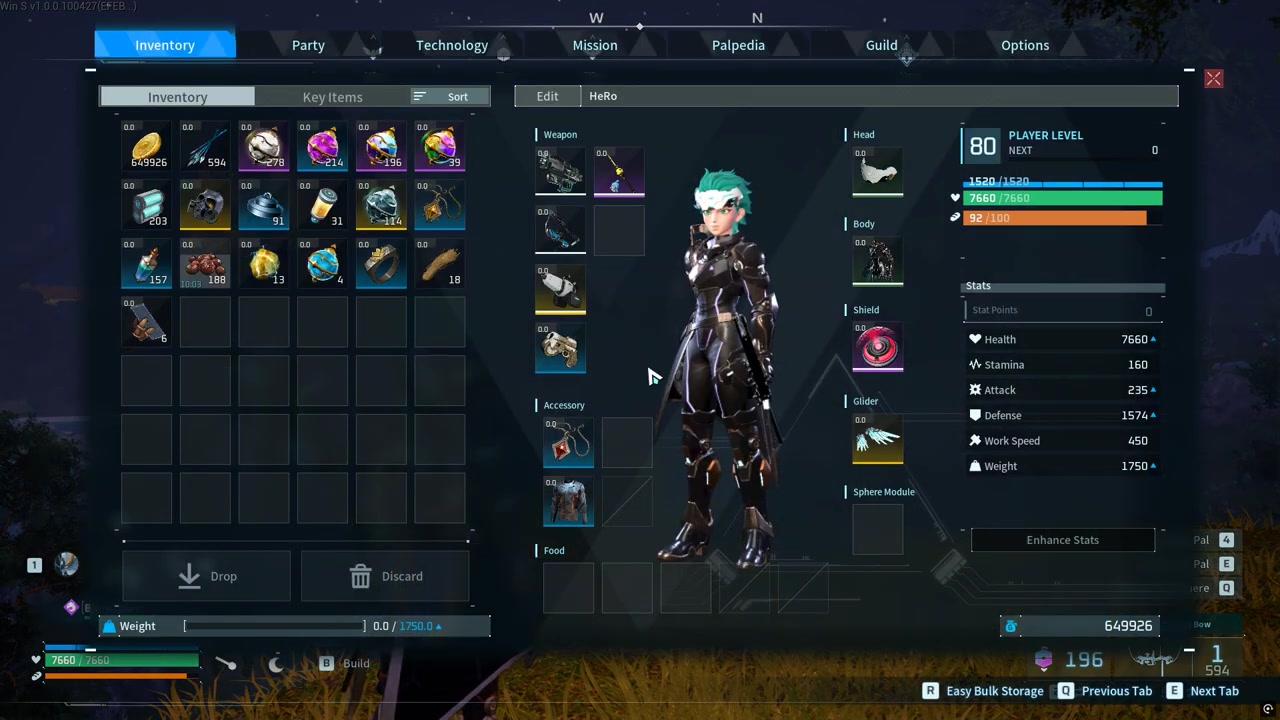
Open your inventory and look for the exclusion list option from the inventory screen.
STEP 2/6
Open the exclusion list
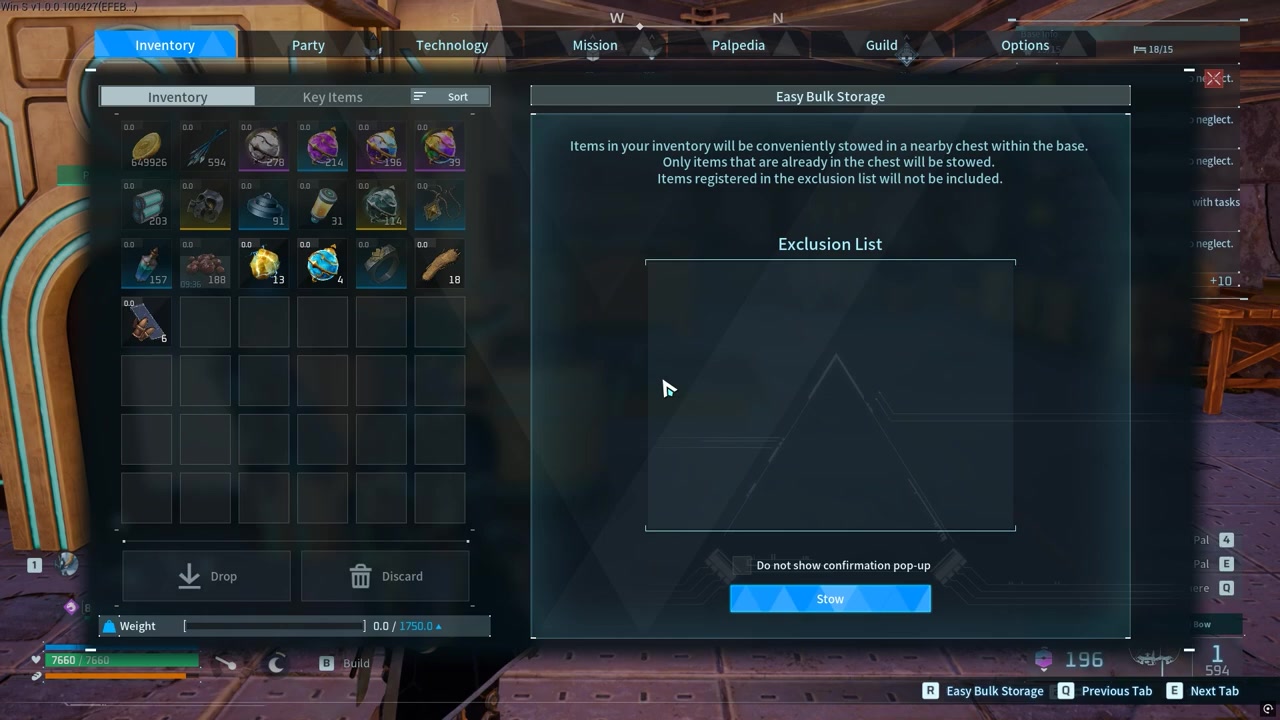
Bring up the exclusion list so you can choose which inventory item should be skipped by Quick Deposit.
STEP 3/6
Pick the item to keep
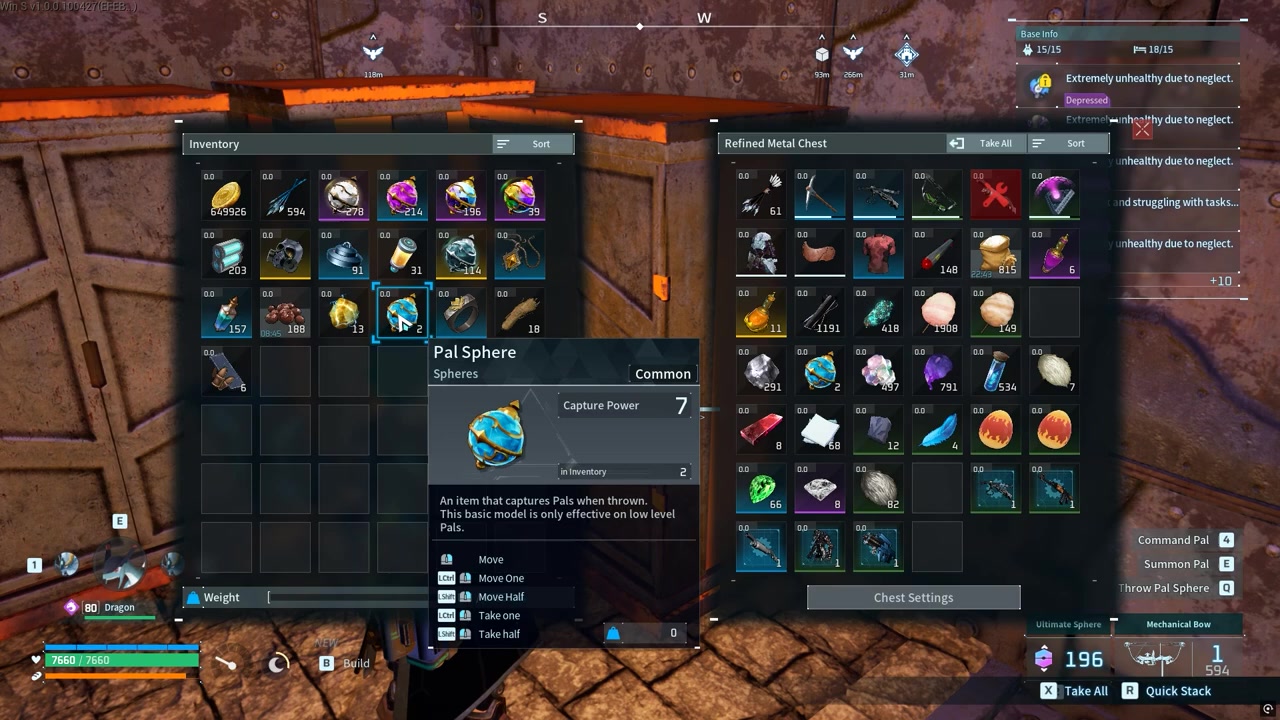
Select the item stack you want to keep on you, such as a Pal Sphere stack.
STEP 4/6
Add the item to the list
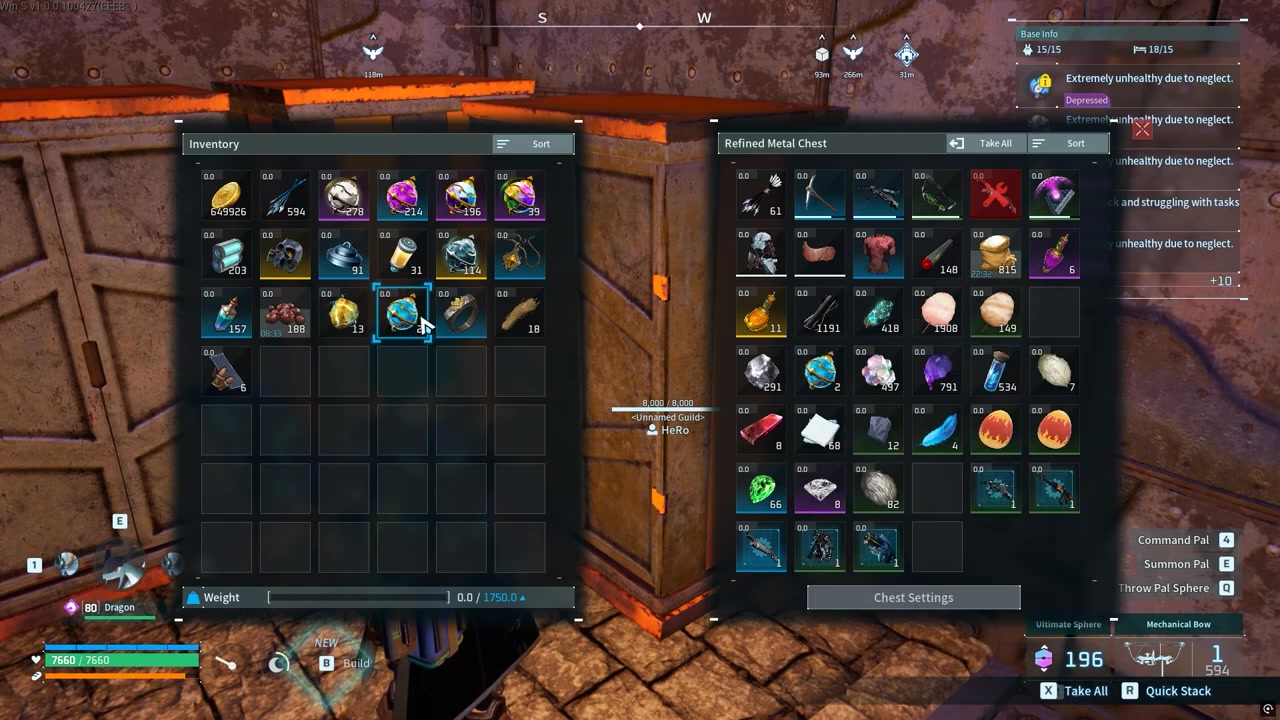
Move the selected item into the exclusion list so it is treated as excluded from automatic storage.
STEP 5/6
Run Quick Deposit
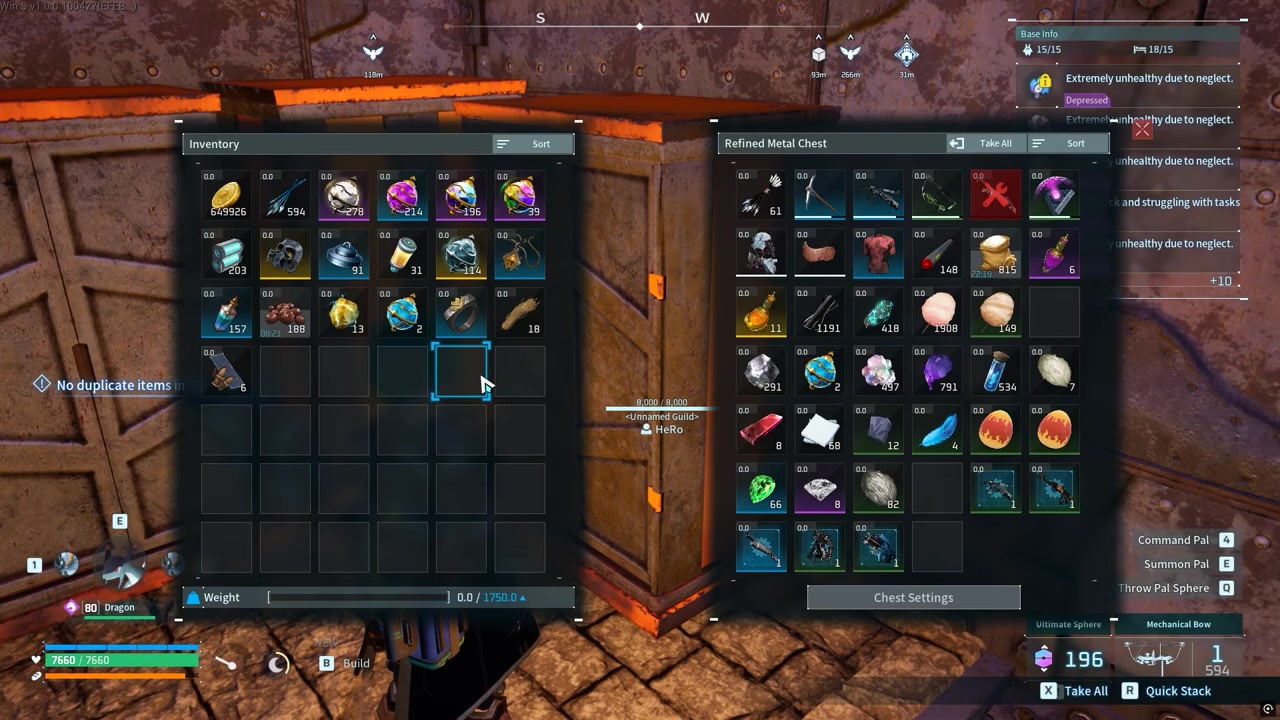
Use Quick Deposit, and the listed item stays in your inventory instead of moving into storage.
STEP 6/6
Remove the item later
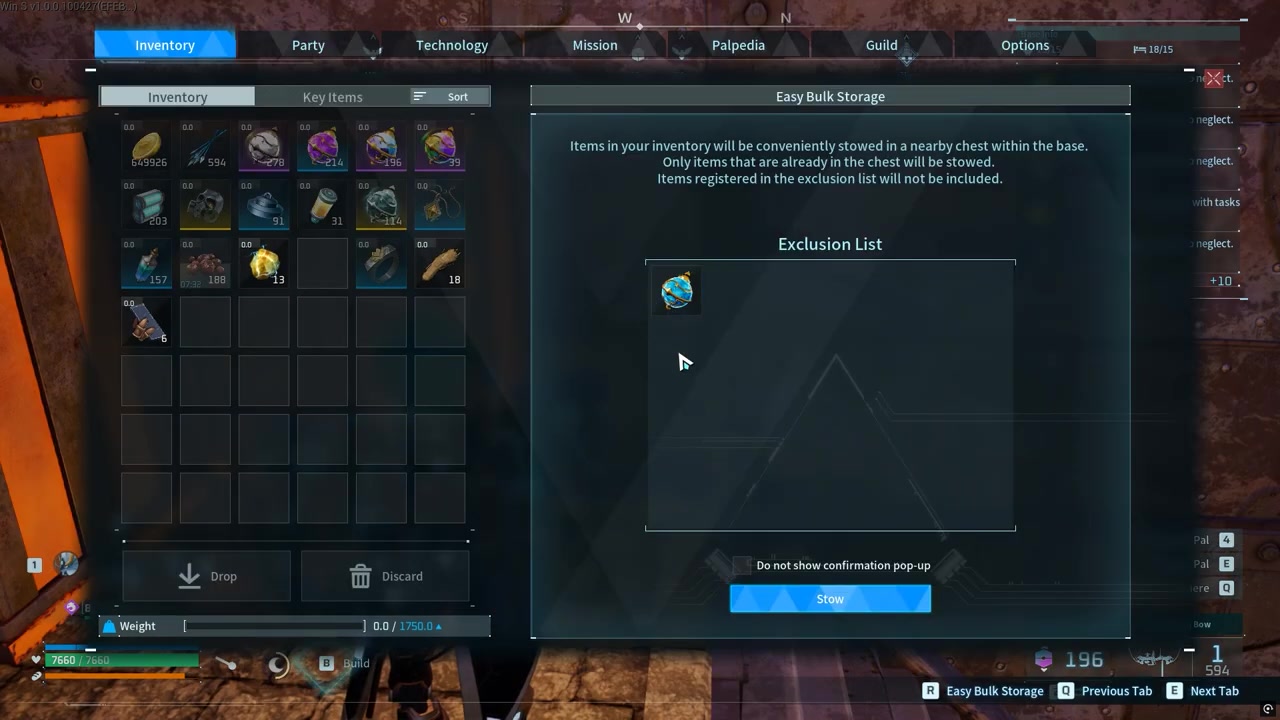
Right-click the item in the exclusion list when you want Quick Deposit to move it normally again.
Put Pal Spheres, food, ammo, and rare materials on the exclusion list before pressing Quick Deposit so routine storage clears resources without stripping your carry kit.
Video help
Quick Deposit controls and results
| Action | Result |
|---|---|
| Open Inventory with I on PC | Shows your carried items and inventory controls. |
| Open the exclusion list | Lets you mark items that automatic storage should skip. |
| Add item | Prevents that item from being moved by Quick Deposit. |
| Use Quick Deposit or bulk storage with R on PC | Moves eligible matching stacks into nearby storage. |
| Remove item | Lets that item move normally the next time you deposit. |
On PC, the inventory opens with I by default, and the bulk storage or Quick Deposit action is listed as R. For controller, follow the on-screen prompt rather than treating the PC key as a controller binding.
How bulk storage changes base sorting
The exclusion list pairs with the 1.0 storage flow by letting you clear your bag without losing your carry items. When you use bulk storage near your base containers, matching inventory stacks can be sent into containers that already hold those items, while anything on the exclusion list remains in your inventory.
That means a chest that already contains ore can receive more ore, a resource chest can receive matching crafting materials, and your regular field supplies can stay untouched. The same idea works around your main storage setup, including resource chests and guild chest storage where you keep shared base materials.
There is also a new chest option for auto-depositing matching items without opening the chest. That trims down the old drag-and-drop routine: top up the right storage, skip the items you marked, and get back out of the menu faster.
Best uses and common Quick Deposit mistakes
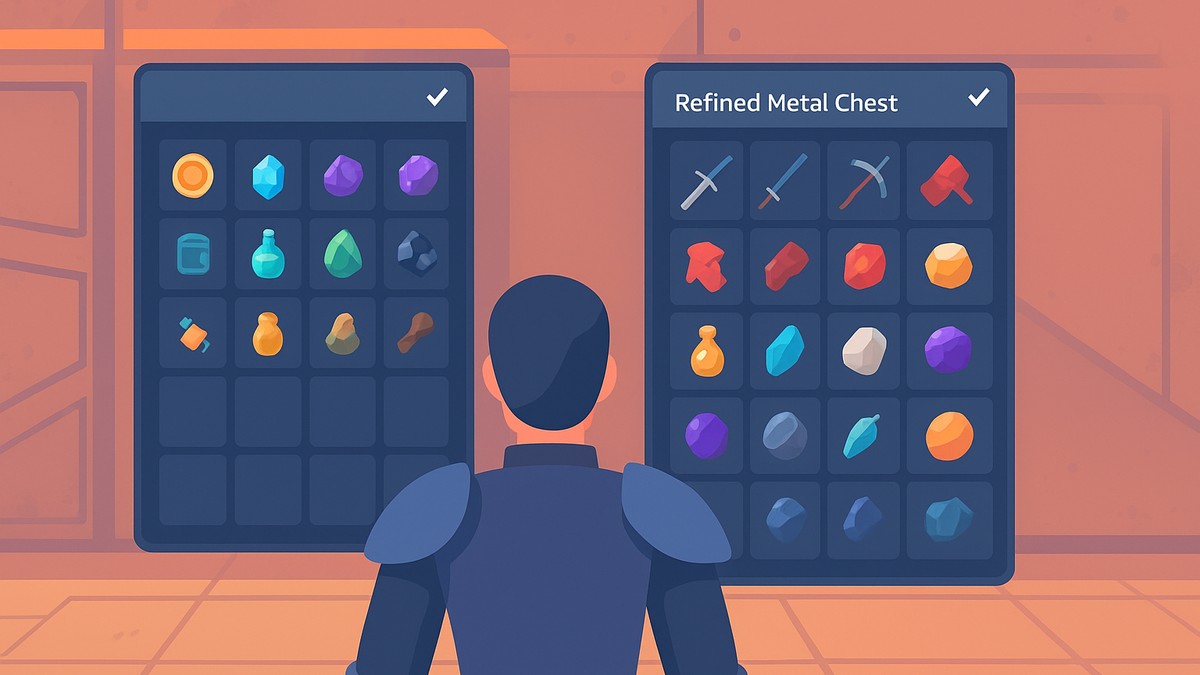
The biggest mistake is pressing Quick Deposit before adding your carry items to the exclusion list. If you always leave base with Pal Spheres, food, ammo, or a small stack of rare materials, mark those first so the cleanup command does not send them away with the rest of your loot.
Quick Deposit also depends on eligible storage being nearby. If nothing moves, you may be away from the right base storage, there may be no container with a matching item stack, or the item you expected to move may be equipped or otherwise outside the normal inventory-stack flow.
Food deserves special attention because the 1.0 inventory flow also lets you use food directly from the Feed Bag slot by holding the Use button in the inventory. If that food is part of your travel setup, exclude it before running bulk storage.
Do not confuse the exclusion list with a full keep-inventory death setting. Palworld 1.0 changes the default Normal difficulty behavior so equipped items can be kept on death when starting a new world or resetting world settings, but the exclusion list is only a storage filter for Quick Deposit and bulk storage.
For longer farming runs, combine the filter with higher-tier pouches for more inventory slots and the Extra Weapon Holster if you want up to six equipped weapons outside your loose inventory. The cleaner your carry setup is, the safer it is to use one-button storage after every haul.
Frequently Asked Questions
Does the exclusion list stop Quick Deposit from storing selected items?
Yes. Once an item is added to the exclusion list, Quick Deposit leaves that item in your inventory instead of sending it into nearby matching storage.
How do you remove an item from the exclusion list?
Open the exclusion list and right-click the item you want to remove. After that, the item can be moved by Quick Deposit again.
Is Easy Bulk Storage brand-new in 1.0?
Not exactly as a player-facing idea. Returning players may recognize Easy Bulk Storage from earlier builds; in 1.0, the important change is the expanded inventory and storage flow around matching-item deposits, the exclusion list, and the new chest auto-deposit option.
Does this mean Palworld now has full keep inventory on death?
No. The exclusion list only controls automatic storage. Palworld 1.0 changes equipped-item drops under the updated Normal difficulty defaults, but that is separate from full backpack protection.
Why did Quick Deposit do nothing?
Quick Deposit may do nothing if the item is on your exclusion list, no nearby storage has a matching stack, you are outside the useful base-storage range, or the item is equipped instead of being a normal movable inventory stack.





Leave a Reply