

Google Duo is a great video calling app that helps you stay connected with your professional and personal network with ease. The app has multiple capabilities and even allows for VoIP on low-signal networks. Adding friends and colleagues on the app is really simple. You simply need to sync your contacts and everyone using the app on their device should appear in your contact list.
You can also use Google Duo on your PC thanks to the availability of a web version. Even more, you can even install the Duo Android app itself on your PC with a little hack and use the app itself on your PC.
What is ‘Unable to send request’ error
While signing up for the app and joining a video call is easy, you can run into an error. One such is error is the ‘unable to send the request‘ error that you may get when signing up with a phone number.

We have compiled a simple, easy to use guide that will help you along the way. Let’s get started.
Why am I unable to sign up Google Duo?
- Bug in the app
- Botched installation process
- Denied necessary permissions
- Low balance in your phone account
- Network error
All of these issues can prevent you from inviting someone on Google Duo. Let’s take a look at some of the common fixes that you can apply in order to overcome this problem.
How to Fix the Google Duo Unable to send request error
Here are few simple tips to fix the issue.
Method 1: Restart the device

The simplest solution may often be the best solution. Give your device a restart by holding the power button, and then tapping on Restart/Power off.
When it reboots, open the Duo app again and try to sign in.
Method 2: Update the app
If you experience bugs in the app and are using an older device running on an older Android then it is likely that your app might be experiencing a bug. The best way to get rid of bugs is to update your app from the Play Store. If you do not know how to do so, simply follow our step by step guide listed below.
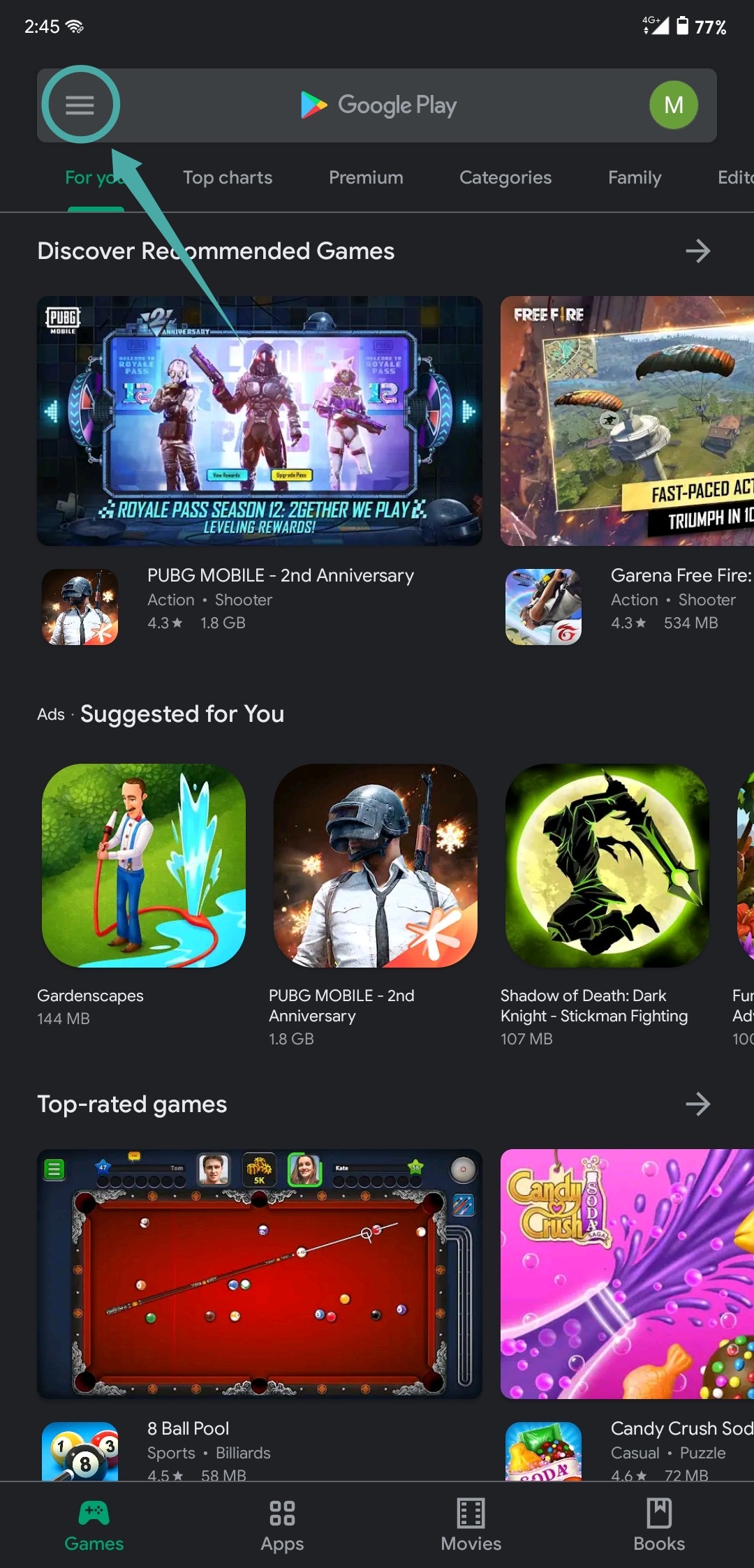
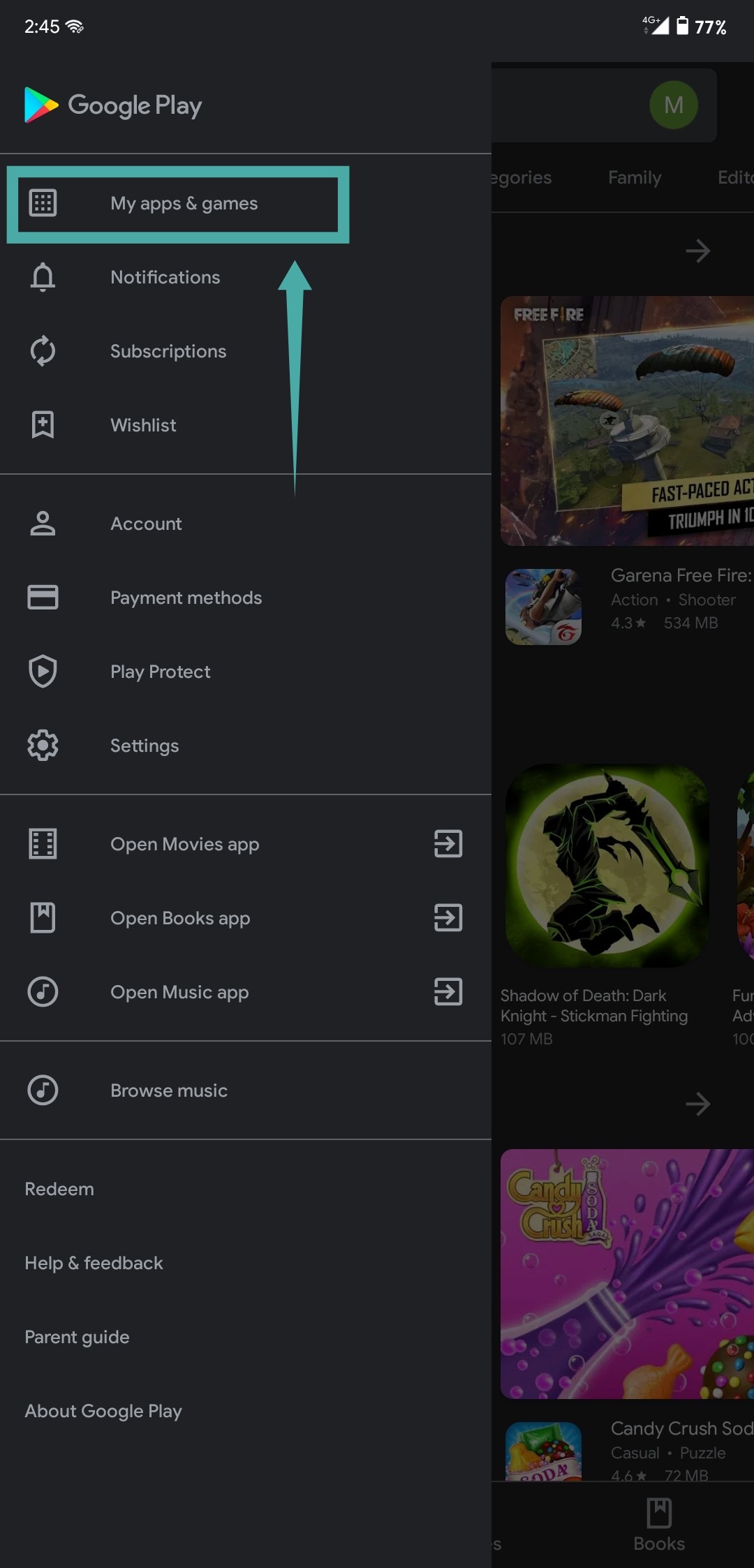
The app should now automatically update itself and any bug that was preventing you from signing up should be ironed away.
Method 3: Give SMS permission
If none of the above fixes work for you, then there is a high chance that you haven’t granted Google Duo SMS permissions in order to send a message to get an OTP to verify your number. Follow this guide to grant the necessary permissions.
Note: Make sure you have enough balance in your cellular account in order to send an SMS via your network if you are on a prepaid plan. Alternatively, also make sure that your network does not charge extra for sending out special service messages in order to avoid extra charges.

Note: Depending on your manufacturer and ROM, this option could also be called ‘Manage Apps’, ‘Apps & Permissions’ or ‘Installed Applications’.


Note: Depending on your manufacturer, this permission could also be called as ‘Telephone’. If you do not see this permission, then simply enable all the permissions.
Method 4: Reinstall the app
If updating the app does not work for you, you can always try reinstalling the app. App installations can often get botched due to low network, power loss issues and low RAM which can cause inherent bugs with your installations. These issues can be fixed by simply uninstalling and reinstalling the app.
Note: Make sure you have enough free RAM and charge on your phone during the installation process to avoid the same issues all over again.
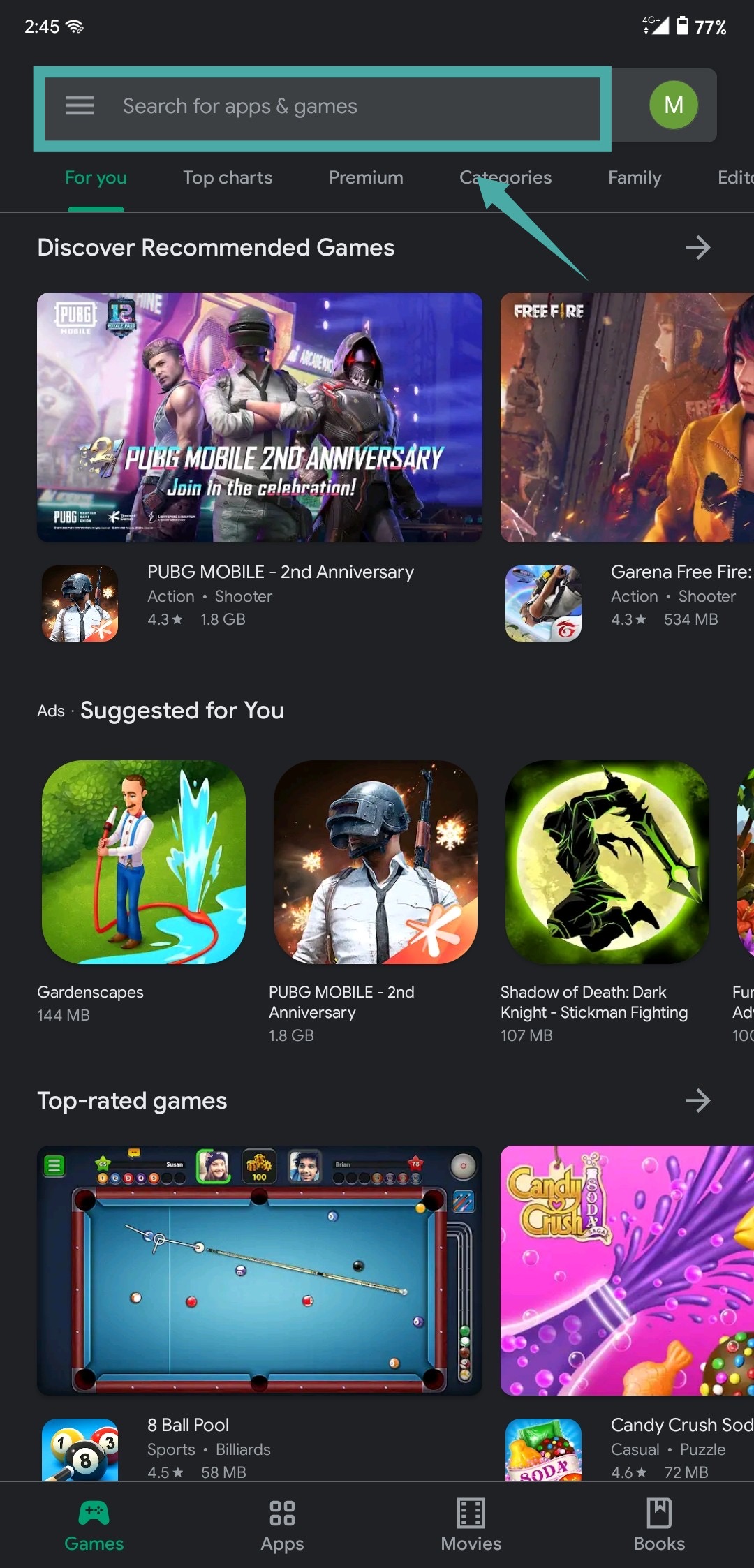
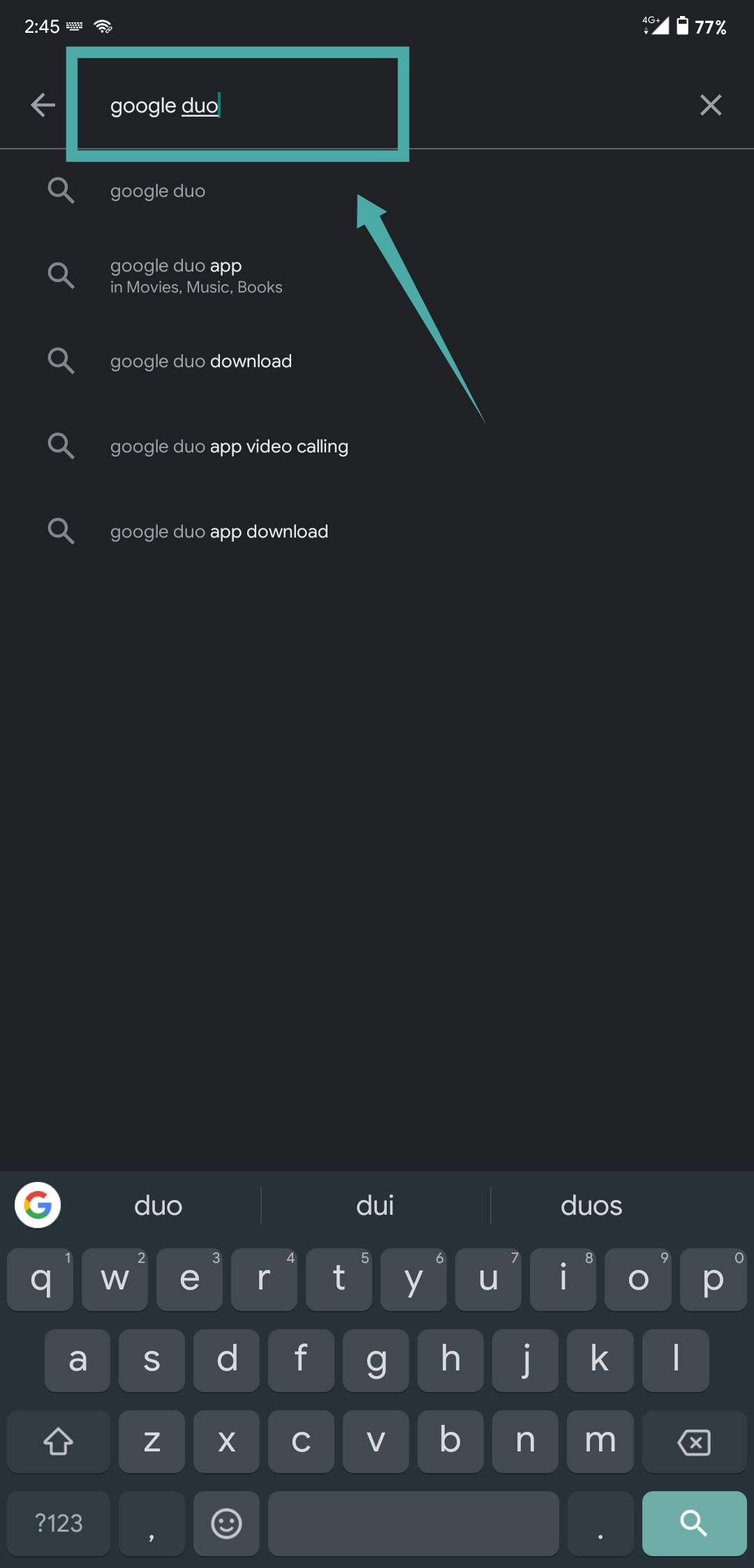

Play Store will now download and install Google Duo in the background. Launch the newly installed app and try to sign up again.
We hope this guide helped you fix the request error and sign up with Google Duo. How has your experience been with Google Duo? Feel free to share your opinions with us in the comments section below.





5 responses to “How to fix Google Duo unable to send request problem when signing up with a phone number”
Tried all of it, no luck.
Did all as given above, but still problem persists. Error-” unable to send the request”
Tried all, but still the problem exists
Tried all the àbove solutions still problem persist. Its of no use
Worthless app. “Unable to send request.” Tried everything, still no luck. Google should drop the app.