Recording gameplay audio used to be a painful process, especially if your device manufacturer didn’t bundle in a native screen recorder. So far Pixel owners (and others) have had a rough time recording gameplay audio, as Android restrictions kept them from recording internal audio. Thankfully, Android 10 fixes the problem by getting rid of the said restrictions, finally letting you record your gameplay in all its glory.
How to record internal game audio
Note: This required Android 10 update as recording system sound is a feature of Android 10. Check our Android 10 roadmap page know when your device will be receiving the Android 10 update.
Method 1: Using Screen Recorder – No Ads app
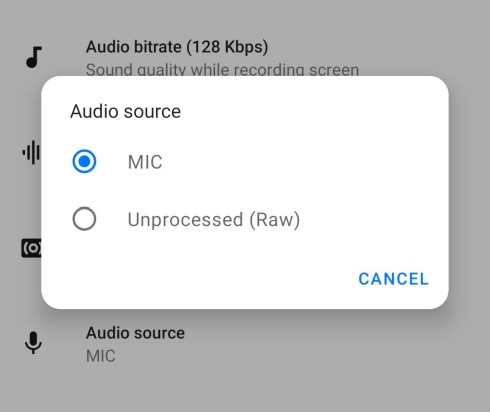
Note: If you don’t have the Android 10 update, you won’t see the option to record Internal sound under step 9 below.


Alternatively, if you don’t see the notification bar of the app for the Stop button, tap the Recents button and open the app from there. Then, in the app, tap on the ‘X’ icon to stop the recording.
Even more, you can enable the shake to stop the video recording: Open app’s settings > Stop option > Toggle on Stop to shake.

To find your video recording, simply open the app. All recorded videos will appear as a list.
Method 2: Using ADV Screen Recorder


The new page will show several settings for the screen recorder under different sections.


The app will now display a prompt showing how ADV Screen Recorder uses internal audio with screen recordings. 


If you plan to create a GIF of the video, it’s good to trim the video here only because of the super easy UI.
Why is your Android 10 audio not recording internal game audio
Android 10 brings a new API called AudioPlaybackCapture, which allows developers to record audio from other apps (such as games). However, for non-system apps to record internal audio, game developers must manually opt-in for the service. As most apps/games aren’t targeting Android 10 yet, the internal audio recording support is quite limited. But in time, as Android 10 becomes more mainstream, almost all popular apps are guaranteed to embrace the AudioPlaybackCapture API.
Don’t see the Internal sound option under Audio source, here’s why
Well, as we said above too, the option to record Internal sound is available on Android 10. So, until your device has installed the Android 10 update, whether officially or unofficially (via LineageOS 17 or Android 10 GSI, for example), you can’t record the game sound using this app.