

- The short version
- How do I change controller settings in GTA 6?
- What GTA 6 sensitivity values does the game’s own menu show on PS5?
- What does GTA 6’s Aim Response Curve do, and what does Linear mean?
- What is GTA 6’s Default PS5 controller layout, and which control previews are available?
- GTA 6 controller deadzone settings
- FAQs
The short version
- Follow the game’s own menu prompt to explore settings before starting: select SETTINGS and then CONTROLLER → AIM & LOOK SENSITIVITY.
- The game’s own menu identifies L3 as the default run and sprint input and states that controls remain adjustable at any time.
- Rishabh Sabarwal at Beebom advises: “Do not blindly go with a zero deadzone setting.”
How do I change controller settings in GTA 6?
The game’s own menu provides access through SETTINGS during setup, with separate CONTROL SCHEME and CONTROLLER tabs.
- At the game’s own menu prompt, Explore settings before you begin, select SETTINGS.
- Choose CONTROL SCHEME to view the layout and its control previews in the game’s own menu.
- Select CONTROLLER and find AIM & LOOK SENSITIVITY in the game’s own menu to access the sensitivity options.
Beebom gives an in-play route to controller settings: open the Pause Menu, select SETTINGS and choose CONTROLLER.
The in-game CONTROLLER screen shows 7 for every sensitivity and acceleration option listed below under AIM & LOOK SENSITIVITY.
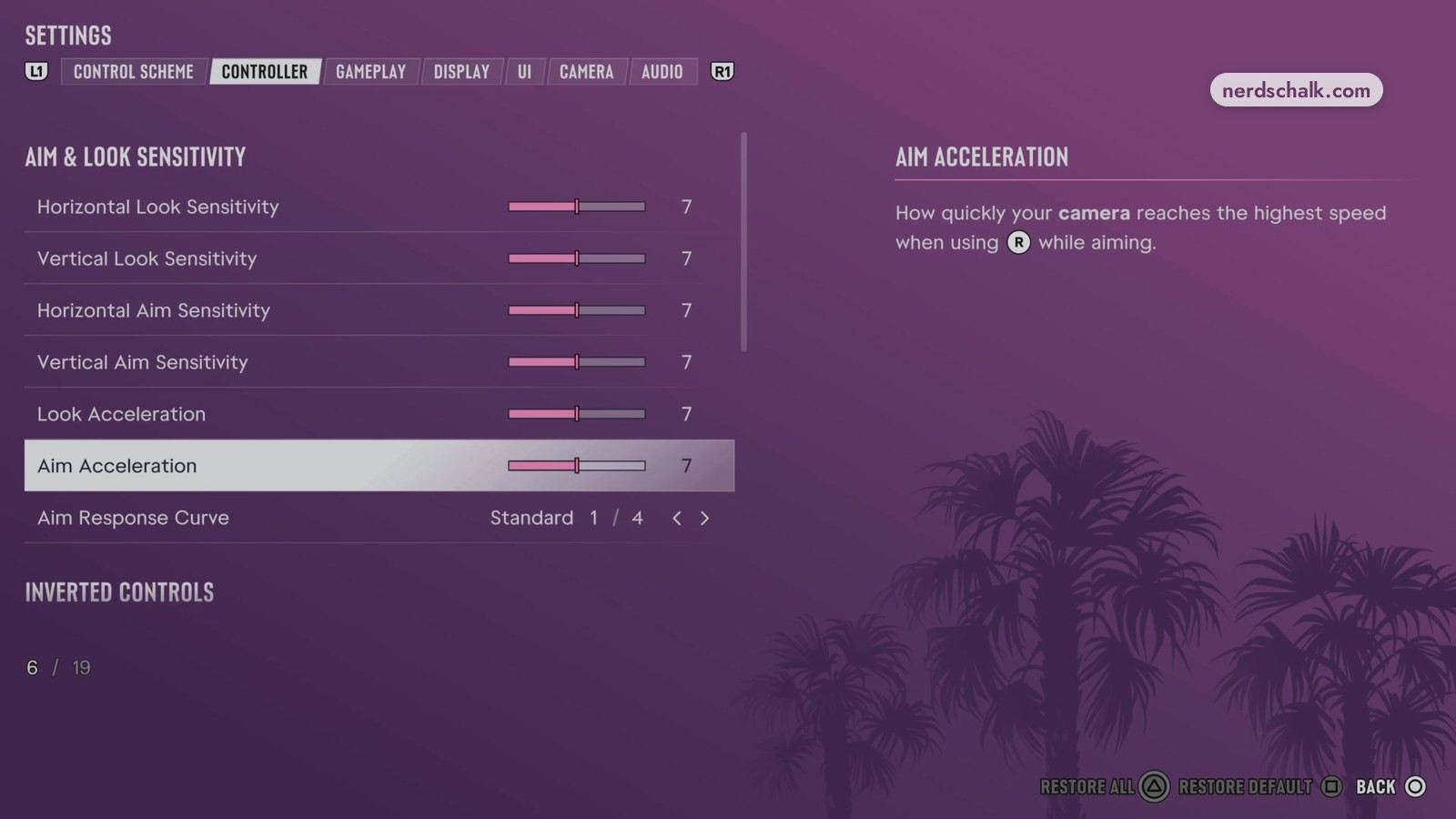
Displayed PS5 sensitivity values
| Option | Value shown by the game’s own menu |
|---|---|
| Horizontal Look Sensitivity | 7 |
| Vertical Look Sensitivity | 7 |
| Horizontal Aim Sensitivity | 7 |
| Vertical Aim Sensitivity | 7 |
| Look Acceleration | 7 |
| Aim Acceleration | 7 |
The game’s own menu describes Horizontal Look Sensitivity as the sensitivity of sideways camera movement when you use R to look around.
For Aim Acceleration, the in-game CONTROLLER screen describes how quickly the aiming camera builds to its maximum speed while you use R.
recommends these sensitivity and acceleration adjustments:
Suggested sensitivity adjustments
| Option | Beebom’s recommended value | Beebom’s stated benefit |
|---|---|---|
| Horizontal Look Sensitivity | 8 to 9 | Quicker turns during firefights and alley checks. |
| Vertical Look Sensitivity | 7 to 8 | More controlled vertical movement without sending the view skyward. |
| Horizontal Aim Sensitivity | 7 to 8, one step below Look | Less overshooting when following a moving target. |
| Vertical Aim Sensitivity | 6 to 7 | Easier small aiming corrections for headshots. |
| Look Acceleration | 6 to 7 | More predictable camera turns at full stick tilt. |
| Aim Acceleration | 5 to 6 | Fewer abrupt increases in camera speed while following strafing enemies. |
What does GTA 6’s Aim Response Curve do, and what does Linear mean?
The in-game CONTROLLER screen describes Aim Response Curve as how R responds during aiming.
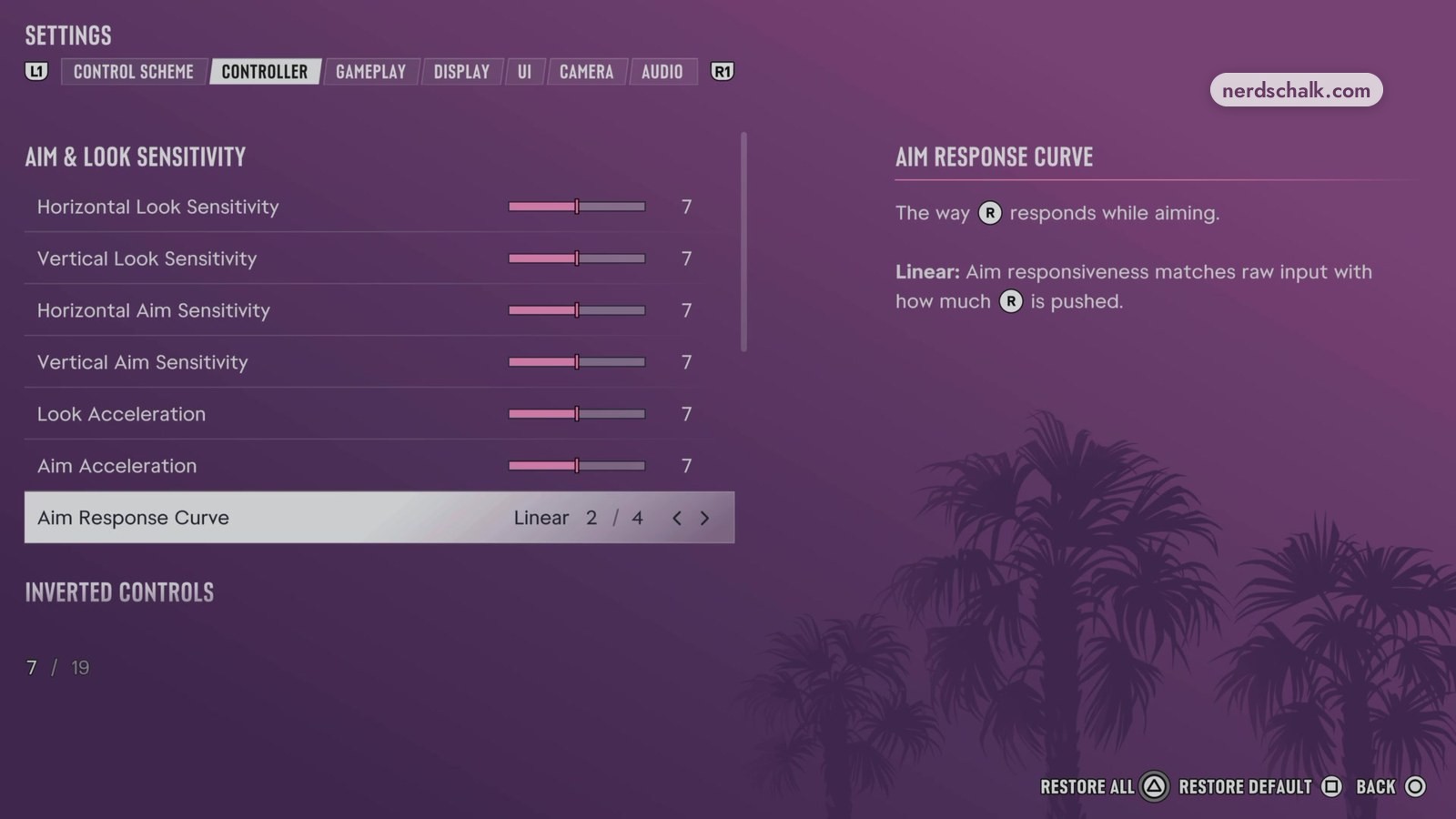
The game’s own menu shows Standard selected on one screen and Linear selected on another. Its description for Linear reads: “Aim responsiveness matches raw input with how much R is pushed.”
What is GTA 6’s Default PS5 controller layout, and which control previews are available?
The in-game CONTROL SCHEME screen shows Default selected, while the game’s own setup screen identifies L3 as the default button for running and sprinting.
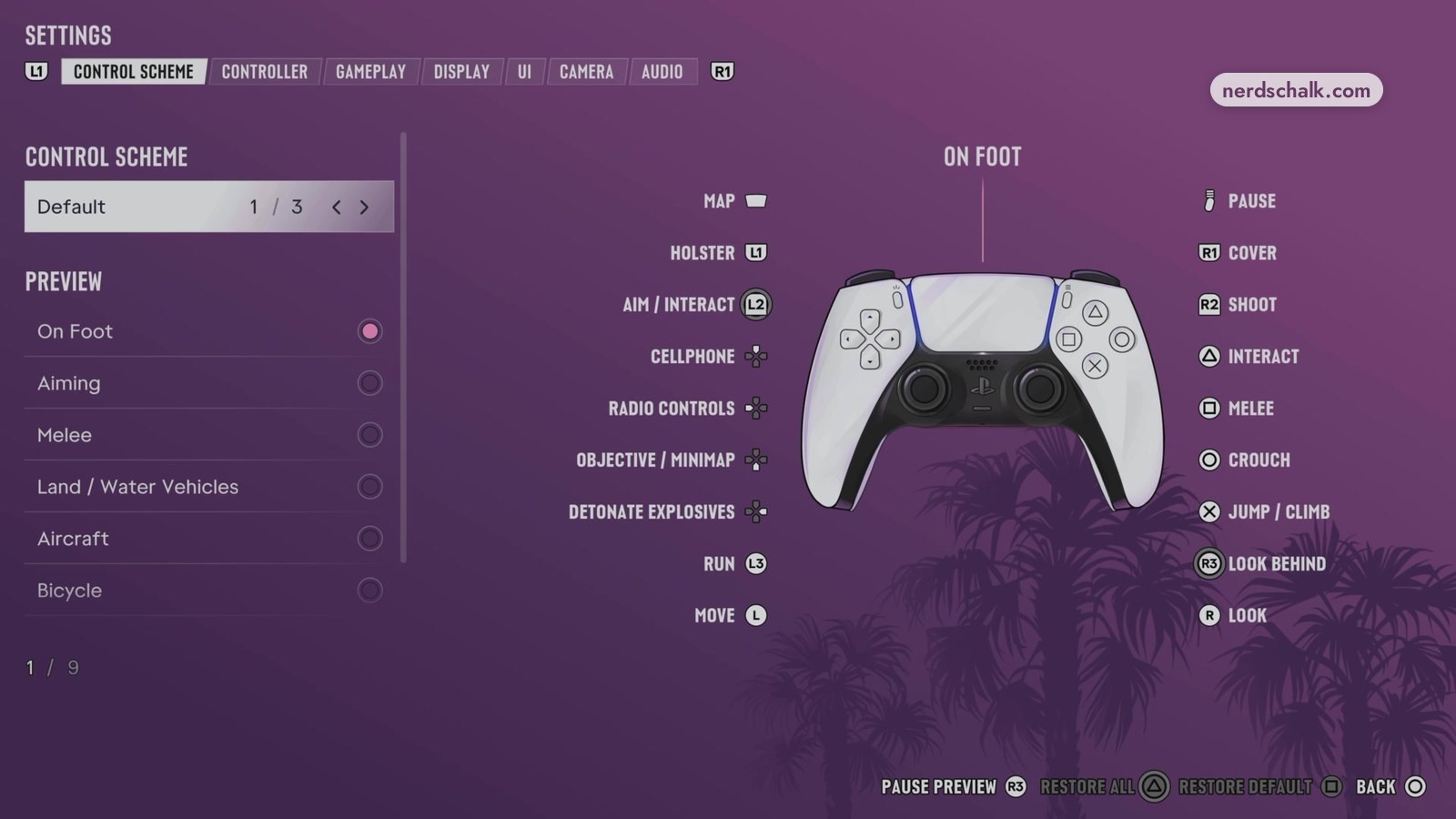
Under PREVIEW, the game’s own menu offers these control views:
- On Foot
- Aiming
- Melee
- Land / Water Vehicles
- Aircraft
- Bicycle
- Swimming
- Parachute
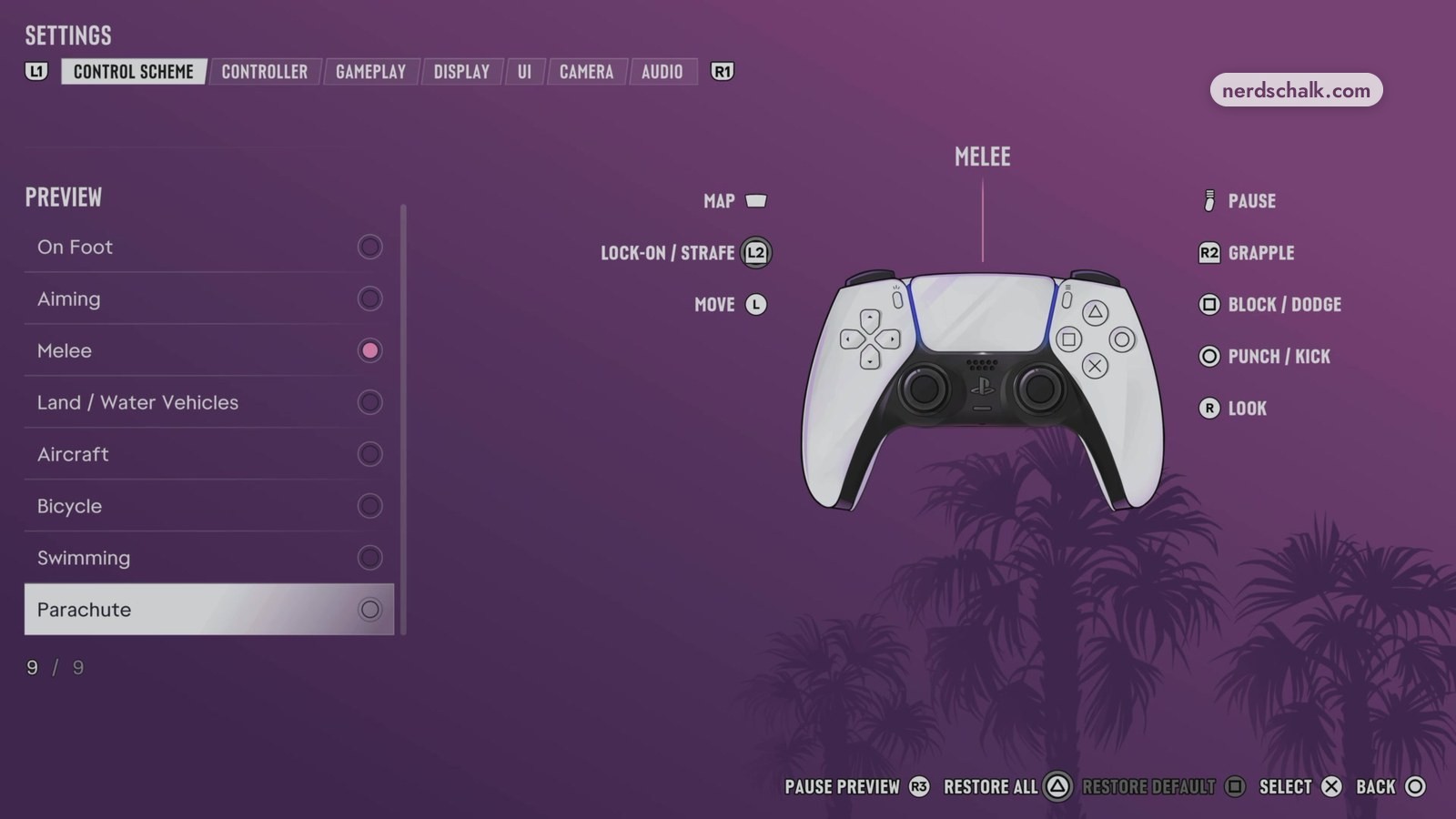
PS5 trigger mappings
| Preview in the game’s own menu | Action | PS5 input |
|---|---|---|
| On Foot | AIM / INTERACT | L2 |
| On Foot | SHOOT | R2 |
| Land / Water Vehicles | BRAKE / REVERSE | L2 |
| Land / Water Vehicles | ACCELERATE | R2 |
How do I change sprint to X on PS5?
describes switching the control scheme to Classic to move sprint from L3 to X on PS5.
Beebom’s steps are:
- Open the Pause Menu.
- Select SETTINGS, then CONTROL SCHEME.
- Change Default to Classic.
GTA 6 controller deadzone settings
Beebom’s advice is to avoid choosing zero deadzone blindly.
For both sticks, lists a default deadzone of 4 and recommends 2 to 3.
Suggested stick deadzones
| Option | Beebom’s listed default | Beebom’s recommended value | Beebom’s stated benefit |
|---|---|---|---|
| Deadzone (Left Stick) | 4 | 2 to 3 | Movement starts sooner with a light stick input. |
| Deadzone (Right Stick) | 4 | 2 to 3 | Small aiming adjustments register sooner by reducing the inactive area around the stick’s center. |
recommends checking for unwanted camera movement while adjusting deadzones:
- Set each stick’s deadzone to
2. - Release the sticks and observe whether the camera moves for a few seconds.
- If the camera moves, increase the deadzone by
1at a time until that movement stops.
FAQs
Should I use zero controller deadzone in GTA 6?
Beebom cautions against automatically choosing zero for controller deadzone.
What does Horizontal Look Sensitivity mean in GTA 6?
The game’s own menu describes Horizontal Look Sensitivity as how sensitive the camera’s horizontal movement is when you use R to look around.
What does Aim Acceleration mean in GTA 6?
The in-game CONTROLLER screen describes Aim Acceleration as the speed at which your camera reaches its maximum movement speed when using R during aiming.
What is the default sprint button in GTA 6 on PS5?
The game’s own setup screen identifies L3 as the default input for both running and sprinting.
Can I change GTA 6 controls after setup?
Yes. The game’s own setup screen states that you can adjust the controls at any time.
Can I remap individual controller buttons in GTA 6?
No. Beebom states that GTA 6 does not support assigning individual controller buttons to different actions.
Related on NerdsChalk