Android News

Pixel Prepares 60-Second Sign-in Window to Trust New USB Devices [APK Teardown]

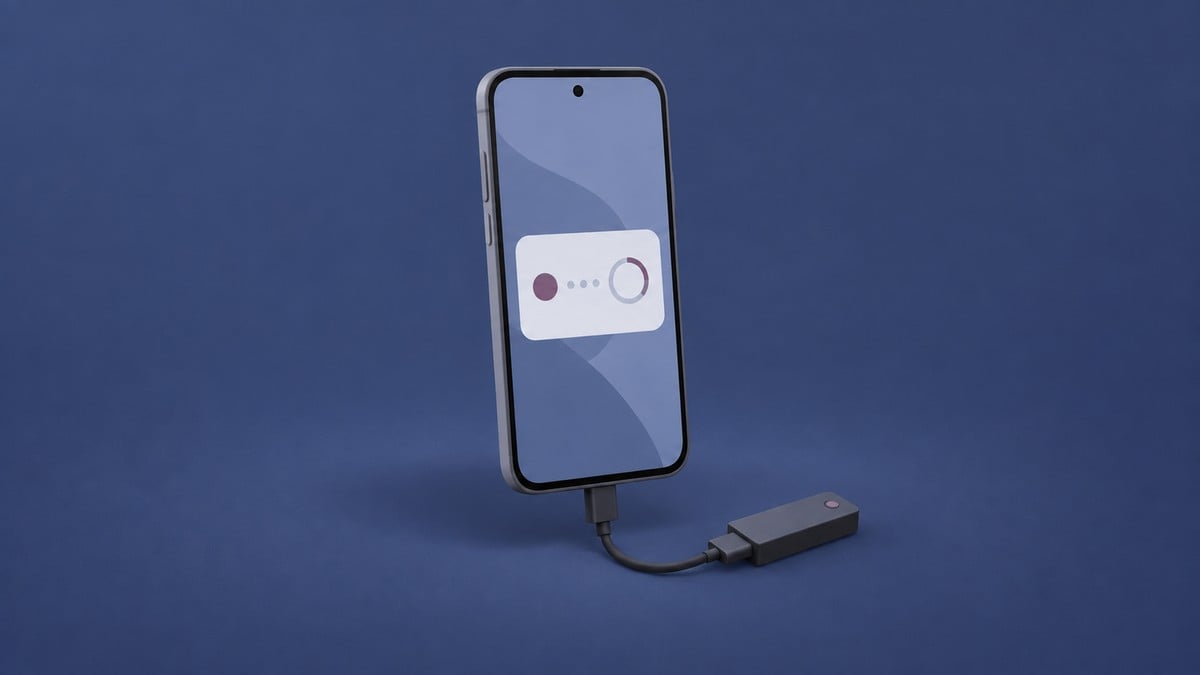
A Pixel APK teardown reveals a proposed 60-second sign-in window for trusting new USB devices, with a dialog that identifies each device by type.

A Pixel APK teardown reveals a proposed 60-second sign-in window for trusting new USB devices, with a dialog that identifies each device by type.

0 Comments
Kapill M Malani

Kapill M Malani A die-hard Liverpool FC fan, Kapill is a big fan of Batman, Android and street Cricket. In that order, probably. Email: [email protected]

What to know

  • SystemUIGoogle is building a USB authorization dialog that explicitly names connected devices by type and requires a 60-second sign-in to fully trust them.
  • Advanced Protection currently blocks new USB data connections while a phone is locked; this code introduces a specific time window and granular device identification to the trust flow.
  • The strings were found in SystemUIGoogle on Android 17 QPR2 Beta 6 (CP41.260831.007) and are not yet available to users.

Google’s Advanced Protection Program already includes a safeguard that blocks new USB data connections whenever a Pixel phone is locked. This prevents malicious peripherals from attempting data extraction via physical access. Now, a teardown of the latest SystemUIGoogle beta shows Google refining how you interact with and ultimately trust those peripherals.

Now, a teardown of SystemUIGoogle in Android 17 QPR2 Beta 6 (CP41.260831.007) reveals new code that names connected USB devices by their specific class and introduces a 60-second sign-in window to establish full trust.

About APK teardowns — An APK teardown works by reading the not-yet-shipped code inside a beta build, which lets us preview features a developer is working on before they’re announced. But work-in-progress code can change, stay hidden behind a server-side flag, or be scrapped before it ever reaches your phone.

Granular device identification

When a new USB device is plugged in, the system currently relies on generic identification. The new code points to a much more descriptive approach. SystemUIGoogle now includes a comprehensive list of strings that map USB interface classes to human-readable names. Instead of a generic prompt, the authorization dialog will be able to tell you exactly what kind of hardware you are connecting—whether that is a keyboard, a webcam, mass storage, or a printer.

The new strings, seen below, point to this granular naming convention:

usb_known_interface_application_specific = ‘Application Specific class device’
usb_known_interface_audio = ‘Audio class device’
usb_known_interface_audio_video = ‘Audio/Video class device’
usb_known_interface_billboard = ‘Billboard class device’
usb_known_interface_cdc_data = ‘CDC-Data class device’
usb_known_interface_communications = ‘Communications class device’
usb_known_interface_composite = ‘USB Composite device’
usb_known_interface_content_security = ‘Content Security class device’
usb_known_interface_diagnostic = ‘Diagnostic Device class device’
usb_known_interface_generic = ‘USB device’
usb_known_interface_hid = ‘Input class device’
usb_known_interface_hub = ‘Hub class device’
usb_known_interface_i3c = ‘I3C Device class device’
usb_known_interface_image = ‘Image class device’
usb_known_interface_keyboard = ‘Keyboard’
usb_known_interface_miscellaneous = ‘Miscellaneous class device’
usb_known_interface_mouse = ‘Mouse’
usb_known_interface_personal_healthcare = ‘Personal Healthcare class device’
usb_known_interface_physical = ‘Physical class device’
usb_known_interface_printer = ‘Printer class device’
usb_known_interface_smart_card = ‘Smart Card class device’
usb_known_interface_storage = ‘Mass Storage class device’
usb_known_interface_type_c_bridge = ‘USB Type-C Bridge class device’
usb_known_interface_vendor_specific = ‘Vendor Specific class device’
usb_known_interface_video = ‘Video class device’
usb_known_interface_webcam = ‘Webcam’
usb_known_interface_wireless_controller = ‘Wireless Controller class device’

The 60-second trust window

Beyond just naming the hardware, the teardown reveals a new temporal requirement for trusting peripherals. Code in SystemUIGoogle references a strict 60-second countdown. Once you tap “allow” on the authorization dialog for a new USB device, you must sign in to your phone within one minute to fully trust that hardware.

If the sign-in is not completed within that 60-second window, the trust process fails. The strings indicate that users will be instructed to physically disconnect and reconnect the devices to try again. This applies to both single-device and multi-device connections.

The strings that outline this new trust flow are:

usb_untrusted_info_multi = ‘”If you click allow, sign in within 60 seconds to fully trust these USB devices. If you don\’t, you\’ll have to disconnect and reconnect them.”‘
usb_untrusted_info_single = ‘”If you click allow, sign in within 60 seconds to fully trust this USB device. If you don\’t, you\’ll have to disconnect and reconnect it.”‘

This per-device-type naming and 60-second sign-in trust window is not yet available to users. We will watch future builds to see if this authorization flow rolls out to Advanced Protection users.
Leave a Reply

Your email address will not be published. Required fields are marked *