

What to know
- You can save any household to the Library through the Parameaker editor.
- Saving a household lets you reuse the same characters in future saves.
- Imported households can replace existing characters or be merged with them.
- Access to household saving requires entering character edit mode first.
If you have created a household that you want to use again in another world, Paralives includes a built-in Library system that allows you to save and import households whenever you start a new game. This makes it easy to carry over favorite characters, families, or custom creations without recreating them from scratch.
| Feature | What It Does |
|---|---|
| Save Household | Stores a household in your Library |
| Import Household | Loads a saved household into a new save |
| Edit Mode Access | Required before saving an existing household |
| Merge Option | Combines imported household with current characters |
| Replace Option | Completely replaces current household |
| Library Location | Accessible through the Parameaker |
How household saving works in Paralives
The Library system acts as a storage space for households you create or customize. Once a household is saved, it becomes available across future saves and can be imported whenever you create a new game.
This feature is especially useful if you spend a lot of time designing Paras and want to use them in multiple stories, challenges, or neighborhoods.
How to save a household in Paralives
Step 1
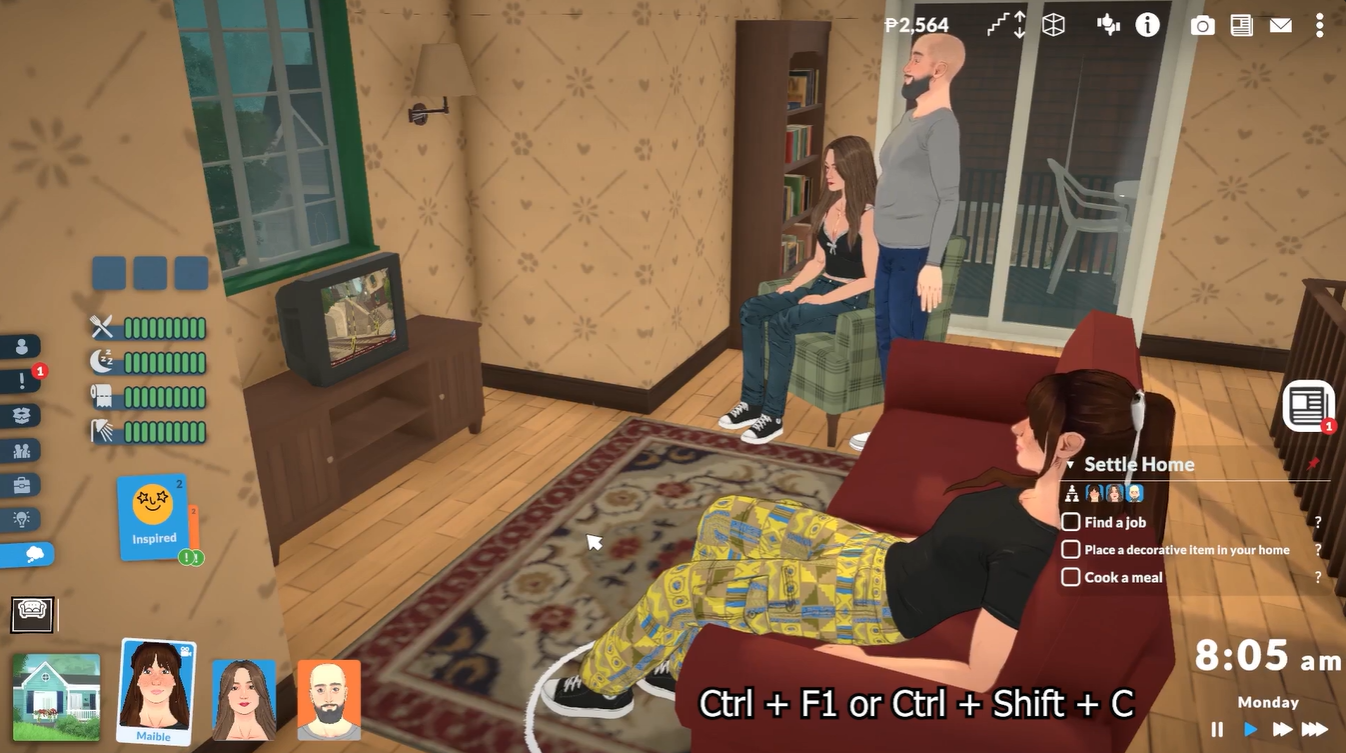
Open the Cheat Console by pressing Ctrl + F1. If your keyboard does not have function keys, you can use Ctrl + Shift + C instead.
Step 2
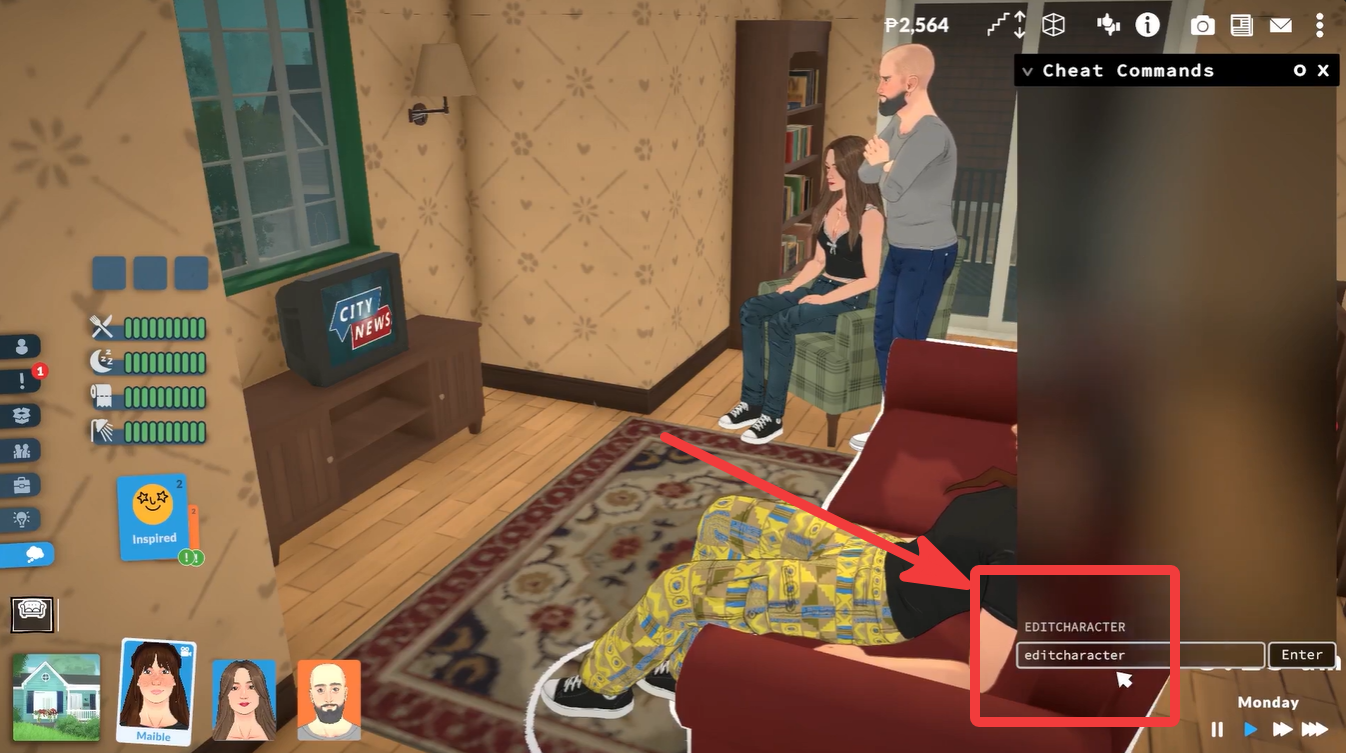
Type the following command into the console:
edit character
Press Enter to open the Paramaker character creation and editing interface.
Step 3
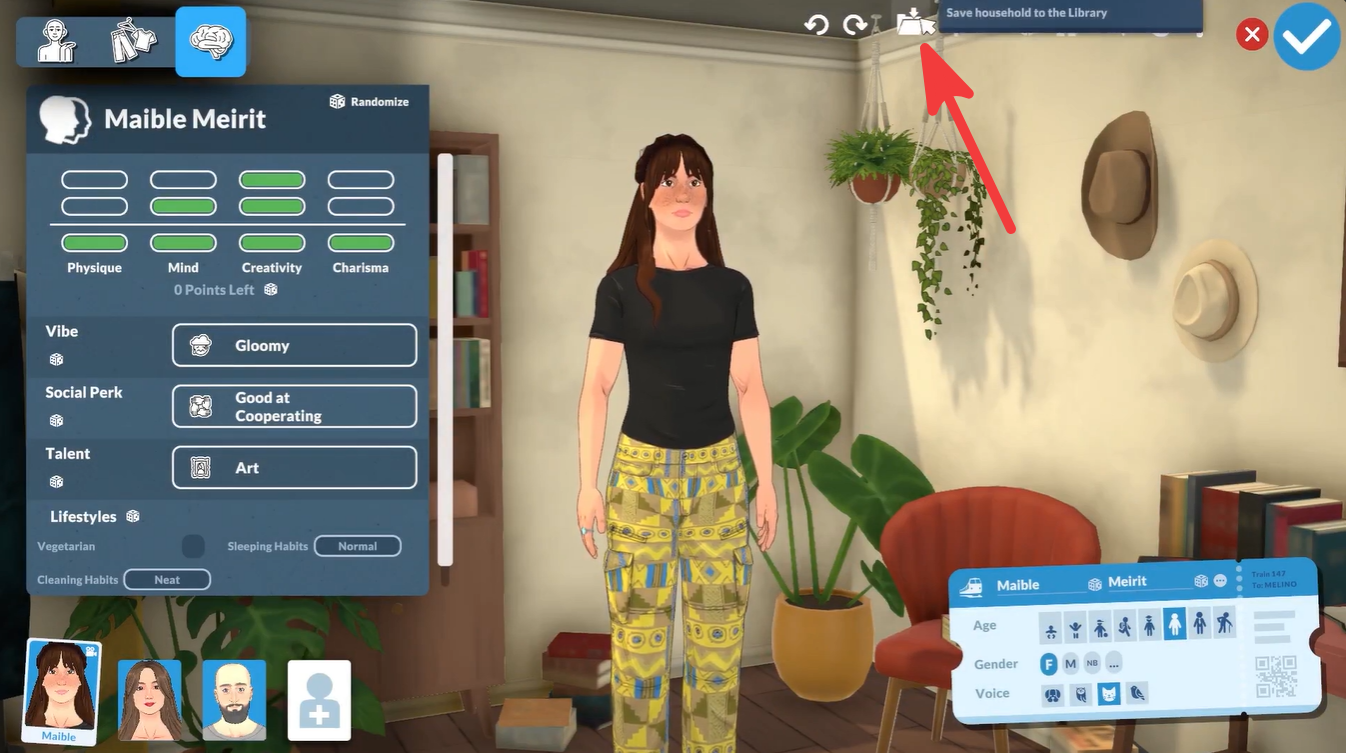
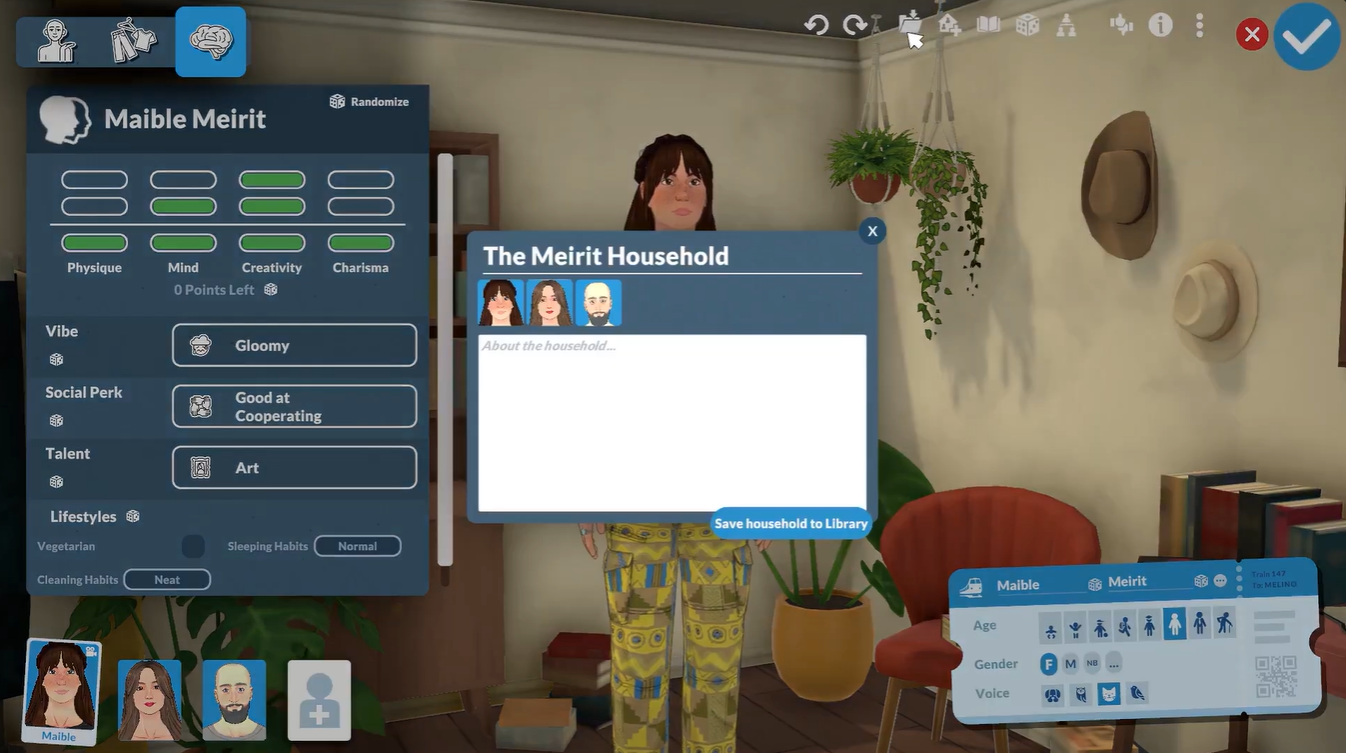
Once inside the Parameaker, look at the top toolbar and click the folder icon with an arrow.
This opens the household save menu.
Step 4
Enter a custom household name and description if desired.
These details help identify the household later when browsing your Library.
Step 5
Click Save Household to Library.
Your household is now stored and can be imported into any future game.
How to import a saved household
Step 1
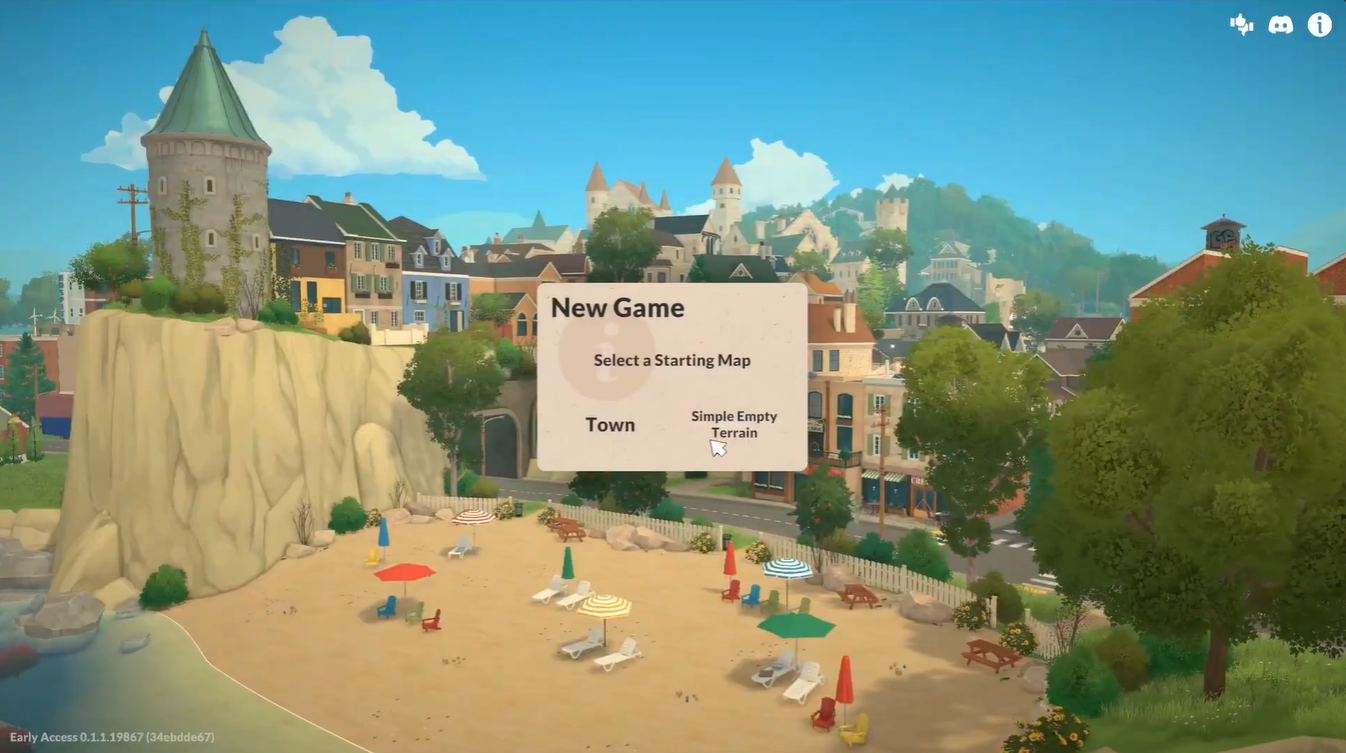
Start a new game and select Create a Household from the lower-left corner of the screen.
Step 2
When the Parameaker opens, locate the house icon with a plus sign in the top toolbar.
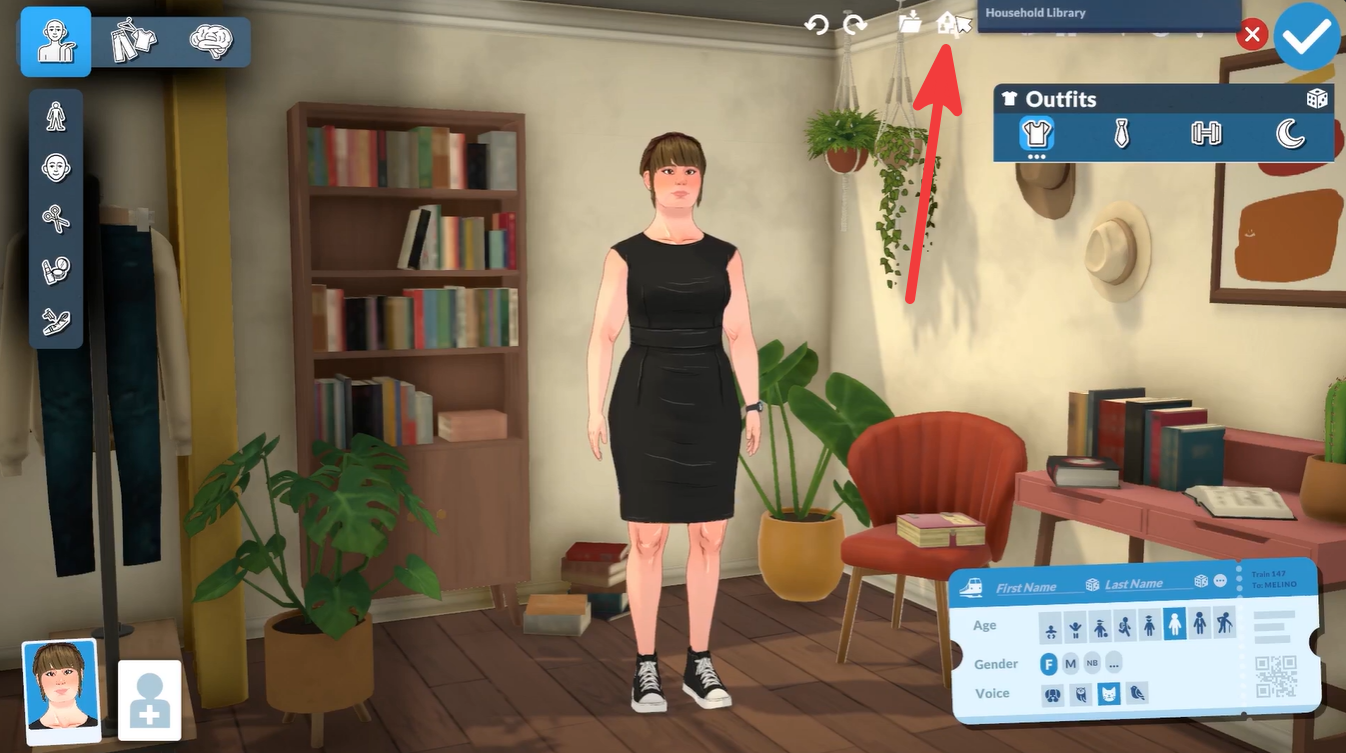
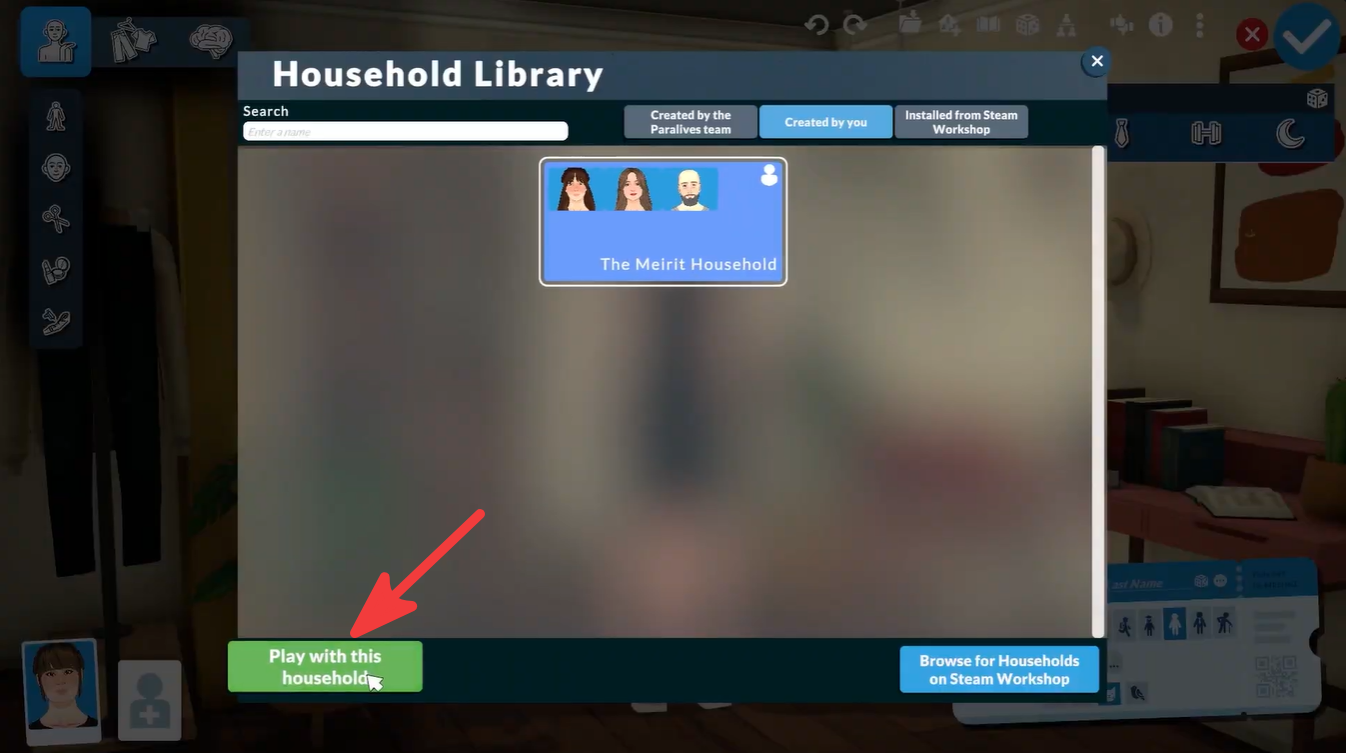
Click it to open the Library.
Step 3
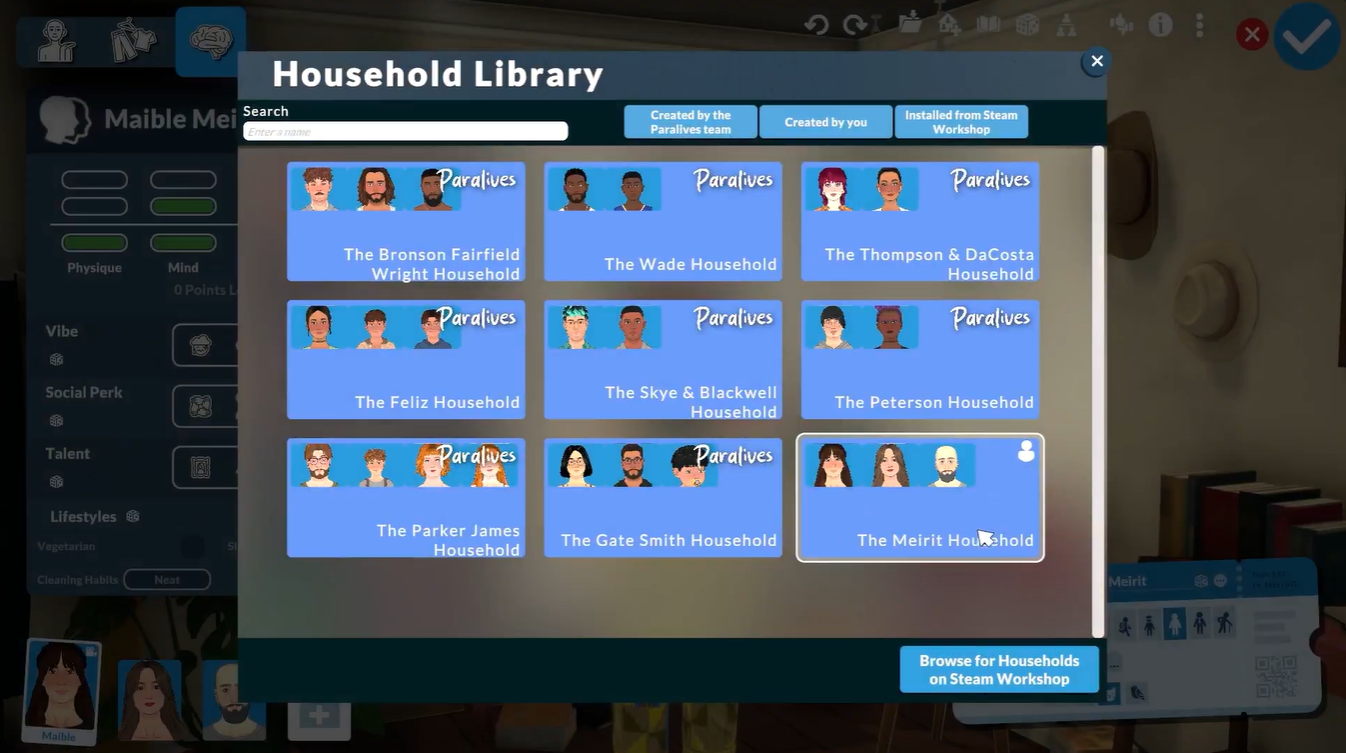
Browse available households.
You can choose from:
| Household Type | Description |
|---|---|
| Personal Creations | Households you previously saved |
| Developer Creations | Households created by the Paralives team |
| Community Uploads | Shared households from other players |
Step 4
Select the household you want to use.
Click Play With This Household to load it.
Step 5
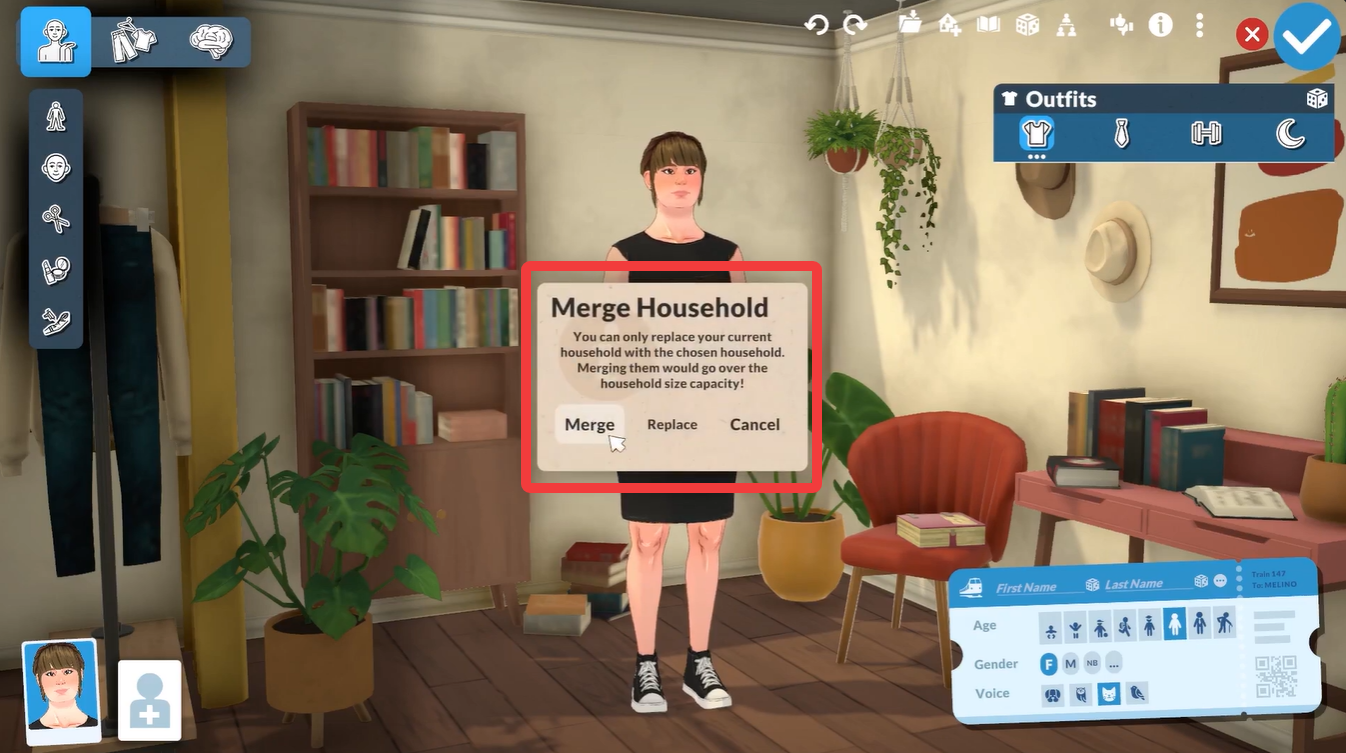
Choose how the imported household should be added:
| Option | Result |
|---|---|
| Merge | Adds imported Paras to the existing household |
| Replace | Removes current characters and uses the imported household only |
Step 6
Click the large check mark in the upper-right corner to confirm your selection.
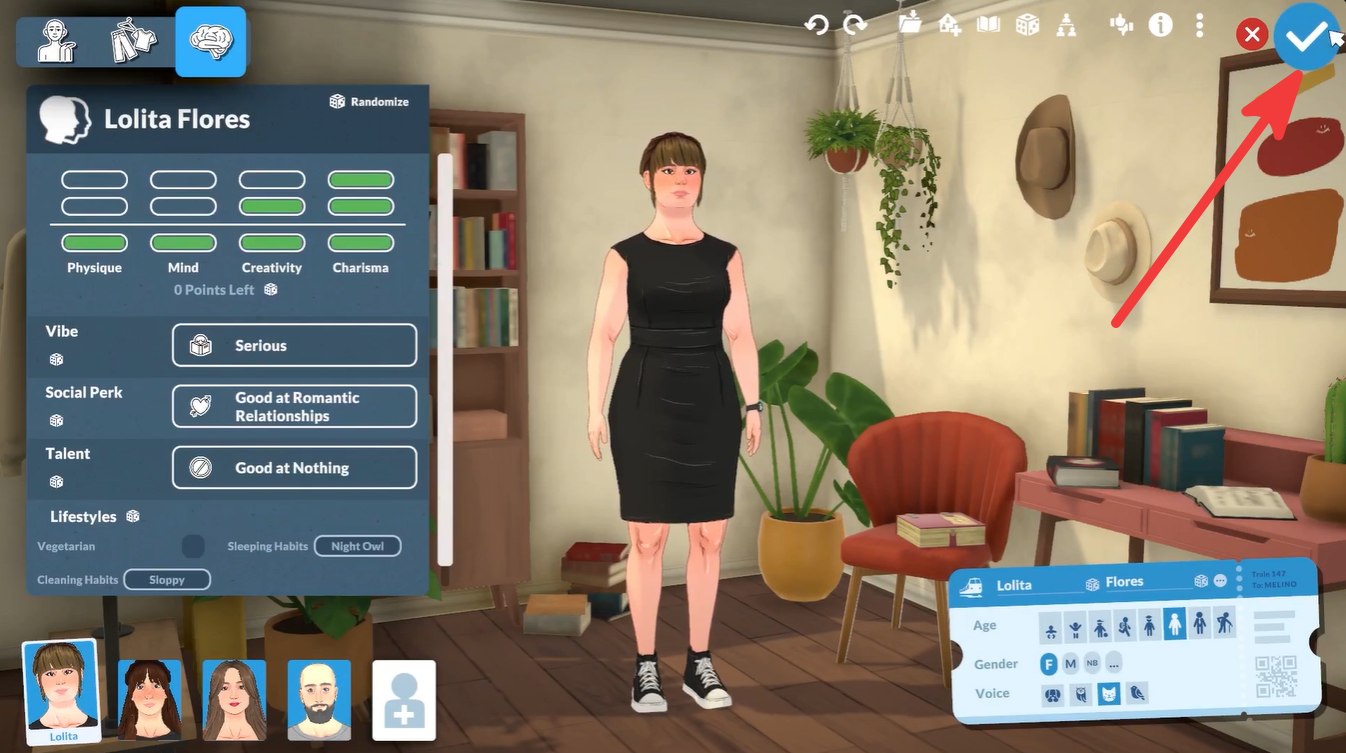
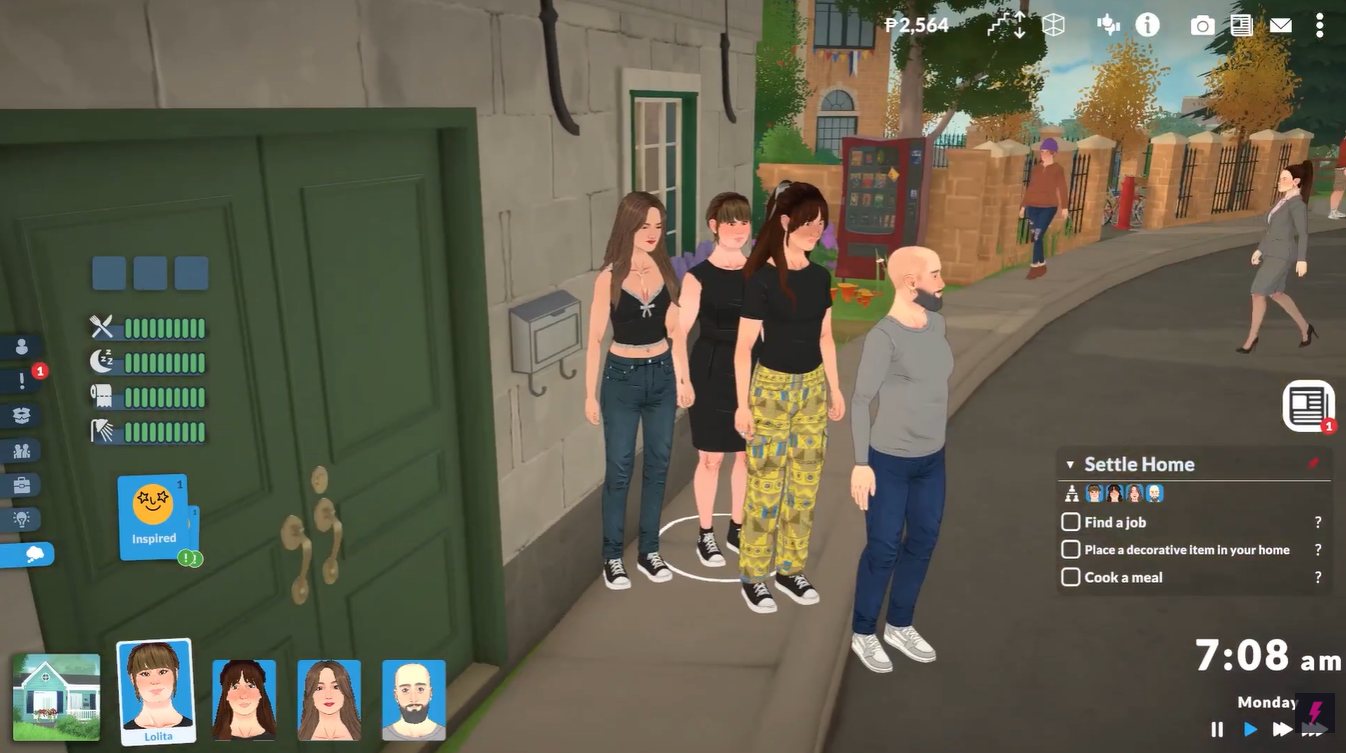
The household will then be placed into your new save and become fully playable.
Common reasons to use the Library
The Library is useful for preserving favorite families, challenge households, legacy characters, and custom creations. Instead of rebuilding the same Paras every time you begin a new save, you can simply import them and continue playing immediately. It also provides an easy way to share creations with the community and experiment with different stories while keeping your original households intact.
Saving and importing households made easy
The Paralives Library system provides a straightforward way to transfer households between saves. Simply enter character edit mode, save the household to your Library, and then import it through the Parameaker whenever you start a new game. Whether you’re preserving a favorite family or creating a collection of custom Paras, the Library makes reusing households quick and convenient.
Leave a Reply