
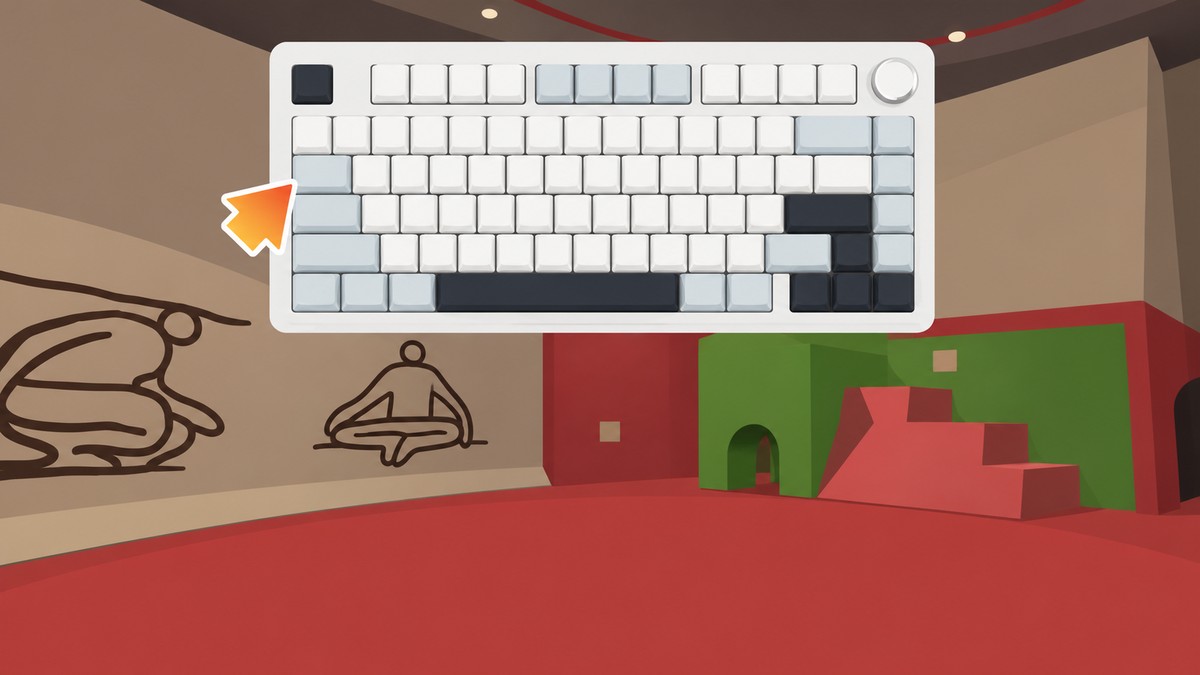
Press Tab once in Big Walk to show FPS and ping temporarily; press Tab twice quickly to keep the FPS and ping counters pinned in the top-left corner.
Big Walk uses a simple keyboard shortcut for its on-screen connection and performance readout on PC. Use the quick press when you only need a glance, or lock the readout before testing movement, lag, or frame drops during play.
Tab shortcut for Big Walk FPS and ping
Press Tab once to bring up the temporary stats overlay. The Ping and FPS counters appear in the top-left corner, while the game version and build information appear in the top-right corner.
KEY!
For a persistent display, press Tab twice quickly. After that double press, the FPS and ping counters stay visible while you let go of the key and continue moving around.
Double-tap Tab before troubleshooting lag so you can watch both FPS and ping while you walk instead of checking them only at a standstill.
How to show FPS and ping in Big Walk on PC
Use the same Tab key for both the temporary stats view and the pinned counter.
STEP 1/3
Press Tab once
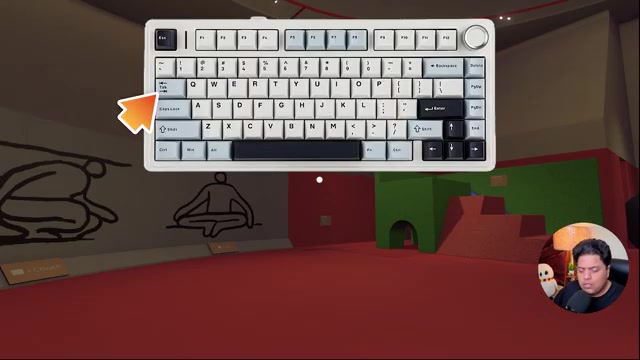
Tap Tab once on your keyboard to bring up the on-screen stats.
STEP 2/3
Check the top-left corner
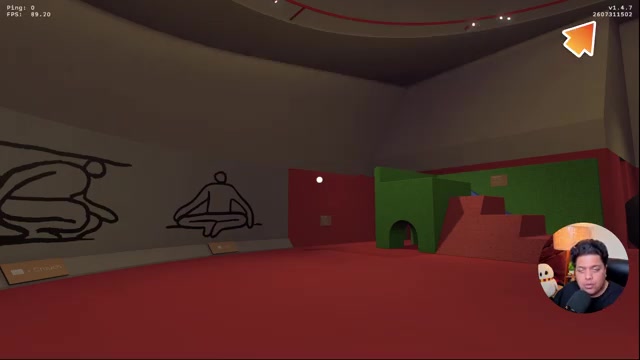
Look for Ping and FPS in the top-left corner of the screen.
STEP 3/3
Press Tab twice
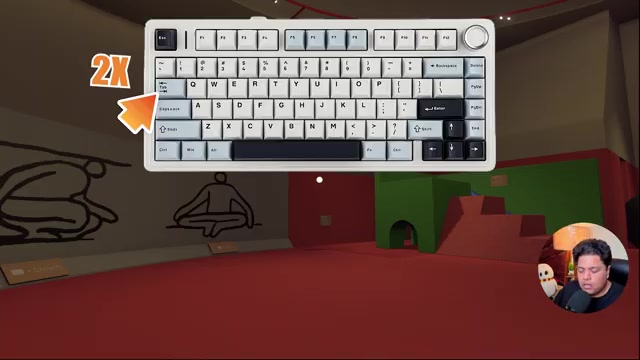
Double-tap Tab quickly if you want the FPS and ping counter to stay visible.
Video help
Reading the Big Walk stats display
| Display | Where it appears |
|---|---|
| Ping | Top-left corner |
| FPS | Top-left corner |
| Game version/build | Top-right corner |
The counter is split between the two upper corners of the screen. Use FPS to judge how smoothly Big Walk is running on your PC, and use Ping to watch connection delay during online play.
When Tab does not show FPS or ping
If Tab does nothing in your build, treat it as a version or build difference first. The demonstrated overlay appears on a build showing v1.4.7, while public launch documentation for version 1.0 does not list a built-in FPS or ping setting in Big Walk’s menus.
For FPS only, use Steam’s built-in counter: open Steam Settings > In-Game, enable the Steam Overlay, and choose a corner under In-game FPS counter. That will show your frame rate while Big Walk is running, but it will not add Big Walk’s in-game ping counter.
If you need to judge connection quality without the in-game ping display, watch for rubber-banding, delayed voice chat, disconnects, or unstable lobby behavior. A wired Ethernet connection, less crowded Wi-Fi, and a more stable host can help reduce those problems during co-op sessions.
Frequently Asked Questions
Does pressing Tab twice keep the FPS and ping display on while playing?
Yes. A quick double press of Tab pins the FPS and ping counter so it remains visible while you move around.
Can Steam show Big Walk ping, or only FPS?
Steam’s overlay can show FPS only. It does not create a Big Walk ping readout, so ping needs the in-game counter or indirect network checks.
Leave a Reply