
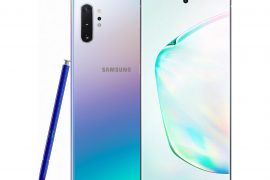
When thinking about the features of a smartphone, Bluetooth isn’t really something we fixate on. However, when it starts to behave erratically, there’s hardly anything more frustrating.
The Samsung Galaxy Note 10 is an impeccable device in every sense of the word, but even such an outstanding device isn’t impervious to random bugs. So, even if you aren’t facing any Bluetooth bugs at the moment, that doesn’t mean your luck won’t run out eventually.
Read on for some basic Bluetooth troubleshooting tips for your Galaxy Note 10.
- Solution 1: Toggling the Bluetooth Switch
- Solution 2: Reboot
- Solution 3: Safe Mode
- Solution 4: Re-Pair Device
- Solution 5: Reset network settings
- Solution 6: Clear Bluetooth app cache
- Solution 7: Add Device to Smart Lock List
- Solution 8: Crosscheck your device
- Step 9: Factory Reset
- Solution 10: Update and Repair
Solution 1: Toggling the Bluetooth Switch
We’re sure you’ve done this already, but it’s in our job description to be as thorough as possible.
Solution 2: Reboot

Another method you’ve probably tried already. But if you haven’t, be sure to perform the steps below.
If your screen becomes unresponsive for some reason, a hard reset may be in order. To perform a hard reset, simply press and hold the Power and Volume Down button simultaneously until you feel a vibration. The device will then restart.
Solution 3: Safe Mode

Before taking your device to your nearest service center, be sure to check that a rogue app isn’t making your life miserable. If the Bluetooth issue disappears upon booting in Safe mode, you can rest assured that a third-party app is the culprit. Uninstall the app to restore normalcy.
Here’s how to boot in safe mode:
Solution 4: Re-Pair Device
If you’re facing connectivity issues with an isolated device, re-pairing the device could work wonders.
Unpair the device first:
Now, pair your device again:
Solution 5: Reset network settings
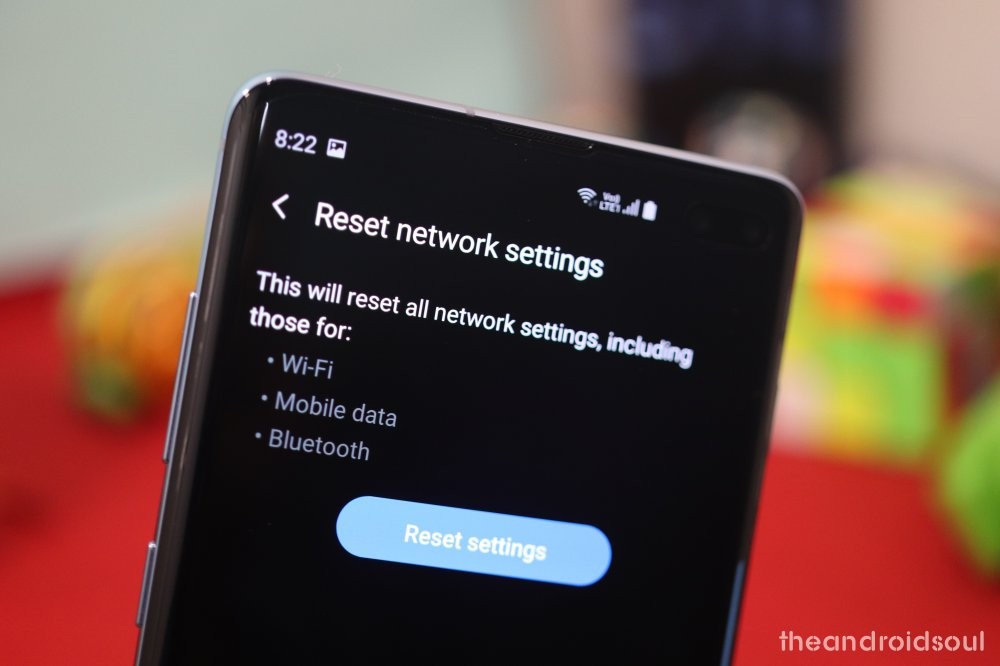
Resetting network settings can solve a plethora of issues, including Wi-Fi and cellular connectivity problems.
Solution 6: Clear Bluetooth app cache

Solution 7: Add Device to Smart Lock List
It has been found that adding devices, such as Bluetooth car stereo or your home speaker, can resolve the connectivity issues.
Here’s how to add your Bluetooth device to Smart Lock list:
Solution 8: Crosscheck your device
While Bluetooth issues are quite common in Samsung Galaxy devices, the device you’re trying to connect can also be the offender. So, before calling it quits, make sure your Bluetooth device isn’t at fault by pairing it with a different smartphone.
Also, check for compatibility between your Note 10 and the Bluetooth device.
Step 9: Factory Reset
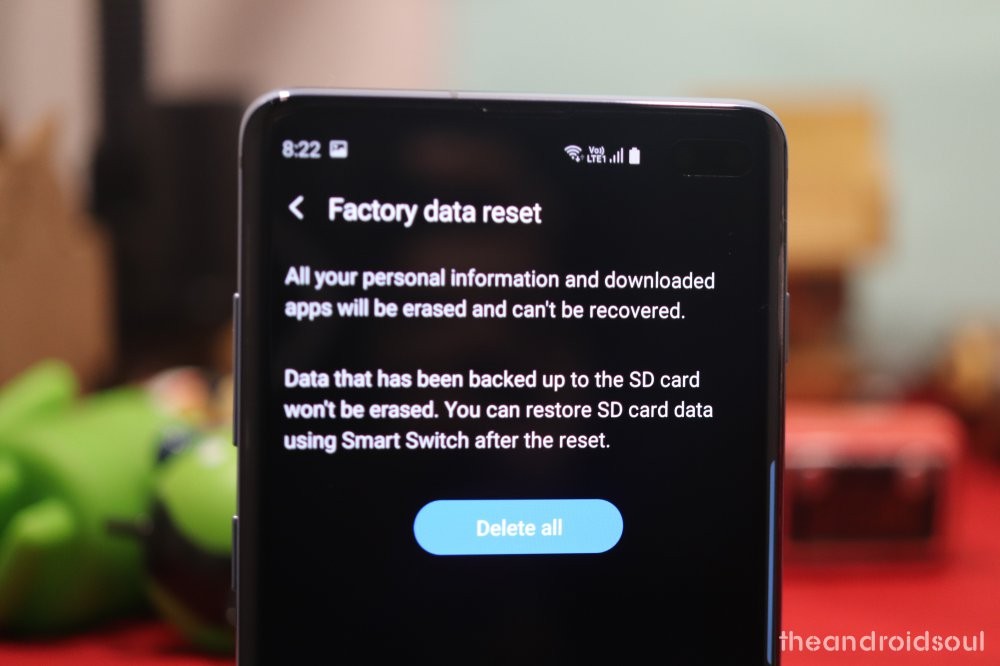
Factory resetting should be your last resort. As the process will erase every speck of data on your device, be sure to create a through backup.
Solution 10: Update and Repair
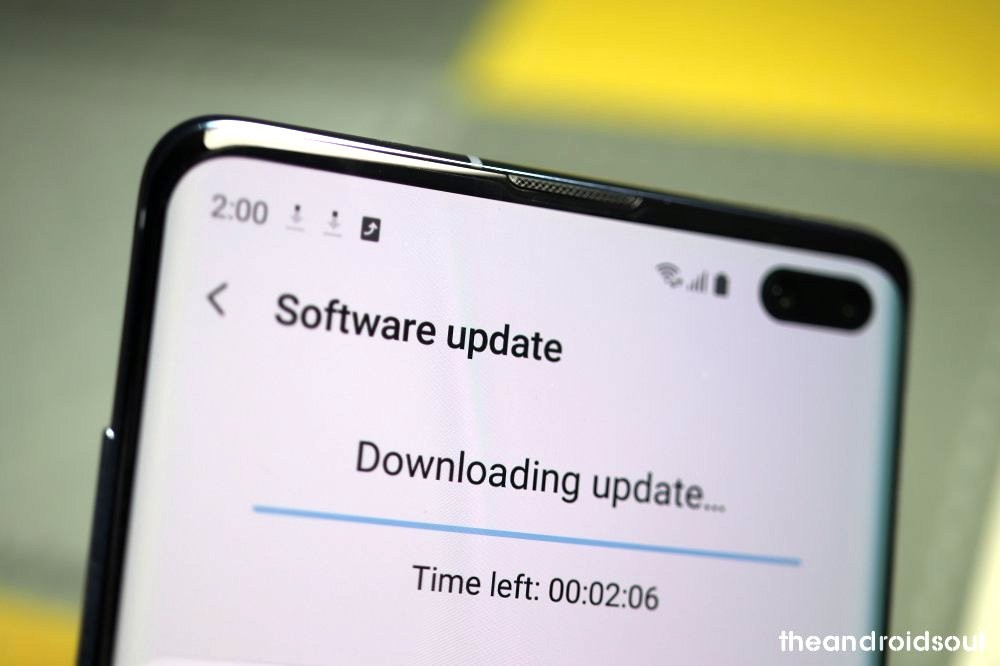
If none of the solutions worked for you, you’d be better off waiting for an update or visiting your nearest service center.





One response to “How to fix Samsung Galaxy Note 10 Bluetooth problems”
you need to include more warnings about the actions.
like wiping out all the bluetooth connections.
mediocre rings true.