A good doodle can pretty much make everything better, even the aesthetically-shot video you’re dying to share on social media. So, before you hit that share button, make sure to check out one of the best video editing apps out there.
KineMaster is one of the most highly rated apps on Google Play. A neat interface, a plethora of features, and periodic updates — you can’t go wrong with this one.
RELATED
- How to create a video slideshow of photos on Android
- How to create GIFs from videos on Android
- Best Video calling apps on Android
How to draw on videos in KineMaster
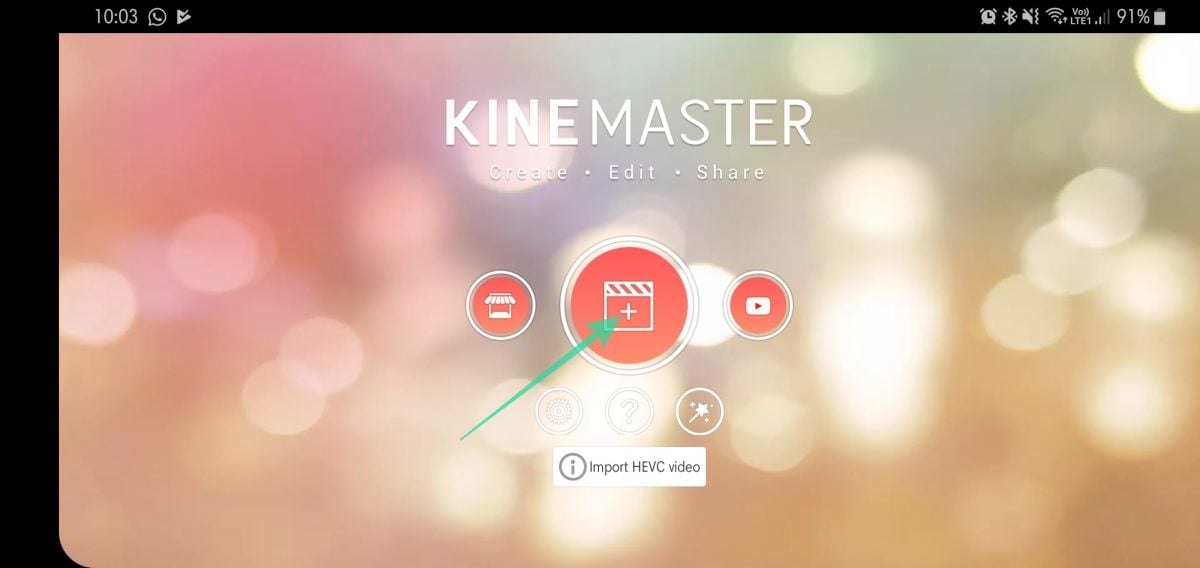
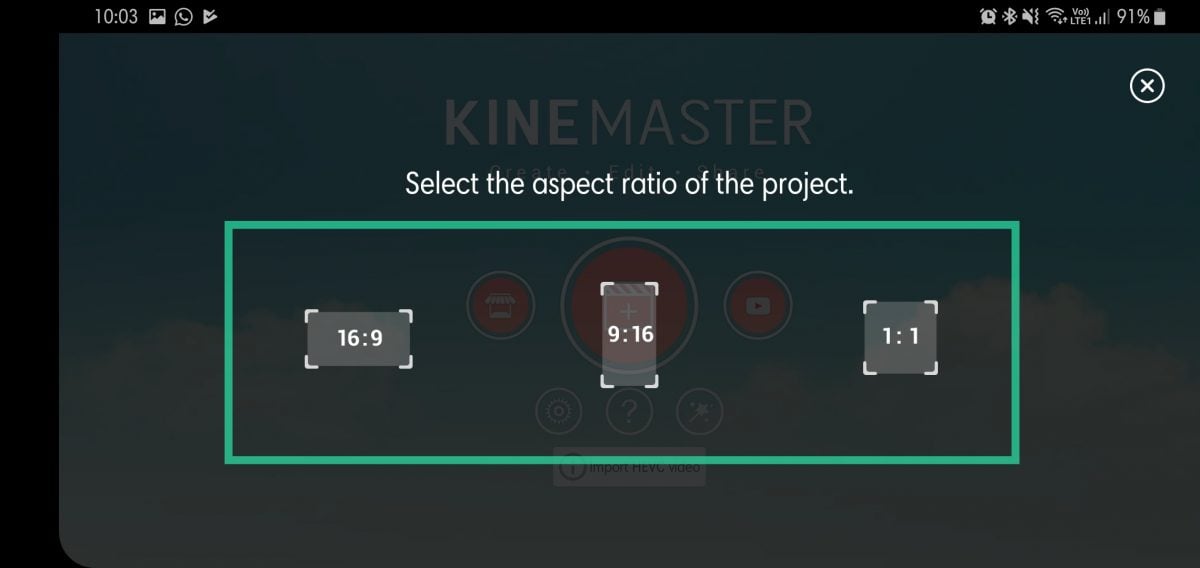
Download and install the KineMaster app from Google Play Store.
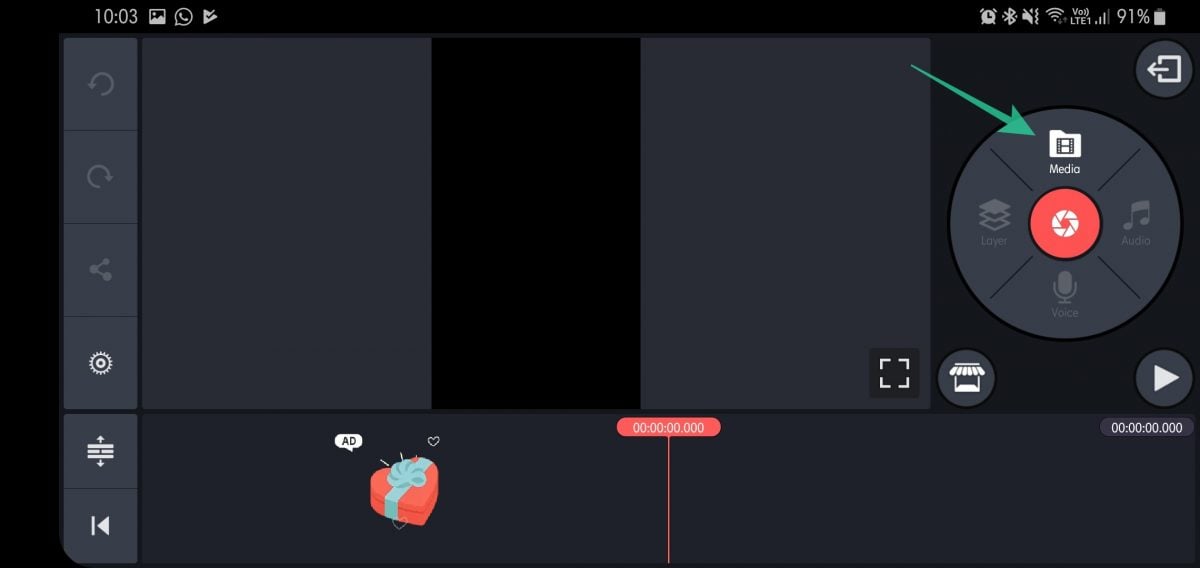
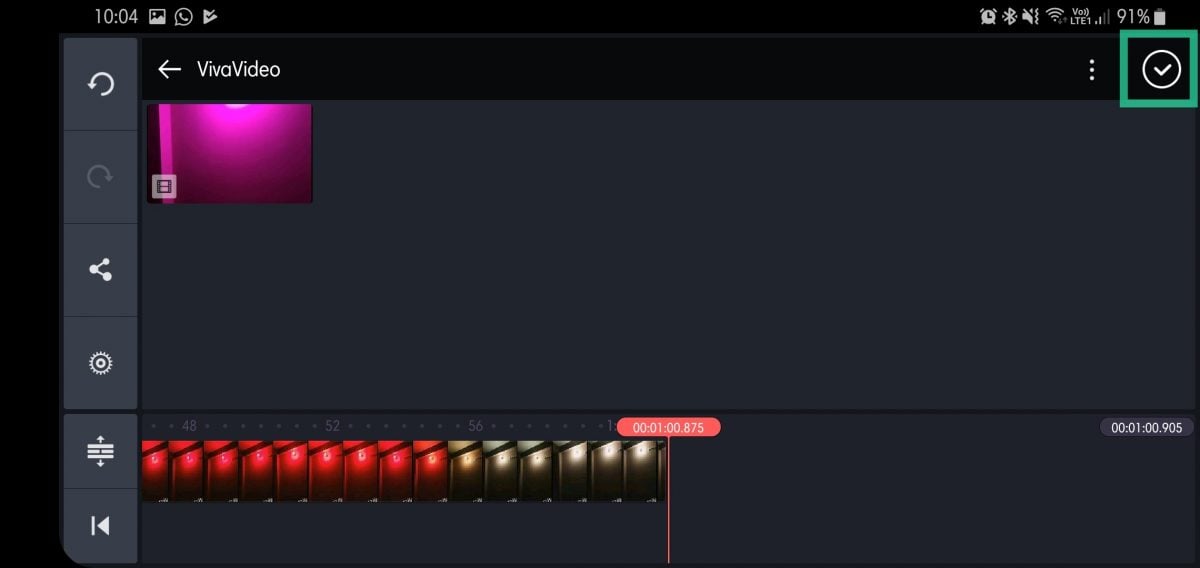
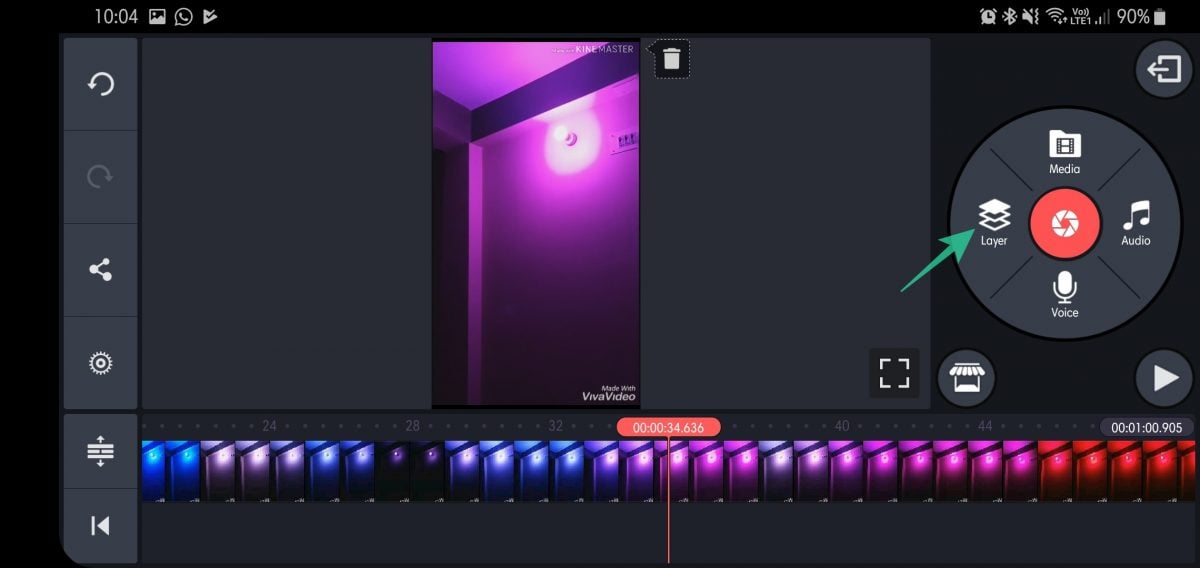
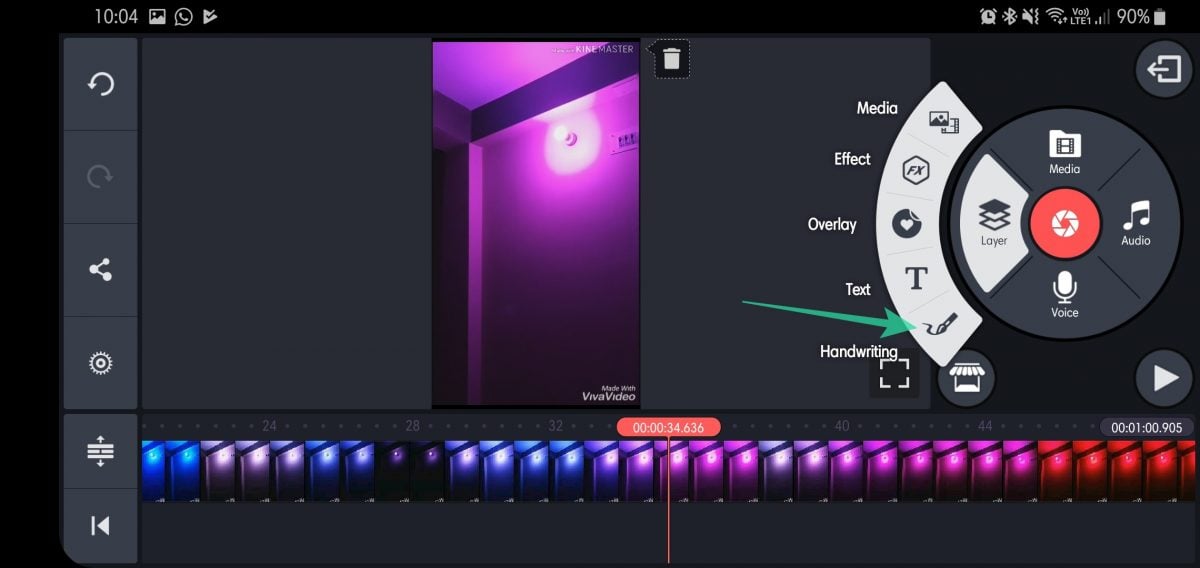
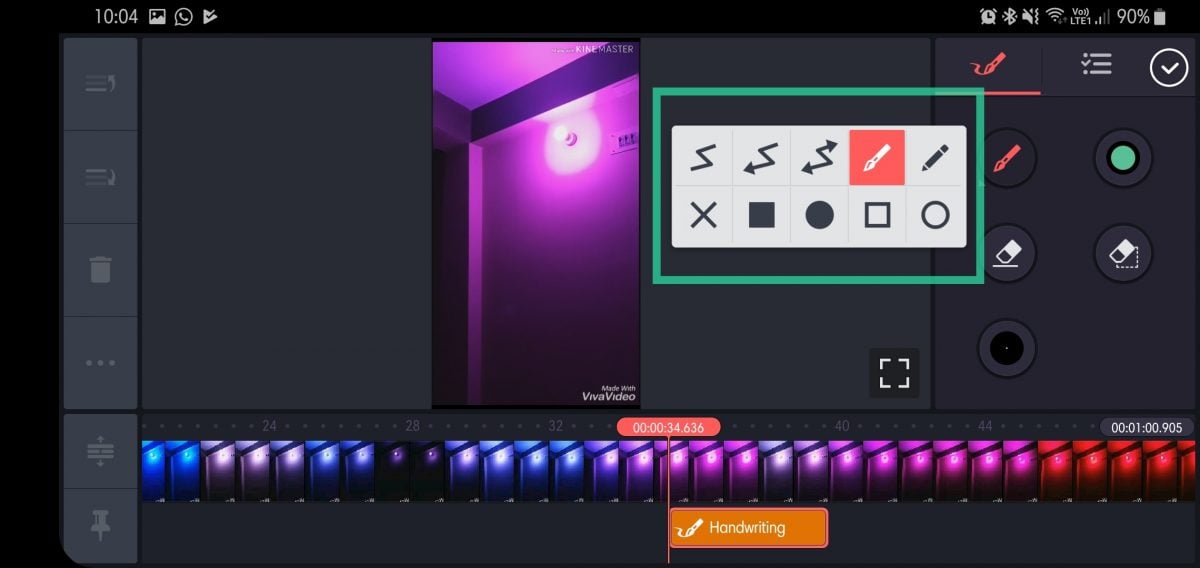
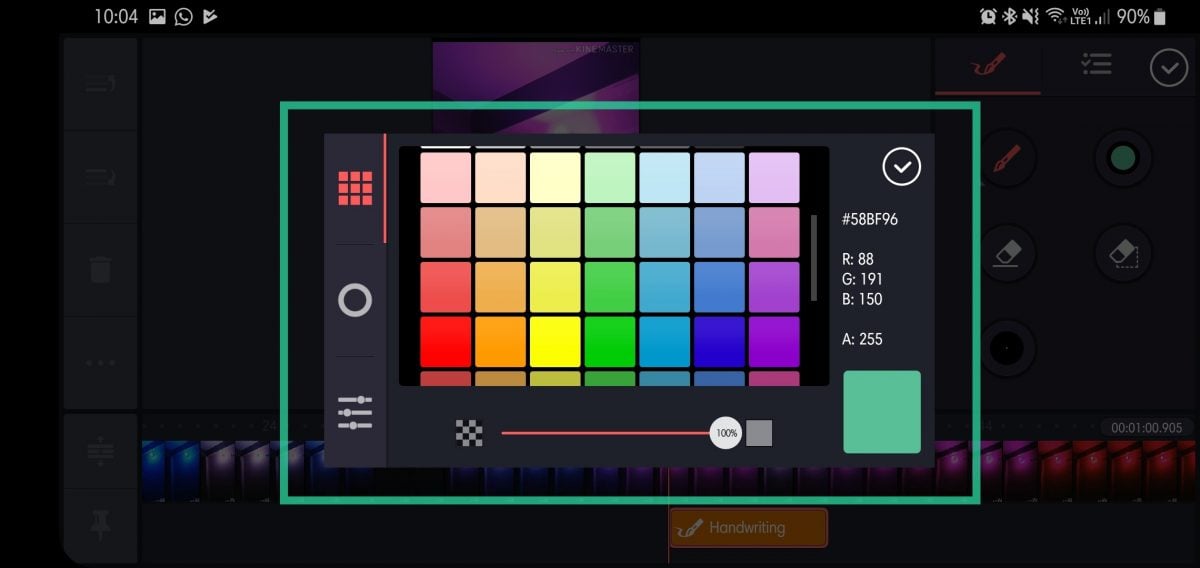
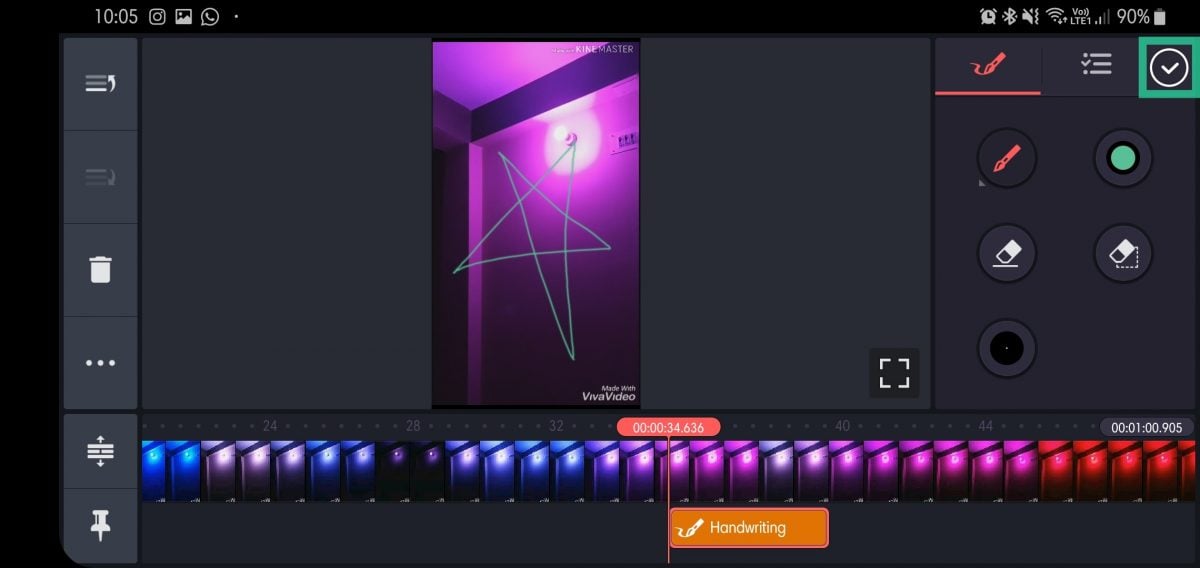
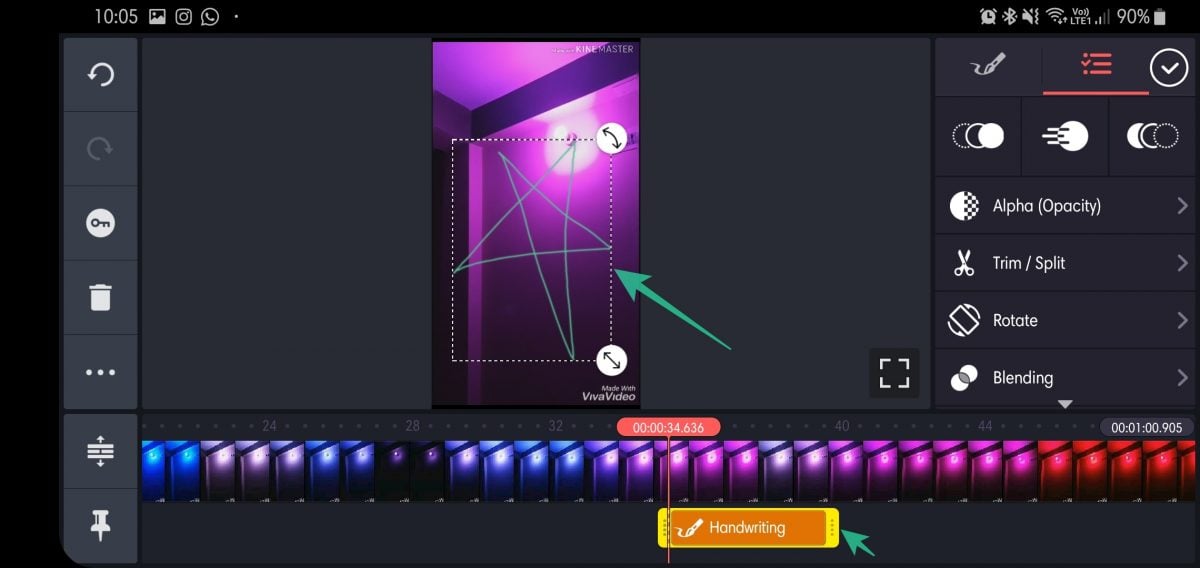
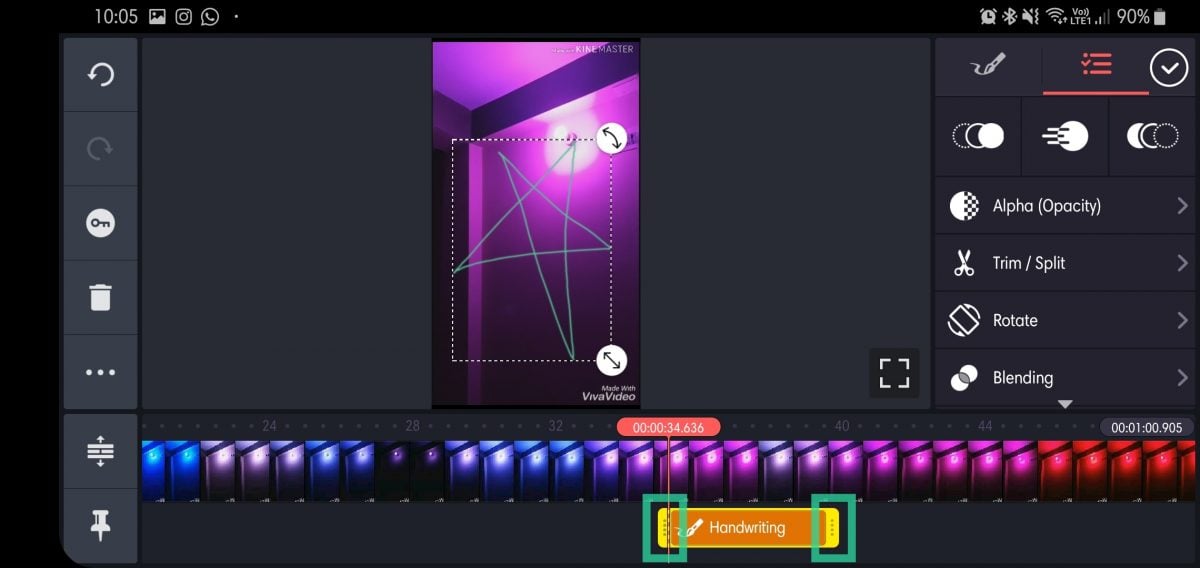
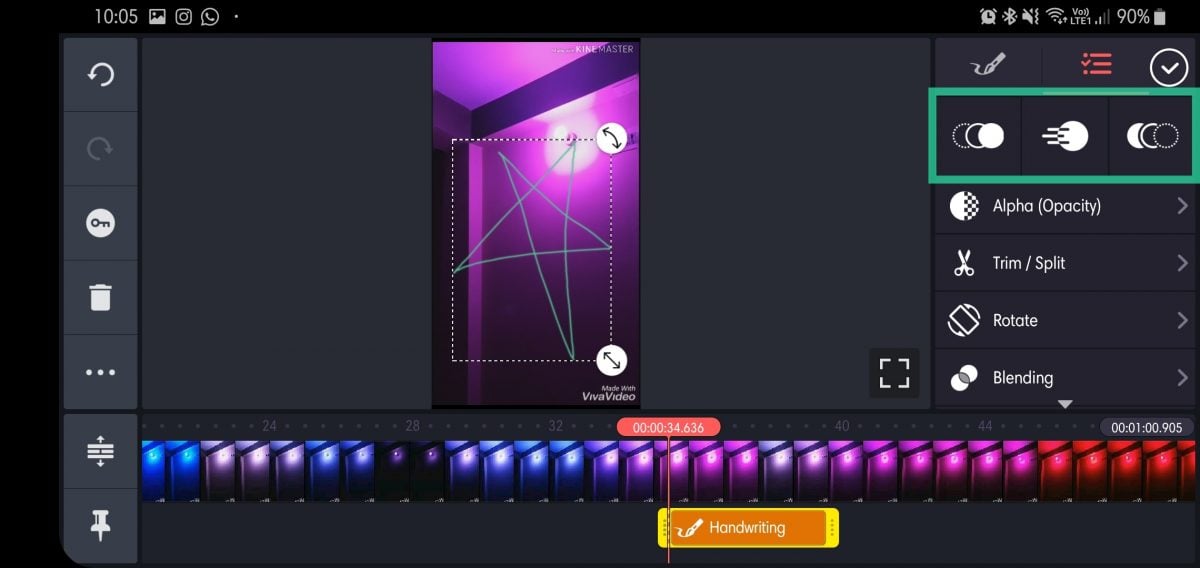
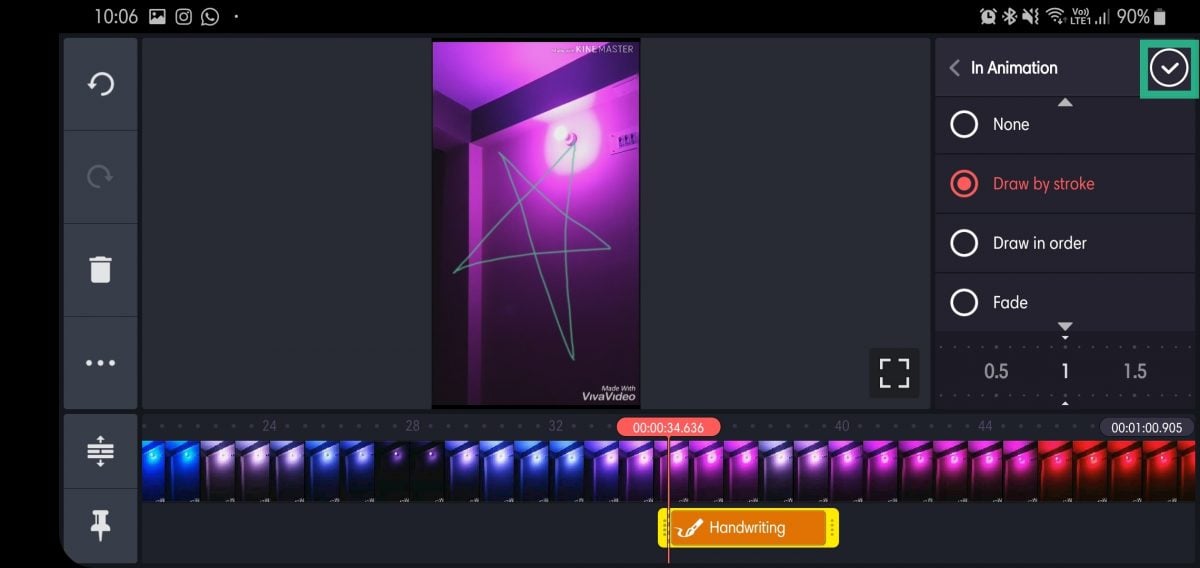
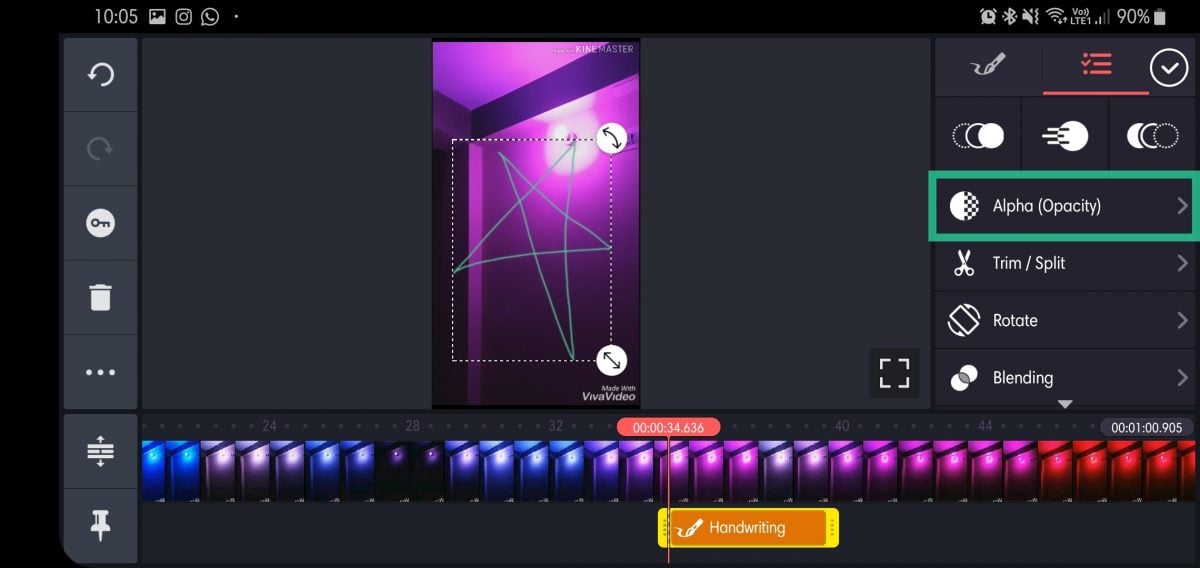
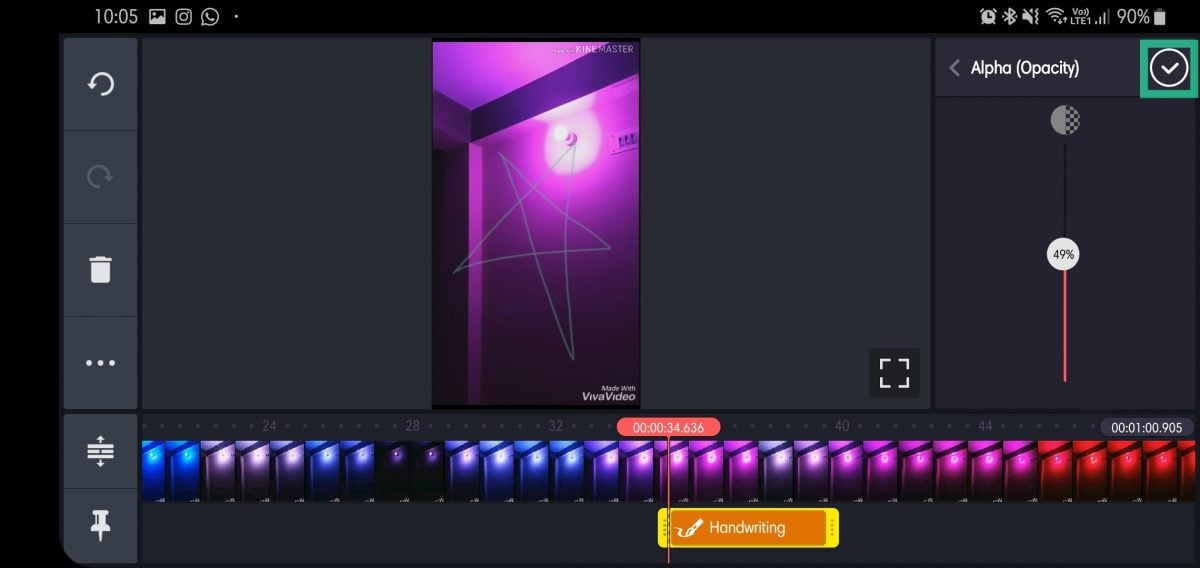
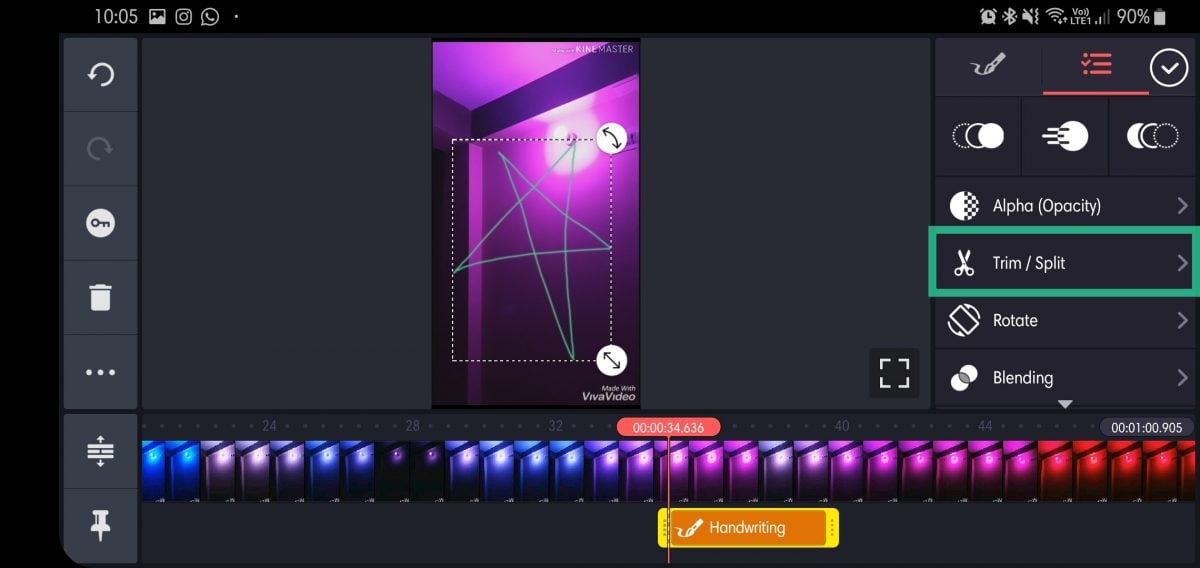
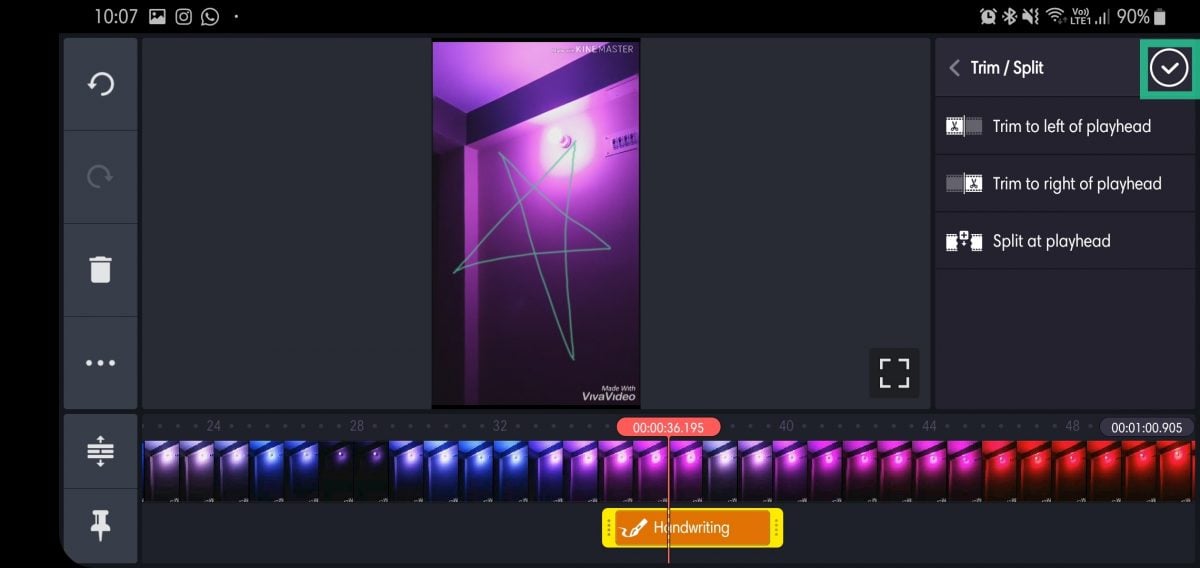
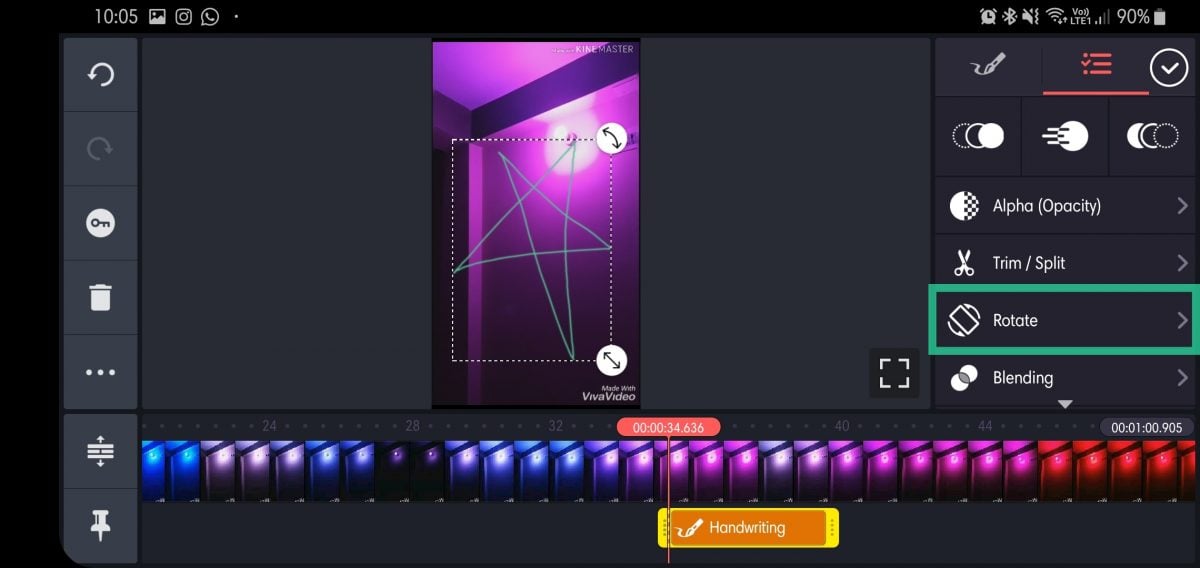
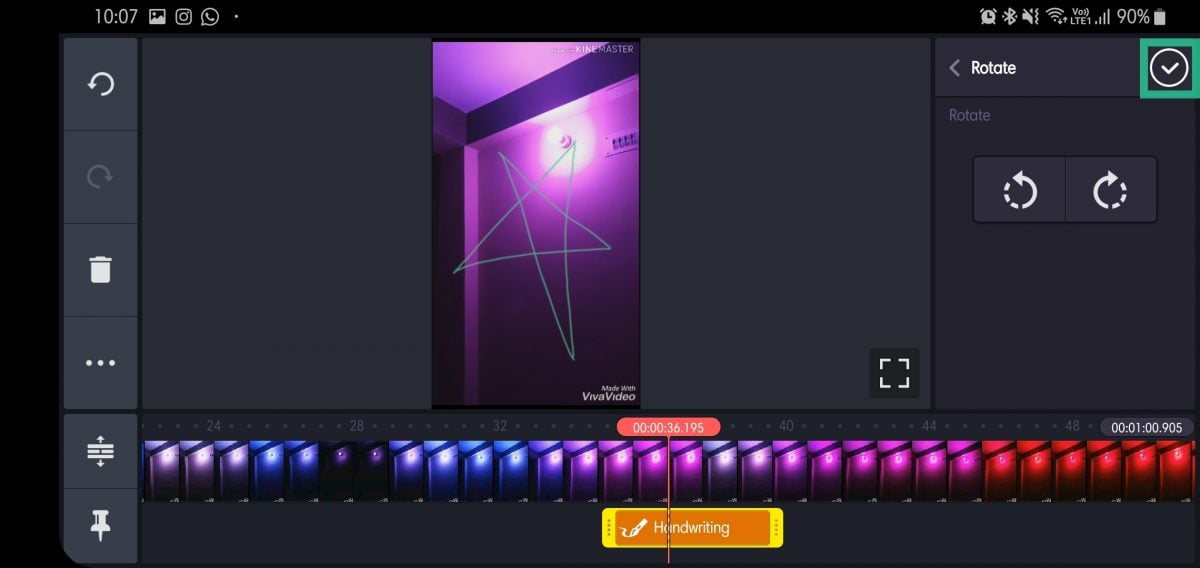
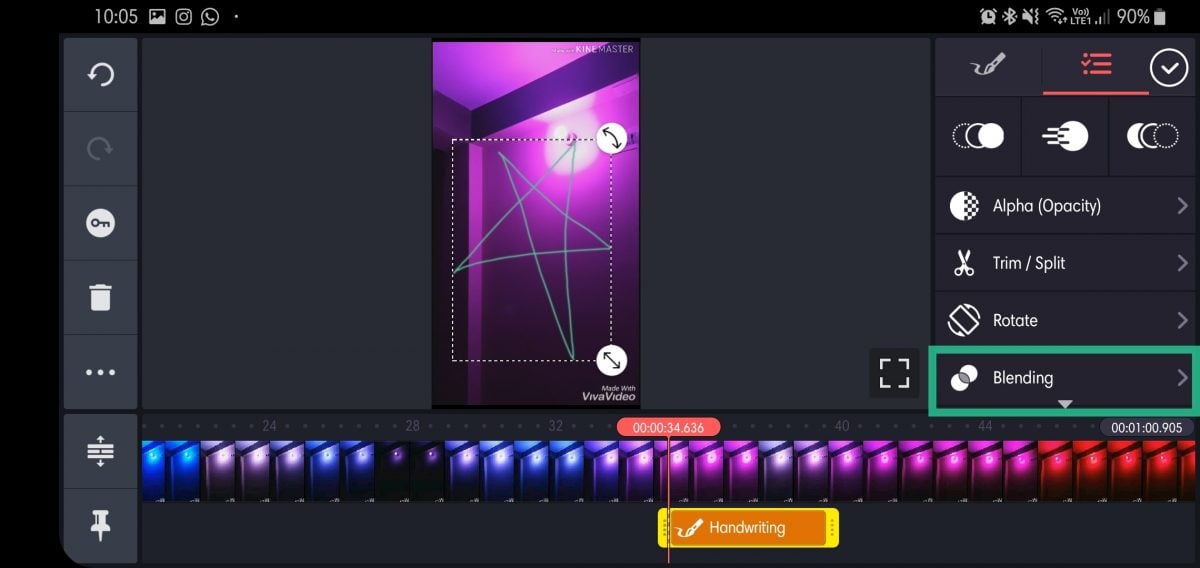
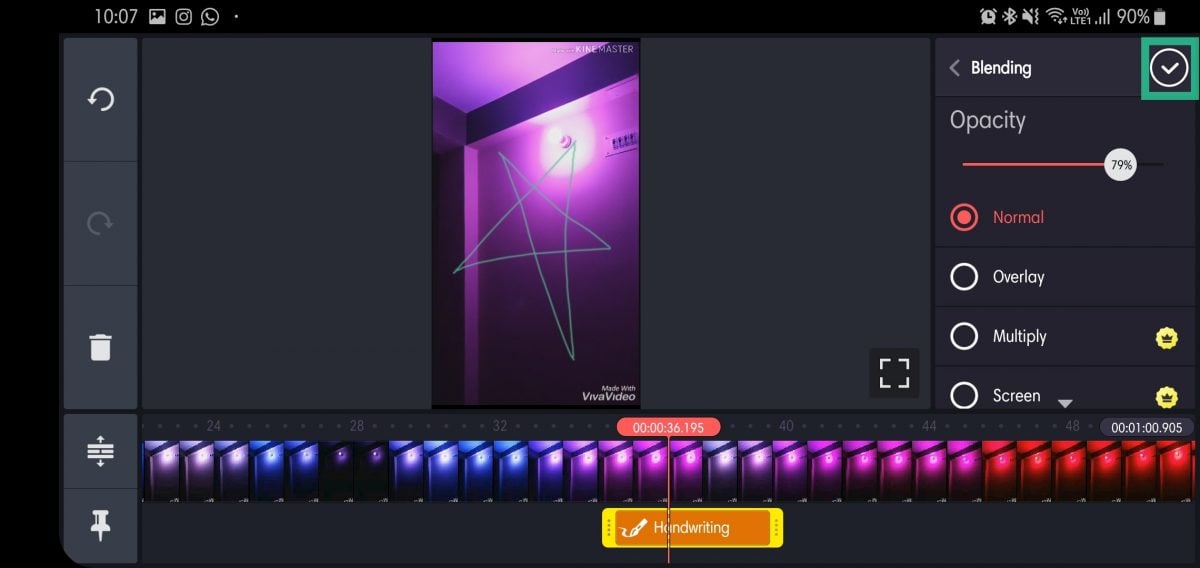
Tap on Blending to adjust opacity or overlay (Multiply and Screen are available in premium version).
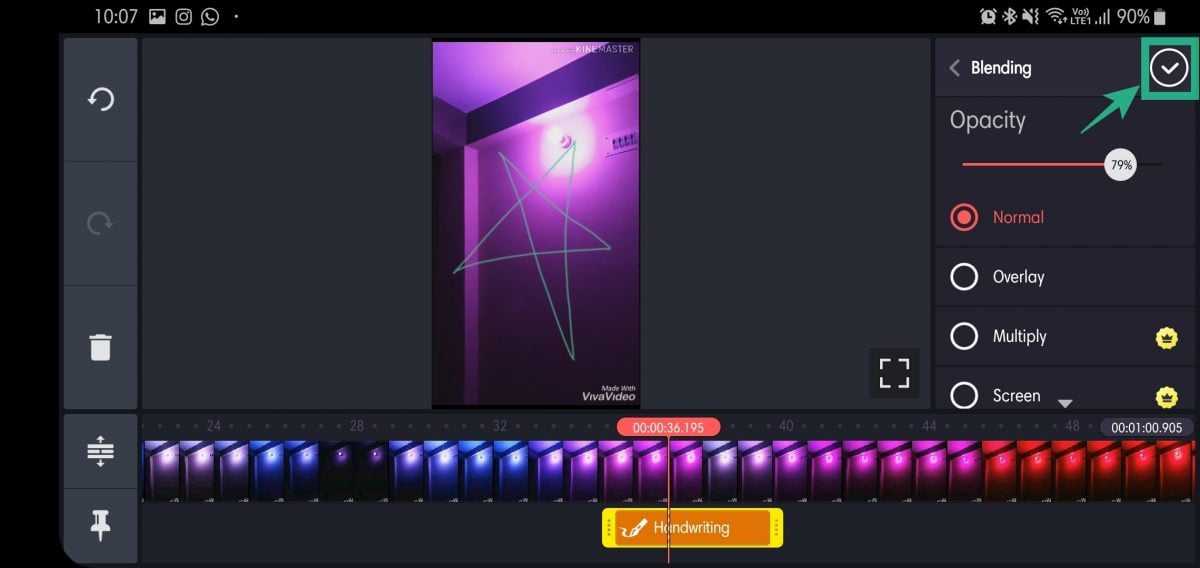
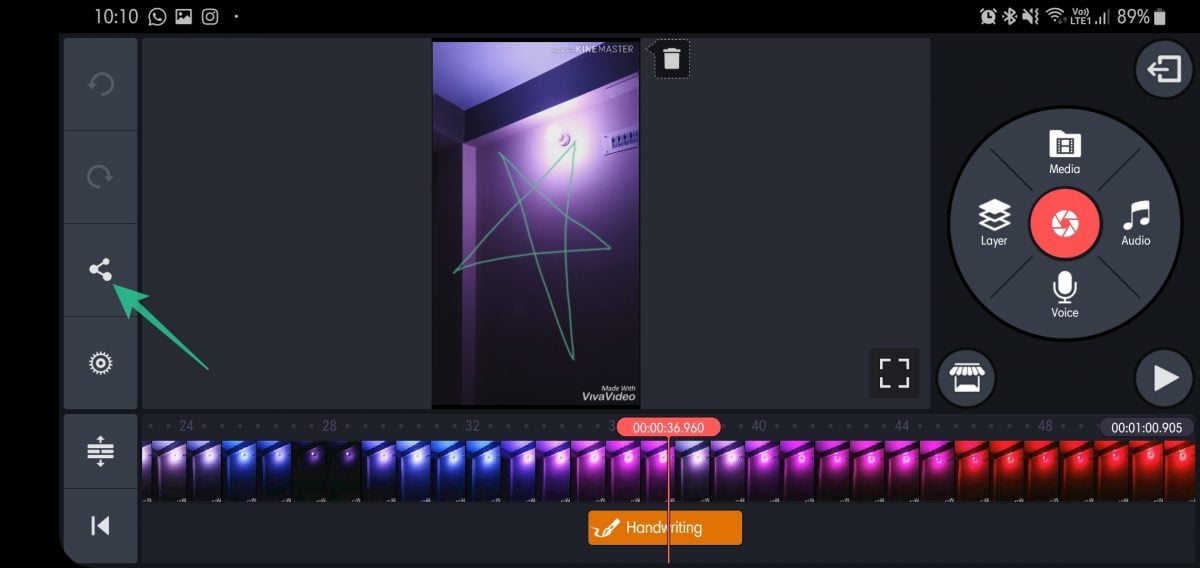
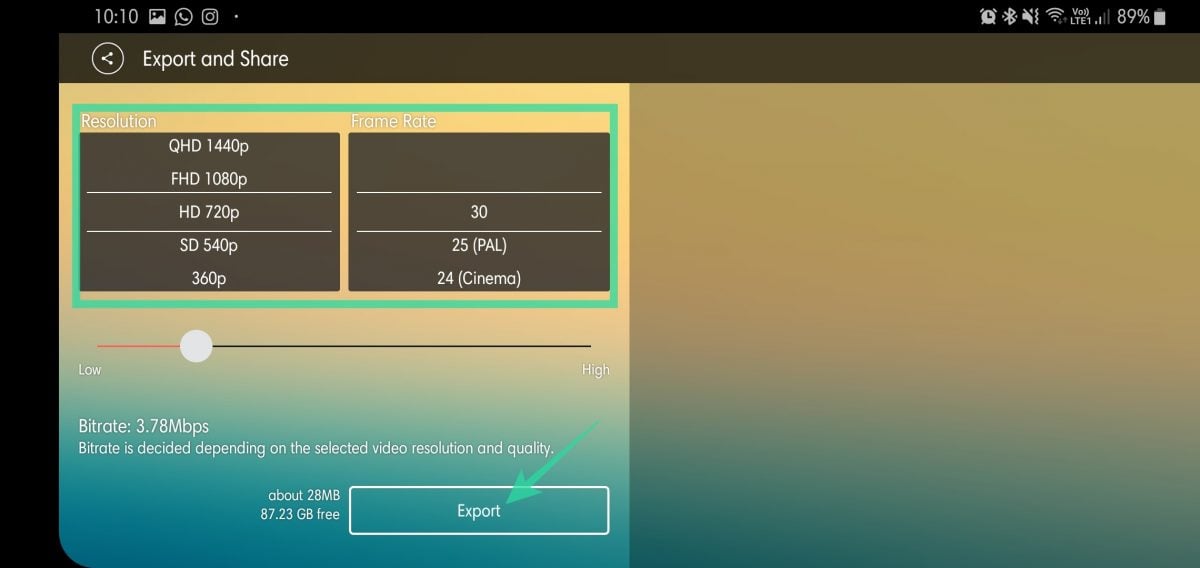
That’s it! Be sure to play around with other options to make the most of the app.
That was easy, right?
Let us know if you have any suggestions in this regard.
RELATED