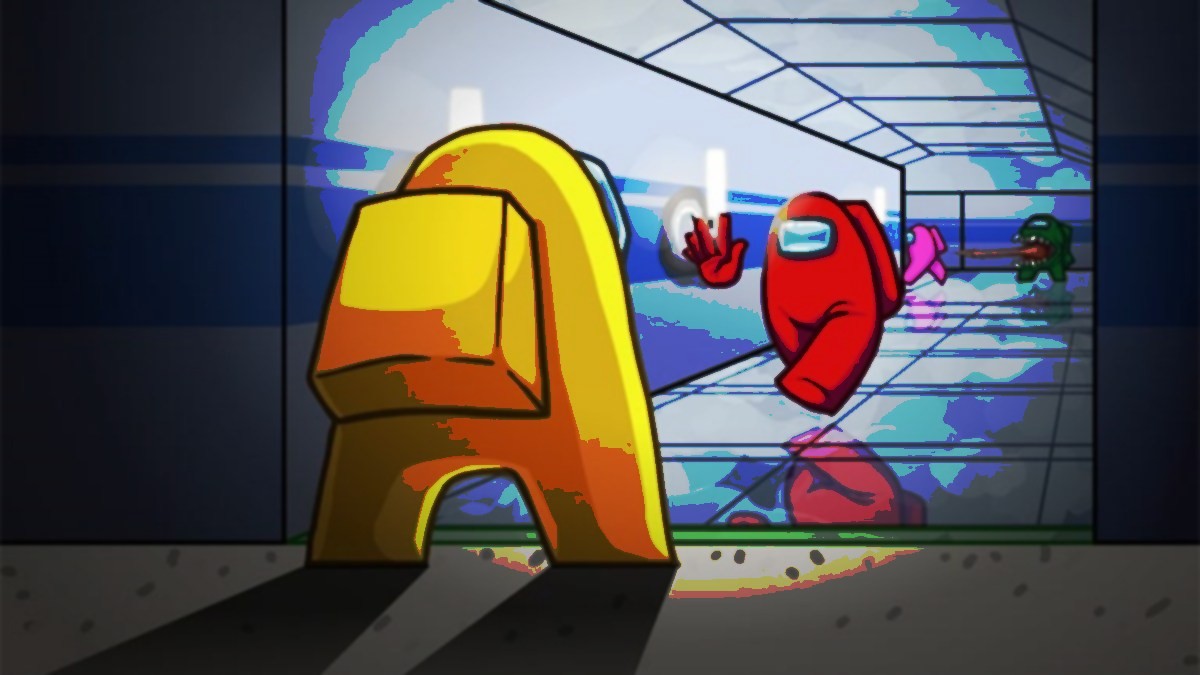
GIFs are short animated images that first showed up in the late 1980s. They are easy to share and help communicate a lot better on social media websites and instant messengers. One of the most popular trends among the GIF sharing community has been the recent influx of reversed GIFs. Just like reversed videos, reversed GIFs are backward playing clips that make mundane things look magical. Here are some examples of reverse GIF images:


Fancy, right? Creating a reverse GIF is as simple as creating your regular GIF. All you need is the an app from the Play Store to get going. Let’s dive deep and see how you can create your own mesmerizing and magical reverse GIFs.
Creating a Reverse GIF by Recording a New Video
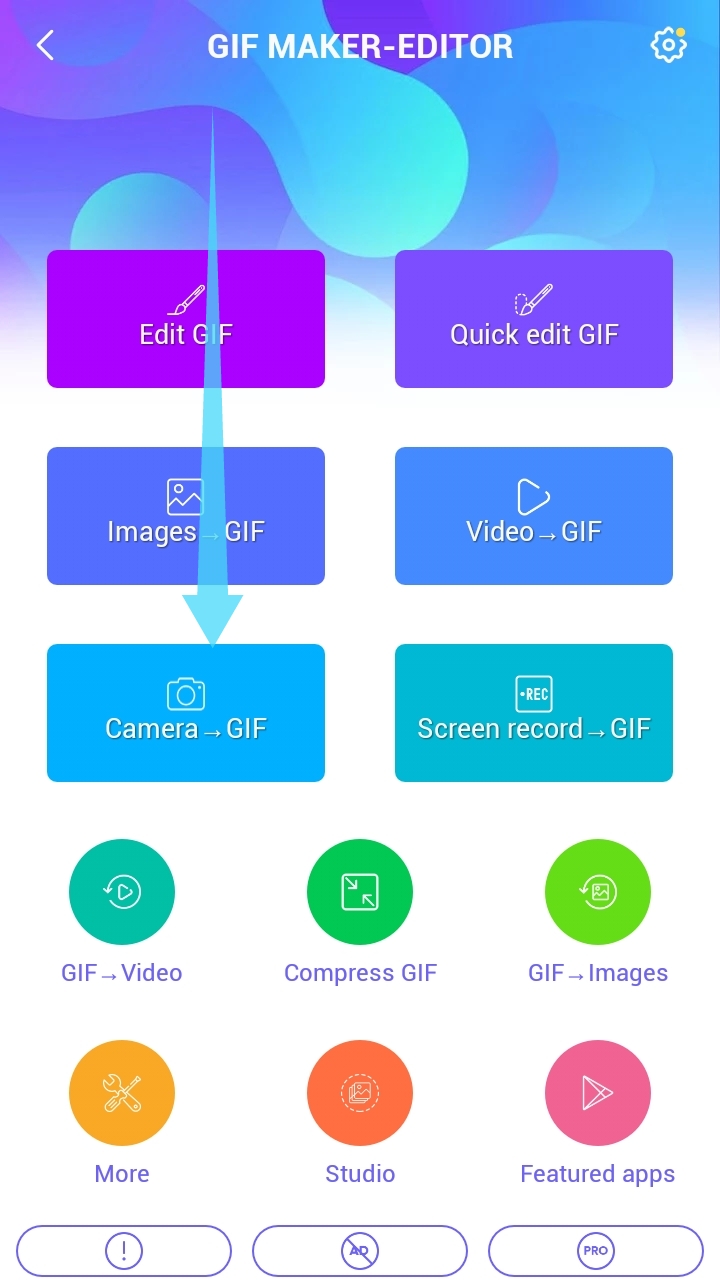
Step 1: Download the GIF Maker-Editor app from the Play Store. Then, open the app, give the required permissions. On the app’s home screen, tap ‘Camera -> GIF’.
Note: The minimum length for the video should be at least 10s.

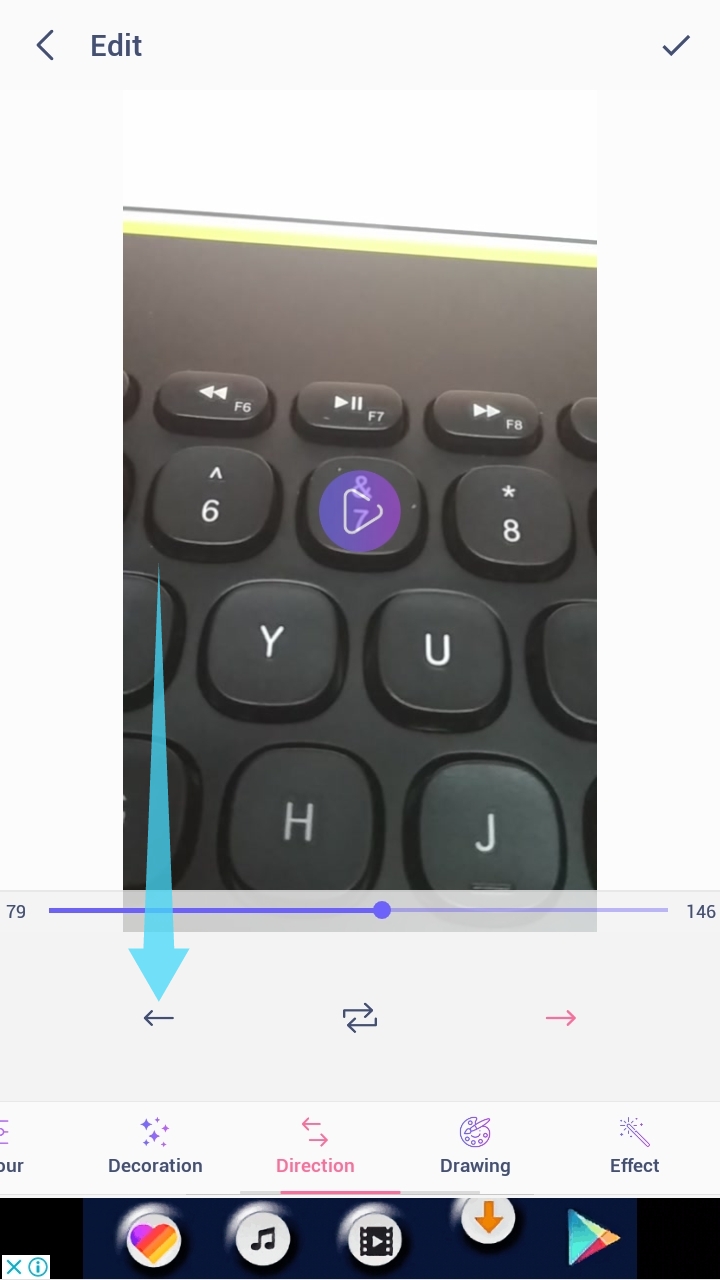
Step 5: Select GIF under the ‘Save Section’ and select your desired quality.
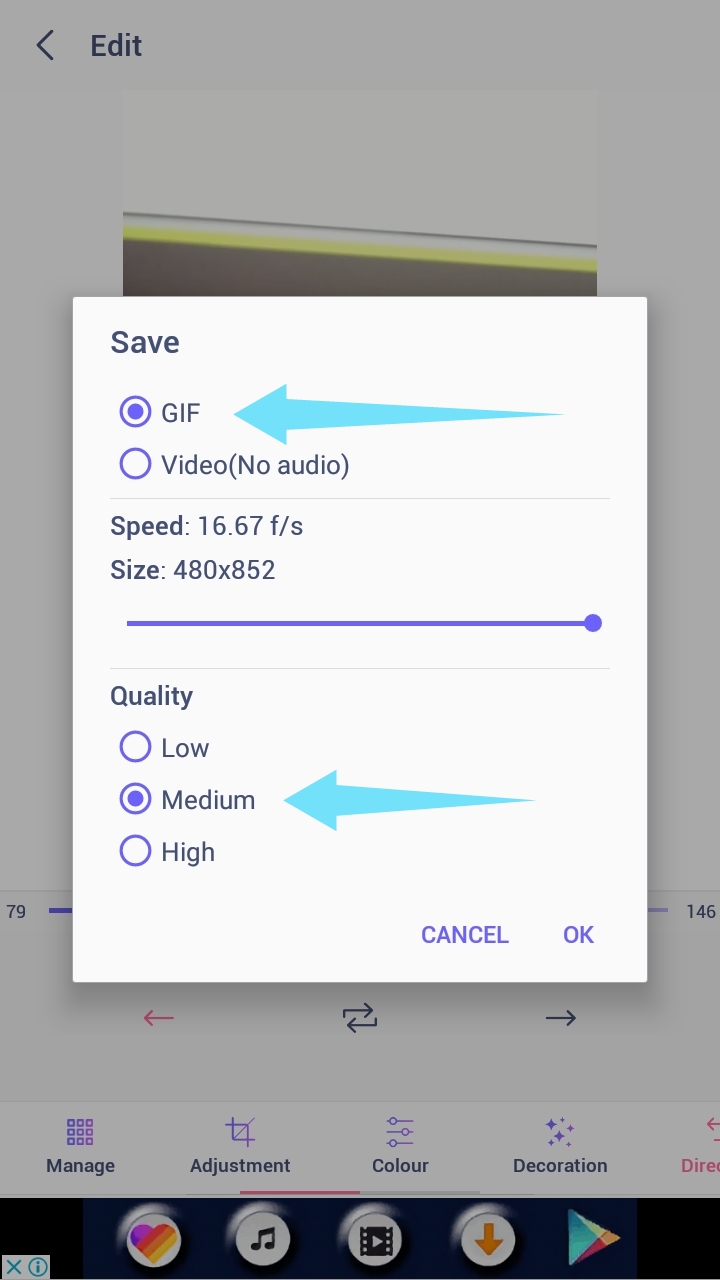
Note: Depending on the length of your clip, this could take anywhere between a few seconds and a couple of minutes. Make sure your phone does not turn off during this period or the App does not close.
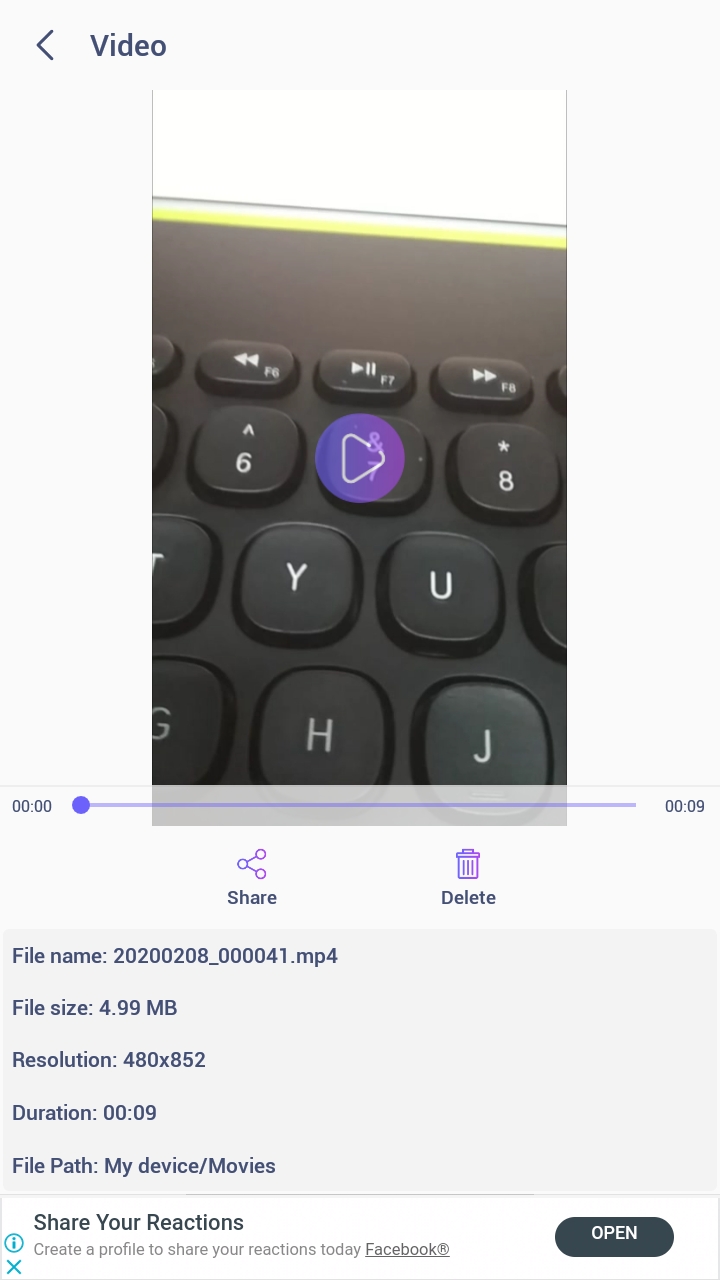
You should now have a reversed GIF of your desired Live recording.
Creating A Reverse GIF From A Downloaded Video
If you are looking to create a Reverse GIF of a video recording for your camera, or of a video you have downloaded from the web, this guide will help you out. It doesn’t differ a lot from the one above, BTW.

Note: The maximum duration of the clip that you can use in this feature is 1 minute. So if you had planned on extracting your clip from a larger file, then you will need to trim it in the next step.
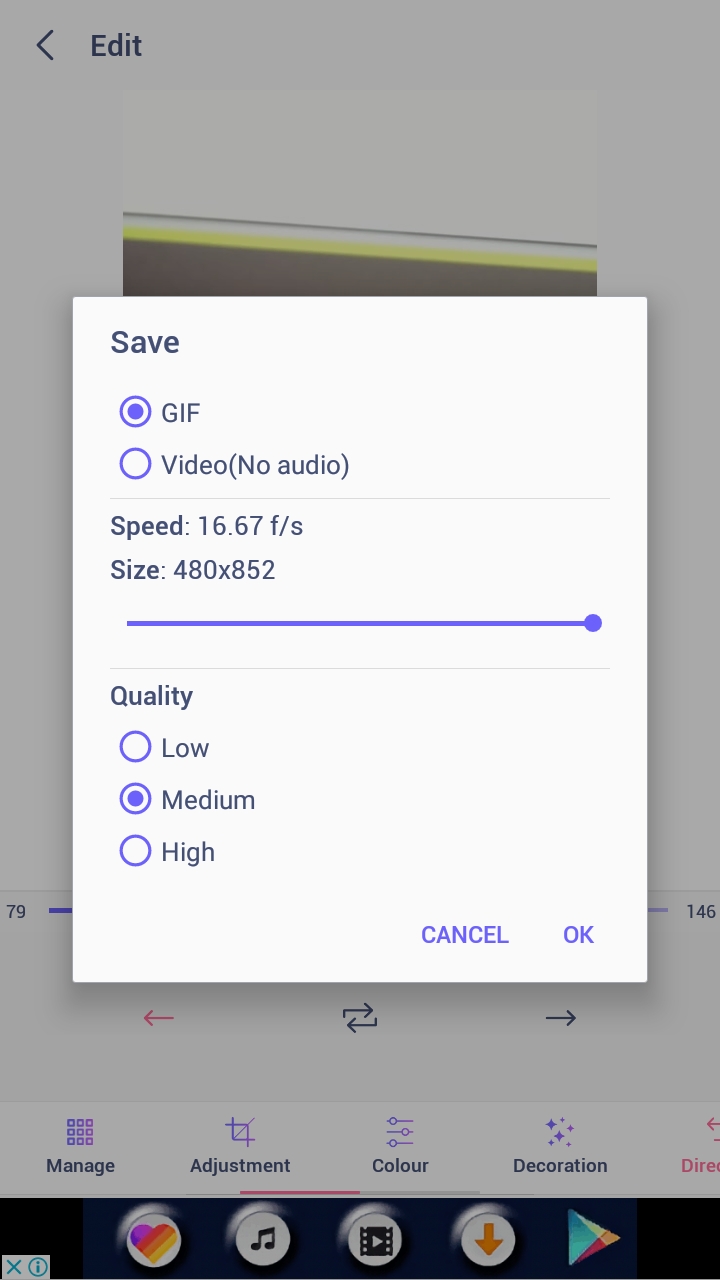
Step 7: Tap ‘OK’ and the app should start rendering your clip instantly. This process could last a few minutes depending on the length of your clip and your quality and resolution preferences.
You should now be presented with your reversed GIF along with its technical information at the bottom of your smartphone screen. You will be able to find this GIF in the local gallery of your phone or by navigating to ‘/GIFStudio’ on your local storage.
Creating a Reverse GIF From an Existing GIF

Step 2: Select the desired GIF from your phone’s local storage. If the GIF is one the web, download it first on your device.

Done. The GIF will be saved on your device’s storage. You can now share it.
This guide should help you create reverse GIFs from all possible sources that are currently available to end consumers. You can also download videos from the internet and convert them into reverse GIFs using the above-mentioned guide. Share your reverse GIF creations with us in the comments section below. If we missed out on anything, please feel free to share your feedback as well.
RELATED: