


What to know
- You can add a new Para to an existing household without starting a new save.
- The process requires opening the cheat console and using the
editcharactercommand. - The ParaMaker lets you fully customize the new character before adding them.
- Once saved, the new Para automatically joins your current household.
Adding new family members to your household is one of the easiest customization options available in Paralives. Whether you want to expand a family, create roommates, or introduce a brand-new character into your story, the game allows you to do so directly through the ParaMaker using a simple console command.
Quick overview of Para creation in a household
| Feature | Details |
|---|---|
| Method | Cheat Console Command |
| Required Command | editcharacter |
| Tool Used | ParaMaker |
| Existing Save Required | Yes |
| New Household Needed | No |
| Character Customization | Full customization available |
| Result | New Para joins the current household |
How to add a new Para to an existing household
The process only takes a few minutes and can be completed without leaving your current save file.
Step #1 – Open the cheat console
Load into the household where you want the new Para to live.
Press Ctrl + F1 to open the command console. If your keyboard does not have function keys available, use Ctrl + Shift + C instead.
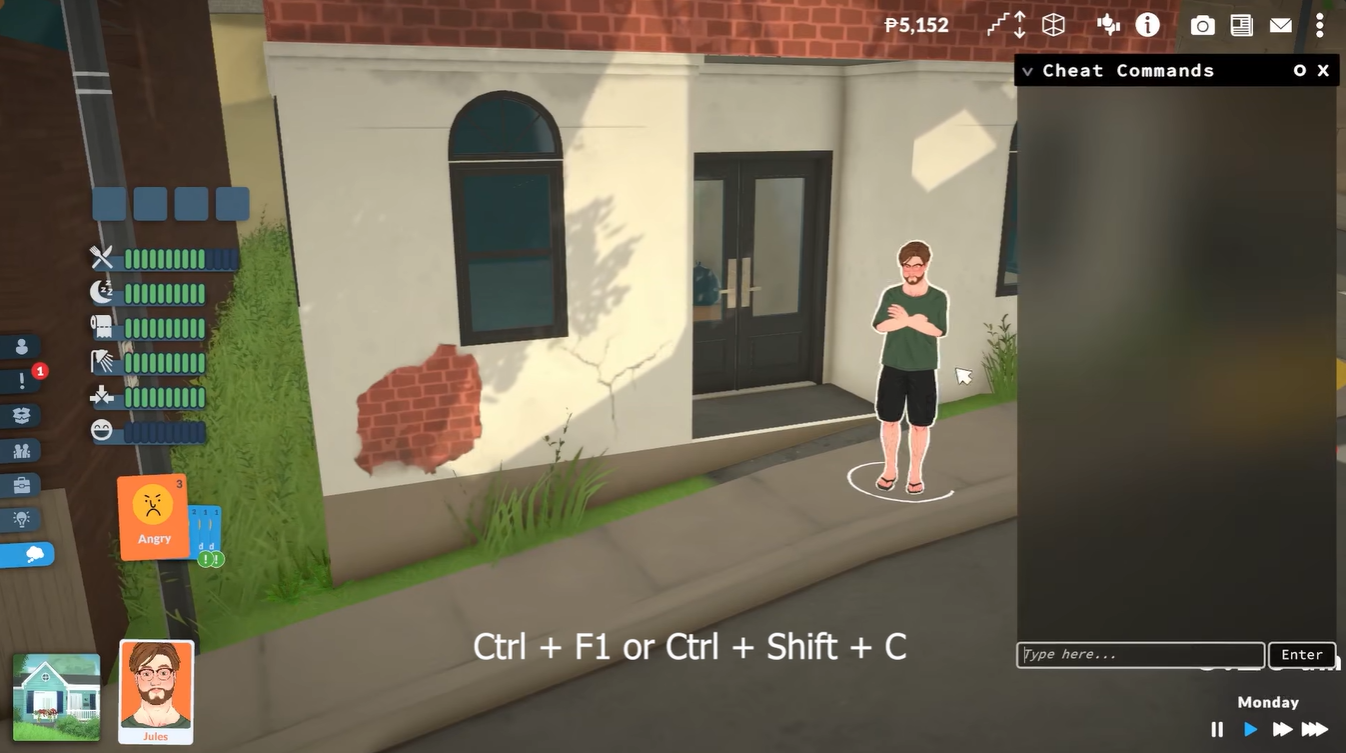
A console window will appear on the screen.
Step #2 – Enter the edit character command
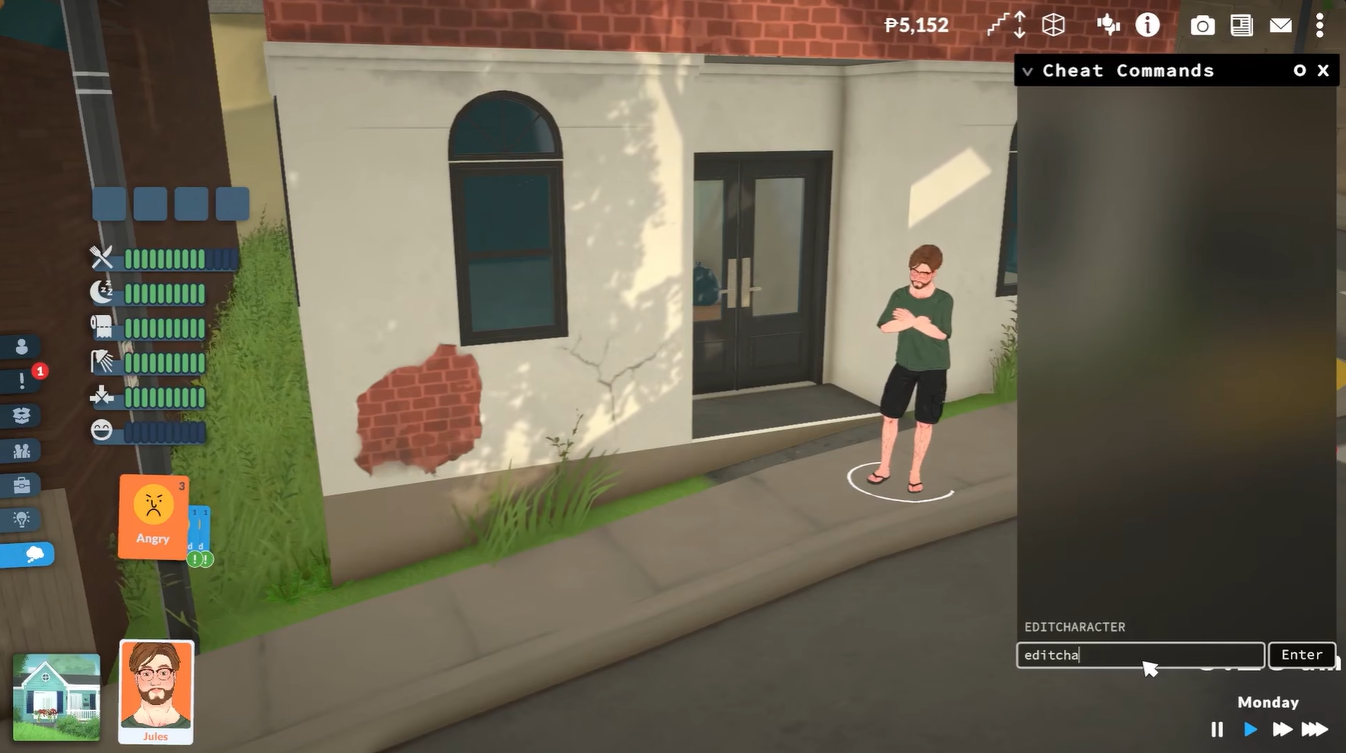
Inside the console, type:
editcharacterPress Enter to execute the command.
The game will immediately transition into the character editing interface.
Step #3 – Open the ParaMaker add-character option
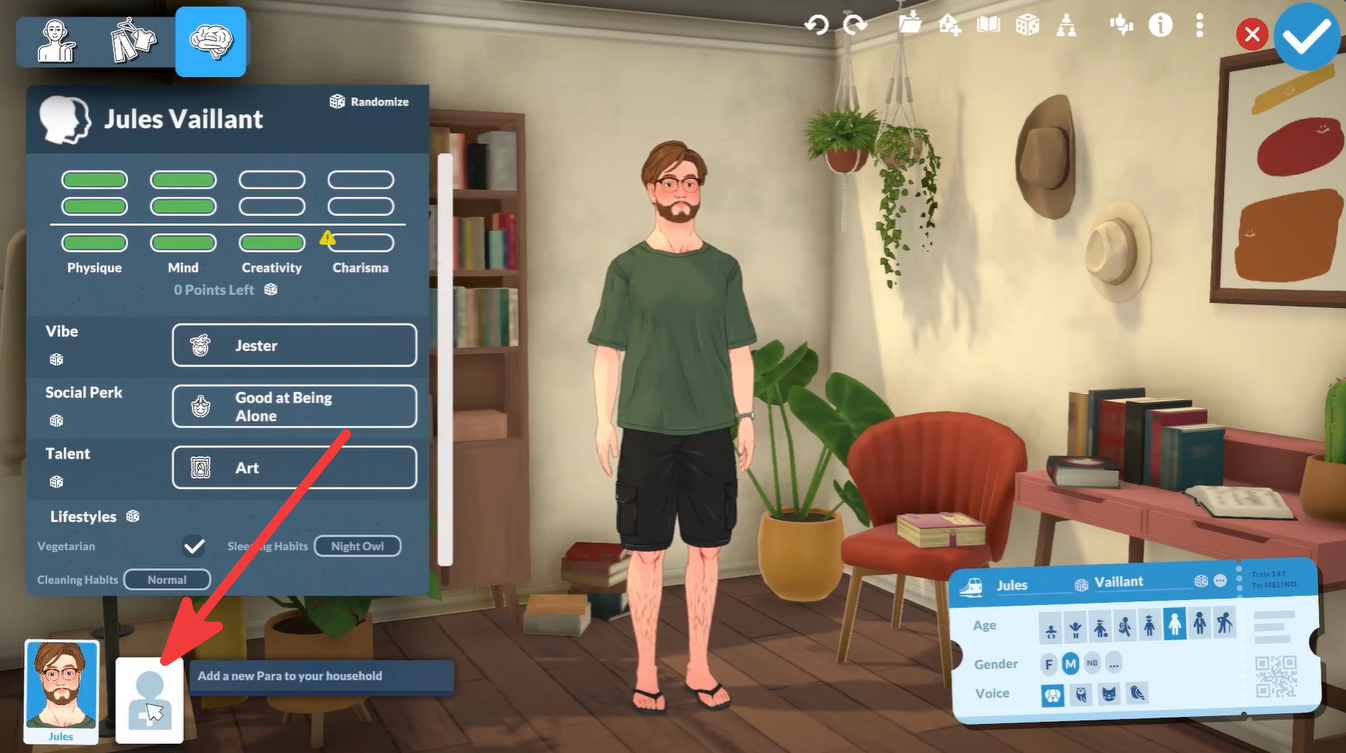
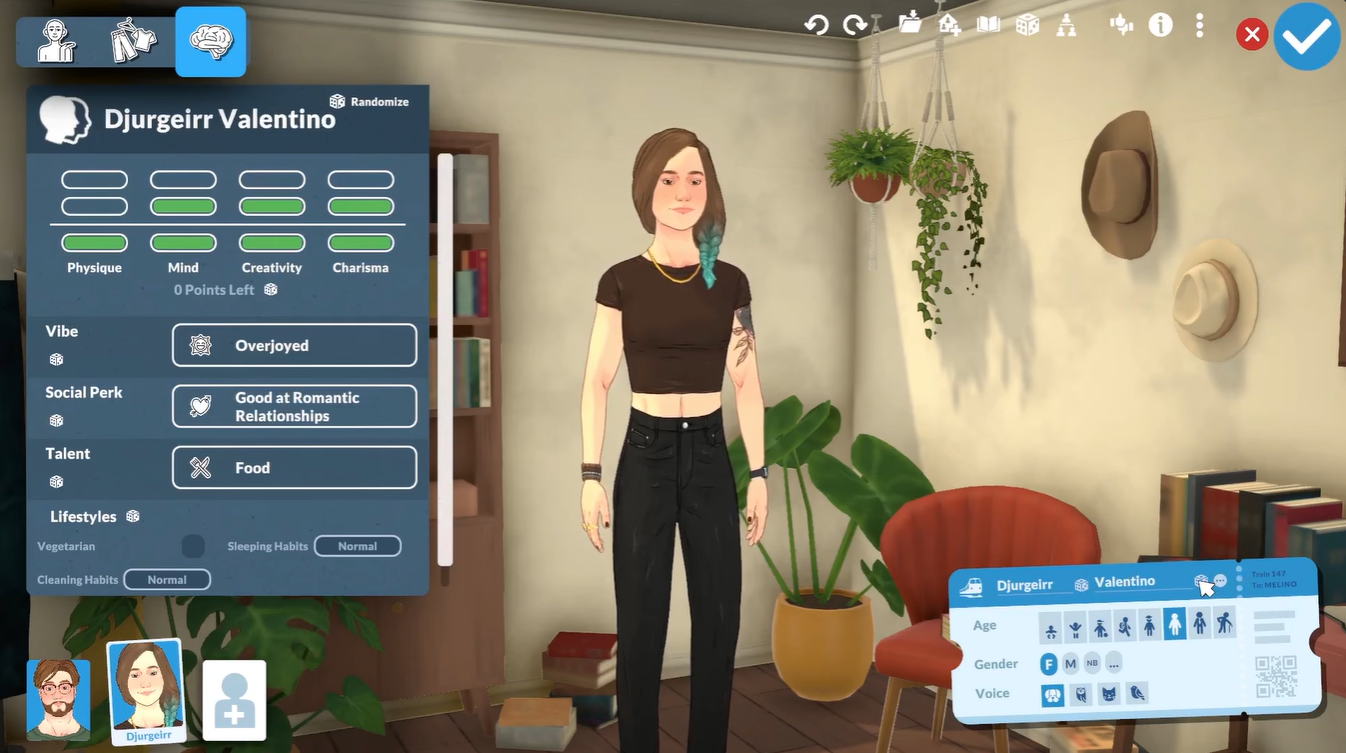
Once inside ParaMaker, look toward the lower-left corner of the screen.
You will see a person icon with a plus (+) symbol. This button allows you to add another household member.
Click the icon to continue.
Step #4 – Create your new Para
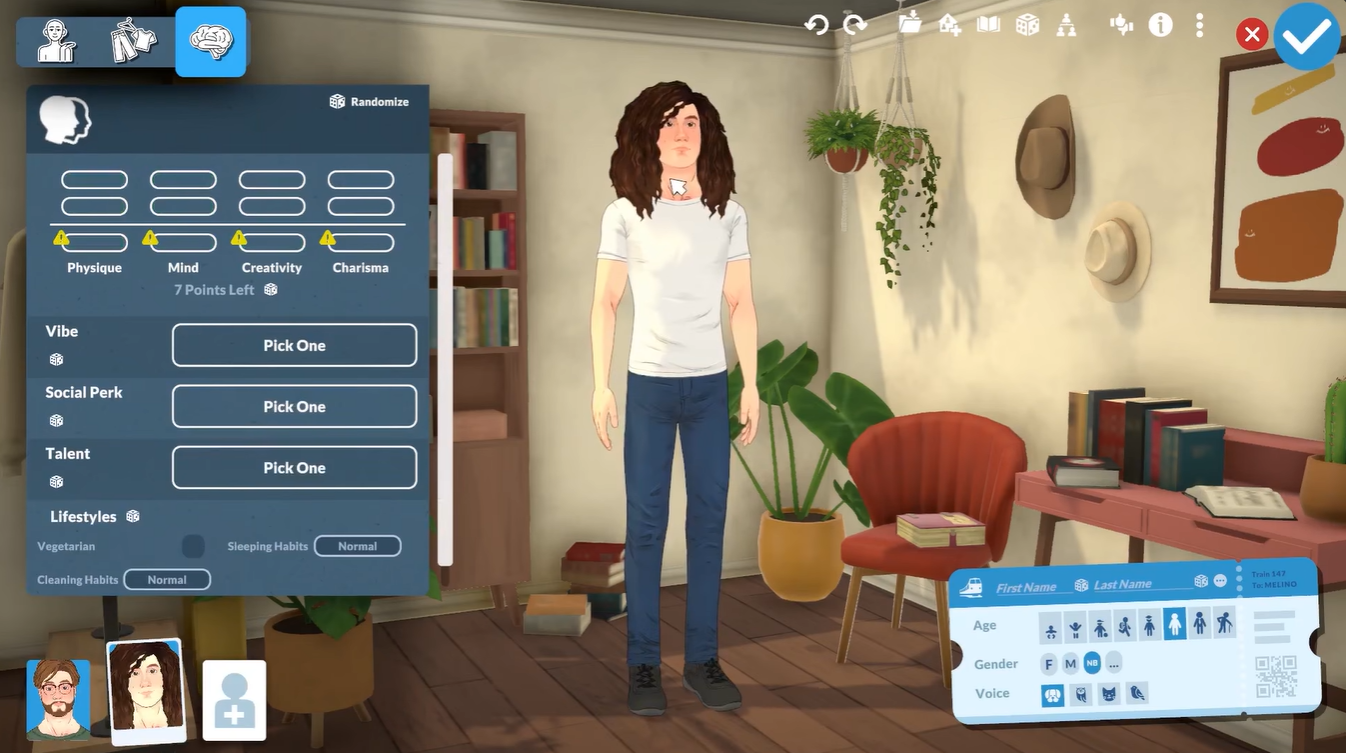
Select Create Para from the available options.
You can now fully customize the new character, including:
- Appearance
- Facial Features
- Hairstyle
- Clothing
- Personality Traits
- Voice
- Other Character Details
Take your time designing the Para exactly how you want them.
Step #5 – Save the new character
After finishing customization, locate the large blue checkmark button in the upper-right corner of the screen.
Click the checkmark to confirm your changes and save the newly created Para.
Step #6 – Return to gameplay
Once the changes are confirmed, the game exits ParaMaker and returns you to your household.
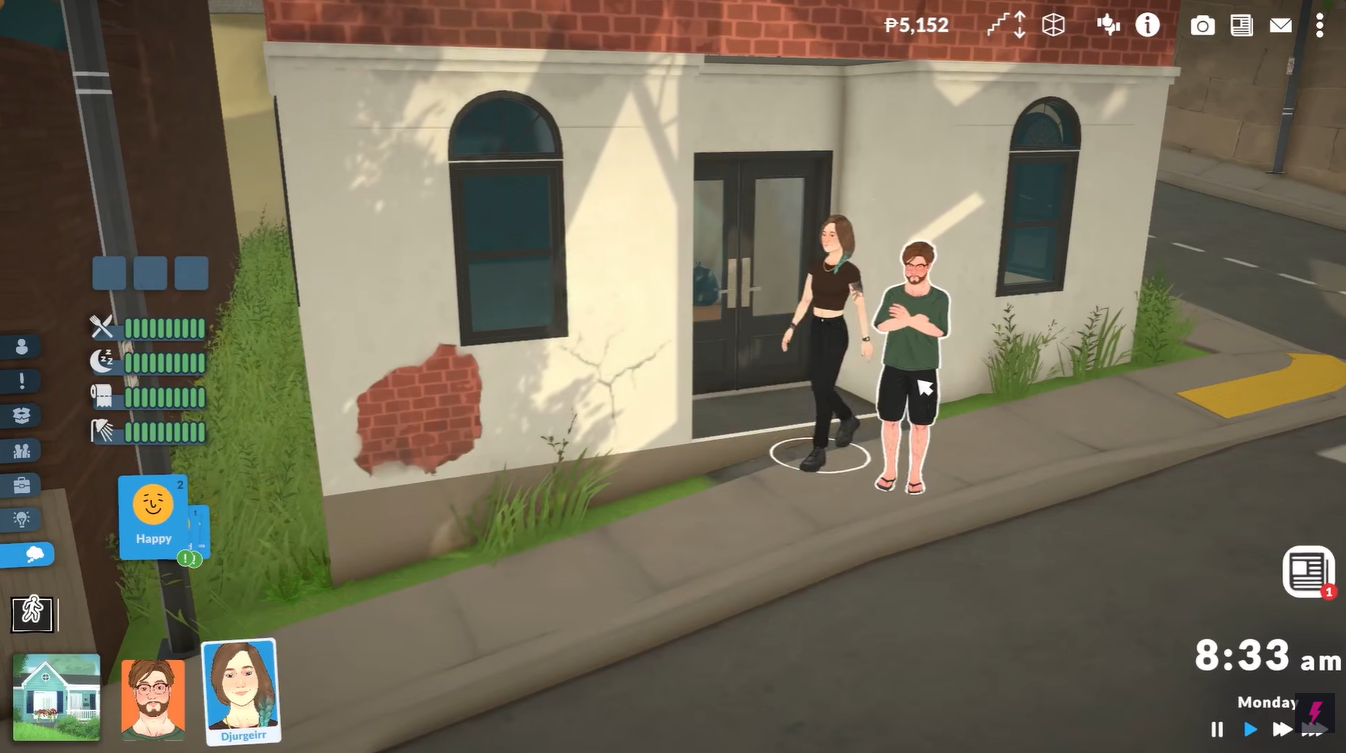
The newly created Para will automatically appear outside the household’s home and become a member of the family.
What happens after adding a Para?
The new character becomes part of the active household immediately. You can control them just like any other household member, assign jobs, build relationships, develop skills, and include them in your ongoing stories.
This method is especially useful if you decide later that your family needs additional members, roommates, partners, or friends without having to create an entirely new household.
Common issues and fixes
| Issue | Solution |
|---|---|
| Console does not open | Try using Ctrl + Shift + C instead of Ctrl + F1 |
| Command not working | Ensure you typed editcharacter exactly as written |
| Cannot find add Para button | Look for the person icon with a plus sign in the lower-left corner |
| New Para not visible | Finish customization and confirm using the blue checkmark button |
Using the editcharacter command is currently the fastest way to add a new Para to an existing household. Simply open the console, access ParaMaker, create your character, and save your changes. Within moments, your new Para will join the household and be ready to become part of your story.



Leave a Reply