

GTA 6’s Gameplay menu groups combat, movement, and accessibility settings, including targeting, input assists, Auto Drive, and vehicle damage options.
The Gameplay tab contains 25 settings and includes Combat, Movement, and Accessibility sections. Grand Theft Auto VI is listed for PlayStation 5 as well as Xbox Series X|S. This guide covers their menu selections and help text, related horizontal sensitivity controls, and how to save your changes.
How to open Gameplay settings and save changes in Grand Theft Auto VI
Open Gameplay
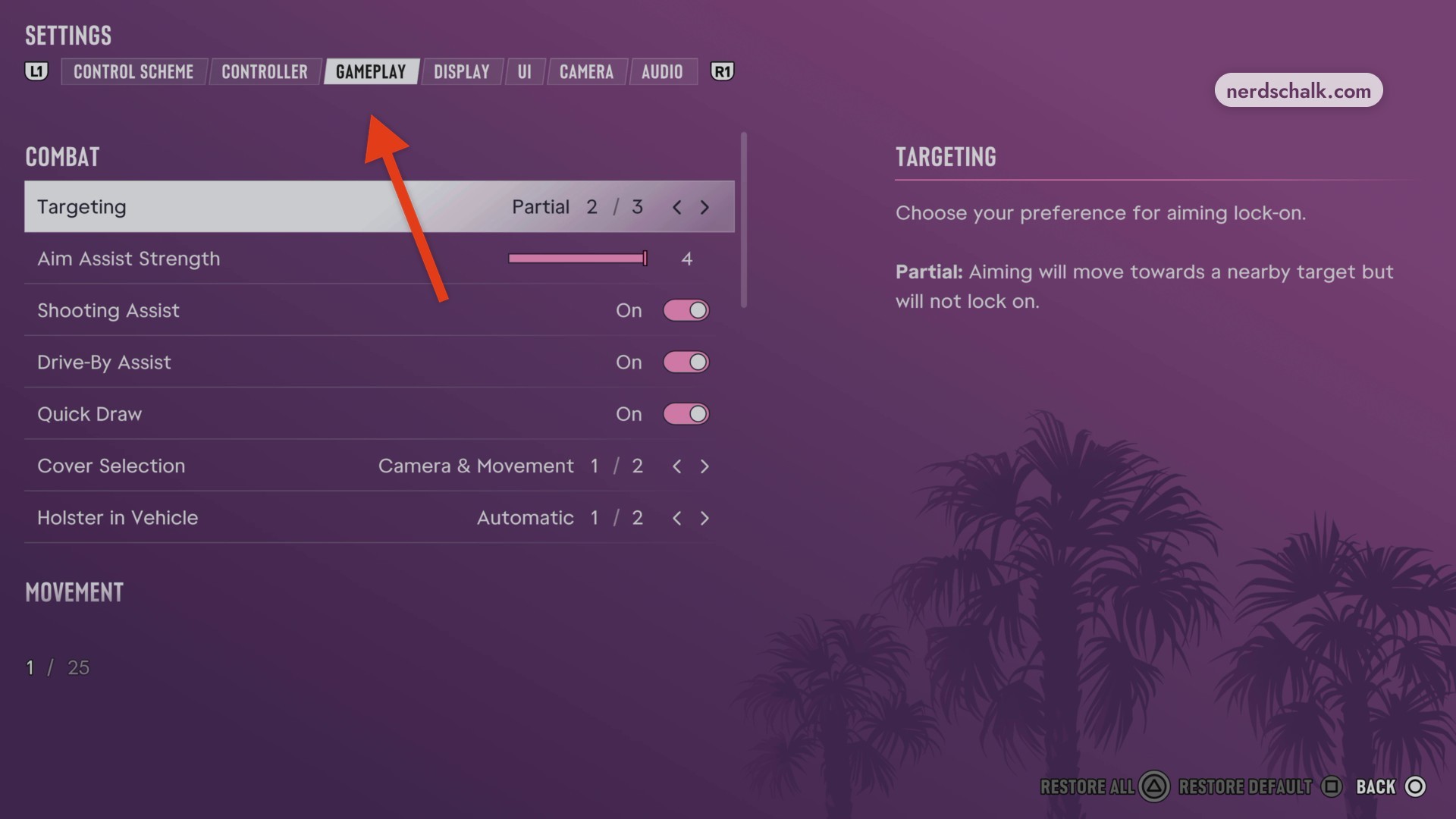
From Controller settings, press R1 to switch to Gameplay. The SETTINGS tab bar has L1 and R1 indicators.
Browse Targeting
Review Targeting within Combat to choose your aiming lock-on preference.
Review Movement
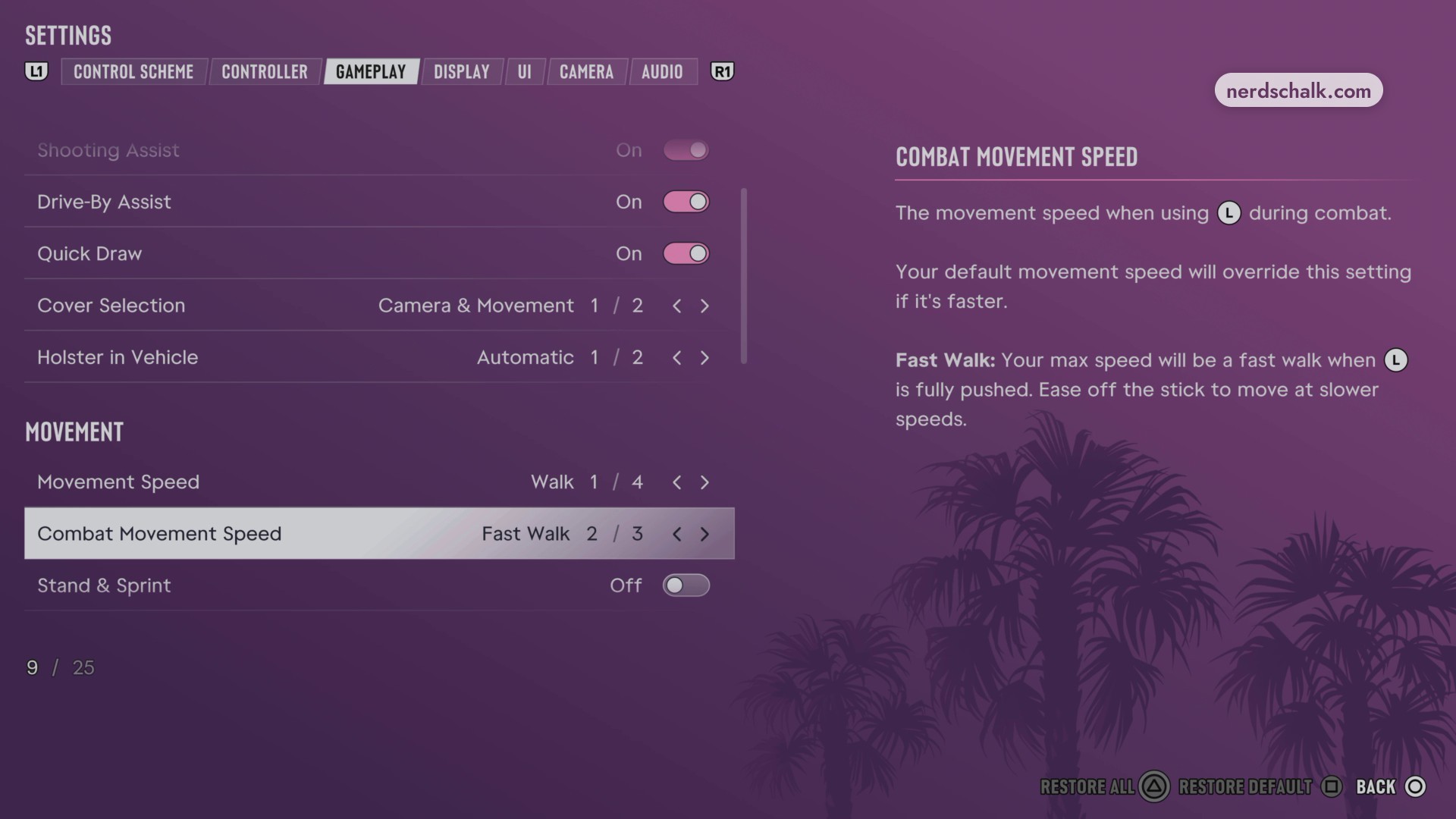
Continue through Movement Speed, Combat Movement Speed, and Stand & Sprint in the Movement group.
Review Stand & Sprint alongside the movement-speed options.
Review Accessibility
Scroll down into Accessibility to review its input and gameplay assists.
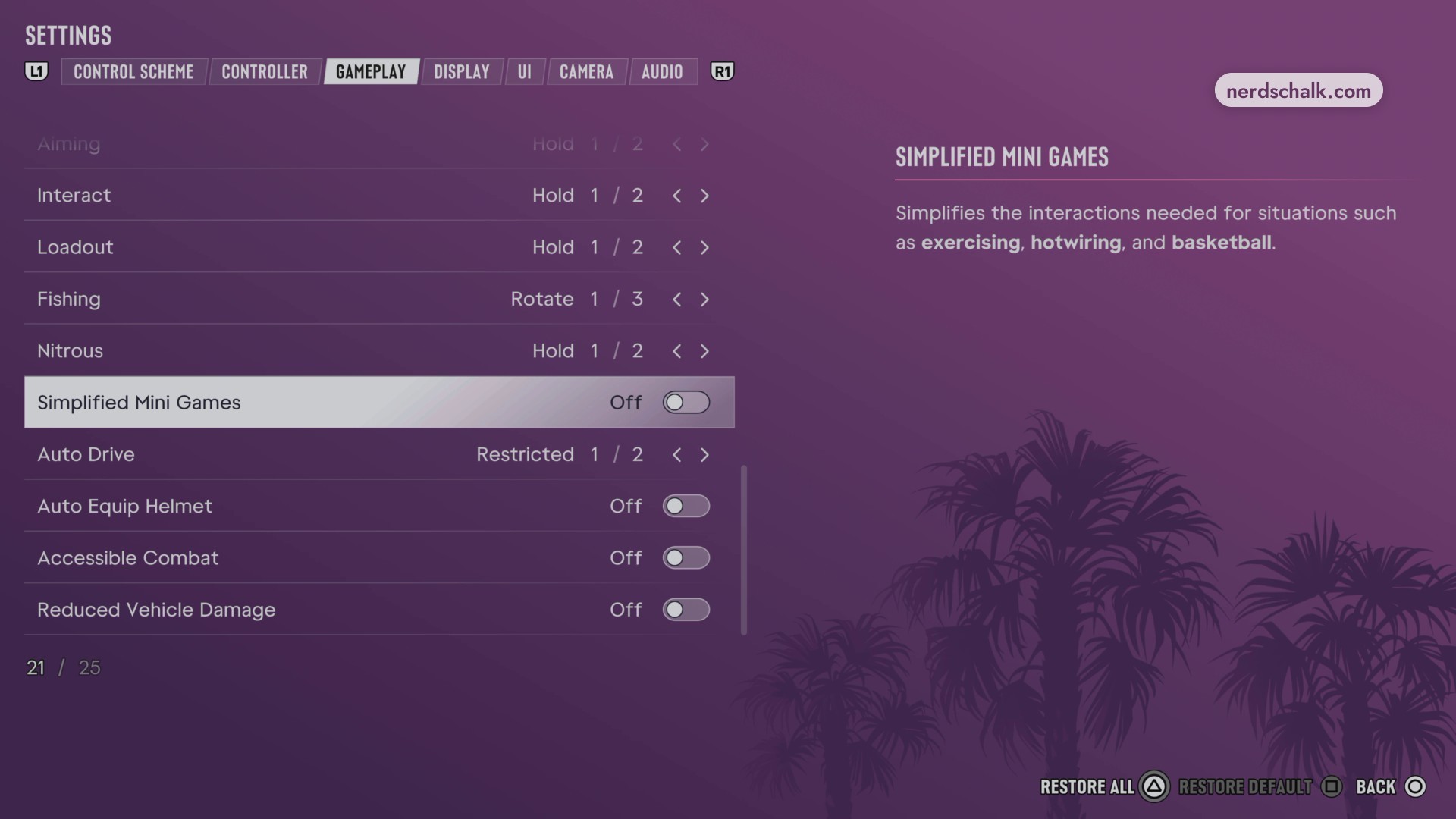
Review Focus and the neighboring input settings.
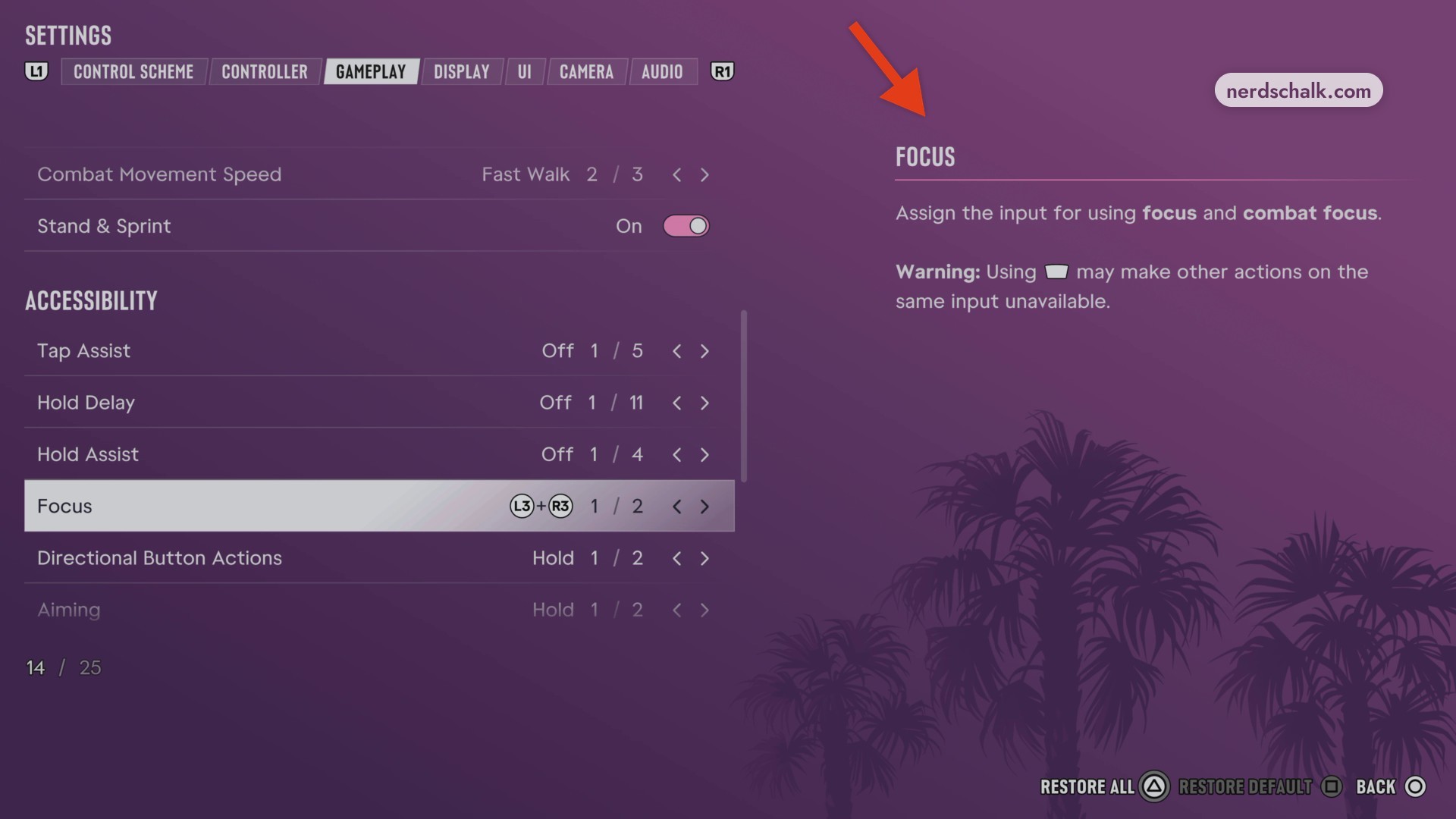
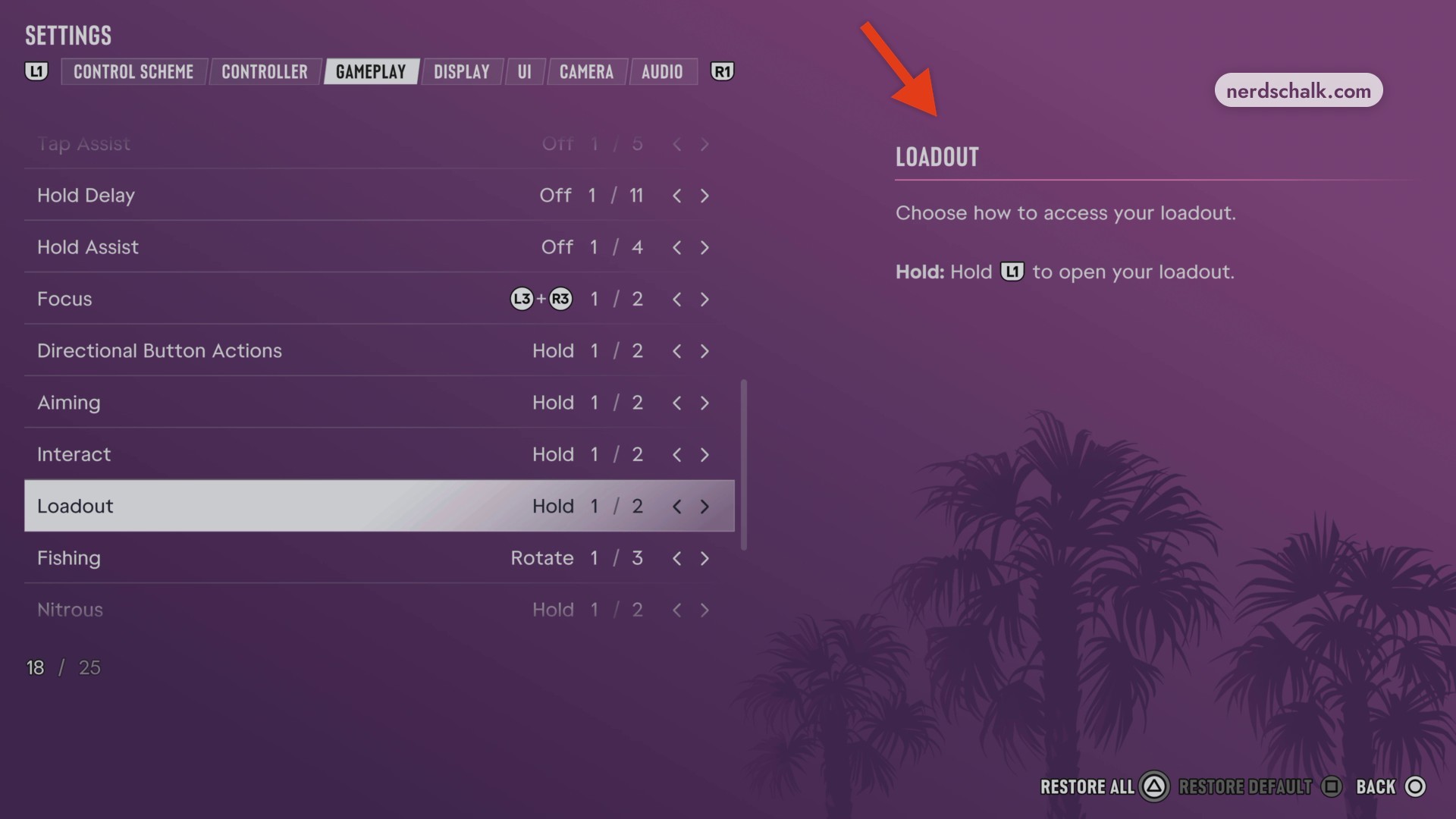
Continue through Loadout, Fishing, and Nitrous.
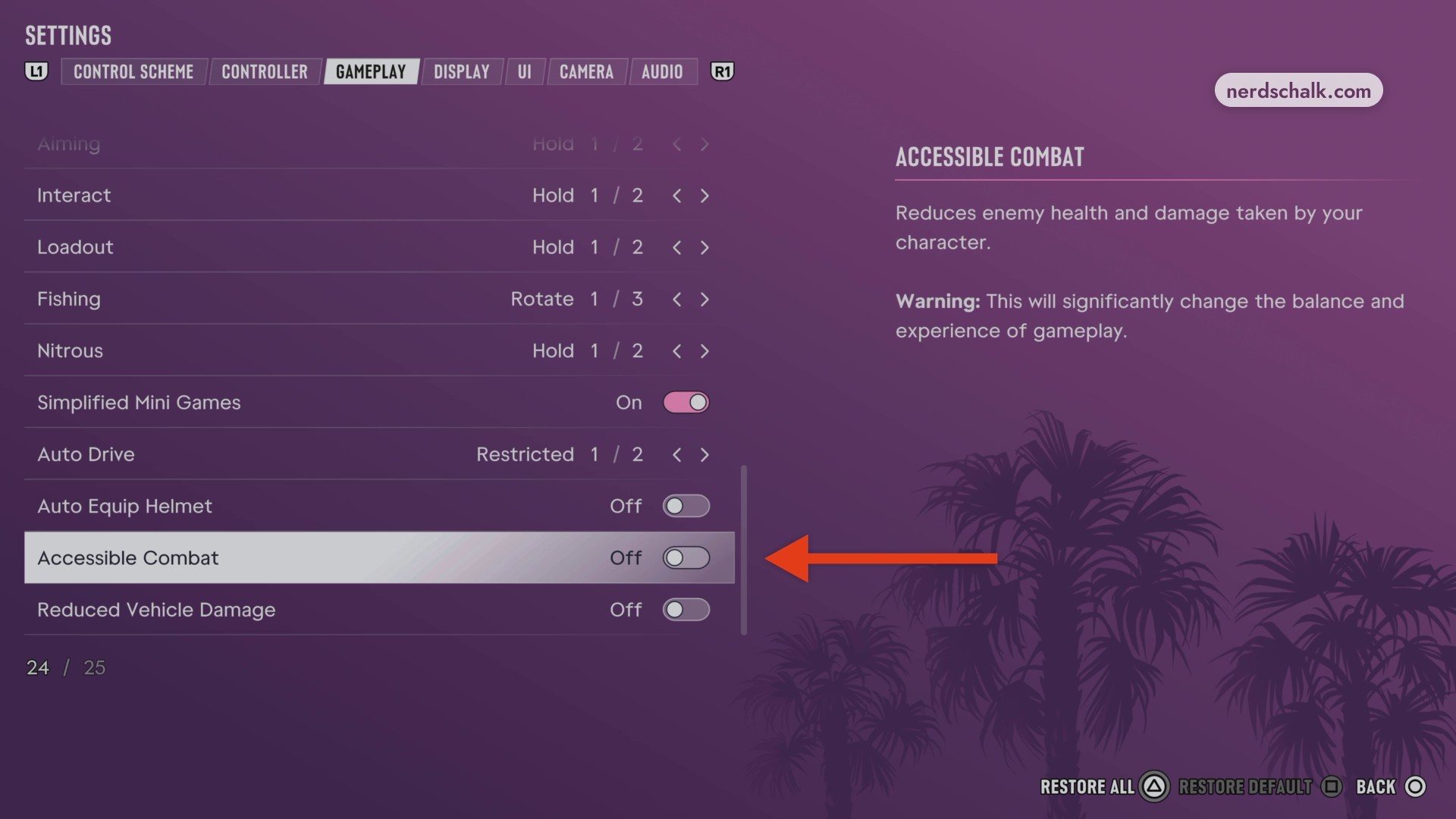
Read the Accessible Combat description and warning before changing it.
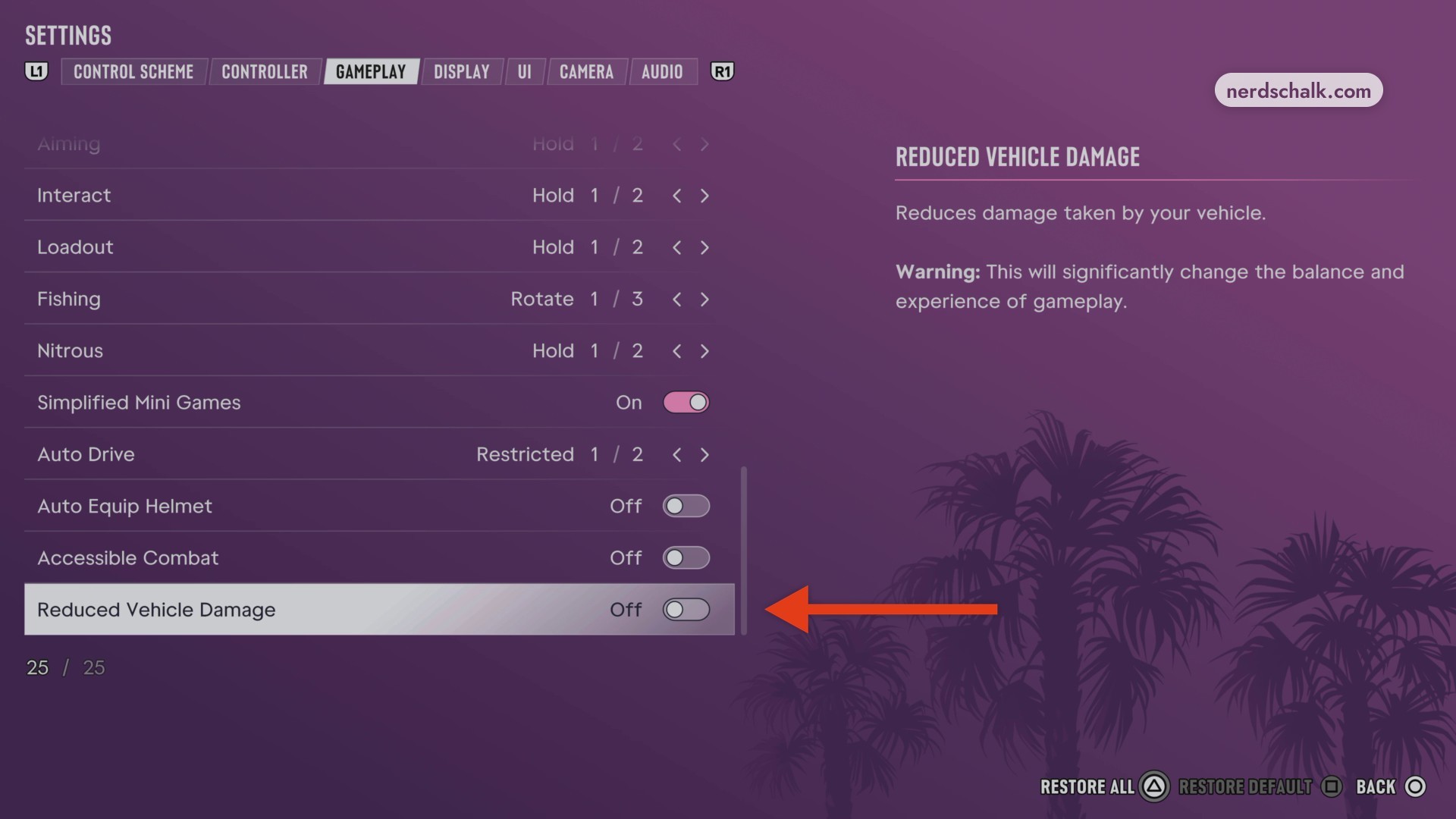
Review Reduced Vehicle Damage at the bottom of the Gameplay menu.
Save your changes
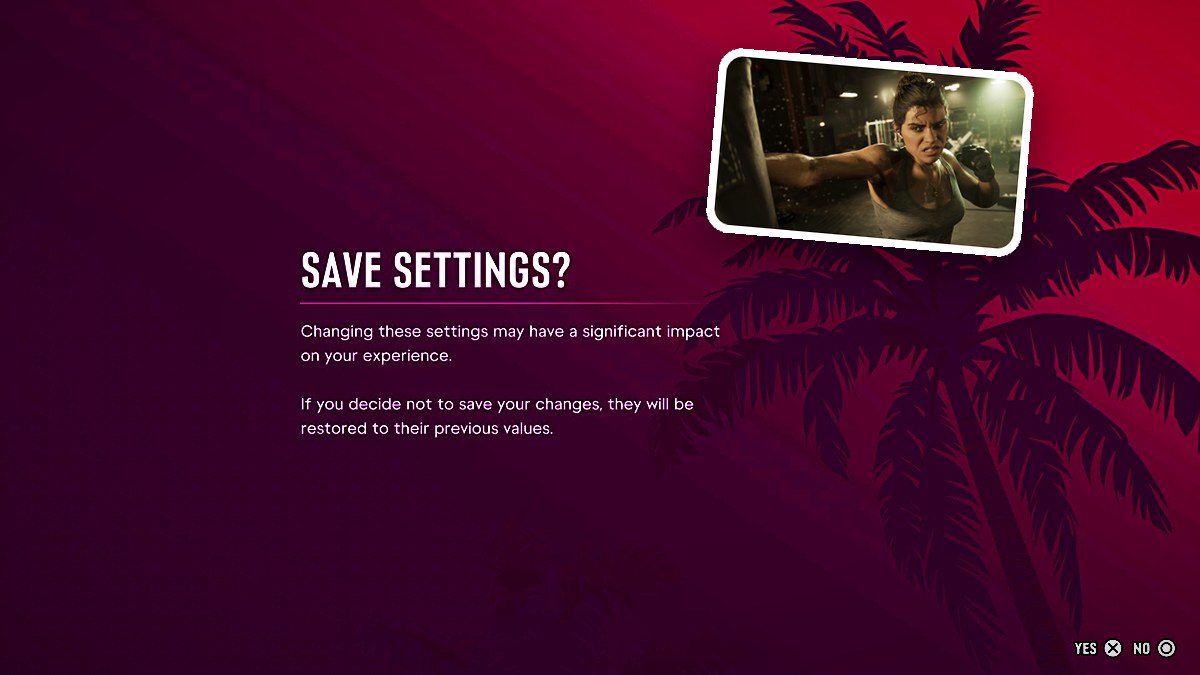
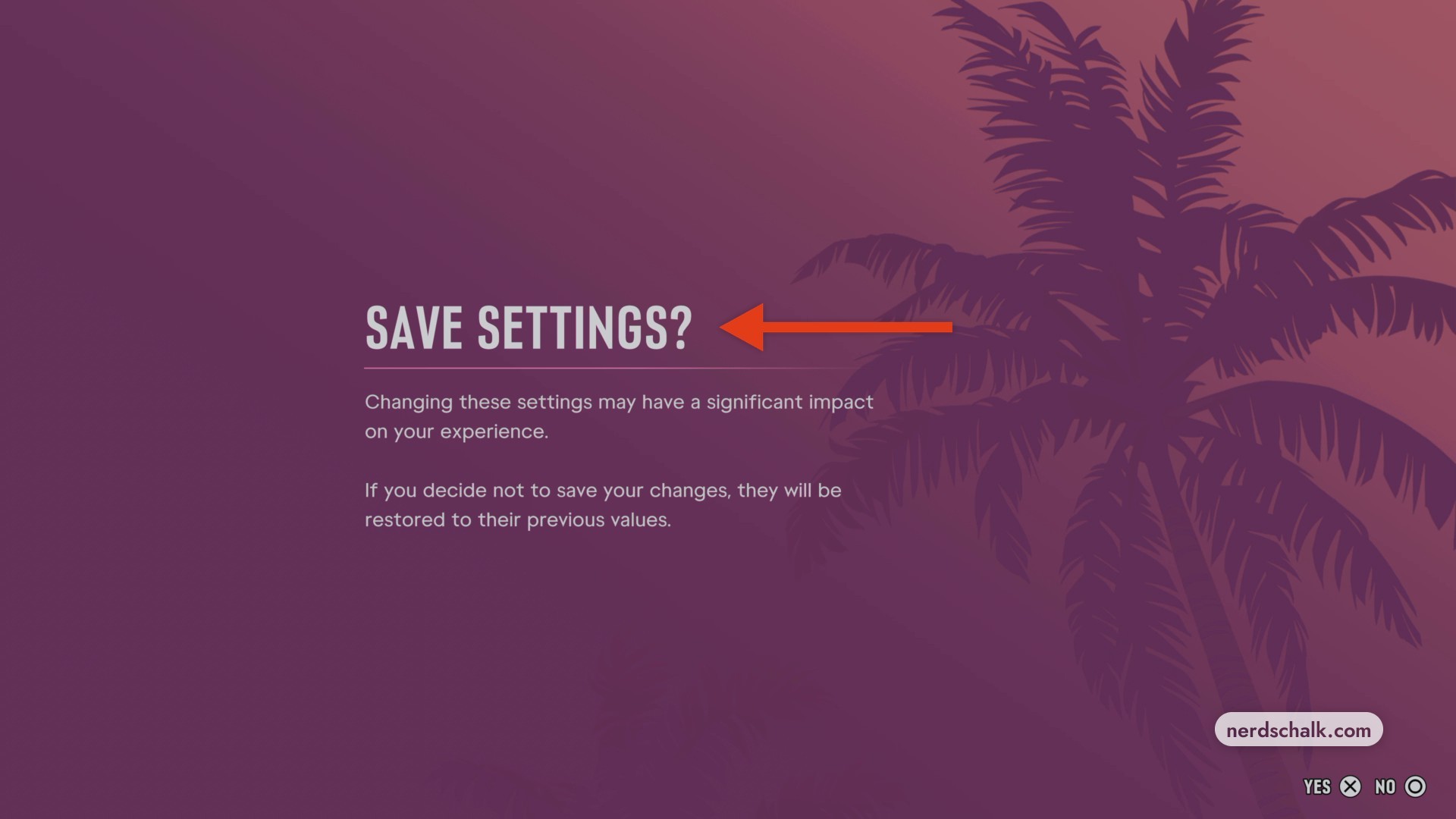
Press BACK to open SAVE SETTINGS?. The prompt warns that changing these settings may significantly affect your experience. Select YES to save.
Look for the RESTORE ALL and RESTORE DEFAULT controls in Gameplay.
Which Combat settings can you change?
| Setting | Choices and values | Help text |
|---|---|---|
| Targeting | Partial 2 / 3 | Choose your aiming lock-on preference. Partial moves your aim toward a nearby target without locking on. |
| Aim Assist Strength | 4 | Slows reticle movement while you aim at a target. |
| Shooting Assist | On | |
| Drive-By Assist | On | Firing a weapon while driving automatically aims toward nearby targets. |
| Quick Draw | On | |
| Cover Selection | Camera & Movement 1 / 2 | |
| Holster in Vehicle | Automatic 1 / 2 | Choose automatic or manual holstering for drawn weapons after a short time in a vehicle while outside combat. |
How do Movement settings work?
| Setting | Choices and values | Help text |
|---|---|---|
| Movement Speed | Walk 1 / 4 | |
| Combat Movement Speed | Fast Walk 2 / 3 | Controls movement speed with L during combat. With Fast Walk selected, fully pushing the stick gives you a maximum pace of a fast walk. Reduce stick input to move more slowly. |
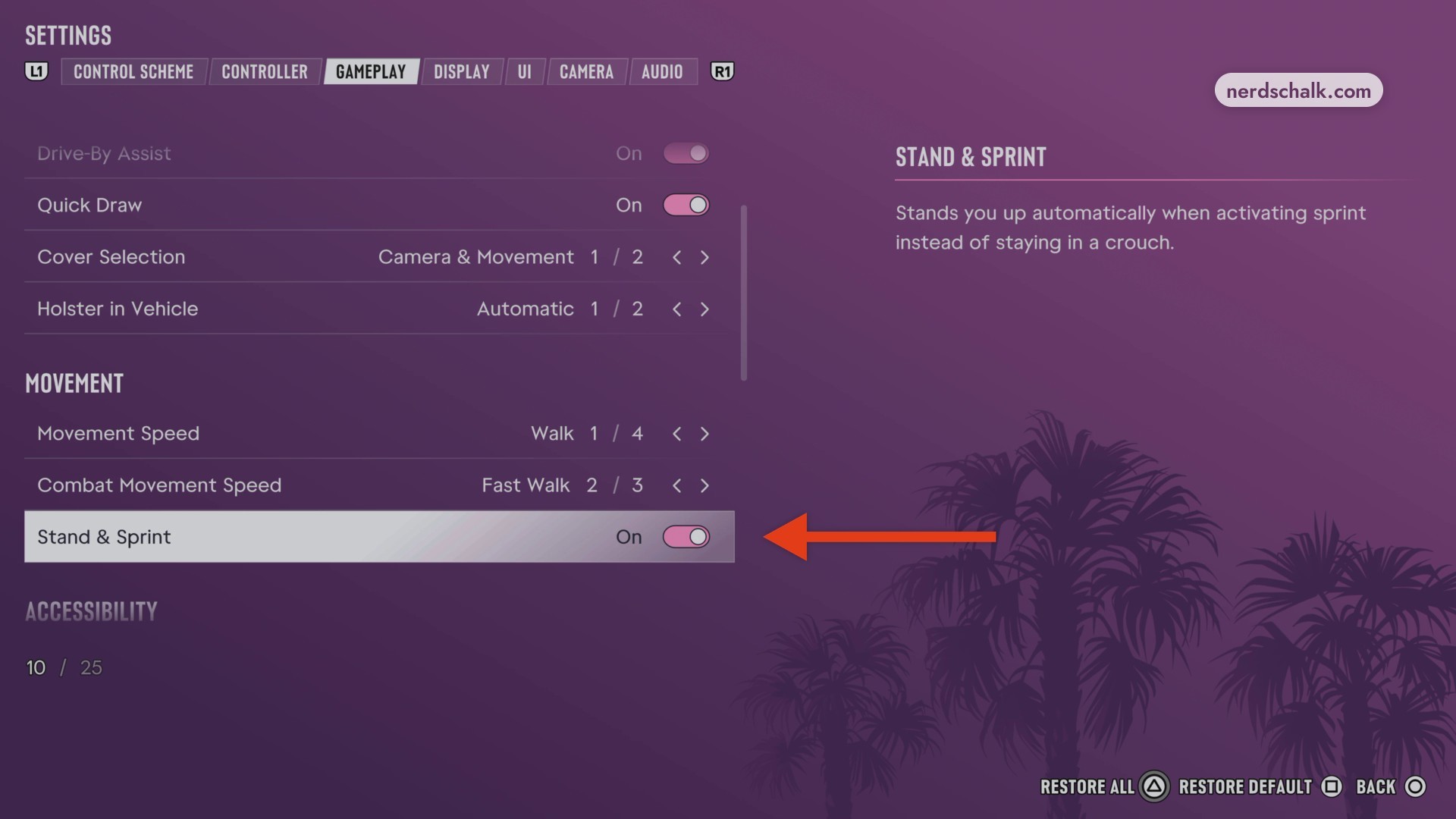
| Stand & Sprint | Off; On | Automatically makes you stand when you activate sprint from a crouch. |
Consider your Movement Speed choice alongside your combat pace.
What Accessibility settings are available?
| Setting | Choices and values | Help text |
|---|---|---|
| Tap Assist | Off 1 / 5 | Simplifies repeated button inputs. One press can count as 2, 3, or 4 presses, or repeated presses can be replaced with a hold. |
| Hold Delay | Off 1 / 11 | |
| Hold Assist | Off 1 / 4 | |
| Focus | L3 + R3 1 / 2 | Assign the input for focus and combat focus. Warning: using that input may make other actions sharing it unavailable. |
| Directional Button Actions | Hold 1 / 2 | Choose how to perform directional-button hold actions, including quick navigation and radio use. |
| Aiming | Hold 1 / 2 | |
| Interact | Hold 1 / 2 | |
| Loadout | Hold 1 / 2 | Choose how to open your loadout. With Hold selected, hold L1 to open it. |
| Fishing | Rotate 1 / 3 | |
| Nitrous | Hold 1 / 2 | Choose whether to hold or press L3 when using vehicle nitrous. |
| Simplified Mini Games | Off; On | Simplifies the interactions needed for activities such as exercising, hotwiring, and basketball. |
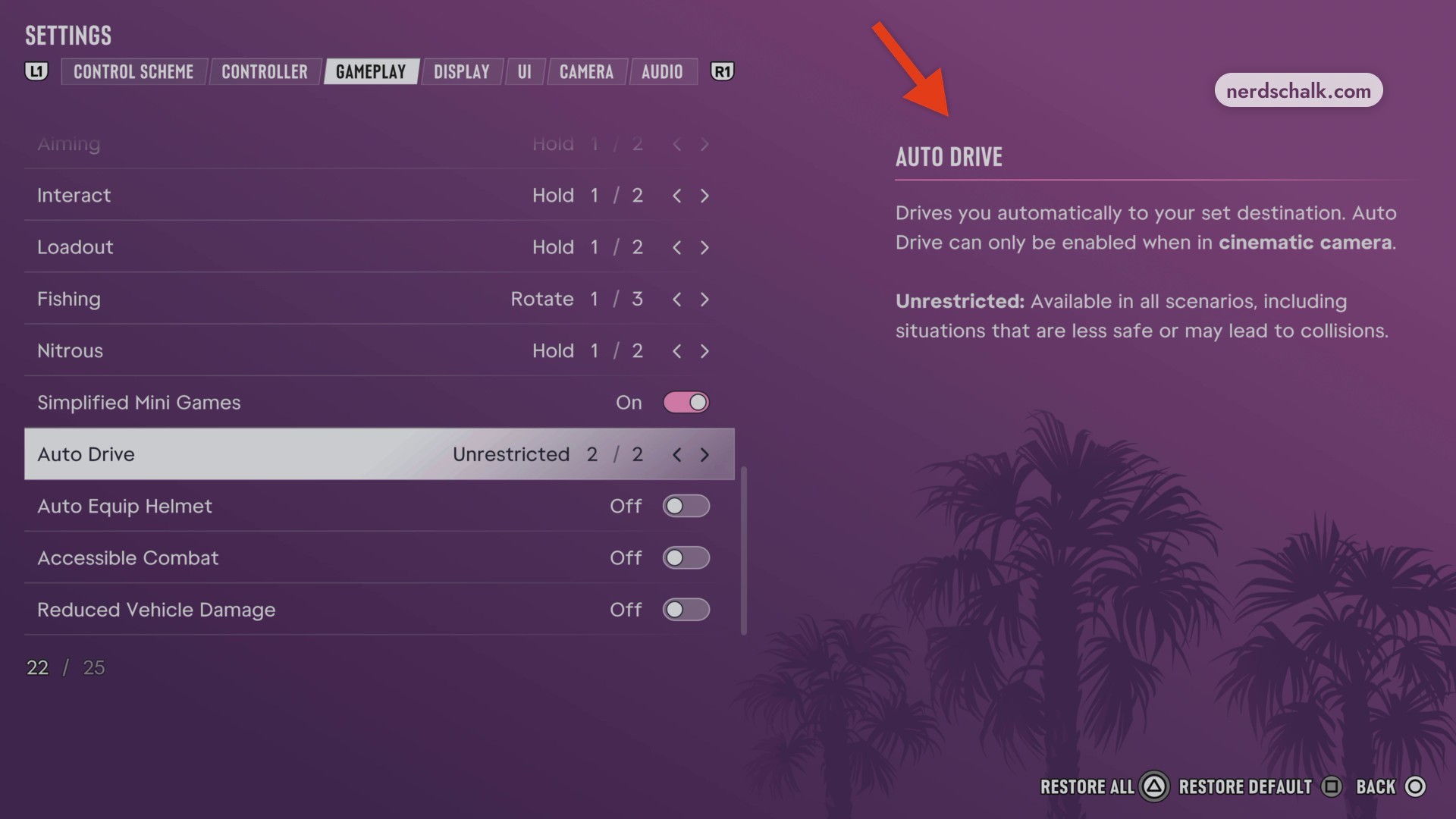
| Auto Drive | Restricted 1 / 2; Unrestricted 2 / 2 | Automatically drives you to your set destination. Restricted is available only in safe scenarios. Unrestricted is available in all scenarios, including less safe situations or those that may lead to collisions. |
| Auto Equip Helmet | Off | Automatically equips your helmet when you get on certain vehicles, including motorcycles and bikes. Removes the helmet when you get off. |
| Accessible Combat | Off; On | Reduces enemy health and the damage your character takes. Warning: this significantly changes gameplay balance and experience. |
| Reduced Vehicle Damage | Off | Reduces the damage your vehicle takes. Warning: this significantly changes gameplay balance and experience. |
Before enabling Auto Drive, check your camera mode.
What do Horizontal Look Sensitivity and Horizontal Aim Sensitivity change?
| Setting | Help text |
|---|---|
| Horizontal Look Sensitivity | Controls horizontal camera speed when you use R to look around. |
| Horizontal Aim Sensitivity | Controls horizontal camera speed when you use R while aiming. |
R refers to the right stick.
Related Grand Theft Auto VI guides
Leave a Reply