

Enter the Trading Hub from World 2 to browse Diamond-priced player stalls, claim an empty booth, and list tradable inventory items for Diamonds.
The Trading Hub is a player marketplace, with shops for browsing and booths for setting up your own store. This guide covers trading access, stall listings, market information, Daily Quest rewards, and the return portal.
How to use the Trading Hub in +1 Gun Forge
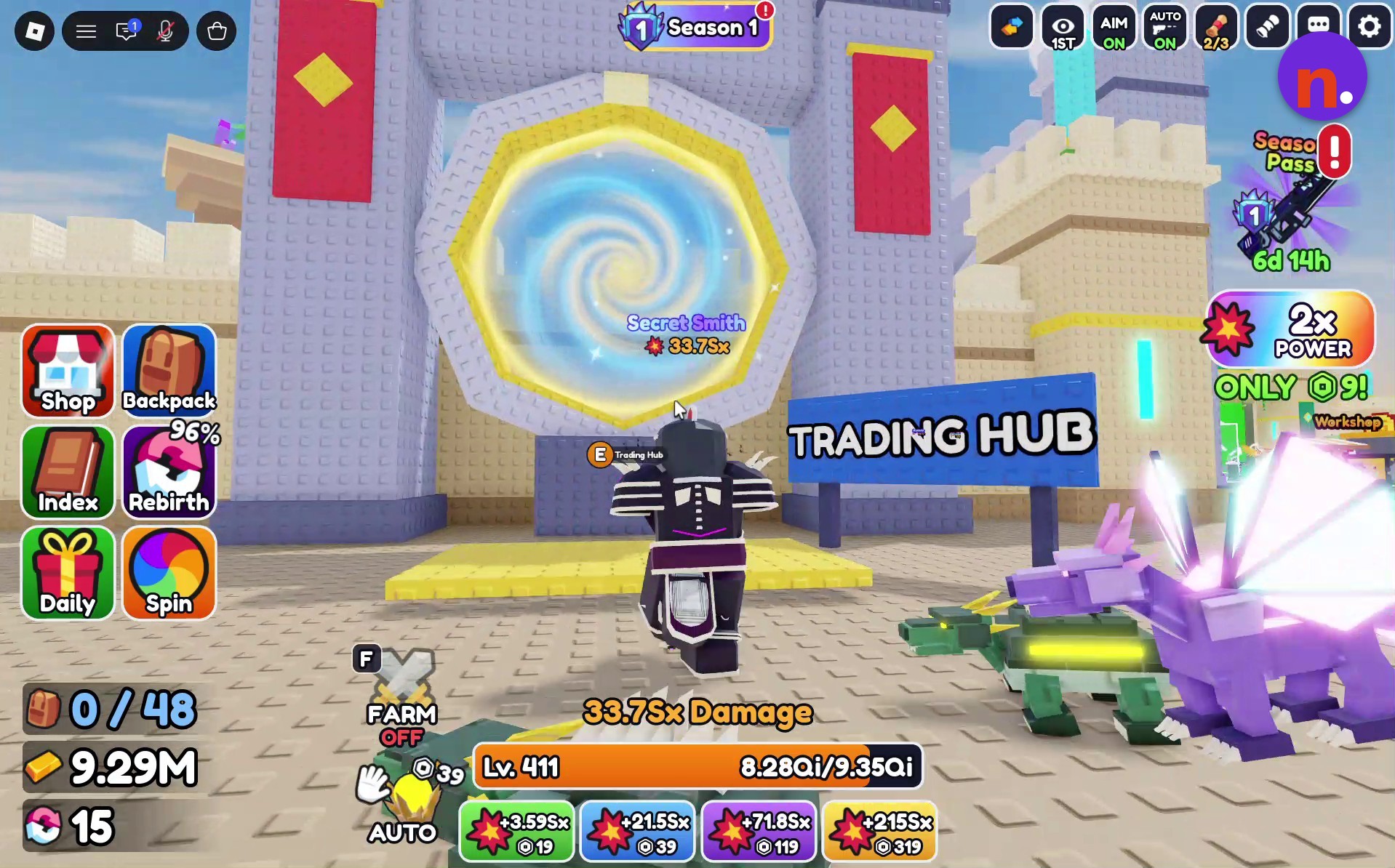
Enter the Trading Hub
From World 2, cross the central bridge and look for the portal labeled Trading Hub. Use its E Trading Hub interaction and enter the portal to teleport into the hub.
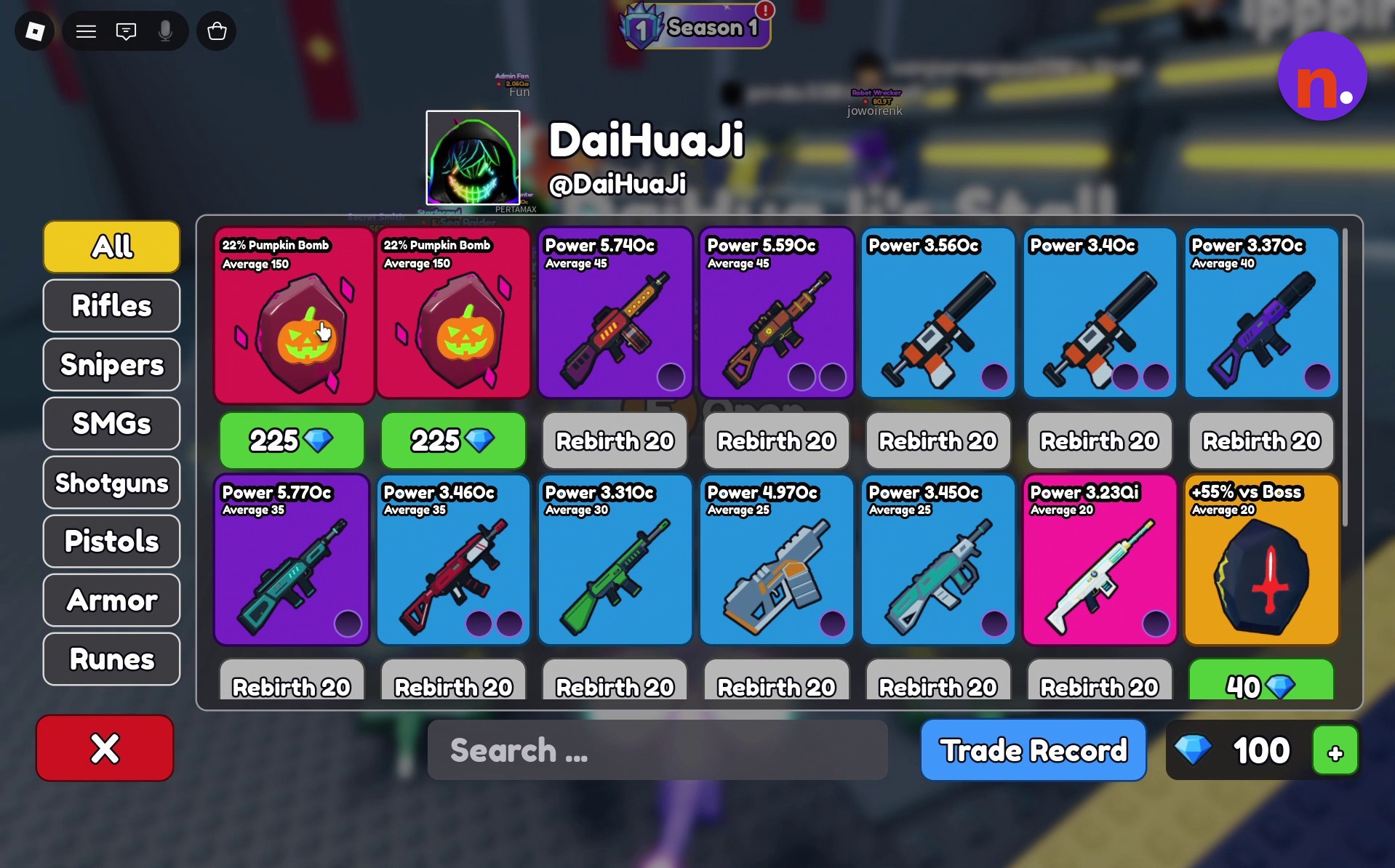
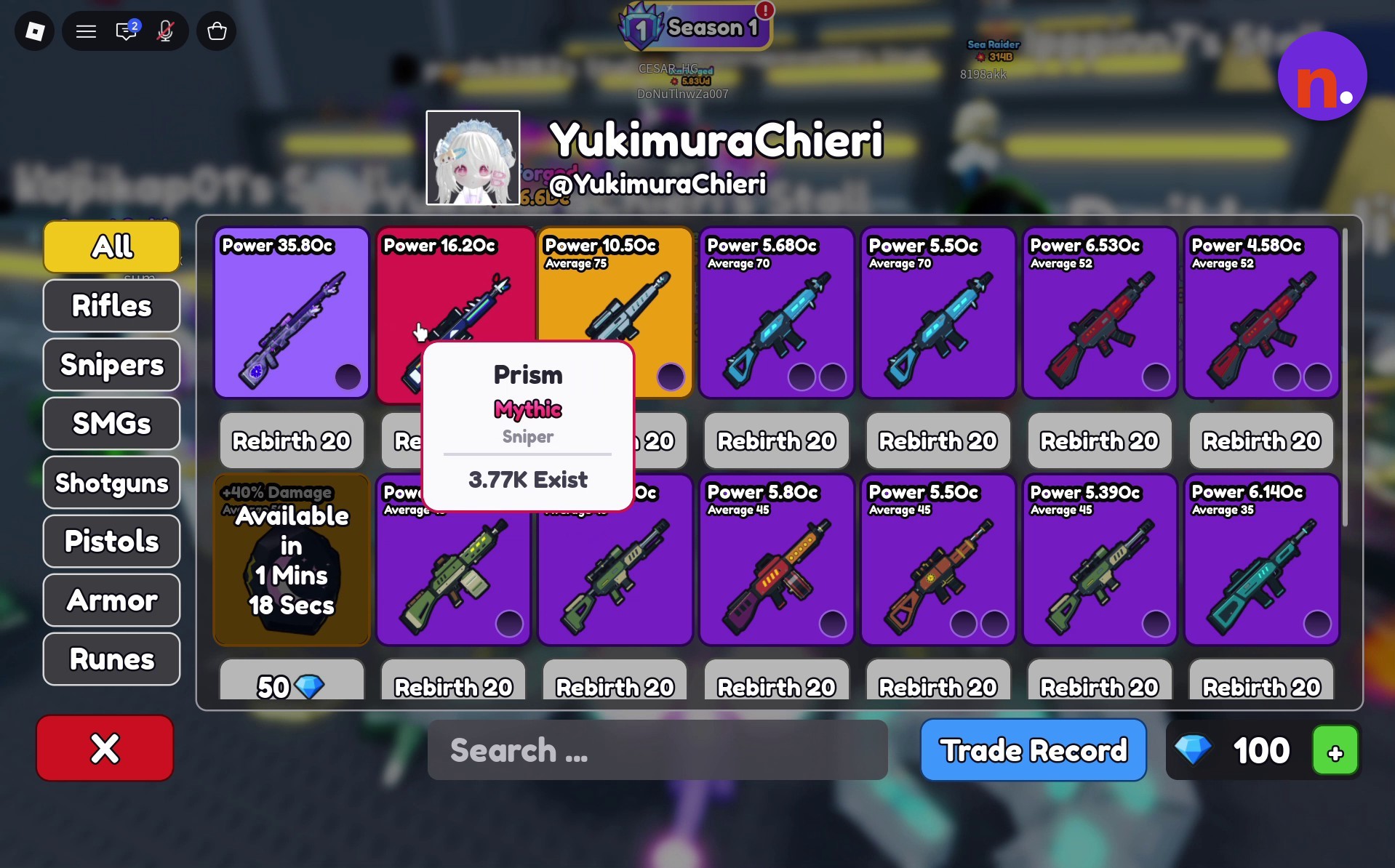
Browse another player’s stall
Approach a player-owned stall and press E to open its shop. Look through the items offered for Diamonds.
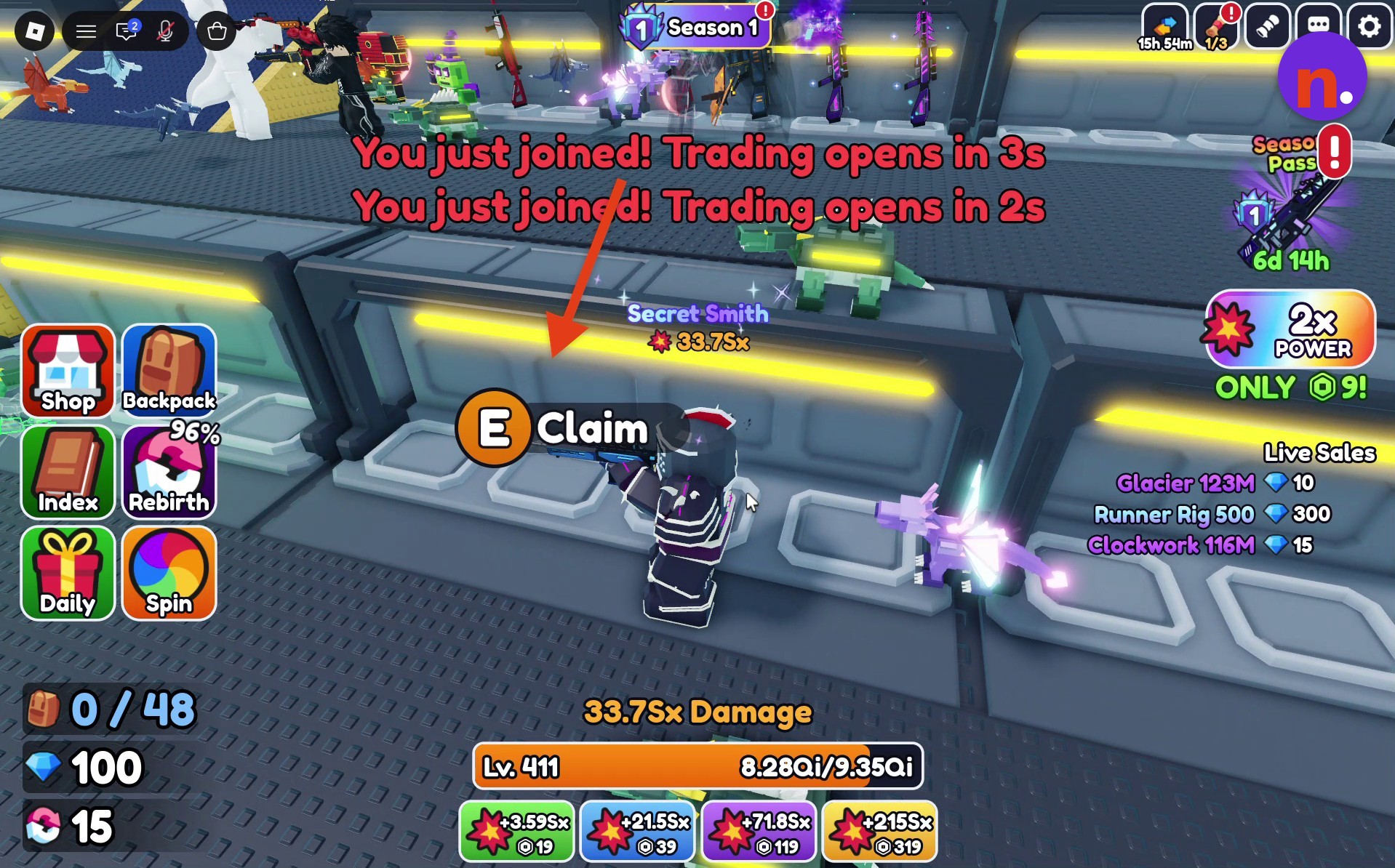
Claim an empty booth
Leave the shop menu and find an unoccupied booth along the wall. At its E Claim prompt, press E to claim the stall.
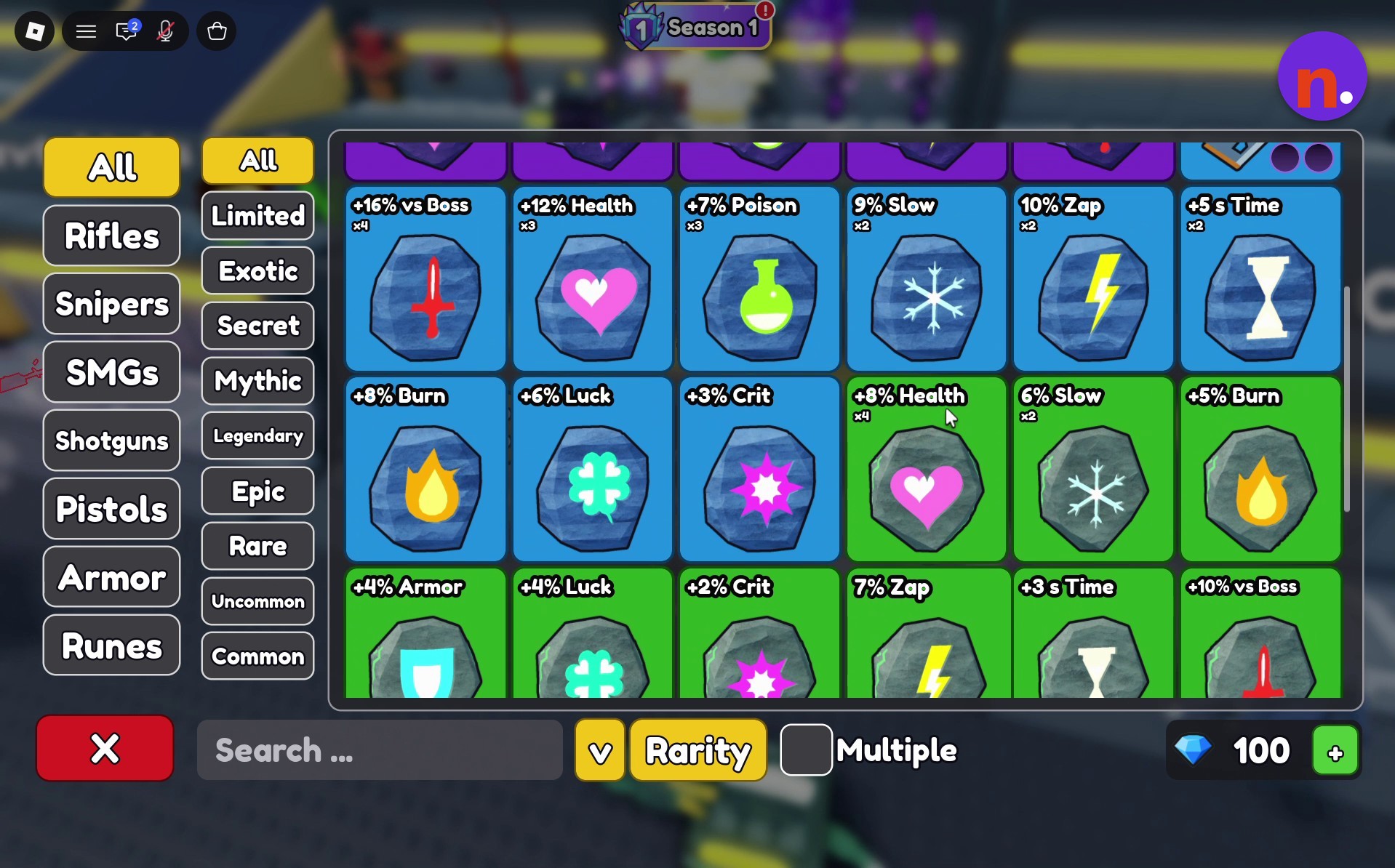
Choose an item to sell
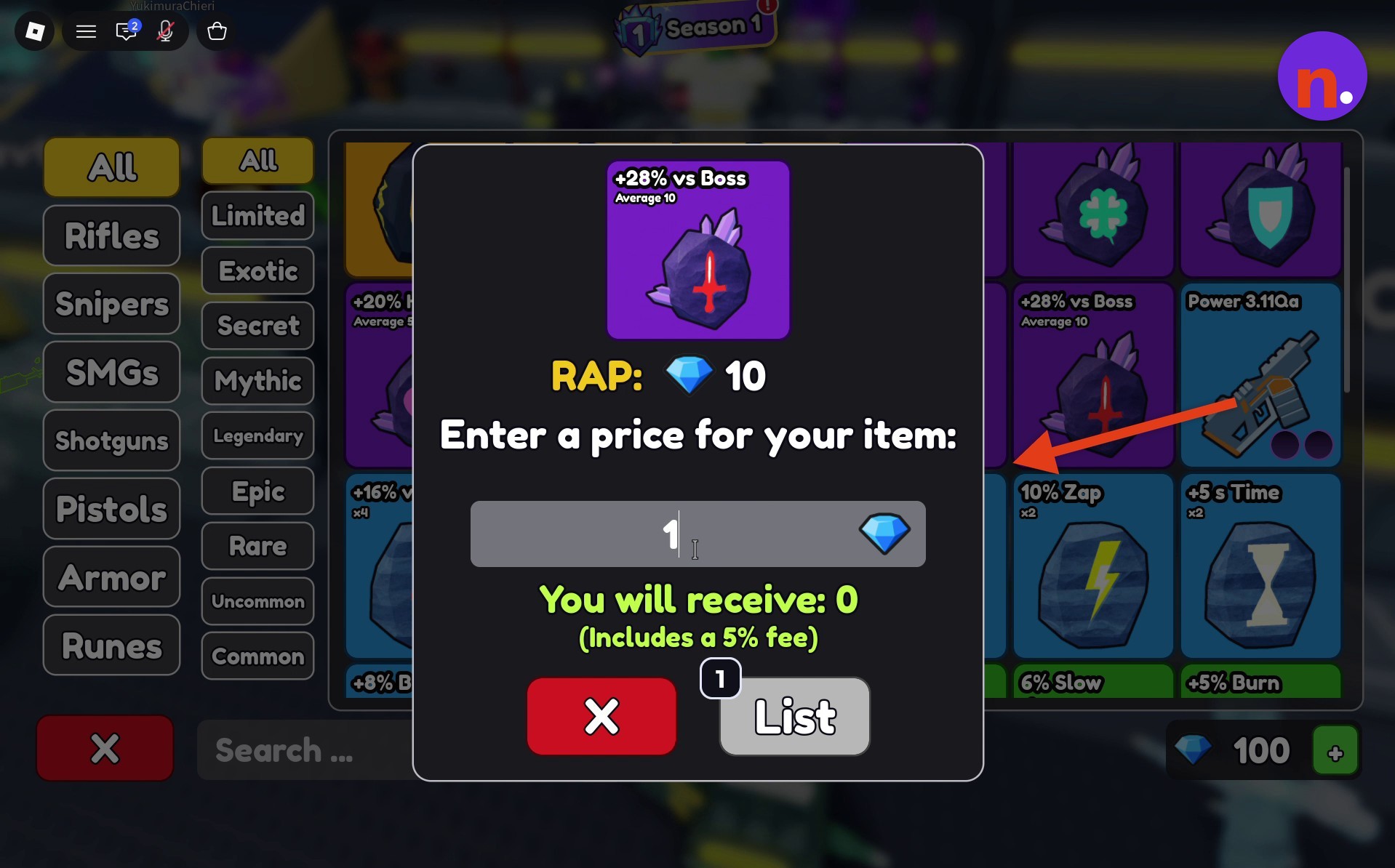
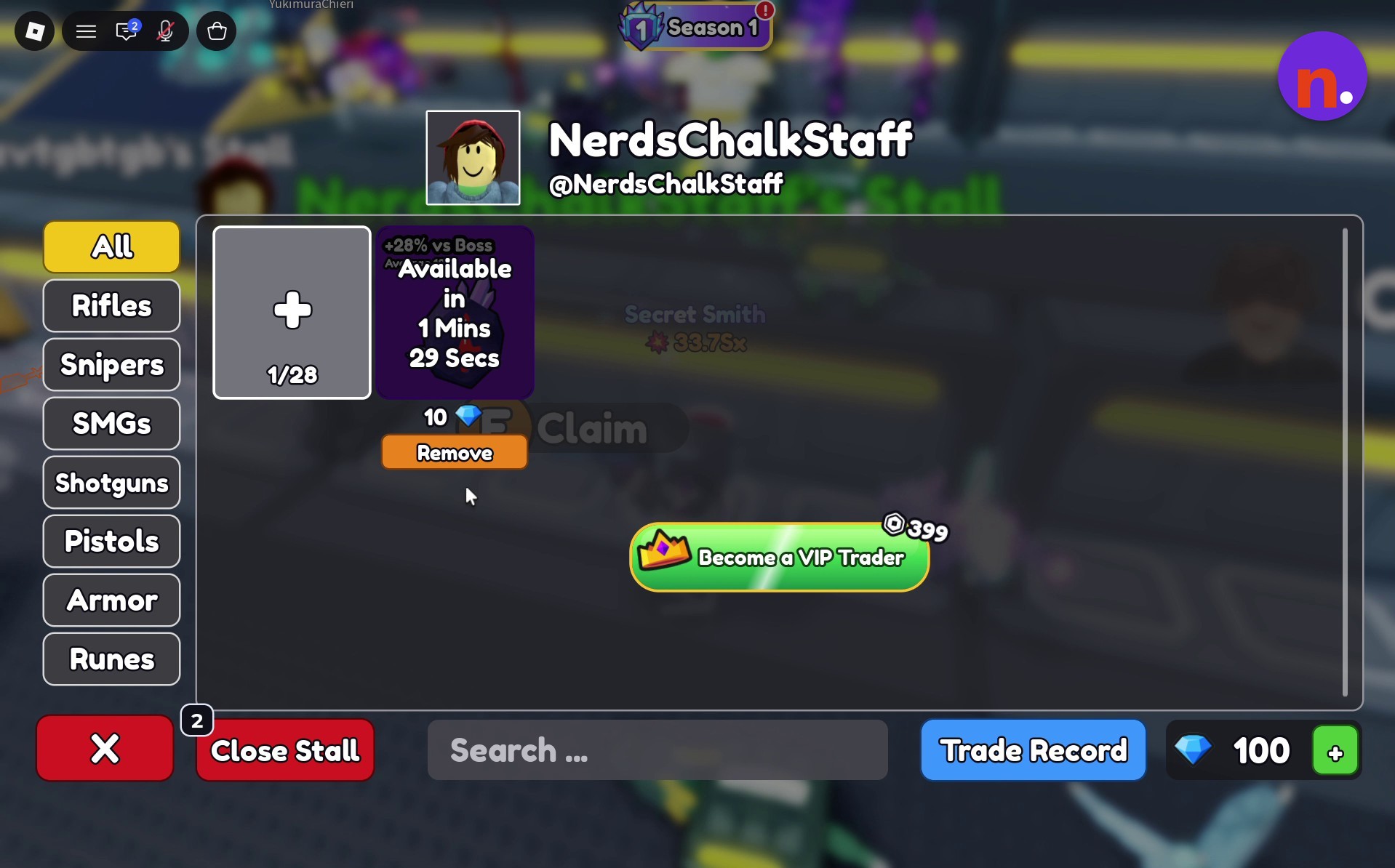
Open your claimed stall’s interface and click a tradable item in your inventory to bring up its listing dialog.
Set the price and list your item
Enter your desired Diamond price in the price field, then select List. The item appears in your stall inventory with an availability countdown.
Collect completed Daily Quest rewards
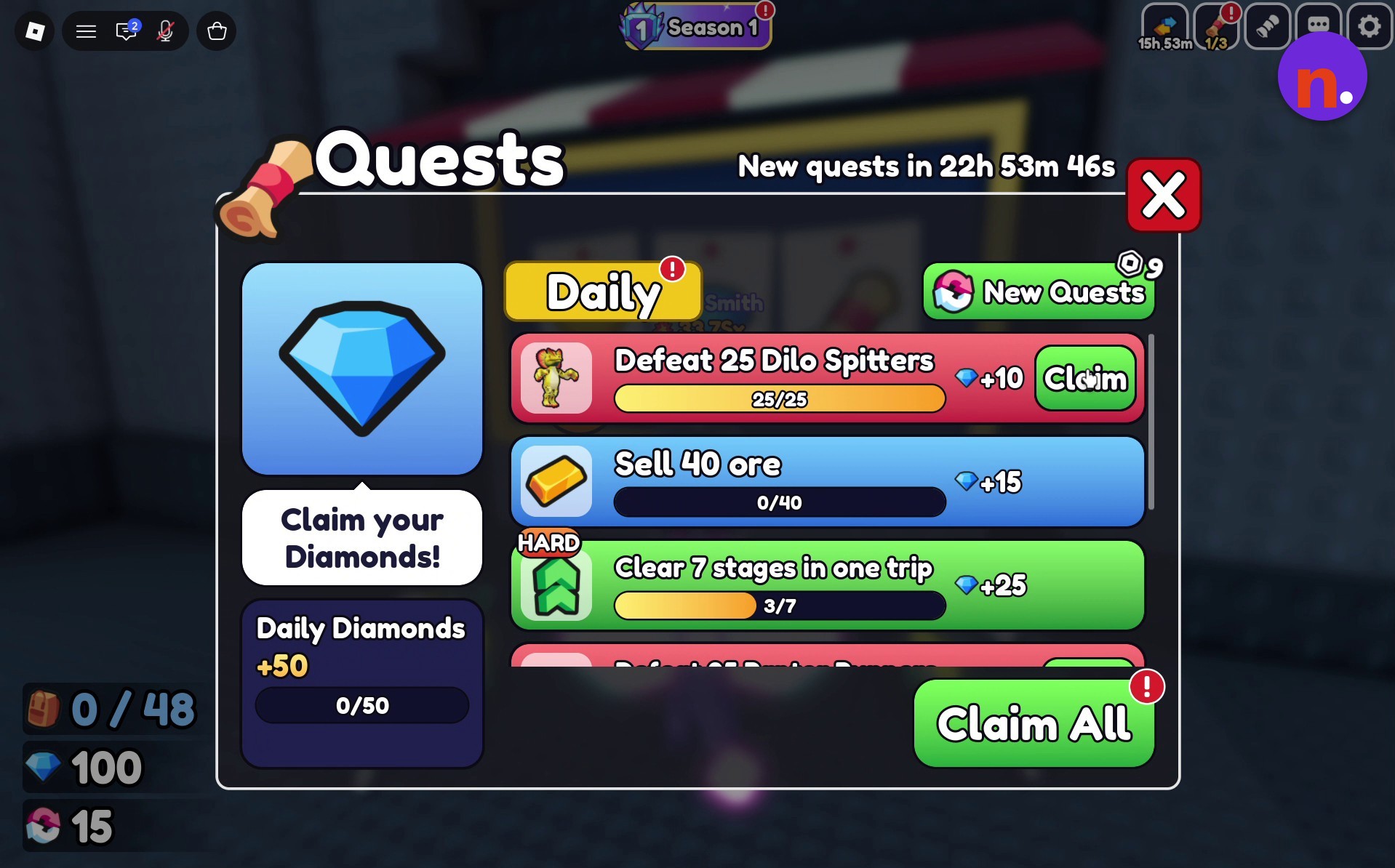
You can optionally browse another stall before heading to the Quests board. Open Daily Quests and use Claim beside a completed objective to collect its Diamonds; the menu also offers Claim All.
Return to World 2
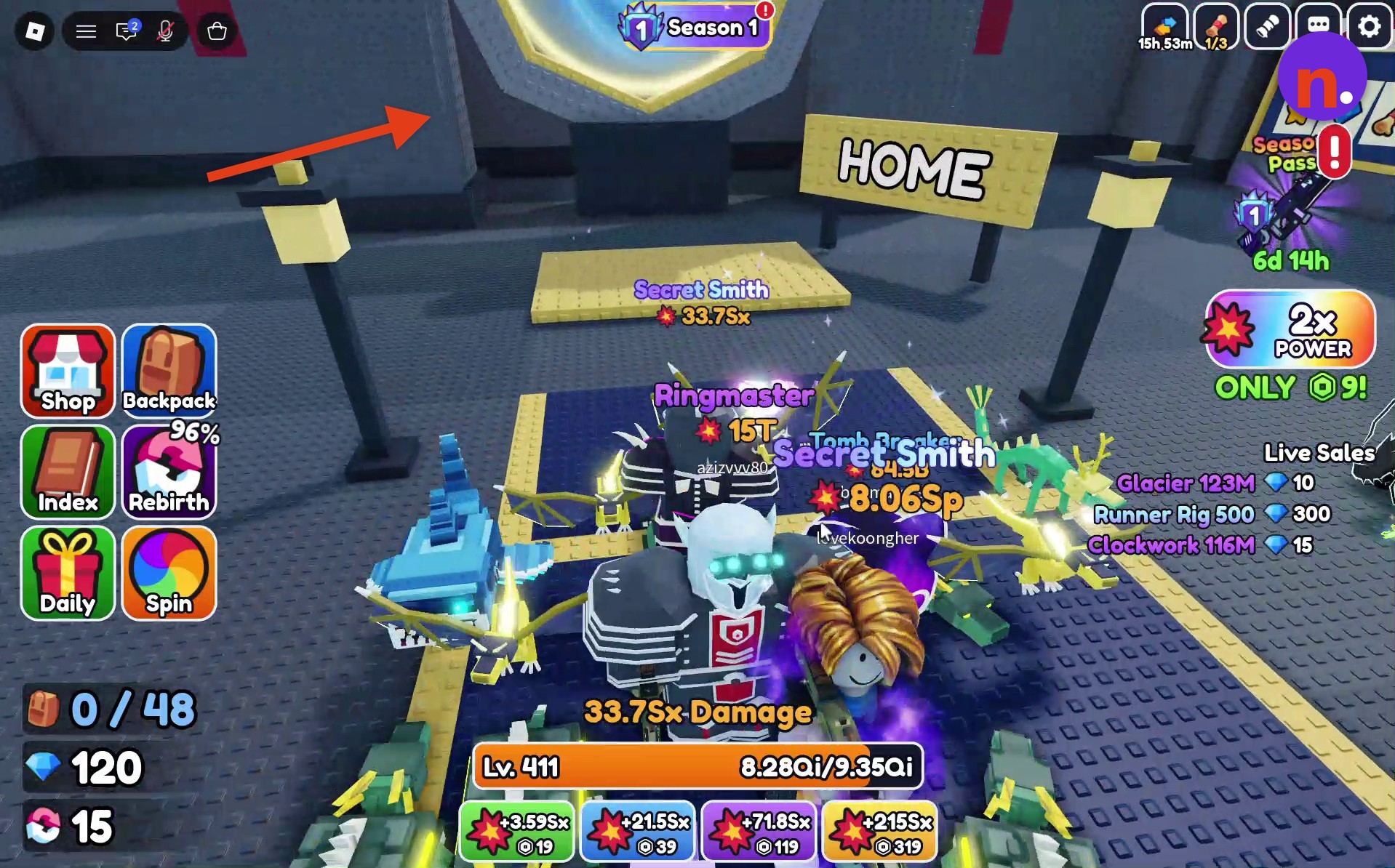
Step onto the portal platform labeled HOME to teleport back to World 2.
What market information and item filters can you use in the Trading Hub?
| Filter | Options |
|---|---|
| Item categories | All, Rifles, Snipers, SMGs, Shotguns, Pistols, Armor, Runes |
| Inventory rarity | Limited, Exotic, Secret, Mythic, Legendary, Epic, Rare, Uncommon, Common |
Market Info includes an item’s RAP entry and a price graph, giving you market references alongside the stall’s asking price. Prism has both features in its market popup.
Compare the displayed market reading when choosing your asking price. Prism’s reading is 75, while the selected item’s listing dialog shows RAP: 10.
An item’s Available in label shows the time remaining until it becomes available. Some stall entries also display a Rebirth 20 requirement, and the hub has a separate Live Sales display.
Category filters organize item browsing, while the inventory selection menu also provides rarity filters.
What fee and management controls does your Trading Hub stall have?
| Stall feature | Detail |
|---|---|
| Listing fee | The listing dialog displays a 5% fee. |
| You will receive | Receipt preview in the price-entry dialog. |
| Listing counter | Counter displayed in the stall menu. |
| Remove | Listing-removal control. |
| Close Stall | Stall-closing control. |
| Trade Record | Trade-record option in the stall menu. |
| Search | Field labeled Search… in the stall menu. |
| Become a VIP Trader | Displays an amount of 399 beside the option. |
Your stall menu keeps its listing controls alongside the search field, trade-record option, and VIP Trader offer.
Which Daily Quests award Diamonds in the Trading Hub?
| Quest entry | Diamonds |
|---|---|
| Daily Diamonds | +50 |
| Defeat 25 Dilo Spitters | +10 |
| Sell 40 ore | +15 |
| Clear 7 stages in one trip | +25 |
Daily Quests supply Diamonds through the objectives in the quest menu. Its New quests in countdown shows how long remains until the next refresh.
Those rewards give you Diamonds for player-stall purchases, adding spending currency alongside anything you earn from selling your own items.
Related Gun Forge guides





Leave a Reply