
All of us make mistakes and there are instances when we might have deleted a text or two before realizing that it was actually an important one. That could happen when you were deleting messages in bulk, reset your phone or unfortunately lost your phone.
Whatever your case may be, you might be looking for a solution to recover text messages on your Android phone. This article will help you with everything you need to know about retrieving deleted text messages and prevent such a scenario in the first place.
How to retrieve deleted text messages
First things first, there’s no reliable way to recover lost texts on Android. If you have stumbled upon this article because you lost your text messages, they’re gone now, for good.
While searching for the same on Google might redirect you to third-party recovery software like FonePaw, Mobikin, EaseUS MobiSaver, and more, there are limitations to all of them and none of them can assuredly retrieve text messages.
Why should you not use recovery software for retrieving texts
- Root Access: Almost all the tools mentioned above need access to your phone’s root folder. This folder is what stores a database of your texts and Android, by default, hides the folder since it belongs to the system. This permission can only be enabled by rooting your device which may be a cumbersome process if you’re not someone who experiments on their phone.
- Expensive: Even if you’re beyond the first limitation, you might not want to go through this process which is actually paying to retrieve your lost texts. While some of the software might assure your data recovery for free, recovering deleted texts will be part of the software’s Pro pack. These pro versions are quite expensive coming at a licensing price of in and around $50 which is steep for recovering a single text.
- Privacy scare: Since these software tools are granted access to your root folder, they might be able to modify any element of the Android system. This added to the fact that modern Android phones connect to PC using the Media Transfer Protocol, the tools could as well steal your personal data and use it against you.
What can you do to save your text messages
You might be out of luck if you’re trying to recover text messages. But one good news is the fact that you can very easily take backups of your texts. You can set your messages to automatically back up to cloud, so you can restore it at a later point in time. This also helps you when you want to retrieve messages from an old device to a new phone.
How to back up and restore text messages using Microsoft SMS Organizer
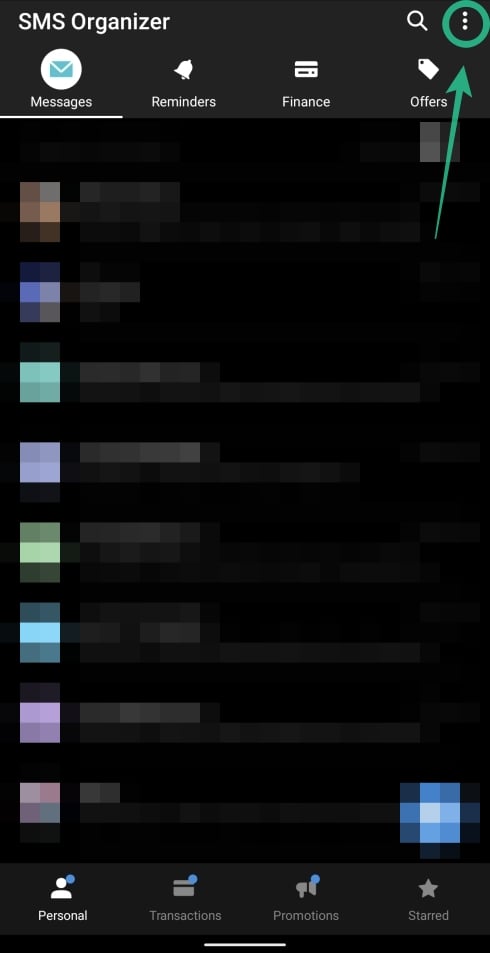
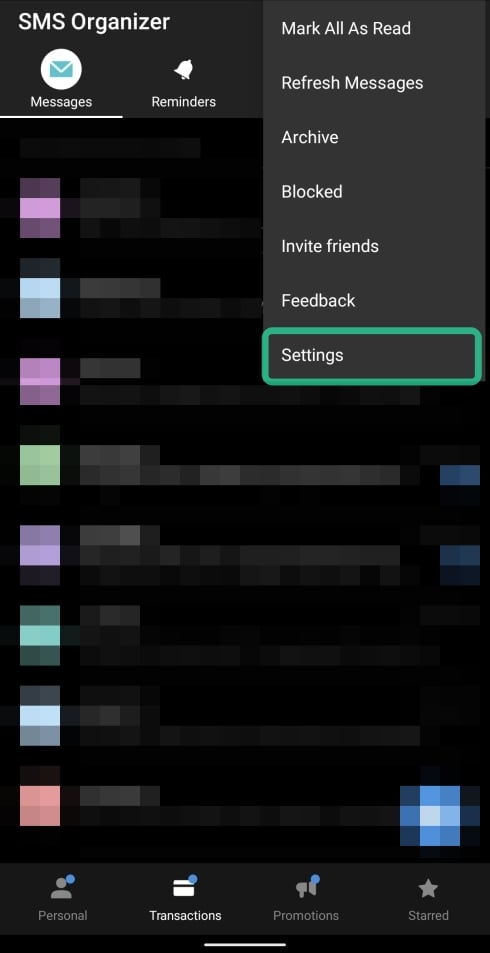
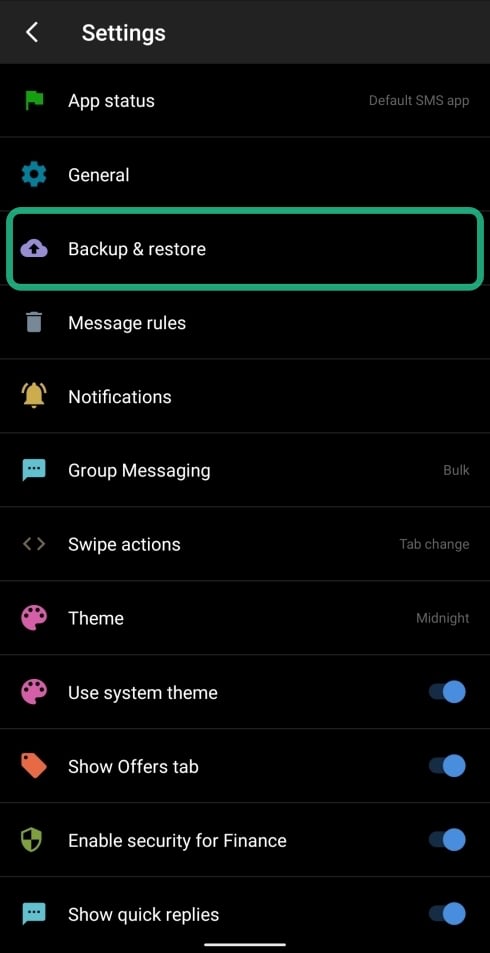
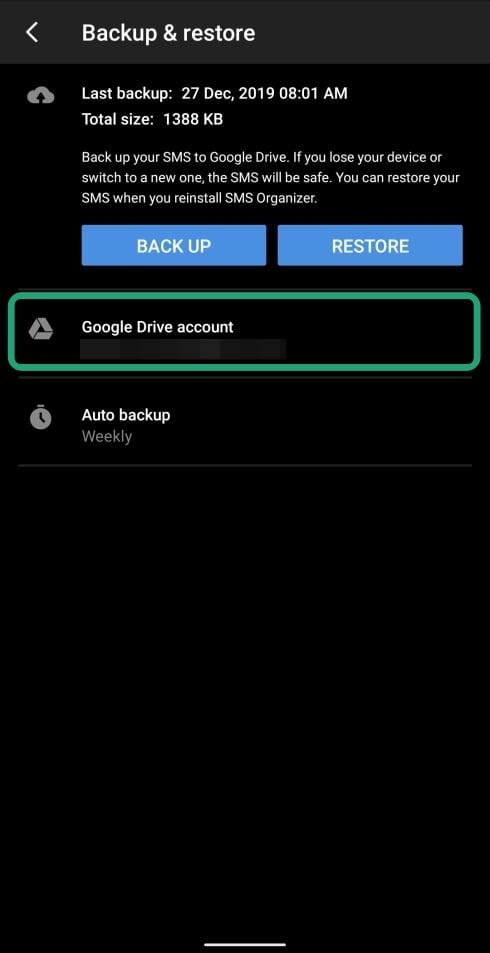
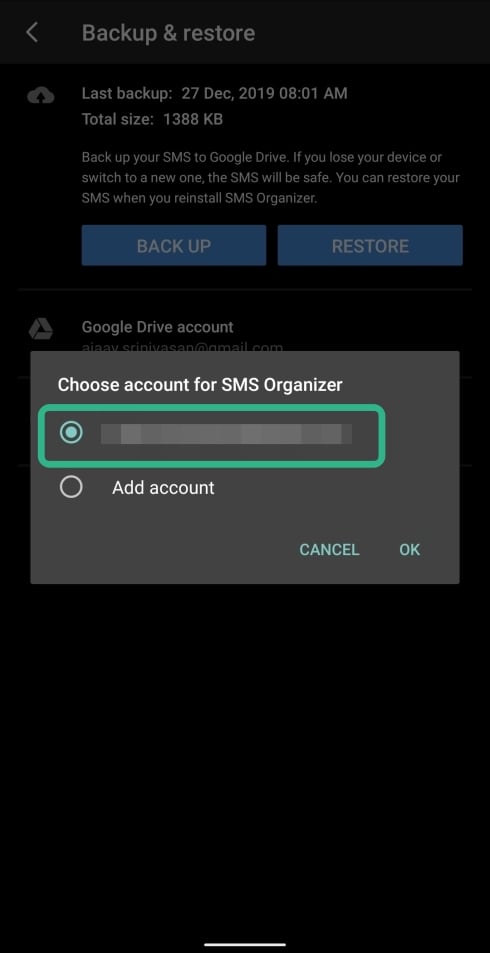
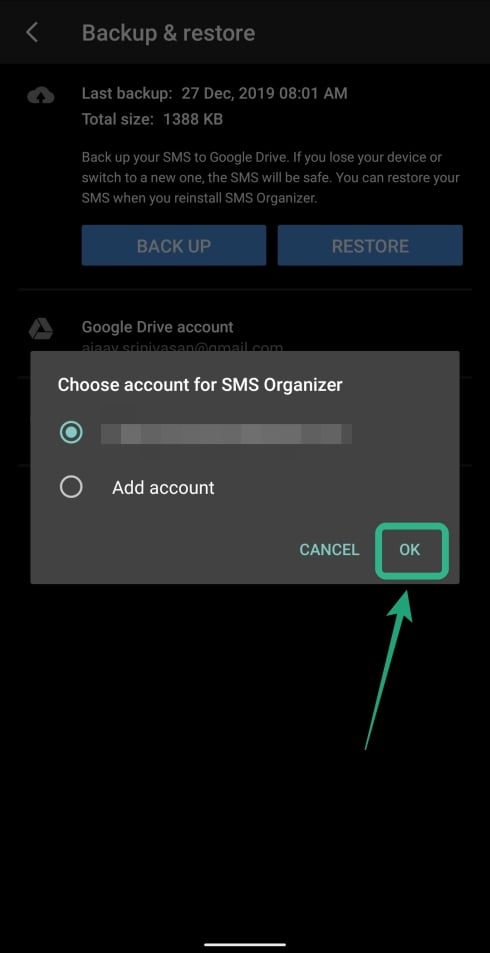
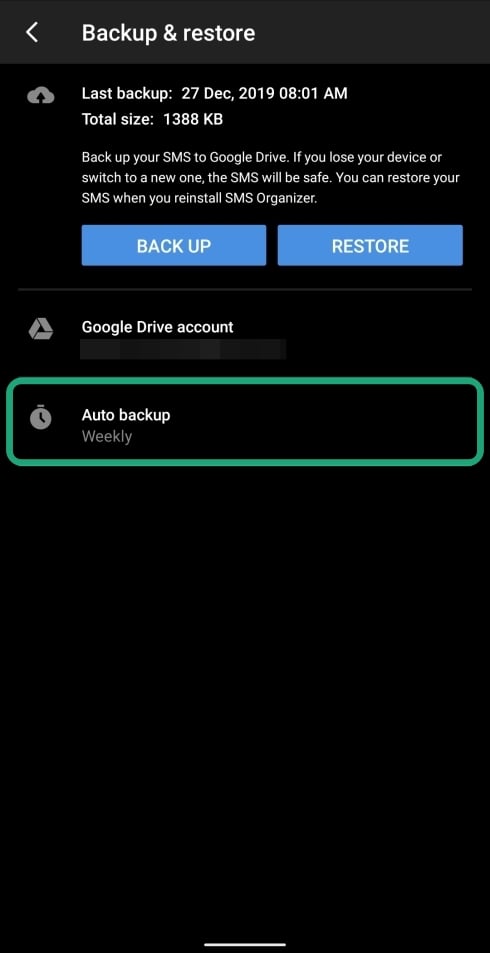
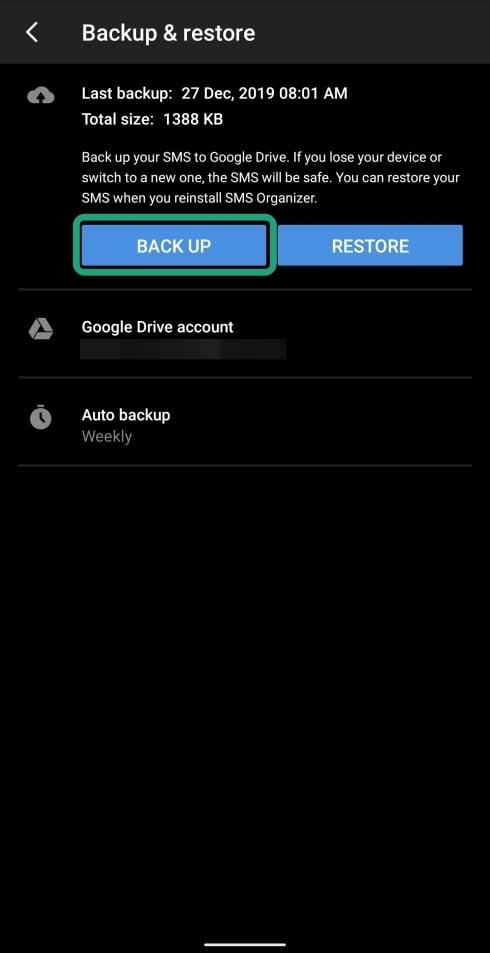
Your messages will now be backed up. In case you want to restore deleted texts, you can do so by following the steps down below:
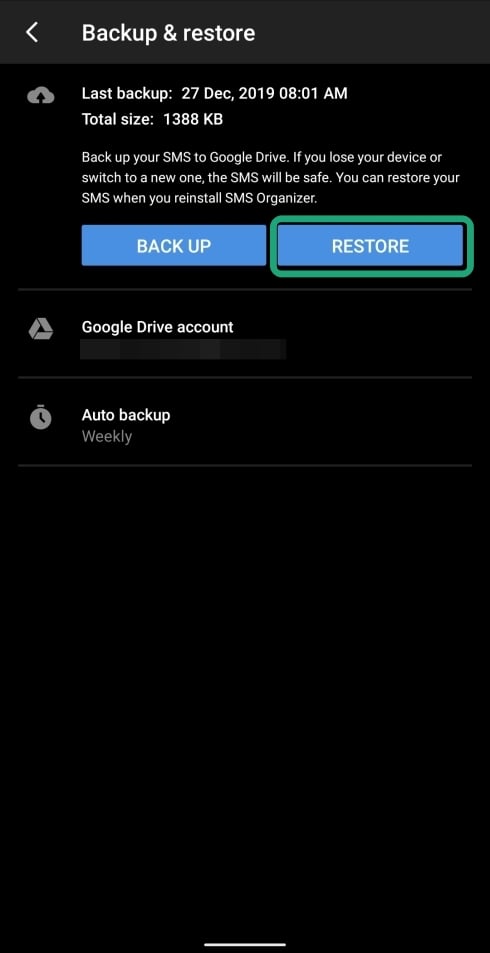
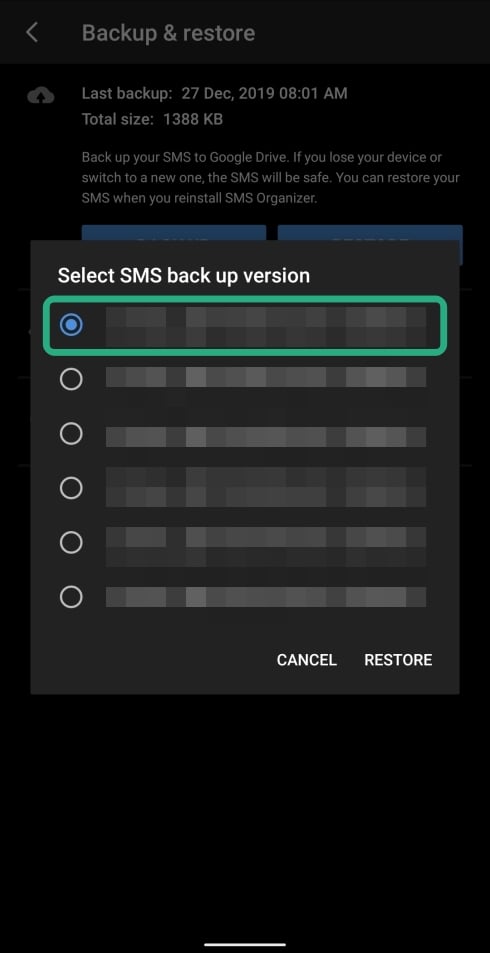
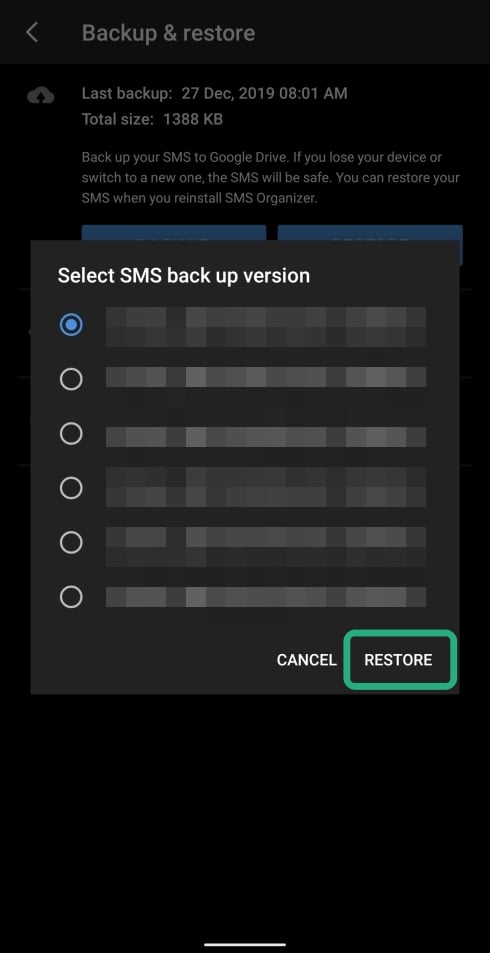
Your SMSes from the last backup will be restored back on your phone.
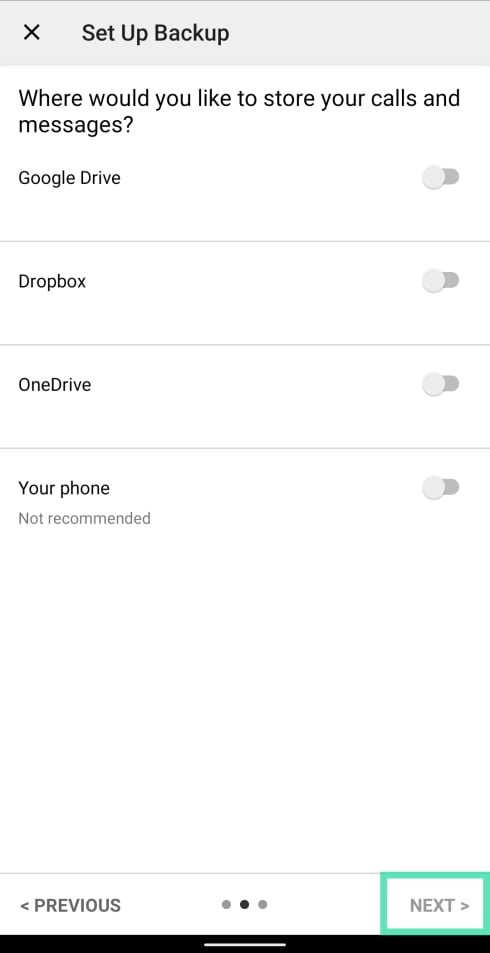
How to back up and restore text messages using SMS Backup & Restore
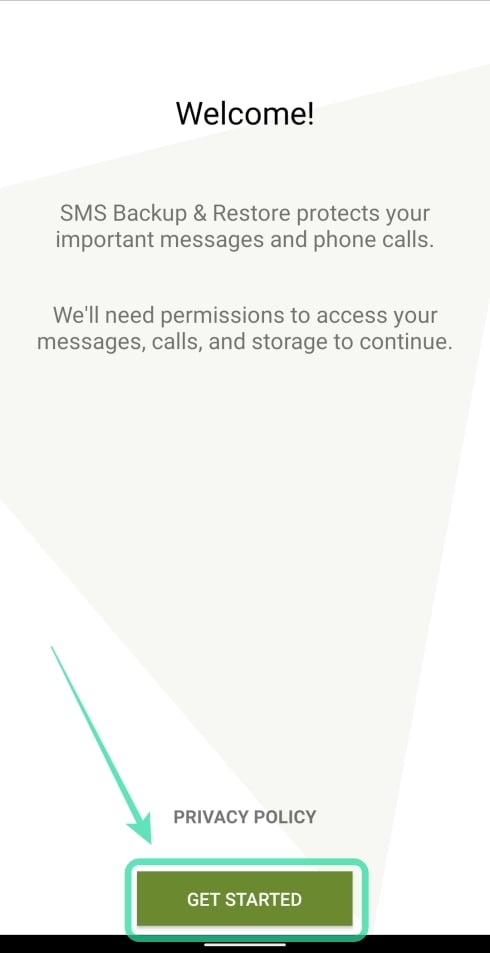
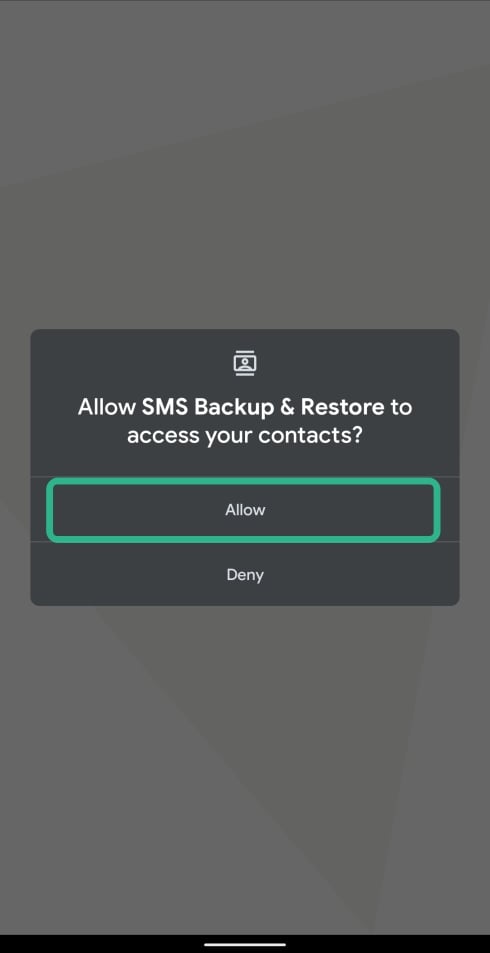
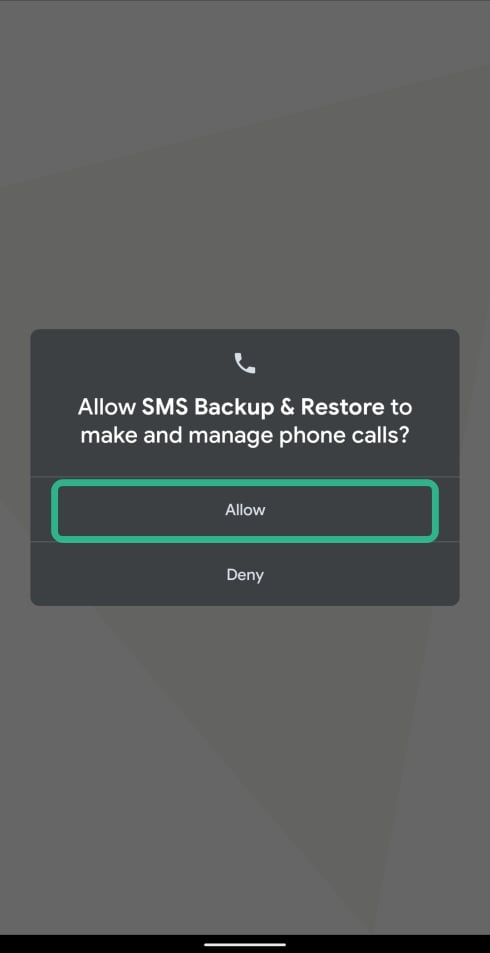
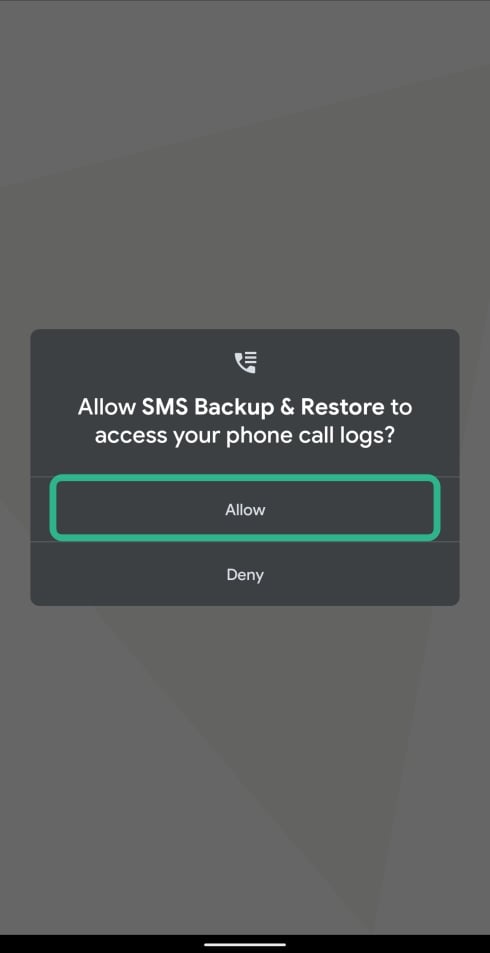
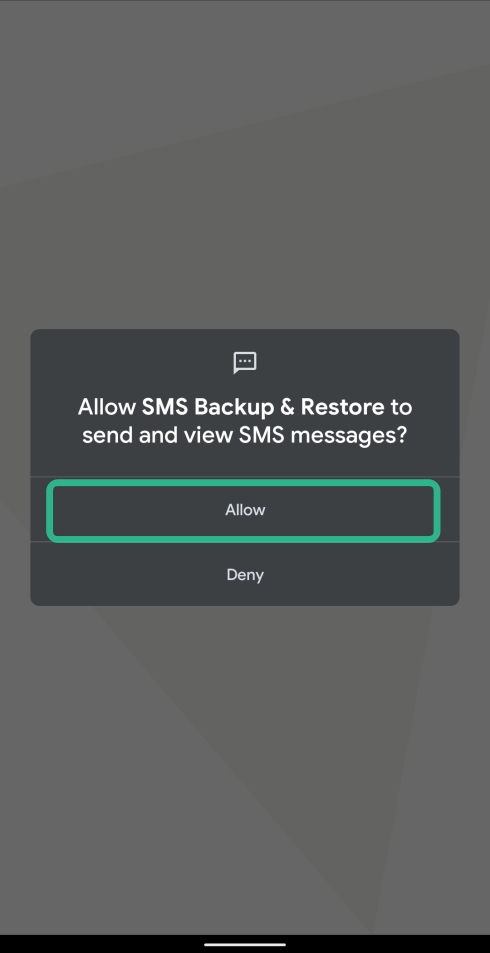

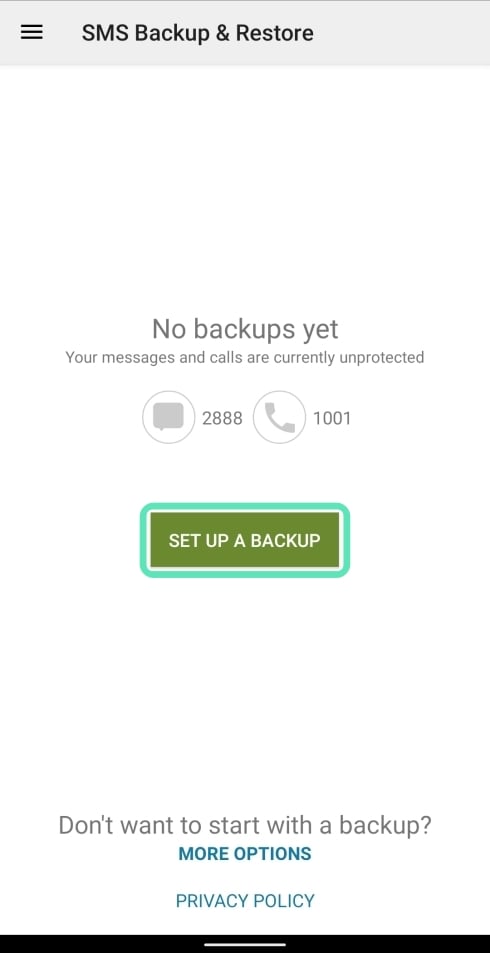
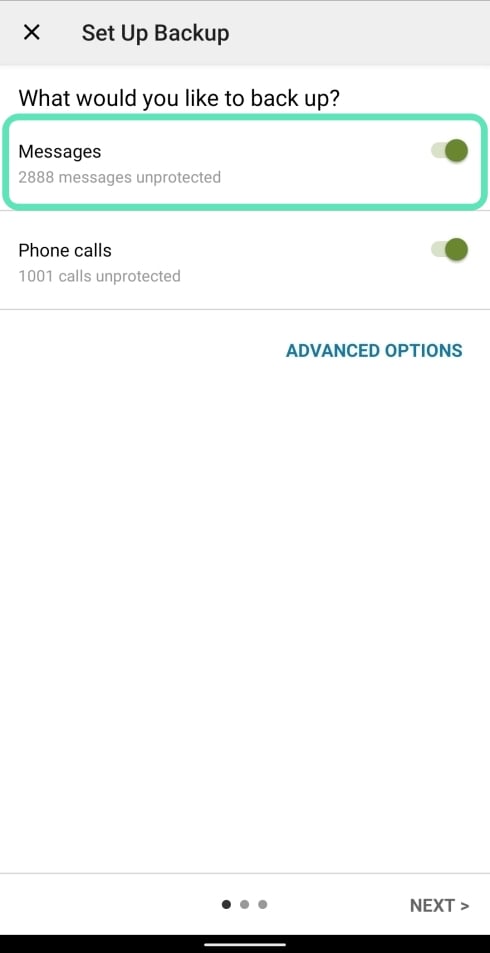
You can additionally backup call logs, media, and group messages by tapping on Advanced Options.
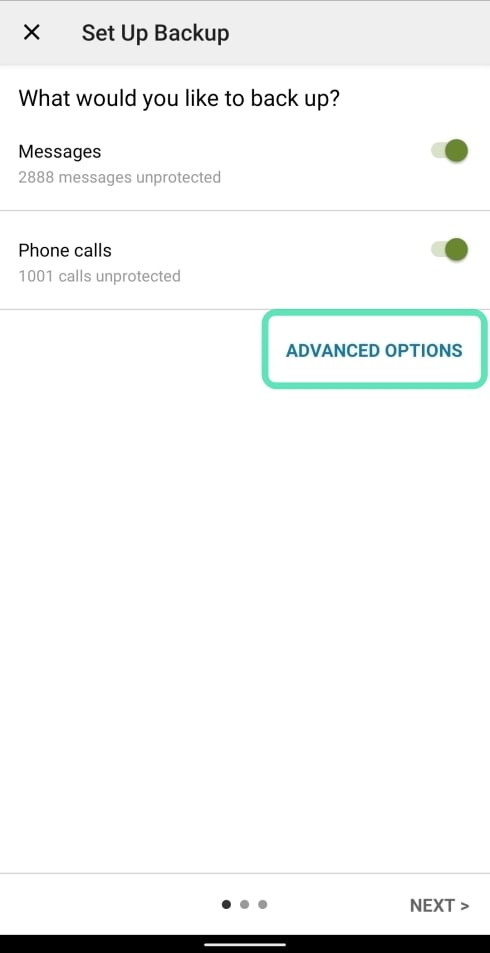
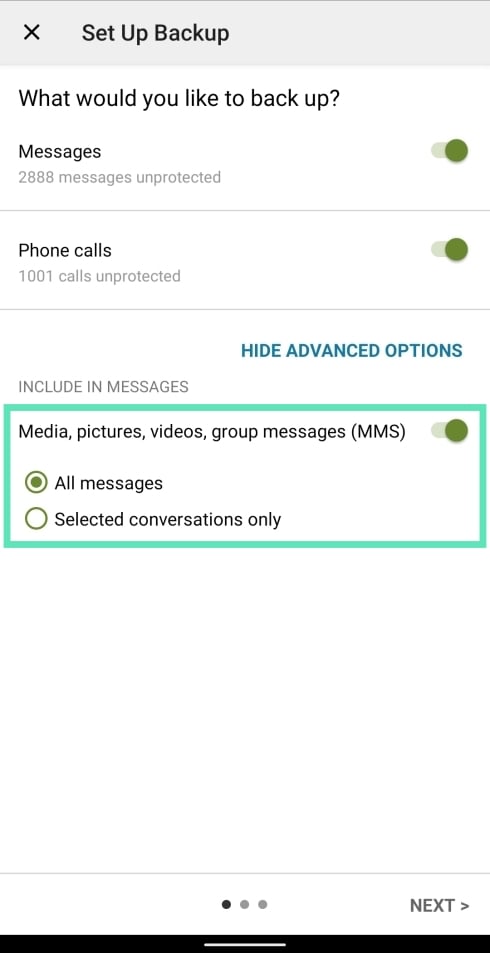
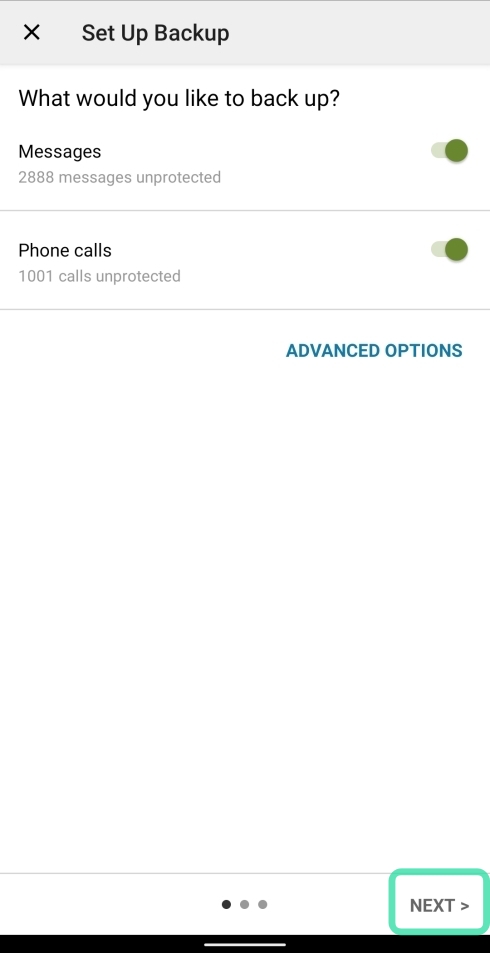
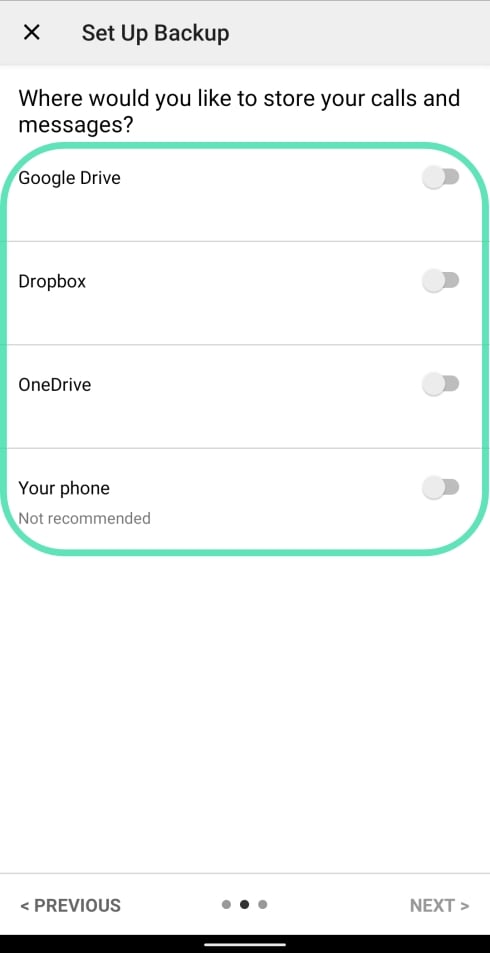
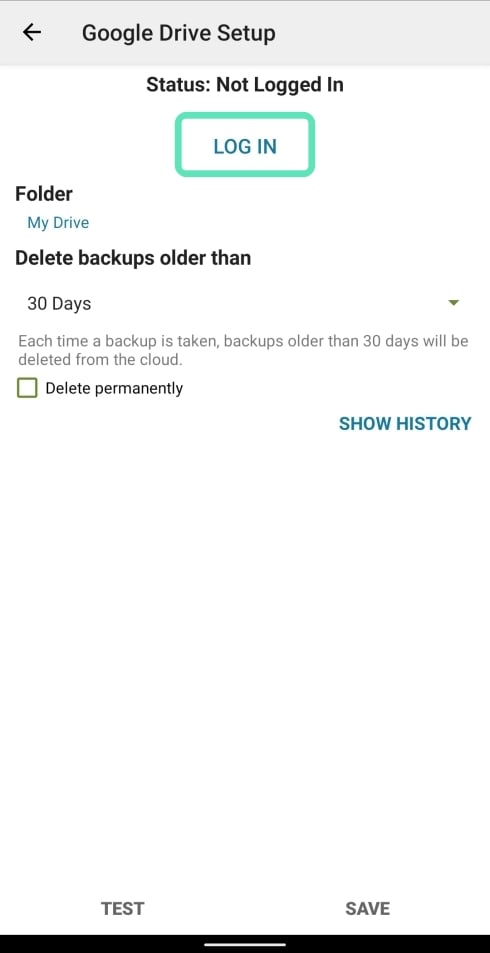
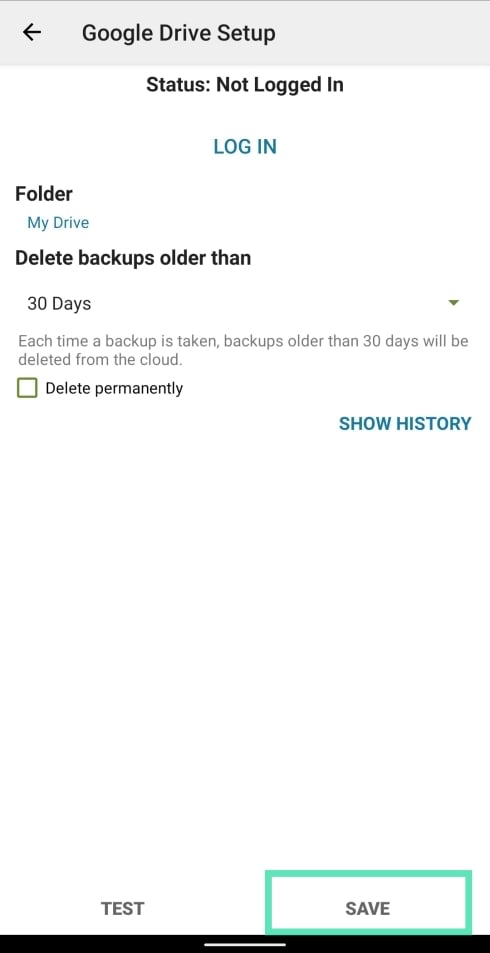
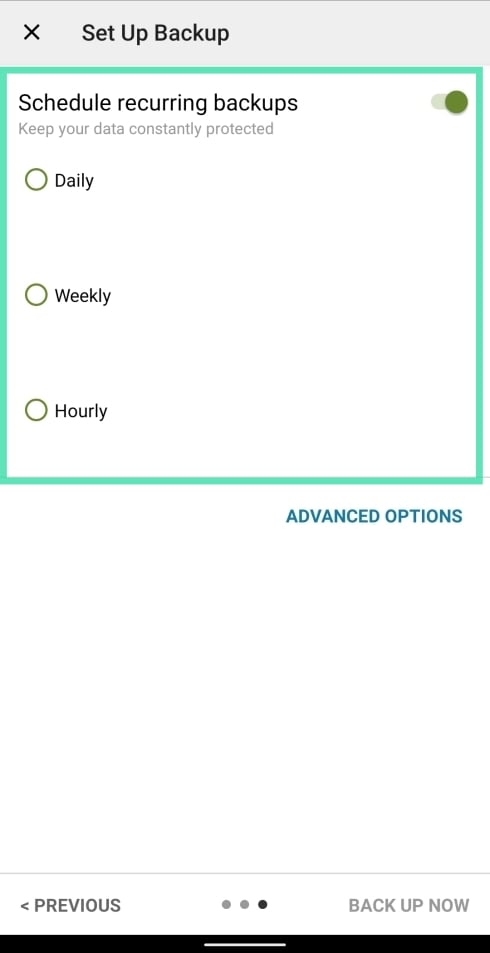
In the advanced options, you can schedule backup at a particular time of the day.
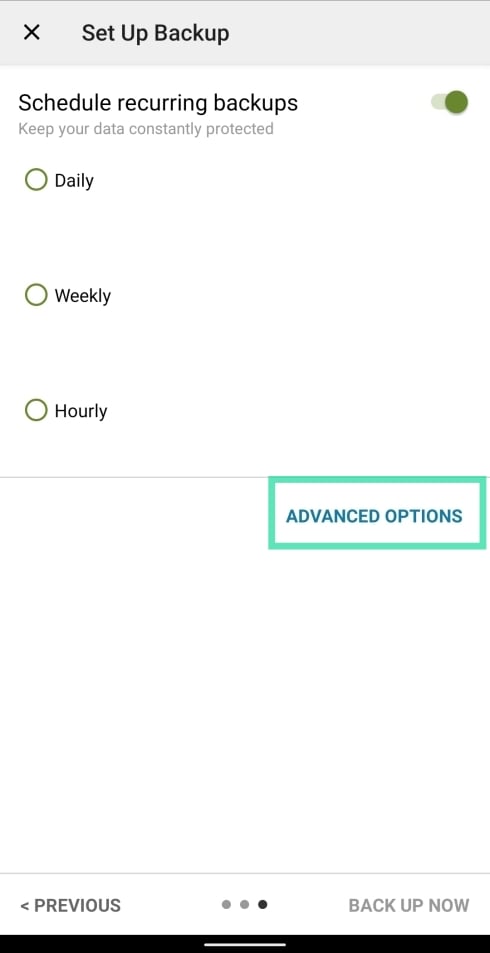
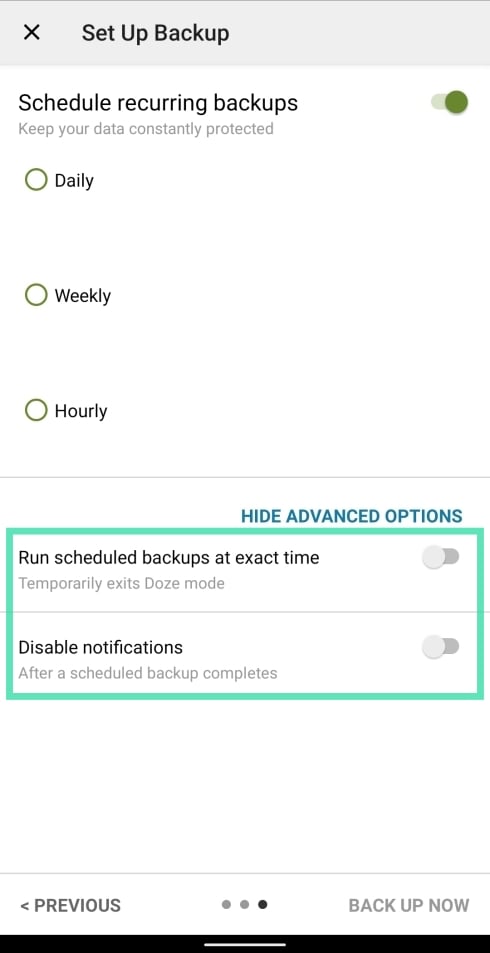
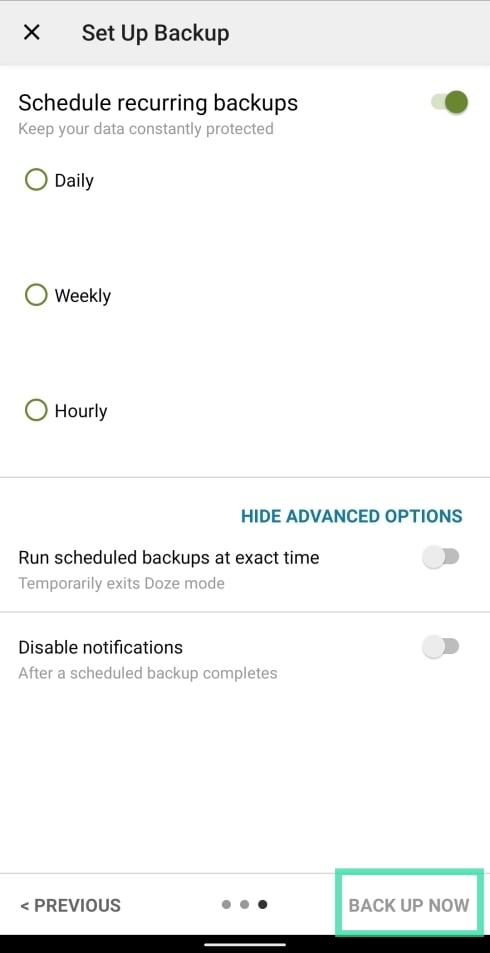
Your messages will now back up and continue getting backed up on your phone/cloud depending on a regular basis. In order to restore messages through SMS Backup & Restore, follow the instructions from down below:
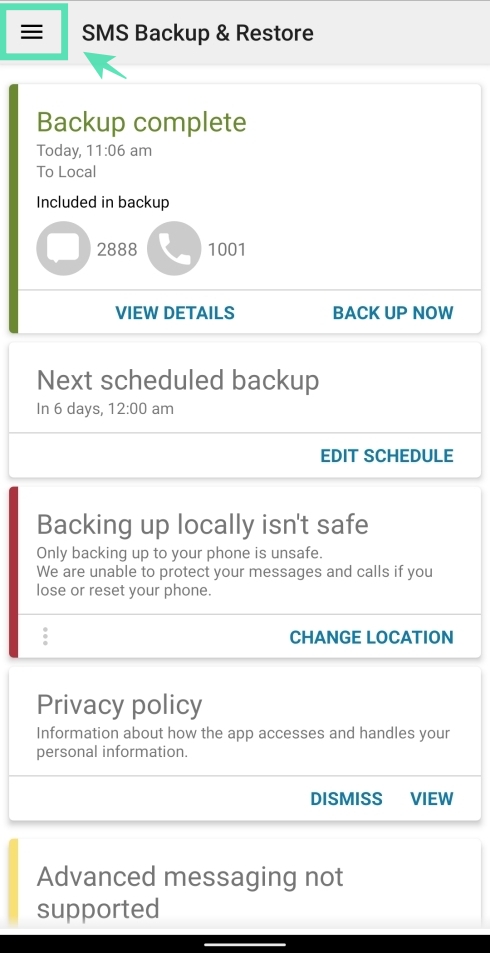
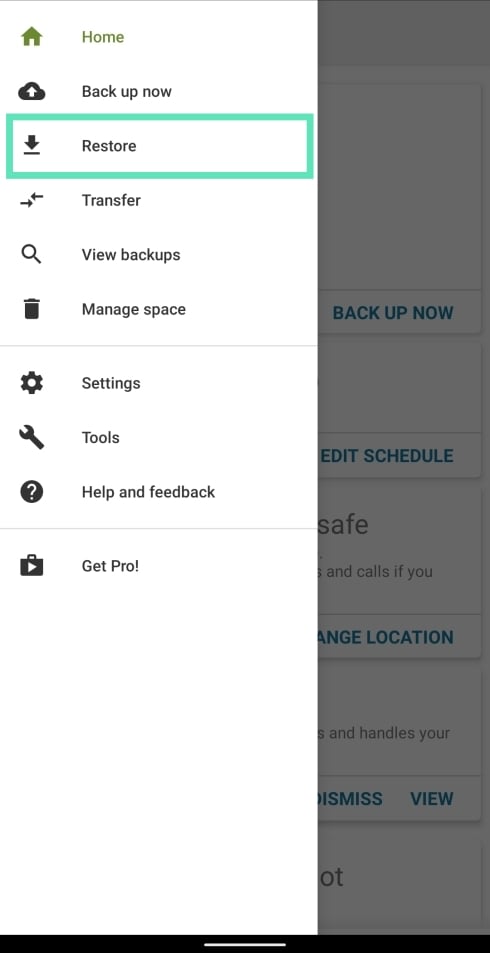
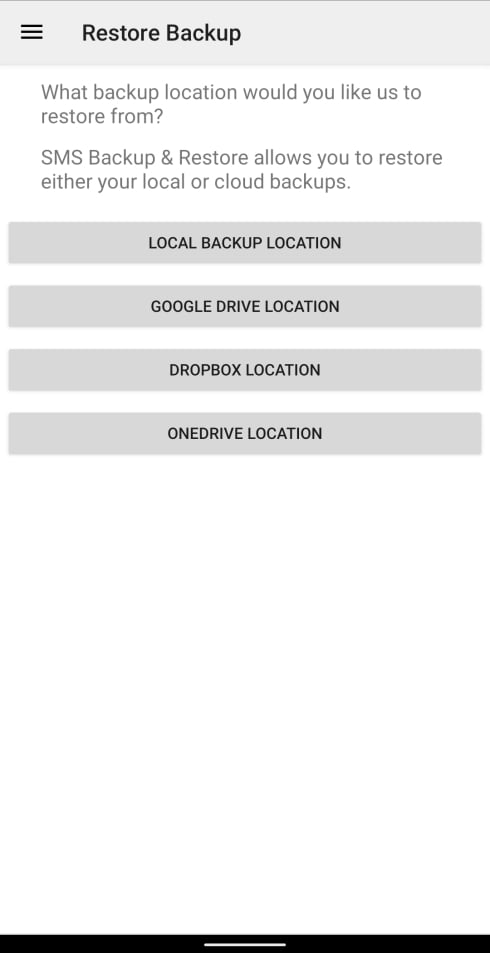
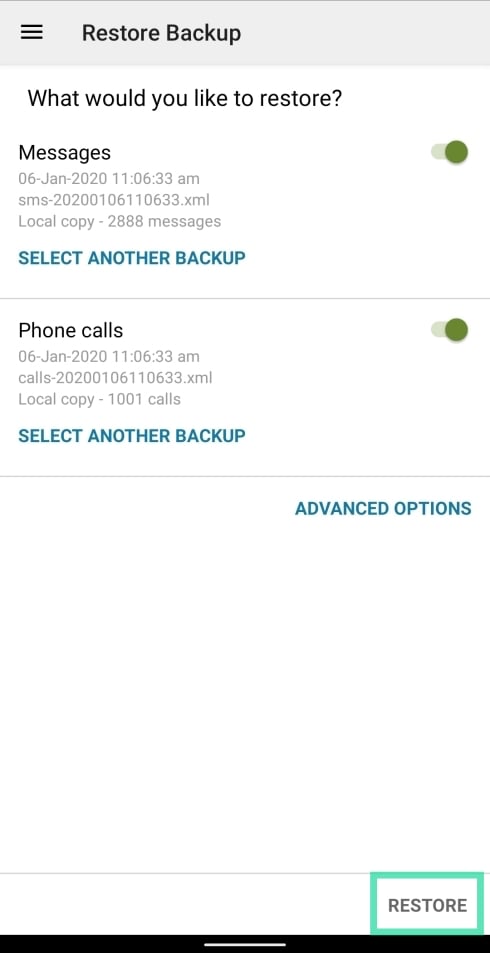
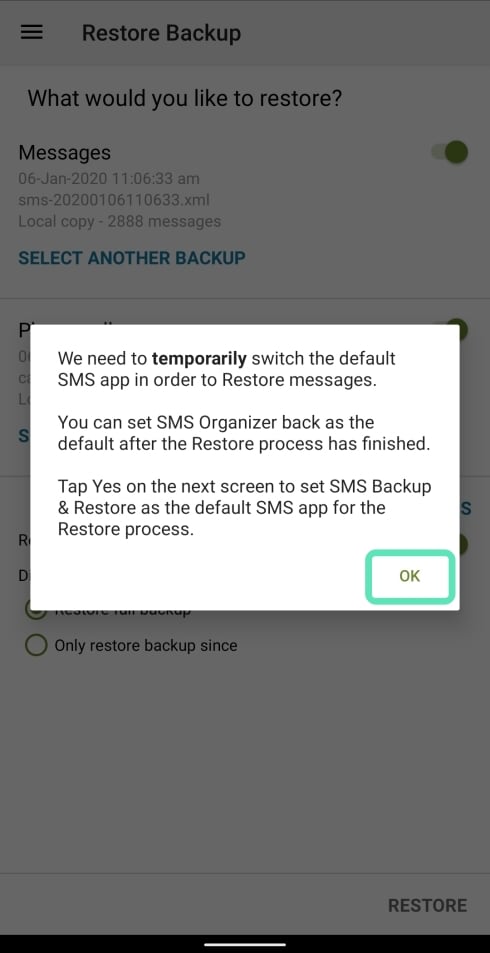
Your older text messages have been restored based on the backup you selected.
How do you backup your text messages? Do you use an app that you’d like to share with us? Let us know in the comments below.
RELATED: