iPhones have a Taptic Engine that provides haptic feedback when the display registers your finger’s touch. It’s a way for your device to let you know you’re making contact with the touchscreen. The native iOS keyboard uses the same Taptic Engine to register feedback whenever you hit a key or swipe on the keyboard.
If your iPhone doesn’t vibrate when you type on it, the following post will help you enable haptic feedback for the keyboard on your iPhone.
Related: How to get depth effect on iPhone Lock Screen
How to enable Haptic feedback on iPhone keyboard
- Required: iPhone running iOS 16 or newer versions.
The Haptic feedback for the iPhone keyboard can be enabled inside iOS settings.
- Open the Settings app on your iPhone.

- Inside Settings, select Sounds & Haptics.

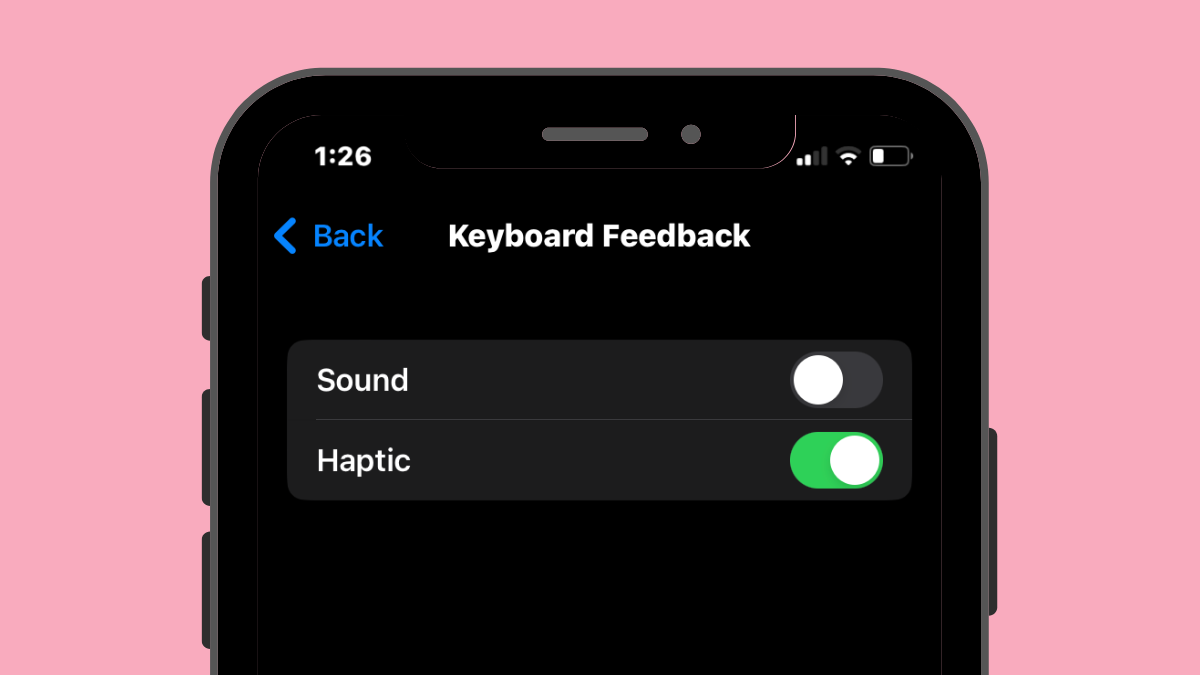
- On the next screen, tap on Keyboard feedback.

- Here, turn on the Haptic toggle until it turns green.

You can leave the Sound toggle enabled if you want audio feedback when you type on the keyboard. If not, you can disable this toggle to only get Haptic feedback from your keyboard instead. Haptic feedback will now be enabled on your iPhone. Whenever you interact with your keyboard now, you’ll experience vibrations when you tap a key or make swipe gestures on it.
Related: How to Enable Dark Mode on a Lock Screen Wallpaper on iPhone
How to disable Haptic feedback on iPhone keyboard
If you do not wish to use Haptic feedback on the iOS keyboard or don’t like the experience when typing on it, you can disable it at any time.
- Open the Settings app on your iPhone.
- Inside Settings, select Sounds & Haptics.
- On the next screen, tap on Keyboard feedback.
- On the Keyboard feedback screen, turn off the Haptic toggle to disable the haptic keyboard.

That’s all you need to know about using Haptic Keyboard on your iPhone.