
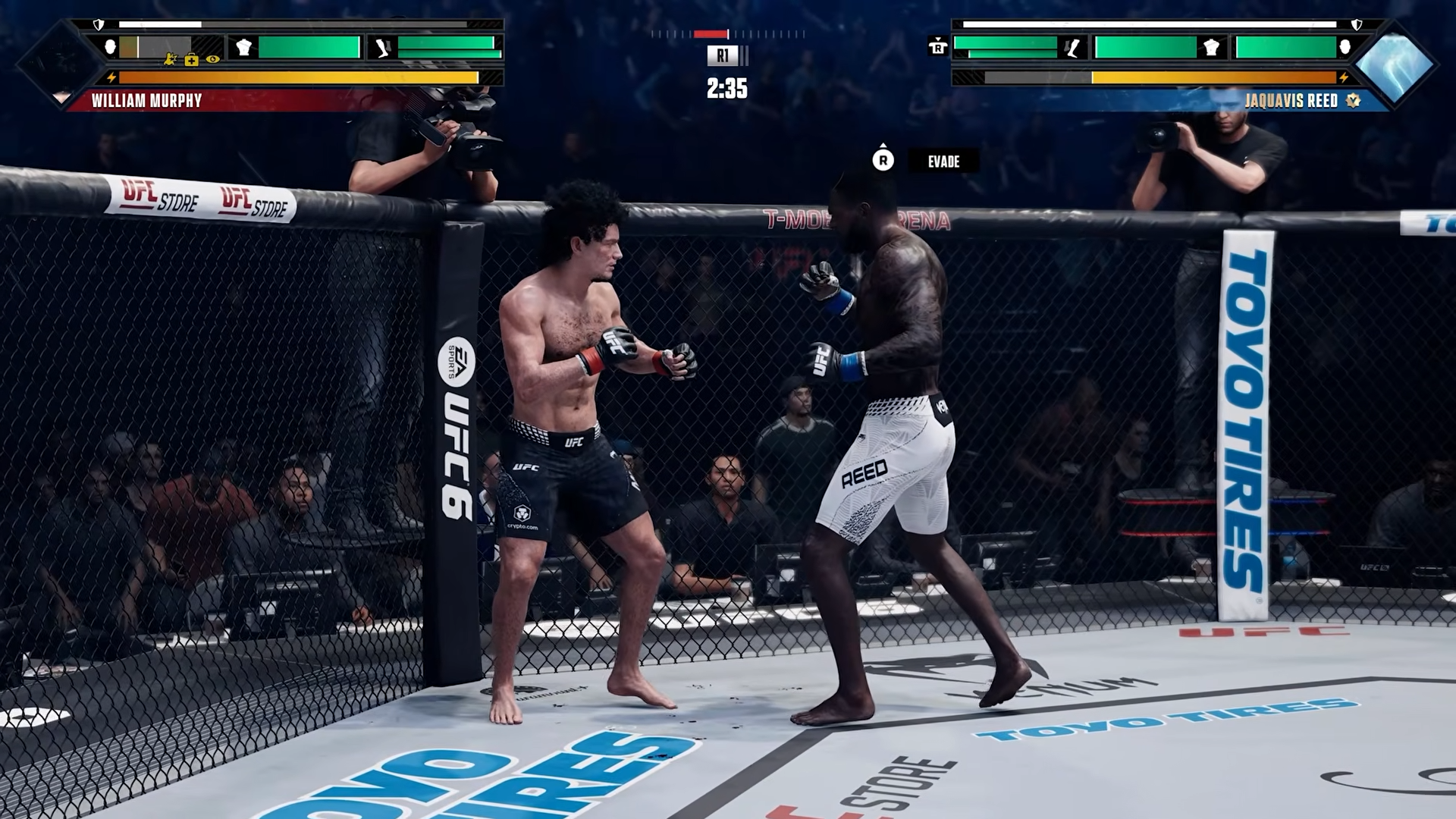
Before your first fight in EA UFC 6, open Settings → Gameplay and change four defaults — Contextual Time Dilation, Free Combinations, Camera Style, and Stance-Based Striking Controls — to make the game faster, clearer, and closer to how the series actually plays.
UFC 6 plays well out of the box, but a handful of defaults quietly work against you in those first few rounds. The good news is that all of them sit in one place, and none take more than a few seconds to flip. If you’ve played any of the recent UFC games, most of these are changes you’d pause and make in your first fight anyway — so you might as well get them done before the opening bell.
Where these settings live in UFC 6
Everything here lives in a single menu. From the main menu, head to Settings, open the Gameplay tab, and then move across to the Gameplay section inside it. That’s the one screen you’ll be working in for all four changes.
Think of these as preference toggles rather than deep tuning. They don’t lock you into anything, and you can come back and tweak them after a fight or two once you know how the game feels in your hands.
The four gameplay settings worth changing first
These four carry the whole job. The table below is the at-a-glance version; the reasoning underneath each one is where you decide which value actually fits you, because a couple of these genuinely depend on whether you’re new to the series or coming back from older titles.
| Setting | Default | Recommended | Best for |
|---|---|---|---|
| Contextual Time Dilation | Not stated | Off | Off for most; leave On briefly if you’re brand new |
| Free Combinations | Not stated | On | Anyone whose combos feel stuck or sluggish |
| Camera Style | Medium | Wide | Everyone wanting a clear, standard fight view |
| Stance-Based Striking Controls | Lead/rear buttons fixed | Keep default (new) / Switch (veterans) | New players keep fixed; veterans flip with stance |
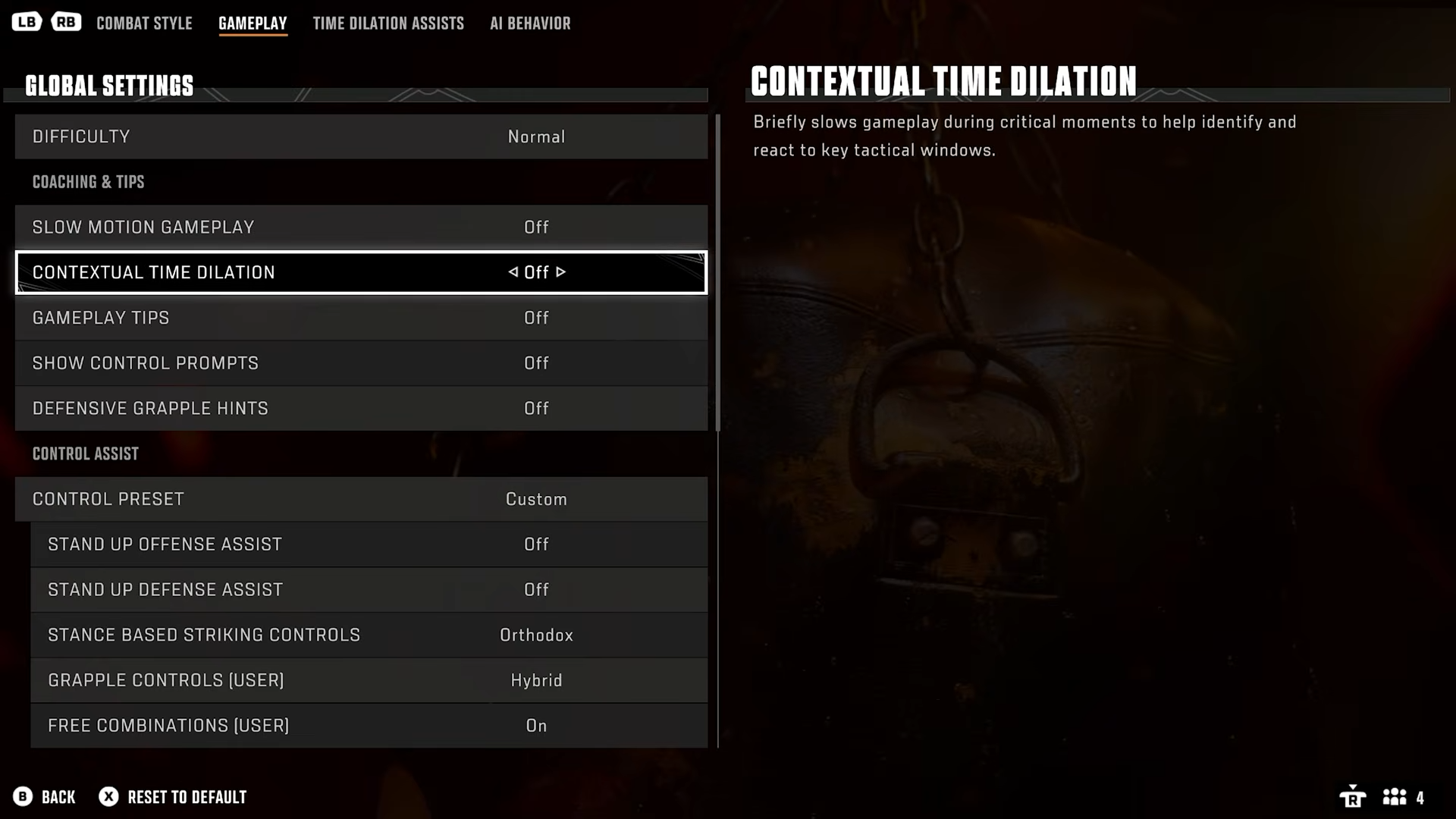
Contextual Time Dilation is the first thing to deal with. When it’s on, the game slows the action down and prompts you whenever it thinks you need help with the basics — if an opponent throws a jab or a cross, time stretches and the game nudges you to use head movement to slip it. That’s genuinely useful if you’re brand new to the series and still learning head movement and footwork, so leaving it on for a fight or two is fine. For most players, though, it’s not necessary and the constant slow-motion gets in the way, so set it to Off once you’re comfortable with the controls. Worth noting: this in-game learning slowdown is an offline aid only — it doesn’t appear in matches against other players, so don’t build your timing around it.
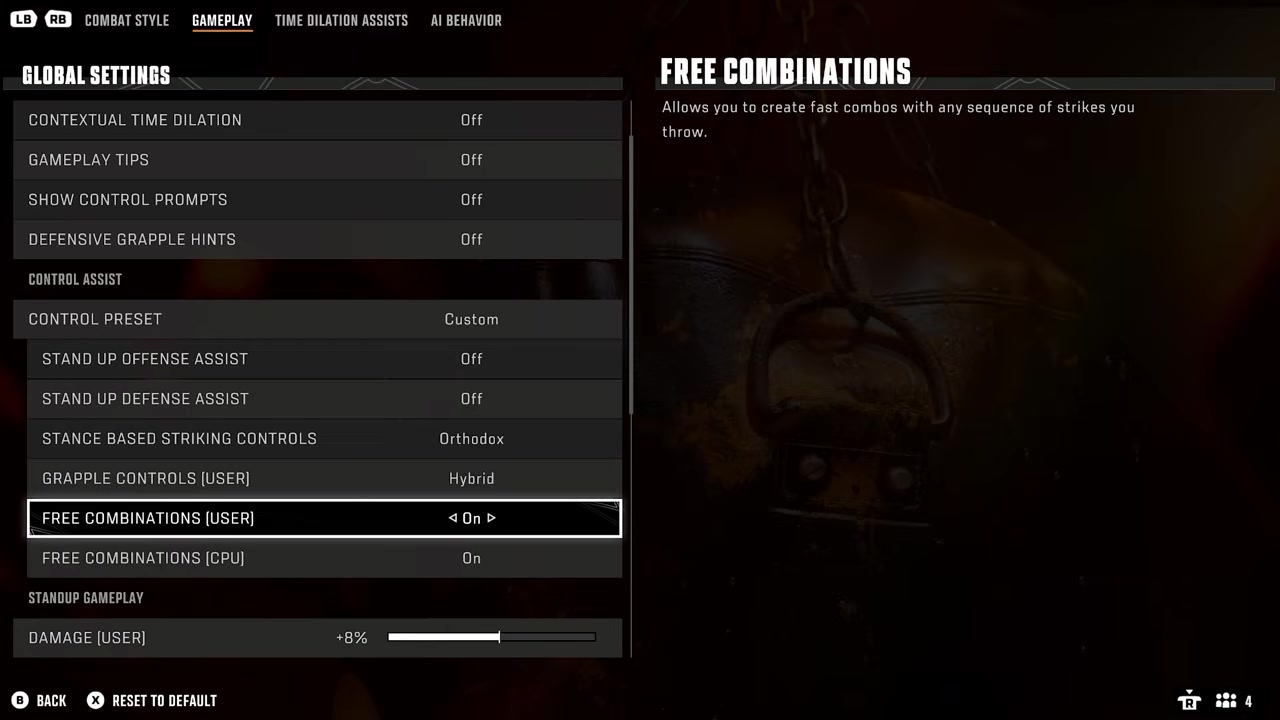
Free Combinations is the one that fixes that “stuck” feeling when you string strikes together. With it the other way, you’re nudged toward the game’s preset combos — a standard jab, cross, lead hook reads quickly, but the moment you try something less expected the game naturally slows the sequence down. Turn Free Combinations On and your combos come out faster and freer; you can throw what you want rather than the strings the game expects. It isn’t a night-and-day, game-breaking change, but it’s a clear enough difference to feel in normal play.
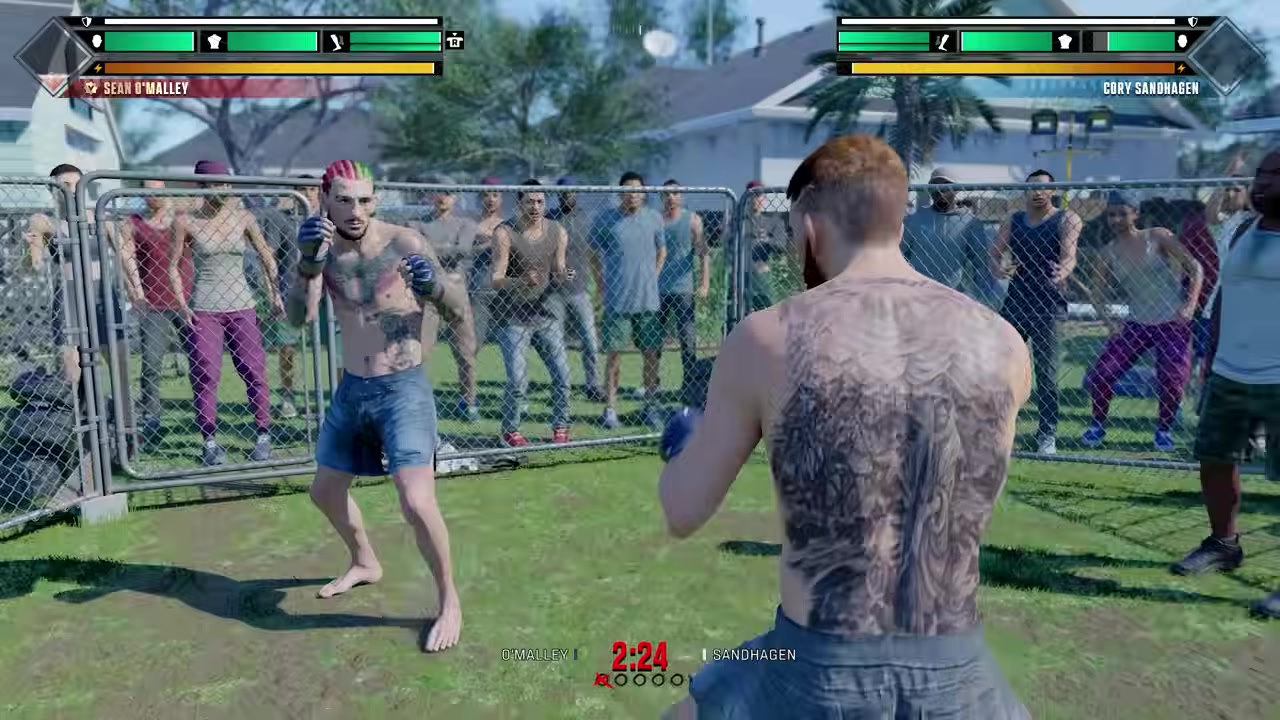
Camera Style is the easiest call of the four. The default is Medium, and most of the other options sit at odd angles or pull in too close to be comfortable. Set it to Wide for a pulled-back, standard view that keeps both fighters on screen with a natural distance between them — which in turn makes range, kicks, and circling far easier to read. There’s really no downside here for a new player.
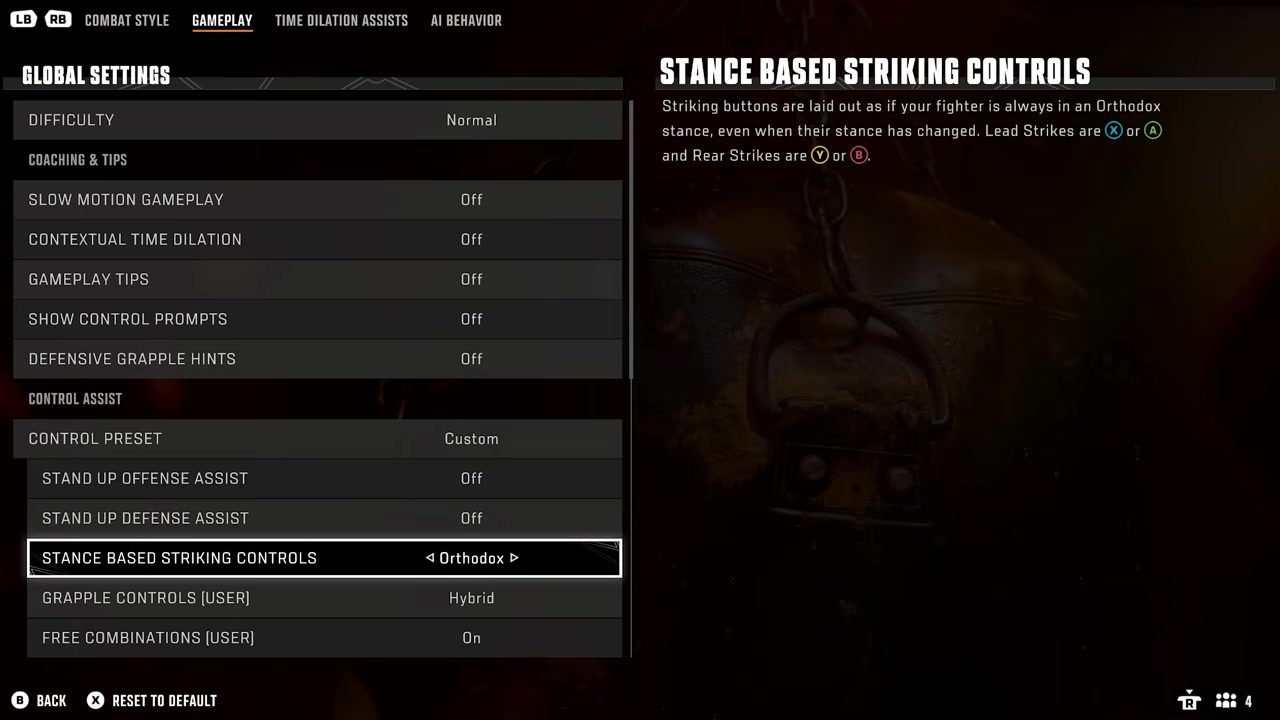
Stance-Based Striking Controls is the one veterans care about most. By default, your lead and rear strikes stay on the same buttons no matter which stance you’re in — on Xbox, for example, X is always your lead and Y is always your rear, even after you switch to southpaw. There’s also a mode that makes the buttons flip with your stance, the way older UFC games worked: change stance and your lead and rear strikes swap sides to match. New players are usually better off leaving the default fixed layout, since the buttons never move on you. Returning players whose muscle memory expects the old behavior will likely want the stance-flipping mode instead. The exact option labels are described inconsistently — the default is reported as a fixed-button setup with a separate Switch mode that flips them, while it’s elsewhere framed as a single On toggle that does the flipping — so check the in-menu wording and pick by behavior, not by name.
If you only change one thing first, set Camera Style to Wide — it’s the single biggest instant upgrade to how clearly you can read range and footwork.
Beyond the four: assists and practice-mode tools
Once the core four are done, there’s some extra setup that’s worth knowing about as you settle in. New players can look at the Control Assist → Control Preset options and pick the Streamlined preset, which simplifies your inputs so you can focus on timing, spacing, and defense instead of memorizing complex commands. The exact in-menu path and values for this aren’t fully confirmed, so expect to do a little hunting in the Gameplay settings rather than following an exact route.
There’s also Stand-Up Assist, an offline learning tool that lends AI support for both striking and defense — handy while you’re getting a feel for range and strike selection before turning the help back off. As with the control preset, its precise menu location isn’t nailed down, so treat it as a feature to look for rather than a fixed path.
For real practice, UFC 6’s Practice Mode includes a set of training overlays — Health, Stamina, Damage Indicator, Vulnerability Overlay, and Frame Timing. Switching these on lets you see exactly when you’re exposed, how much stamina each action costs, and how tight your timing is. They’re the fastest way to understand why a counter landed or whiffed, which is hard to learn blind in a live fight.
Common mistakes to avoid with these settings
The biggest trap is leaving Contextual Time Dilation on too long. Players who keep practicing and fighting in that artificial slow-motion get used to it, then struggle the moment they’re playing at normal speed — and they’re caught out when it doesn’t show up online at all, since the learning slowdown is offline-only.
With combos, the mistake is blaming input delay or lag for sluggish follow-ups when the real culprit is Free Combinations throttling your strings. Flip the setting first before you assume something’s wrong with your connection. On camera, sticking with the default Medium view is what makes so many players misjudge range and lose track of footwork and cage position — Wide solves most of that on its own.
And for stance controls, the classic error is a returning player leaving the layout on the wrong mode for their muscle memory, then whiffing the wrong-side strike every time they change stance. Decide which behavior matches how you actually play before you step into a fight, not in the middle of one.
Here’s the on-screen path so you can follow along and change each one in order.
How to change each gameplay setting in EA UFC 6
Open Settings
From the main menu, head over to Settings.
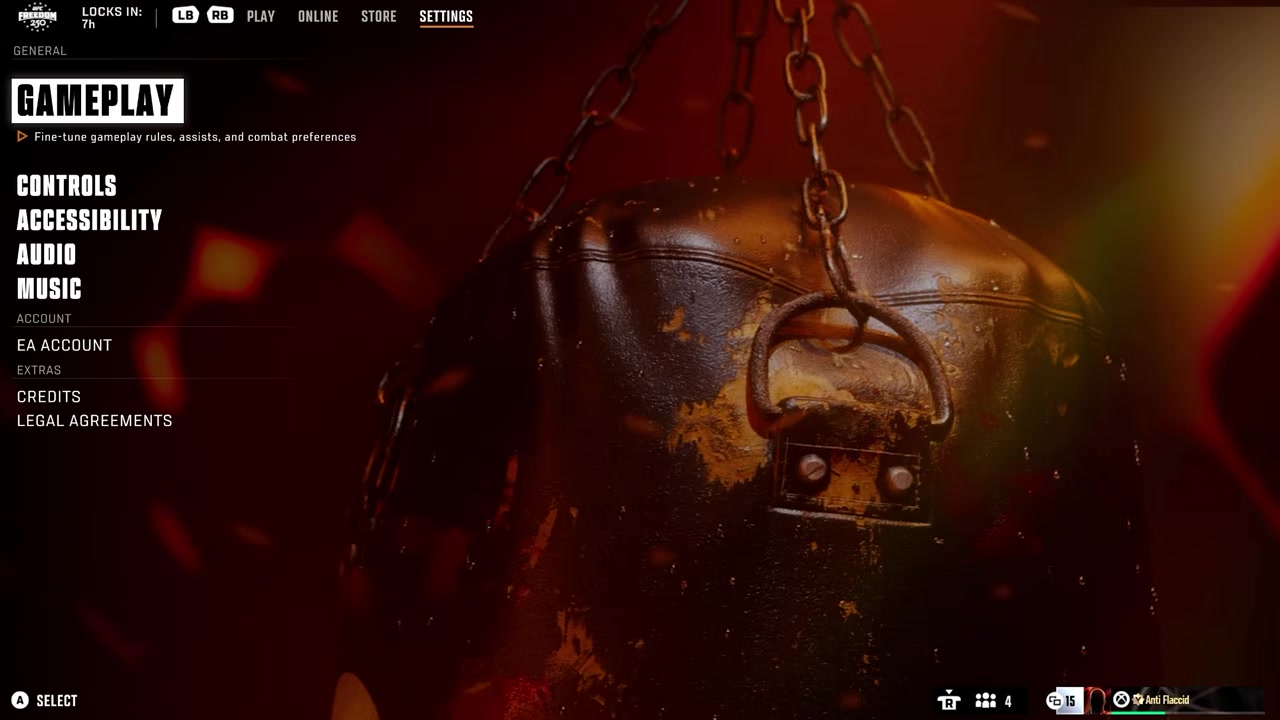
Select the Gameplay tab
Click into Gameplay from the settings menu.
Open the Gameplay section
Move across to the Gameplay section where these toggles live.
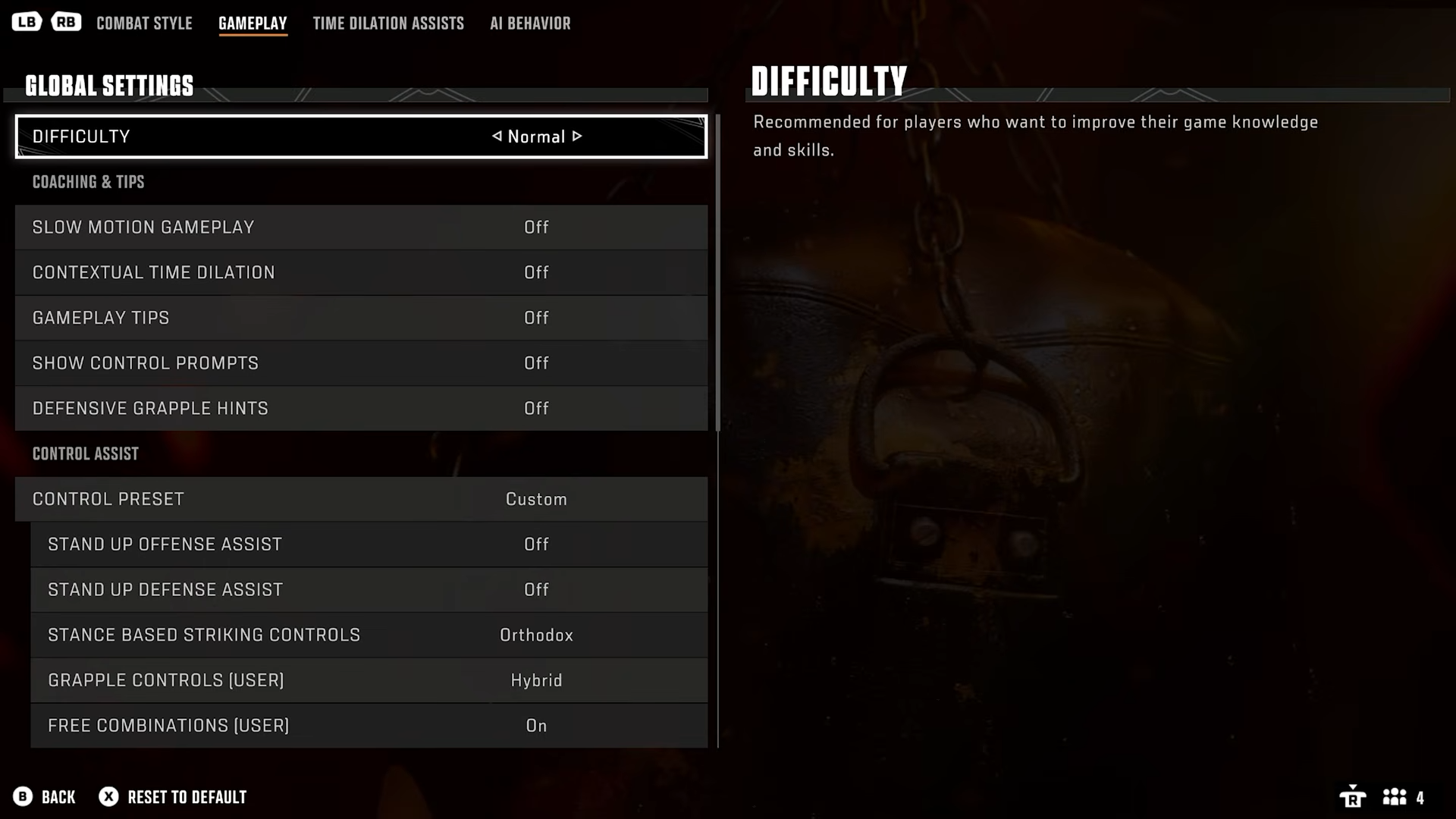
Set Contextual Time Dilation
Turn it off unless you’re brand new and still learning head movement and basics.
Turn on Free Combinations
Flip this on for faster, freer combos instead of the game’s preset strings.
Change Camera Style to Wide
Switch from the default Medium to Wide for the cleanest standard view.
Set Stance-Based Striking Controls
Keep the fixed-button default as a new player, or use the stance-flipping mode if you’re a veteran.
Frequently Asked Questions
Is Contextual Time Dilation available in online matches?
No. The slow-motion learning feature is an offline aid — it doesn’t apply in matches against other players, so don’t expect it in ranked or competitive play and don’t rely on it for your timing.
Should beginners turn Contextual Time Dilation off right away?
Not necessarily. If you’re brand new to the series, it’s fine to leave it on for a fight or two while you learn head movement and the basics. Most players end up turning it off within the first fight or two anyway, so switch it to Off as soon as the controls feel comfortable.
Should I turn Free Combinations on or off?
Turn it on. With Free Combinations enabled, your combos come out faster and you can throw what you want rather than the game’s preset strings. It’s the setting to change if your follow-ups feel stuck or sluggish — the default value isn’t confirmed, but flipping it is what removes that throttled feeling.
Which camera style is best in UFC 6?
Wide. The default is Medium, and the other angles tend to sit too close or feel awkward. Wide gives you a pulled-back, standard view that keeps both fighters on screen and makes range, kicks, and circling much easier to judge.
When should I use Stance-Based Striking Controls?
Mainly if you’re a veteran of older UFC games. The default keeps your lead and rear strikes on fixed buttons no matter your stance, which is simpler for new players. The stance-flipping mode swaps those buttons when you change stance, like the older games — better if your muscle memory already expects that. The exact option labels vary in the menu, so pick by the behavior you want rather than the name.



Leave a Reply