

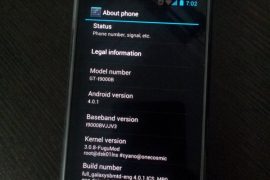
While Samsung would take ages — if they intend to bring the update in first place, which itself is debatable — to release the latest Android 4.0 update to Galaxy S officially via Kies, our beloved developers have already started burning their midnight oil to get you Ice Cream Sandwich love on your very dear very venerable phone in android blogosphere, the Galaxy S.
And their hard work is showing up now in the form of a custom ROM — we’re talking about the first ICS (Android 4.0) port for Galaxy S, made by pretty famous now on Galaxy S development scene, Galnet.
Developers: Galnet was first one to boot ICS on Galaxy S but since then, he and his team has been quite on this. The development came to life only after Onecosmic started working on it and he is the one who took further, making it a bit usable and fixing the touchscreen and doing all the crazy part. After Onecosmic got busy with other stuff, work was resumed by PaulForde, who is responsible for current stage of rom, among with other devs who are working continuously on it right now.
Developers and Donation Link
Here is list to all devs who are currently active on this rom. And we hope you donate them to show your gratitude to them for work they have, while also encouraging them for working more on this development.
Android 4.0 Ice Cream Sandwich (ICS) ROM Status
Update (As of February 12, 2012): RC 4.2 is out — it’s simply one incredible rom, by certain awesome teams of devs.
Big Update: RC1 is out. Features working from this release: Video recording and playback, Hardware Acceleration, Calendar Sync, etc. You may want to celebrate this!! People avoiding the ICS — somehow, I mean — should try this version. Kudos to PaulForde (we’re really thankful to him for this) and Onecosmic.
Almost everything is working — though, of course, there are bugs!
COMPATIBILITY
[error]This guide is applicable only for Samsung’s Galaxy S international version — GT-i9000 and GT-i9000B. Check your phone’s version in Settings – About Phone. It has to be “GT-i9000” or “GT-i9000B” for this Android 4.0 port ROM to be compatible with your phone. Otherwise, simply don’t try this ROM on your android handset — don’t even think about it if you care about your android device.[/error]
WANRING!
[warning]The methods and procedures discussed here are considered risky and you should not attempt anything if you don’t know completely what it is. If any damage occurs to you or your device, we won’t be held liable — you only will be responsible, you’ve been warned!!![/warning]
Installing the Android 4.0 ICS custom ROM isn’t that hard if you’ve already done flashing stuff a couple of times. But even if you’re new to flashing and custom ROMs, don’t worry one bit, we’ve got you covered. Just watch the video below, read the instructions and you are good to do it yourself.
Pre-Installation thoughts:
- Installing/Flashing this ROM will erase your apps and data. So, it’s a very important you back them up, before proceeding further. To backup your apps and important data — bookmarks, contacts, SMS, APNs (internet settings), etc. Restore APN settings if Internet isn’t working for you. This Android backup guide would help you. And if you’ve rooted your Galaxy S, you can save application’s data too, using Titanium backup (free app on android market) to backup apps with data. And use this this app only again to restore those apps with data.
- Drivers! — it’s important you’ve the proper drivers installed. Download links below:
- If you have Samsung’s PC software Kies installed, be sure to exit it before using flashing this ROM, or anything with odin software.
Android 4.0 Ice Cream Sandwich for Galaxy S
Update: The installation process is much different now that what was for the initial release. But you can still watch the video — especially if you’re new to this — to get the idea of flashing and stuff. And the guide below has been duly updated to take care of installation needs of the latest release. So, go ahead!
So, the video below is not to be followed, but if you want to learn about rebooting into recovery, using CWM recovery, and other things, watching the video for once is recommended.
Here’s the video showing the installation of Android 4.0 custom ROM (AOSP port, version alpha4):
Note: There is a brief overview (from 6:58) of Android 4.0 running on Galaxy S in the above video.
How to Install Ice Cream Sandwich on Galaxy S [step-by-step guide]:
- Flash XXJVU Android 2.3.6 based firmware first.
- Install CWM and Root on the XXJVU.
- Download the latest version of “Android 4.0 ROM” from here — let’s call it rom file — and then continue the steps below to flash it without any worries. be careful while downloading since that page has downloads for all version of Galaxy S for which this rom is available. Download one meant for your phone, i9000.
- Transfer the rom file to your phone’s sdcard (don’t use external sdcard, btw). Remember the location where you transfer this files.
- Power Off your Galaxy S. Wait for 5-6 seconds until you feel the vibration to confirm complete switch off.
- Boot into Recovery mode. Then, press and hold these 3 buttons together: VolumeUP+Home+Power till the Galaxy S logo shows up on screen. You’ll boot into CWM recovery soon enough. (In recovery, use Volume keys to scroll up and down and power key to select an option. Use back key to go back.)
- Do Wipe Data/Factory Reset
- Do Wipe Cache Partition
- Go to advanced and do Wipe Dalvik Cache
- Now, flash the rom file. Select install zip from sdcard » choose zip from sdcard » browse through sdcard and select the rom file you downloaded in step 3 and transferred in step 4 above. Select “Yes – Install ______” on the next screen.
- After flashing necessary stuff, phone will boot up into recovery again. You will notice it’s a different recovery, colored blue now, and this is what was flashed in step 10 above to make the phone ready for installation.
- Now, flash the rom file again. Select install zip from sdcard » choose zip from sdcard » browse through sdcard and select the rom file you downloaded in step 3 and transferred in step 4 above. Select “Yes – Install ______” on the next screen.
- Go back and select ‘reboot system now’ to restart the phone. Be patient while phone boots up, it may take between 5 to 15 mins for first boot.
- IF IT FAILS TO BOOT in 15 mins, then, well we got problem here. Do this:
- When the phone is restarting (still booting up) open the back cover and REMOVE the battery. Yes you read it right. Reinsert it after 3-4 seconds and then boot into recovery again.
- In recovery, do a Wipe Data/ Factory Reset. And then, select reboot system now to restart the phone. it should boot up properly now. If it doesn’t, then perhaps you did not follow something correctly.
- Also, if you are not happy with the performance of this rom — maybe because it lacks some apps/features you cared too much for, or reboots itself — I would suggest you to install the Android 4.0 AOKP Rom for Galaxy S, it’s simply damn good.
- [Optional] Support the development and appreciate the hard work put in by the team by donating them. Find donation link given above.
- Also, it’s already rooted. You don’t need to root it.
- Just for your info, Android 4.0 custom ROM is available Galaxy S2 too — find our Installation Guide for Android 4.0 on Galaxy S2 i9100 here.
GOING BACK TO ANDROID 2.3 (Gingerbread) [IMPORTANT!!!]
Btw, if you want to revert back to Android 2.3 Gingerbread firmware from this Android 4.0 custom rom, get (install) the XXJVU firmware, linked in at step 1 above. And if wanted by you, root it as given in step 2.
Overview — Android 4.0 AOSP ROM (version Alpha 4) on Galaxy S
Screenshots:





3,840 responses to “Android 4.0 Ice Cream Sandwich (ICS) Update for Galaxy S i9000 [Custom ROM]”
This works i had the same problem, i first flashed CM7 then ICS then it worked 100%
wow awesome now it os working perfect after installing by your way…..:)
viber application is not running on my mobile after installing ICS 4.0
viber application is not running on my mobile after installing ICS 4.0
can abyone help me with this?
Is it also working on a galaxy sl?
I9003?
probably not…
Awesome rom, thx to the devs behind that! Running Beta1. Everything works good except the front camera is stretched. Anyone knows what’s fixed in beta 2?
This works i had the same problem, i first flashed CM7 then ICS then it worked 100%
wow awesome now it os working perfect after installing by your way…..:)
I’m having some of the same issues as below and also can’t add facebook or twitter sync accounts in settings. Anyone else been able to do this?
Otherwise great rom!
viber application is not running on my mobile after installing ICS 4.0
viber application is not running on my mobile after installing ICS 4.0
viber application is not running on my mobile after installing ICS 4.0
can abyone help me with this?
viber application is not running on my mobile after installing ICS 4.0
can abyone help me with this?
Is it also working on a galaxy sl?
I9003?
probably not…
Is it also working on a galaxy sl?
I9003?
probably not…
Awesome rom, thx to the devs behind that! Running Beta1. Everything works good except the front camera is stretched. Anyone knows what’s fixed in beta 2?
Awesome rom, thx to the devs behind that! Running Beta1. Everything works good except the front camera is stretched. Anyone knows what’s fixed in beta 2?
I’m having some of the same issues as below and also can’t add facebook or twitter sync accounts in settings. Anyone else been able to do this?
Otherwise great rom!
I’m having some of the same issues as below and also can’t add facebook or twitter sync accounts in settings. Anyone else been able to do this?
Otherwise great rom!
Whatsapp working?
Yea it works perfect =)
Whatsapp working?
Yea it works perfect =)
Whatsapp working?
Yea it works perfect =)
“Encryption unsuccessful” !!!
My computer cant find my phone, someone any suggestions?
I need to root my phone to use titanium back up pro, or else i lost everything.
Someone help.
Check step no. 20 above.
Yea i downloaden it, but how can i put the file on my phone if my phone dont connect with the computer..
I did connected my phone with wifi, and i downloaded whatsapp and it says “Whatsapp can’t find the right identificationcode for your device, please shut down your phone and remove the battery, and put it back and try again” but i keep getting the same problem..
Sorry for my english, hope you understand
If you can’t get your phone to connect while in ICS, boot into the recovery rom. There is an option there under “mount” to mount as a USB device. You can then transfer files to and from the computer while in that menu.
Thanks it worked!!
How do we access external SD Card on beta2?? explorer isn’t detecting external storage anymore…
seems that I always have problems detecting the external storage card… 16GB too large a storage for current build?? 🙂
furthermore, when i tried to access the “Storage” function, it crashed…
“Encryption unsuccessful” !!!
“Encryption unsuccessful” !!!
My computer cant find my phone, someone any suggestions?
I need to root my phone to use titanium back up pro, or else i lost everything.
Someone help.
Check step no. 20 above.
Yea i downloaden it, but how can i put the file on my phone if my phone dont connect with the computer..
If you can’t get your phone to connect while in ICS, boot into the recovery rom. There is an option there under “mount” to mount as a USB device. You can then transfer files to and from the computer while in that menu.
Thanks it worked!!
I did connected my phone with wifi, and i downloaded whatsapp and it says “Whatsapp can’t find the right identificationcode for your device, please shut down your phone and remove the battery, and put it back and try again” but i keep getting the same problem..
Sorry for my english, hope you understand
My computer cant find my phone, someone any suggestions?
I need to root my phone to use titanium back up pro, or else i lost everything.
Someone help.
Check step no. 20 above.
Yea i downloaden it, but how can i put the file on my phone if my phone dont connect with the computer..
If you can’t get your phone to connect while in ICS, boot into the recovery rom. There is an option there under “mount” to mount as a USB device. You can then transfer files to and from the computer while in that menu.
Thanks it worked!!
I did connected my phone with wifi, and i downloaded whatsapp and it says “Whatsapp can’t find the right identificationcode for your device, please shut down your phone and remove the battery, and put it back and try again” but i keep getting the same problem..
Sorry for my english, hope you understand
How do we access external SD Card on beta2?? explorer isn’t detecting external storage anymore…
seems that I always have problems detecting the external storage card… 16GB too large a storage for current build?? 🙂
furthermore, when i tried to access the “Storage” function, it crashed…
How do we access external SD Card on beta2?? explorer isn’t detecting external storage anymore…
seems that I always have problems detecting the external storage card… 16GB too large a storage for current build?? 🙂
furthermore, when i tried to access the “Storage” function, it crashed…
I’m facing network issues after installing the ROM. Its like zero signal inside any building Can you pl help with this issue.
just install CM7 and flash back the android 4.0. I guess it works. Even i had the same problem but later after proceeding with procedure it worked.
I’m facing network issues after installing the ROM. Its like zero signal inside any building Can you pl help with this issue.
just install CM7 and flash back the android 4.0. I guess it works. Even i had the same problem but later after proceeding with procedure it worked.
I’m facing network issues after installing the ROM. Its like zero signal inside any building Can you pl help with this issue.
just install CM7 and flash back the android 4.0. I guess it works. Even i had the same problem but later after proceeding with procedure it worked.
My phone won’t connect to my computer. Help
i’m currently on xxjvt, do i need to go back to xxjvs?
You can install from jvt using custom recovery.
ics is now running after flashing from xxjvt, however, i got no signal from any network. it just says error while searching for netwroks.
just install CM7 and flash back the android 4.0. I guess it works. Even i
had the same problem but later after proceeding with procedure it
worked.
viber application is not working on android 4.0. Can anyone help with this?
My phone won’t connect to my computer. Help
My phone won’t connect to my computer. Help
can’t connect to pc since update. help ?
Put your phone in recovery mode, and go to “Mount” option and below the menu you see “Mount to USB”
I did everything to get my internet back, i used the script manager I followed every step, but my internet is not comming back… and if i want to connect with WIFI it keeps saying “autentication problems” so now i’m like WTH!!
i’m currently on xxjvt, do i need to go back to xxjvs?
You can install from jvt using custom recovery.
i’m currently on xxjvt, do i need to go back to xxjvs?
You can install from jvt using custom recovery.
Omg my baseband is unknow that’s why!! can some1 help…
Baseband: UnknownKernel: 3.0.8 FugumodBuildnumber: GWK74
install cm7 then flash again ics, i had the same problem 6 hours ago.
Oke, thanks
2 days ago made a mistake, i had cm7 on my phone, but i flashed it to 2.3.5 XXJVS stupid me…
ics is now running after flashing from xxjvt, however, i got no signal from any network. it just says error while searching for netwroks.
just install CM7 and flash back the android 4.0. I guess it works. Even i
had the same problem but later after proceeding with procedure it
worked.
ics is now running after flashing from xxjvt, however, i got no signal from any network. it just says error while searching for netwroks.
just install CM7 and flash back the android 4.0. I guess it works. Even i
had the same problem but later after proceeding with procedure it
worked.
viber application is not working on android 4.0. Can anyone help with this?
viber application is not working on android 4.0. Can anyone help with this?
can’t connect to pc since update. help ?
Put your phone in recovery mode, and go to “Mount” option and below the menu you see “Mount to USB”
can’t connect to pc since update. help ?
Put your phone in recovery mode, and go to “Mount” option and below the menu you see “Mount to USB”
I did everything to get my internet back, i used the script manager I followed every step, but my internet is not comming back… and if i want to connect with WIFI it keeps saying “autentication problems” so now i’m like WTH!!