What to know
- Computer speed and performance greatly depend on the hardware, Windows settings, and how you use your PC.
- The easiest way to get the most out of your Windows PC is to disable visual effects, clean up temporary files, and turn off all unnecessary services and programs that needlessly consume resources and those that you don’t need.
- Since Windows 11 uses a lot of memory and storage space, keeping a minimal setup will ensure that your computer resources are not wasted.
- Consider upgrading your PC with additional RAM and storage space if software solutions alone don’t lead to the performance jump you need.
The fact that it is the most widely used operating system in the world also makes Windows 11, arguably, the best in the business. But it can also be slow at times and it is not just a matter of an aging computer but also Windows itself.
There are various Windows settings and features, enabled at the outset, that can add a considerable strain to your PC’s capabilities. If you’re looking to speed up your computer on the whole and eke out more performance on Windows 11, here are a few solutions, tips, and tricks that you should consider employing.
How to speed up your Windows 11 PC
A laggy Windows 11 device can be attributed to multiple reasons. Everything from your computer hardware capabilities, age, malware infestation, too many startup apps, bloatware, malware, clutter, visual effects, and how you use your computer generally are all common reasons why your computer may not be working as fast as you expect. But all this is fixable and should be attended to if you want to get the best performance possible from your Windows 11 computer.
Part 1: 22 changes you can make in your PC’s settings to make it faster
Much of the changes, tweaks, and performance optimization can be done from within Windows itself so you don’t have to install any third-party apps or spend on hardware upgrades. Consider making the following changes to your Windows device to speed it up.
1. Disable Startup apps
If you spend time closing apps every time you turn your computer on, you should disable them for good. These startup apps consume resources unnecessarily when they are allowed to run in the background as such. Many of these are native apps, but apps installed by you also join the list if you’re not careful.
Here’s how to disable startup apps so they won’t bother you or eat up precious computer resources.
Video Guide:
Step-by-step guide with screenshots:


However, as you may have noticed, the Settings page doesn’t show all startup apps. To get a more comprehensive picture, you should also check the Task Manager.


Do so for all apps that you want to disable.
Note: If there are apps or services that you’re not sure about, such as driver services, do not change them.
2. Uninstall all unwanted programs
Over time, we all tend to amass programs that we used once but no longer need. Apps and programs don’t just use storage space but add to the Windows registry, create temporary working files, and possibly interrupt other programs as well. The cumulative effect of too many apps leads invariably to a slower computer. But that is easily remedied.
Video Guide:
Step-by-step guide with screenshots:


Do so for all apps that you no longer need, and free up resources.


3. Cleanup Disk
Your disks inevitably get cluttered over time with different types of cache, temporary files, log files, etc. These can and should be frequently removed with the use of the Disk Clean utility. Here’s how:
Video Guide:
Step-by-step guide with screenshots:


4. Close apps that are not in use
Although Windows 11 is sweetly set up for multitasking, if your computer performance is left stuttering when you open multiple apps, you should consider focusing on one task at a time and only opening apps that you really need.
By the same token, since browser tabs tend to take up a lot of memory, you should also close tabs that you no longer need. Or at least turn on the Memory Saver feature on Chrome (Sleeping tab feature on Edge) to conserve resources.
Video Guide:

5. Close system tray apps and programs
Many apps will keep on running in the background even after you close them. You will find them hiding in the system tray.
Video Guide:
Step-by-step guide with screenshots:


6. Turn off visual effects, transparency, and animation
Perhaps the biggest boost you can give to your computer is to turn off the fancy visual effects on Windows 11. Even though these effects are what give Windows 11 its polished, next-gen look, your computer has to dedicate a good portion of its resources to achieve that.
There are three different categories of effects that you should optimize for better performance: visual effects, transparency, and animation. Here’s how to turn them off:
Video Guide:
Step-by-step guide with screenshots:


However, doing so may throw your Windows experience back to the stone age.


The resources taken up by these can now be used elsewhere.
7. Disable Notifications
Notifications from apps and programs, though sometimes useful, also have to dip in the resource pool to work properly. They might even take precedence over other services since they are set to notify you as and when they are triggered.
Video Guide:
Step-by-step guide with screenshots:


Disabling notifications may seem small and ineffective. But when it’s a matter of reducing the computational load that your computer is under, everything adds up.
8. Try Efficiency Mode
Efficiency mode is one of the more recent Windows 11 features designed to better manage app priority and power efficiency. But besides improved battery life, more efficient use of resources invariably also leads to better computer performance. By reducing the priority of applications and processes, the resources conserved are channeled elsewhere where they’re more urgently required.
Video Guide:
Step-by-step guide with screenshots:


Note: You won’t be able to turn on Efficiency mode for a process tree, only individual processes. So make sure to expand the process tree of an app and turn Efficiency Mode on for the processes.

9. Hunt down and remove malware, viruses
Malware and viruses are never good news. Even though their prevalence has been curtailed by better Windows and browser security, they’re not altogether gone. Computer viruses are still a very potential cause of computer slowdowns. Here’s how you can scan your system for viruses:


You should conduct a manual quick scan or even a full system scan once a month to ensure that your computer remains safe from external threats.
10. Free storage space (and use Storage Sense)
Low storage space, especially on the C: drive, can also lead to slower computer performance. Limited space makes it harder for running Windows, registering important files, paging, and other important functions that are mostly restricted to the system drive.
If you don’t remember the last time you cleared system clutter, you’ll most likely find a lot of files worth disposing of. Here’s how to go about it:
Video Guide:
Step-by-step guide with screenshots:
Win+I to open Settings. With ‘System’ selected on the left, scroll down on the right and click on Storage.


11. Disable Background apps
Restricting apps from running in the background is another way to ensure that they don’t deprive your computer of necessary resources. Even when background apps are optimized and limited in priorities, they still burden your PC’s memory.
On Windows 11, there is no singular toggle to disable all background apps in one go. Instead, you have to individually go into an app’s advanced options to disable it from running in the background. Here’s how to do so:
Video Guide:
Step-by-step guide with screenshots:


Note: There will be a few apps for which you won’t see ‘Advanced options’. Don’t worry about these as they won’t be set up to run as background apps to begin with.


Do so for all such apps that you think continue to run in the background even after you close them.
12. Disable restartable apps
Much like startup apps, Windows restarts certain apps as soon as you log in to speed up your work and continue where you left off. But this is not ideal for those who’re experiencing their computers slow down on the whole. Disabling this feature can wrest back control of the resources otherwise spent on restarting apps upon login. Here’s how:
Video Guide:
Step-by-step guide with screenshots:


13. Change Power Settings to Best Performance
If you have a laptop or other mobile Windows device that runs on a battery, your power plan determines the balance between battery life and performance. But when it’s a matter of speeding up your computer, you want to make sure that your computer is using power to perform the best it can.
Video Guide:
Step-by-step guide with screenshots:


14. Update Windows
Microsoft releases Windows and driver updates frequently to fix bugs, add features, and optimize Windows. Keeping your system up to date will ensure that it doesn’t date as fast and has all the features and tricks to optimize for the best performance.


You will receive feature as well as driver updates this way.
15. Pause OneDrive sync
For most people, OneDrive is not the cloud service of choice. But even for OneDrive subscribers, its constant file syncing can leave one’s computer resources overly strained and render Windows slow. To speed up the computer, you are better off pausing OneDrive file sync.
Video Guide:
Step-by-step guide with screenshots:


If you so wish, you can also simply ‘Quit OneDrive’. But if OneDrive is set up to run at startup, it will return to syncing files as usual. In such a case, it would be better to disable it as a startup app (as shown above).
16. Turn off Windows Tips and Suggestions
By default, Windows provide tips and suggestions to new users to get accustomed to its features better. But these suggestions are not only not worth the trouble, they also take up system resources to generate. If you haven’t turned it off already, here’s how to disable Windows tips and suggestions:
Video Guide:
Step-by-step guide with screenshots:
Win+I). With ‘System’ selected in the left pane, select Notifications on the right. 


17. Turn off Game Mode
Game Mode is a Windows feature that looks to improve the gaming experience by turning off certain background processes or delegating them to a lower priority level. This may sound innocuous and even helpful when you’re gaming. But it also enables Xbox-related services to run in the background which isn’t all that necessary when you’re not gaming.
Video Guide:
Step-by-step guide with screenshots:


18. Stay with Windows Security (don’t install a third-party antivirus app)
Gone are the days when having a third-party antivirus app was essential to your computer’s safety. Nowadays, Windows Security is more than enough to take care of all security issues while a dedicated antivirus app is nothing more than an unnecessary program for your computer to deal with.
Most antivirus programs are also quite heavy on resource consumption, often contain ads, and cost quite a bit. Clearly, if speeding up your Windows PC is the goal, the cons of having an additional antivirus app far outweigh the pros. You can safely leave it all to Windows Security to manage.
19. Turn off Search Indexing
Search indexing allows Windows to look for files on your PC and create a database locally for faster subsequent searches. But your computer performance takes a hit when Windows is search indexing. Even if your computer is fairly fast already, turning off search indexing will further boost its performance.
Video Guide:
Step-by-step guide with screenshots:


With Windows Search turned off, even though your searches will be slower, the overall performance boost you get will more than make up for it.
If you’d nevertheless like some folders to be included for faster search while excluding others, you can modify the search indexing settings yourself. To do so,


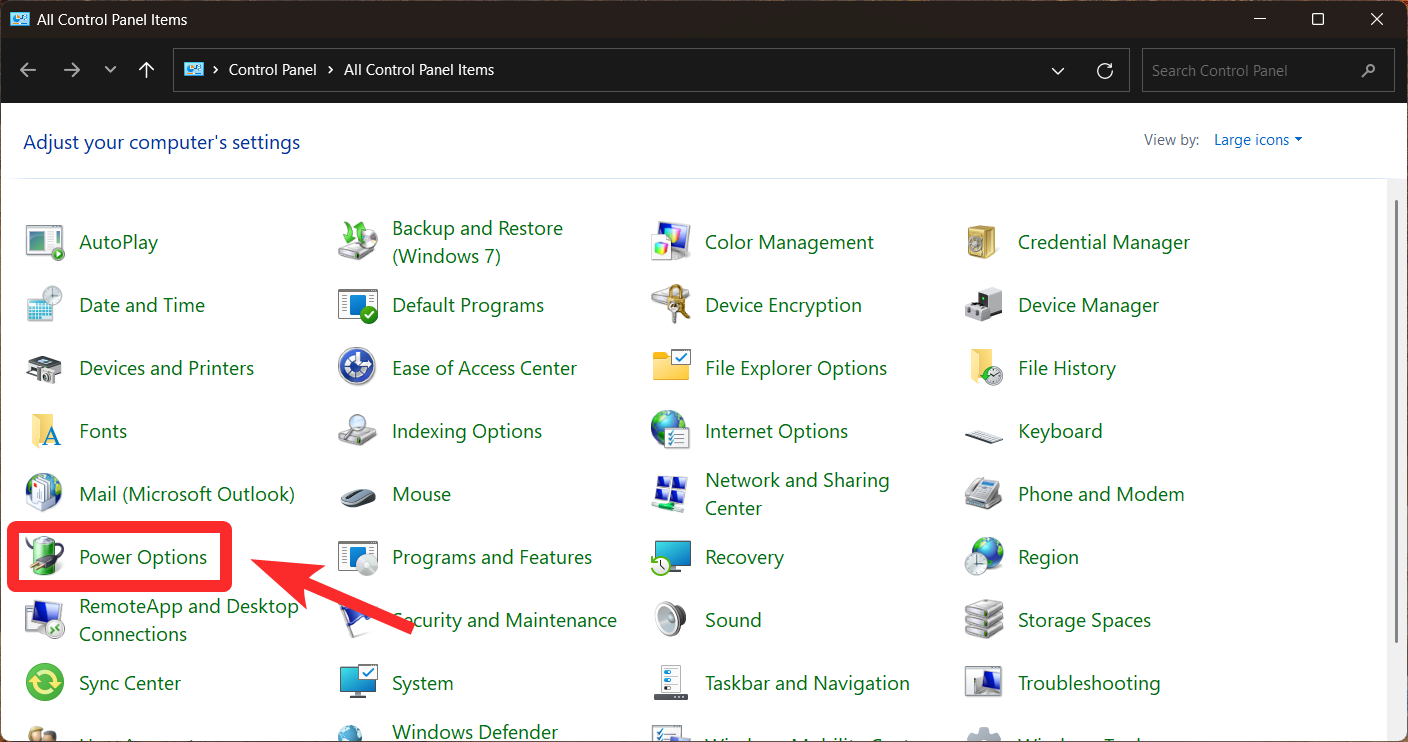
20. Turn on Fast Startup
The fast startup feature is one of the many Windows features that help to speed up your computer, specifically bootup timing. By saving system information on the drive, Windows can start quickly after a shutdown. Although enabled by default on Windows PCs, it is nevertheless good to ensure that it is turned on.



21. Defrag drive (for HDDs)
For those who have Windows installed on hard disk drives, defragmentation provides another great tuning option. De-fragmenting scattered sectors on a drive so that they are closer together allows for faster file access speeds.
Video Guide:
Step-by-step guide with screenshots:


Note: The image shown above is only for demonstration purposes. Do not defrag your drives if they are SSDs because Windows optimizes them automatically. In fact, it is recommended not to defrag SSDs as that can impair their performance and life.
22. Reset and reinstall Windows
If your computer is bogged down by too many programs, temporary files, viruses, clutter, and other issues, then resetting and reinstalling a fresh copy of Windows may, in fact, be the more viable option. It will take care of most issues that were slowing your computer down.
Win+I). With ‘System’ selected in the left pane, scroll down on the right and click on Recovery.


And then follow the on-screen prompts to rest Windows completely. Once it’s finished, and you’re booted to a new copy of Windows, you should see a marked uptick in performance.
Part 2: 3 changes that require new hardware or external solutions to speed up your computer
Software tweaks and optimizations for a faster PC can only go so far. If your computer is getting old or it doesn’t have sufficient resources to handle your tasks, then you would be better off investing in hardware upgrades.
1. Get more RAM!

If your computer has slowed to a crawl, additional memory is going to be the breath of fresh air it needs. More physical memory means more wiggle room for you to multitask with ease, run heavy programs, and future-proof your PC.
Depending on the manufacturer, you can easily get an additional 8 GB or 16 GB of DDR4 memory for about $15-40. If you have a slightly bigger budget or if your work demands more RAM, you should definitely consider bumping the memory up to 32 GB and getting DDR5 RAM. DDR5 is the industry standard of the day, and its addition will bring significant gains to your PC in terms of speed and performance.
2. Switch to an SSD

Ditching your hard drives for SSDs is the single best thing you can do in terms of hardware upgrades that will yield you the biggest jump in read/write speeds for a Windows PC. This will boost how quickly Windows loads, how fast you can move around and access files, and the speed with which they are transferred. All this improves the general snappiness of the Windows experience.
If you end up having both a hard disk drive and an SSD, choose the latter as your C: system drive for best performance.
3. Remove dust and improve cooling

Dust and dirt accumulate naturally. When the heat generated from your PC hardware doesn’t dissipate well because of dirt, you will inevitably face thermal throttling and a dip in performance. Unless you clean your PC regularly and maintain a good level of air circulation in the room, your PC is likely to suffer from dirt clogging the air vents and choke your computer thermals.
So, regardless of what levels of performance you’re getting from your computer, cleaning your computer vents and ensuring there is good airflow in your room will improve your computer’s speed markedly.
FAQ
Let’s take a look at a few commonly asked questions about speeding up a Windows PC.
Is Windows 11 faster than Windows 10?
Owing to its flashy visuals and next-gen configuration, Windows 11 takes up more memory and storage space than Windows 10 and could run more slowly on older PCs. However, a little tune-up and changes in the settings should ensure that Windows 11 runs as fast as it can on your current configuration.
Should I turn Game Mode on or off for better performance?
If you’re not playing games, it is recommended that you turn off Game Mode and disable the related Xbox services running in the background.
How to improve boot time on Windows 11?
To improve boot time on Windows 11, ensure that your C drive has enough storage space, that ‘Fast boot’ is turned on and startup apps are disabled. Refer to the guide above to know more.
Speeding up your Windows 11 PC doesn’t have to be an expensive affair. For most users, simply disabling unwanted settings, uninstalling unwanted apps, removing temporary files, and otherwise customizing Windows for best performance should free up enough memory to speed up your day-to-day tasks and improve performance. We hope this guide helped your computer gain a performance boost. Until next time!