
Here is the required procedure for obtaining root and installing clockworkmod (CWM) recovery on XXLPQ, the official Ice Cream Sandwich Android 4.0 firmware, released for the Galaxy S2 i9100 via Samsung PC software, Kies.
Thanks to Chainfire, who as always didn’t take much time after the release of the firmware to come out with a rooted and CWM-enabled CF-Root kernel for it. Be fully aware that this root and clockworkmod recovery installation guide is only for XXLPQ firmware and not any other firmware. So, make sure you have XXLPQ installed on your Galaxy S2 international version, i9100.
Compatibility
This procedure is compatible only and only with Samsung Galaxy S2, model number i9100. It’s not compatible with any other device. Check your device’s model number in: Settings » About phone. Also, make sure you are on XXLPQ firmware as well.
Warning!
Read everything carefully and thoroughly. The methods and procedures discussed here are considered risky and you should not attempt anything if you don’t know completely what it is. If any damage occurs to you or your device, we won’t be held liable.
How to Root XXLPQ Firmware and Install Clockworkmod (CWM) Recovery
- Download CF-Root kernel from the original download page → here.
Filename: CF-Root-SGS2_XX_XEO_LPQ-v5.3-CWM5.zip - Unzip the downloaded file once. You will get a .tar file – CF-Root-SGS2_XX_XEO_LPQ-v5.3-CWM5.tar.
DO NOT extract the .tar file (this might show up as a zip file as well, but do not extract it). You need to flash the .tar file using Odin to gain root access and install the ClockWorkMod Recovery (CWM) alongside. (If you’re getting a zImage file, it means you’ve extracted the .tar file too! — and that’s not a right thing to do. Use 7-zip (free software) to extract.) - Download Odin3 v1.83 from → here
Filename: Odin3-v1.83.exe | Size: 416 KB. - Switch off your phone. Wait for vibration to confirm complete switch off.
- Now, put the Galaxy S2 in Download Mode — press and hold these keys together: Volume Down + Home + Power. You’ll see a Warning! screen.. press Volume Up to continue.
- Open Odin now by double clicking on Odin3 v1.83.exe file you got in step 3.
- Connect your phone to PC now. You should get the message “Added! !” under Odin’s message box in the bottom left (Check screenshot after step 9). If you don’t get this message, then probably there is a problem with drivers. Make sure you’ve the drivers installed.
- On Odin, click the PDA tab and select the .tar file you got in step 2 — CF-Root-SGS2_XX_XEO_LPQ-v5.3-CWM5.tar.
- Important! Do not touch any other button or make any other changes in Odin except selecting the required file in PDA tab as given in step 8. Your Odin’s screen should look like this:

- Click the Start button on Odin to flash the CF-Root kernel (after double checking the ODIN screen). After flashing is complete, you’ll get a PASS message (with green background). Upon successful flashing, your ODIN screen will look like this:

IMPORTANT Note: If ODIN gets stuck and doesn’t seem to be doing anything, or you get a FAIL message (with red background) in ODIN, do the following:Disconnect the phone from the PC, close ODIN, remove battery, re-insert it, turn phone on in Download mode again, and do the procedure again from Step 6. - After CF-Root is installed, phone will restart automatically. When the Galaxy S2 logo shows up on phone, you can disconnect the cable from phone.
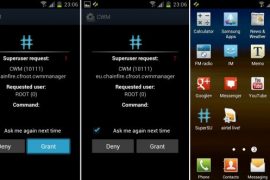
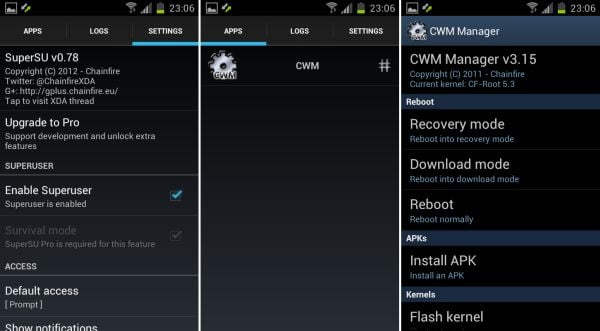
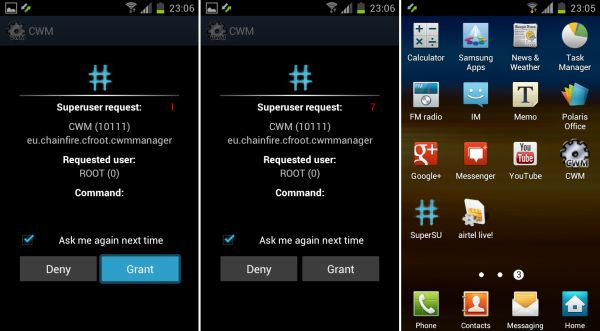
- Your phone is rooted now. Note that this time around it’s the new SuperSU app — alternative to good old superuser app — is included with the root and clockworkmod recovery. It allows you to give root access to applications and control their access. Also, CWM based recovery has been automatically installed too. Use the CWM app in app drawer to boot into recovery and do ROM backups and restore, installations, and much more.
- If you run into any problems while flashing CF-Root, let us know and we’ll try to help you out.
You have successfully rooted and obtained ClockworkMod recovery on XXLPQ Ice Cream Sandwich Android 4.0 firmware. Let us know your thoughts on it in the comments.





202 responses to “Galaxy S2 XXLPQ Root and Clockworkmod Recovery [Guide]”
know what…… WiFi failed to connect…….the CWM so annoying asking for grant everytime and stuck..
Try this: Boot into recovery mode and do “fix permissions” under the advanced option. To boot into recovery: first power off phone, then hold Volume UP + Home + Power key together until you see Samsung logo. Let me know.
know what…… WiFi failed to connect…….the CWM so annoying asking for grant everytime and stuck..
Try this: Boot into recovery mode and do “fix permissions” under the advanced option. To boot into recovery: first power off phone, then hold Volume UP + Home + Power key together until you see Samsung logo. Let me know.
all my sd card applications aren`t working after this rooting and it says applications are not install in ur phone
all my sd card applications aren`t working after this rooting and it says applications are not install in ur phone
all my sd card applications aren`t working after this rooting and it says applications are not install in ur phone
how to extract z image file to .tar file
how to extract z image file to .tar file
how to extract z image file to .tar file
i have always a notification now. i open it . it is diclaimer. i choose my country which it is cyprus i tick that i agree the terms, i am connected to internet and and i press confirm. It writes to me “processing failed”. what i have to do?
i have always a notification now. i open it . it is diclaimer. i choose my country which it is cyprus i tick that i agree the terms, i am connected to internet and and i press confirm. It writes to me “processing failed”. what i have to do?
i have always a notification now. i open it . it is diclaimer. i choose my country which it is cyprus i tick that i agree the terms, i am connected to internet and and i press confirm. It writes to me “processing failed”. what i have to do?
work like a charm 🙂
work like a charm 🙂
work like a charm 🙂
very good instruction… it worked out 🙂 thank you so much
very good instruction… it worked out 🙂 thank you so much
very good instruction… it worked out 🙂 thank you so much
can we use this for XXLPY?
can we use this for XXLPY?
can we use this for XXLPY?
Hi,
I follewed all steps and got a pass but no CWM or Superuser
@itskapil:disqus I have Android Version: 4.0.3
Baseband version I900XXLPQ
Kernel Version 3.0.15-I9100XXLPQ-CL22350se.infra@SEP-94 #3
Build number: IML74K.XXLPQ
Hi,
I follewed all steps and got a pass but no CWM or Superuser
Hi,
I follewed all steps and got a pass but no CWM or Superuser
@itskapil:disqus I have Android Version: 4.0.3
Baseband version I900XXLPQ
Kernel Version 3.0.15-I9100XXLPQ-CL22350se.infra@SEP-94 #3
Build number: IML74K.XXLPQ
@itskapil:disqus I have Android Version: 4.0.3
Baseband version I900XXLPQ
Kernel Version 3.0.15-I9100XXLPQ-CL22350se.infra@SEP-94 #3
Build number: IML74K.XXLPQ
Hi
I successfully rooted my S2 using this. There were no apps in the apps tab so I flashed clockwork mod from this site. http://galaxys2root.com/galaxy-s2-root/how-to-install-clockworkmod-recovery-on-rooted-galaxy-s2-i9100/ Now my phone wont boot. I can get to the orange recovery screen (power, home and vol up), but no further. I am a novice at this so how can I get my phone back please?
Hi
I successfully rooted my S2 using this. There were no apps in the apps tab so I flashed clockwork mod from this site. http://galaxys2root.com/galaxy-s2-root/how-to-install-clockworkmod-recovery-on-rooted-galaxy-s2-i9100/ Now my phone wont boot. I can get to the orange recovery screen (power, home and vol up), but no further. I am a novice at this so how can I get my phone back please?
Hi
I successfully rooted my S2 using this. There were no apps in the apps tab so I flashed clockwork mod from this site. http://galaxys2root.com/galaxy-s2-root/how-to-install-clockworkmod-recovery-on-rooted-galaxy-s2-i9100/ Now my phone wont boot. I can get to the orange recovery screen (power, home and vol up), but no further. I am a novice at this so how can I get my phone back please?
hola, mi teléfono no responde sale un triangulo amarillo y nada
hola, mi teléfono no responde sale un triangulo amarillo y nada
hola, mi teléfono no responde sale un triangulo amarillo y nada
I seem to be stuck at the boot screen with the yellow triangle. What to do :s
I seem to be stuck at the boot screen with the yellow triangle. What to do :s
I seem to be stuck at the boot screen with the yellow triangle. What to do :s
after I have installed the file, the phone is not booting up, and stuck on the booting screen with warning sign, then the phone turn off itself .. can you please let me know how to override this ? 🙁
after I have installed the file, the phone is not booting up, and stuck on the booting screen with warning sign, then the phone turn off itself .. can you please let me know how to override this ? 🙁
after I have installed the file, the phone is not booting up, and stuck on the booting screen with warning sign, then the phone turn off itself .. can you please let me know how to override this ? 🙁