Update: Link for latest version of TWRP recovery 3.0.0-1 added.
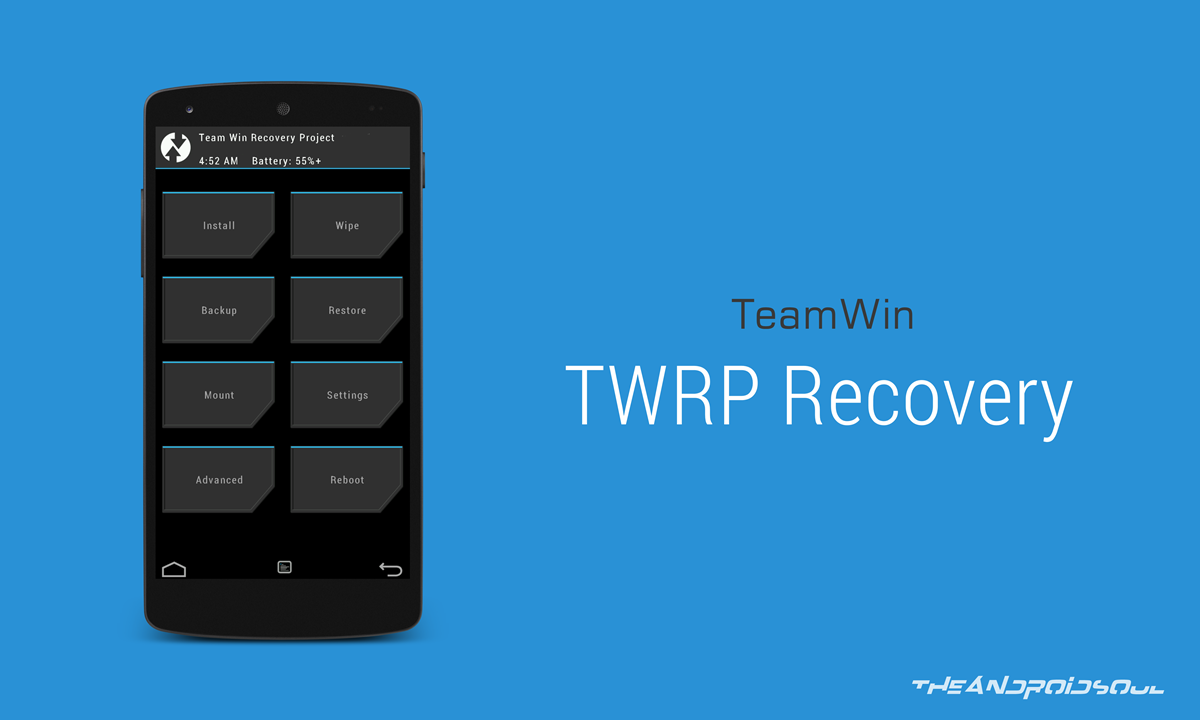
The latest version 3.0 of TWRP recovery for OnePlus One is now available for download and your installation pleasure. With TWRP 3.0, the TeamWin Recovery Project team has done remarkable job, and have added several cool features.
With OnePlus One TWRP 3.0, you get elegant UI and with extra features. The code of TWRP 3.0 is based on Marshmallow now, and it supports flashing sparse factory images too now.
New TWRP also allows you to decrypt adopted storage partition on Marshmallow, which is great when device is semi-bricked and you need your SD card formatted back. Enjoy OnePlus One TWRP 3.0!
Downloads
Because TWRP v3.0 is quite new right now, and involves many, many changes over v2.8, there are chances that few things might be broken in the new recovery. Hence we are providing both version 2.8.7.0 and version 3.0.0-0 herewith, so that in case the latest version doesn’t work, you can install the older 2.8.x version to have stuff working.
Supported devices
- OnePlus One, codename bacon
- Don’t try this one any other device with codename different than above!
Important: Check your device’s codename on free Android app called Droid Info. If you see the codename mentioned above in the app, then use this recovery, otherwise not. BTW, you can check codename device’s packaging box too.
Warning!
Warranty may be void of your device if you follow the procedures given on this page. You only are responsible for your device. We won’t be liable if any damage occurs to your device and/or its components.
Backup!
Backup important files stored on your device before proceeding with the steps below, so that in case something goes wrong you’ll have backup of all your important files.
Step-by-step Guide
[Note: In step 4 of the guide linked above, use the combination Volume Up + Power button to boot into bootloader mode.]
- Go to Settings > About phone, and then tap ‘Build number’ 7 times or until you see the ‘you’re now a developer’ message pop up.
- Go back to Settings, then choose ‘Developer options’. Find the ‘USB debugging’ option and use its toggle button to enable it. Accept warning by tapping on OK button.
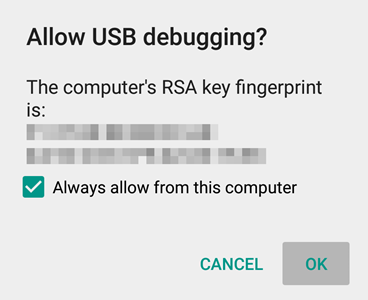
- Open that folder and then left click on empty white space in the folder.
- Now, while holding shift key, right click on empty white space to get a pop-up as shown below.
- Now choose Open command window here option from that.
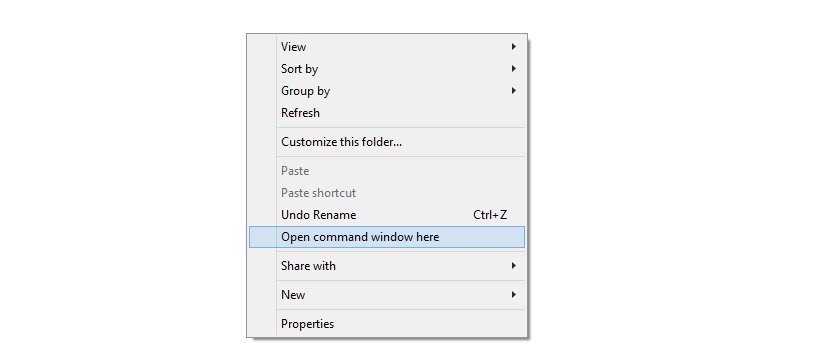
You will see a command window open up, with location directed to folder where you have the twrp recovery file.
- Power off your device and wait for 3-4 seconds after screen goes off.
- Press and hold Power and Volume Up together for 3 seconds and then let go. You’ll enter bootloader mode, also called Fastboot mode.
→ Upon running command below, you should get a serial no. with fastboot written after it. If you don’t get fastboot written on cmd window, then it means you need to reinstall adb and fastboot drivers, or change restart PC, or use original USB cable.
fastboot devices
fastboot flash recovery one-twrp.img
fastboot boot one-twrp.img
Alternative way to reboot into recovery mode is to power off the device first. And then press and hold Volume down + power button fo 4-5 seconds.
Happy flashing!
Need Help?
And let us know if you need any help regarding installation of TWRP recovery v3.0 on your OnePlus One. Use the comments section below.