

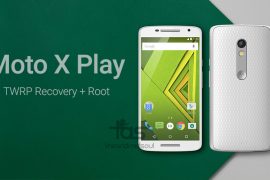
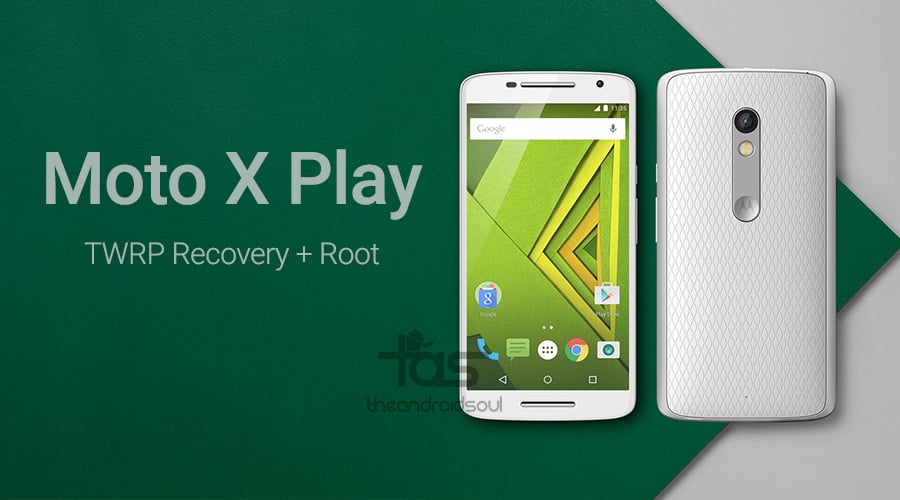
Here’s how you can download and install the TWRP recovery on your shiny new Motorola Moto X Play. You’ll need to unlock bootloader of your Moto X Play first, and then your device gets ready for flashing/installing TWRP recovery. See the link in the guide below on how to do this.
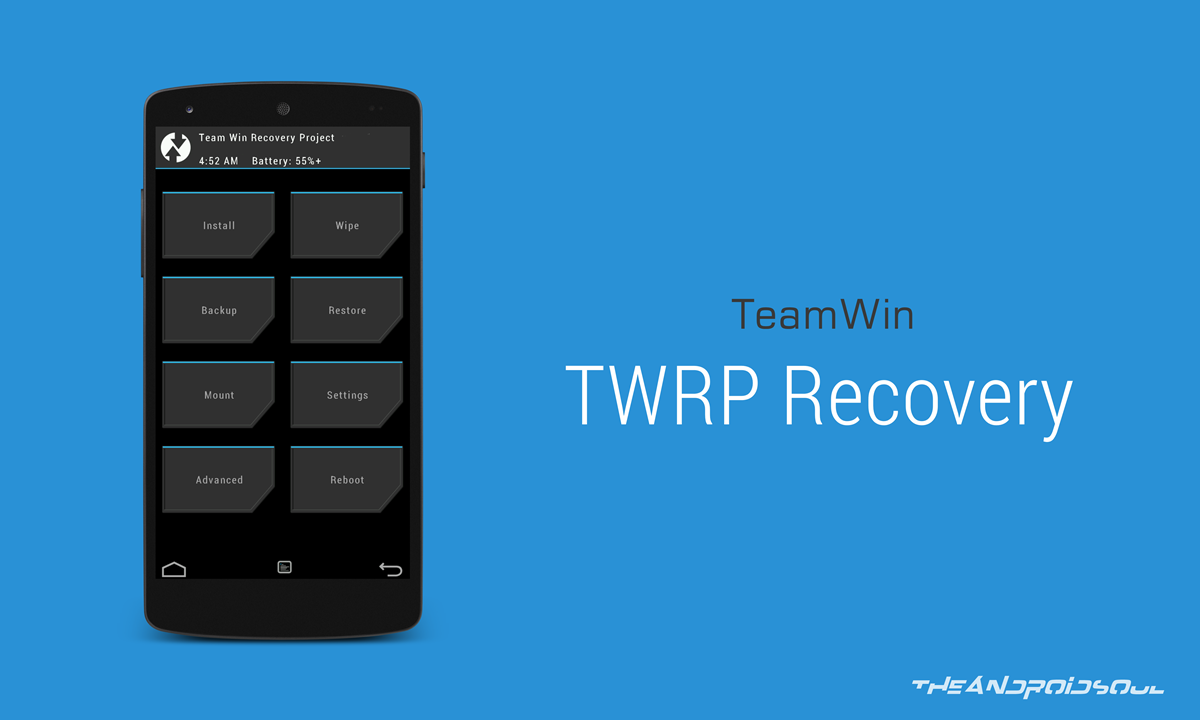
The Moto X Play TWRP is available in version 2.8.7.0. Although not the latest version exactly, it’s the latest major upgrade for sure.For what’s it worth, the latest version of TWRP is 2.8.7.3, but is not available on many devices yet.
Using the TWRP recovery on Moto X Play, you can take nandroid backups and even root your Moto X Play easily. If you wish to install Xposed framework and use its modules, you will need root access.
If you ever wish to install custom ROMs, or mods, you will need TWRP recovery. It’s a good tool to have, but installing this means getting warranty void, because you need to unlock your Moto X Play for TWRP, and doing that voids your device’s warranty.
Note: We recommend you create a full backup of your device using TWRP right after installing it. So that if you install a bad ROM or mod, you can easily restore back to stock using this backup. This is also helpful with OTA updates. So, once again, don’t forget to take full backup right after installing the TWRP (step 13 in guide below).
Downloads
- Moto X Play TWRP Recovery — Link | File: TWRP-lux-2.8.7.0.img (9.69 MB)
- SuperSU Root package — Link | File: UPDATE-SuperSU-v2.46.zip
Supported devices
- Motorola Moto X Play, model no. XT1562
- Don’t try this one any other device!
Warning: Warranty may be void of your device if you follow the procedures given on this page. You only are responsible for your device. We won’t be liable if any damage occurs to your device and/or its components.
Backup important files stored on your device before proceeding with the steps below, so that in case something goes wrong you’ll have backup of all your important files.
In case your device is not accepted at the Motorola’s page above, then it’s possible that unlocking bootloader is possible without any help from Motorola. it’s actually easier. For this, do the step 4 below right away (then do step 2 and 3 below), and then select the “Allow OEM unlock” checkbox in Settings > Developer options. This will unlock the bootloader of your device.
- Go to Settings > About phone, and then tap ‘Build number’ 7 times or until you see the ‘you’re not a developer’ message pop up.
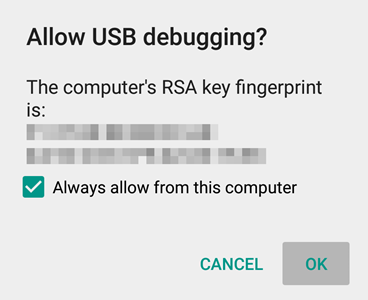
- Go back to Settings, then choose ‘Developer options’. Find the ‘USB debugging’ option and use its toggle button to enable it. Accept warning by tapping on OK button.
- Open that folder and then left click on empty white space in the folder.
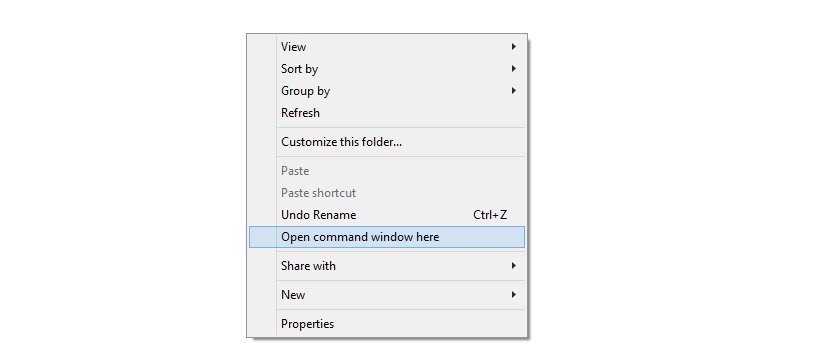
- Now, while holding shift key, right click on empty white space to get a pop-up as shown below.
- Now choose Open command window here option from that.
You will see a command window open up, with location directed to folder where you have the twrp recovery file.
- Power off your device and wait for 3-4 seconds after screen goes off.
- Press and hold Power and Volume down together for 3 seconds and then let go. You’ll enter bootloader mode. And should see FASTBOOT written at top. It’s already in Fastboot mode by default.
→ Upon running command below, you should get a serial no. with fastboot written after it. If you don’t get fastboot written on cmd window, then it means you need to reinstall adb and fastboot drivers, or change restart PC, or use original USB cable.
fastboot devices
fastboot flash recovery motog3-twrp.img
Happy flashing!
And let us know if you need any help regarding installation of TWRP recovery on your Moto X Play. Use the comments section below.


4 responses to “Moto X Play Root and TWRP Recovery”
Worked well!
Worked well!
I got successful message after installing superSU file but screen has been stuck to bootloader unlocked screen !
I got successful message after installing superSU file but screen has been stuck to bootloader unlocked screen !