

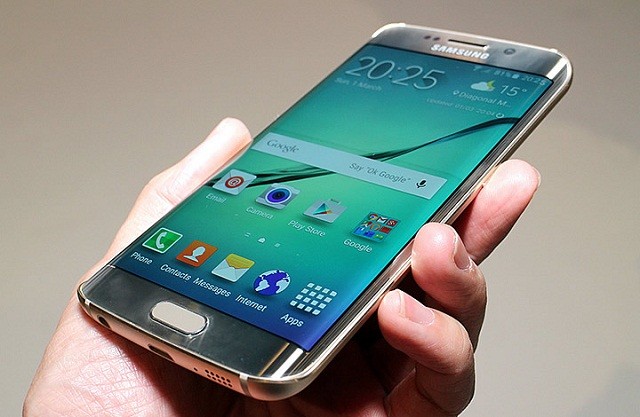
Xposed module is a favorite for advanced Android users, it’s a given. It’s one main reason many users to root their device. If you own a Galaxy S6 and are already running Marshmallow update, then it must have broken support for Xposed modules. Luckily, newer unofficial build of Xposed is available — thanks to wanam and rovo89 — which works perfectly with Galaxy S6 and S6 Edge (and Galaxy S5) running Android 6.0 build.
The installation procedure is simple, as it should be. But it’s lengthy because you need to install old boot image first. It’s not a problem at all, as you’ll see in the guide below, but it definitely gets you Xposed on Galaxy S6 Marshmallow build.
Note: It’s a little bit different procedure than our normal Odin flashes,s o pay attention to guide below.
Downloads
- Files for Galaxy S6 only:
- Odin PC software
- Xposed patch
- Xposed uninstaller
- Xposed App APK
Supported devices
- Samsung Galaxy S6, S6 Edge and other Samsung devices running Marshmallow
- Don’t try on any other device whatsoever whose model no. is different than the one provided above!
Important: Check your device’s model no. on its packaging box, or in Settings > About device.
Warning!
Warranty may be void of your device if you follow the procedures given on this page. You only are responsible for your device. We won’t be liable if any damage occurs to your device and/or its components. Also, this trips KNOX, meaning KNOX would stop working on your device, and thus you won’t be able to Samsung Pay, or install enterprise Apps on your device at Office.
Backup!
Backup important files stored on your device before proceeding with the steps below, so that in case something goes wrong you’ll have backup of all your important files. Sometimes, Odin installation may delete everything on your device!
Step-by-step Guide
Step 1. Download all 4 files from above: oldsboot, newsboot, recovery and Odin PC software. Also download Xposed patch, Xposed App APK and uninstaller.
Step 2. Install Galaxy S6 driver (method 1 there!) first of all. Double click the .exe file of drivers to begin installation. (Not required if you have already done this.)
Step 3. Extract the Odin file. You should get this file, Odin3 v3.10.6.exe (other files could be hidden, hence not visible).
- Go to Settings > About device. And then tap on build no. 7 times or until your get the message ‘You’re now a developer’.
- Go back to Settings, scroll down, and tap on ‘Developer options’.
- Look for ‘Enable OEM unlock’ and use its toggle to enable it. Accept the warning by tapping on OK button.
→ Also, be sure to disable the ‘Find My Mobile’ option in ‘Lockscreen and security settings’ for a while as that may block installation using Odin. You can re-enable it later on.
Moreover, if you don’t see these options, then ignore this step, it’s okay.
- Power off your Galaxy S6. Wait 6-7 seconds after screen goes off.
- Press and hold the three buttons Power + Home + Volume down together until you see warning screen.
- Press Volume Up to continue to download mode.

Step 8. Connect your Galaxy S6 to PC now using USB cable. Odin should recognize your Galaxy S6. It’s a must. When it recognizes, you will see Added!! message appearing in the Log box in bottom left, and the first box under ID:COM will also show a no. and turn its background blue. Look at the pic below.
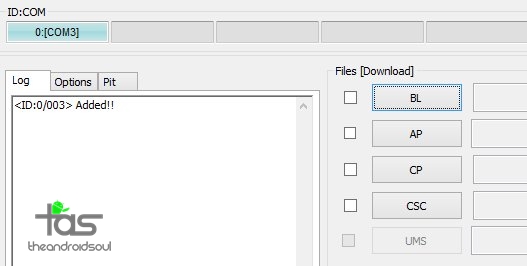
- You cannot proceed until you get the Added!! message, which confirms that Odin has recognized your device.
- If you don’t get Added!! message, you need to install/re-install drivers again, and use the original cable that came with the device. Mostly, drivers are the problem (look at step 2 above).
- You can try different USB ports on your PC too, btw.
Step 9. Load the oldsboot.tar file into Odin. For this, click the AP button on Odin and the select the kernel’s file you downloaded above.
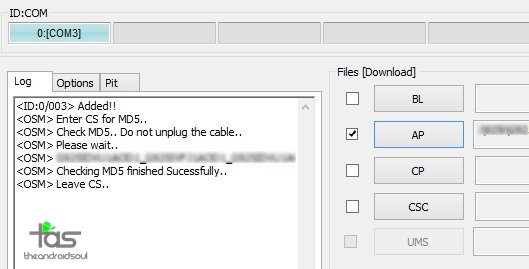
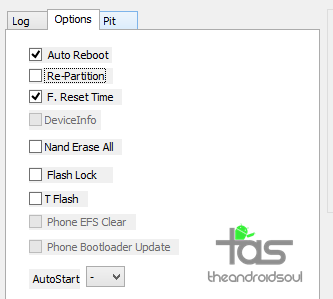
Usually, we keep Auto Reboot checked to allow device to restart after flashing, but not here, because we don’t want the device to restart automatically after flashing the old boot kernel because it won’t start alright on old boot.

- If Odin gets stuck at setup connection, then you need to do this all again. Disconnect your device, close Odin, boot device into download mode again, open Odin, and then select the file and flash it again as said above.
- If you get FAIL in the top left box, then also you need to flash the file again as stated just above.
Need help?
If you need any help with this, let us know via comments below and we will try our best to help you out.



4 responses to “Marshmallow Xposed for Samsung Galaxy S6 now available”
Xposed patch and the uninstaller are not available
Xposed patch and the uninstaller are not available
newsboot…?
newsboot…?