

Whatsapp is one of the most popular cross-platform messaging services currently available across iOS, Android, Blackberry & Symbian S60 platforms. Unlike the popular Blackberry Messenger a.k.a which works exclusively across Blackberry devices, Whatsapp is cross compatible across all the platforms that it supports, and users can message each other irrespective of the device being used.
Since WhatsApp Messenger uses the same internet data plan that you use for email and web browsing, there is no cost to message and stay in touch with your friends. In addition to basic messaging WhatsApp Messenger users can send each other unlimited images, video and audio media messages.
But in case you don’t have a data plan on your mobile or want to chat with long texts, then you would definitely wish that you could use it on your laptop or PC. While there is no official WhatsApp application available for Windows PCs, you can still use it by applying a workaround. Lets have a look at how to do that and get chatting with your friends in minutes right from your Windows PC or laptop.
How to Whatsapp on PC
- We would be using an a free Android emulator called BlueStacks on your PC to download and use Whatsapp services. Download BlueStacks to your PC,and install it like a regular Windows application, by double clicking the exe file. Let the installer take its time to download runtime packages and install fully.
- Once BlueStacks has been completely installed, it will automatically launch and you should see the home screen, like in the screenshot below. BlueStacks runs like any other Windows app, and you can Alt-Tab between your other open windows and BlueStacks with ease

- Now go ahead and search for Whatsapp by clicking on the blue colored Search button on the Top right. Once you see it in the search results, just click the Install button next to it to start download and installation in BlueStacks.

- Once BlueStacks has downloaded and installed Whatsapp, you should get a notification in your Windows system tray that Whatsapp has been installed. You’re running an Android emulator inside Windows, remember?
- Now click the Home button in the BlueStacks window, to go the home screen. You should now see the Whatsapp icon there, just like you would on your Android device home screen. Double click the icon to launch Whatsapp and you should be greeted with the familiar welcome screen.

- Click the Agree and continue button to proceed. On the next screen, select your country from the dropdown list. The country code will get automatically populated by Whatsapp. In the Phone Number field, enter an active phone number that you have access to. If you want to use the same number as the one you are using on your phone, you would need to uninstall Whatsapp from your phone before proceeding. Reason being that Whatsapp only allows one account per phone number.

- If you are using a phone number which has already been registered with Whatapp in the past, it will automatically pick up your avatar image and default Whatsapp name. Add your name and click Next on the Top right of the screen

- That’s it. You now have Whatsapp installed successfully on your Windows machine. But we are far from done yet. To be able to chat with all your friends over Whatsapp on your PC, you still need to add all your phone contacts to BlueStacks. Even if you have your Android contacts synced with Outlook on Windows, BlueStacks cannot read them. So we’re going to have to employ a slightly more circuitous route to get your contacts into BlueStacks. To do so, go back to your Android device and install a free app called MC Backup from the Play Store. Launch it on your phone, and tap the Green Backup Button on the main screen. The app will immediately start backing up all your phone contacts. Once it is done, just tap the Send button and enter your own email address in the email window that opens. You can then open your email on your PC and download the vcf file with all your phone contacts that the app would have sent to you.
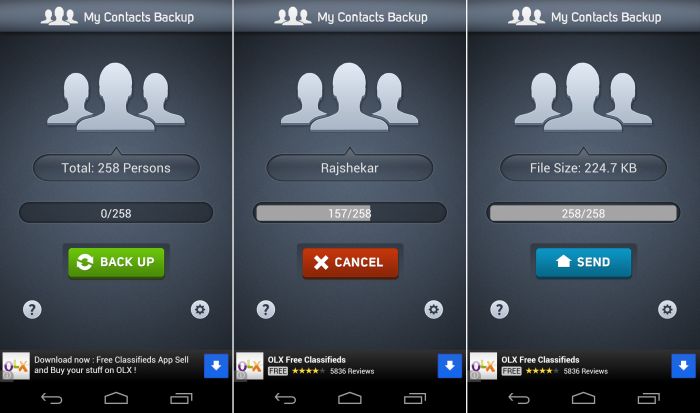
- That’s half the job done, with your Android contacts having been sent to your PC over email. Download the MCBackup.vcf file that you would have received in your mail, and save it to your desktop.
- Next, on your desktop browser, go to the Dropbox website, go ahead and create a free Dropbox account, if you don’t already have one. If you do, just sign into the web interface of Dropbox, and upload the MCBackup.vcf file that you saved to your Windows desktop in Step 9.
- Now go back to BlueStacks and click on the Search button. Search for Dropbox, and install it in the same way you did Whatsapp.
- Once installed, launch Dropbox from the BlueStacks home screen, and click Start on the welcome screen of Dropbox

- Enter your Dropbox login credentials and sign in to Dropbox. Click Next on the screen that follows, and Skip on the next screen. You should now see your main Dropbox account dashboard, along with the MCBackup.vcf file that you just uploaded to the web version of Dropbox. Just click on it once to download it to BlueStacks.

- Once BlueStacks finishes downloading the contacts file, it will present you with an option box. Just click on Contacts and then click on the email address under which you want to save those contacts.

- BlueStacks will now start importing all your contacts from the vcf file.

- That’s it. Now click the Home button in BlueStacks to go to the homescreen, and launch Whatsapp. Click on the Pencil icon on the top right, and you should see all of your Whatsapp contacts listed. Click on any one and start chatting, just the way you would on your phone.


You have now installed Whatsapp successfully on your Windows PC, and can comfortably handle long chats through your PC or laptop keyboard. Keep in mind though, that this workaround will not let you transfer images or videos like you can on your phone or tablet. But that’s a minor inconvenience compared to being able to successfully use Whatsapp Chat on your PC.
Go ahead and try this out step by step, and you should be up and running with Whatsapp on your PC in about 30 minutes. Share this guide with your friends too, and if you or your buddies have any comments, we’d love to hear them in comments below.
Note: We’ve removed the old method which included the use of paid software YouWave.


631 responses to “Whatsapp for PC Installation Guide”
this is fake
Works great! I have it installed and running. Tip: when you run the YouWave installer, right-click and Run as Administrator, this solved all my problems regarding YouWave.
Be patient my friend and follow the instructions carefully. It’s simple, easy and very enjoyable. You can post a specific problem you are having and people will help you. Please be grateful & don’t condemn it. ENJOY!!!
this is fake
Works great! I have it installed and running. Tip: when you run the YouWave installer, right-click and Run as Administrator, this solved all my problems regarding YouWave.
Be patient my friend and follow the instructions carefully. It’s simple, easy and very enjoyable. You can post a specific problem you are having and people will help you. Please be grateful & don’t condemn it. ENJOY!!!
How to install in my laptop please guide me
wht is d meaning of whatsapp
Nothing I guess, it’s just a name of an app.
How to install in my laptop please guide me
How to install in my laptop please guide me
wht is d meaning of whatsapp
Nothing I guess, it’s just a name of an app.
wht is d meaning of whatsapp
Nothing I guess, it’s just a name of an app.
it works fine, thanks for the guide. Is there a way to send images through the PC in the same way you would using a smart phone?
it works fine, thanks for the guide. Is there a way to send images through the PC in the same way you would using a smart phone?
it works fine, thanks for the guide. Is there a way to send images through the PC in the same way you would using a smart phone?
good 1….
good 1….
good 1….
I can’t add from my Whatsapp in PC. i need some help for anyone!!
I can’t add from my Whatsapp in PC. i need some help for anyone!!
I can’t add from my Whatsapp in PC. i need some help for anyone!!
the instructions are accurate and to the point..it works just fine…thanks 🙂
the instructions are accurate and to the point..it works just fine…thanks 🙂
the instructions are accurate and to the point..it works just fine…thanks 🙂
There is another free way if you dont want to purchase YouWave i found the info on whatsappforpc.com thay talk about a smaller install and adding contacts. it worked for me and was pretty easy.
There is another free way if you dont want to purchase YouWave i found the info on whatsappforpc.com thay talk about a smaller install and adding contacts. it worked for me and was pretty easy.
There is another free way if you dont want to purchase YouWave i found the info on whatsappforpc.com thay talk about a smaller install and adding contacts. it worked for me and was pretty easy.
For me it says that the messages cannot be sent and will be sent when the service becomes available. Its been saying that for an hour now. what do I do?
MY FRIEND I HAVE JUST INSTALLED IT ON MY WIN7 LAPTOP AND I HAD THE SAME PROBLEM. THE SIMPLE SOLUTION IS: Add the person you want to sms to the contact list first, then from the contact list you can now start chatting with the person. Remember to put the person’s number in international format please. Try it with someone who you are sure is ready. It is very simply and interesting. ENJOY!!!
guy pls i do i down load whatsapp on my pc cus im using win7 laptop
Its still not working 🙁
is it working guys?
For me it says that the messages cannot be sent and will be sent when the service becomes available. Its been saying that for an hour now. what do I do?
MY FRIEND I HAVE JUST INSTALLED IT ON MY WIN7 LAPTOP AND I HAD THE SAME PROBLEM. THE SIMPLE SOLUTION IS: Add the person you want to sms to the contact list first, then from the contact list you can now start chatting with the person. Remember to put the person’s number in international format please. Try it with someone who you are sure is ready. It is very simply and interesting. ENJOY!!!
guy pls i do i down load whatsapp on my pc cus im using win7 laptop
Its still not working 🙁
For me it says that the messages cannot be sent and will be sent when the service becomes available. Its been saying that for an hour now. what do I do?
MY FRIEND I HAVE JUST INSTALLED IT ON MY WIN7 LAPTOP AND I HAD THE SAME PROBLEM. THE SIMPLE SOLUTION IS: Add the person you want to sms to the contact list first, then from the contact list you can now start chatting with the person. Remember to put the person’s number in international format please. Try it with someone who you are sure is ready. It is very simply and interesting. ENJOY!!!
guy pls i do i down load whatsapp on my pc cus im using win7 laptop
Its still not working 🙁
is it working guys?
is it working guys?
thanks a lot , it works great. u are a good teacher. But how do i send pics. I tried several times. Reply pls
thanks a lot , it works great. u are a good teacher. But how do i send pics. I tried several times. Reply pls
thanks a lot , it works great. u are a good teacher. But how do i send pics. I tried several times. Reply pls
DFSA
DFSA
DFSA
hey how to download whatsapp on pc window xp
download BlueStacks player on your PC and run Whatsapp from there. the best i tried so far
hey how to download whatsapp on pc window xp
download BlueStacks player on your PC and run Whatsapp from there. the best i tried so far
hey how to download whatsapp on pc window xp
download BlueStacks player on your PC and run Whatsapp from there. the best i tried so far
am failing to import my contacts vcard file from the SD in my pc
am failing to import my contacts vcard file from the SD in my pc
am failing to import my contacts vcard file from the SD in my pc
Download YouWave from TPB(torrent) and Whatsapp.apk from the link above(win XP and 7)… thats all you need ppl……
Download YouWave from TPB(torrent) and Whatsapp.apk from the link above(win XP and 7)… thats all you need ppl……
Download YouWave from TPB(torrent) and Whatsapp.apk from the link above(win XP and 7)… thats all you need ppl……
how to add contacts..??
It’s showin no contacts added..
u need to add them one by one.
On the main page which looks like the screen of a fon, click the green handset button, click menu button, click new contact . put name and number in the international format eg +2550026356544.
if that person is on whatsapp, the whatsapp icon will show by the number.
Regards
how to add contacts..??
It’s showin no contacts added..
u need to add them one by one.
On the main page which looks like the screen of a fon, click the green handset button, click menu button, click new contact . put name and number in the international format eg +2550026356544.
if that person is on whatsapp, the whatsapp icon will show by the number.
Regards
how to add contacts..??
It’s showin no contacts added..
u need to add them one by one.
On the main page which looks like the screen of a fon, click the green handset button, click menu button, click new contact . put name and number in the international format eg +2550026356544.
if that person is on whatsapp, the whatsapp icon will show by the number.
Regards
Thanks Dude 😀
Thanks Dude 😀
Thanks Dude 😀