With the 0.86 update, the Microsoft PowerToys tool lets you extract text from an image. Here is how to use it.
Requirements
- Microsoft PowerToys version 0.876 or higher installed
- Advanced Paste in enabled in PowerToys
Video guide
Step-by-step guide
Copy the image you want to grab text from. Or, if you are seeing something on screen you want text from, simply take a screenshot of it. Copy the screenshot then. You can use Win+Shift+S to take a screenshot of a selected area of the screen using Windows Snip.
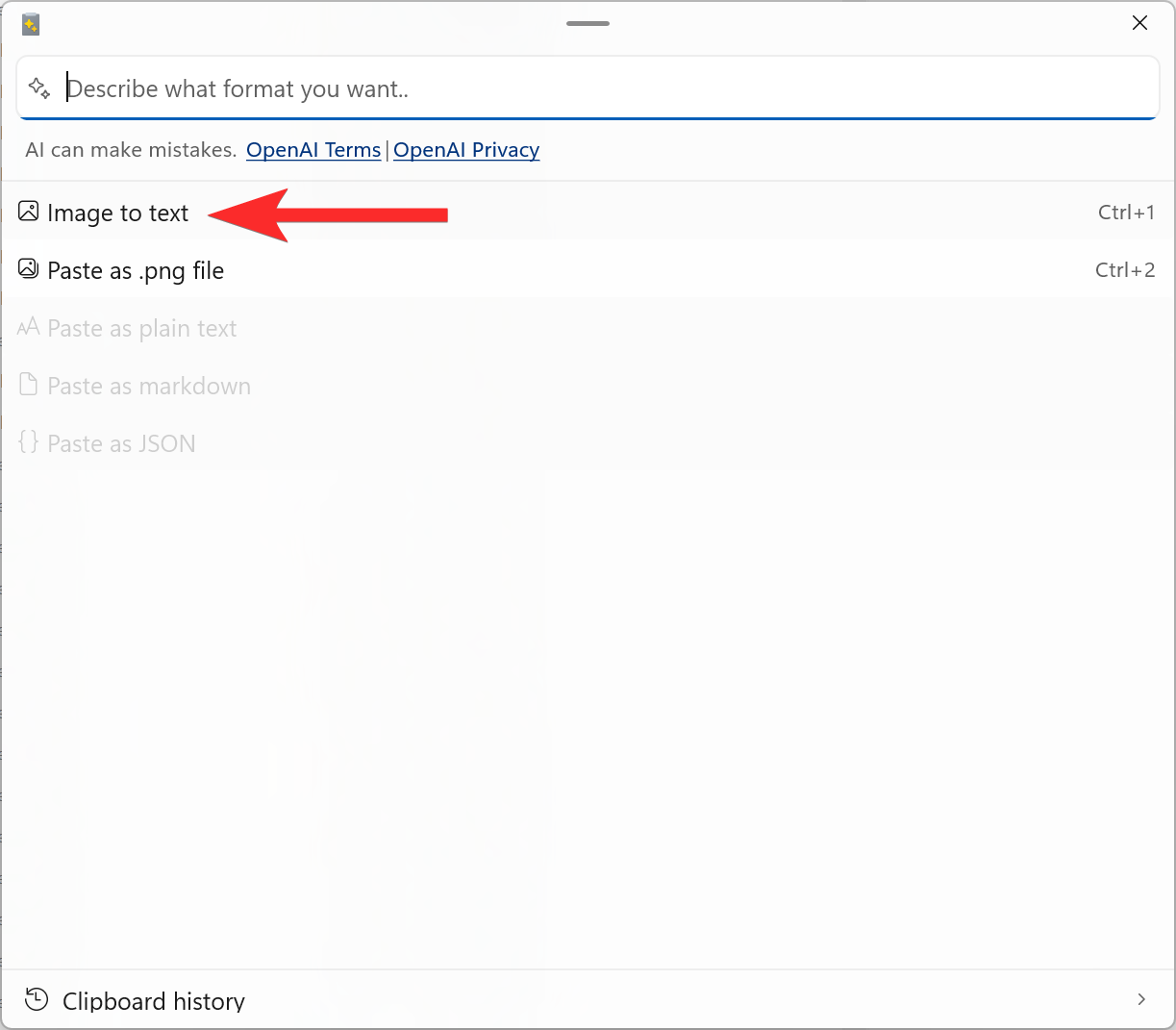
With the cursor on a text field, press Windows+Shift+V to open the Advanced Paste menu from PowerToys.
Select “Image to text” to paste text from an image. All the text from the image copied will be pasted.
Done.