

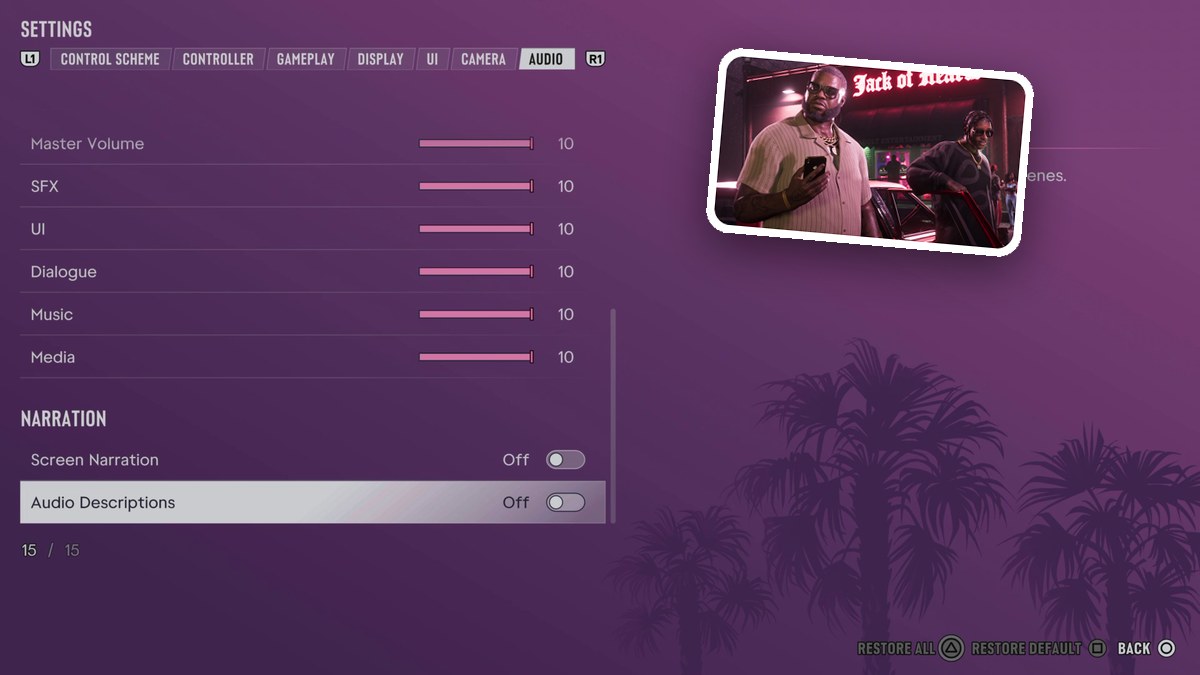
To enable Screen Narration in Grand Theft Auto VI, open Settings, select AUDIO, scroll to NARRATION, and toggle Screen Narration.
Screen Narration is an audio accessibility setting in Grand Theft Auto VI. The game is listed for PlayStation 5 and Xbox Series X|S. This guide covers the settings route, the first-launch shortcut, and the nearby audio settings.
How to enable Screen Narration in Grand Theft Auto VI
Open Audio settings and find Narration
In Settings, select the AUDIO tab. Scroll down past Controller Cop Scanner and through the Volume section until you reach NARRATION, then highlight Screen Narration. The displayed menu has both Screen Narration and Audio Descriptions set to Off.
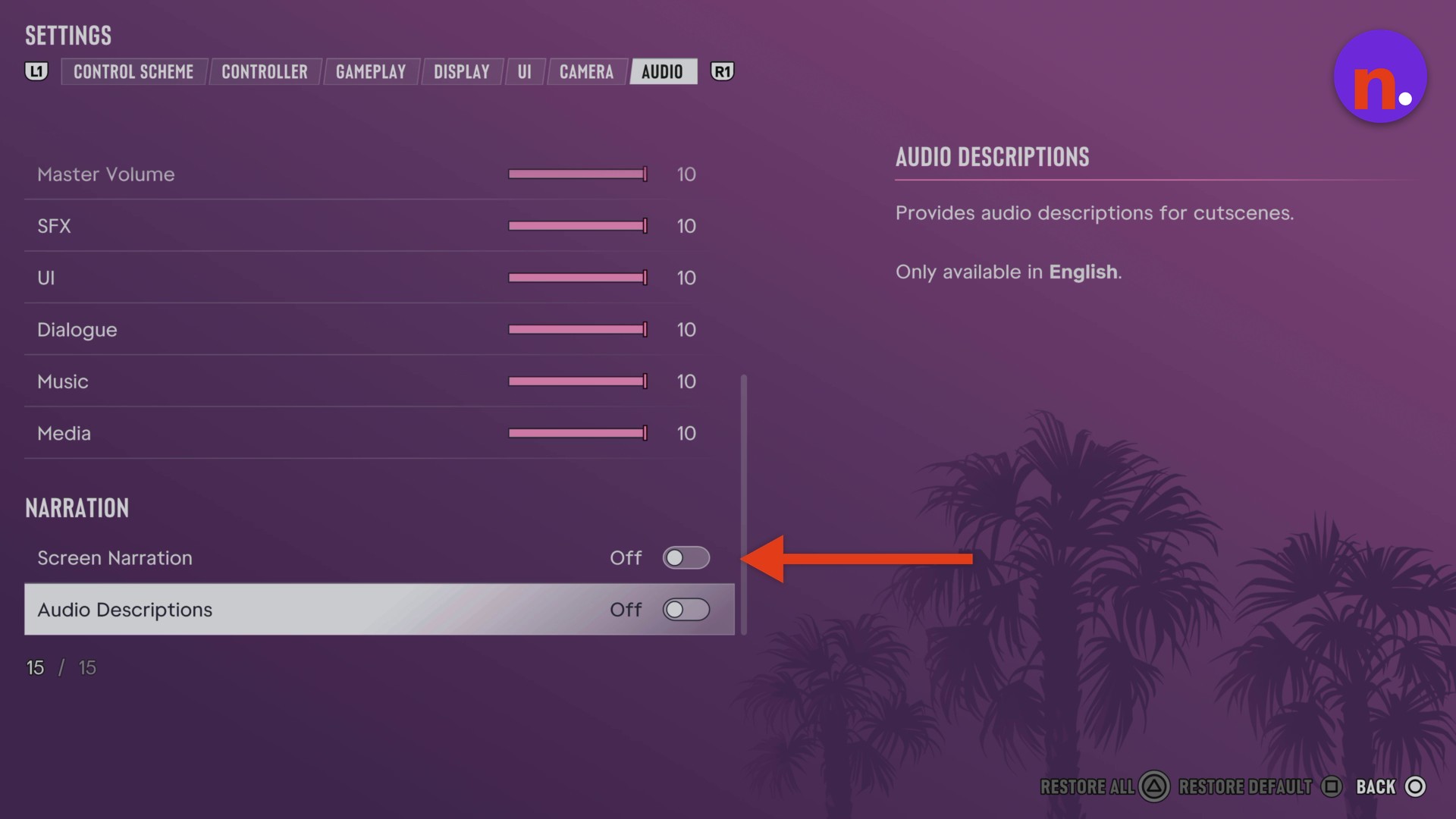
Enable Screen Narration
Toggle Screen Narration in the settings menu. Alternatively, press Square at the first-launch accessibility prompt to enable it there.
Once enabled, Screen Narration reads on-screen text in most menus and UI.
What do the other audio settings do in Grand Theft Auto VI?
| Setting | Effect |
|---|---|
| Audio Descriptions | Provides spoken descriptions during cutscenes. |
| Mono Audio | Balances audio equally across the left and right channels. |
| Tinnitus Reduction | Reduces ringing effects after explosions. |
You’ll find Mono Audio in the Audio menu’s Setup section.
Related Grand Theft Auto VI guides
Leave a Reply