Messenger Rooms is Facebook’s answer to Zoom, Lifesize, and Houseparty like platforms, which are experiencing exponential growth in their customer base during the COVID-19 lockdown.
As video conferencing thrived during this pandemic due to everyone’s personal and professional needs, it was high time the largest social network of the world cashed in on this.
So, here comes Messenger Rooms, which allows you to create your own video chat rooms, and depending on how you configure it, even non-Facebook users can join the room. So, let’s see, how can you create such a room and invite your friends and family to join in.
What is Messenger Rooms?

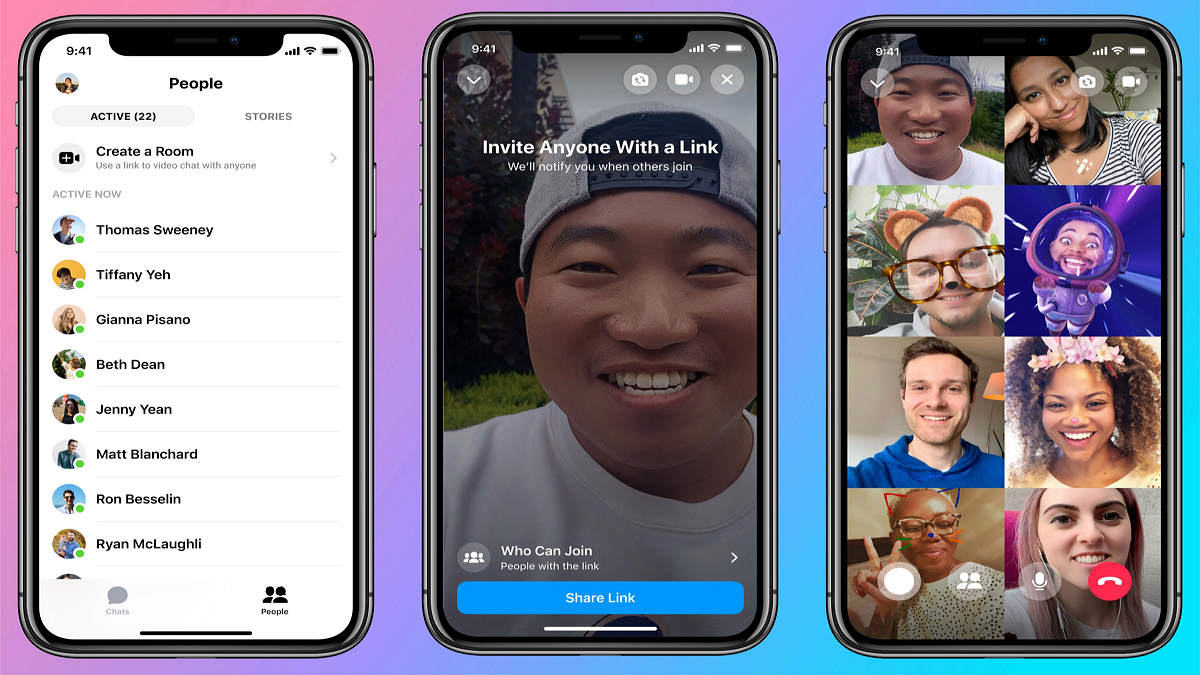
The answer is simple. It’s a group video chat interface with up to 50 people who may or may not be on Facebook. Well, one does require a Facebook account to host or create a room. But to join, you just need an invite link, and mobile or a computer and you’re good to go.
Yes, you don’t even need Facebook or Messenger apps for this. Clicking the link will take you to the browser of your device (desktop/mobile), and you can ‘join in as guest’ from there.
How to create a Messenger Room
Let’s see how can you use your Messenger app to create a room and invite your friends to join in.


How to invite friends to a room in Messenger Rooms
In your Messenger Room, simply swipe up to see the ‘Share Link’ option. Tap the ‘Copy Link’ option to copy the link to your device’s clipboard and share it with friends over any platform or medium including e-mail, Instagram, Facebook, WhatsApp, SMS, as convenient to you.

Or, Facebook is giving you some default options too, click on the Message, Instagram, Mail or Messenger option to share directly from here. You can tap on More to get a list of apps on your phone from which you can share the invite link.
Once the recipient clicks the invite link, they will be able to join the room. Once they do, you will get a notification that a person has joined the room.
The process of creating a room and sharing is only a matter of a few minutes.
How to lock a Messenger Room
When you want to make sure that nobody can enter a Messenger Room without your specific approval, you can simply lock the Messenger Room.
When you do so, anyone trying to join a room will not be allowed to do so even if they have a valid invite link. Though, you will be able to manually approve them if and when you want.
Here’s how to lock a Messenger Room in an ongoing Room video call:


Done!
How to unlock Messenger Room
The procedure to unlock the room is the same as the one for locking the room, except that you now toggle off the ‘Lock room’ option.
Now, for Facebook’s massive user base, Messenger Rooms will be very popular in no time; and with the integration of Instagram, WhatsApp, and portal devices, Facebook could disrupt the market and give tough competition to Zoom.
It’s become interesting how Zoom will respond, while Google is also trying its best by improving Google Duo and Google Meet to entice the big userbase.