

Grand Theft Auto VI’s UI settings cover text readability, subtitles, minimap navigation, reticles, combat displays, notifications, prompts, activities, and measurement units.
The UI tab in Settings contains 70 menu items, grouped into categories for readability, dialogue text, navigation, HUD elements, and measurement preferences. The game’s listed platforms are Xbox Series X|S and PlayStation 5.
- How to open UI settings in Grand Theft Auto VI
- Which scaling and readability settings can you change?
- How do subtitle and caption settings work?
- What can you change for the minimap and navigation?
- Which reticle controls are available?
- What combat HUD elements can you control?
- How are HUD and progress notifications grouped?
- Which player and vehicle status settings are available?
- What prompt settings can you change?
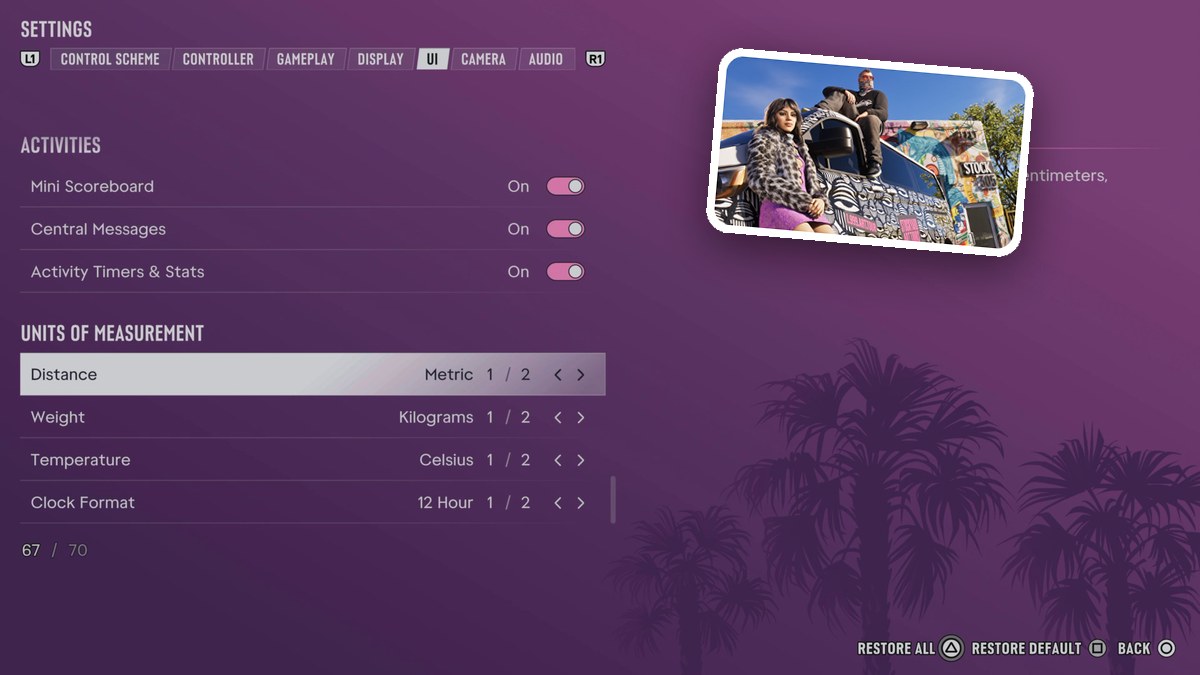
- Which activity UI settings can you adjust?
- What measurement units and clock formats can you choose?
How to open UI settings in Grand Theft Auto VI
Open the UI tab
Open Settings, then press L1 or R1 to move across the top category tabs until UI is highlighted.
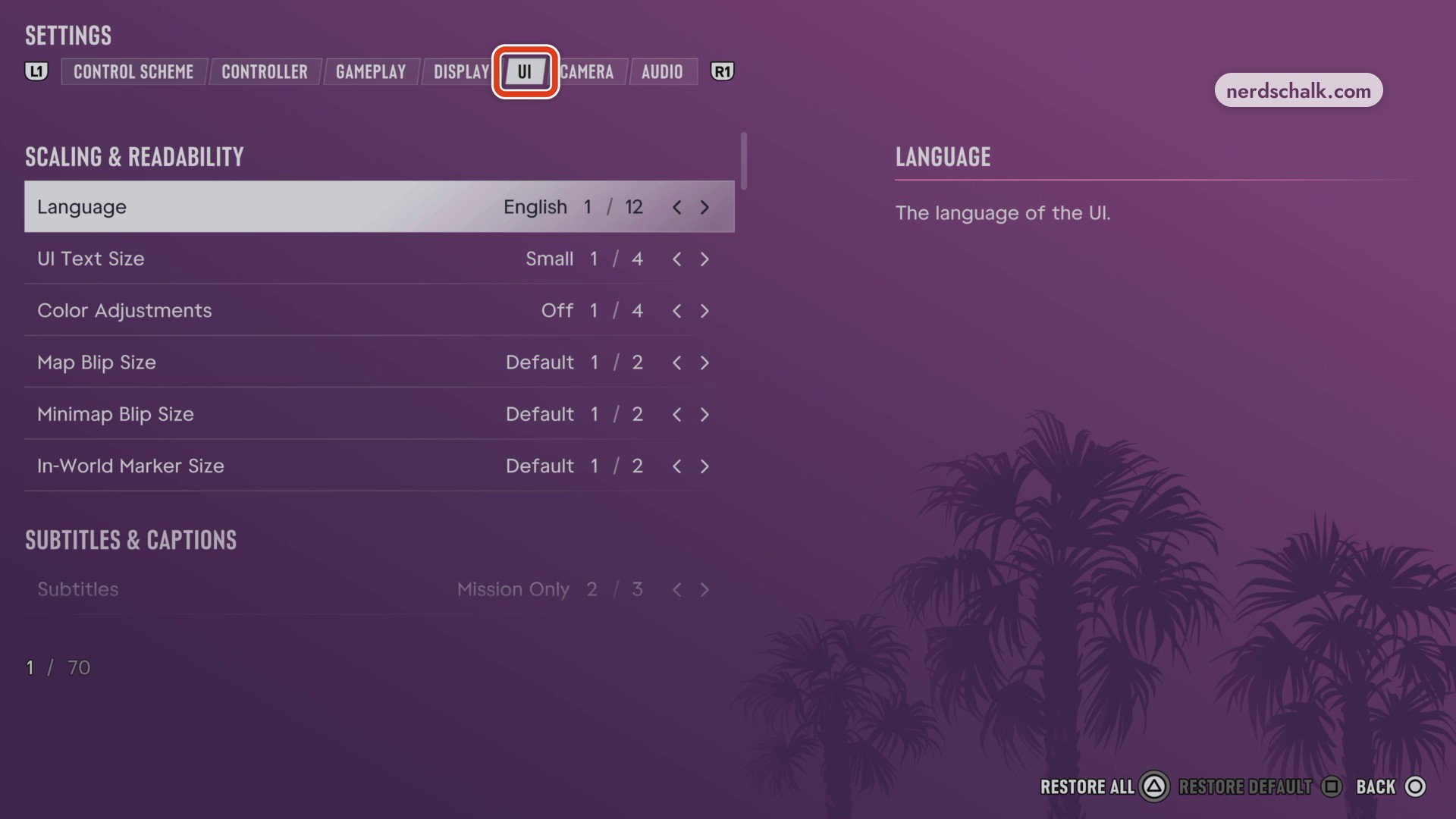
The menu also displays controls labeled RESTORE ALL, RESTORE DEFAULT, and BACK.
Which scaling and readability settings can you change?
| Setting | Choices and values | Help text |
|---|---|---|
| Language | English 1 / 12. | Selects the language used by the UI. |
| UI Text Size | Small 1 / 4. | |
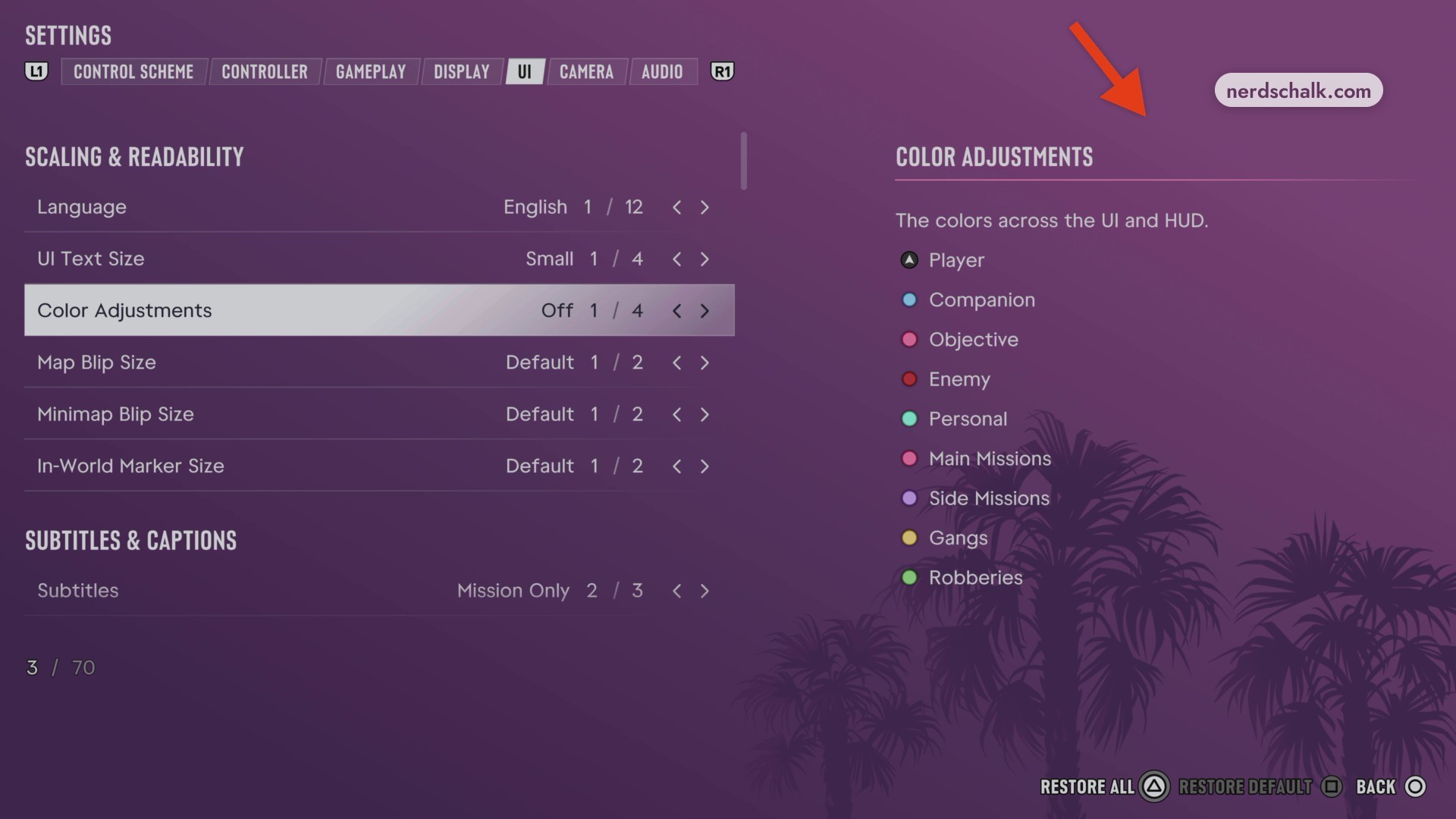
| Color Adjustments | Off 1 / 4. | Changes colors across the UI and HUD. The preview labels are Player, Companion, Objective, Enemy, Personal, Main Missions, Side Missions, Gangs, and Robberies. |
| Map Blip Size | Default 1 / 2. | |
| Minimap Blip Size | Default 1 / 2. | |
| In-World Marker Size | Default 1 / 2. |
These controls sit under Scaling & Readability.
How do subtitle and caption settings work?
| Setting | Choices and values | Help text |
|---|---|---|
| Subtitles | Mission Only 2 / 3. | |
| Closed Captions | Off 1 / 4. | |
| Size | Small 1 / 3. | |
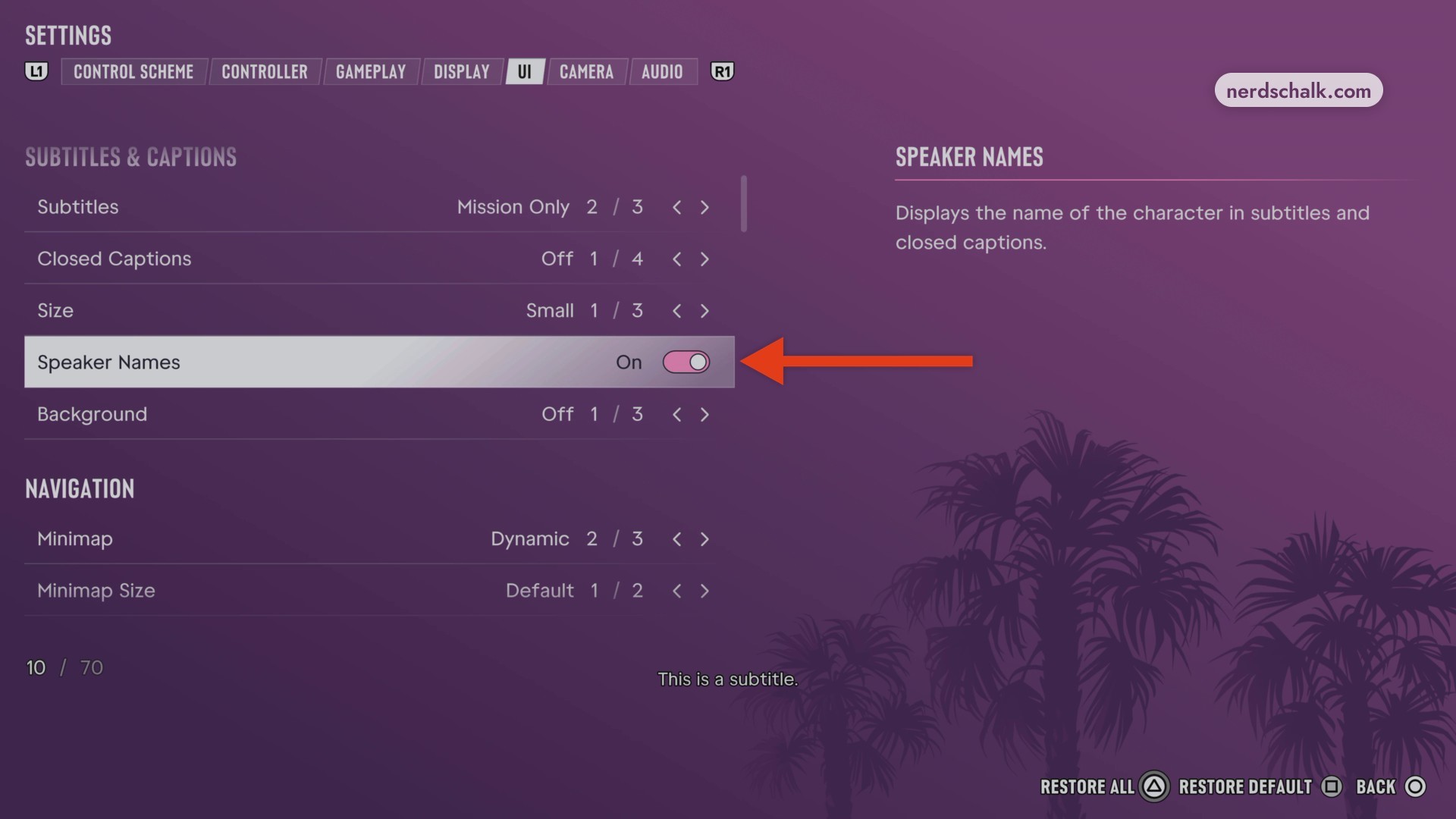
| Speaker Names | Off; On. | Choose On to add character names to subtitles and closed captions during dialogue. |
| Background | Off 1 / 3. | Selects the background behind subtitles and closed captions. Off removes that background. |
Scroll down to Subtitles & Captions for the dialogue-text controls.
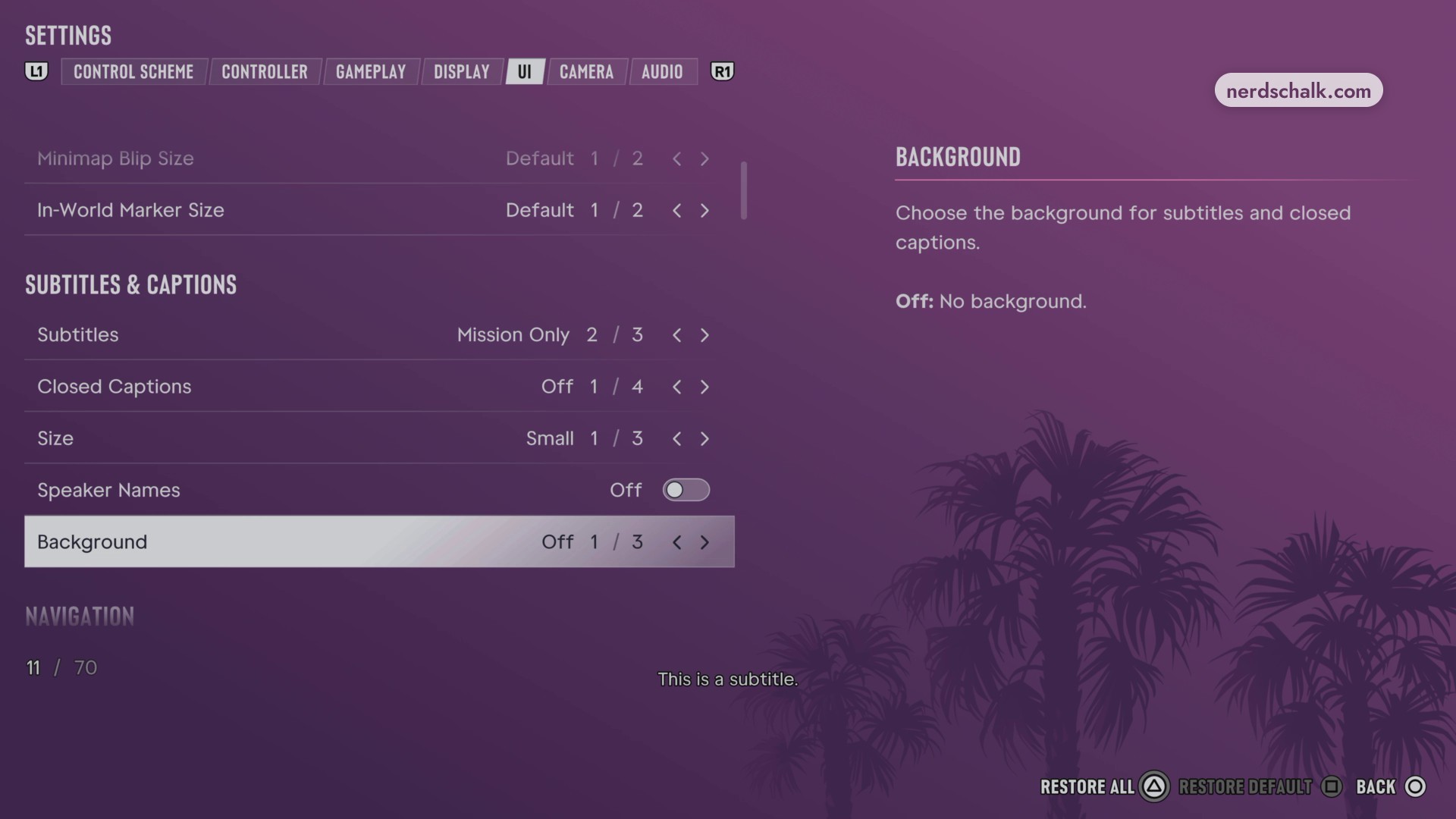
The Speaker Names control sits between Size and Background.
| Setting | Choices and values | Help text |
|---|---|---|
| Minimap | Dynamic 2 / 3; Off; On. | |
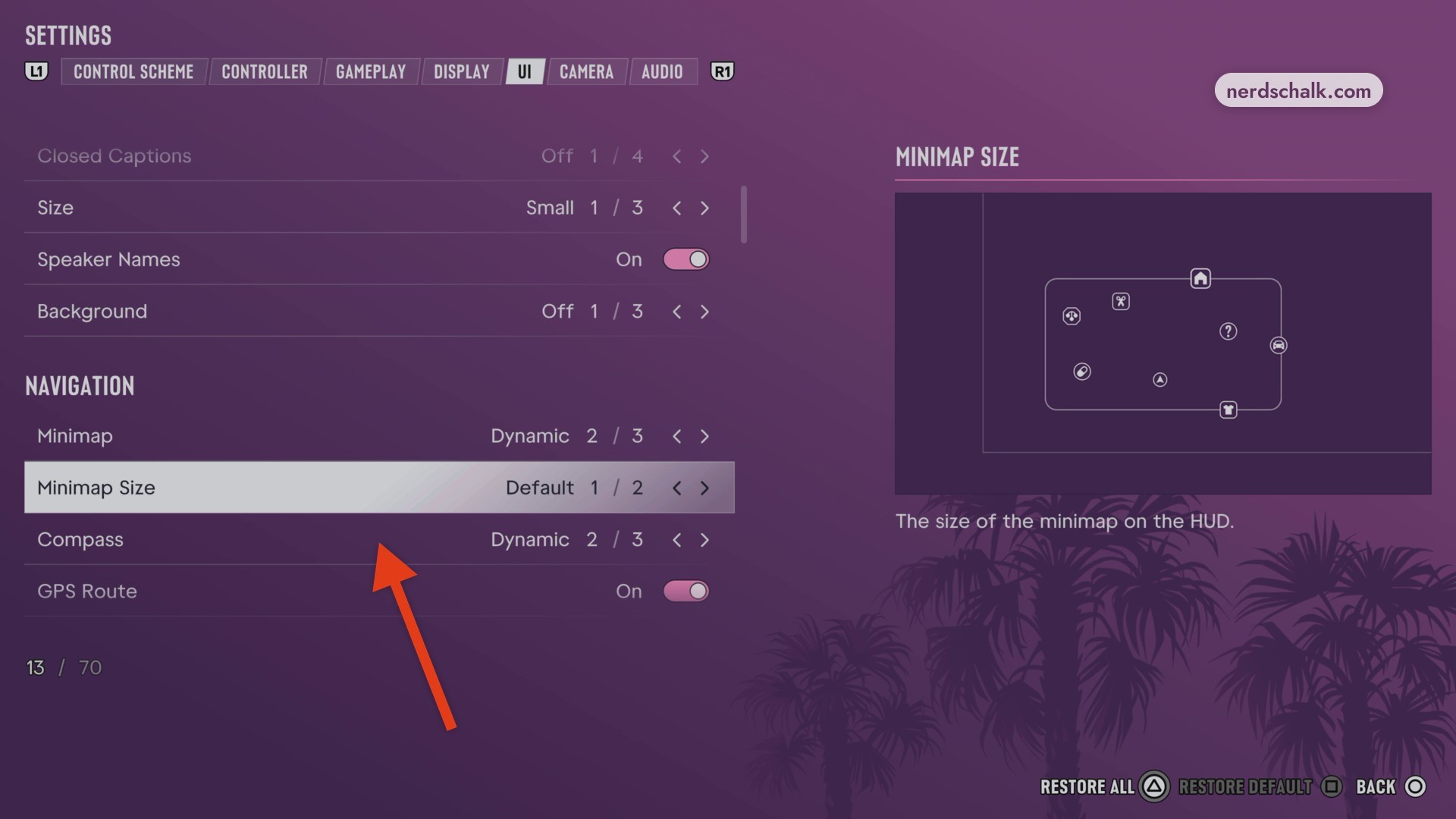
| Minimap Size | Default 1 / 2; Large 2 / 2. | Controls the minimap’s size on the HUD. Select Large to enlarge it. |
| Compass | Dynamic 2 / 3; Off. | |
| GPS Route | On. | |
| Door Markers | On 1 / 3. | |
| Interaction Markers | On. | |
| Altimeter | On. |
Under Navigation, the Minimap Size preview includes a diagram illustrating the HUD element.
Which reticle controls are available?
| Setting | Choices and values | Help text |
|---|---|---|
| Persistent Center Dot | Off. | |
| Reticle Hit Markers | On. | |
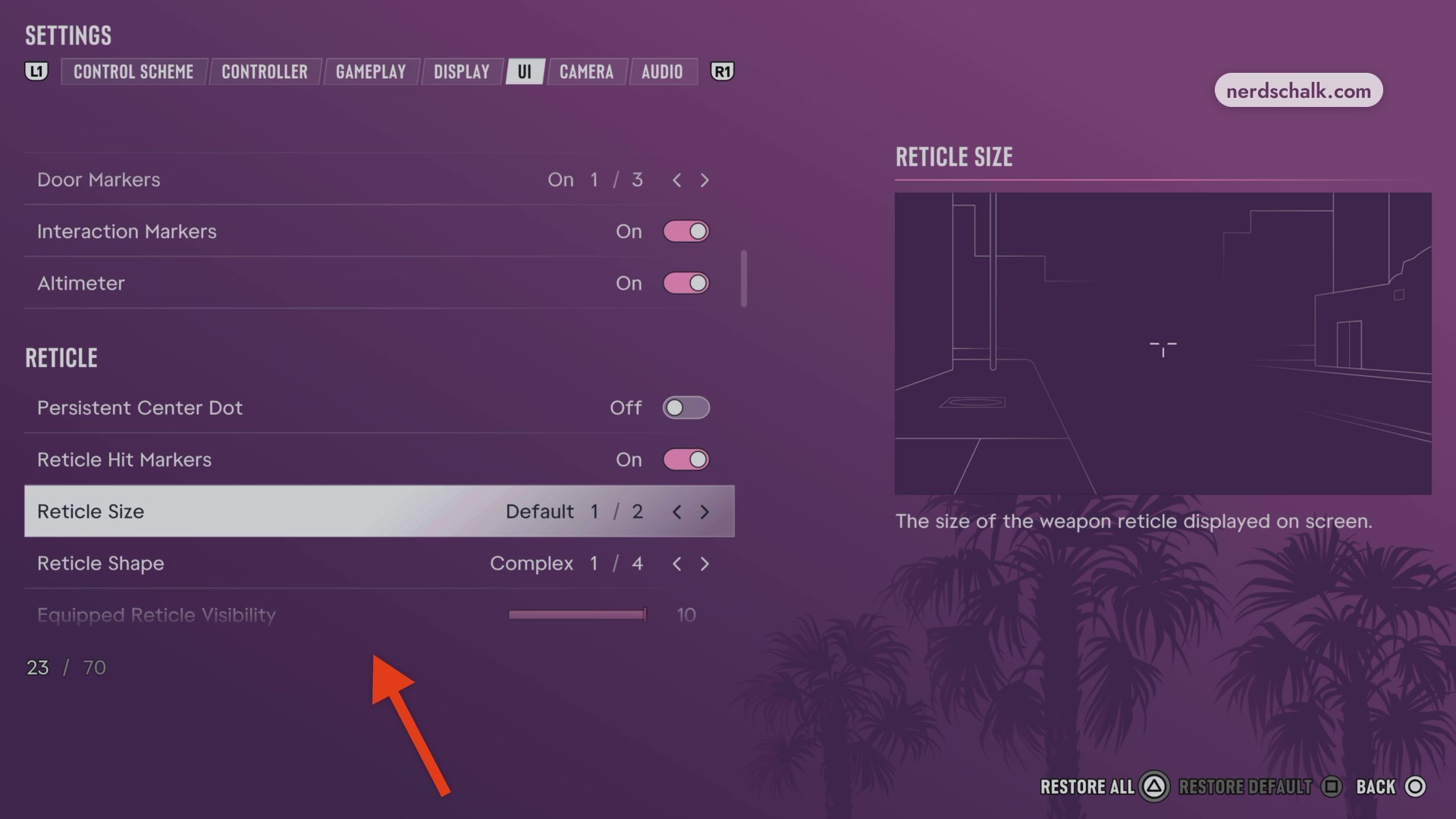
| Reticle Size | Default 1 / 2. | Adjusts the size of the weapon reticle displayed on screen. |
| Reticle Shape | Complex 1 / 4. | |
| Equipped Reticle Visibility | Slider at 10. | |
| Aiming Reticle Visibility | Slider at 10. | |
| Reticle Messages | On. | |
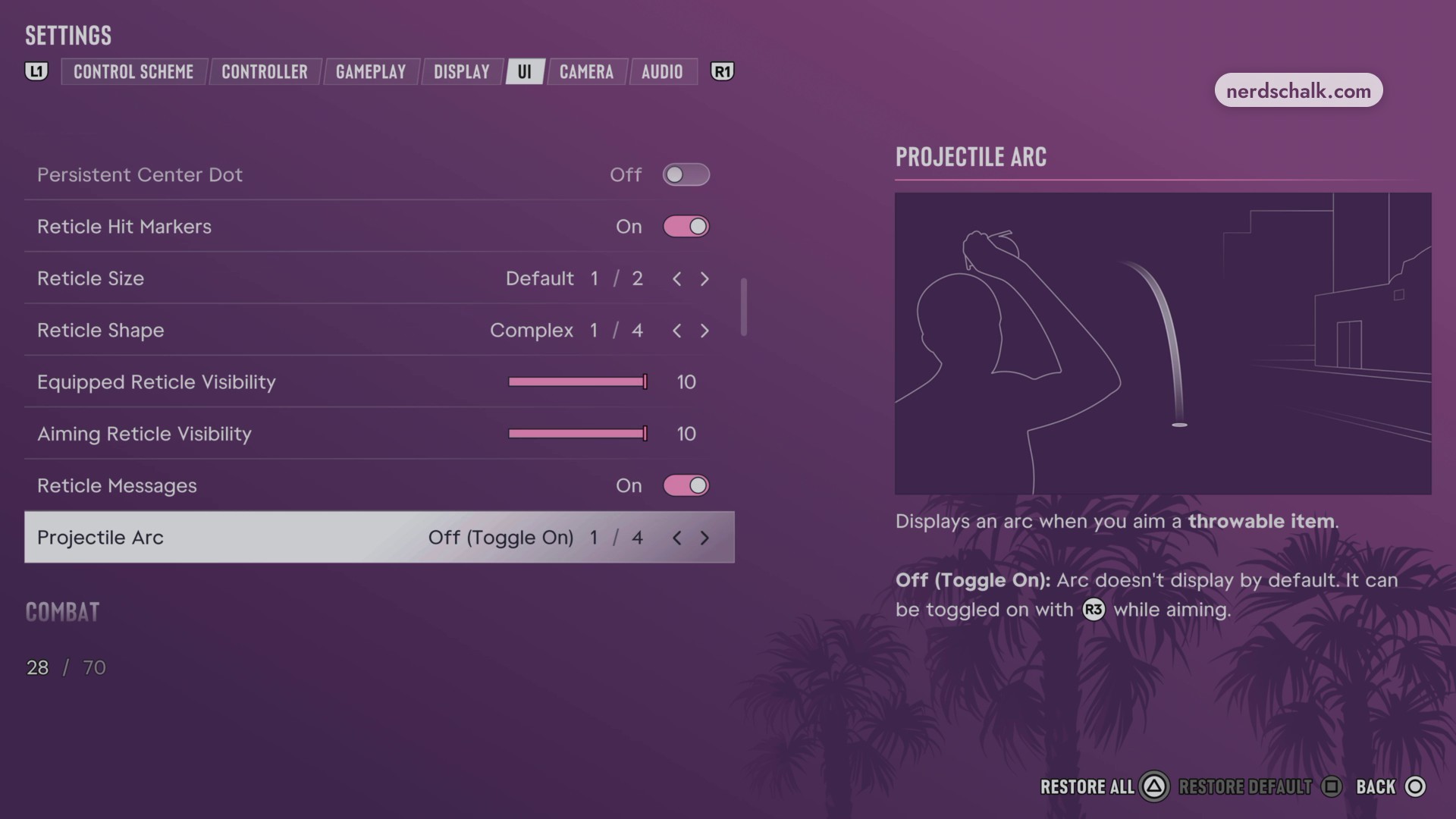
| Projectile Arc | Off (Toggle On) 1 / 4. | Displays an aiming arc for throwable items. |
These options belong to the Reticle category.
The Projectile Arc option appears below Reticle Messages.
What combat HUD elements can you control?
| Setting | Choices and values | Help text |
|---|---|---|
| Weapon Preview | On. | |
| Ammo | On. | |
| Threat Indicators | On. | |
| Damage Region Highlights | On. |
All four options sit under Combat.
How are HUD and progress notifications grouped?
| Setting | Choices and values | Help text |
|---|---|---|
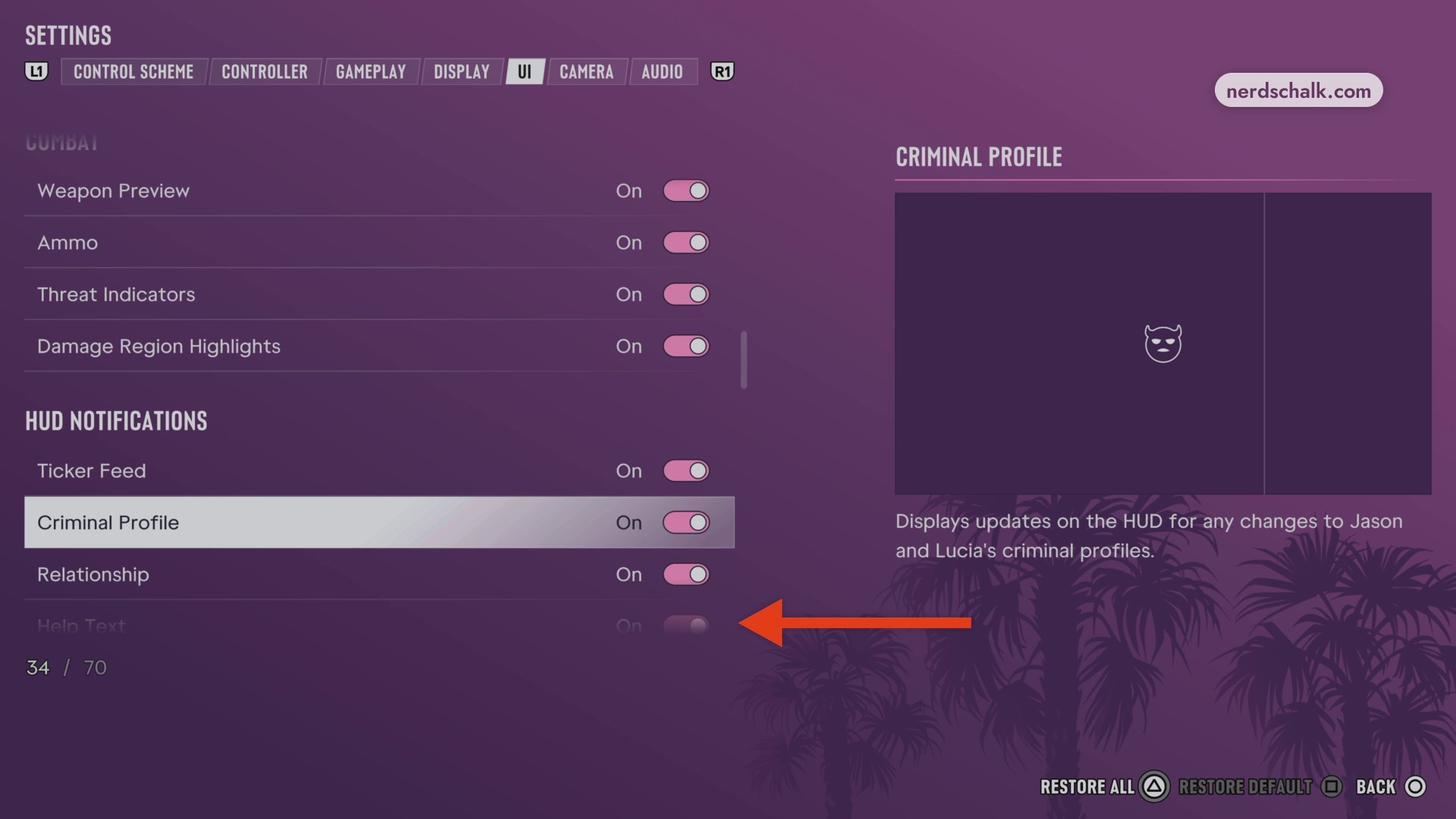
| HUD Notifications | ||
| Ticker Feed | On. | |
| Criminal Profile | On. | Displays HUD updates when Jason’s or Lucia’s criminal profile changes. |
| Relationship | On. | |
| Help Text | On. | |
| Progress Notifications | ||
| Weapons | On. | |
| Vehicles | On. | |
| Animals | On. | |
| Challenges | On. |
HUD Notifications contains the general HUD update controls. Farther down, Area Discovery appears between that category and Progress Notifications.
Scroll to Progress Notifications to reach its weapon, vehicle, animal, and challenge notification controls.
Which player and vehicle status settings are available?
| Setting | Choices and values | Help text |
|---|---|---|
| Heat Indicators | On. | |
| Money | On. | |
| Vehicle Name & Status | On. |
The UI menu also includes a Player and Vehicle Status section.
What prompt settings can you change?
| Setting | Choices and values | Help text |
|---|---|---|
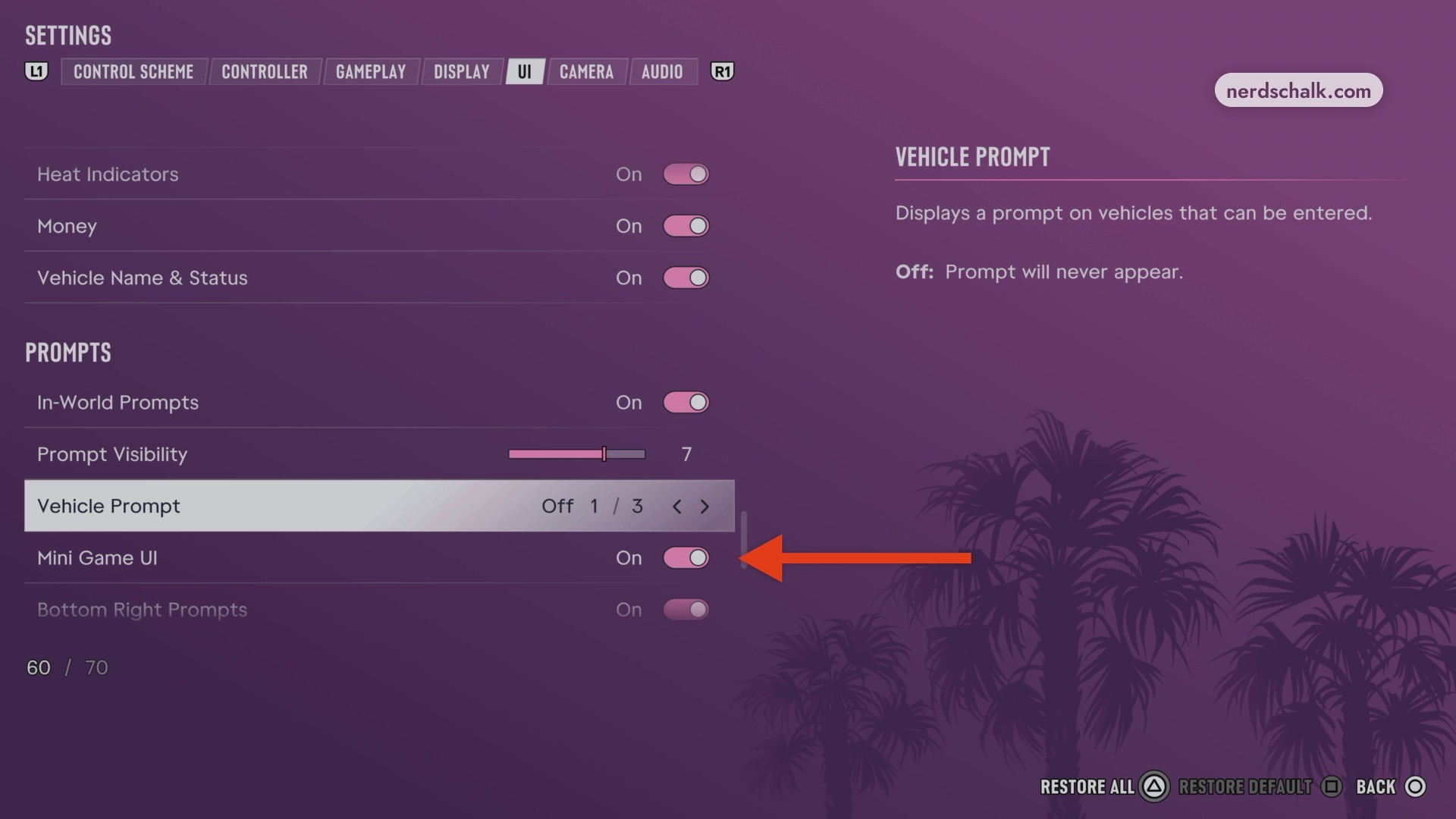
| In-World Prompts | On. | |
| Prompt Visibility | Slider at 7. | |
| Vehicle Prompt | Off 1 / 3. | Controls prompts on vehicles you can enter. Selecting Off prevents those prompts from appearing. |
| Mini Game UI | Off; On. | |
| Bottom Right Prompts | On. |
The Prompts category contains these controls.
Which activity UI settings can you adjust?
| Setting | Choices and values | Help text |
|---|---|---|
| Mini Scoreboard | On. | |
| Central Messages | On. | |
| Activity Timers & Stats | On. |
These options sit in the Activities category.
What measurement units and clock formats can you choose?
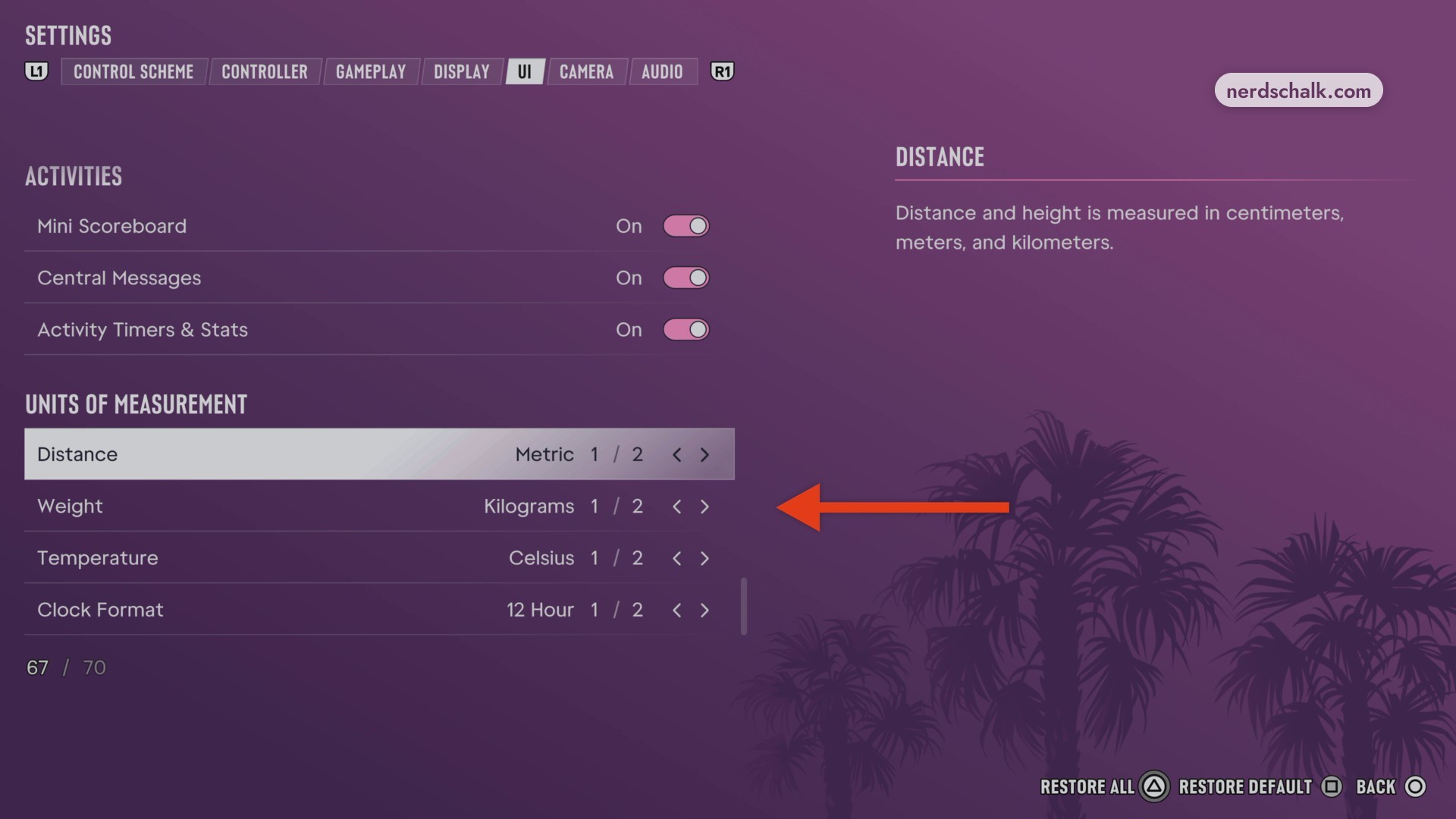
| Setting | Choices and values | Help text |
|---|---|---|
| Distance | Metric 1 / 2; Imperial. | Metric measures distance and height in centimeters, meters, and kilometers. |
| Weight | Kilograms 1 / 2; Pounds. | |
| Temperature | Celsius 1 / 2; Fahrenheit. | |
| Clock Format | 12 Hour 1 / 2; 24 Hour 2 / 2. |
Scroll to the bottom of the menu for Units of Measurement, where you can select each preference individually.
Related Grand Theft Auto VI guides
Leave a Reply