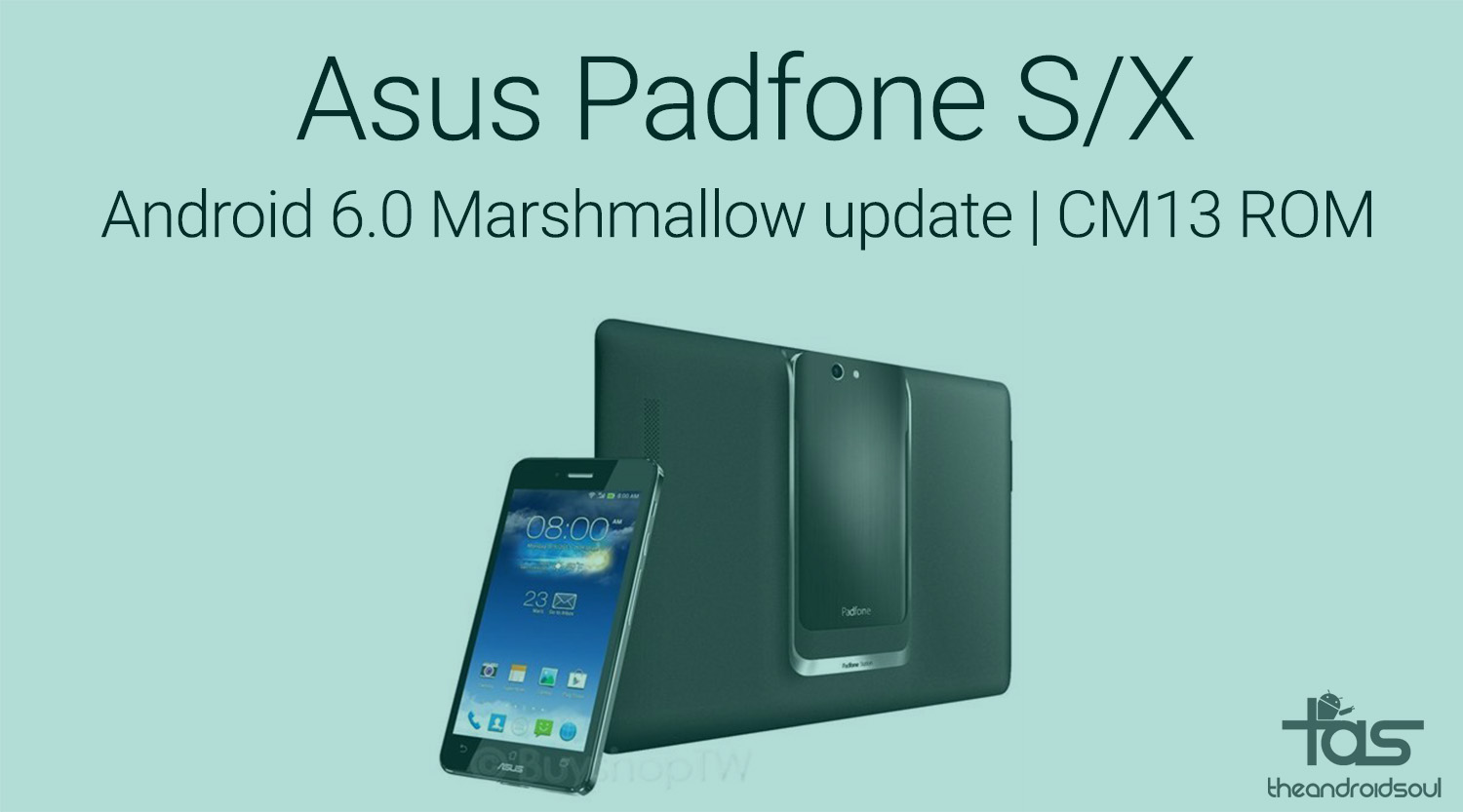
Lucky you, you PadFone S/X users! There’s a custom ROM based on AOSP code already available for your device to help you install Android 6.0 Marshmallow update right away. It’s CM13 we’re talking about, also known as CyanogenMod 13.
This is unofficial update, and is in no way related to Asus. But it’s still Marshmallow, and feels and runs as Google made it, not tweaked by your OEM.
In our CM13 guide, we told you to expect CM13 ROMs soon, but we didn’t expect Asus PadFone to get it this early. Heck, even popular and developer-oriented devices like Nexus 4 and 5 are yet to grab one.
Anyway, know that you are gonna need TWRP recovery for install CM13, and you will have to unlock your PadFone S/X’s bootloader for this. If you have already done that before, you’re quite ready to install the CM13 ROM and get a Marshmallow update right away.
Bugs!
As of Oct 17, 2015:
- SIM not working so no mobile data, calls or sms
- Auto rotation
- Minor Graphic glitches
- Some force closes in apps
- Sound
- Camera
- Others
Downloads
- Marshmallow ROM — Link | File: cm-13-20151016-NIGHTLY-t00n.zip (382.68 MB)
- Marshmallow Gapps — Link | File: gapps-mini-6.0.zip (53.46 MB)
- PadFone S/X TWRP recovery — Link | File: twrp_2.8.7.0_v4.img (12.89 MB)
- Unlock bootloader script — Link | File: CrowLock_RC3.zip (64 KB)
- SuperSU root package — Link | File: BETA-SuperSU-v2.52.zip (3.8 MB)
Supported devices
- Asus PadFone S/X
- Don’t try this on any other device than the one specified above.
Use the Droid Info app, to determine the codename of your Asus PadFone S/X. If it is bacon, then it should be compatible with the 6.0 custom ROM we have here.
Warning!
Warranty may be void of your device if you follow the procedures given on this page. You only are responsible for your device. We won’t be liable if any damage occurs to your device and/or its components.
Backup!
Backup important files stored on your device before proceeding with the steps below, so that in case something goes wrong you’ll have backup of all your important files.
How to Install
Required:
Make sure that the software version of your device is any of these: 11.10.7.18, 11.10.7.17, 11.10.7.11, 11.10.7.6, 11.10.6.1, 12.2.2.21 or 12.2.2.13.
If not, then don’t use the guide above. You need to unlock bootloader of your device (as given in guide below), but that has been tested only on above-mentioned software versions. If you try it on any other software version, your device could become dead.
You can simply use the method 2 given here. It works on all Android devices. Or if you are rooted, you can use Quick Boot app from play store.
- Open the pad6update folder and then left click on empty white space in the folder.
- Now, while holding shift key, right click on empty white space to get a pop-up as shown below.
- Now choose Open command window here option from that.

You will see a command window open up, with location directed to pad6update folder.
fastboot boot pad-twrp.img
You’ll soon see TWRP loaded on your device. It hasn’t been installed btw.
For that, on TWRP’s homescreen, tap on Install, and then locate the script file (CrowLock_RC3.zip) and tap on it. Then do the Swipe action at bottom to begin flashing the update. Tap on Home button to go back to homescreen of TWRP.
Step 12. Install the Gapps file the same way as you installed ROM.
That’s it.
Let us know if you need any help with this, via comments below.
Tip: Flash TWRP permanently
To install TWRP recovery permanently, after unlocking bootloader that is (not before), use the following command, with device is bootloader mode.
fastboot flash recovery pad-twrp.img
You can safely do this once you have unlocked bootloader of your device. Doing so after installing Marshmallow update is okay, too.
Via Quarx