

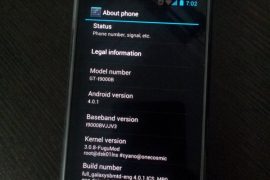
While Samsung would take ages — if they intend to bring the update in first place, which itself is debatable — to release the latest Android 4.0 update to Galaxy S officially via Kies, our beloved developers have already started burning their midnight oil to get you Ice Cream Sandwich love on your very dear very venerable phone in android blogosphere, the Galaxy S.
And their hard work is showing up now in the form of a custom ROM — we’re talking about the first ICS (Android 4.0) port for Galaxy S, made by pretty famous now on Galaxy S development scene, Galnet.
Developers: Galnet was first one to boot ICS on Galaxy S but since then, he and his team has been quite on this. The development came to life only after Onecosmic started working on it and he is the one who took further, making it a bit usable and fixing the touchscreen and doing all the crazy part. After Onecosmic got busy with other stuff, work was resumed by PaulForde, who is responsible for current stage of rom, among with other devs who are working continuously on it right now.
Developers and Donation Link
Here is list to all devs who are currently active on this rom. And we hope you donate them to show your gratitude to them for work they have, while also encouraging them for working more on this development.
Android 4.0 Ice Cream Sandwich (ICS) ROM Status
Update (As of February 12, 2012): RC 4.2 is out — it’s simply one incredible rom, by certain awesome teams of devs.
Big Update: RC1 is out. Features working from this release: Video recording and playback, Hardware Acceleration, Calendar Sync, etc. You may want to celebrate this!! People avoiding the ICS — somehow, I mean — should try this version. Kudos to PaulForde (we’re really thankful to him for this) and Onecosmic.
Almost everything is working — though, of course, there are bugs!
COMPATIBILITY
[error]This guide is applicable only for Samsung’s Galaxy S international version — GT-i9000 and GT-i9000B. Check your phone’s version in Settings – About Phone. It has to be “GT-i9000” or “GT-i9000B” for this Android 4.0 port ROM to be compatible with your phone. Otherwise, simply don’t try this ROM on your android handset — don’t even think about it if you care about your android device.[/error]
WANRING!
[warning]The methods and procedures discussed here are considered risky and you should not attempt anything if you don’t know completely what it is. If any damage occurs to you or your device, we won’t be held liable — you only will be responsible, you’ve been warned!!![/warning]
Installing the Android 4.0 ICS custom ROM isn’t that hard if you’ve already done flashing stuff a couple of times. But even if you’re new to flashing and custom ROMs, don’t worry one bit, we’ve got you covered. Just watch the video below, read the instructions and you are good to do it yourself.
Pre-Installation thoughts:
- Installing/Flashing this ROM will erase your apps and data. So, it’s a very important you back them up, before proceeding further. To backup your apps and important data — bookmarks, contacts, SMS, APNs (internet settings), etc. Restore APN settings if Internet isn’t working for you. This Android backup guide would help you. And if you’ve rooted your Galaxy S, you can save application’s data too, using Titanium backup (free app on android market) to backup apps with data. And use this this app only again to restore those apps with data.
- Drivers! — it’s important you’ve the proper drivers installed. Download links below:
- If you have Samsung’s PC software Kies installed, be sure to exit it before using flashing this ROM, or anything with odin software.
Android 4.0 Ice Cream Sandwich for Galaxy S
Update: The installation process is much different now that what was for the initial release. But you can still watch the video — especially if you’re new to this — to get the idea of flashing and stuff. And the guide below has been duly updated to take care of installation needs of the latest release. So, go ahead!
So, the video below is not to be followed, but if you want to learn about rebooting into recovery, using CWM recovery, and other things, watching the video for once is recommended.
Here’s the video showing the installation of Android 4.0 custom ROM (AOSP port, version alpha4):
Note: There is a brief overview (from 6:58) of Android 4.0 running on Galaxy S in the above video.
How to Install Ice Cream Sandwich on Galaxy S [step-by-step guide]:
- Flash XXJVU Android 2.3.6 based firmware first.
- Install CWM and Root on the XXJVU.
- Download the latest version of “Android 4.0 ROM” from here — let’s call it rom file — and then continue the steps below to flash it without any worries. be careful while downloading since that page has downloads for all version of Galaxy S for which this rom is available. Download one meant for your phone, i9000.
- Transfer the rom file to your phone’s sdcard (don’t use external sdcard, btw). Remember the location where you transfer this files.
- Power Off your Galaxy S. Wait for 5-6 seconds until you feel the vibration to confirm complete switch off.
- Boot into Recovery mode. Then, press and hold these 3 buttons together: VolumeUP+Home+Power till the Galaxy S logo shows up on screen. You’ll boot into CWM recovery soon enough. (In recovery, use Volume keys to scroll up and down and power key to select an option. Use back key to go back.)
- Do Wipe Data/Factory Reset
- Do Wipe Cache Partition
- Go to advanced and do Wipe Dalvik Cache
- Now, flash the rom file. Select install zip from sdcard » choose zip from sdcard » browse through sdcard and select the rom file you downloaded in step 3 and transferred in step 4 above. Select “Yes – Install ______” on the next screen.
- After flashing necessary stuff, phone will boot up into recovery again. You will notice it’s a different recovery, colored blue now, and this is what was flashed in step 10 above to make the phone ready for installation.
- Now, flash the rom file again. Select install zip from sdcard » choose zip from sdcard » browse through sdcard and select the rom file you downloaded in step 3 and transferred in step 4 above. Select “Yes – Install ______” on the next screen.
- Go back and select ‘reboot system now’ to restart the phone. Be patient while phone boots up, it may take between 5 to 15 mins for first boot.
- IF IT FAILS TO BOOT in 15 mins, then, well we got problem here. Do this:
- When the phone is restarting (still booting up) open the back cover and REMOVE the battery. Yes you read it right. Reinsert it after 3-4 seconds and then boot into recovery again.
- In recovery, do a Wipe Data/ Factory Reset. And then, select reboot system now to restart the phone. it should boot up properly now. If it doesn’t, then perhaps you did not follow something correctly.
- Also, if you are not happy with the performance of this rom — maybe because it lacks some apps/features you cared too much for, or reboots itself — I would suggest you to install the Android 4.0 AOKP Rom for Galaxy S, it’s simply damn good.
- [Optional] Support the development and appreciate the hard work put in by the team by donating them. Find donation link given above.
- Also, it’s already rooted. You don’t need to root it.
- Just for your info, Android 4.0 custom ROM is available Galaxy S2 too — find our Installation Guide for Android 4.0 on Galaxy S2 i9100 here.
GOING BACK TO ANDROID 2.3 (Gingerbread) [IMPORTANT!!!]
Btw, if you want to revert back to Android 2.3 Gingerbread firmware from this Android 4.0 custom rom, get (install) the XXJVU firmware, linked in at step 1 above. And if wanted by you, root it as given in step 2.
Overview — Android 4.0 AOSP ROM (version Alpha 4) on Galaxy S
Screenshots:





3,840 responses to “Android 4.0 Ice Cream Sandwich (ICS) Update for Galaxy S i9000 [Custom ROM]”
Hi, I just did this and all it’s doing after everything, is showing the samsung galaxy s gt-i9000 screen, then it shows GOOGLE??? then what looks like the reboot screen but goes away real fast and starts over and keeps going on a loop. Can anyone help with this?
NVM, I just tried from step 7 and on and it works! its frigen SICK thanks so much!!!!!!!!!
NVM, I just tried from step 7 and on and it works! its frigen SICK thanks so much!!!!!!!!!
I hv installed amaziing ICS but now mobile is no longer able connect sim network. Wifi is working fine but I dont get calls and cant make calls. The same sim works other phone and calls work. I tried with the manual and automatic network selection . It simply returns error “unable to connect at this time…try again later”
Install the aokp from linked above.
Thanks Kapil,
I had not followed the step #2. I had directly started onto step #3 with older version of gingerbread. Now I have XXJVU and Build 28 from AOKP. Enjoying the ice cream 😛
Thanks Again 🙂
I hv installed amaziing ICS but now mobile is no longer able connect sim network. Wifi is working fine but I dont get calls and cant make calls. The same sim works other phone and calls work. I tried with the manual and automatic network selection . It simply returns error “unable to connect at this time…try again later”
Install the aokp from linked above.
Thanks Kapil,
I had not followed the step #2. I had directly started onto step #3 with older version of gingerbread. Now I have XXJVU and Build 28 from AOKP. Enjoying the ice cream 😛
Thanks Again 🙂
I hv installed amaziing ICS but now mobile is no longer able connect sim network. Wifi is working fine but I dont get calls and cant make calls. The same sim works other phone and calls work. I tried with the manual and automatic network selection . It simply returns error “unable to connect at this time…try again later”
Install the aokp from linked above.
Thanks Kapil,
I had not followed the step #2. I had directly started onto step #3 with older version of gingerbread. Now I have XXJVU and Build 28 from AOKP. Enjoying the ice cream 😛
Thanks Again 🙂
its nice but drains the batery like crasy. And the signal is fluctuation a lot. so i sticked with XXJVU
First-time flasher alert! Searched around and this looks like a good tutorial to follow.
Will it work on my stock and unrooted GT-i9000, firmware 2.3.5, baseband I9000NEJVB, build GINGERBREAD.NEVJK ??
Also, once you’ve got CWM.. say I don’t like this ROM anymore, can I go on to install any ROM I fancy?
I don’t want to do anything stupid!
Thanks in advance.
Yes. You’ve got it right.
Brilliant! Thanks for fast response. Just another quick question, will there be any issues using ROM Manager to further flash new ROMs? I realise that ROM Manager comes with CWM but this install puts it on your device – will there be any compatibility issues or anything?
Apologies for all the questions, I’m new to this and want to make sure I get it all right!
You’ve got cwm recovery with this rom. Use that to flash roms. To boot into cwm recovery, switch off phone and then, hold Volume Up and Home and Power keys together until Galaxy S logo shows up. Then release them all keys and your phone will boot into recovery mode.
Great job Kapil and very clear tutorial !!!
Any chance you’ll get the FM radio working ?
Why can not connect with KIES?????
I can’t return my contacts back.
Can someone tell me, how to fix this problem.
also.. there is no VOICE RECORDER, i can’t find SD CARD and VOLUME is quitly than compared with previos android 2.3.5
TNX
I return contacts back, with converting from spb to vfc
i fix the problem with VOLUME setings
but i can’t still connect to kies…. why???
Because this rom is not from Samsung, so you can’t connect to Kies as long as you use this one. Btw, you can go back to Gingerbread by flashing any Samsung firmware, like XXJVU, and get the Kies connectivity.
Btw, you really use Kies that much and like it too? I never used Kies and didn’t thought one cares about Kies so much.
hahaha there always someone must be 🙂
only i was interested for this information, it’s not big deal. 🙂
Now I return my contacts and do not need KIES realy 🙂
BTW superb work and much more i like my phone, thanks to you. 😉
P.S. How to make T9 on dialer and speed dial?
TNX
Well, there is a mod for that but I can’t find it right now. For now, use the exDialer android app, https://play.google.com/store/apps/details?id=com.modoohut.dialer, and then download ICS theme for it (available for free from market).
Glad to know the above post made you happy. Credit goes to developers who made it so possible 😀
its nice but drains the batery like crasy. And the signal is fluctuation a lot. so i sticked with XXJVU
its nice but drains the batery like crasy. And the signal is fluctuation a lot. so i sticked with XXJVU
First-time flasher alert! Searched around and this looks like a good tutorial to follow.
Will it work on my stock and unrooted GT-i9000, firmware 2.3.5, baseband I9000NEJVB, build GINGERBREAD.NEVJK ??
Also, once you’ve got CWM.. say I don’t like this ROM anymore, can I go on to install any ROM I fancy?
I don’t want to do anything stupid!
Thanks in advance.
Yes. You’ve got it right.
Brilliant! Thanks for fast response. Just another quick question, will there be any issues using ROM Manager to further flash new ROMs? I realise that ROM Manager comes with CWM but this install puts it on your device – will there be any compatibility issues or anything?
Apologies for all the questions, I’m new to this and want to make sure I get it all right!
You’ve got cwm recovery with this rom. Use that to flash roms. To boot into cwm recovery, switch off phone and then, hold Volume Up and Home and Power keys together until Galaxy S logo shows up. Then release them all keys and your phone will boot into recovery mode.
First-time flasher alert! Searched around and this looks like a good tutorial to follow.
Will it work on my stock and unrooted GT-i9000, firmware 2.3.5, baseband I9000NEJVB, build GINGERBREAD.NEVJK ??
Also, once you’ve got CWM.. say I don’t like this ROM anymore, can I go on to install any ROM I fancy?
I don’t want to do anything stupid!
Thanks in advance.
Yes. You’ve got it right.
Brilliant! Thanks for fast response. Just another quick question, will there be any issues using ROM Manager to further flash new ROMs? I realise that ROM Manager comes with CWM but this install puts it on your device – will there be any compatibility issues or anything?
Apologies for all the questions, I’m new to this and want to make sure I get it all right!
You’ve got cwm recovery with this rom. Use that to flash roms. To boot into cwm recovery, switch off phone and then, hold Volume Up and Home and Power keys together until Galaxy S logo shows up. Then release them all keys and your phone will boot into recovery mode.
Great job Kapil and very clear tutorial !!!
Any chance you’ll get the FM radio working ?
Great job Kapil and very clear tutorial !!!
Any chance you’ll get the FM radio working ?
Great job Kapil and very clear tutorial !!!
Any chance you’ll get the FM radio working ?
Why can not connect with KIES?????
I can’t return my contacts back.
Can someone tell me, how to fix this problem.
also.. there is no VOICE RECORDER, i can’t find SD CARD and VOLUME is quitly than compared with previos android 2.3.5
TNX
I return contacts back, with converting from spb to vfc
i fix the problem with VOLUME setings
but i can’t still connect to kies…. why???
Because this rom is not from Samsung, so you can’t connect to Kies as long as you use this one. Btw, you can go back to Gingerbread by flashing any Samsung firmware, like XXJVU, and get the Kies connectivity.
Btw, you really use Kies that much and like it too? I never used Kies and didn’t thought one cares about Kies so much.
hahaha there always someone must be 🙂
only i was interested for this information, it’s not big deal. 🙂
Now I return my contacts and do not need KIES realy 🙂
BTW superb work and much more i like my phone, thanks to you. 😉
P.S. How to make T9 on dialer and speed dial?
TNX
Well, there is a mod for that but I can’t find it right now. For now, use the exDialer android app, https://play.google.com/store/apps/details?id=com.modoohut.dialer, and then download ICS theme for it (available for free from market).
Glad to know the above post made you happy. Credit goes to developers who made it so possible 😀
Why can not connect with KIES?????
I can’t return my contacts back.
Can someone tell me, how to fix this problem.
also.. there is no VOICE RECORDER, i can’t find SD CARD and VOLUME is quitly than compared with previos android 2.3.5
TNX
I return contacts back, with converting from spb to vfc
i fix the problem with VOLUME setings
but i can’t still connect to kies…. why???
Because this rom is not from Samsung, so you can’t connect to Kies as long as you use this one. Btw, you can go back to Gingerbread by flashing any Samsung firmware, like XXJVU, and get the Kies connectivity.
Btw, you really use Kies that much and like it too? I never used Kies and didn’t thought one cares about Kies so much.
hahaha there always someone must be 🙂
only i was interested for this information, it’s not big deal. 🙂
Now I return my contacts and do not need KIES realy 🙂
BTW superb work and much more i like my phone, thanks to you. 😉
P.S. How to make T9 on dialer and speed dial?
TNX
Well, there is a mod for that but I can’t find it right now. For now, use the exDialer android app, https://play.google.com/store/apps/details?id=com.modoohut.dialer, and then download ICS theme for it (available for free from market).
Glad to know the above post made you happy. Credit goes to developers who made it so possible 😀
why is there no samsung app market?
Because you get the “fresh” version of android, no touch wiz for samsung.
work on galaxy s plus
why is there no samsung app market?
Because you get the “fresh” version of android, no touch wiz for samsung.
why is there no samsung app market?
Because you get the “fresh” version of android, no touch wiz for samsung.
Working great! I’m making a video of this to youtube, so ppl can check it out. I had wifi problems, but i resolved them by rooting it again, as it says in 12. So please remember to read and follow the instructions 😉 And if you’re missing old apps, you should just load some new in android market, right? (like one below said ”i’m missing voice recorder”) I think it was samsungs own app, so it got removed, just like samsung app market did. And before you use this, you should copy all your contacts to your SIM card. Battery has lasted over a day, so it doesn’t drain quickly. All apps are working great, dead space, speed test, panorama etc. downloaded from google market 🙂 ONLY THING that i found that didn’t work, was the street view on google maps, don’t know why. Everything else is functional so far 🙂 You should try this! Thx for the develops!
PLS do you know how to make T9 on dialer and speed dial?TNX
Sorry, haven’t tried that :/ But the video is here
Dear Kapil,
After I updating ICS_4.0.3_MR1-RC4.2_I9000, the sim tool kit as well as sim directory is not available at all…I don’t want to go again for 2.3.6 version..Can you help me in this regard…if do so, let me know…
Thanks in advance…
work on galaxy s plus
work on galaxy s plus
Working great! I’m making a video of this to youtube, so ppl can check it out. I had wifi problems, but i resolved them by rooting it again, as it says in 12. So please remember to read and follow the instructions 😉 And if you’re missing old apps, you should just load some new in android market, right? (like one below said ”i’m missing voice recorder”) I think it was samsungs own app, so it got removed, just like samsung app market did. And before you use this, you should copy all your contacts to your SIM card. Battery has lasted over a day, so it doesn’t drain quickly. All apps are working great, dead space, speed test, panorama etc. downloaded from google market 🙂 ONLY THING that i found that didn’t work, was the street view on google maps, don’t know why. Everything else is functional so far 🙂 You should try this! Thx for the develops!
PLS do you know how to make T9 on dialer and speed dial?TNX
Sorry, haven’t tried that :/ But the video is here
Working great! I’m making a video of this to youtube, so ppl can check it out. I had wifi problems, but i resolved them by rooting it again, as it says in 12. So please remember to read and follow the instructions 😉 And if you’re missing old apps, you should just load some new in android market, right? (like one below said ”i’m missing voice recorder”) I think it was samsungs own app, so it got removed, just like samsung app market did. And before you use this, you should copy all your contacts to your SIM card. Battery has lasted over a day, so it doesn’t drain quickly. All apps are working great, dead space, speed test, panorama etc. downloaded from google market 🙂 ONLY THING that i found that didn’t work, was the street view on google maps, don’t know why. Everything else is functional so far 🙂 You should try this! Thx for the develops!
PLS do you know how to make T9 on dialer and speed dial?TNX
Sorry, haven’t tried that :/ But the video is here
Hi,
If I want to go back to Gingerbread do I have to go back to XXJVU in steps 1 + 2 or can I just flash any ROM?
Cheers in advance.
Just flash xxjvu firmware, that will install Android 2.3.6 Gingerbread on your phone. Rooting it up to you, do it only if you need it.
Dear Kapil,
After I updating ICS_4.0.3_MR1-RC4.2_I9000, the sim tool kit as well as sim directory is not available at all…I don’t want to go again for 2.3.6 version..Can you help me in this regard…if do so, let me know…
Thanks in advance…
Dear Kapil,
After I updating ICS_4.0.3_MR1-RC4.2_I9000, the sim tool kit as well as sim directory is not available at all…I don’t want to go again for 2.3.6 version..Can you help me in this regard…if do so, let me know…
Thanks in advance…
Hi,
If I want to go back to Gingerbread do I have to go back to XXJVU in steps 1 + 2 or can I just flash any ROM?
Cheers in advance.
Just flash xxjvu firmware, that will install Android 2.3.6 Gingerbread on your phone. Rooting it up to you, do it only if you need it.
Hi,
If I want to go back to Gingerbread do I have to go back to XXJVU in steps 1 + 2 or can I just flash any ROM?
Cheers in advance.
Just flash xxjvu firmware, that will install Android 2.3.6 Gingerbread on your phone. Rooting it up to you, do it only if you need it.
some bugs: Not every time can unlock with face(in the dark or to many light can’t found my face) and one more bug, it’s, can’t delete all contacts (only one) crap, how i delete 600 contacts? :/
SGS GT-I9000
Yeah, that facelock is not so good. Ofc it can’t detect your face in the dark. The front should have some kind of flash led that it would always work 🙂 And yeah, can’t delete all of your contacts at once. Or maybe you can. Because it should sync your contacts to your google account. So if you remove them from there, you should have no problem. Then just go to your contacts, select ‘bring the contacts” and then select the google account, where you have deleted the unnecessary contacts. Right?
some bugs: Not every time can unlock with face(in the dark or to many light can’t found my face) and one more bug, it’s, can’t delete all contacts (only one) crap, how i delete 600 contacts? :/
SGS GT-I9000
Yeah, that facelock is not so good. Ofc it can’t detect your face in the dark. The front should have some kind of flash led that it would always work 🙂 And yeah, can’t delete all of your contacts at once. Or maybe you can. Because it should sync your contacts to your google account. So if you remove them from there, you should have no problem. Then just go to your contacts, select ‘bring the contacts” and then select the google account, where you have deleted the unnecessary contacts. Right?
some bugs: Not every time can unlock with face(in the dark or to many light can’t found my face) and one more bug, it’s, can’t delete all contacts (only one) crap, how i delete 600 contacts? :/
SGS GT-I9000
Yeah, that facelock is not so good. Ofc it can’t detect your face in the dark. The front should have some kind of flash led that it would always work 🙂 And yeah, can’t delete all of your contacts at once. Or maybe you can. Because it should sync your contacts to your google account. So if you remove them from there, you should have no problem. Then just go to your contacts, select ‘bring the contacts” and then select the google account, where you have deleted the unnecessary contacts. Right?
hi, after I updated to ICS for the version ICS_4.0.3_MR1-RC4.2_I9000.zip, I got everything perfect but missing a lot of things like, google navigation/maps, radio, camera app not working. How can I fix all those?
Flash the AOKP rom on your current rom. That’s a little bit smoother and has lots of options. Btw, Google Maps should be there in this rom too. You flashed gapps too, right? That gets you all Google apps like gmail, google maps, etc. You can’t get radio app back, look for another one in android market / Google play store. And camera is working in AOKP.
hi, after I updated to ICS for the version ICS_4.0.3_MR1-RC4.2_I9000.zip, I got everything perfect but missing a lot of things like, google navigation/maps, radio, camera app not working. How can I fix all those?
Flash the AOKP rom on your current rom. That’s a little bit smoother and has lots of options. Btw, Google Maps should be there in this rom too. You flashed gapps too, right? That gets you all Google apps like gmail, google maps, etc. You can’t get radio app back, look for another one in android market / Google play store. And camera is working in AOKP.
hi, after I updated to ICS for the version ICS_4.0.3_MR1-RC4.2_I9000.zip, I got everything perfect but missing a lot of things like, google navigation/maps, radio, camera app not working. How can I fix all those?
Flash the AOKP rom on your current rom. That’s a little bit smoother and has lots of options. Btw, Google Maps should be there in this rom too. You flashed gapps too, right? That gets you all Google apps like gmail, google maps, etc. You can’t get radio app back, look for another one in android market / Google play store. And camera is working in AOKP.
hey guys.i have just updated my SGS to ICS ice cream mode,and its quite nice.but i still have some prbls with it like usb prb when i connect to my pc,its not recognized and yes it is on debug mode.i tried searching for a solution on internet but windows couldnt find anything ,just asks for cd drive:O also i to miss some apps,and i have red all the sugestions here about AOKP ROM,and i would like to switch to it if its possible.just one question :can i switch to AOKP while im on ice cream or i have to go back to gingerbread 2.3 XXJVU?thnks so much, Nicole
Just turn off the debug mode (go to settings->developer options->USB debugging->click to disable) and then your phone should work with mass storage mode 🙂 Worked for me, cheers.
You can install AOKP directly on your current ICS rom. Btw, the method suggested by Fusionphysix should work for you too.
hey guys.i have just updated my SGS to ICS ice cream mode,and its quite nice.but i still have some prbls with it like usb prb when i connect to my pc,its not recognized and yes it is on debug mode.i tried searching for a solution on internet but windows couldnt find anything ,just asks for cd drive:O also i to miss some apps,and i have red all the sugestions here about AOKP ROM,and i would like to switch to it if its possible.just one question :can i switch to AOKP while im on ice cream or i have to go back to gingerbread 2.3 XXJVU?thnks so much, Nicole
Just turn off the debug mode (go to settings->developer options->USB debugging->click to disable) and then your phone should work with mass storage mode 🙂 Worked for me, cheers.
You can install AOKP directly on your current ICS rom. Btw, the method suggested by Fusionphysix should work for you too.
hey guys.i have just updated my SGS to ICS ice cream mode,and its quite nice.but i still have some prbls with it like usb prb when i connect to my pc,its not recognized and yes it is on debug mode.i tried searching for a solution on internet but windows couldnt find anything ,just asks for cd drive:O also i to miss some apps,and i have red all the sugestions here about AOKP ROM,and i would like to switch to it if its possible.just one question :can i switch to AOKP while im on ice cream or i have to go back to gingerbread 2.3 XXJVU?thnks so much, Nicole
Just turn off the debug mode (go to settings->developer options->USB debugging->click to disable) and then your phone should work with mass storage mode 🙂 Worked for me, cheers.
You can install AOKP directly on your current ICS rom. Btw, the method suggested by Fusionphysix should work for you too.
hi! i like this, is working super! Nice work! keep it up!
will u make some more when they update the android?
Greetings from Sweden!
Is there not support for swype keyboard? can’t find it in the language and input settings
Nope, but i have heard that u can install it again. Just search for it from google 🙂 Cheers
hi! i like this, is working super! Nice work! keep it up!
will u make some more when they update the android?
Greetings from Sweden!
hi! i like this, is working super! Nice work! keep it up!
will u make some more when they update the android?
Greetings from Sweden!
Is there not support for swype keyboard? can’t find it in the language and input settings
Nope, but i have heard that u can install it again. Just search for it from google 🙂 Cheers
Is there not support for swype keyboard? can’t find it in the language and input settings
Nope, but i have heard that u can install it again. Just search for it from google 🙂 Cheers
Hey. I have installed it yesterday. It looks nice, although it is little bit slow sometimes, there is no task manager, sometimes the touch screen not reacting when you want to unlock it. I dont`t know why, but the battery aren’t so good at it was (I have charge it fully when installed the ICS)
Any way it is nice. I hope there gonna be better one later, fully optimized.
Aye. Yeah, it may be slow sometimes. u can quit programs by pressing the center button about 1-2sec. And then it should give u the apps that u have used recently. And then u just have to swipe them left or right to quit them. And then u gain more ram space again. And if u like, u should download task killer/task manager named app to it and give it a try 🙂 Cheers
I have downloaded the task manager but it still not the same as Samsung`s original. There are settings in Developers Options to Don`t keep activities(destroy every activity as soon as the user leaves it) but it still not really helping.
P.S.I have found another problem. When the phone receive e-mail, sms when it is locked-blank screen the touch buttons light turn on and do not switch off till you read the message. That is annoying because the buttons light eat energy, 3-4 hours and your battery is dead.
Hi there, all folks experiencing slownes on your ICS RC4.2, can try flashing a semaphore kernel from this link http://forum.xda-developers.com/showthread.php?t=1468795, I personally recommend kernel 0.9.7 it gives good battery life and smooth operation.
It’s not the same, but it does the same thing 🙂 And it’s not a problem, i think it’s part of this custom ROM. And the lights aren’t taking that much energy. If u have bad connection and your phone tries to search reliable network to connect, it takes huger amounts of battery life than some little led lights. And make sure that you don’t leave all of your apps pressing the home button, it leaves then like that, and that drains the battery. You should press the back button when leaving apps.