
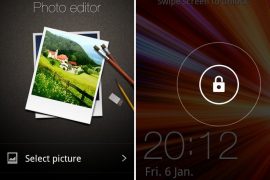
It’s time again, time for another leaked firmware from Samsung for the Galaxy S i9000. This time it’s another 2.3.6 firmware, dubbed as XXJVU, a successor to XXJVT for Open Europe region.
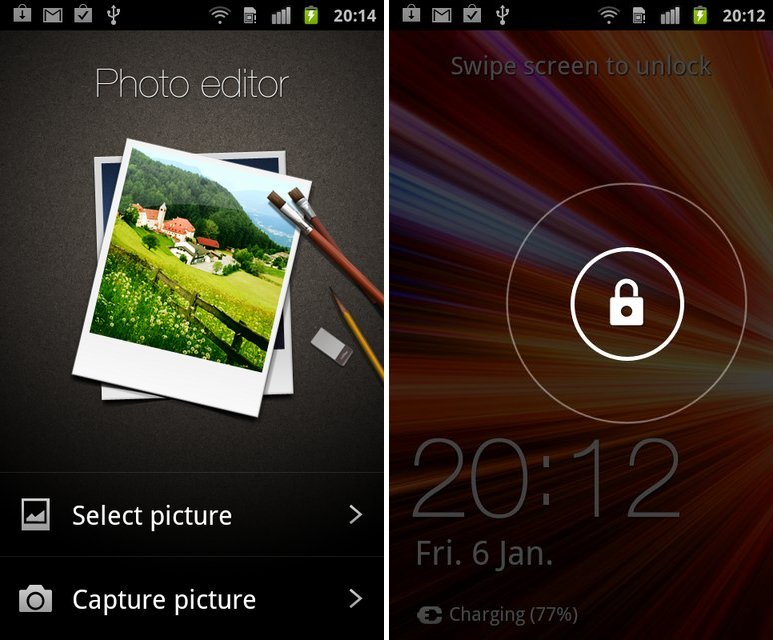
But it’s still not just another firmware for lovely Galaxy S1. Yep! It packs in new Lock Screen from Galaxy Note, a photo editor app from Galaxy S2 and lastly the Ice Cream Sandwich special Face Unlock feature, all besides the usual Android 2.3.6 Gingerbread. Check here to know more about what and what has changed with XXJVU firmware.
We know none of you, if not most of you, are happy with Sammy’s blunt announcement to not support Galaxy S with Android 4.0, but the XXJVU update is a major one which you’ll really enjoy, and should bring smiles on a bit choked faces of many Galaxy S users.
Yeah, we know you wanna try it, so we have a detailed guide right here on how to flash it.
Compatibility
This guide is applicable only for Samsung’s Galaxy S international version (GT-i9000). Check your phone’s version in Settings – About Phone. It has to be “GT-i9000” for this firmware to be compatible with your phone. If it’s not GT-i9000, simply don’t try this ROM on your android handset — don’t even think about it if you care about your android device.
Warning
The methods and procedures discussed here are considered risky and you should not attempt anything if you don’t know completely what it is. If any damage occurs to you or your device, we won’t be held liable — you only will be responsible, you’ve been warned!!!
Pre-Installation Tips:
- Installing/Flashing this ROM will erase your apps and data. So, it’s very important you back them up, before proceeding further. To backup your apps and important data — bookmarks, contacts, SMS, APNs (internet settings), etc. Restore APN settings if Internet isn’t working for you. This Android backup guide would help you. And if you’ve rooted your Galaxy S, you can save application’s data too, using Titanium backup(free app on android market) to backup apps with data. And use this this app only again to restore those apps with data.
- Drivers! — it’s important you’ve the proper drivers installed. Download links below:
- If you have Samsung’s PC software Kies installed, un-install it first because it may interrupt the flashing process. If you’ve installed it for sake of drivers which otherwise weren’t working, make sure you exit the Kies completely before beginning the procedure below.
How To Install XXJVU on Galaxy S i9000 (for experienced users)
Well, it’s pretty easy if you’ve already had fun flashing using Odin a decent number of times already. Download XXJVU (password: samfirmware.com) and install it using Odin3 v1.7. Put the *CODE* file in PDA tab, *Modem* file in Phone tab and *multi CSC* file in CSC tab. Put the .pit file in PIT tab and make sure Re-Partition is ticked too. Hit Start!
If you didn’t get what was said above, don’t worry one bit, a detailed guide for you is just below.
Step-By-Step Guide (for not so experienced users)
Although the guide below is very much detailed, step-by-step and sufficient for you to easily flash the XXJVU firmware on your Galaxy S, but in case if you want to watch a video of how you are going to do it, that is, flashing the XXJVU firmware is flashed using Odin, check out this video showing installation of an earlier firmware ‘XWJVB’ on Galaxy S. The procedure is same, so it would be helpful for those who are new.
- Download XXJVU firmware first. Filename: I9000XXJVU_I9000OXAJVU_OXA.rar. Size: 225.9 MB. Download Link. (password: samfirmware.com)
- Also download this PIT file: s1_odin_20100512.pit
- Extract the downloaded file ‘I9000XXJVU_I9000OXAJVU_OXA.rar’ to get these 3 files:
- CODE_I9000XXJVU_CL851880_REV03_user_low_ship.tar.md5
- GT-I9000-CSC-MULTI-OXAJVU.tar.md5
- MODEM_I9000XXJVU_REV_00_CL1059471.tar.md5
- Download Odin PC Software which we will be using to flash the XXJVU Android 2.3.6 ROM on Galaxy S. Filename: Odin3 v1.7.zip. Size: 192.55 KB. Download Link.
- Extract Odin3 v1.7.zip to get .exe file – Odin3 v1.7.exe. Run it when asked in step 8 below.
- Disconnect your phone if it’s connected to PC. Then Switch it Off. Wait 5-6 seconds for vibration to confirm complete switch off.
- Now, put the Galaxy S in “Download Mode” — press and hold these keys together: Volume_DOWN+Home+Power until a screen saying ‘Download Mode’ comes up.
- Open Odin (from step 5) — Odin3 v1.7.exe.
- Connect your phone to PC now. You should get the message “Added! !” under the Odin’s message box in the bottom left. If you don’t get “Added! !” message, than probably there is a problem with drivers. Make sure you’ve drivers installed (links given above under heading ‘Pre-Installation thoughts’).
- Now, in Odin, select these files at respective tabs (for visual help, see the screenshot at step 11 below):
- Click the PDA Tab, and select CODE_I9000XXJVU_CL851880_REV03_user_low_ship.tar.md5 (from step 3.1)
- Click the Phone Tab, and select MODEM_I9000XXJVU_REV_00_CL1092175.tar.md5 (from step 3.3)
- Click the CSC Tab, and select GT-I9000-CSC-MULTI-OXAJVU.tar.md5 (from step 3.2)
- Click the PIT Tab, and select s1_odin_20100512.pit (from step 2)
- Make sure the ‘Re-Partition’checkbox in ODIN is selected. Also, Auto Reboot and F.Reset Time checkboxes should be selected too. Leave everything else on Odin untouched.
- Double check everything said in step 10 and 11 above. Your Odin’s screen, after selecting all the files and ticking and not-ticking the checkboxes, should look like this:

- Now, hit the START button to begin the flashing process. When it finishes, your phone will automatically reboot, upon which you can unplug the cable. Plus, you’ll get a PASS (with green background) message in the left-most box at the very top of the Odin. (Check screenshot below)

- When it restarts, your Galaxy S will be running the Android OS, v2.3.6 XXJVU firmware.
- Off the screen and then open with the all new Galaxy Note ported lock screen. Find the Photo Editor app in app drawer, a port from Galaxy S2. And check the options for Face Unlock set up — go to Settings » Location and Security » Set Screen Lock. Enjoy!
- Lastly, if internet isn’t working, fill in the correct APN settings under mobile networks settings, under wireless and network settings.
Root and CWM for XXJVU
And before you ask, root for XXJVU isn’t out yet, which it should be in a matter of hours. We’ll update you with same as sson as we come to know of it.
Link to Root Galaxy S on XXJVU (also installs Clockworkmod recovery)
IMPORTANT NOTE: If Odin doesn’t seem to be progressing/doing anything for more than a minute, do the following:
Disconnect the phone from the PC, close ODIN, remove battery, re-insert it, turn phone on in Download mode again, and do the procedure again from Step 6.
Share your thoughts, observations and improvements (and disappointments) you see in the XXJVU firmware in comments below. If you face a problem in installation, don’t hesitate to ask us below.
Via XDA




1,133 responses to “New XXJVU Galaxy S Firmware Leaked. Updates Phone with Value Pack (Face Unlock, Photo Editor and New Lock Screen)”
hey …installed xxjw4 but still have the annoying icon in top left after calling …hopefully there will be a fix …do you think its a sim problem?
Yes. It seems a sim problem. Maybe that contacts are saved on your sim and that’s why that icon shows up. Try saving a contact in phone itself, or better, on your Gmail account, and then test call that number. Does it appear then too?
ok will try ..importing numbers from my sim to phone and will only display phone and gmail contacts…just tried but no different …
Remove one contact from sim so that it remains exclusively on phone or Gmail account. Or better, create one test contact with a test number and then place a call to it.
Hi , i just updated my GT-i1900 galaxy s Vodafone NZ with the xxjvu firmware and it worked fine but when i get a call or make a call the phone leaves a notification in the top left corner that looks like the sd card scanning icon (but smaller and grey) and also leaves a notification in the drop down from the home screen which cannot be deleted and only goes away when the phone is turned on and off ….is there a fix for this ?
Maybe a factory reset from recovery mode would fix it. Try that. To boot into recovery mode, power off phone and then hold Volume UP + Home + Power keys together till you see the Samsung logo.
Hi , i just updated my GT-i1900 galaxy s Vodafone NZ with the xxjvu firmware and it worked fine but when i get a call or make a call the phone leaves a notification in the top left corner that looks like the sd card scanning icon (but smaller and grey) and also leaves a notification in the drop down from the home screen which cannot be deleted and only goes away when the phone is turned on and off ….is there a fix for this ?
Maybe a factory reset from recovery mode would fix it. Try that. To boot into recovery mode, power off phone and then hold Volume UP + Home + Power keys together till you see the Samsung logo.
Thanks for the suggestion Kapil but i still have the same problem ….its annoying having it just sit there and not being able to clear it arrgh
Can’t help!
🙁
Btw, give me a screenshot or pic of that. I’ll see into it later.
Thanks for the suggestion Kapil but i still have the same problem ….its annoying having it just sit there and not being able to clear it arrgh
Can’t help!
🙁
Btw, give me a screenshot or pic of that. I’ll see into it later.
whats the password?? i key in bt they say the password could be wrong!
When is it asking for password, on reboot?
Hi mine is asking for password on reboot too, i didn’t have a password on it, how can i fix this
Is it possible to go back to gingerbread.xwjvh 2.3.3 ?
Of course you can back to xxjvh, but I would suggest you to go back to one better firmware, XXJVS — nerdschalk.com/download-install-xxjvs-firmware-update-galaxy-s-i9000-to-android-2-3-5/
Is it possible to go back to gingerbread.xwjvh 2.3.3 ?
Of course you can back to xxjvh, but I would suggest you to go back to one better firmware, XXJVS — nerdschalk.com/download-install-xxjvs-firmware-update-galaxy-s-i9000-to-android-2-3-5/
Hey Kapil …Here is the screen shot …when i turn on the phone its like there is 2 media scans running but both dissapear once they are finished …this grey one only reappears when i make a call or recieve a call …hope that helps …thanks for your help.
Where’s the screenshot? You can upload it on tinypic.com and give me a url of it.
Hey Kapil …Here is the screen shot …when i turn on the phone its like there is 2 media scans running but both dissapear once they are finished …this grey one only reappears when i make a call or recieve a call …hope that helps …thanks for your help.
Where’s the screenshot? You can upload it on tinypic.com and give me a url of it.
Thanks again …will wait and see if there is a fix otherwise will go to xxjvs as per your advise ..cheers
Thanks again …will wait and see if there is a fix otherwise will go to xxjvs as per your advise ..cheers
http://tinypic.com/r/20kzx8j/6
Hmm.. no idea, man. you can try the latest samsung firmware, XXJW4, which includes TouchWiz 4 too from here — nerdschalk.com/galaxy-s-gets-official-value-pack-firmware-xxjw4-includes-touchwiz-4/
http://tinypic.com/r/20kzx8j/6
Hmm.. no idea, man. you can try the latest samsung firmware, XXJW4, which includes TouchWiz 4 too from here — nerdschalk.com/galaxy-s-gets-official-value-pack-firmware-xxjw4-includes-touchwiz-4/
ohh stink one ….will give xxjw4 a go.
ohh stink one ….will give xxjw4 a go.
hey …installed xxjw4 but still have the annoying icon in top left after calling …hopefully there will be a fix …do you think its a sim problem?
Yes. It seems a sim problem. Maybe that contacts are saved on your sim and that’s why that icon shows up. Try saving a contact in phone itself, or better, on your Gmail account, and then test call that number. Does it appear then too?
hey …installed xxjw4 but still have the annoying icon in top left after calling …hopefully there will be a fix …do you think its a sim problem?
Yes. It seems a sim problem. Maybe that contacts are saved on your sim and that’s why that icon shows up. Try saving a contact in phone itself, or better, on your Gmail account, and then test call that number. Does it appear then too?
ok will try ..importing numbers from my sim to phone and will only display phone and gmail contacts…just tried but no different …
Remove one contact from sim so that it remains exclusively on phone or Gmail account. Or better, create one test contact with a test number and then place a call to it.
ok will try ..importing numbers from my sim to phone and will only display phone and gmail contacts…just tried but no different …
Remove one contact from sim so that it remains exclusively on phone or Gmail account. Or better, create one test contact with a test number and then place a call to it.
whats the password?? i key in bt they say the password could be wrong!
When is it asking for password, on reboot?
Hi mine is asking for password on reboot too, i didn’t have a password on it, how can i fix this
whats the password?? i key in bt they say the password could be wrong!
When is it asking for password, on reboot?
Hi mine is asking for password on reboot too, i didn’t have a password on it, how can i fix this
Hi Kapil ..so i deleted one contact from the sim and the phone ..turned the phone on and off to errase the stubborn icon ….and called the number but it reappeared .
When i turn the phone on it runs 2 seperate media scans …one with the stock scanner and one with this Mystery one in grey (which starts first if that helps ) .
No idea then, man. Try XXJW4 or XXJVS and see if it gets lost.
Hi Kapil ..so i deleted one contact from the sim and the phone ..turned the phone on and off to errase the stubborn icon ….and called the number but it reappeared .
When i turn the phone on it runs 2 seperate media scans …one with the stock scanner and one with this Mystery one in grey (which starts first if that helps ) .
No idea then, man. Try XXJW4 or XXJVS and see if it gets lost.
Hi Kapil ..so i deleted one contact from the sim and the phone ..turned the phone on and off to errase the stubborn icon ….and called the number but it reappeared .
When i turn the phone on it runs 2 seperate media scans …one with the stock scanner and one with this Mystery one in grey (which starts first if that helps ) .
No idea then, man. Try XXJW4 or XXJVS and see if it gets lost.
have tried xxjw4 and it is still on there …it has something to do with the sd card scanner …and it is also draining my battery -only lasts an hour …
have tried xxjw4 and it is still on there …it has something to do with the sd card scanner …and it is also draining my battery -only lasts an hour …
have tried xxjw4 and it is still on there …it has something to do with the sd card scanner …and it is also draining my battery -only lasts an hour …
found some stuff on this ..says its a sim tool kit issue ….
fixed ..was a post on voda NZ link http://forum.vodafone.co.nz/topic/6080-sim-card-notification-icon-in-android-phone/page__p__61261&#entry61261
Great! Thanks for sharing.
found some stuff on this ..says its a sim tool kit issue ….
found some stuff on this ..says its a sim tool kit issue ….
fixed ..was a post on voda NZ link http://forum.vodafone.co.nz/topic/6080-sim-card-notification-icon-in-android-phone/page__p__61261&#entry61261
Great! Thanks for sharing.
fixed ..was a post on voda NZ link http://forum.vodafone.co.nz/topic/6080-sim-card-notification-icon-in-android-phone/page__p__61261&#entry61261
Great! Thanks for sharing.
hello, i’ve put this soft on my samsung galaxy s1, but i have a problem, when i try to move apps on the phone’s usb storage it tells me “failed to move the application. Not enaugh memory”, but i formated the storange and it’s empty. Can anybody help me please?
hello, i’ve put this soft on my samsung galaxy s1, but i have a problem, when i try to move apps on the phone’s usb storage it tells me “failed to move the application. Not enaugh memory”, but i formated the storange and it’s empty. Can anybody help me please?
hello, i’ve put this soft on my samsung galaxy s1, but i have a problem, when i try to move apps on the phone’s usb storage it tells me “failed to move the application. Not enaugh memory”, but i formated the storange and it’s empty. Can anybody help me please?
Wooo! It worked! Thank you!!! 😀
Wooo! It worked! Thank you!!! 😀
Wooo! It worked! Thank you!!! 😀
thanks a ton ……….its working fine i like it
thanks a ton ……….its working fine i like it
thanks a ton ……….its working fine i like it
Nice! It worked fabulously!
Nice! It worked fabulously!
How long shall this take? After I pressed start, nothing seems to be loading or what… 😐
DO NOT TURN OFF TARGET!!
^^ this is the last post off the log file, am I making any progress or what? 🙁
i do have the same problem any solutions??
Try again. Restart both PC and Phone and use any other USB port. This should solve it.
How long shall this take? After I pressed start, nothing seems to be loading or what… 😐
DO NOT TURN OFF TARGET!!
^^ this is the last post off the log file, am I making any progress or what? 🙁
i do have the same problem any solutions??
Try again. Restart both PC and Phone and use any other USB port. This should solve it.