
You can switch between Voyage and Storm Dive from the expedition overview/deployment screen before starting a run, using the mode selector next to the Ready button.
Game mode is part of your pre-run setup in SAND: Raiders of Sophie. Set it after preparing your loadout and before you ready up, because once the expedition starts, you cannot swap from one mode to the other mid-run.
The two modes are Voyage and Storm Dive. The choice changes the pace of the run, how extraction pressure works, and how risky the loot route feels.
Where the mode selector is before a run
After you prepare your loadout, continue to the overview or deployment screen where your run is staged. The game mode selector is beside the Ready button, shown to the left of it in the visible setup flow.
Open that selector, choose either Voyage or Storm Dive, then press Accept. Before clicking Ready, look back at the selected mode shown on the screen so you do not deploy into the wrong type of expedition.
KEY!The exact selector text may vary by build, but the important location is the same: check the deployment lobby area near Ready, not the main menu.
How to switch game modes in SAND: Raiders of Sophie
Use this flow after your loadout is ready and before you queue for the expedition.
STEP 1/7
Prepare your loadout
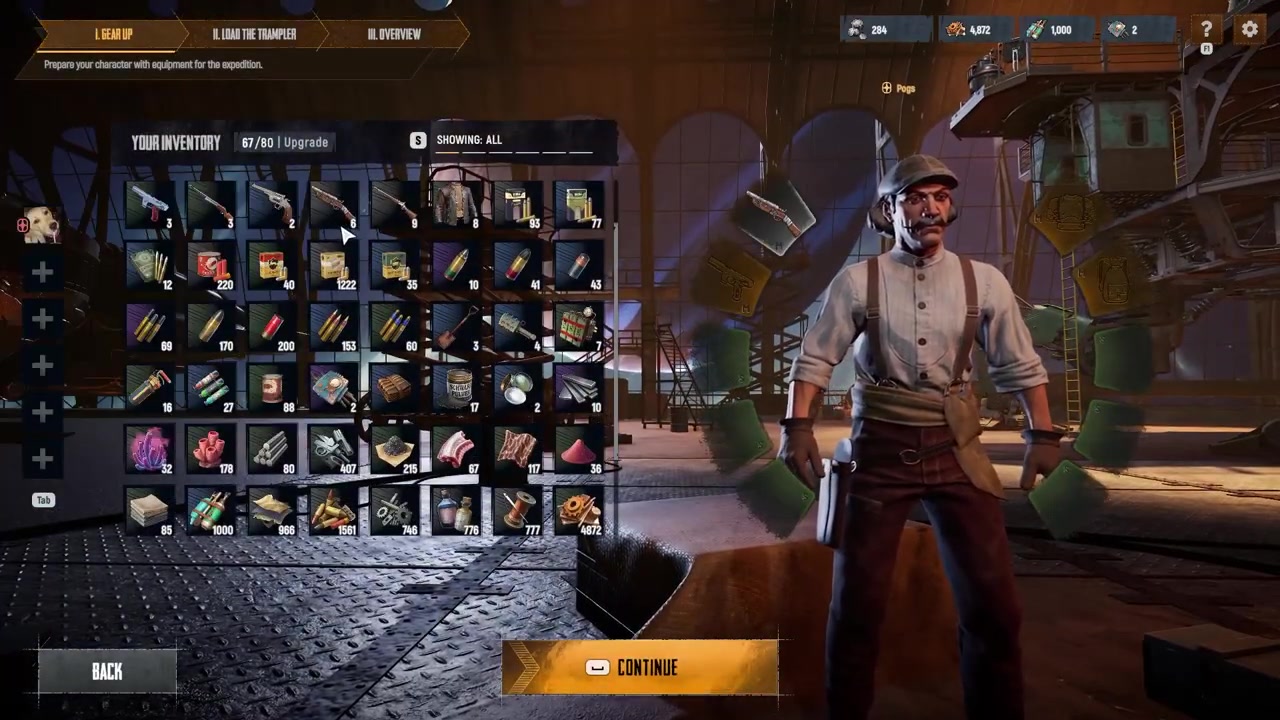
Finish packing your run setup before opening the final overview screen.
STEP 2/7
Go to the overview screen
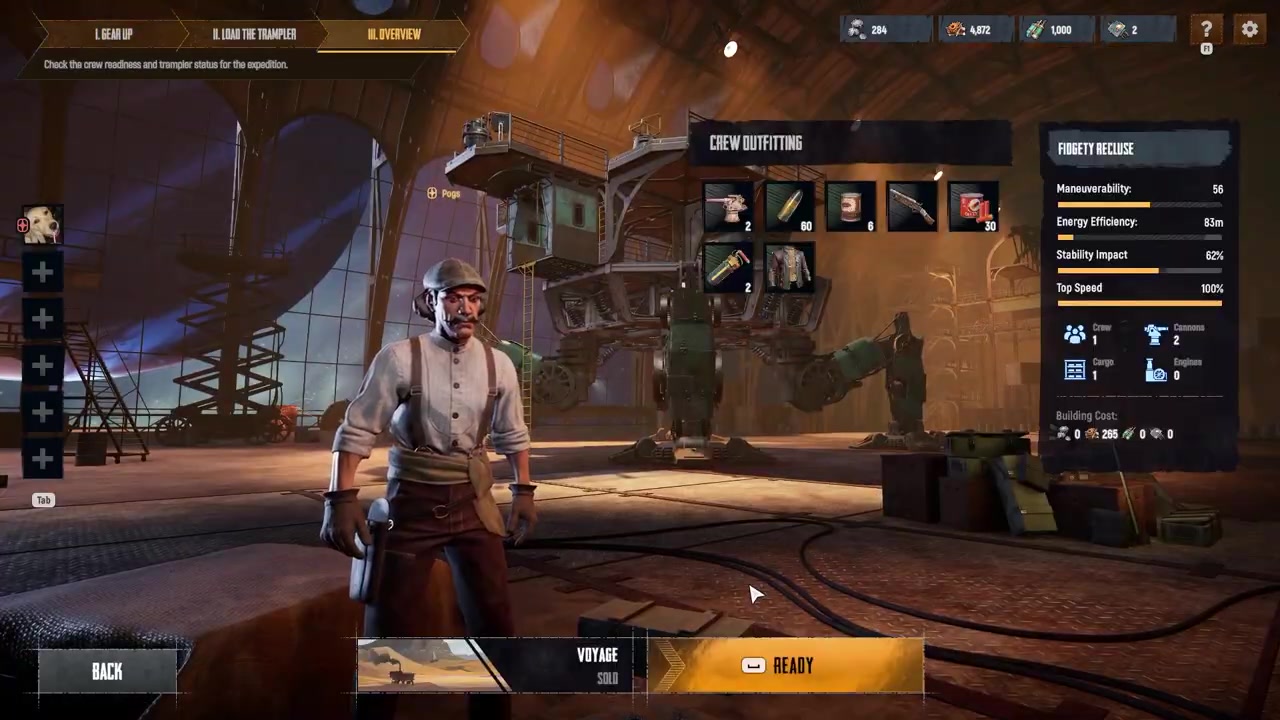
Move into the pre-deployment overview where the Ready button appears.
STEP 3/7
Open the mode selector
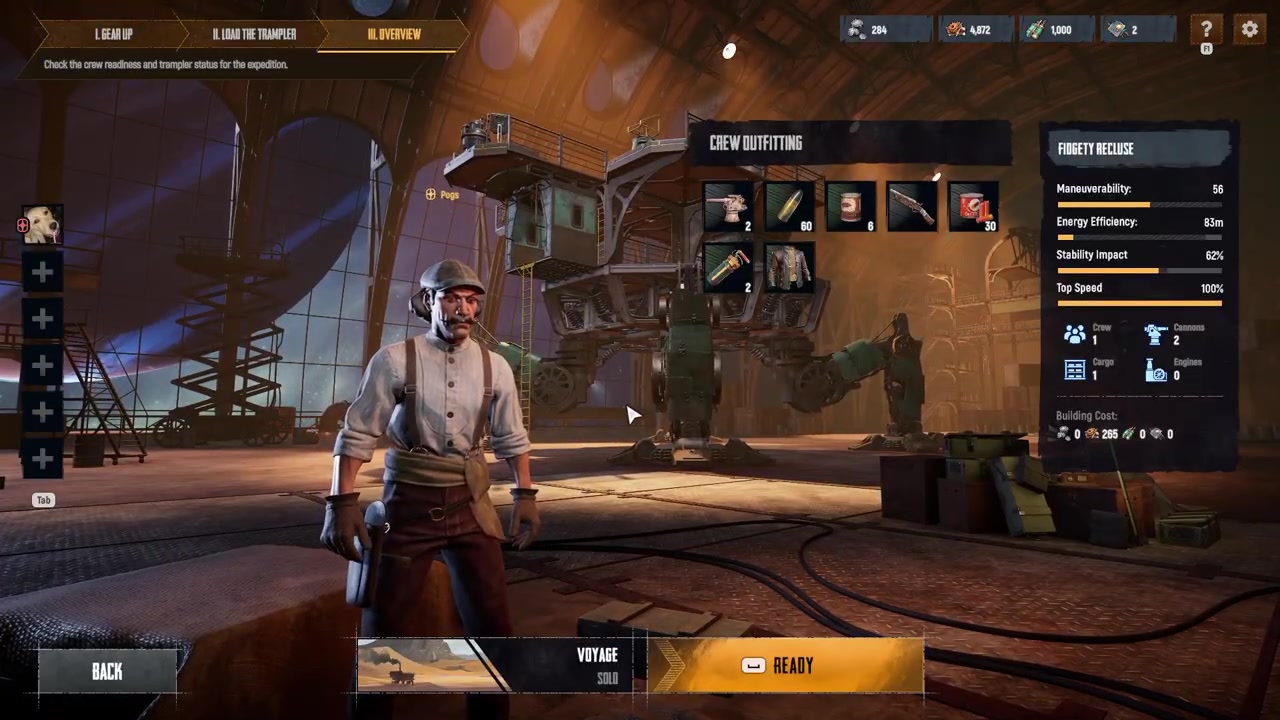
Click the game mode selection button to the left of Ready.
STEP 4/7
Choose a mode
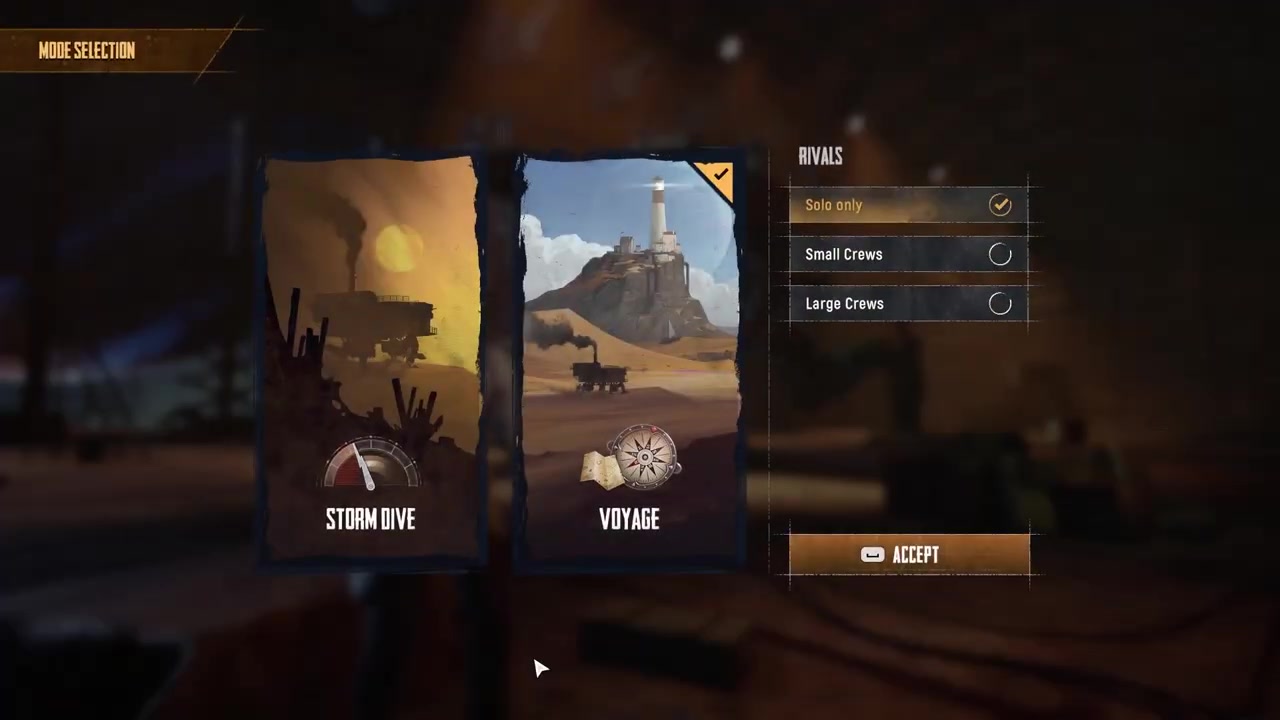
Select either Voyage or Storm Dive from the mode menu.
STEP 5/7
Accept the selection
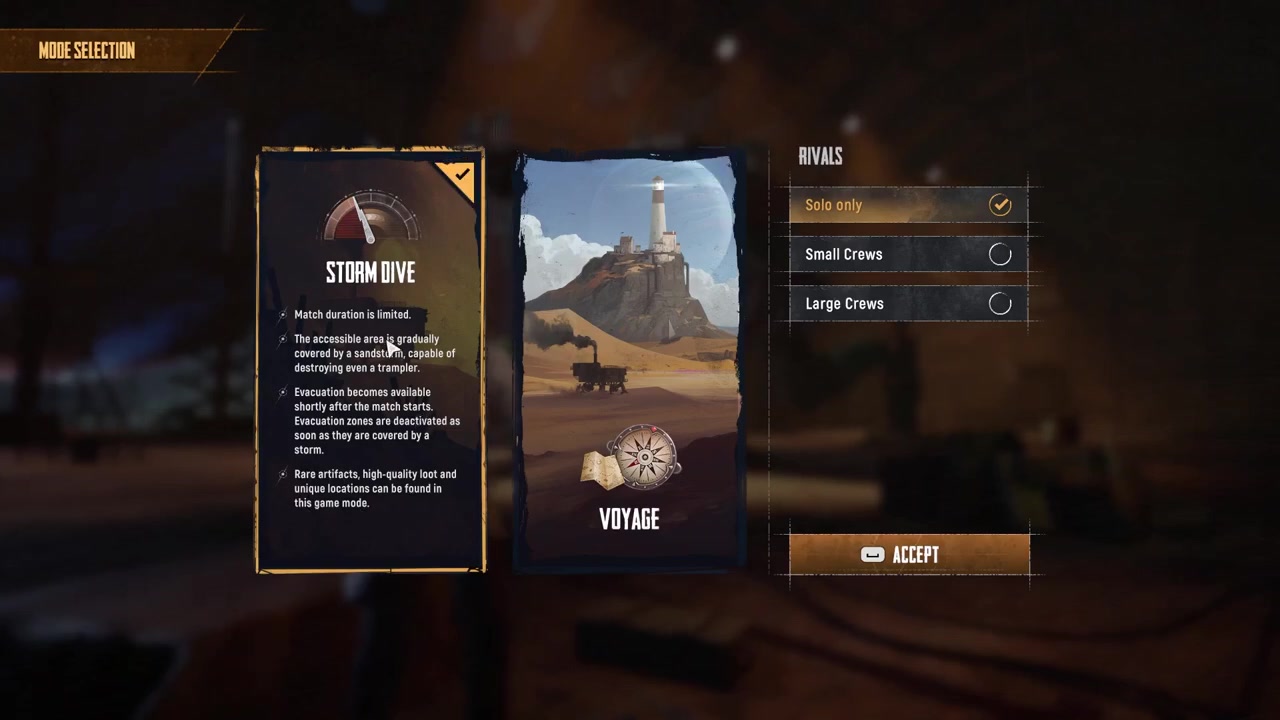
Click Accept to apply the mode you picked.
STEP 6/7
Check the selected mode
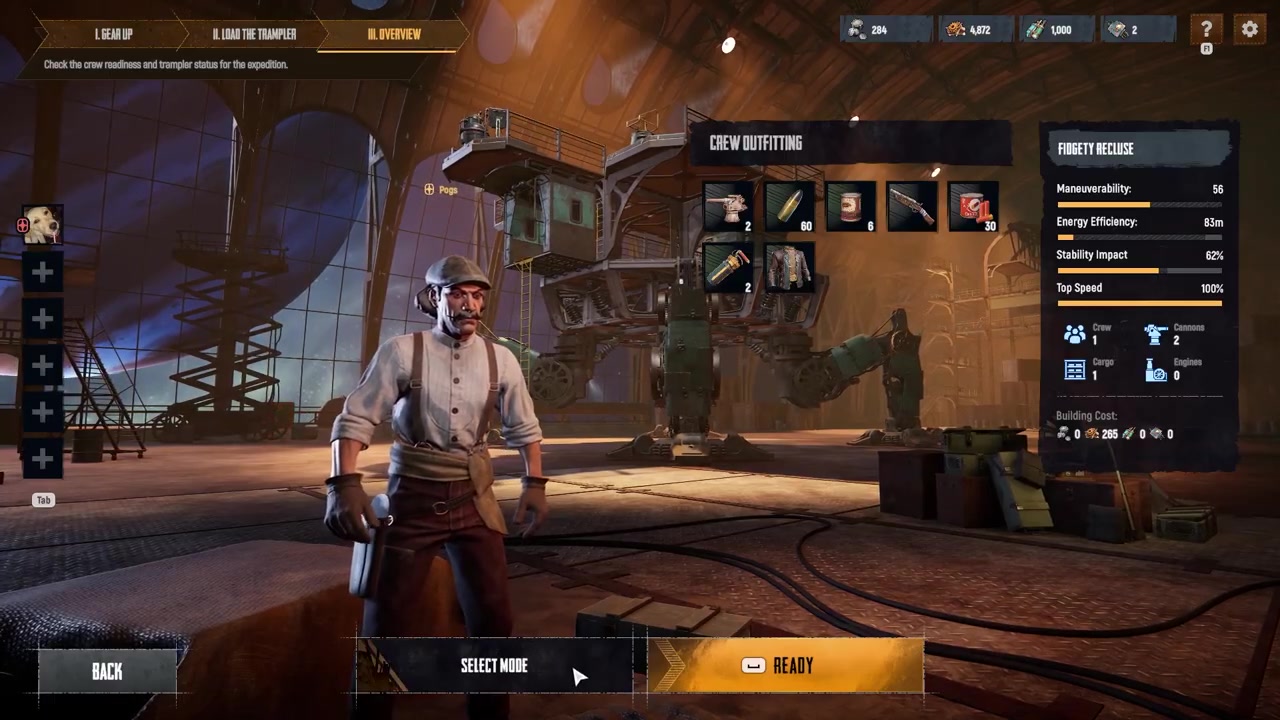
Confirm the visible mode changed correctly, since it can occasionally lag or fail to switch immediately.
STEP 7/7
Ready up
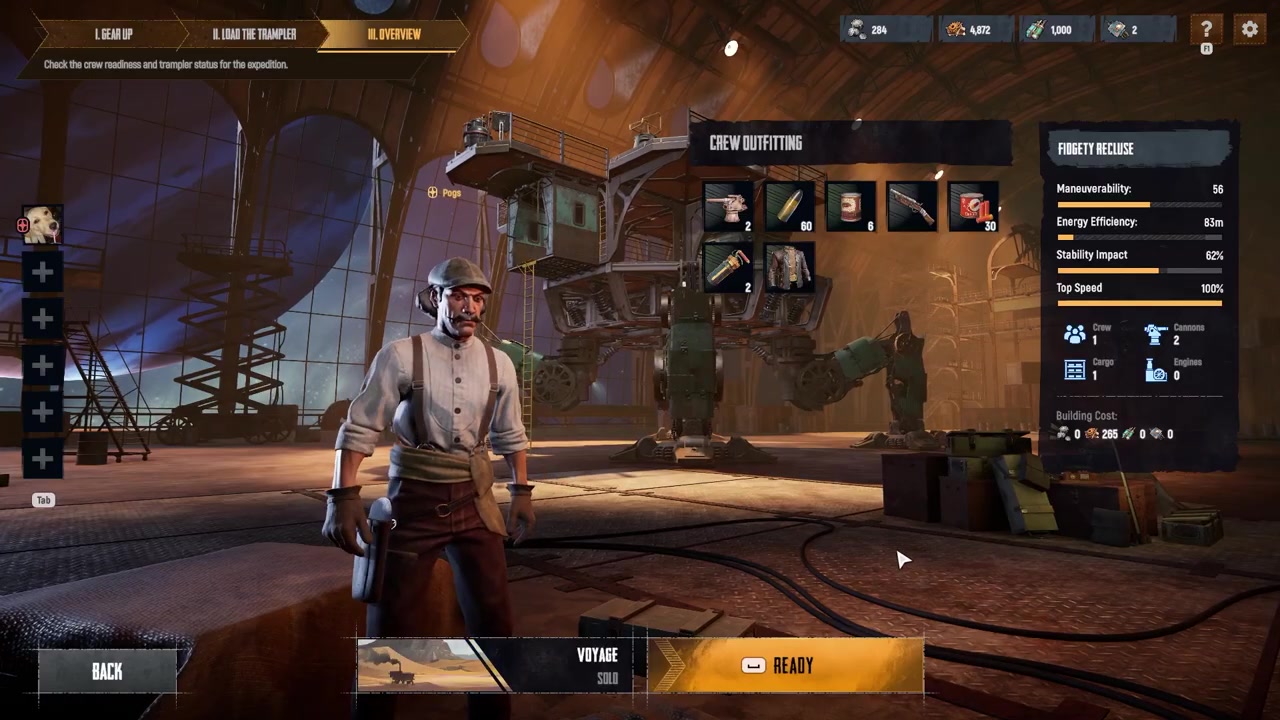
Click Ready only after the correct mode is shown.
Video help
Voyage and Storm Dive differences
| Mode | What changes | Best for |
|---|---|---|
| Voyage | No match timer; extraction zones stay active throughout; other expeditions can join during the match. | Exploration, resources, contracts, and slower learning runs. |
| Storm Dive | Timed run with a shrinking sandstorm; extractions activate later and can vanish in the storm; higher rare-loot odds and unique locations. | Higher-risk PvPvE runs, rare loot hunting, and players comfortable with extraction timing. |
Voyage is the calmer expedition mode. It has no match timer, extraction zones stay active throughout the match, and it fits players who want to explore, gather resources, or complete contracts without racing the clock.
Storm Dive is the pressure mode. Runs are time limited, the playable area shrinks as a sandstorm closes in, extraction zones activate later and can disappear when overtaken by the storm, and the added danger comes with better chances at rare loot, high-quality items, and unique Storm Dive locations.
Check the selected mode before pressing Ready, especially when switching from Storm Dive to Voyage or back, because the display can occasionally take a moment to update.
Which mode beginners should pick
Start with Voyage if you are still learning movement, extraction routes, Trampler handling, contracts, and basic resource gathering. The lack of a hard time limit gives you room to make decisions without the sandstorm forcing every route.
That does not make Voyage completely safe. It is still a PvPvE space, and other players can be present, so treat it as a better learning mode rather than a protected practice lobby.
Pick Storm Dive when you want a more intense run and are ready to manage storm pressure, delayed extraction windows, and the risk of losing loot while chasing better rewards.
Mistakes that keep players in the wrong mode
The most common mistake is looking for the mode choice on the main menu. The switch happens in the deployment lobby, next to the final ready-up area, after your loadout is prepared.
Another easy mistake is expecting the mode to change after the expedition starts. It will not. If you loaded into Storm Dive by accident and wanted Voyage, you need to set the correct mode before the next deployment.
Do not confuse game mode with weapon handling mode. Game mode means Voyage or Storm Dive; weapon handling options such as Smuggler or Outlaw affect controls, not the type of expedition you enter.
Also check your lobby setup when it matters. Options such as Solo Only, Friends, or Public are separate from the game mode, but they can still affect the kind of run you end up joining.
Frequently Asked Questions
Can you change game modes after an expedition starts?
No. You must choose Voyage or Storm Dive before deployment, then start the expedition in that selected mode.
Where is the game mode selector?
It is on the overview or deployment screen beside the Ready button, shown to the left of Ready in the setup flow.
How many game modes are in SAND: Raiders of Sophie?
There are two game modes: Voyage and Storm Dive.
Which mode should beginners choose?
Beginners should choose Voyage. It has no match timer, extraction zones stay active, and it gives you more space to learn exploration, contracts, resources, and extraction.
Why did my selected mode not change immediately?
The selected mode display can occasionally lag or fail to update right away. After pressing Accept, check the shown mode before pressing Ready.


Leave a Reply