
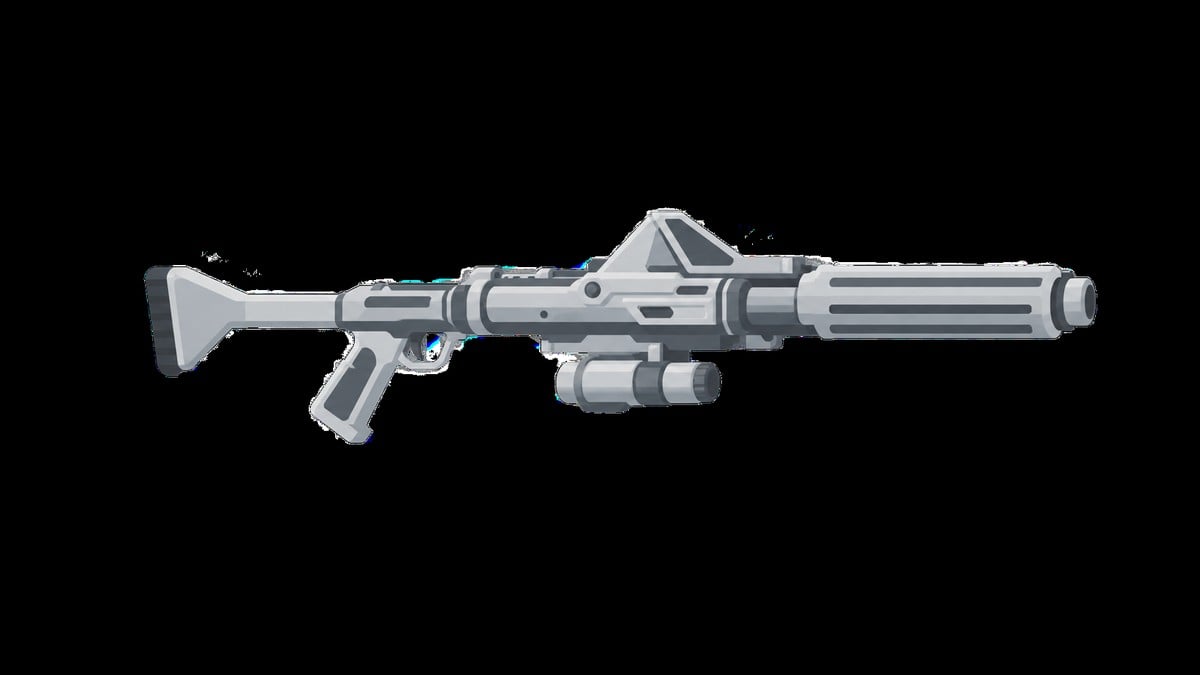
Go to the Armory in The Den, choose Equip Mods, select an operator and weapon, then place a compatible attachment into an available Modification Slot.
Key Attaching a mod takes only a few menu selections once you reach The Den. The important part is choosing the intended operator and checking the weapon’s slot layout before committing an attachment.
- All Mods and Attachments in Star Wars Zero Company
- How to equip attachments and mods in Star Wars Zero Company
- Modification Slots and attachment effects
- Where to get more Weapon Mods
- How additional Modification Slots become available
- Managing mods across operators before deployment
- Weapon Mods versus cosmetic customization
All Mods and Attachments in Star Wars Zero Company
| Attachment type | Mod / attachment | Effect |
|---|---|---|
| Barrel | Amplifier | Increases Blaster Damage at close range |
| Barrel | Crystalline Amplifier | Increases Blaster Damage at close range |
| Barrel | Dual Amplifier | Increases Blaster Damage at close range |
| Barrel | Basic Adjuster | Reduces enemy Defense when the weapon hits |
| Barrel | Enigma Adjuster | Reduces enemy Defense when the weapon hits |
| Barrel | Phase Adjuster | Reduces enemy Defense when the weapon hits |
| Barrel | Pirate Adjuster | Reduces enemy Defense when the weapon hits |
| Barrel | Capacitor | Adds extra Blaster Damage during the first turn |
| Barrel | High-Energy Capacitor | Increases Blaster Damage during the first turn |
| Barrel | Hypercharge Capacitor | Increases Blaster Damage during the first turn |
| Barrel | Supernova Capacitor | Increases Blaster Damage during the first turn |
| Barrel | Ultradense Capacitor | Increases Blaster Damage during the first turn |
| Barrel | Lightning Cycler | Chance to restore AP after attacking |
| Barrel | Quicksilver Cycler | Chance to restore AP after attacking |
| Barrel | Rapid Cycler | Chance to restore AP after attacking |
| Barrel | Turbo Cycler | Chance to restore AP after attacking |
| Barrel | Lightning Modulator | Chance to Shock a target on hit |
| Barrel | Shock Modulator | Chance to Shock a target on hit |
| Barrel | Voltage Modulator | Chance to Shock a target on hit |
| Barrel | Advanced Incendiary Modulator | Applies Burning on hit |
| Barrel | Wildfire Modulator | Applies Burning on hit |
| Barrel | Superior Ion Modulator | Increased damage against Droids/Ray Shields |
| Barrel | Pulsed Ion Modulator | Increased damage against Droids/Ray Shields |
| Barrel | Grade II Ion Modulator | Increased damage against Droids/Ray Shields |
| Cell | Single Coil Condenser | Increases Critical Hit Damage |
| Cell | Dual Coil Condenser | Increases Critical Hit Damage |
| Cell | Dual Spiral Condenser | Increases Critical Hit Damage |
| Cell | Spiral Condenser | Increases Critical Hit Damage |
| Scope | Precision Scope | Increases Critical Chance |
| Scope | Assassin’s Scope | Increases Critical Chance |
| Scope | Executioner’s Scope | Increases Critical Chance |
| Scope | Sniper’s Scope | Increases Critical Chance |
| Scope | Targeting Scope | Reduces Cover penalty |
| Scope | Auto-Scope | Reduces Cover penalty |
| Scope | Elite Targeting Scope | Reduces Cover penalty |
| Scope | Enhanced Targeting Scope | Reduces Cover penalty |
| Scope | Advanced Range Scope | Reduces Range penalty |
| Scope | Horizon Scope | Reduces Range penalty |
| Scope | Long Range Scope | Reduces Range penalty |
| Scope | Limitless Scope | Reduces Range penalty |
| Scope | Advanced Tracking Scope | Increases Assist Damage |
| Scope | Hunter’s Tracking Scope | Increases Assist Damage |
| Scope | Stalker Scope | Increases Assist Damage |
| Scope | Tracking Scope | Increases Assist Damage |
| Stabilizer | Balancing Stabilizer | Grants Defense after attacking |
| Stabilizer | Auto-calibrating Balancer | Grants Defense after attacking |
| Stabilizer | Experimental Model-8 Balancer | Grants Defense after attacking |
| Stabilizer | Bracing Stabilizer | Increases Blaster Damage if the Operator hasn’t moved |
| Stabilizer | Advanced Bracing Stabilizer | Increases Blaster Damage if the Operator hasn’t moved |
| Stabilizer | D-X9 Bracing Stabilizer | Increases Blaster Damage if the Operator hasn’t moved |
| Stabilizer | D-X22R Elite Brace | Increases Blaster Damage if the Operator hasn’t moved |
| Stabilizer | Ergonomic Stabilizer | Increases Blaster Damage after attacking |
| Stabilizer | Custom Ergonomic | Increases Blaster Damage after attacking |
| Stabilizer | Type-K Ergonomic | Increases Blaster Damage after attacking |
| Stabilizer | Lightweight Stabilizer | Chance to gain Evasion when firing |
| Stabilizer | Superlight Stabilizer | Chance to gain Evasion when firing |
| Stabilizer | Ultralight Stabilizer | Chance to gain Evasion when firing |
| Stabilizer | Weightless Stabilizer | Chance to gain Evasion when firing |
How to equip attachments and mods in Star Wars Zero Company
Use the Armory to assign a compatible inventory mod to your chosen operator’s blaster.
STEP 1/5
Enter the Armory
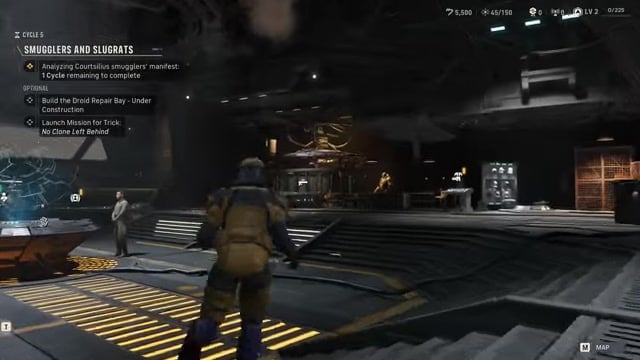
Go to the Armory console in The Den and interact with it.
STEP 2/5
Open Equip Mods
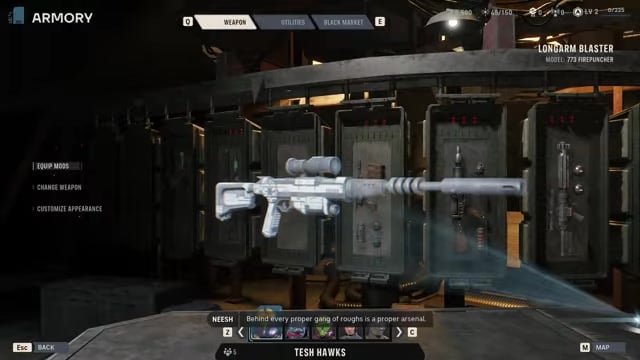
Select Equip Mods from the Armory menu to display the weapon modification options.
STEP 3/5
Select an operator
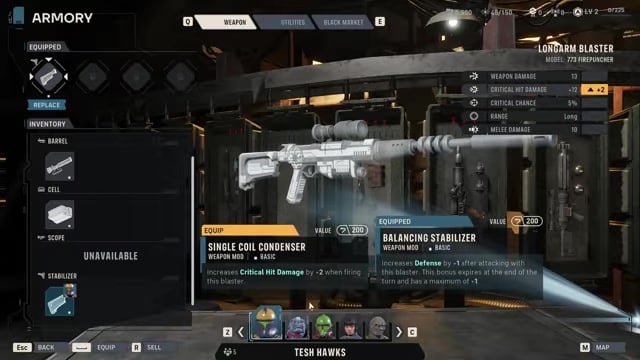
Cycle to the operator whose blaster you want to modify and open that weapon’s loadout.
STEP 4/5
Choose an attachment
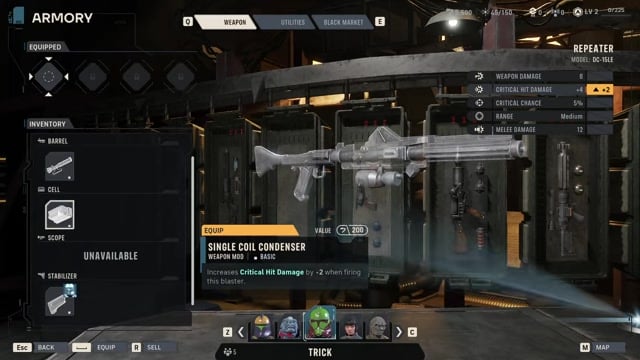
Select an available mod for the weapon’s open slot, such as the demonstrated Cell attachment.
STEP 5/5
Equip the mod
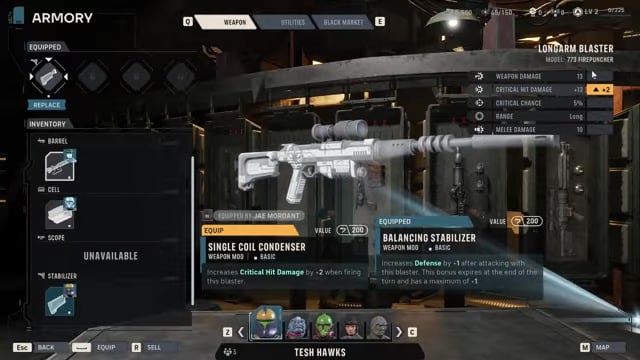
Place the selected attachment into the open Modification Slot to apply it to that operator’s blaster.
Video help
Modification Slots and attachment effects
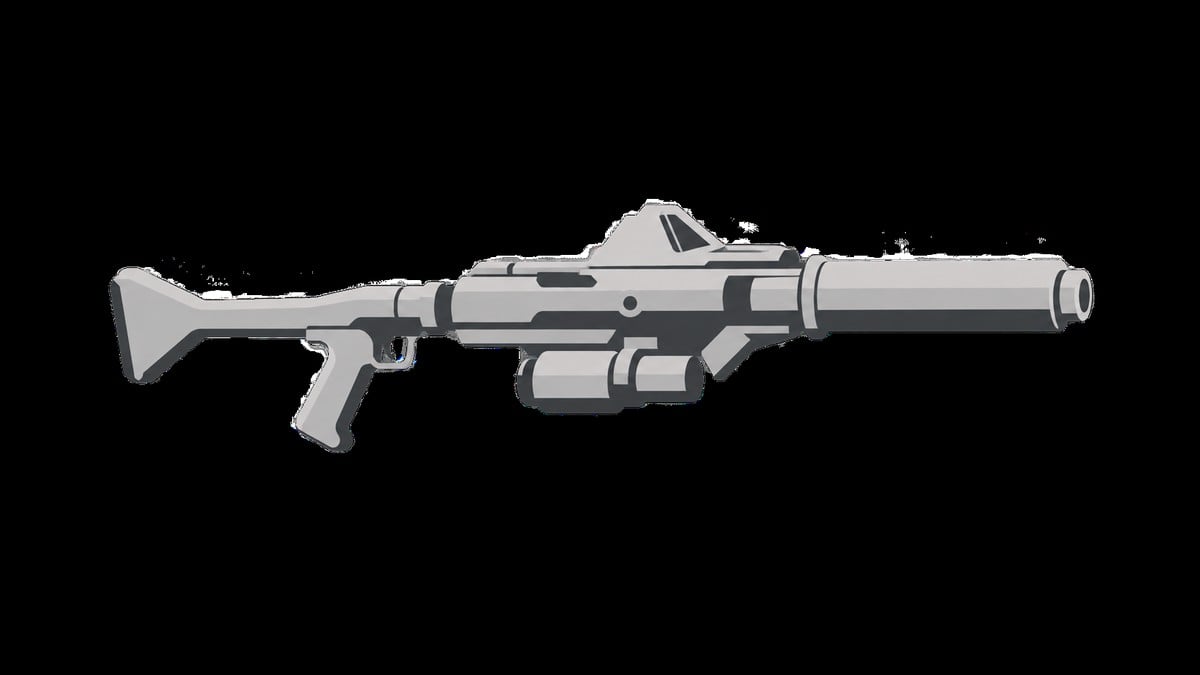
Weapon Mods are functional attachments that alter combat stats or add special effects. Every attachment belongs to a slot category and must be placed in a matching Modification Slot. The categories include Barrel, Cell, and Scope; the fourth slot appears as Stabilizer in some builds and Stock in others. Only one mod from each category can be equipped at a time.
The demonstrated loadout changes include placing a Cell on one operator’s weapon and a Scope on another. Depending on the attachment, the result can be a stat increase such as added Critical Hit Damage or an additional effect such as inflicting a stack of Burning.
Highlight each attachment and read the upper-right effect preview before equipping it so you can see exactly how it will change the selected weapon.
Where to get more Weapon Mods
The Black Market is available through the Armory in The Den. It sells weapons, utilities, equipment, and Weapon Mods for Credits. Its inventory refreshes after missions, so check the shop whenever the squad returns to the hub.
Mods can also enter the reward pool through Tactical Missions and larger story Operations. Buying or earning a mod gives you an attachment item for your inventory; it does not directly open a locked Modification Slot on a weapon.
How additional Modification Slots become available
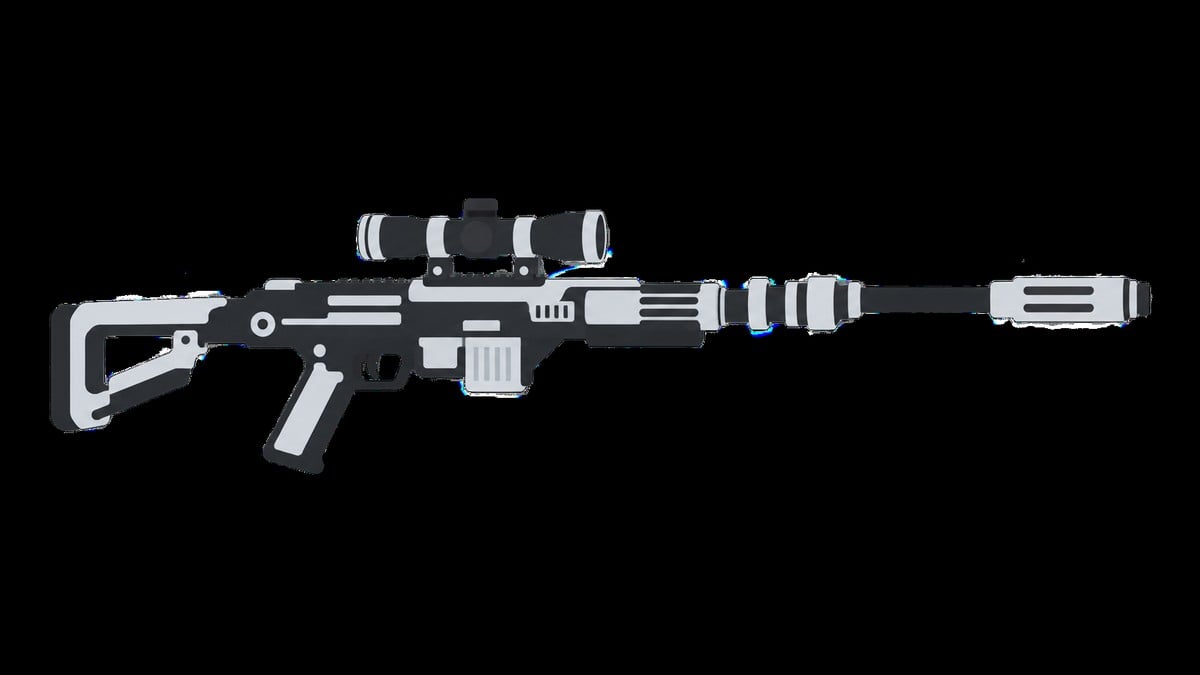
Some weapon slots begin locked and become usable through campaign progression. The available paths include upgrading relevant facilities, increasing Holonet Influence, and earning campaign rewards. Over time, these upgrades can raise a weapon’s capacity to at least four Modification Slots.
The confirmed routes shown in the current game are Upgrade Facility, the Holotable Influence Tab, and Campaign Rewards.
Managing mods across operators before deployment
From the operator-selection screen before a mission, choose an operator and use Open Armory to inspect or change that character’s weapon without returning through the wider hub interface.
An individual mod item cannot remain equipped on multiple operators simultaneously. Review each operator’s weapon effects before deployment and distribute your attachments around the squad’s current roles and mission plan instead of forcing one universal build.
Weapon Mods versus cosmetic customization
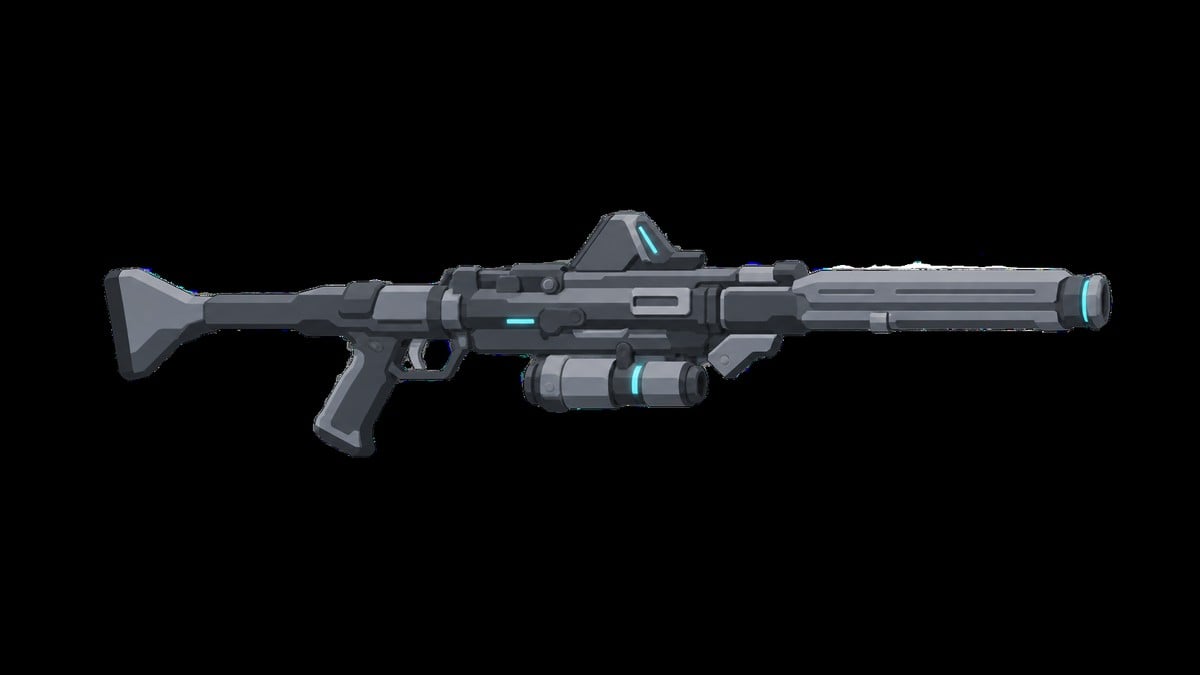
The Armory also has a separate appearance layer for changing blaster models, colors, skins, and visual parts such as the base, stabilizer, cell, barrel, and scope.
Those cosmetic selections change how a weapon looks without replacing the functional attachment items assigned through Equip Mods. Appearance choices and combat loadouts can therefore be customized independently.





Leave a Reply