

Root for Samsung Galaxy Tab S2 is available, but with a catch. Only Android 5.0.2 firmware could be rooted, so if you have updated to Android 5.1.1 already, you are out of luck. Though, we fully expect the Android 5.1.1 root to be available soon, like it is for Galaxy S6 and S6 Edge, Note 5 and S6 Edge Plus.
The root is an unofficial port of CD Auto Root that is the most popular root tool for Samsung device since 2010, but now has hit a bad phase ever since Android 5.1 came out. We’re hope its developer, Chainfire, is working on 5.1.1 root but in the meantime, CF Root doesn’t work 5.1.1 firmwares.
Using the CF Auto Root for Galaxy Tab S2 provided below, you can easily gain root access and the required SuperSU app that will manage the access for apps.
We will be sure to bring you a TWRP recovery for your TAB S2 as and when it becomes available.
Downloads
- Autoroot kernel for GALAXY TAB S2 on Android 5.0.2:
- Autoroot kernel for GALAXY TAB S2 on Android 5.1.1:
- Odin PC software — Link | File: Odin3_v3.10.6.zip (1.6 MB)
→ Check the official page here (for 5.0.2) and here (5.1.1) latest version of autoroot kernel available at the moment.
Supported devices
- SAMSUNG GALAXY TAB S2, 9.7-inch and 8.0-inch (as per downloads available above, per model no.)
- Don’t try on any other device whatsoever whose model no. is different than the one provided above!
Important: Check your device’s model no. on its packaging box, or in Settings > About device.
Warning: Warranty may be void of your device if you follow the procedures given on this page. You only are responsible for your device. We won’t be liable if any damage occurs to your device and/or its components. Also, this trips KNOX, meaning KNOX would stop working on your device, and thus you won’t be able to Samsung Pay, or install enterprise Apps on your device at Office.
Backup important files stored on your device before proceeding with the steps below, so that in case something goes wrong you’ll have backup of all your important files. Sometimes, Odin installation may delete everything on your device!
Step-by-step Guide
Step 1. Download Odin and autoroot kernel file from above.
Step 2. Install Galaxy Tab S2 driver (method 1 there!) first of all. Double click the .exe file of drivers to begin installation. (Not required if you have already done this.)
Step 3. Extract the Odin file. You should get this file, Odin3 v3.10.6.exe (other files could be hidden, hence not visible).
Disconnect your Galaxy Tab S2 from PC if it is connected.
- Go to Settings > About device. And then tap on build no. 7 times or until your get the message ‘You’re now a developer’.
- Go back to Settings, scroll down, and tap on ‘Developer options’.
- Look for ‘Enable OEM unlock’ and use its toggle to enable it. Accept the warning by tapping on OK button.
→ Also, be sure to disable the ‘Find My Mobile’ option in ‘Lockscreen and security settings’ for a while as that may block installation using Odin. You can re-enable it later on. Moreover, if you don’t see this option, the ignore this, it’s okay.
- Power off your Galaxy Tab S2. Wait 6-7 seconds after screen goes off.
- Press and hold the three buttons Power + Home + Volume down together until you see warning screen.
- Press Volume Up to continue to download mode.

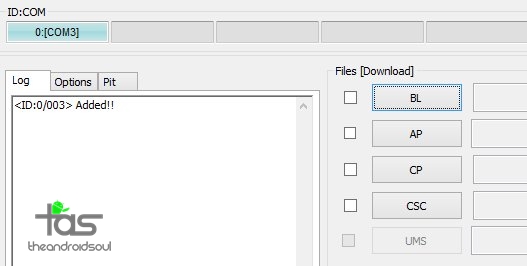
Step 8. Connect your Galaxy Tab S2 to PC now using USB cable. Odin should recognize your Galaxy Tab S2. It’s a must. When it recognizes, you will see Added!! message appearing in the Log box in bottom left, and the first box under ID:COM will also show a no. and turn its background blue. Look at the pic below.
- You cannot proceed until you get the Added!! message, which confirms that Odin has recognized your device.
- If you don’t get Added!! message, you need to install/re-install drivers again, and use the original cable that came with the device. Mostly, drivers are the problem (look at step 2 above).
- You can try different USB ports on your PC too, btw.
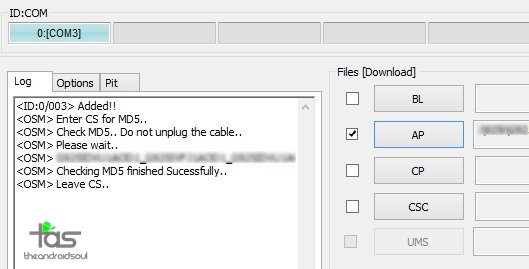
Step 9. Load the autoroot kernel file into Odin. For this, click the AP button on Odin and the select the kernel’s file you downloaded above.
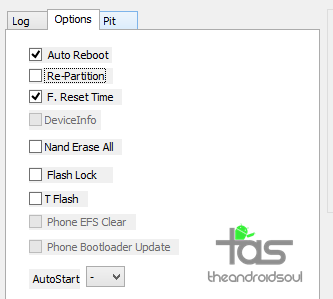
- If Odin gets stuck at setup connection, then you need to do this all again. Disconnect your device, close Odin, boot device into download mode again, open Odin, and then select the file and flash it again as said above.
- If you get FAIL in the top left box, then also you need to flash the file again as stated just above.

→ That’s it. Enjoy the root access on your Galaxy Tab S2!
If you need any help with this, let us know via comments below and we will try our best to help you out.
Via ashyx

81 responses to “Samsung Galaxy Tab S2 Root [SM-T810, SM-T710, SM-T715] Works on Android 5.1.1 and 5.0.2”
Not only did it not work, now i have a beautiful Kernel is not something on the boot, the KNOX is tripped but I have no root. I knew i was tripping KNOX but at least you would expect to have the root
Not only did it not work, now i have a beautiful Kernel is not something on the boot, the KNOX is tripped but I have no root. I knew i was tripping KNOX but at least you would expect to have the root
Does it work on sm-t715c?
It could. But no guarantee.
Done. Worked perfectly.
Will ota still working?
Anyway I’m enjoying the rooted device. Thx for the nice works on developing the root.
look on Google Play store for OTA program downloaders. Samsung may not let you do OTA anymore, but at least there are some programmers who took the time to circumvent it.
Does it work on sm-t715c?
It could. But no guarantee.
Done. Worked perfectly.
Will ota still working?
Anyway I’m enjoying the rooted device. Thx for the nice works on developing the root.
look on Google Play store for OTA program downloaders. Samsung may not let you do OTA anymore, but at least there are some programmers who took the time to circumvent it.
I enabled the Developer options, but i dont seem to have the “Enable OEM Unlock” option?? its a SM-T710 btw .. any ideas?
It’s okay. Skip that step if you aren’t finding that option.
I enabled the Developer options, but i dont seem to have the “Enable OEM Unlock” option?? its a SM-T710 btw .. any ideas?
It’s okay. Skip that step if you aren’t finding that option.
does it work on SM-T815Y ?
does it work on SM-T815Y ?
Sorry for not understanding, but I thought you said it didn’t work with 5.1.1 yet, but I see download files for 2 of the 3 models for 5.1.1. Is the download for the SM-T810 (WIFI only 64GB) valid or why is it there?
Sorry for not understanding, but I thought you said it didn’t work with 5.1.1 yet, but I see download files for 2 of the 3 models for 5.1.1. Is the download for the SM-T810 (WIFI only 64GB) valid or why is it there?
يا جماعه ما يصير معاي كل مره يعطيني حدث خطأ يا جماعه اعطوني رد لو سمحتم
يا جماعه ما يصير معاي كل مره يعطيني حدث خطأ يا جماعه اعطوني رد لو سمحتم
Works like a charm. Whole process took only like 2 minutes. Thank you for this guide 😀
Hey i need hel, my samsung tab s2 keep restarting after i root it with cfautoroot t815, mine is t815y need help asap
Works like a charm. Whole process took only like 2 minutes. Thank you for this guide 😀
Hey i need hel, my samsung tab s2 keep restarting after i root it with cfautoroot t815, mine is t815y need help asap
Stuck on SetupConnection…
Stuck on SetupConnection…
I believe some of the download links have been mixed up.
Corrected now, thanks a lot for notifying. Also replaced one dead link with new working one, for 5.1 root.
I believe some of the download links have been mixed up.
Corrected now, thanks a lot for notifying. Also replaced one dead link with new working one, for 5.1 root.
it sais ”Seandroid is not enforcing”!!!!
what do i do now??
please help!!
Sorry i ment: ”RECOVERY IS NOT SEANDROID ENFORCING”
While restarting, it will display that message. It’s fine. Your device must restart properly.
same issue but it loops with the recovery is not seandroid enforcing. 🙁
it sais ”Seandroid is not enforcing”!!!!
what do i do now??
please help!!
Sorry i ment: ”RECOVERY IS NOT SEANDROID ENFORCING”
While restarting, it will display that message. It’s fine. Your device must restart properly.
same issue but it loops with the recovery is not seandroid enforcing. 🙁
Work fine with Galaxy Tab S2 8.0 on Android v5.0.2
Just:
1. install “Odin v3.10.7″
2. install T”SAMSUNG USB Driver for Mobile Phones v1.5.55.0.exe”
3. Run “Odin”
4. Press “AP”
5. Select the file “smt715_cf-autoroot.tar”
6. Press Start
Best Regards
Work fine with Galaxy Tab S2 8.0 on Android v5.0.2
Just:
1. install “Odin v3.10.7″
2. install T”SAMSUNG USB Driver for Mobile Phones v1.5.55.0.exe”
3. Run “Odin”
4. Press “AP”
5. Select the file “smt715_cf-autoroot.tar”
6. Press Start
Best Regards
wil it work with SM-T715Y
wil it work with SM-T715Y
I just finished rooting my Samsung tab s2 9,7″. Now it will not boot. It just tries to boot and then reboots again. It does this over and over again. The log on Odin3 says ” All threads completed. (succeed 1 / failed 0)” but I never got the “PASS” in the upper left corner.
What to do now? I’m stuck with a tablet that doesn’t work.
Please help…
I just finished rooting my Samsung tab s2 9,7″. Now it will not boot. It just tries to boot and then reboots again. It does this over and over again. The log on Odin3 says ” All threads completed. (succeed 1 / failed 0)” but I never got the “PASS” in the upper left corner.
What to do now? I’m stuck with a tablet that doesn’t work.
Please help…
How can you backup before rooting? And how do you recover from backup?
I have a SM-T710 on Android 5.1.1.
I completed all of the above steps successfully and received a pass from Odin, but when I run SuperSU, I get a message that says:
“There is no SU binary installed, and SuperSU cannot install it. This is a problem!
If you just updgraded to Android 5.0, you need to manually re-root – consult the relevant forums for your device!”
And different apps that need root access don’t have it (e.g. ES File Explorer and SQLite Debugger).
Any ideas?
Thanks.
How can you backup before rooting? And how do you recover from backup?
I have a SM-T710 on Android 5.1.1.
I completed all of the above steps successfully and received a pass from Odin, but when I run SuperSU, I get a message that says:
“There is no SU binary installed, and SuperSU cannot install it. This is a problem!
If you just updgraded to Android 5.0, you need to manually re-root – consult the relevant forums for your device!”
And different apps that need root access don’t have it (e.g. ES File Explorer and SQLite Debugger).
Any ideas?
Thanks.
Hey Ben Urbanski did you figure your problem out? I have the same problem on the SM-T810 on Android 5.1.1
this worked… a second step was needed http://forum.xda-developers.com/tab-s2/general/guide-root-tab-s2-t3205019
That kernel is already included. 5.1.1 autoroot kernel is same as the kernel provided on your link. 😀
Hey Ben Urbanski did you figure your problem out? I have the same problem on the SM-T810 on Android 5.1.1
this worked… a second step was needed http://forum.xda-developers.com/tab-s2/general/guide-root-tab-s2-t3205019
That kernel is already included. 5.1.1 autoroot kernel is same as the kernel provided on your link. 😀
I’ve read that is necessary install the custom kernel if I have Android 5.1.1 (my model is T-710), and use a file named: “t710_5.1.1_boot”, can somebody detail how use this file and in what part of this guid goes? Thanks.
Sorry, the file that I dont know how use is: “t710_cf-autoroot_5.1.1”
I’ve read that is necessary install the custom kernel if I have Android 5.1.1 (my model is T-710), and use a file named: “t710_5.1.1_boot”, can somebody detail how use this file and in what part of this guid goes? Thanks.
Sorry, the file that I dont know how use is: “t710_cf-autoroot_5.1.1”
715Y work… someone???
715Y work… someone???
Work perfectly on my sm-t815Y … Thank you guys …
Work perfectly on my sm-t815Y … Thank you guys …
Thanks a TON for this. Confirmed working well on the SM-T715N0 Model.
Followed the instructions completely and it works.
When your device restarts it restarts two times, don’t be scared. It will boot into Android shortly after.
Thanks a TON for this. Confirmed working well on the SM-T715N0 Model.
Followed the instructions completely and it works.
When your device restarts it restarts two times, don’t be scared. It will boot into Android shortly after.
Worked for me twice (plus helped me restore stock ROM when I messed up my Google App), thanks! (SM-T715)
Worked for me twice (plus helped me restore stock ROM when I messed up my Google App), thanks! (SM-T715)
t710! root accepted! Thanks bro!
t710! root accepted! Thanks bro!
Worked like a charm on my Tab S2 8″! Thank you!
Worked like a charm on my Tab S2 8″! Thank you!
I can’t boot to recovery mode only stuck in Samsung logo how to solve this issue?
I can’t boot to recovery mode only stuck in Samsung logo how to solve this issue?