
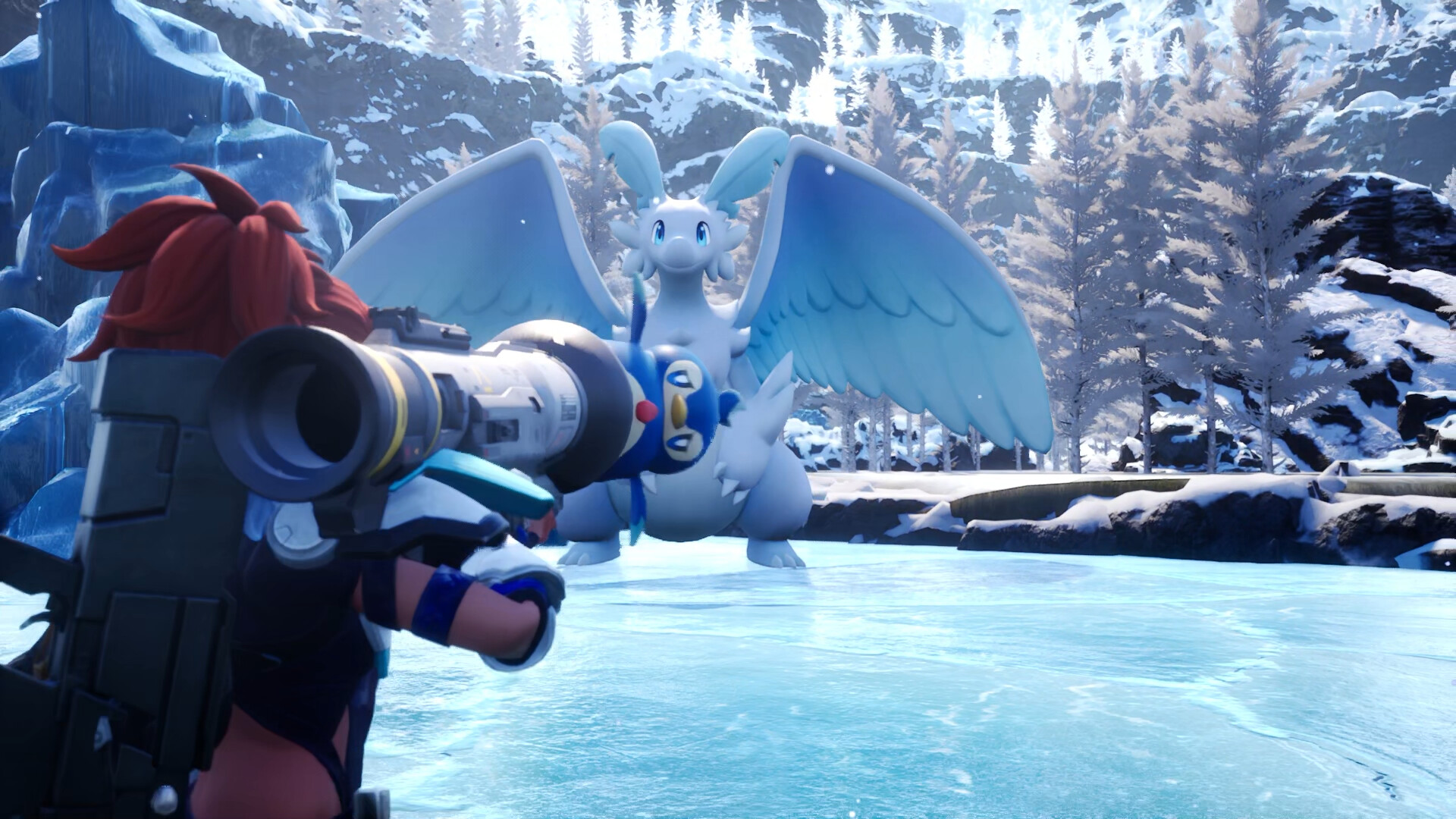
Palworld has no free-zoom camera; to zoom out, raise the Field of View (FoV) slider to 90 in Options > Graphics, and for an even wider view on mounts, increase Ride Camera Distance.
Palworld‘s camera sits closer than many players expect, and the game does not offer a dedicated zoom toggle or mouse-wheel function to pull it back. The only reliable built-in method is raising the Field of View (FoV) slider in the graphics menu, which effectively widens your lens and shows more of the world. For an even broader view while riding Pals, a separate Ride Camera Distance slider lets you double the mounted camera pullback.
Palworld uses an FoV slider, not a zoom wheel
A common misconception is that you can freely zoom out by scrolling the mouse wheel or pushing the right analog stick during normal gameplay. Palworld does not work this way; its camera distance is tied to FoV, not a classic zoom wheel. Some guides claim scroll-to-zoom works, but modding discussions and FoV guides treat the slider as the only reliable method, so treat any scroll-to-zoom advice as version- or platform-dependent and unverified.
Instead, point yourself to Options > Graphics. Scroll down and you will find the Field of View slider alongside the Ride Camera Distance option. The in-game FoV range runs roughly from 70 to 90, with 90 being the maximum that pulls the camera back as far as the vanilla game allows.
How to adjust Field of View and Ride Camera Distance to zoom out
STEP 1/8
Open the Options menu
Pause the game and enter the Options menu from the main screen.
STEP 2/8
Go to the Graphics tab
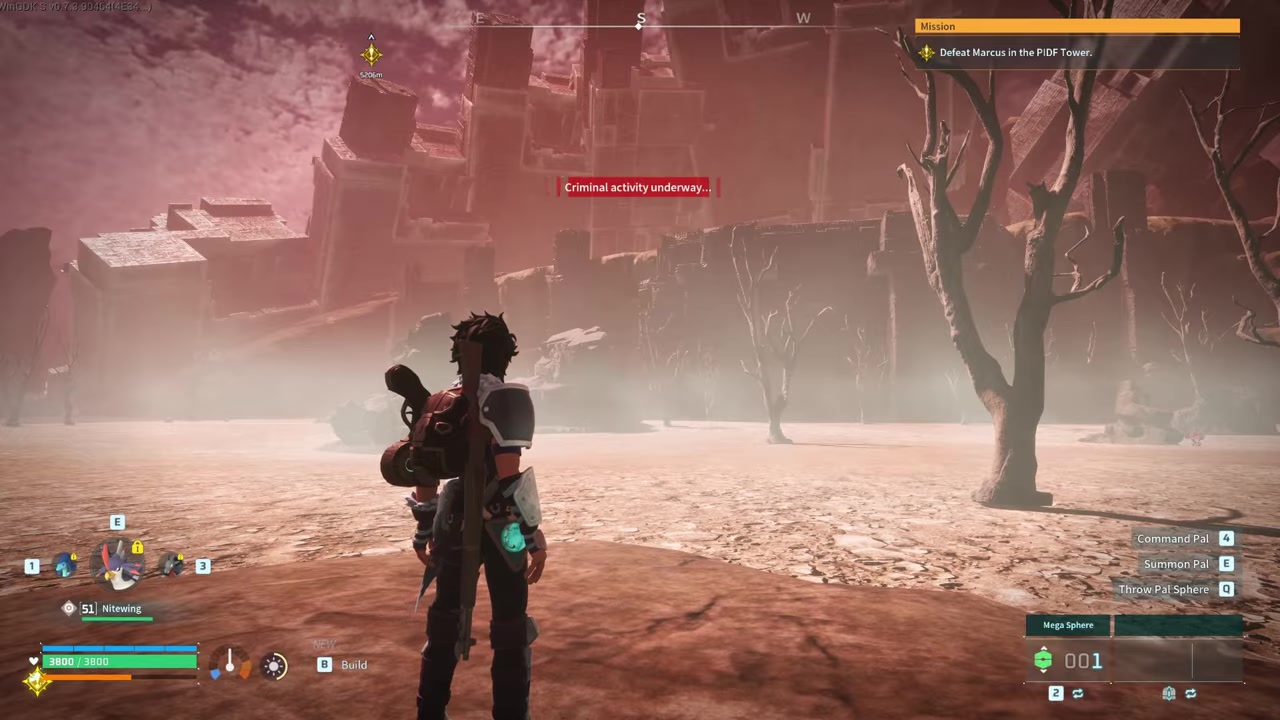
Navigate to the Graphics section where the camera settings live.
STEP 3/8
Scroll to Field of View
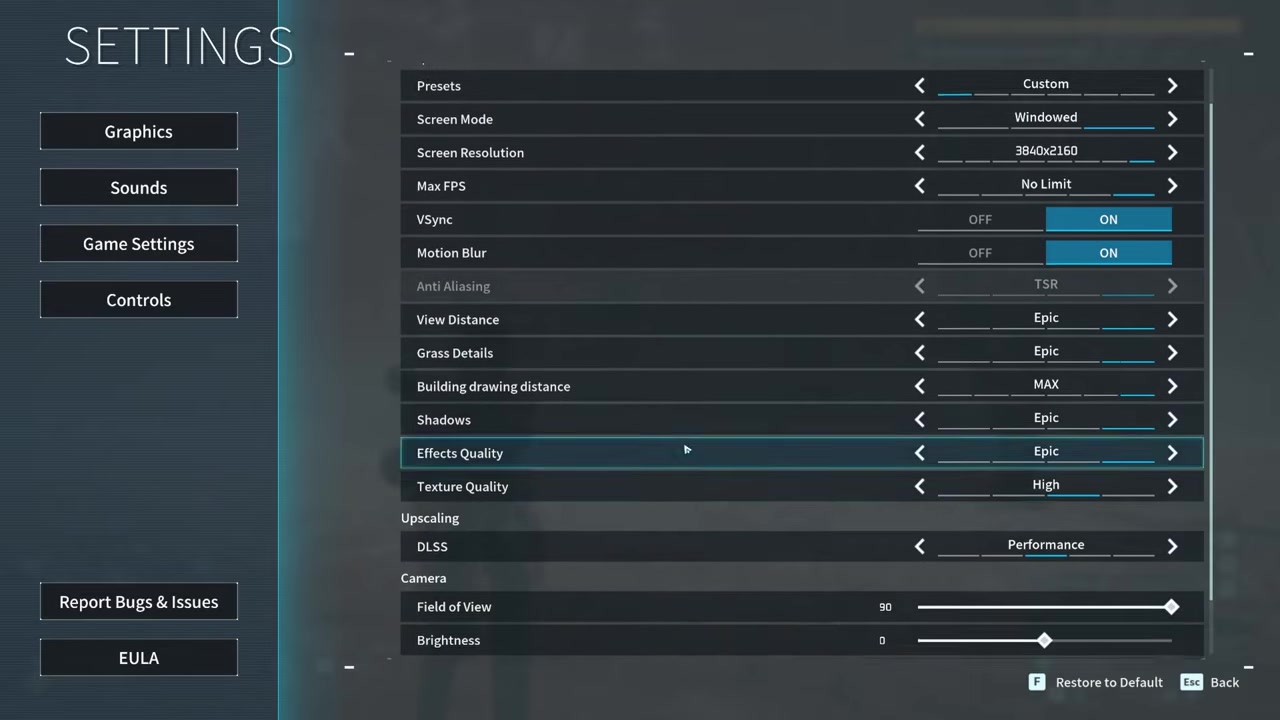
Scroll all the way down to locate the Field of View slider.
STEP 4/8
Increase the FoV slider
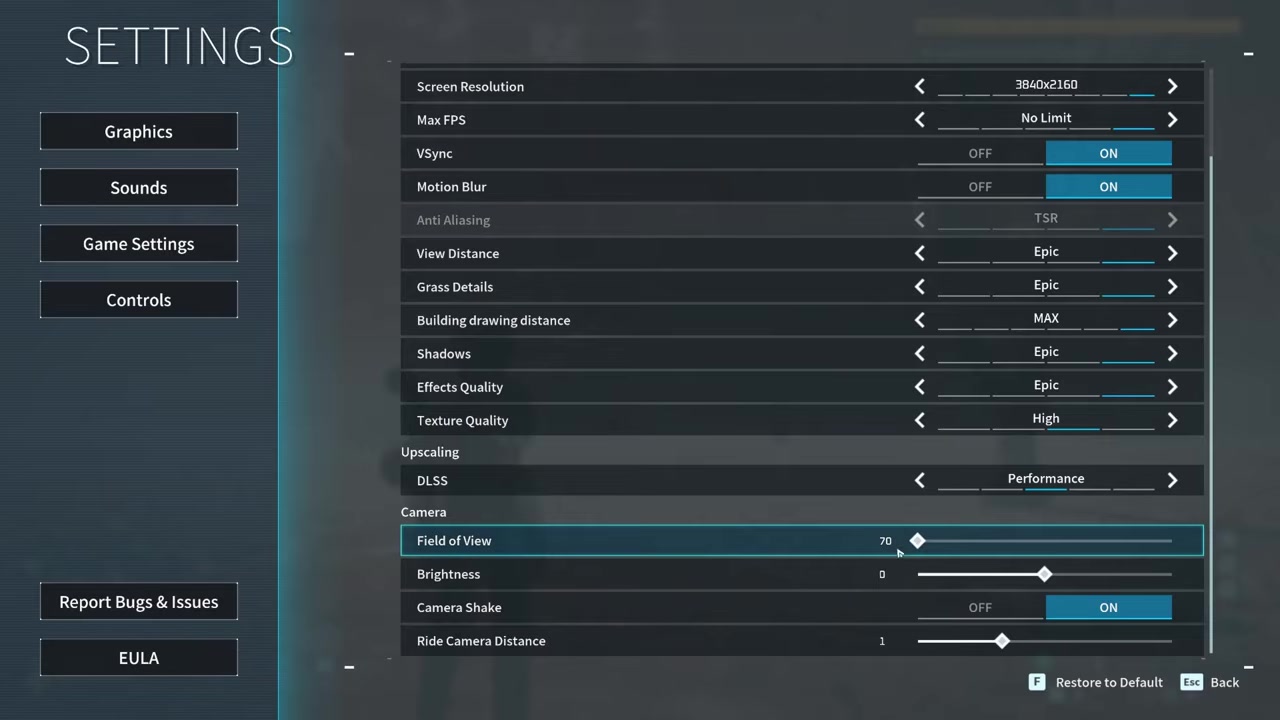
Raise the Field of View value up to 90 to pull the gameplay camera back.
STEP 5/8
Open Options again for mount settings
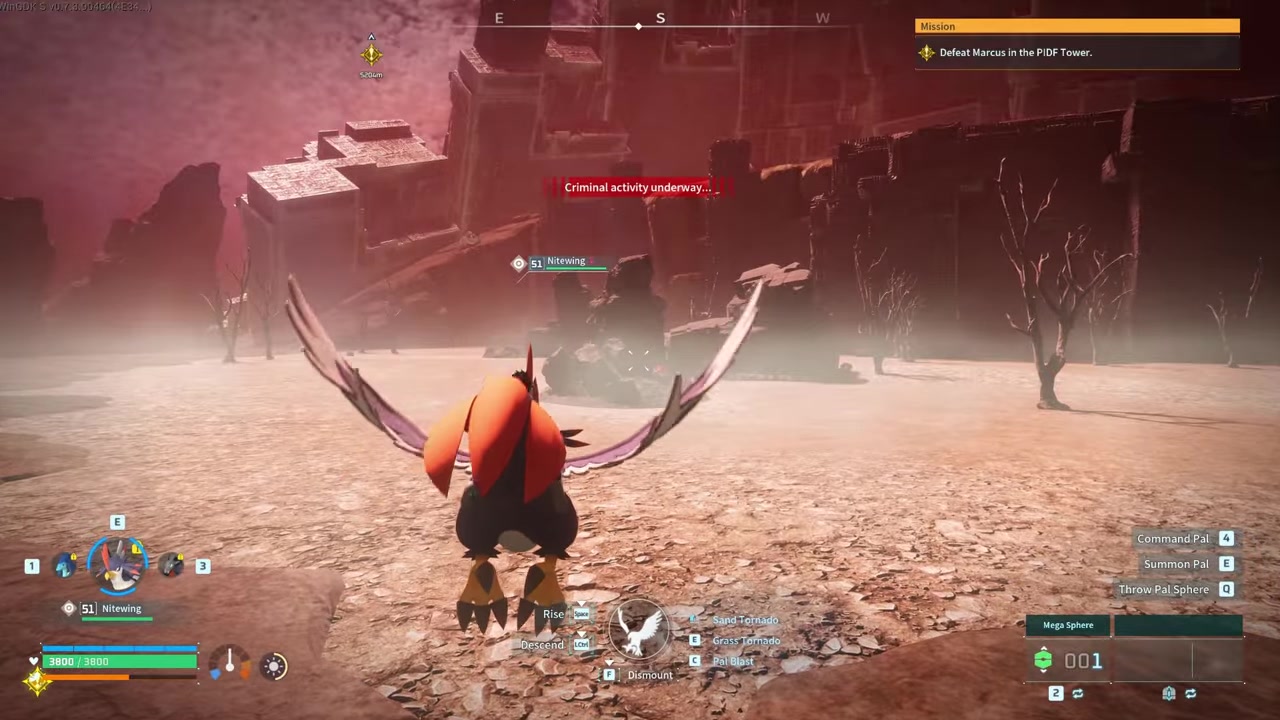
Re-enter the Options menu to adjust the mounted camera distance.
STEP 6/8
Set FoV back to 90
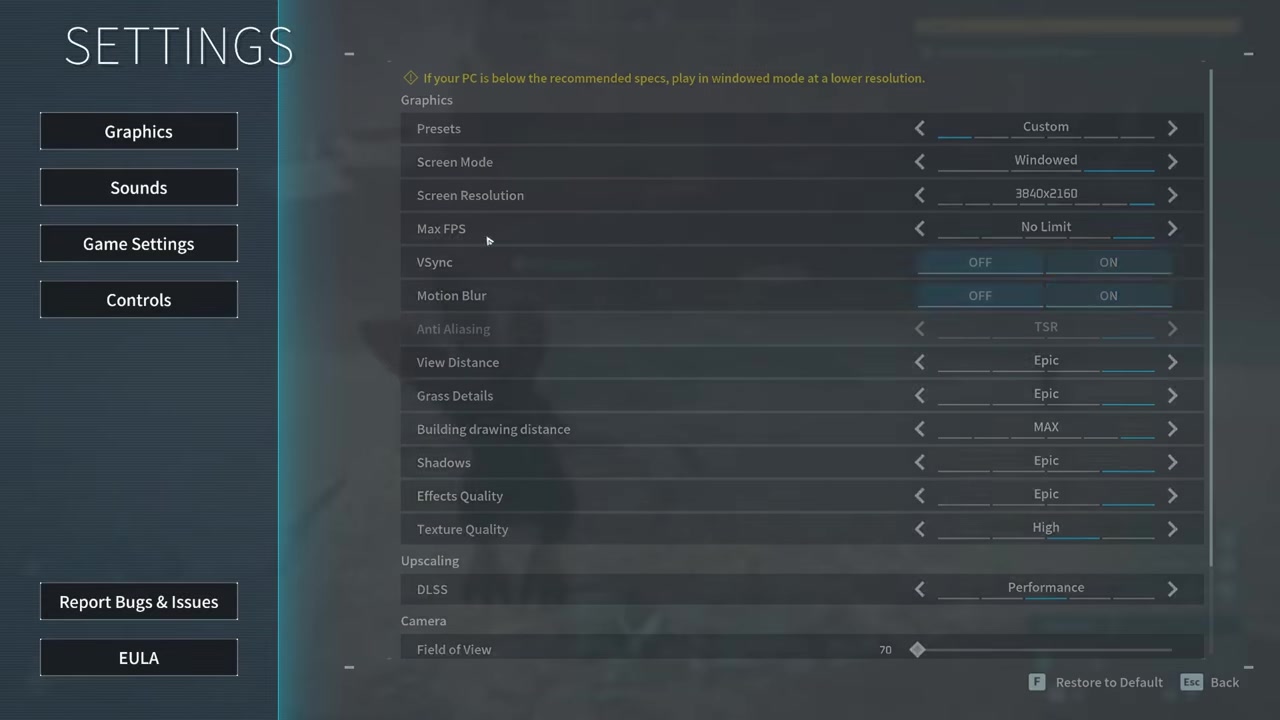
Ensure the Field of View is set back to 90 after testing on foot.
STEP 7/8
Locate Ride Camera Distance
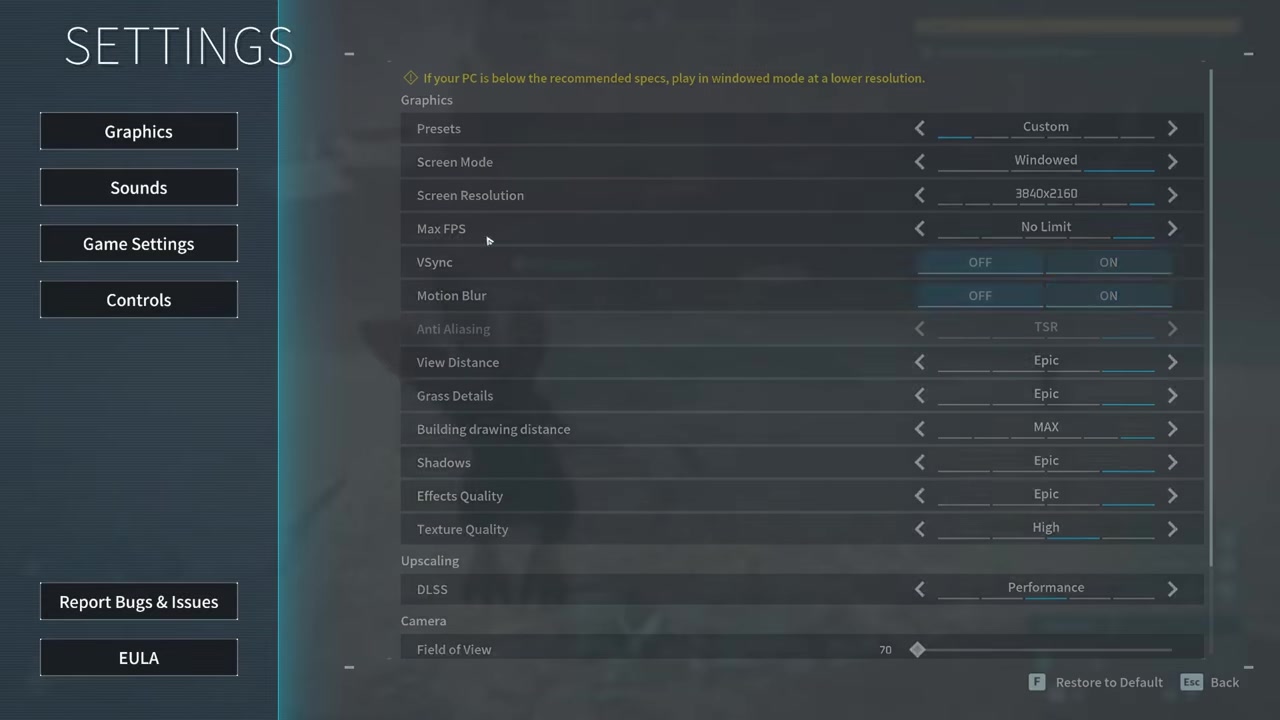
Look further down the Graphics menu for the Ride Camera Distance setting.
STEP 8/8
Increase Ride Camera Distance
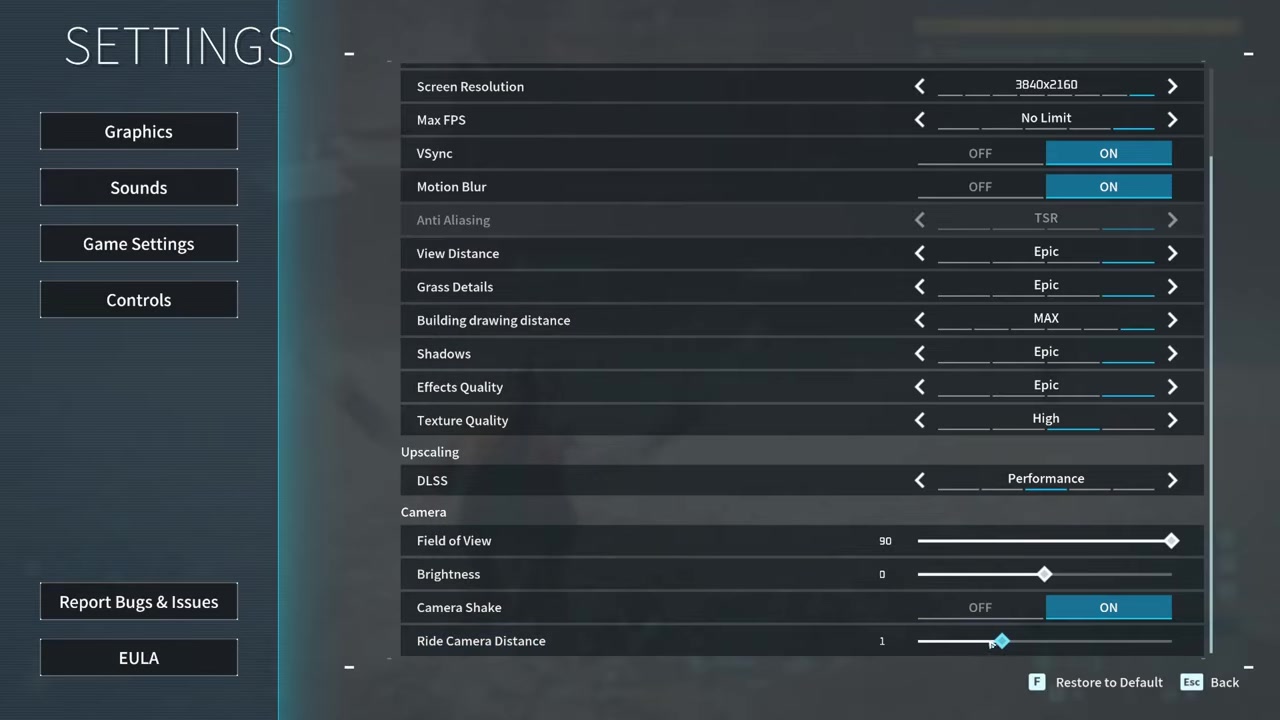
Raise the slider to double the mounted camera distance for a wider view while flying or riding.
Video help
The Engine.ini file edit for Ultrawide monitor players
Increasing the FoV slider to 90 helps on standard monitors, but many Ultrawide players find the camera still sits too close. Palworld scales the camera based on screen size, so the FoV fix alone does not correct the severe cropping on wider displays. A manual file edit is required to force the game to maintain a proper vertical field of view.
First, close Palworld completely. Press Win + R to open the Run dialog and enter the correct path for your platform: %LocalAppData%\Pal\Saved\Config\Windows for the Steam version, or %LocalAppData%\Pal\Saved\Config\WinGDK for the Game Pass version. Note that some game versions may label the directory IPal rather than Pal, so check both folder names if the path does not appear.
Open the Engine.ini file in a text editor. Add the following two lines to the very bottom of the file:
[/script/engine.localplayer]
AspectRatioAxisConstraint=AspectRatio_MaintainYFOV
PC mods that push zoom beyond the vanilla cap
| Mod | What It Does | Key Control / Multipliers | Platform & Caveats |
|---|---|---|---|
| Increased Camera Distance | Multiplies the default camera distance to pull the view further back. | 1.5x, 2x, or 3x multipliers | PC only. Works in local and online play, but check server rules. |
| Adjustable Camera | Adds full custom camera positioning via hotkeys; requires UE4SS. | Num2 zoom out, Num8 zoom in, NumDivide save | PC only. May conflict with anti-cheat on protected servers. |
| FOV Control | Allows finer control of overall FoV and AimFoV to reduce forced zoom while aiming. | Custom AimFoV values (e.g., 95) | PC only. Community-made; verify compatibility with your game version. |
If an FoV of 90 still feels too restrictive, PC players can install community mods that extend camera control well beyond the vanilla limits. These tools range from simple distance multipliers to fully hotkey-driven camera systems.
To instantly widen your view while riding flying or ground Pals, go to Options > Graphics and double the Ride Camera Distance slider alongside maxing your FoV to 90.
Map zoom controls and motion sickness mitigation
The gameplay camera is separate from the world map zoom. On a controller, pushing the right stick up and down zooms the map in and out, while the left stick or D-pad moves the cursor. You cannot warp or fast-travel while your character is moving or performing actions, so stand still before interacting with the map.
Frequently Asked Questions
Can I zoom out with the mouse scroll wheel or right analog stick during normal gameplay?
No. Palworld does not have a dedicated zoom toggle or mouse scroll function for the gameplay camera. Some guides claim scroll-to-zoom works, but the FoV slider is the only reliable built-in method, and any scroll-wheel advice is version- or platform-dependent and unverified.
How do I zoom out while flying on a mounted Pal?
Raise the FoV slider to 90 in Options > Graphics, then locate the Ride Camera Distance slider further down the same menu. Increasing this slider doubles the mounted camera distance, pulling the view back so you can see more of the world while flying or riding ground Pals.
Why does the camera still feel too close on my Ultrawide monitor even after maxing FoV?
Palworld scales its camera based on screen size, so maxing the FoV slider does not fix the cropping on Ultrawide displays. You need to edit the Engine.ini file by adding the AspectRatioAxisConstraint line, then set the file to Read-only to prevent the game from reverting the fix.
Will using camera mods get me banned on official servers?
It is possible. Camera mods are community-made, PC-only tools that may conflict with anti-cheat systems on official or protected servers. Always check the server rules and mod documentation before installing any camera-altering modifications.

Leave a Reply