
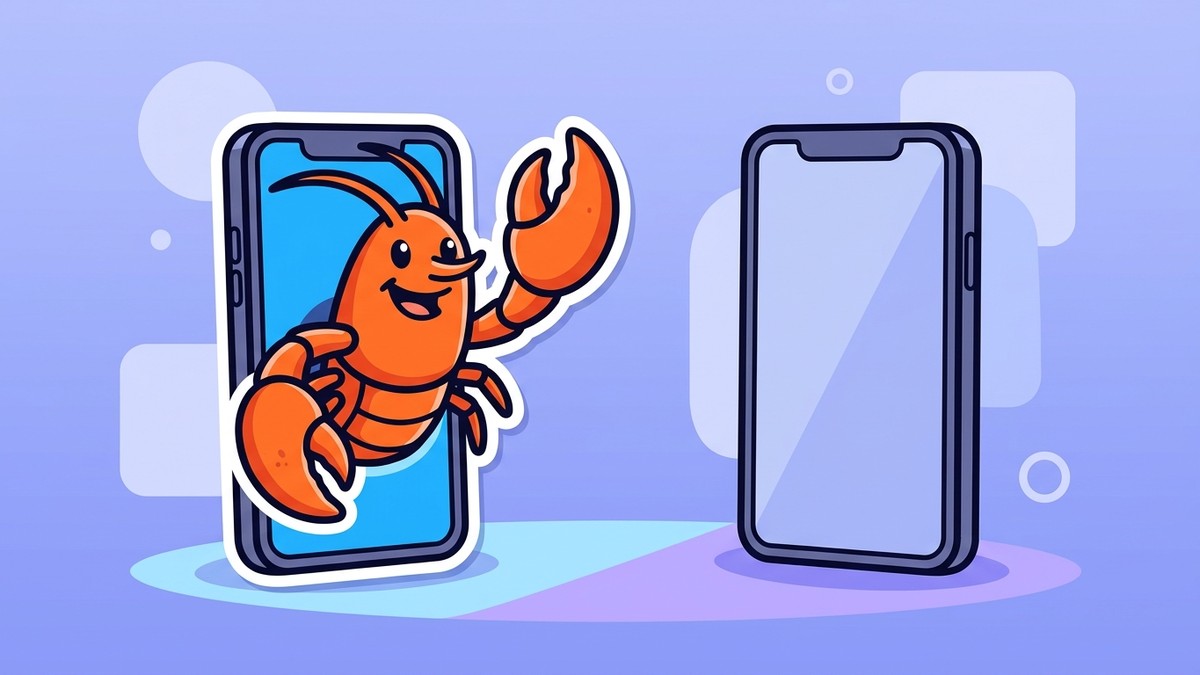
OpenClaw now has official apps on the App Store and Google Play. They are not standalone chatbots — each app is a companion node that pairs with your self-hosted OpenClaw Gateway by QR or setup code, giving your agent your phone’s camera, voice, location, and approvals on the go.
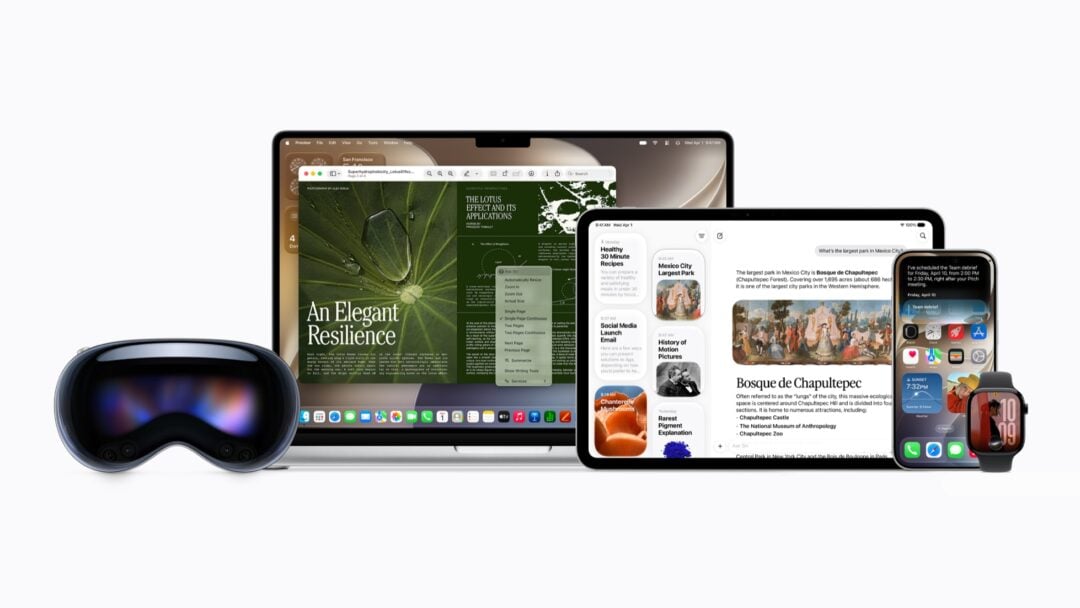
OpenClaw — the self-hosted personal AI assistant that crossed 380K+ GitHub stars this year — has put its agents in your pocket. The project announced native iOS and Android apps, both free and live on the official stores. The iPhone build (currently version 2026.6.10) needs iOS 18 or later and also runs on iPad, Mac (M1+), and Apple Watch; the Android app ships under the ai.openclaw.app package.
What the OpenClaw mobile apps actually do
Once paired, the mobile app turns your phone into a secure node on your own OpenClaw setup.
From the listing and docs, that means: chat with your assistant from the phone; realtime and background Talk mode (push-to-talk plus voice wake); reviewing and approving Gateway actions from your pocket; sharing text, links, and media straight from iOS or Android into OpenClaw; and a canvas the agent can drive to render interactive content on your screen. Channels, tasks, and replies all sync, so you can run agents from wherever your thumbs are.
How to get OpenClaw on your phone
- Install the app. Grab it on the App Store (iPhone, iPad, Mac, Apple Watch) or Google Play for Android. Both are free.
- Make sure your Gateway is running. You need an OpenClaw Gateway up on your own machine first — the phone app is a node, not a hosted account. If you do not have one yet, follow the OpenClaw setup guide before pairing.
- Pair the phone. Open the app and connect to your Gateway by scanning its QR code or entering the setup code, then approve the pairing request from the Gateway side.
- Grant the powers you want. Enable Talk mode, camera, location, photos, and other device capabilities individually — each is opt-in, so the agent only gets what you allow.
One caveat worth repeating: because everything routes through your self-hosted Gateway, the apps are aimed at people already running OpenClaw rather than newcomers looking for a plug-and-play assistant. Note too that several third-party OpenClaw apps already exist on the stores — these new ones are the project’s own first-party builds.

Leave a Reply