
For the best Mistfall Hunter FPS without ruining visibility, use Borderless Window, turn V-Sync off, cap FPS near your monitor refresh, run DLSS/FSR on Quality or Balanced, disable Ray Tracing and Motion Blur, lower Shadows/View Distance/Global Illumination, and set Texture Quality by VRAM.
Mistfall Hunter can punish PCs that leave expensive lighting, shadows, and uncapped frame delivery running together, especially in PvPvE fights. There is no verified web record of a July 30, 2026 stability patch improving crashes, loading hitches, Camp frame-rate issues, inventory/map slowdowns, or combat micro-stutters, so the right settings still matter if you want smooth play without making the game look muddy.
Best Mistfall Hunter PC settings for FPS and visuals
| Setting | Use |
|---|---|
| Display | |
| Window Mode | Borderless Window |
| Resolution | Native monitor resolution |
| V-Sync | Off |
| Frame Rate Limit | Match monitor refresh; use 144 FPS on 240 Hz or higher screens |
| Upscaling | |
| Anti-aliasing Type | NVIDIA DLSS on RTX, FSR on AMD |
| DLSS/FSR Mode | Quality first; Balanced if more FPS is needed |
| Frame Generation | On if supported; expect some added input delay |
| Heavy Graphics | |
| Ray Tracing | Off |
| Shadow Quality | Low |
| View Distance | Low |
| Global Illumination | Low |
| Visual Quality | |
| Character Animation Quality | Balance |
| Texture Quality | High at 8 GB+ VRAM, Medium at 6 GB, Low below 6 GB |
| SFX Quality | Low |
| Post-processing | Moderate on high-end PCs; Low on mid/low-end PCs |
| Motion Blur | Off |
KEY!Use this as the baseline custom preset, then only raise individual settings when your FPS cap is already stable. The biggest wins come from removing the settings that hurt both performance and visibility, while preserving enough animation and texture clarity to read fights properly.
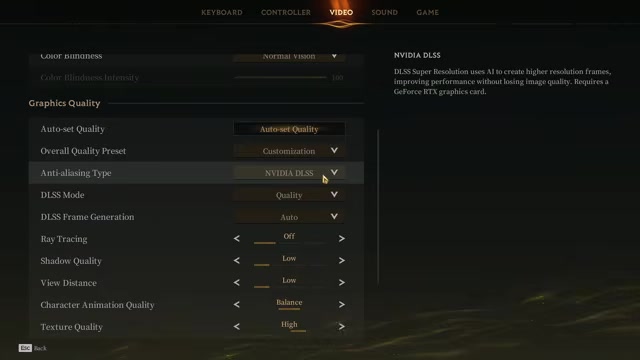
Display settings for smoother frame pacing
| Monitor | Frame cap |
|---|---|
| 60 Hz | 60 FPS |
| 120 Hz | 120 FPS |
| 144 Hz | 144 FPS |
| 240 Hz+ | 144 FPS first |
Borderless Window is the best starting point here because it keeps app switching painless and matches the in-game guidance. Some PC setups may frame-pace better in Fullscreen or Exclusive Fullscreen, so treat display mode as the one setting worth testing if Borderless still feels uneven after the rest of the pass.
Keep V-Sync Off for lower input delay, and keep the game at your native resolution so enemies, UI, and distant objects do not smear. The frame cap matters more than chasing the highest number: an uncapped game can swing harder and feel worse than a locked 120 or 144 FPS.
If Mistfall Hunter still feels uneven after the graphics pass, cap Frame Rate Limit instead of using Unlimited; a steady 120 or 144 FPS usually feels cleaner than wide swings.
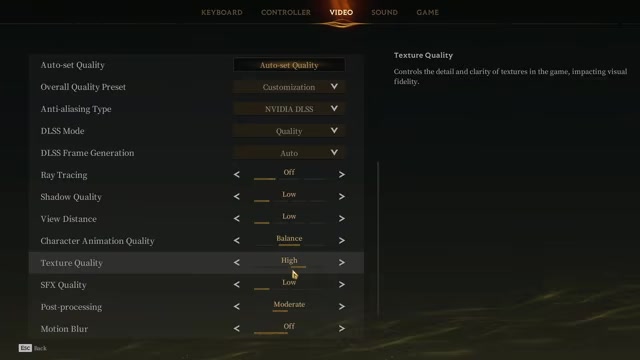
DLSS, FSR, and Frame Generation choices
| GPU type | Upscaling setting |
|---|---|
| GeForce RTX | NVIDIA DLSS on Quality; Balanced for more FPS |
| AMD Radeon | FSR on Quality; Balanced for more FPS |
For upscaling, pick the option that matches your GPU rather than forcing a generic compromise. Quality is the default because it keeps the cleanest image; Balanced is the first fallback when you need more FPS. Going lower than Balanced is where the image starts taking a visible hit.
DLSS Frame Generation is worth enabling on supported RTX cards when your base frame rate is already playable and you want smoother motion. It can add input latency, so leave it off if mouse response feels softer than the FPS gain is worth.
Apply the recommended Mistfall Hunter settings in order
Work down the graphics menu in this order so the heavy FPS cuts happen before you fine-tune image quality.
- Set Window Mode and V-Sync — Select Borderless Window and turn Vertical Sync off to reduce input delay.
- Cap Frame Rate Limit — Match your monitor refresh rate, or use 144 FPS on a 240 Hz or higher display to avoid the stutter that can come with Unlimited.
- Pick DLSS or FSR — Use NVIDIA DLSS Quality on RTX cards or FSR Quality on AMD cards, then drop to Balanced only if you still need more FPS.
- Enable supported Frame Generation — Turn DLSS Frame Generation on if your RTX card supports it, while keeping the added input-latency tradeoff in mind.
- Disable Ray Tracing — Turn Ray Tracing off for FPS and cleaner visibility in fights.
- Lower Shadows and View Distance — Set Shadow Quality and View Distance to Low; Low View Distance still keeps distant players visible.
- Keep animations readable — Set Character Animation Quality to Balance so player moves remain easier to read than on the lowest setting.
- Match Texture Quality to VRAM — Use High for 8 GB or more VRAM, Medium for 6 GB, and Low below that.
- Drop effects and post-processing load — Set SFX Quality to Low, then use Moderate Post-processing on high-end PCs or Low on mid/low-end PCs.
- Remove visual noise and lighting cost — Turn Motion Blur off and set Global Illumination to Low.
Visual settings that protect combat readability
| VRAM | Texture Quality |
|---|---|
| 8 GB or higher | High |
| 6 GB | Medium |
| Below 6 GB | Low |
Character Animation Quality should stay at Balance, not the lowest option. When too many players are on screen, this setting affects how player animations are adjusted for smoothness, and dropping it too far can make enemy movement harder to read.
Post-processing is the setting to split by PC tier. High-end rigs can use Moderate for a cleaner presentation, while midrange and low-end systems should use Low so fights stay clearer and frame drops are less likely to stack with shadows, effects, and lighting.
Stutter fixes after changing Mistfall Hunter settings
If the game still stutters, put Mistfall Hunter on an SSD so area loads and streaming hitches have less room to spike. Also update your GPU driver before judging Frame Generation or upscaling behavior.
Close unnecessary overlays while testing, especially performance counters, capture tools, and extra launcher overlays you do not need in the moment. If you still want more FPS after the in-game pass, GPU or Ryzen CPU overclocking is an advanced next step, not a required fix.
Frequently Asked Questions
Should I use Unlimited FPS in Mistfall Hunter?
No. The menu includes Unlimited, but Mistfall Hunter also offers fixed caps like 30, 60, 120, and 144; use a fixed cap for play and keep Unlimited only for quick testing.
Should V-Sync be on or off in Mistfall Hunter?
Keep V-Sync Off when you care about input delay. If screen tearing bothers you more than latency, test it briefly after setting a frame cap so you are changing one variable at a time.
Is DLSS or FSR better for Mistfall Hunter?
Use the one built for your GPU: DLSS on GeForce RTX and FSR on AMD Radeon. The image mode matters more than the brand name, with Quality for clarity and Balanced for extra FPS.
Should I turn on DLSS Frame Generation in Mistfall Hunter?
Turn it on only if your card supports it and you are comfortable trading some input feel for a smoother FPS number. Avoid combining in-game DLSS Frame Generation with Nvidia App AI Frame Interpolation on Nvidia drivers prior to 596.36.
What Texture Quality should I use for 6 GB or 8 GB VRAM?
Use Medium on 6 GB cards and High on 8 GB or higher cards. Drop to Low below 6 GB, or when texture streaming hitches are more distracting than the clarity loss.
More questions⤵
Does Low View Distance make it harder to see players in Mistfall Hunter?
No. Low View Distance still leaves players visible at long range, so it is a good FPS cut before you start damaging animation readability or texture clarity.
Video help
Leave a Reply