What to know
-
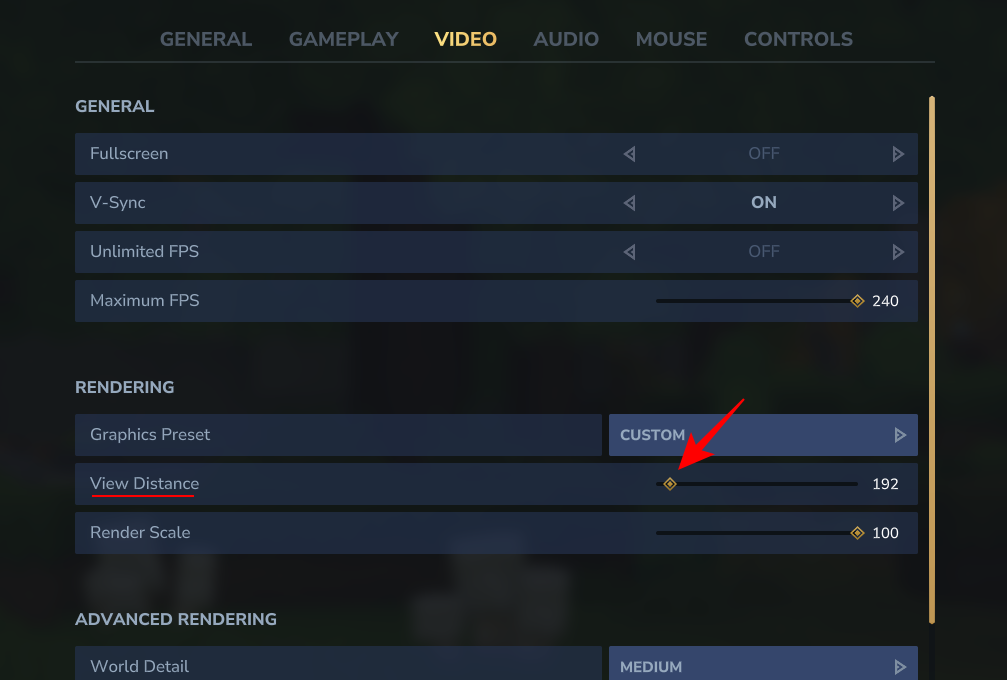
Lower view distance to 192 chunks reduces chunk loading and stuttering during exploration.
-
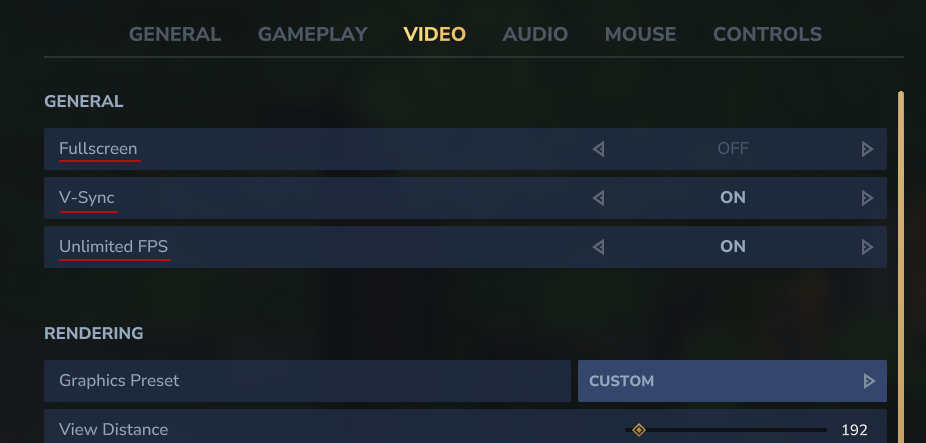
Disable VSync, shadows, and post-processing like Bloom for immediate FPS gains without config edits.
-
Press F8 to hide the HUD or hotbar, boosting FPS by up to 60% in some cases.
-
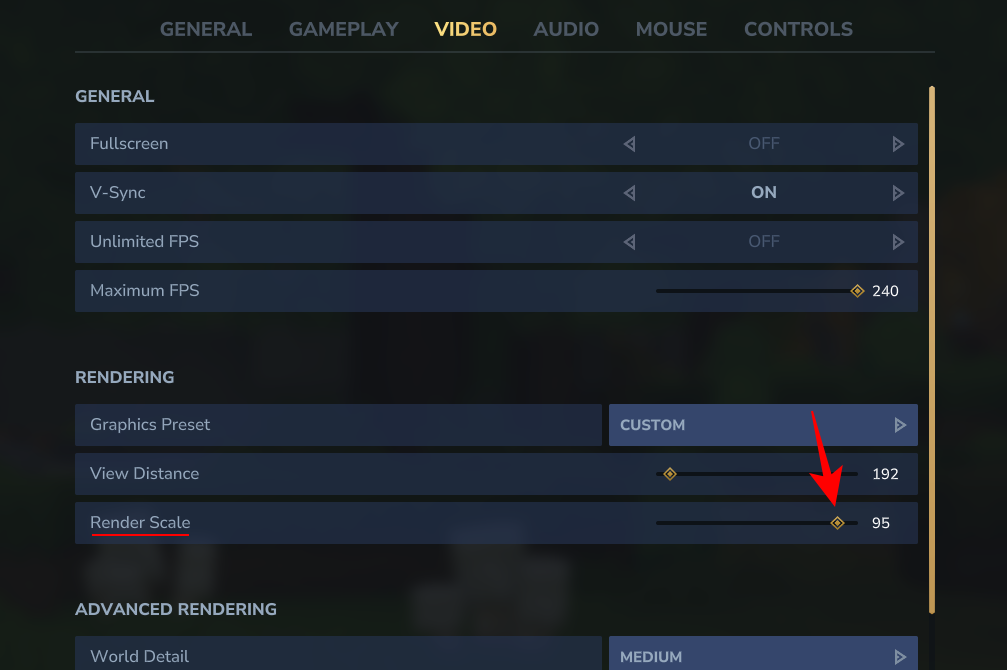
Set render scale to 95% to ease GPU load while keeping visuals sharp.
While Hytale is designed to run on a variety of hardware, players with older systems or those looking for the highest possible frame rates can benefit from specific adjustments. By prioritizing performance over high-fidelity visuals, you can ensure that your gameplay remains fluid across all parts of Orbis.
| Setting | Recommended Value | FPS Impact |
|---|---|---|
| View Distance | 192 | High (reduces chunk load) |
| Render Scale | 95% | Medium (lowers resolution rendering) |
| VSync | Off | High (no frame cap) |
| Shadows | Off/Low | High (skips shadow passes) |
| FOV | Lower (default -10%) | Medium (fewer objects rendered) |
| HUD/Hotbar | Off (F8 key) | Up to 60% boost |
How to access and tweak settings
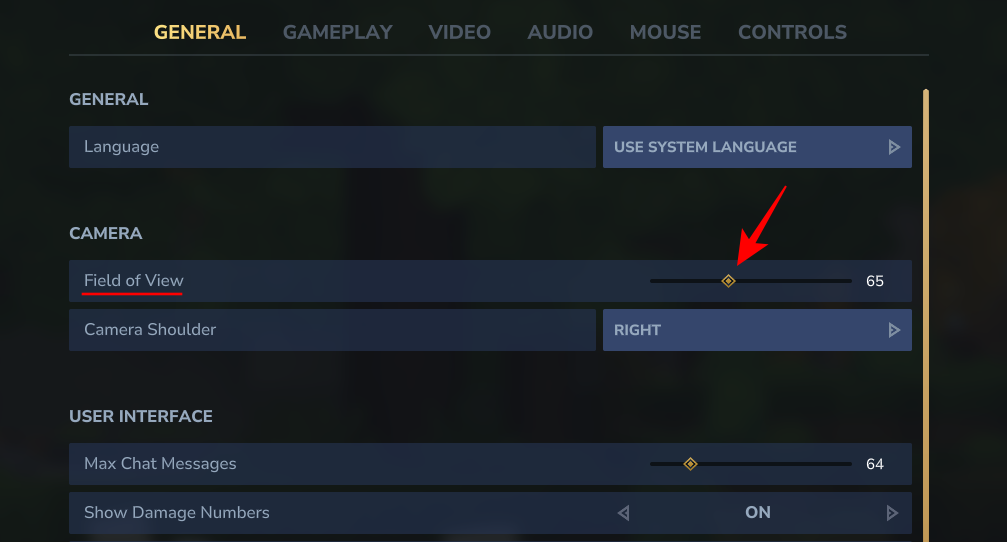
Press Escape in Hytale to open the menu, then navigate to Settings > General for FOV, and Video for “Rendering Options”. Experiment with presets like Low or Custom before fine-tuning—save changes after each adjustment to test in-game.
How to boost FPS step by step
Step 1
Go to General tab, lower Field of View to reduce rendered objects per frame—increasing FPS noticeably on mid-range PCs.
Step 2
Switch to Video > Rendering, set View Distance to 192 (or 128-160 on low-end) to cut chunk simulation and exploration stutters.
Step 3
Drop Render Scale to 95% (or 90% if GPU maxed)—renders at lower res then stretches, trading minor visuals for big FPS uplift.
Step 4
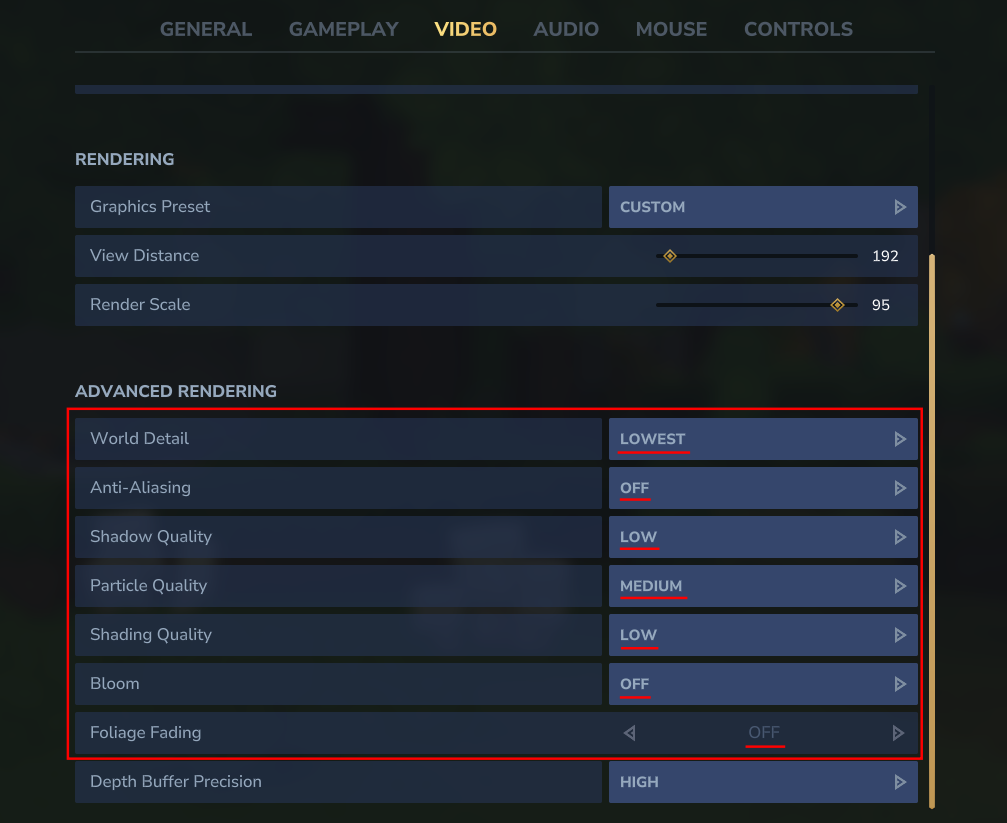
In Advanced Rendering, set World’s Detail to Lowest, Anti-Aliasing off, Shadows Low, Particles Medium/Low, Shading Low, Bloom Off, Foliage Fading Off.
Step 5
Toggle VSync Off, Fullscreen On, Unlimited FPS On (or cap at monitor refresh like 144 for stability).
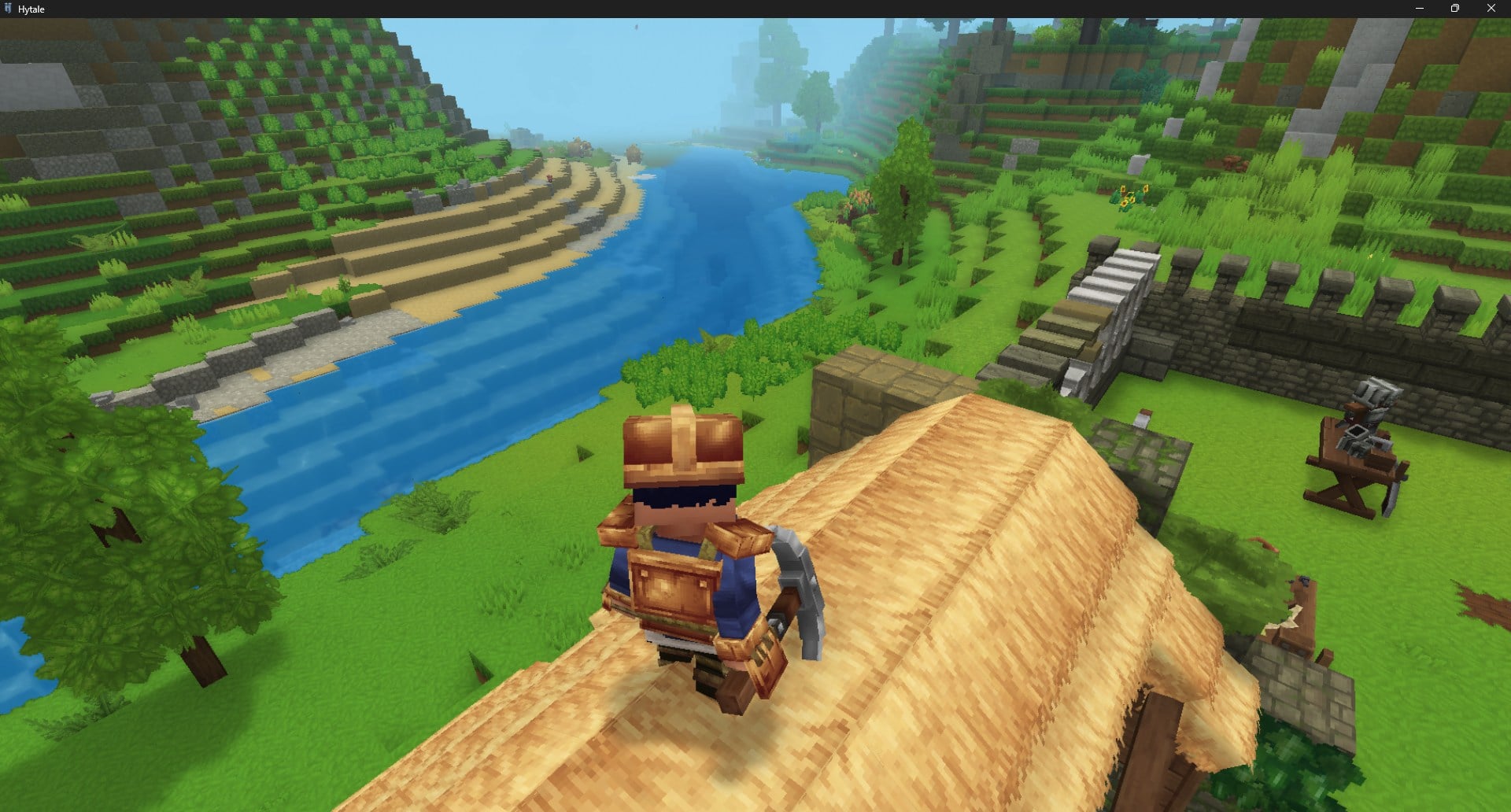
Press F8 to hide HUD/hotbar for extra 60% gain.
Step 6
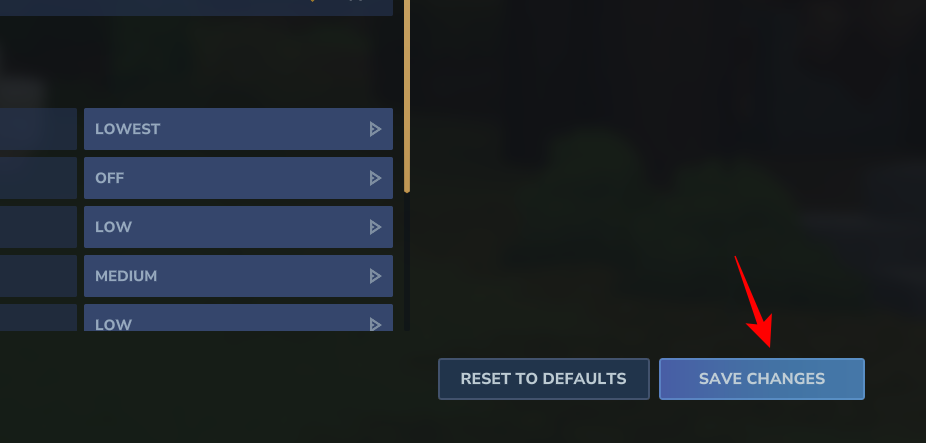
Save changes, restart if needed, and monitor FPS—close background apps and update GPU drivers (OpenGL 4.1+) for best results.
These changes let you run Hytale smoothly even on decade-old hardware, balancing visuals and frames—you’ll notice less lag in PvP or exploration right away.