
Yes — open the Options menu, go to Customize HUD, select GOAT Skill Graphics, and set it to Off (or Quick to shorten it instead of removing it entirely).
Every time you hit the requirements for a GOAT skill in open court or during a game, activating it with R2 triggers a flashy cutscene that eats a few seconds of real playing time. In NBA 2K27 that animation is tucked behind a single HUD setting, so you can either kill it outright or trim it down to something you can live with. Here is exactly where the toggle lives and what each option does.
How to turn off the GOAT skill animation in NBA 2K27
The whole change lives in one HUD menu, so it takes about four button presses from the pause screen.
STEP 1/5
Open the Options menu
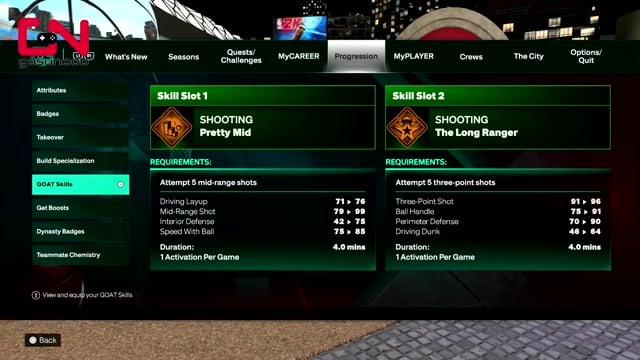
Press Options on your controller while you are in the City or MyCAREER hub.
STEP 2/5
Move to the Options tab
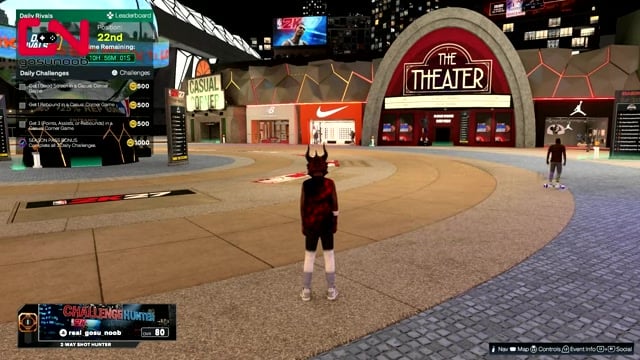
Slide all the way to the right along the top menu until you reach the Options/Quit tab.
STEP 3/5
Open Customize HUD
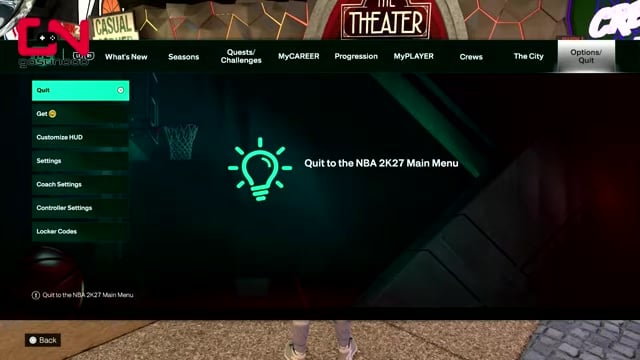
Select Customize HUD — this is where every on-court visual toggle for indicators, releases and graphics is kept.
STEP 4/5
Scroll to GOAT Skill Graphics
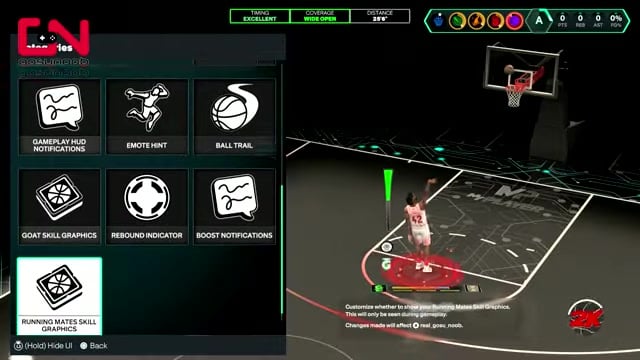
Move down the grid until you land on the GOAT Skill Graphics tile.
STEP 5/5
Select it and choose your setting
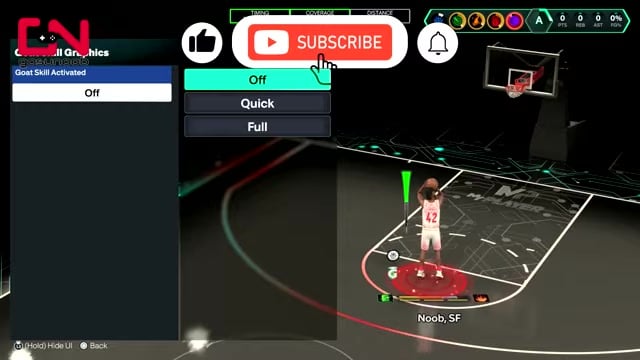
Open the tile and pick Off to remove the animation completely, or Quick if you want to shorten it.
Video help
What Off, Quick, and Full each change
| Setting | What it does |
|---|---|
| Off | Removes the activation animation entirely |
| Quick | Plays a shortened version of it |
| Full | The long default animation |
Key GOAT Skill Graphics gives you three choices and nothing more, so you are simply deciding how much of the activation you want to sit through. Off is the clean break, Quick keeps a trimmed flourish, and Full is the long default you are probably reading this to escape.
Other HUD toggles worth silencing here
Since you are already in Customize HUD, it is the same menu that holds Perfect Release Animation & SFX, Player Indicator and Takeover Icon, so anything else cluttering your screen can go in the same visit. To get the GOAT slow-mo gone even in scripted moments, turn off Highlight Play Camera Cuts in settings, which stops the game from cutting to the skill cutscene. The one thing there is no dedicated switch for is the pop-up notification banner that announces a GOAT skill — that rides along with the graphics setting rather than having its own toggle.
When the setting resets or skills stop firing
Two things are worth bracing for. The GOAT Skill Graphics choice will not stick and flips back on by itself, so the animation returns and needs disabling again. The bigger issue hits offline MyCAREER saves: after roughly your fifth or sixth season, GOAT skills and teammate boosts simply stop activating altogether, breaking that mode’s progression. Neither has been called out by 2K, so treat this as a repeat-farm route if you are trying to maintain a clean HUD.
Frequently Asked Questions
Does turning this off disable the GOAT skill itself?
No. The GOAT Skill Graphics setting only controls the activation visual — the skill still triggers normally when you press R2 and meet the requirements. Setting it to Off or Quick hides or trims the cutscene, but you keep every gameplay benefit the skill provides.
Why does the setting keep turning back on?
HUD settings reset repeatedly due to a bug, and it is not limited to this one — the shot meter often flips back on at the same time. There is no permanent fix beyond re-entering Customize HUD and switching GOAT Skill Graphics back to Off whenever it reverts, so double-check the menu if the long animation suddenly reappears.
Leave a Reply